Halo Asset Discovery (Lansweeper Cloud Integration)
- lansweeper
- Assets
- Asset
- Halo Asset Discovery
- HAD
- LS
- Asset Discovery
- Discovery
In this guide we will cover:
- What is Halo Asset Discovery?
- Requirements of the Integration
- Connecting to Halo Asset Discovery
- Adding Mappings
- Optional Configuration
- Importing Assets
- Connecting to the Halo Integrator
What is Halo Asset Discovery?
Halo Asset Discovery is the hosted cloud version of Lansweeper, allowing import and management of assets.
Requirements of the Integration
This guide explains how to connect Lansweeper's Web Application with Halo's Asset Discovery integration. While demonstrated in trial instances, the setup for a connection between two production instances follows identical steps.
The following is required for setup of this integration:
- Purchase of Halo Asset Discovery via an agreement between your organization and Halo Service Solutions or a previous purchase of Lansweeper.
- Lansweeper's Hosted Version known as "Lansweeper Sites".
- If your Lansweeper instance is hosted in an On-Prem SQL database instead of Lansweeper's Web App, we suggest considering a discussion with your Lansweeper representative. Explore the feasibility of transitioning to Lansweeper's hosted version, their flagship product featuring all the latest and future developments, along with robust support services.
- For connecting On-Prem SQL Database Lansweeper instances:
- If your Lansweeper instance is hosted in an On-Prem SQL database instead of Lansweeper's Web App, we suggest considering a discussion with your Lansweeper representative. Explore the feasibility of transitioning to Lansweeper's hosted version, their flagship product featuring all the latest and future developments, along with robust support services.
- Lansweeper to be setup (Please contact your designated Custmer Success Manager to assist with this).
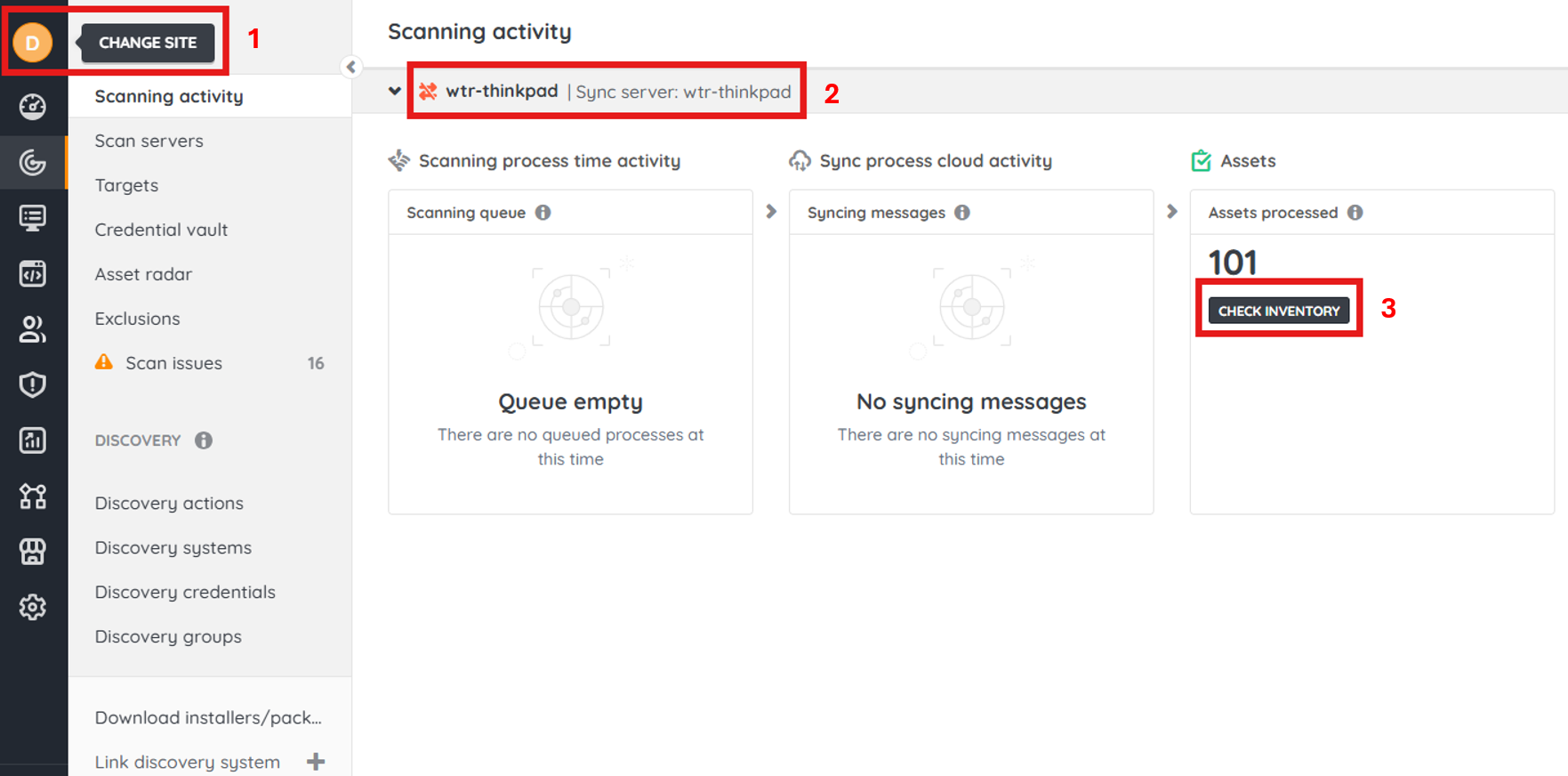
Fig 1. Lansweeper setup.
- Site prepared.
- Scanning device.
- Assets processed.
Connecting to Halo Asset Discovery
Navigate to your Halo Asset Discovery integration setup page. You can find this in Configuration > Integrations > Halo Asset Discovery or <Halo Agent Portal URL>/config/integrations/haloassetdiscovery.
Click "Authorize Application".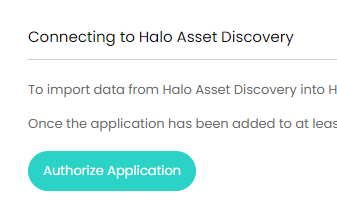
Fig 2. Authorize Application button.
This will redirect you to your hosted instance of Lansweeper. You will then be redirected back to Halo where you can start making specific configuration changes.
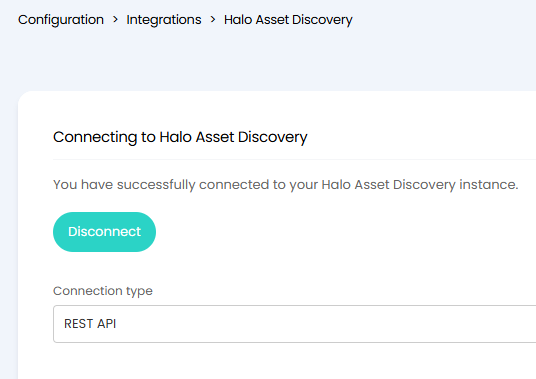
Fig 3. Connected Halo Asset Discovery instance with a connection type set.
Choose a connection type from the below.
- REST API (Representational State Transfer API) - Recommended.
- REST APIs are designed to provide a standardized way for clients to interact with a server or web service, enabling CRUD (Create, Read, Update, Delete) operations on resources through the use of HTTP methods and URLs.
- Export API.
- Export APIs are primarily focused on allowing users or external systems to extract data from a system or application in a structured format, such as CSV, Excel, or XML, often including features like pagination and filtering to facilitate data retrieval.
Adding Mappings
Click the "Add" button under the "Site Mappings" table to configure Halo to import assets from a specific site in Lansweeper to a specific site in Halo.
The "IP Address" criteria can be set within a range here.

Fig 4. Site Mappings table.
The following popup will then show to configure the mapping.
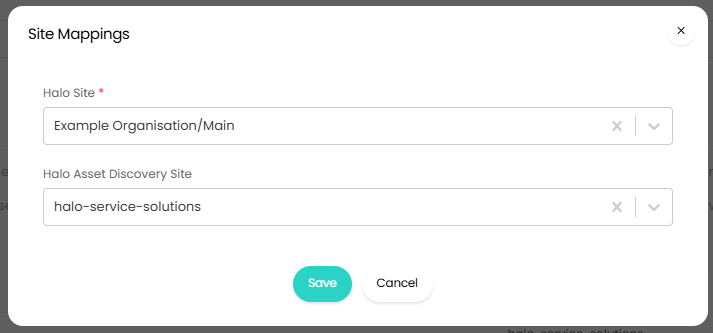
Fig 5. Adding site mappings.
There is also the ability to route to different sites based on site rules. To utilise these rules you will need to set up a mapping under Site Mappings using the value '*Determine site via rules*'
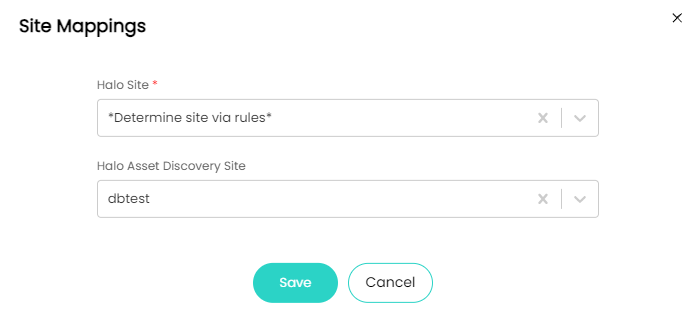
Fig 6. Determine Site via Rules
When this is set, you can create new site rules, via the site rules table, such as the criteria for a certain IP range.
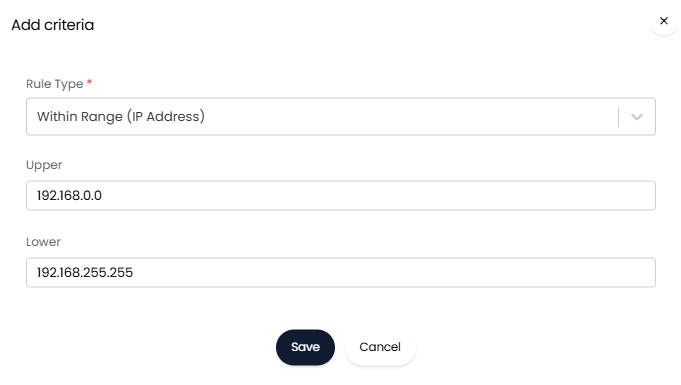
Fig 7. Criteria for Site Rules
Now if the imported asset matches an IP address within this range, it will be routed to the Halo House site
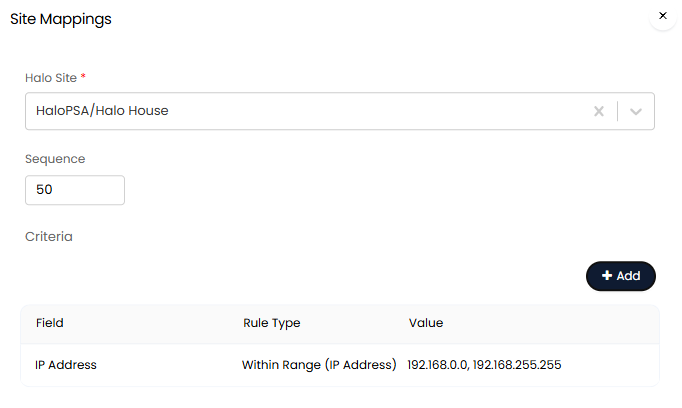
Fig 8. IP Address Range Criteria for a Site Rule Mapping
From v2.256+ Criteria Groups can be used in your Site Mapping Rules. To use Criteria Groups enable the "Use Criteria Groups" checkbox.
Note: This setting will enable Criiteria groups for both Site Mappings and Asset Type Mappings.
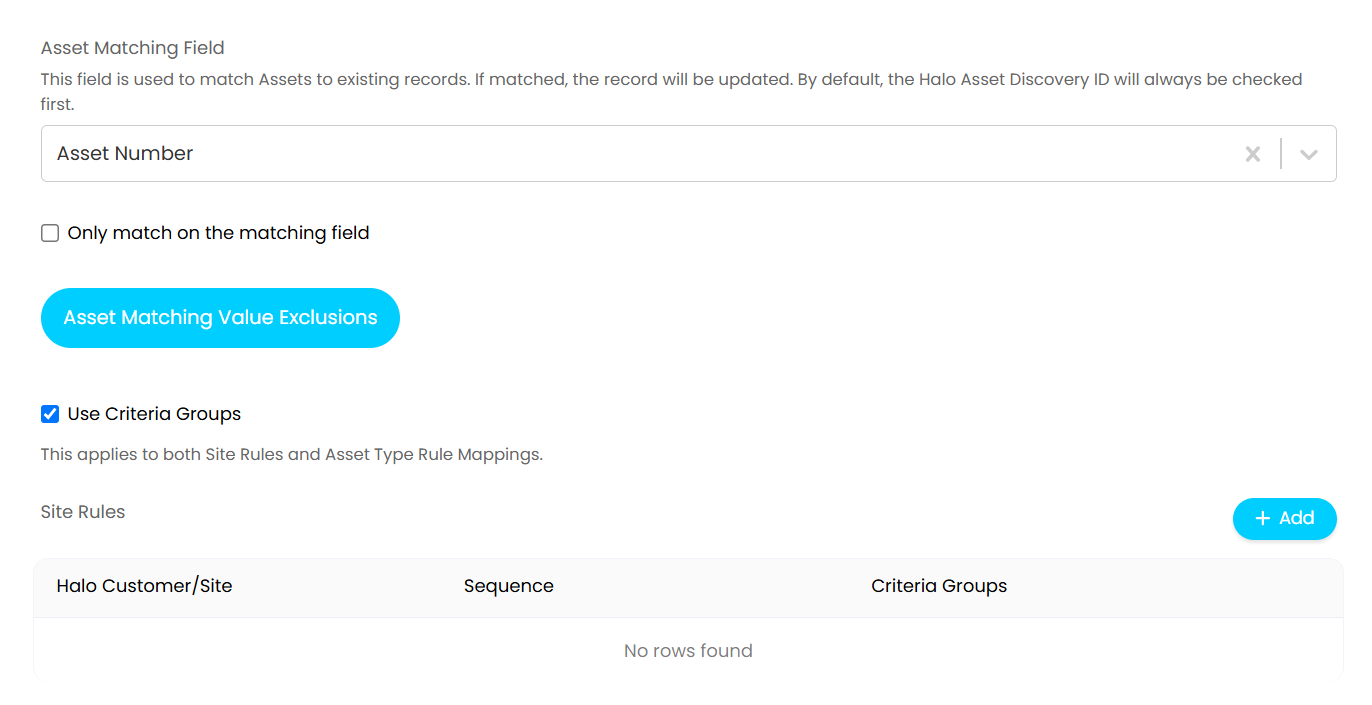
Fig 9. Criteria Groups for a Site Rule Mapping
When you add to the Site Rules table, the Site to match to can be selected as normal, and a new table will display where criteria groups can be added. All conditions in the Criteria Group must be met for the Site to match, however only one Criteria Group needs to be met.
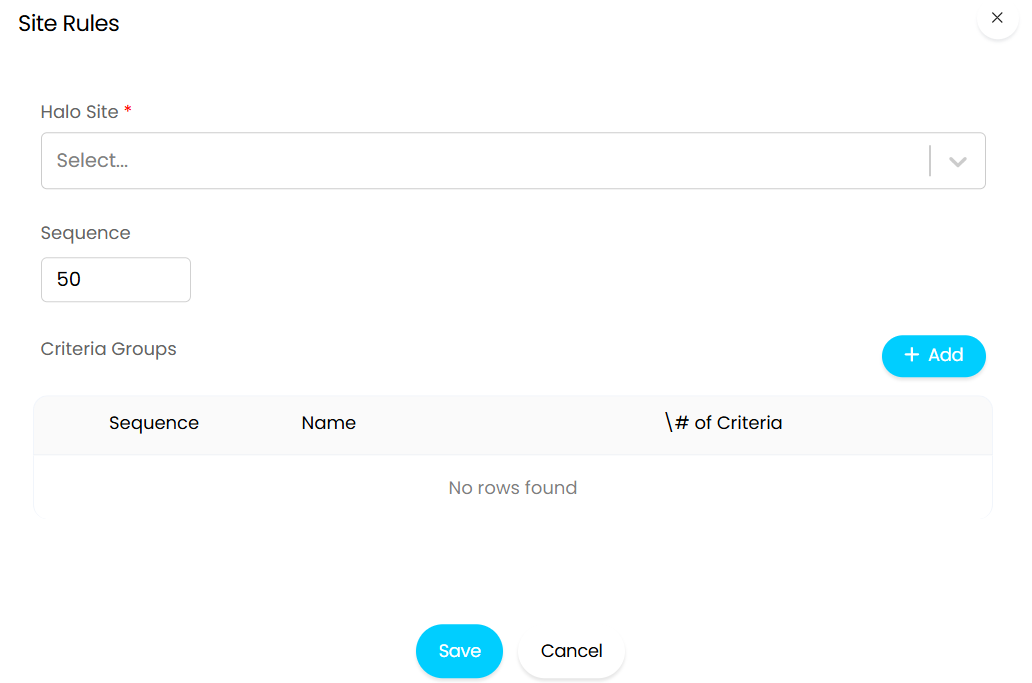
Fig 10. Creating Criteria Groups
When importing new assets, Halo will match entries onto the asset types that live in Halo at the time of the sync. If an asset type in Lansweeper does not exist in Halo, Halo will create a new asset type. You must configure which asset group that new asset type is generated under.
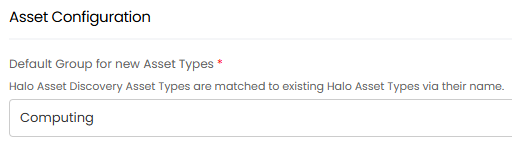
Fig 11. Setting a default group.
Field mappings are the rules which tell Halo what information to pull from Lansweeper and where to store the information once the asset is brought into Halo. Click "Add" on the "Field Mappings" table to start building our your field mappings.

Fig 12. Field Mappings table.
The popup to configure the mapping will then show as shown in figure 13.
For example, the field "isRunning" from "Virtual Machine" can be mapped to indicate if the virtual machine is currently powered on.
From v2.240+, OIDdata can be mapped here. You can specify which OID key you would like to import and the corresponding value will be mapped into the selected field.
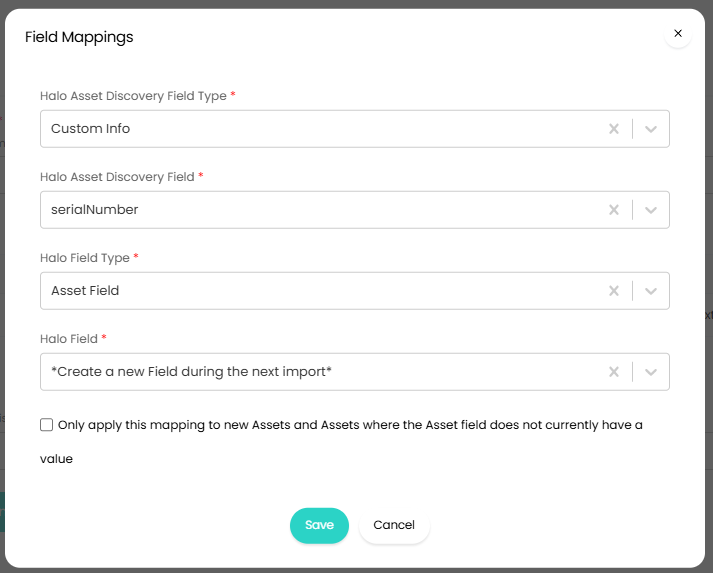
Fig 13. Adding field mappings.
You can select among various "Halo Asset Discovery Field Type" (Categorizations of fields from Lansweeper) and then select the field itself. Then you designate which Halo field this will come in as.
Note: If mapping to "*Create a new Field during the next import*", it will to auto-match onto Halo fields with the same name as the Lansweeper field. If no field exists with the same name (name has to be exact match), the a new field will be auto-generated to store the information.
Import Network Security Groups
Information can be imported from the Resource Group > Network Security Groups field. As this field contains multiple entries of data in Lansweeper you will need to create an asset table in Halo to store this data and map the asset discovery fields within Network Security Groups to columns in this table.
For information on creating custom tables, see our guide here. You will need to create an asset custom table, with the same number of fields (columns) as the number of fields you would like to bring in from Lansweeper.
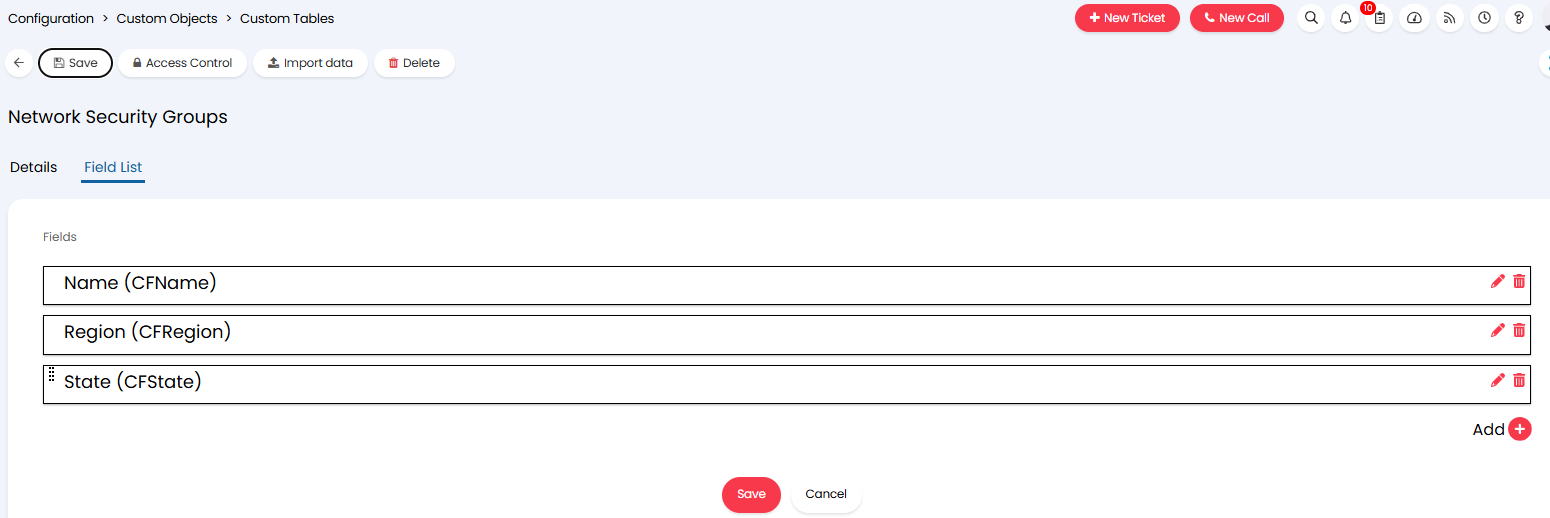
Fig 14. Custom table in Halo.
To use this table it will need to be stored in an asset custom field.
Once created you can map the custom field (storing the table) in Halo to the networkSecurityGroups field. Once mapped an additional table will appear allowing you to complete field mappings.
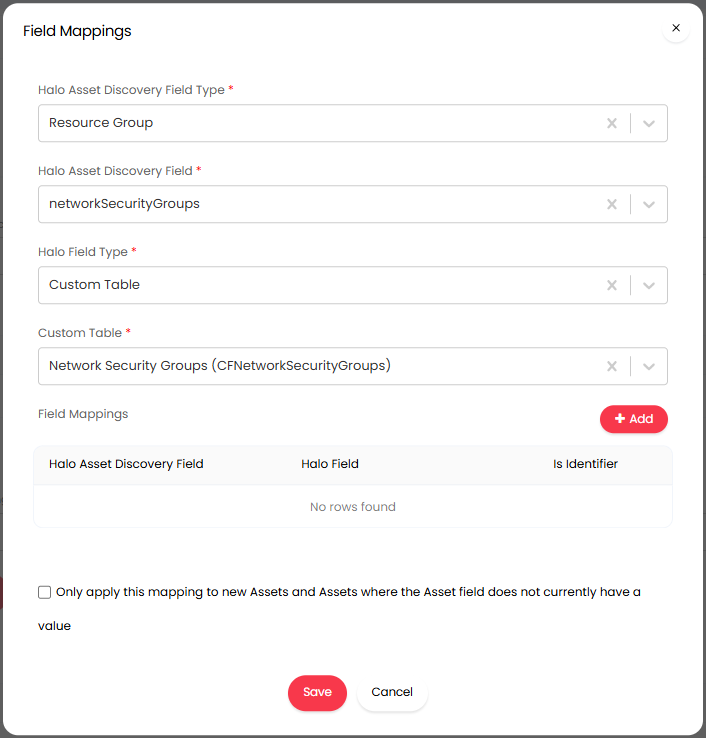
Fig 15. Field mapping for Network Security Group.
In the field mappings table, map fields within the custom table to a Lansweeper field. This will be the field in the table the data from Lansweeper will be imported into.
Asset Matching
Set the asset matching field. This field tells Halo what value to watch out for in case the same exists in its database already. In that case, Halo would update an existing asset in your system rather than creating a new one (potentially duplicating assets).

Fig 16. Setting an asset matching field.
As you can see from the field hint in Figure 14, the Halo Asset Discovery ID will always be checked first when matching an asset. After reconciliation in Lansweeper, however, the ID may change in the event of two assets merging, making it no longer a unique identifier for the asset. From version 2.252+, a setting has been added to the Lansweeper integration to set the asset matching to happen purely on the Asset Matching Field and not check the Halo Asset Discovery ID.
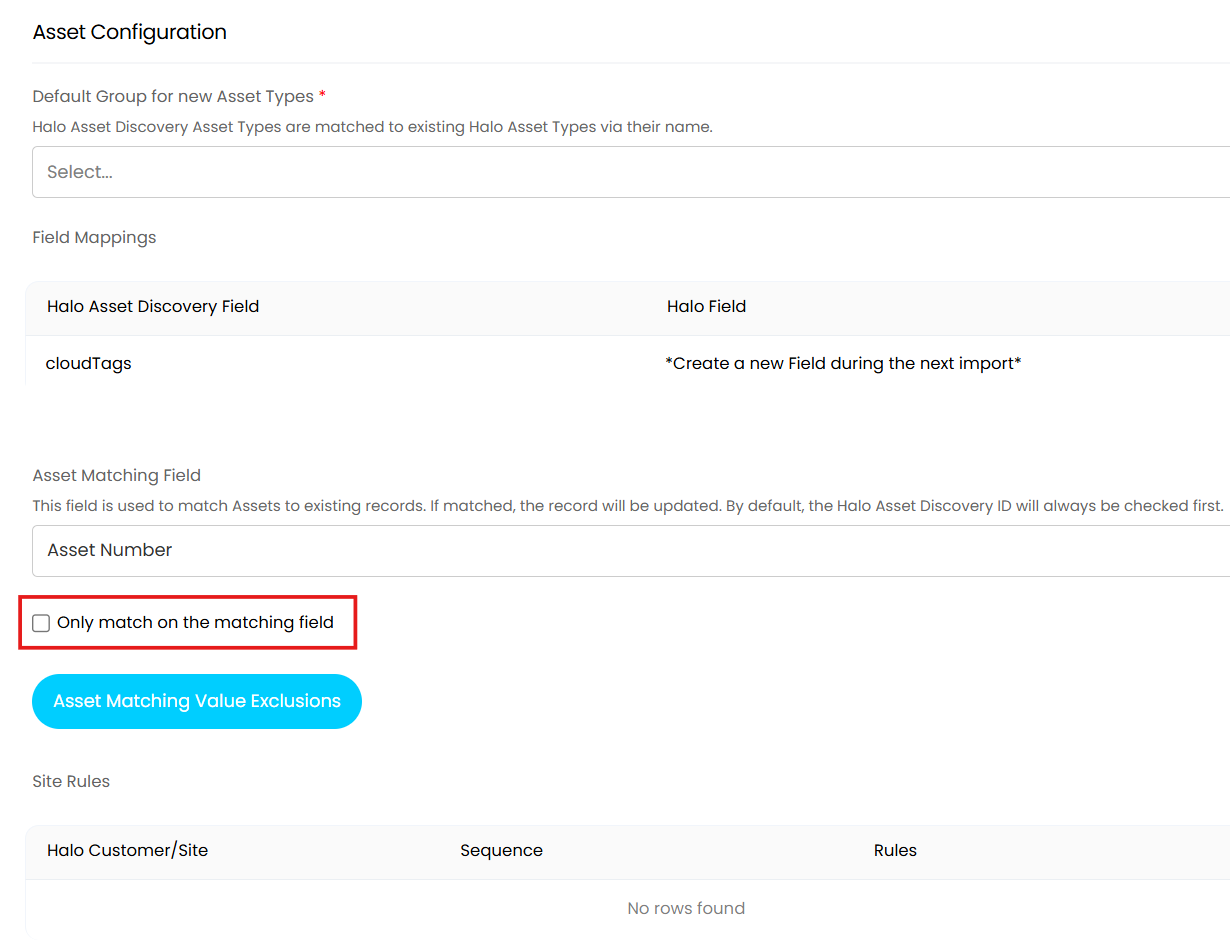
Fig 17. The option to prevent asset matching on the Halo Asset Discovery ID (v2.252+)
Determining an Asset's Type
Setup the asset type matching logic. You can set one of three options.
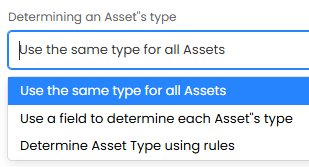
Fig 18. Setting the method to determine asset type.
Use the same type for all Assets: This is for the simple import where every asset from Lansweeper should be imported as a single asset type. Once selected, you will be prompted to select an asset type for assets to be imported into Halo as.
Use a field to determine each Asset's Type: This allows you to differentiate the asset type of the asset based on a field against the asset type. At the moment, this option only allows you to select the "Type" field from Lansweeper. This field is intended to match well with the type field in Halo. This configuration is most commonly used.
Determine Asset Type using rules: This allows you to write additional logic to decide which assets come in as what asset types based on rule sets. When selected you are prompted with the below table. Click "Add" to create a new rule.
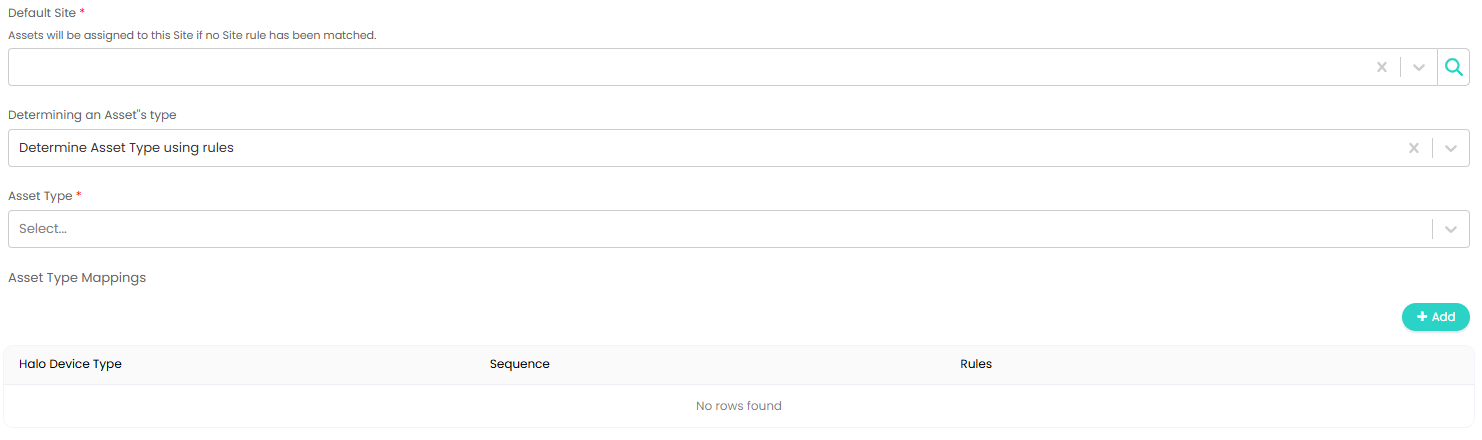
Fig 19. Asset type configuration.
The popup will then show to configure the asset type mappings.
You select which asset type this rule matches to. Multiple conditions can be added in the criteria table, all of which must be met for the Asset Type to be applied.
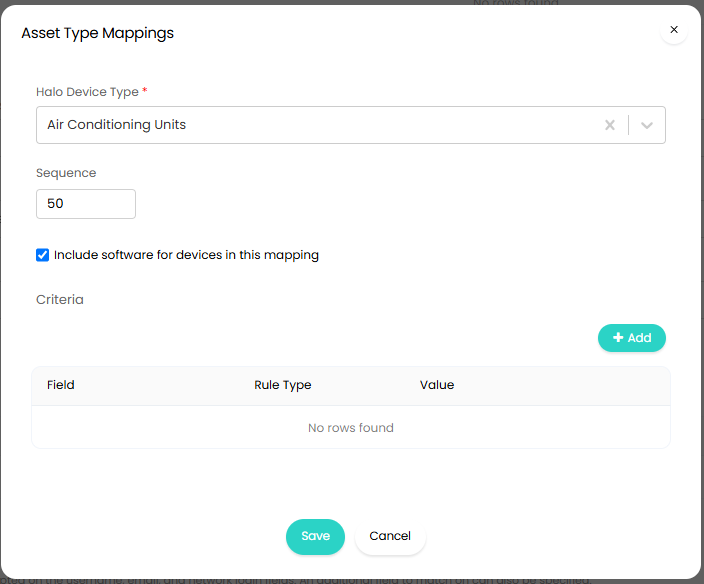
Fig 20. Adding asset type mappings.
From v2.256+ Criteria Groups can be used in your Asset Type Mapping Rules. To use Criteria Groups enable the "Use Criteria Groups" checkbox in the Asset Configuration Section.
Note: This setting will enable Criiteria groups for both Site Mappings and Asset Type Mappings.
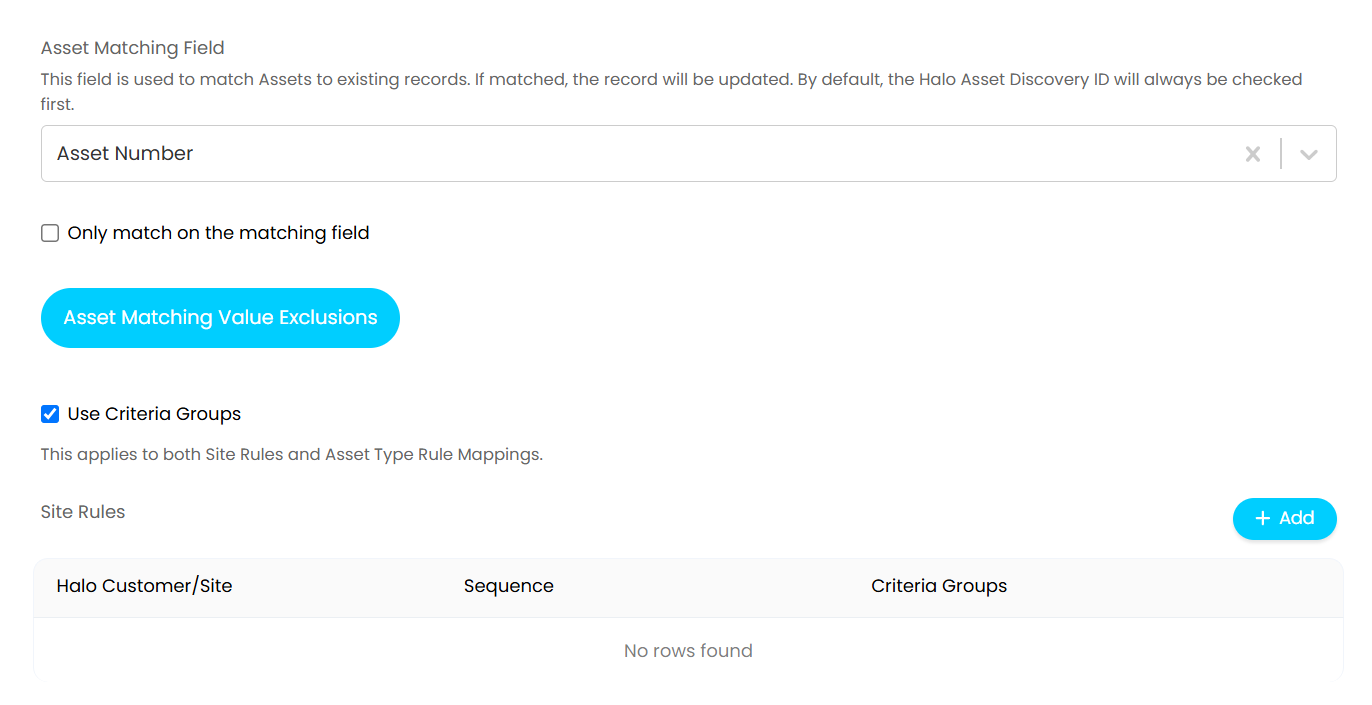
Fig 21. Criteria Groups for Asset Type Mapping
When you add to the Asset Type Rules table, the Asset Type to match to can be selected as normal, and a new table will display where criteria groups can be added. All conditions in the Criteria Group must be met for the Asset Type to match, however only one Criteria Group needs to be met. In the example below, the Asset will match to the Asset Type "Mobile Phone" if the asset number contains "PH" and telphone number has a value, or if the IMEI Number has a value.
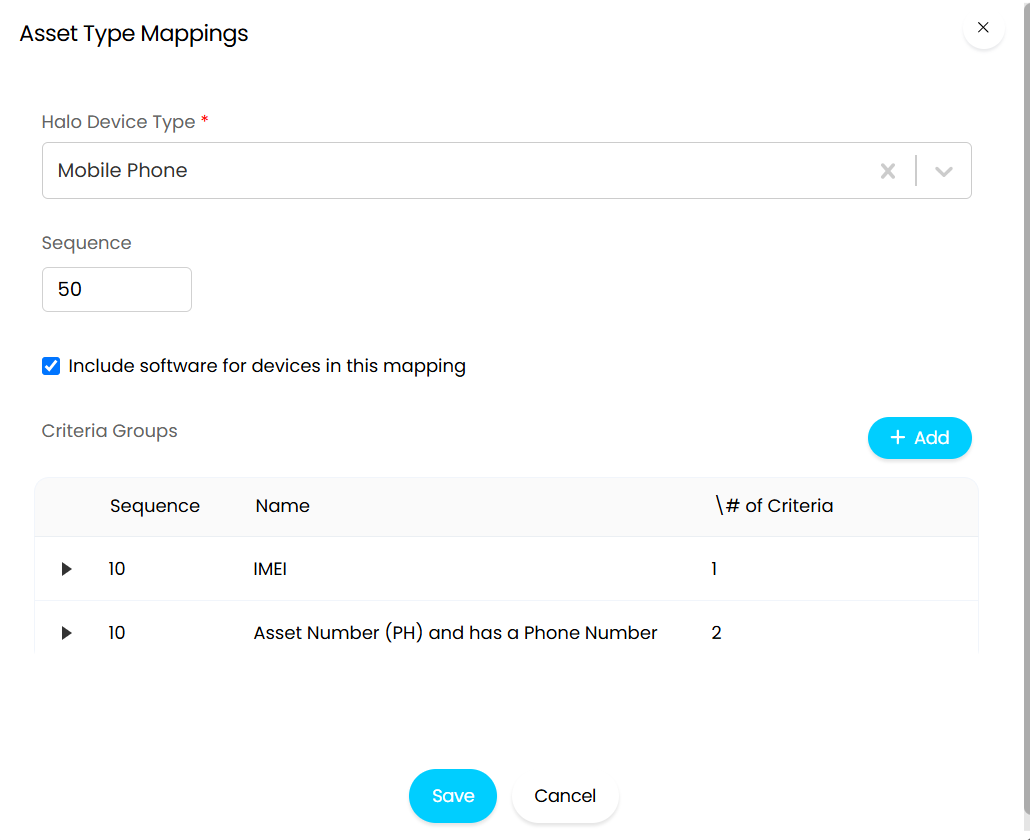
Fig 22. Creating Criteria Groups
Once you have created your rules, you are able to tell Halo to not pull any assets that do not match a rule.
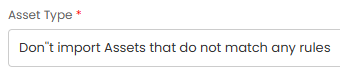
Fig 23. Setting to not import assets if they do not match rules set.
Optional Configuration User Matching
Assets imported from Halo asset discovery can be matched to the correct user in Halo on import, based on their user in Lansweeper. You can toggle this functionality on and off using the setting "Allow User matching".
When user matching is enabled you can choose which field will be used to match users in the 'User Matching Field'. However, regardless of how this field is set user matching will always be attempted on the username, email, and network login fields.
Under the user matching field you will see additional settings that control how user matching functions, shown in figure 20.
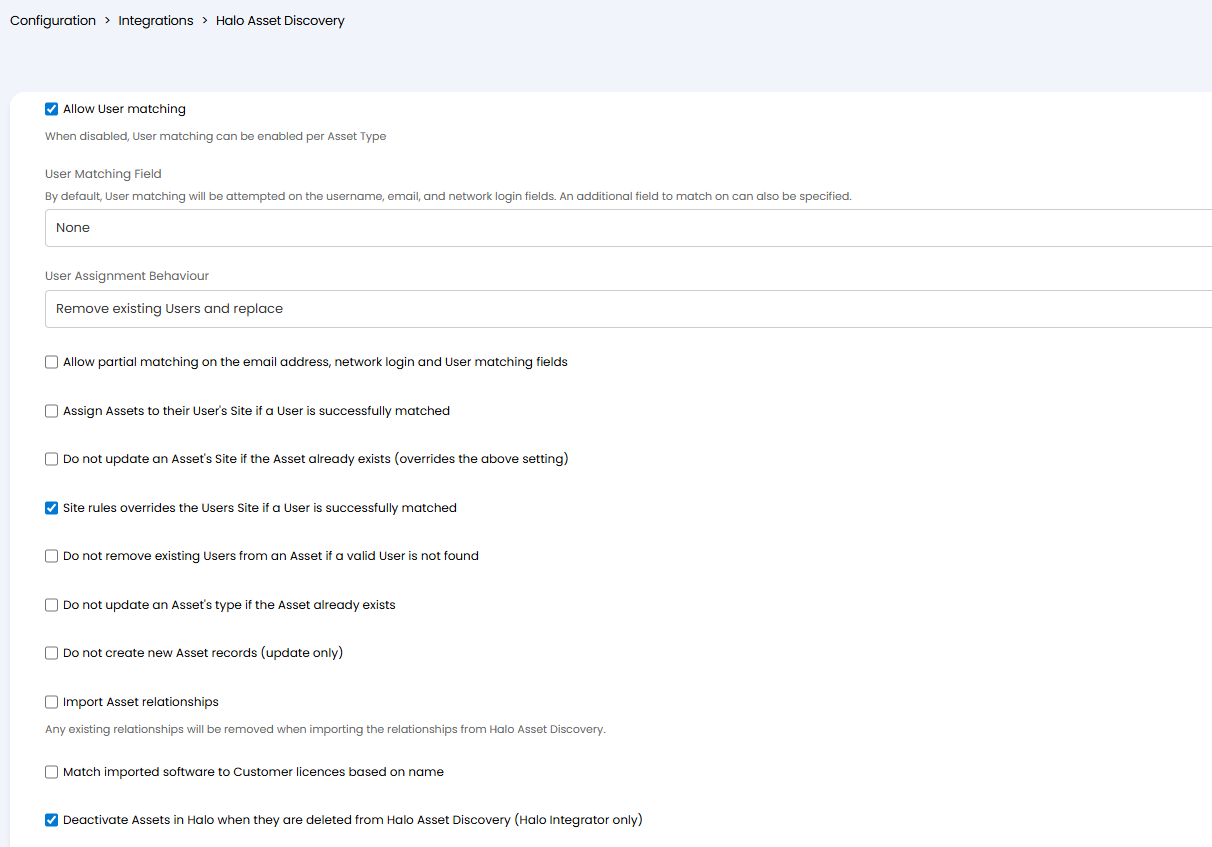
Fig 24. User matching and optional configuration.
User Assignment Behaviour - This controls how users are assigned to assets when a matching using is found.
- Add User to Asset's existing Users - When chosen, any matched users will be added to the asset's users in Halo, in addition to any users already assigned to the asset in Halo. Use this when assets are allowed to have multiple users assigned.
- Remove existing Users and replace - When chosen, any matched users will be assigned to the asset in Halo, replacing any users currently assigned to the asset. Use this when Lansweeper is the source of truth for the users assigned to assets.
- Ignore if Asset already exists - When chosen, if the asset being imported is matched to an existing asset in Halo, the asset in Halo will not be assigned a user. Use this if Halo is the source of truth for users assigned to assets and you are managing assigned users directly in Halo.
Partial user matching is available with the checkbox 'Allow partial matching on the email address, network login and User matching fields'. When enabled, partial matches are made if an exact match cannot be found: first based on the network login, followed by the email address, and then matching field (provided one is set in the "User Matching Field" dropdown).
Enable user matching for certain asset types only
You can restrict asset user matching to selected asset types in Halo. This allows you to have certain asset types match to their corresponding user, but have others not matched, therefore not assigned to a user.
To do this you will need to disable user matching for halo asset discovery globally. This is done using the setting 'Allow User matching' (as seen in figure 20), disable this.
When disabled now head to the asset type in Halo you would like user matching to be enabled for, configuration > asset management > asset types > select an asset type > details tab > enable 'Allow User matching for this Asset Type for the Halo Asset Discovery integration'.
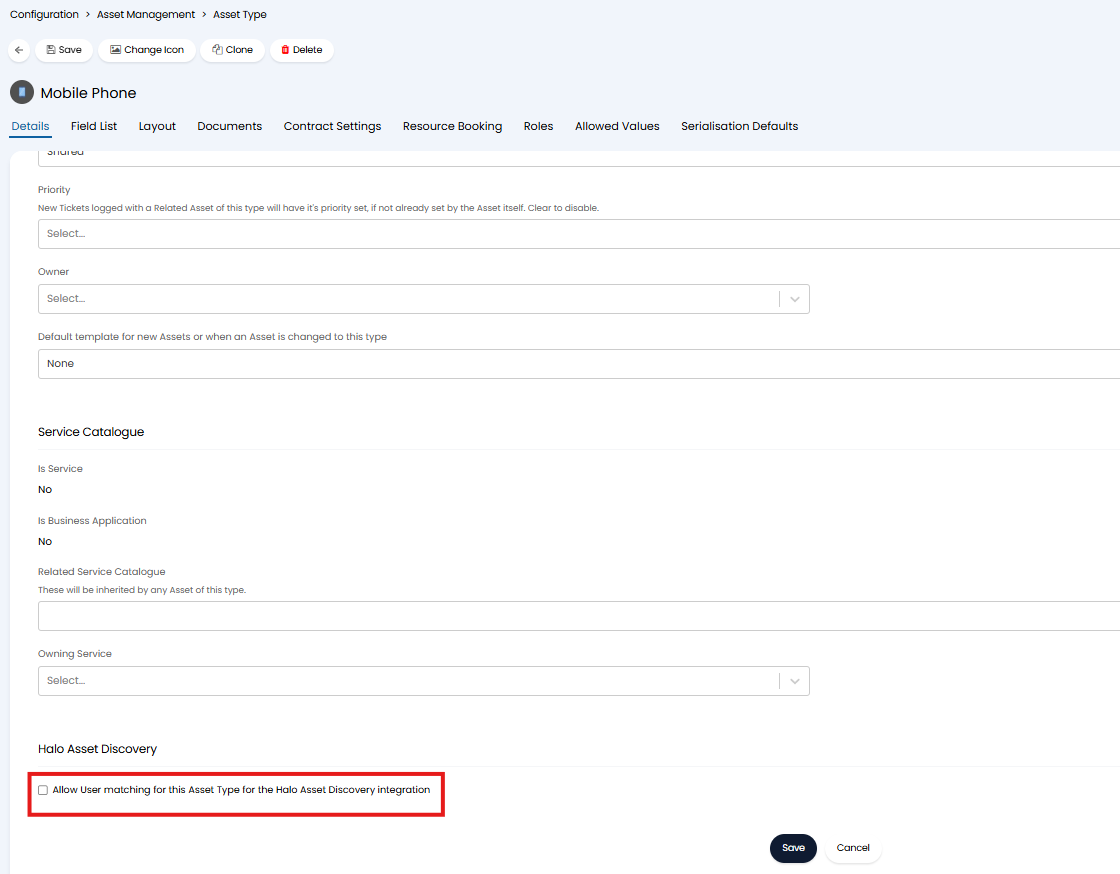
Fig 25. Allow User matching for this Asset Type for the Halo Asset Discovery integration.
Note: This setting will only appear against asset types when user matching is disabled against the Halo asset discovery integration.
When this option against the asset type is enabled, next time assets of this type are imported from Lansweeper/Halo asset discovery, a user will be attempted to be matched to the asset.
Importing Assets
The method differs based on the API method being used.
Export API
Click the "Export Data" button to begin an export of site information from Lansweeper. This is a required step prior to importing asset entries.
Once exporting has begun, you can check the progress of your export in the table below it.
You can then use the "Import Assets" button to run a manual import (optional).
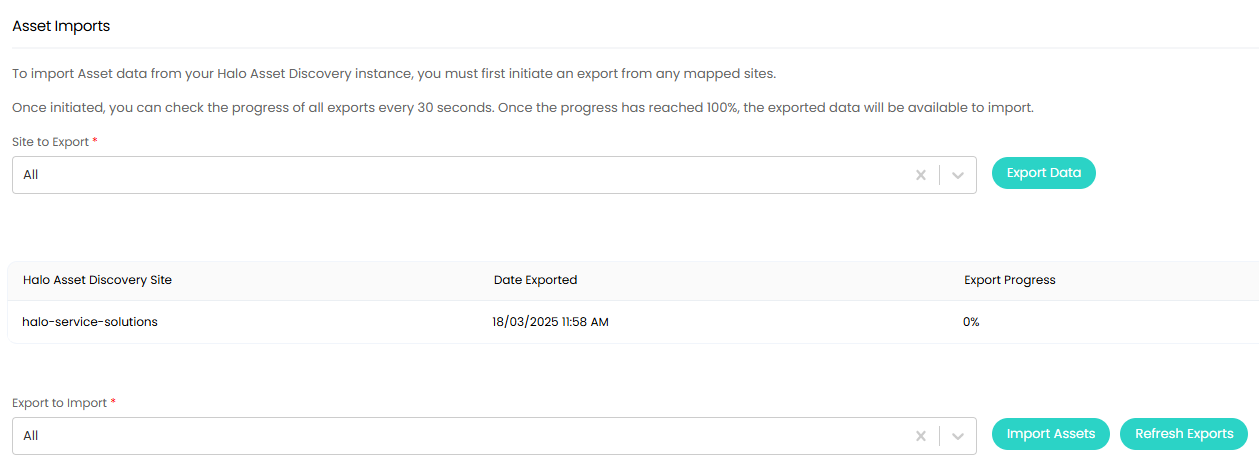
Fig 26. Asset Imports when set to Export method.
REST API
When set to the above, assets can be manually imported for mapped sites. Click "Import Assets" to bring up the import screen.

Fig 27. Asset Imports when set to REST method.
Connecting to the Halo Integrator
Check the below box to enable this integration for the Halo Integrator to run when its schedule permits.
It is worth noting, the Halo Integrator is generally a hosted application which Hosted customers of Halo Service Solutions will already have setup for them. If you have questions regarding the state of your Halo Integrator application, please reach out to your dedicated support team. You can find support information by going to the agent portal and hitting the '?' on the top right of your screen.
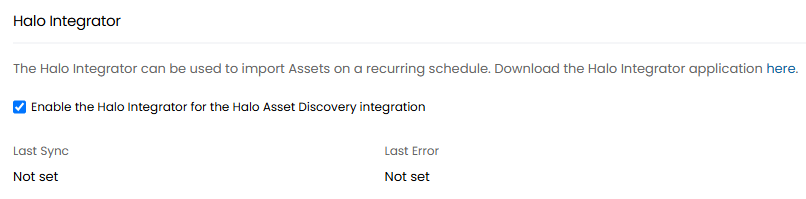
Fig 28. Enabling the Halo Integrator.