Agent Access to Services
- service catalogue
- access control
- Services
- permissions
In this guide we will cover:
- Choosing the Restriction Method
- Configuring each Restriction Method
Configuration Settings:
Related Guides:
Whilst administrators can see all services and categories by default (via "Owner" access"), access for non-administrators can be set in a few different ways.
Choosing the Restriction Method
Go to Configuration > Services > Catalogue Settings section. Note: This may be called "Service Catalogue" dependant on your Halo version.

Fig 1. Services/Service Catalogue module.
Here, you can set the "Service Permission Type". The configuration within this guide is dependant on the option selected within this dropdown.
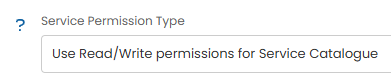
Fig 2. Service Permission Type dropdown.
Configuring each Restriction Method
We will now go through each of the three options within the dropdown in Fig 2, and the corresponding configuration they use. The first method uses agent permissions, whilst the second and third use access control. For more information on access control, check out the linked related guide at the top of this article.
1) Use Read/Write permissions for Service Catalogue
If the dropdown is set to use read/write permissions, access for the entire service catalogue will be dependent on if the agent has read access permissions to the service catalogue.
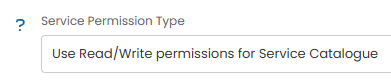
Fig 3. Using read/write permissions for services.
This is set against the agent (or via their role) in the "Permissions" tab > "Feature Access" section.

Fig 4. Service Catalogue access.
2) Use access control for Service Categories
This first method of using access control (second in the dropdown) uses service categories to provide access. If access is provided to the category, the agent can see each service within that category.

Fig 5. Access control by service category.
Within the service catalogue, right click on a category to edit/create.
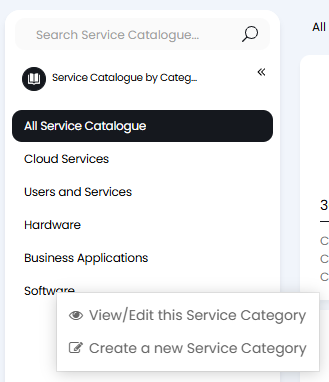
Fig 6. View/Edit this Service Category.
An "Access Control" button is available at the top of this popup where agents can be allowed access to the category.

Fig 7. Access Control on a service category.
Allowing access to a category will show each service within that category to the agent, as well as show the category name on the left side-pane.
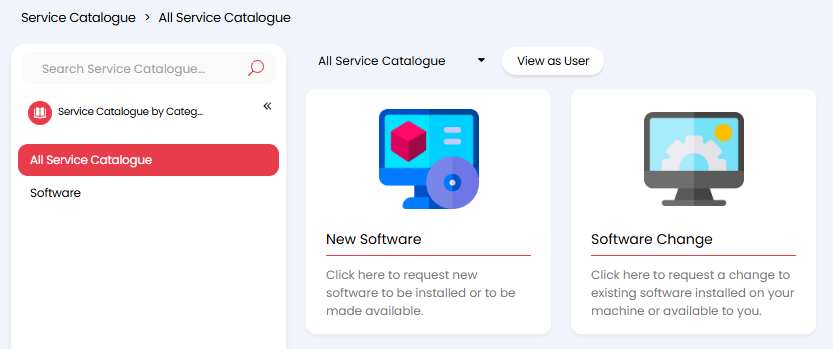
Fig 8. Services available within the allowed service category.
3) Use access Control for Service Catalogue and Service Categories
The second option for using access control (third in the dropdown) uses both category and services to provide access. This differs from the previous method, as it separates the two out. You can set access to both the service and/or its category via this method.

Fig 9. Access Control by service category and service.
The same "Access Control" button will be available on both the service category, and now also the service itself.
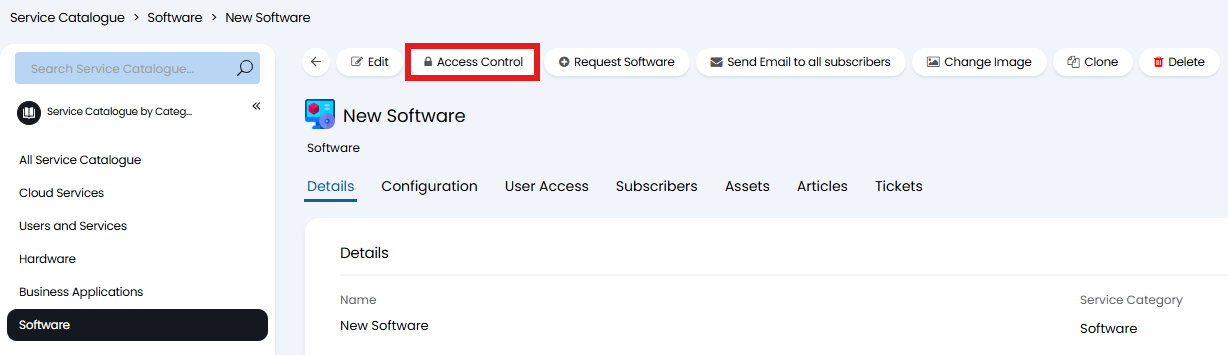
Fig 10. Access Control button on a service.
If access is set on both the category and a service within the category, it will show that service like below. It does not show the other service within the category like in Fig 8.
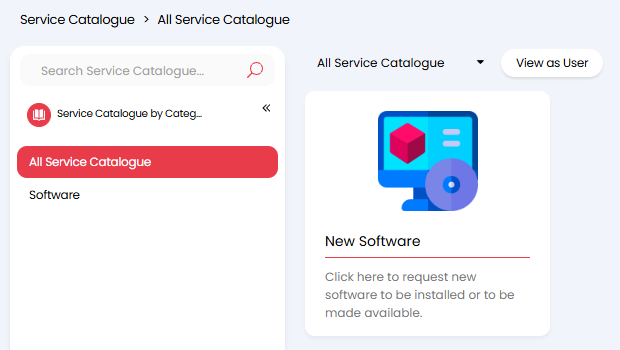
Fig 11. Access set on the category and one service within it.
If access is then set on another service, but not the category it is contained in, it will show in "All Services" but not show the category name in the side-panel.
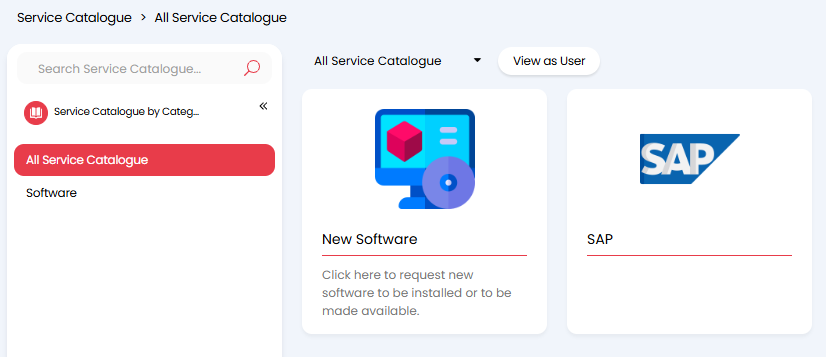
Fig 12. Access Control set on the service but not its service category.