Managing Prospective Clients in Halo
- Customers
- clients
- sales
- opportunities
- Prospects
In this guide we will cover:
- Enabling Accounts and Prospects
- Prospect on a New Ticket
- Converting a Prospect/Account to a Customer/User
- Bulk Updating Prospects
- Changing Account & Prospect Tab Layouts
Enabling Accounts and Prospects
There is the option to store potential customers under the Prospects section of the customers area. To begin using this functionality you can enable the accounts and prospects setting found in Configuration > Sales > General Settings *Scroll to the bottom of the list*:

Fig 1. Use Accounts and Prospects for Opportunities setting
After enabling this setting you will have the ability to convert current opportunity contacts (stored on the associated opportunity tick) into Prospects:
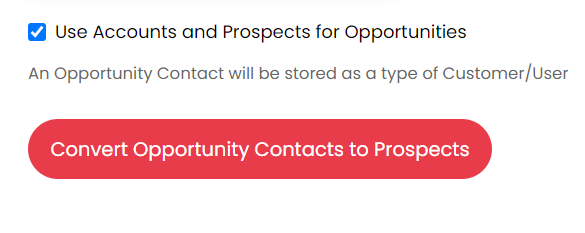
Fig 2. Convert Opportunity Contacts to Prospects button
Prospect on a New Ticket
The new ticket option for the Sales area will show the option to create a prospect from the new ticket screen.
You can determine if the new Ticket screen defaults to Existing Customers, or Prospects by choosing the relevant option from the "Default Contact type for new Opportunity" dropdown in Configuration > Sales > General Settings. From v2.253+, this can be set in the Forms tab of each Opportunity Type.
To create a new Prospect from the new Ticket screen, ensure you have selected the option "Prospect", and click into the search box. Here click "Add a new Prospect".
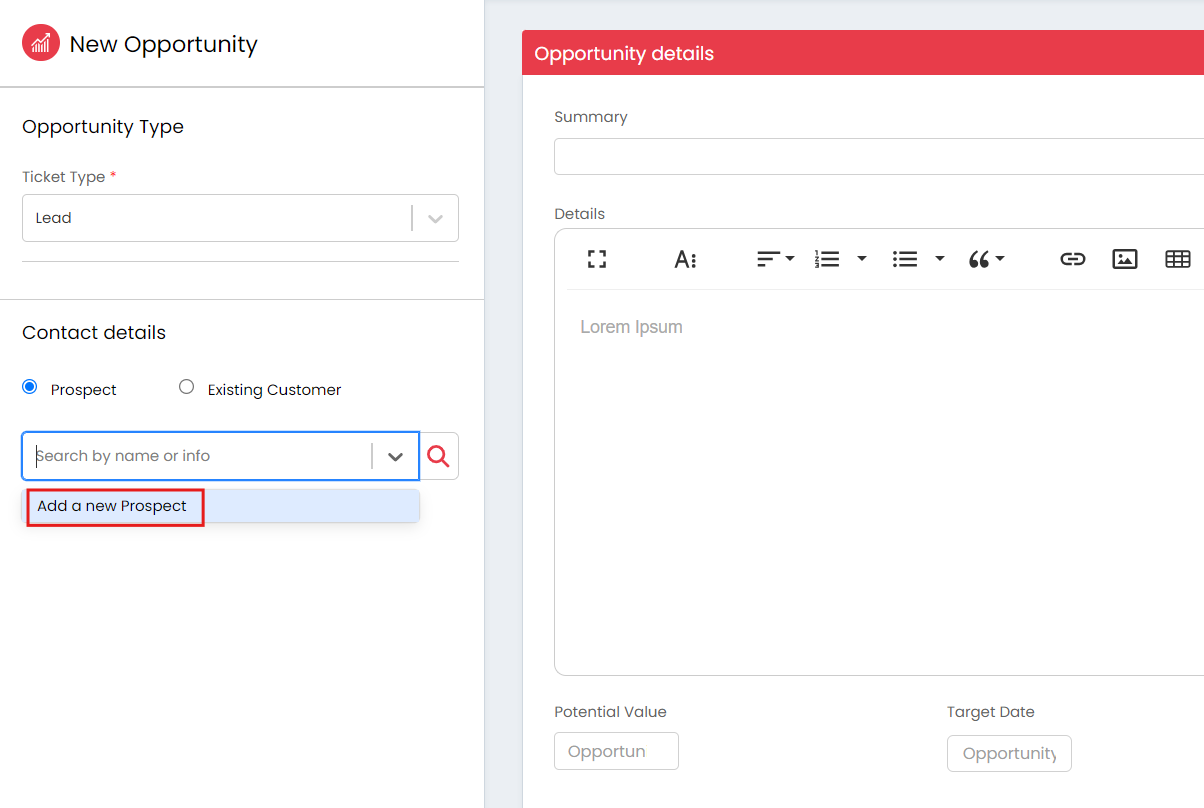
Fig 3. Add a new Prospect in the Contact Details of the new opportunity screen
This feature allows for the standard customer information to be stored on the Prospect profile, meaning that any tab stored at customer level: CRM notes, users, activity, etc... Can be used for prospective clients. Allowing you to store information for anyone that comes through your Sales contacts. Any custom fields created that are of entity Customer, will also be added to the prospects profile.
Note: Customers that are configured as "Accounts" will no longer be pushed to Accounting Applications, Liongard or IT Glue.
When creating a new account or prospect from this screen, the "Top Level" field is available to set.
From v2.253+, you can show Customer/Site/User Custom Fields here on the new Ticket screen, and in the Prospect Details section on the Ticket. To do this, head to Configuration > Sales > General Settings and enable "Show Customer/User fields for Prospects".
Converting a Prospect/Account to a Customer/User
Converting a Prospect/Account to a Customer/User record can be done from an Opportunity by clicking the "Convert this Prospect to a Customer" which replaces the "Create a new Customer from this Opportunity" button.
This will flip the Account to a Customer, and all Prospects at the Account to Users.
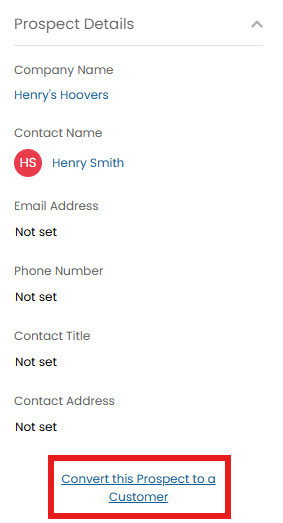
Fig 3. Convert this Prospect to a Customer
Alternatively you can turn an account into a customer by navigating to the account, clicking edit and you will notice at the top of the details tab, there is the "Is an Account" checkbox, which can be disabled in order to turn the account into a customer:
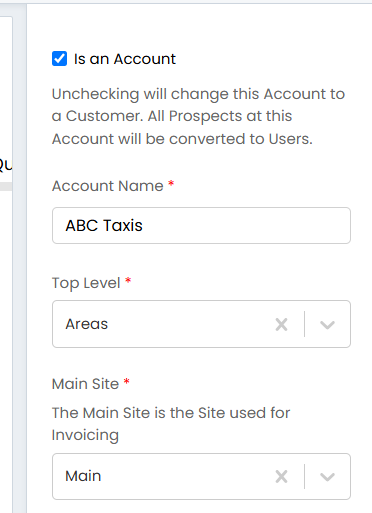
Fig 4. Is an Account checkbox
When this setting is turned off, the account will no longer exist and instead will show within the customers lists. All associated prospects that you have stored under the account will become users under the new customer and the main contact for the new customer will become the prospect that was at the top of the prospects list, when it existed as an account.
The ability of this feature means that all information stored against the prospect will pull through to the newly onboarded customer at the point of creation. Using the existing functionality of creating a new customer lacked the ability to extract stored information against a ticket.
This functionality adds two new entity types to the Customers Management Area tree. Accounts and Prospects which are Customer and User records labelled separately to show they are Prospective Customers and users.
Accounts will also show in the Top Level they are assigned to within a separate tab.
Each new list in the tree can use the customisable, filterable list functionality:
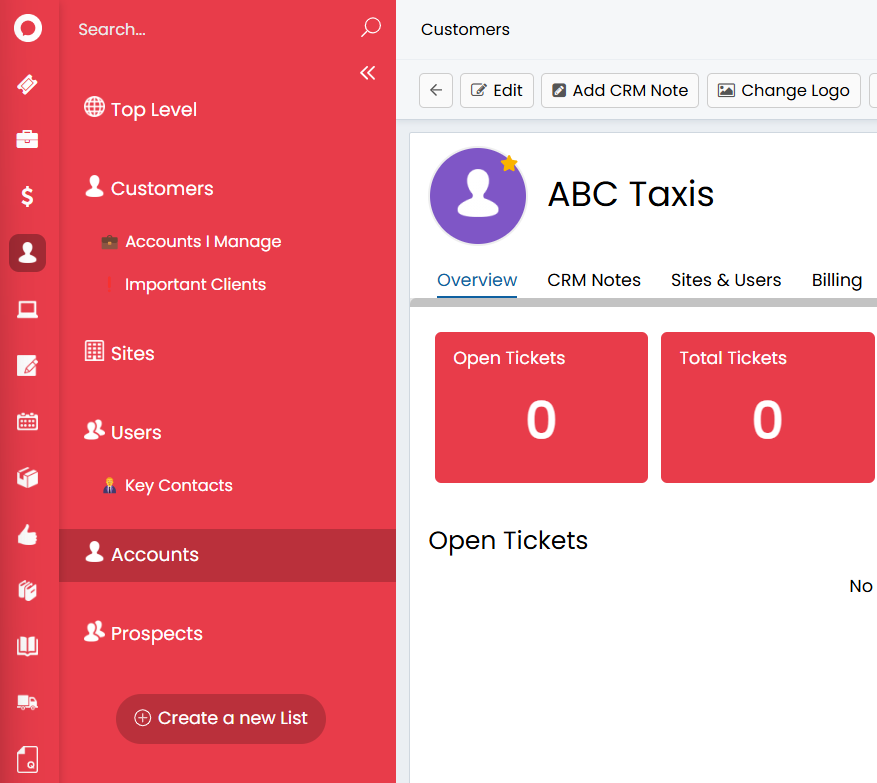
Fig 5. Customer tree view
This can also be achieved by using an Action with the system function "Convert Prospect to Client".
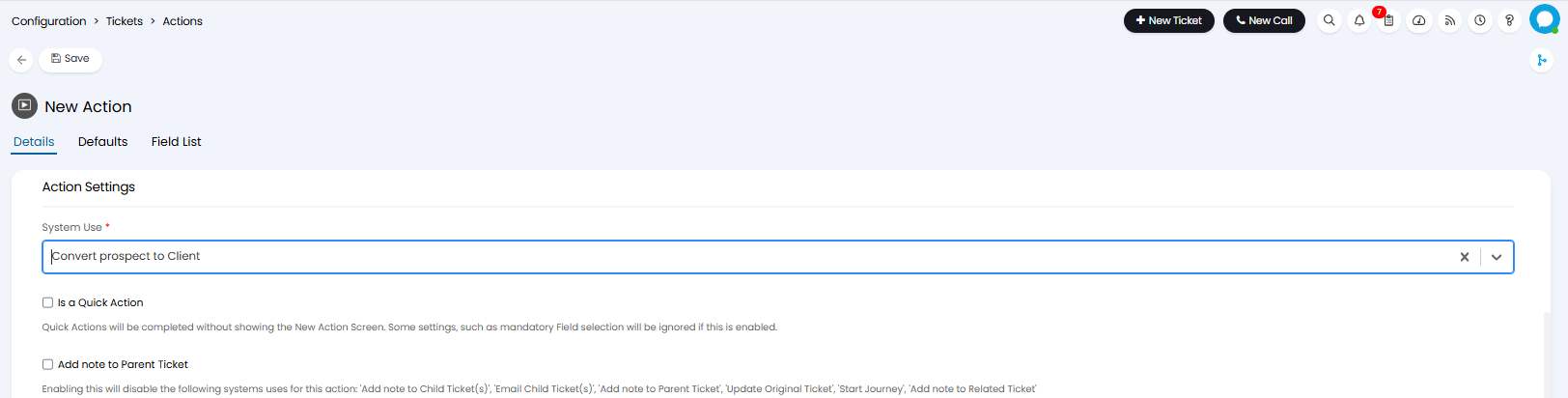
Fig 6. Convert Prospect to Client System Use
When used this action will unselect the "Is Account" checkbox on the Account associated to the ticket causing them to move from Accounts to Customers/Clients. This can be added to Opportunity ticket types to easily change a prospective Account to a Client.
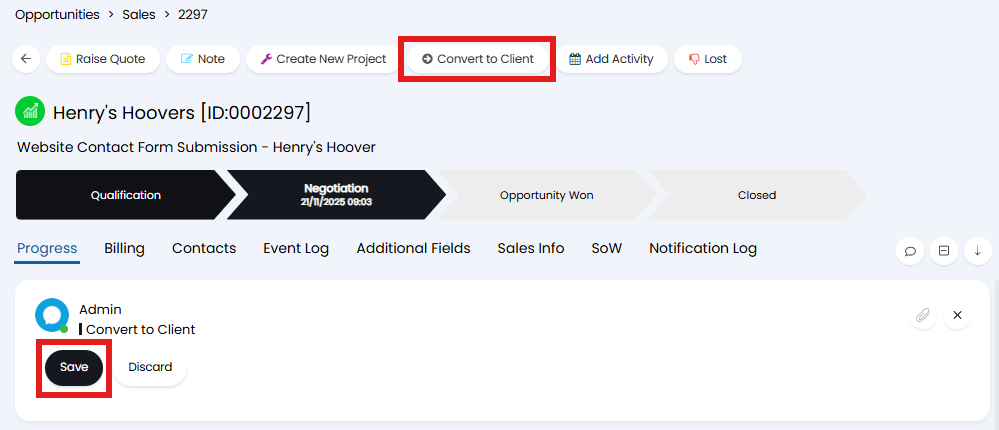
Fig 7. Convert Prospect to Client action
The two Ticket Rules; "Is an Account", "Is a Prospect allow the targeting of opportunity tickets when trying to create automations, or potentially send out notifications when certain criteria is met i.e. ticket is stored against a prospect and the status has updated to "Prospect Chasing". This allows clearer distinguishment between a ticket for a customer and a ticket for a prospective customer.
You may also want to categorise your most important prospects/ accounts, this could be achieved with a ticket rule by using the criteria "Is an Account" and "Is an Important Customer".
You can change the column profile for accounts and prospects, for more information see our Column Profile guide.
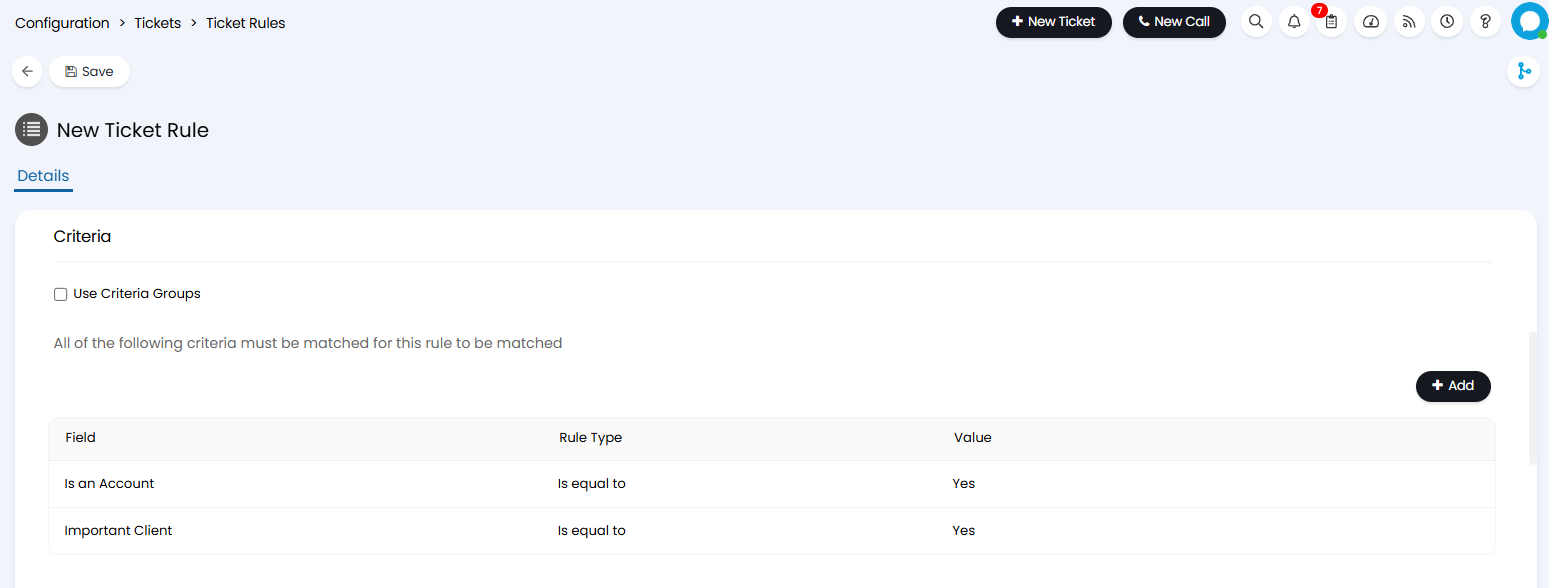
Fig 8. Example of a ticket rule based on accounts
Converting an Opportunity Contact to a Prospect will create an Account record using their Opportunity Company Name, and a Prospect record using the Contact name and Contact details.
When logging new Opportunities, there are options to select existing Customer/User records or Account/Prospect records, along with the option to create a new Prospect on the spot.
The Call screen will now show a callers Open Opportunities if applicable, when a prospect is matched as the caller. Allowing the sales team to be in charge of any sales calls and giving more visibility between a sales call and a support call.
Bulk Updating Prospects
When viewing prospects in a list multiple can be selected to allow you to apply a bulk update to all prospects selected. This can be useful when you would like to send a bulk communication to all prospects, or add all prospects to a new distribution list. Improving the ease of communications and marketing.
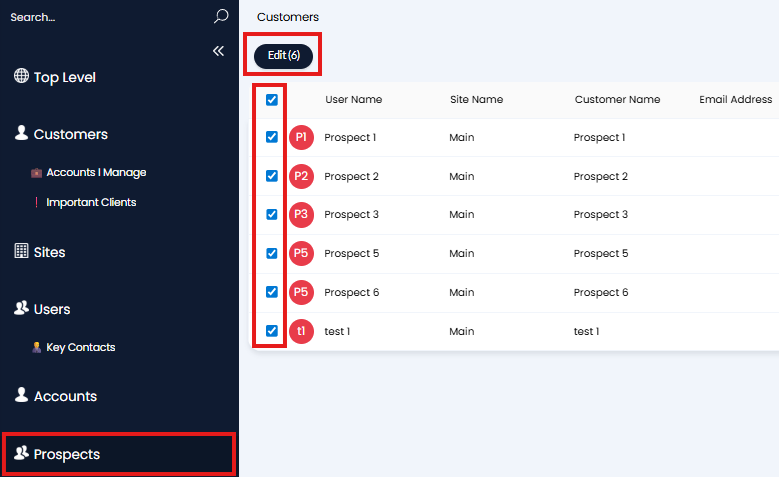
Fig 9. Bulk selecting Prospects
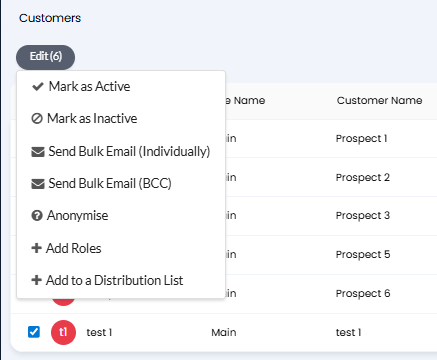
Fig 10. Options to Bulk Update Prospects
Changing Account & Prospect Tab Layouts
Screen Layout profiles can be configured to change what tabs show on your Prospects. To do this head to Configuration > Advanced Settings > Screen Layout Profiles > change to the Prospects entity.
From v2.252+, this can also be set for Accounts. To do this head to Configuration > Advanced Settings > Screen Layout Profiles > change to the Accounts entity.
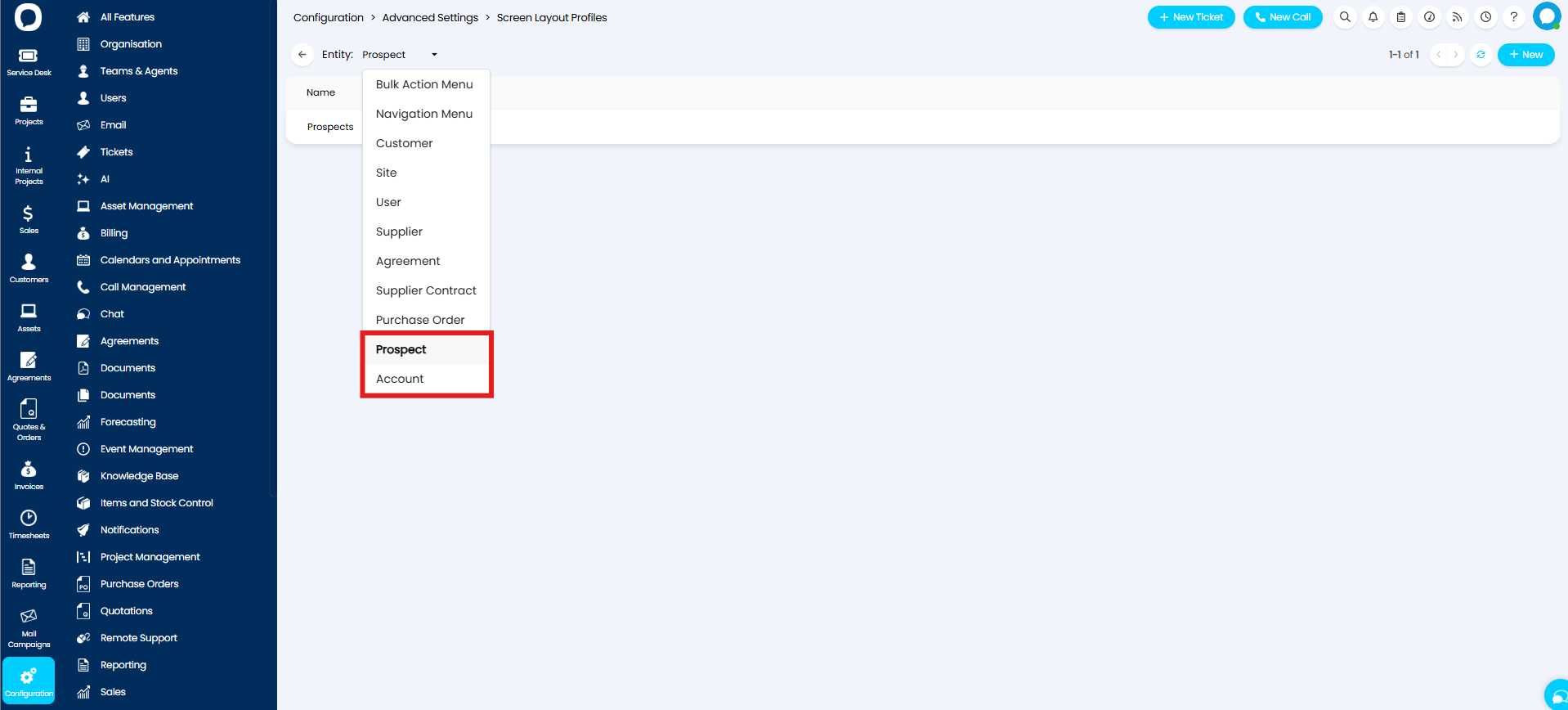
Fig 11. Screen Layouts
Click "New" to create your Screen Layout Profile, then set a name. Once set save the profile and edit again to access the "Tab layout" tab. Here set the "Tab layout" dropdown to "Custom" will show a list of tabs underneath which you can configure.
Hovering over one in the list will show the dots icon to the left of the name. This will allow you to drag and drop the tabs to change the order.
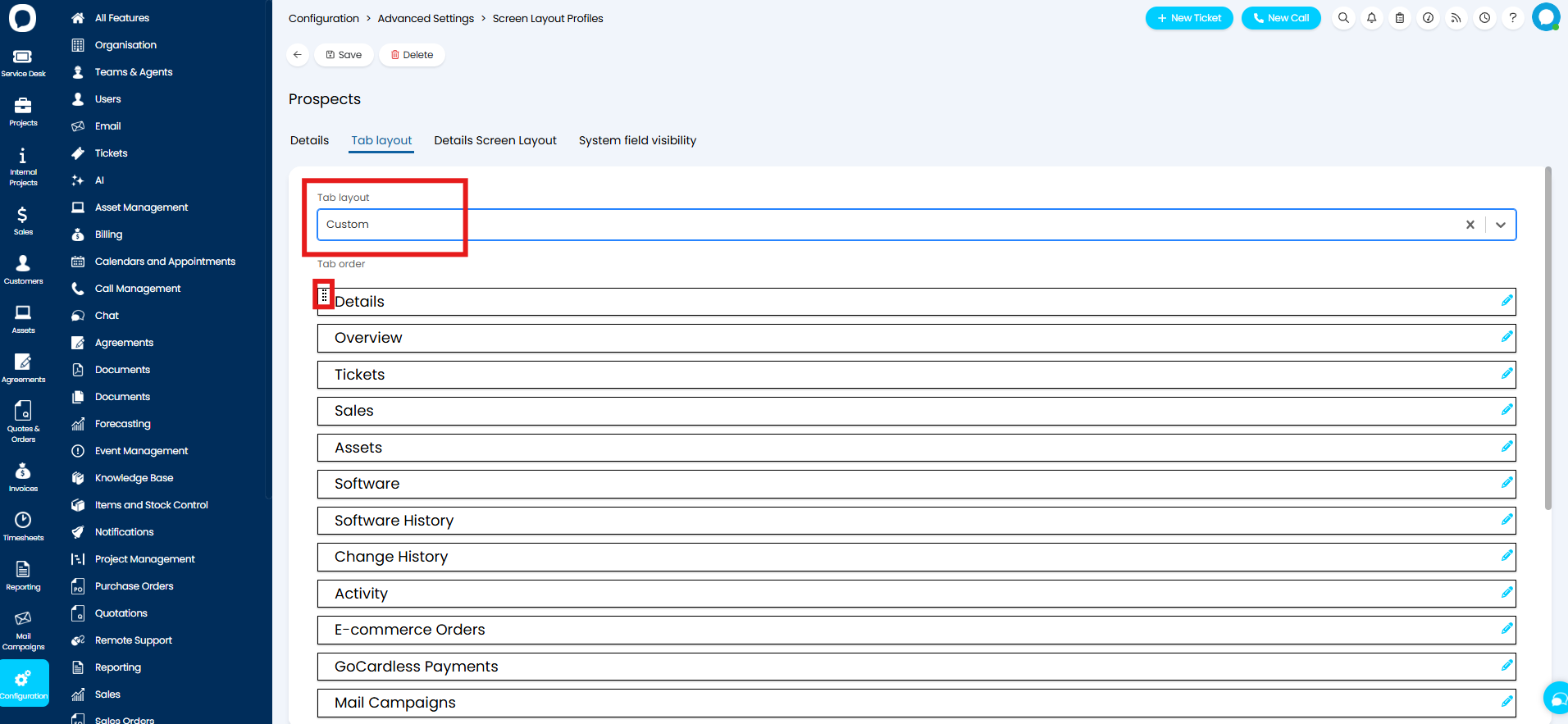
Fig 12. Prospect Tab Layouts
Clicking the pencil icon will show this "Display" dropdown. Here you can set if you want to hide or show the tab, or if you want the information to show in a sidebar instead of a separate tab.
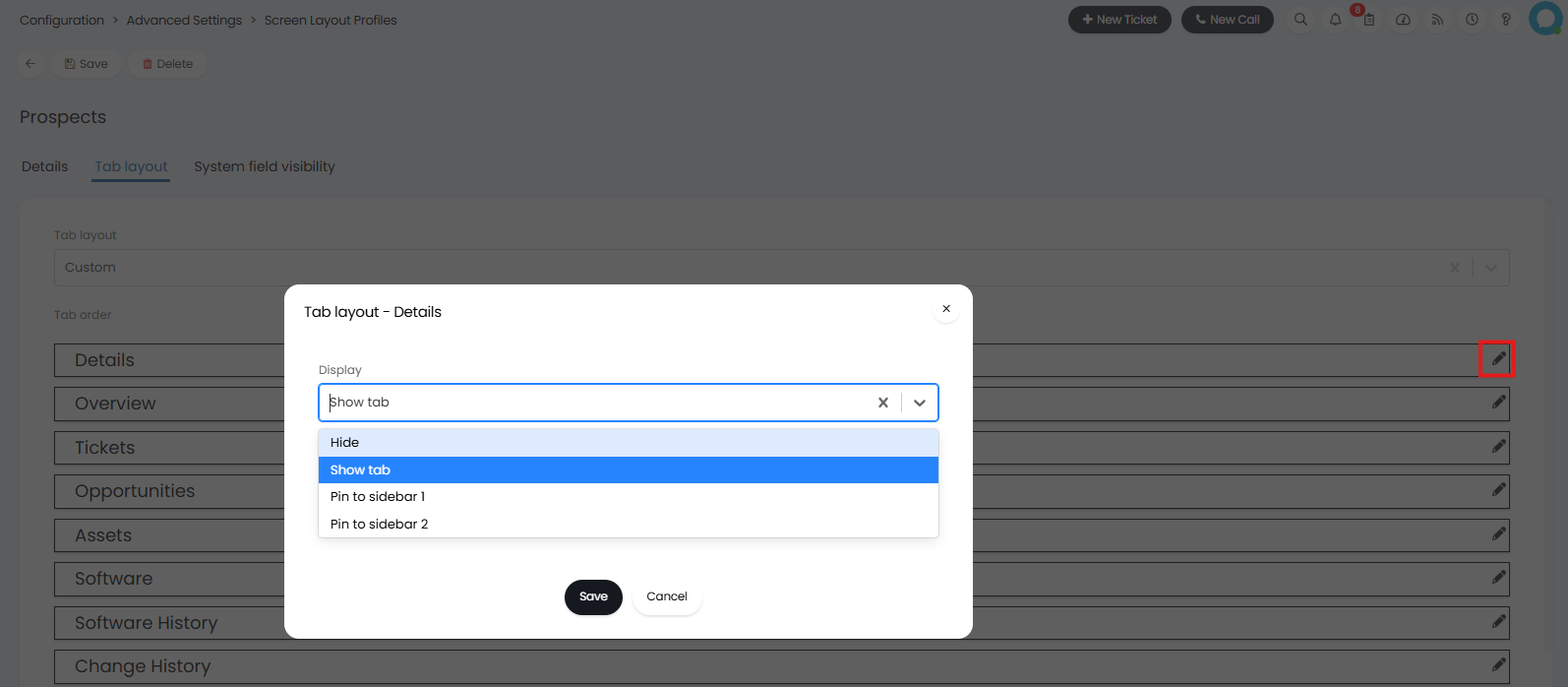
Fig 13. Tab location
You can then go back to the Advanced Settings main page and select your new screen layout profile on the dropdown. The profile selected here will apply to all agents, however this can be customised/overridden per agent under their agent preferences.
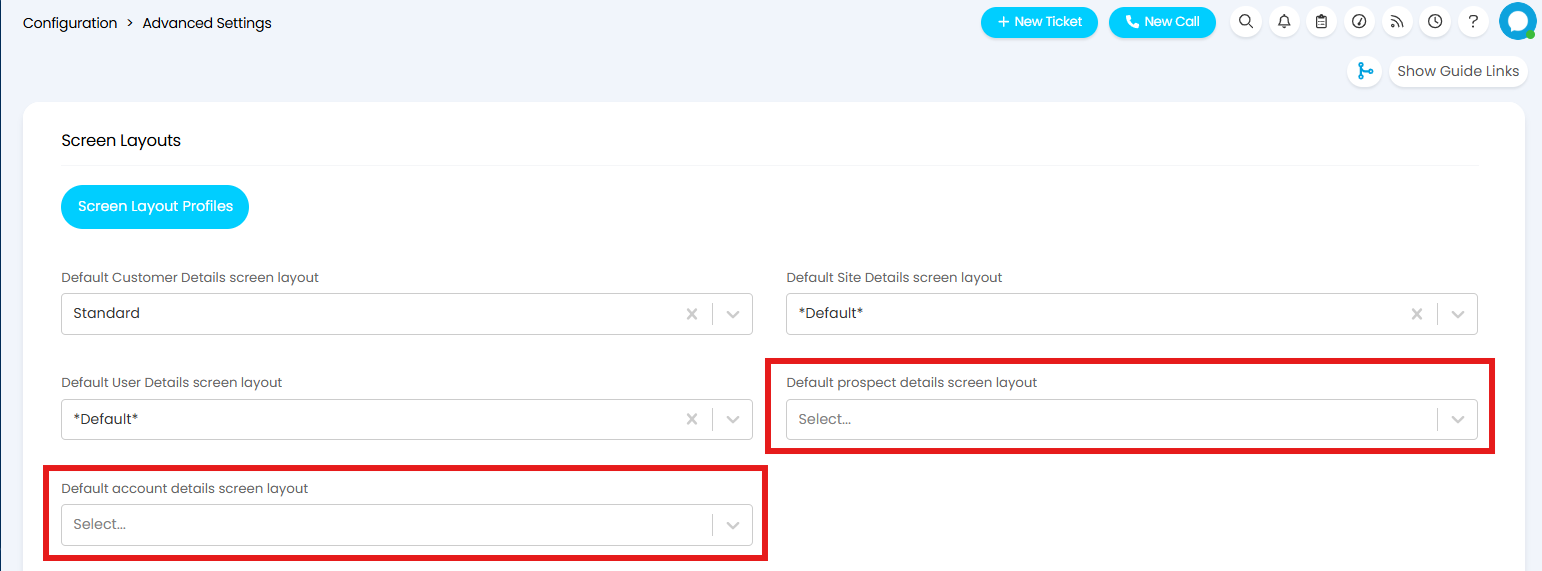
Fig 14. Default Screen Layout for Accounts and Prospects