Filter Profiles
In this guide we will cover:
- Filter Profiles
- Configuring Filter Profiles (For Configuring Sales ticket filter profiles go to Configuration > Sales > Views)
- Specifying Filter Criteria
- Show Tickets which have not yet been reviewed for Billing
Admin Guides:
Filter Profiles
Filter Profiles are ways to filter for specific tickets within the Ticket/Project /Opportunities areas. An example of this would be Open and Closed Ticket Filters. These would filter and only show Statuses which you specify as Open or Closed with each respective filter, allowing you to see how only tickets which are Open or Closed.
Filter profiles can be chosen for the page/ticket ticket list you are viewing, either by using the dropdown in the top left of the ticket list, as shown in figure 1.
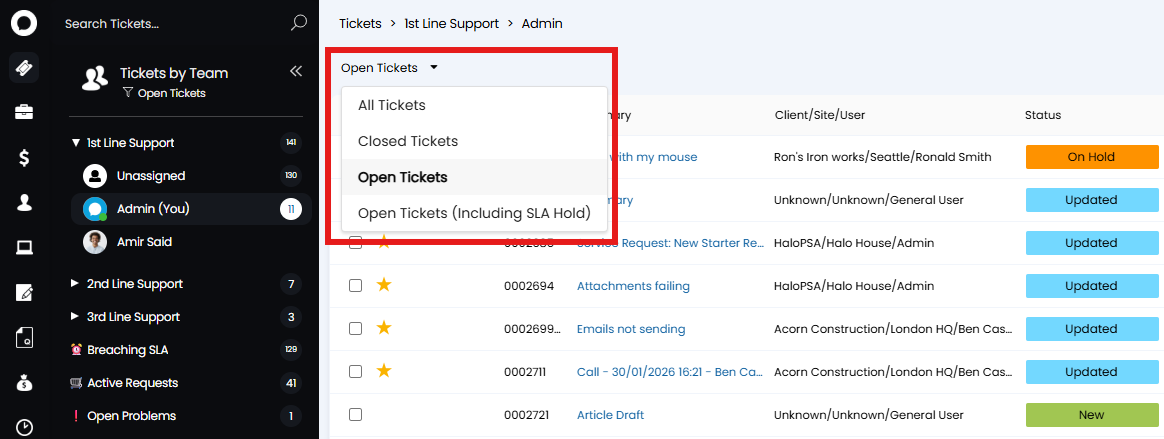
Fig 1. Choose filter profile from dropdown
Or, by selecting the filter icon beneath the view you have chosen in the left hand pane.
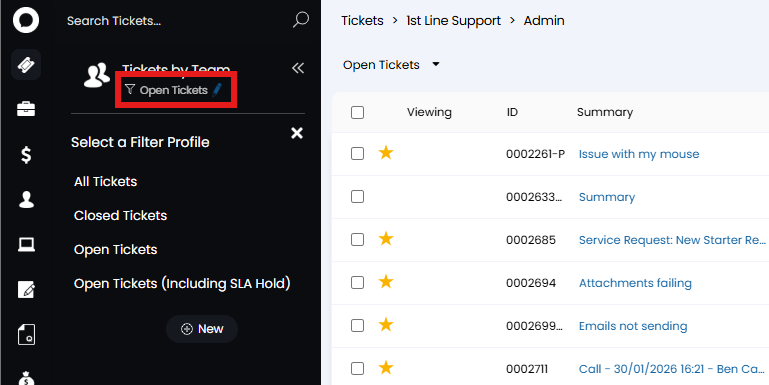
Fig 2. Choose filter profile from list
We have some filter profiles setup out of the box, including:
All Tickets - This shows all Open, Closed and On Hold Tickets.
Closed Tickets - This shows all Closed Tickets.
Open Tickets - This shows all Open Tickets.
Open Tickets (Including SLA Hold) - This shows all Open and On Hold Tickets.
In addition to these filters, your own custom filter profiles can be created, once a custom profile has been created this will be available to choose from in the filter profile list.
Configuring Filter Profiles
To configure filters and set a default, head to Configuration > Tickets > Views > Configure Filter Profiles.
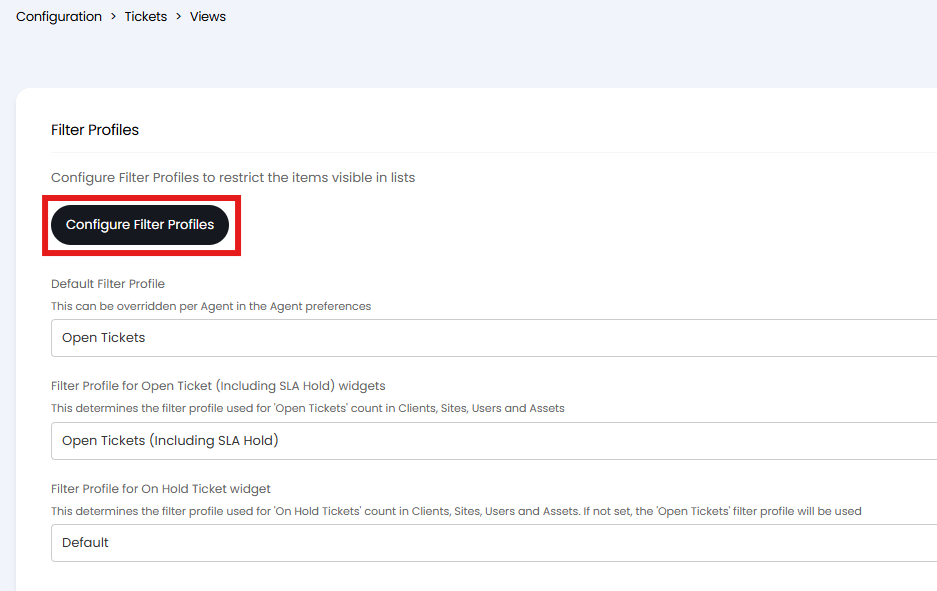
Fig 3. Admin Options for Configuring Filter Profiles
Alternatively you can add or edit an existing Filter Profile by using the "New" button or right clicking on a Filter Profile.
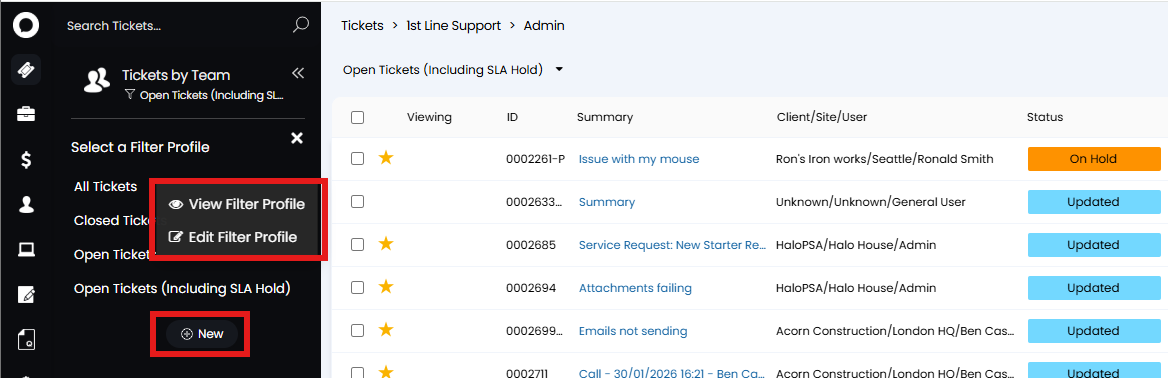 Fig 4. Admin Options for Configuring Filter Profiles
If you edit an existing Profile from this page you will have the option to "Save as New". If the Agent has the permission "Can Configure Filter Profile Access Control", they will be able to specify whether to copy the Access Control when using this button. Prior to this version the Access Control will be copied automatically.
Specifying Filter Criteria
When creating a Filter Profile you will need to specify the criteria to filter Tickets on. From v2.248+, you can choose to filter Tickets that have passed the 1st or 2nd SLA warning threshold. This is useful for monitoring and intercepting Tickets before they breach SLA.
SLA Hold
A common Filter used is to Show/Hide tickets which are on SLA Hold.
You can determine whether or not a status puts a ticket on hold. By default the "With User" status puts the ticket on SLA Hold, meaning it would be hidden from the Open Tickets Filter Profile as soon as it goes on hold. Only when you changed the filter to Open Tickets (Including SLA Hold) or All Tickets would the on SLA Hold Tickets Show.
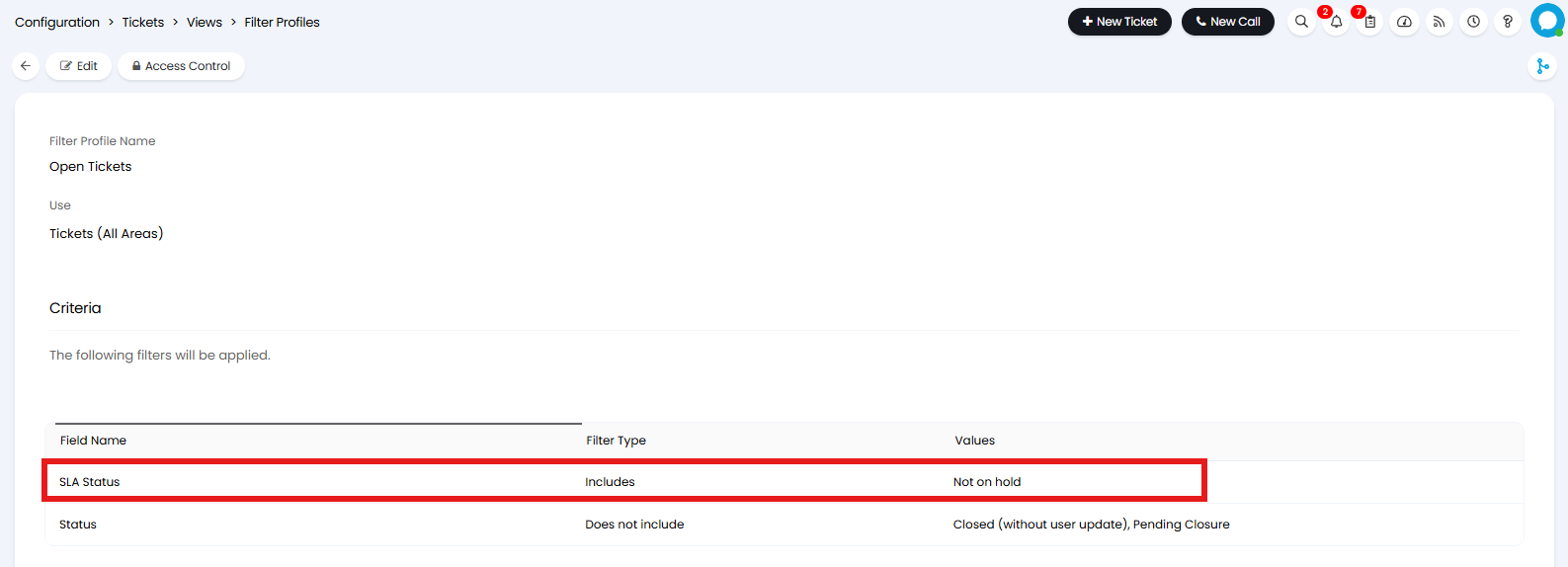
Fig 5. Configuring a Filter Profile
When viewing a filter profile you can specify the filter criteria in the above location.
Use - This determines which areas the Filter Profile can be used/selected in.
Show last action note (v2.251+) - When enabled the last action note on the ticket will show in the preview displayed when hovering over a ticket in a list. When disabled, last action notes will not be shown in the preview, meaning the note is only loaded when the ticket is opened rather than all notes for all tickets in the list being loaded when the filter profile is selected. This is used when tickets returned by this filter profile have particularly large last action notes. On versions prior to v2.251 all filter profiles will show the last action note in the preview.
The option to "Show on the Self Service Portal" will show if "Use custom Filter Profiles on the Ticket list" is enabled in Configuration > Self Service Portal. This will allow you to choose which filter profiles are used in the ticket lists in the portal.
Show Tickets which have not yet been reviewed for Billing
You can show tickets which have not yet been reviewed for billing via filter profiles.
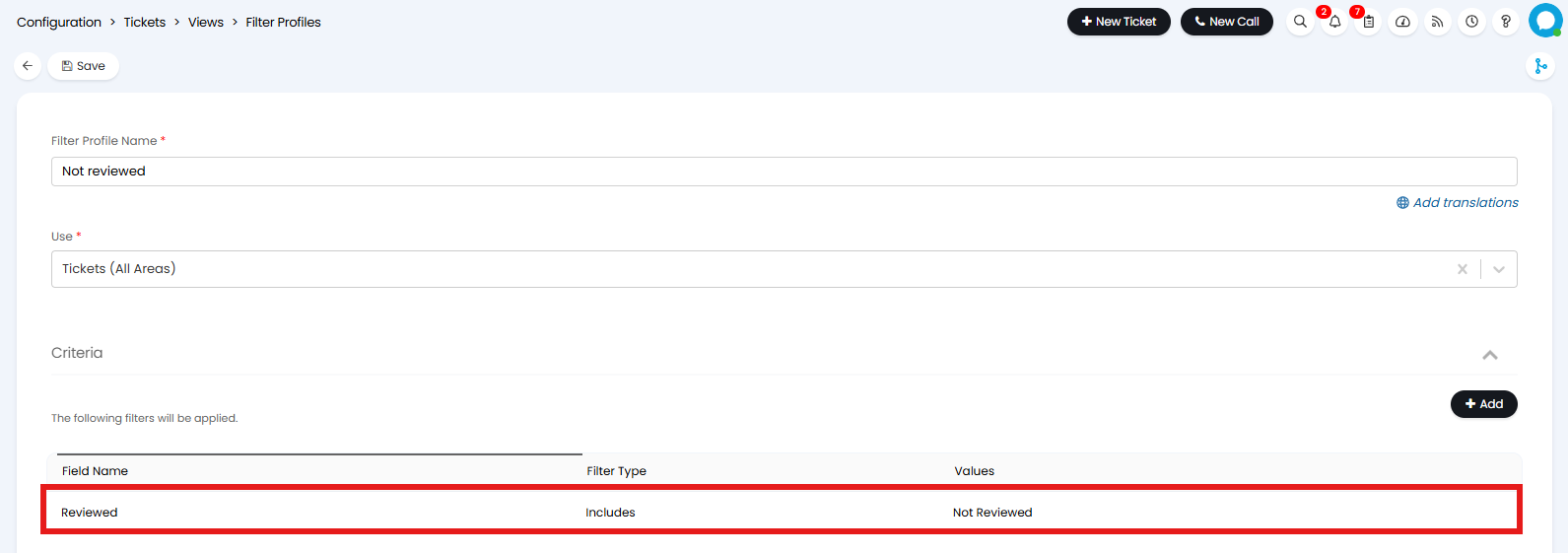
Fig 6. Not Yet Reviewed
Below is the setting this Review filter works with. It is a setting to require agents to confirm a ticket is reviewed before it goes through to Ready to Invoice. This can be checked on in Configuration > Billing > General Settings. There is also the option to invoice actions on tickets before they are closed, when enabled actions can be invoiced for as soon as they are added to a ticket.
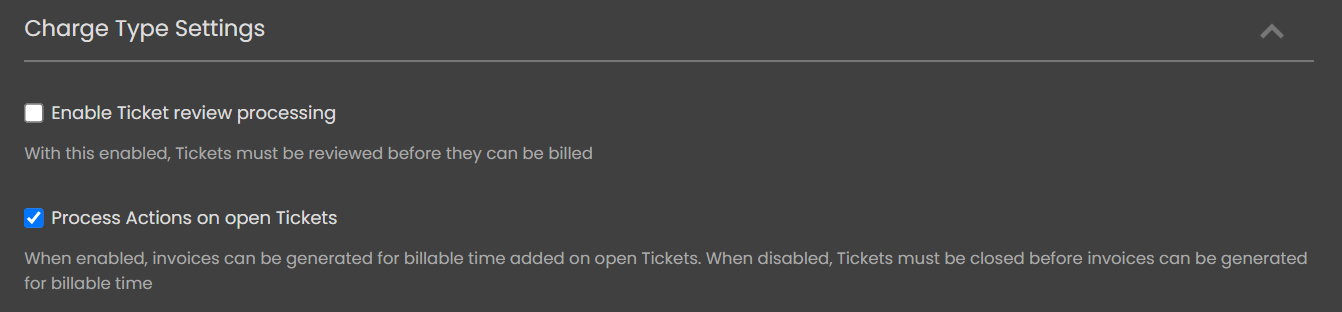
Fig 7. Ticket Review Processing Setting
Determine who Can use a Filter Profile
To control which agents can see/use a filter profile, you can configure access control for this once you have saved it.
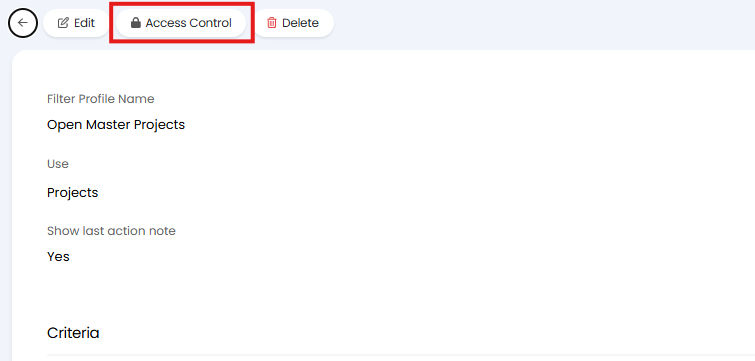
Fig 8. List Access Control
In order for an agent to be able to see/use a filter profile they will need to have at least read only access control.
If an agent is granted read and modify access control they will be able to see/use this filter profile, as well as edit it (adjust the criteria).
When saving a filter profile for the first time the agent creating it will be given owner access automatically.
Dynamic Filter Profiles
Dynamic filter profiles allow you to set ad-hoc filters from the ticket area, rather than having to configure and save a filter profile to later be selected.
To enable this ability head to Configuration > Tickets > General Settings > 'Enable Ticket list dynamic filters'.
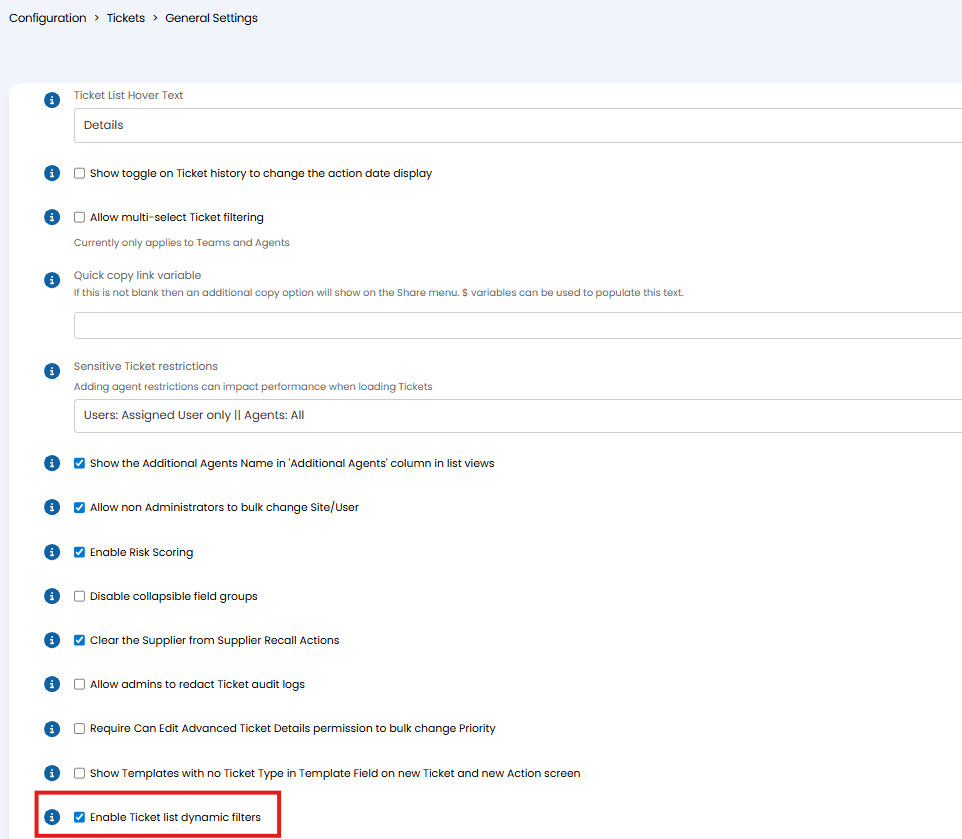
Fig 9. Enable dynamic filter profiles
Once enabled, agents will have an additional option on the ticket list view to add a dynamic filter profile (Figure 10).
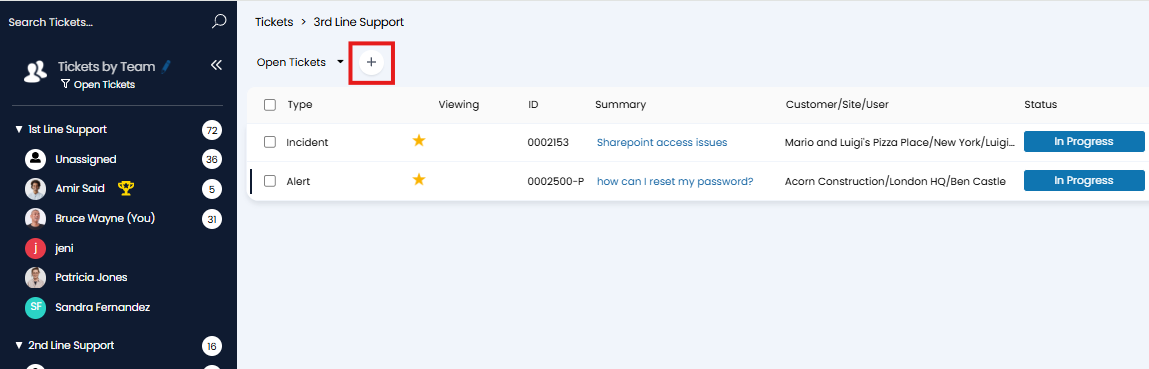
Fig 10. Option to add a dynamic filter profile
When used agents can set how they would like to filter the tickets on the page, choosing a field to filter on, the filter type and the value.
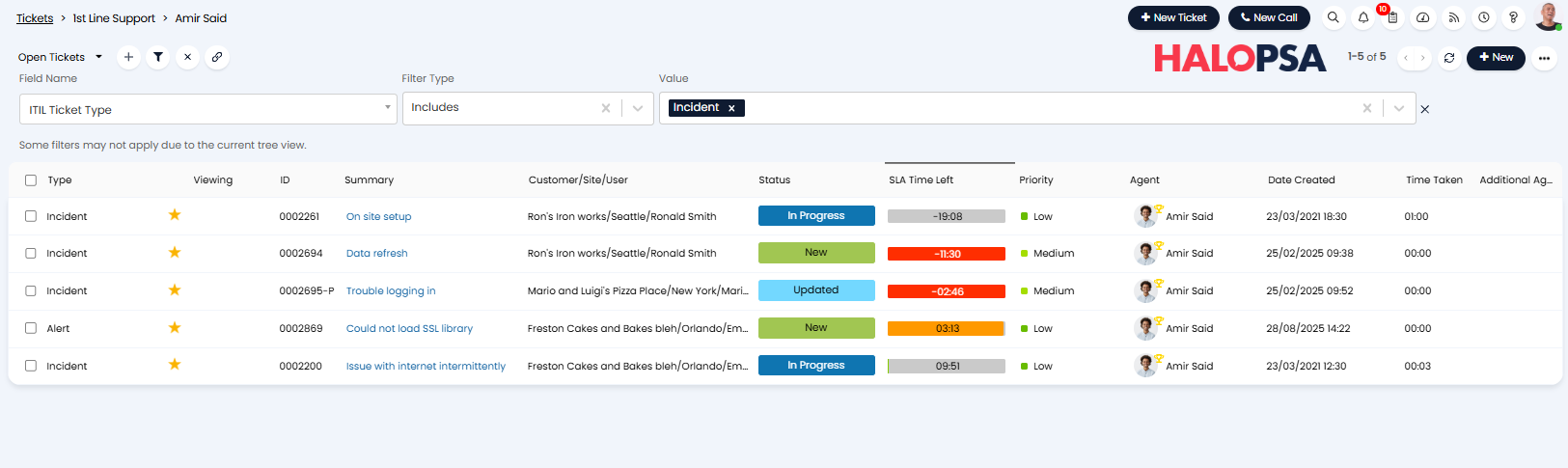
Fig 11. Dynamic filter profile
To add another set of criteria to filter the page on simply press the '+' icon again and add which criteria to also filter the tickets by. When multiple filters are set these will have an AND relationship, a ticket will need to meet all criteria to be shown.
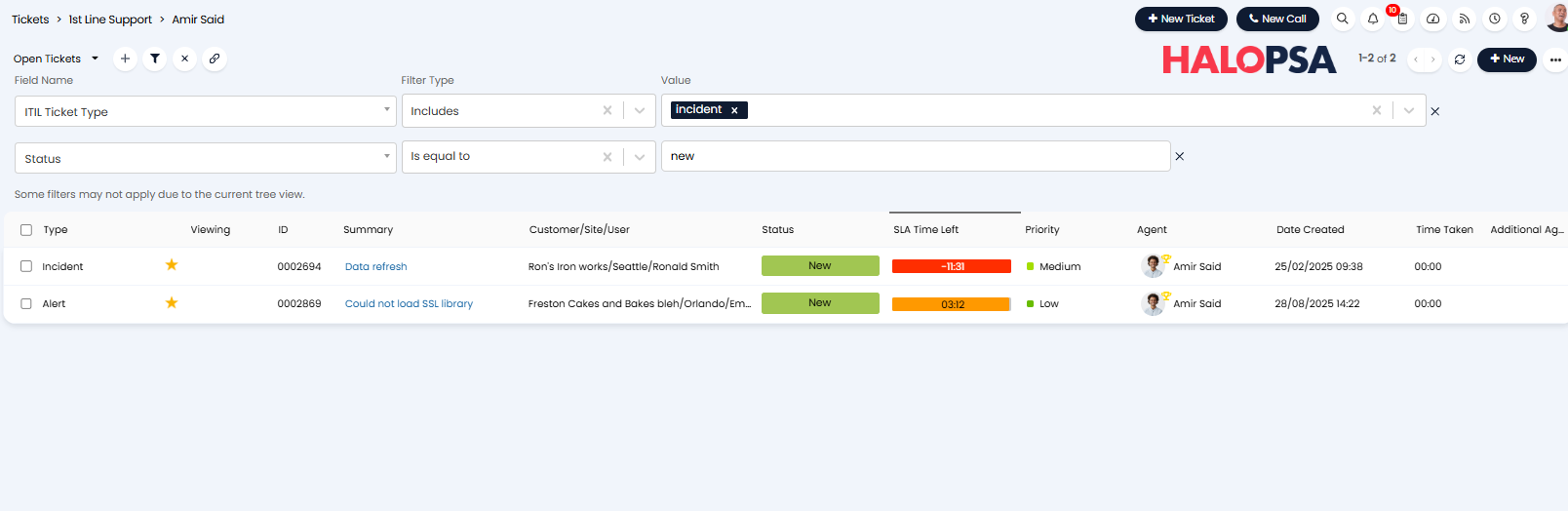
Fig 12. Additional filter criteria
Dynamic filter groups allow you to configure multiple filters with both AND and OR criteria, a ticket will only need to meet criteria in one of the groups to be shown.
To enable this head to Configuration > Tickets > General Settings > enable "Use groups for dynamic filters".
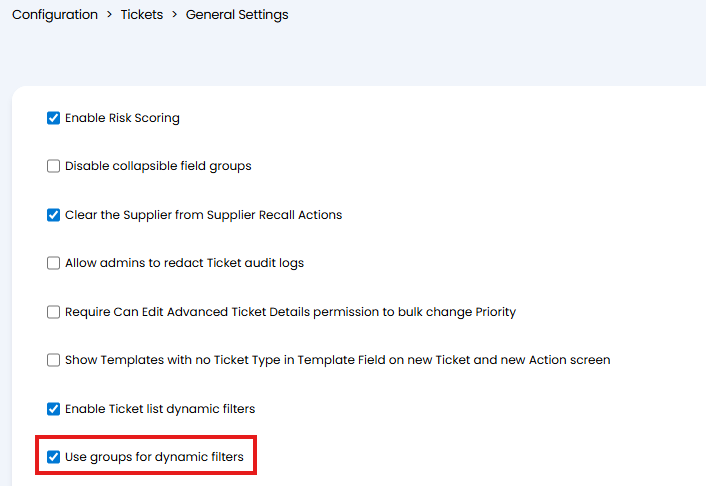
Fig 13. Enable Dynamic Filter Groups
Now when pressing the "+" icon this will add a new group. Another "+" icon will be available within the group to allow you to add criteria for that group.

Fig 14. Dynamic Filter Groups
In the Figure 15 example tickets will need to have ITIL type incident AND be in the new status, OR they will need to have priority 1 to show in the list.
You can add up to 10 filter criteria at once per group, this also applies when not using groups.
These dynamic filters will be applied in addition to any other filters currently applied to the list, including filters from the ticket area, ticket list and selected filter profile. If you would like to ignore these, select the filter icon as shown in Figure 15.
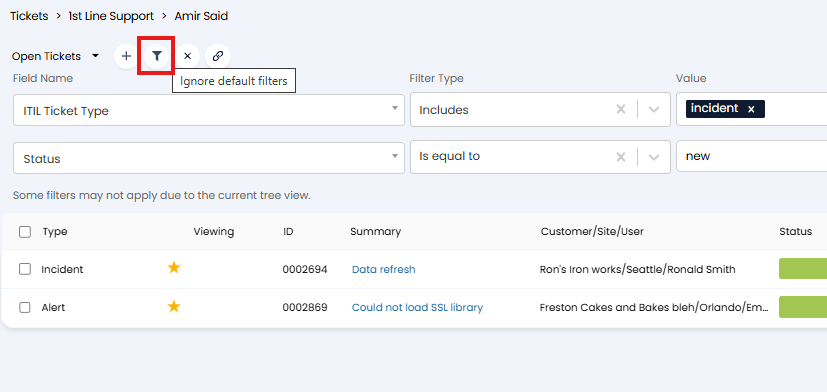
Fig 15. Ignore default filters
You can also use the 'X' icon to remove all the current dynamic filters.
If you would like to copy the dynamic filters, perhaps to another ticket area, or to send to another agent, use the icon highlighted in figure 15. This will copy the filter query that is appended to the URL.
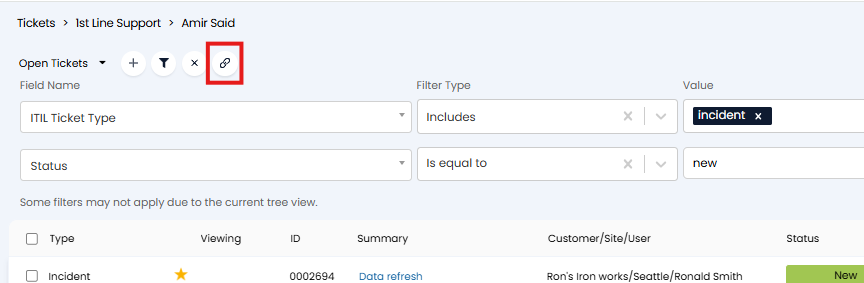
Fig 16. Copy filters
Once copied paste the filter query onto the end of the URL of the page you would like the filters to be applied to.