Ticket Types (Field Lists)
In this guide we will cover:
- What is a Ticket Field?
- Modifying Fields
- Organise Fields into Pages on the Portal
- Adding Signature Fields to Ticket Types
Admin Guides:
Related Guides:
What is a Ticket Field?
A Ticket Field is a section on a Ticket which holds specific Ticket information. Ticket Fields can be text boxes (such as the Ticket Summary), drop-downs (such as Ticket Type), checkboxes, memos, dates, time, or tables. A Field list is a list of Fields that the Agent/User will have to complete when logging as Ticket, or to enter data into throughout work on the Ticket. From v2.256+, certain Customer, Site, and User Fields can be added to a Ticket Field List. This allows the Customer/Site/User details to be updated directly from a Ticket.
If you head to Configuration > Tickets > Ticket Types, you will be presented with a list of all of the Ticket Types currently configured. Each Ticket Type has its own unique configuration and its own unique Field list - in this guide we'll modify the Field list for our 'Incident' Ticket Type.
Clicking into the Incident Ticket Type takes us to the configuration page.
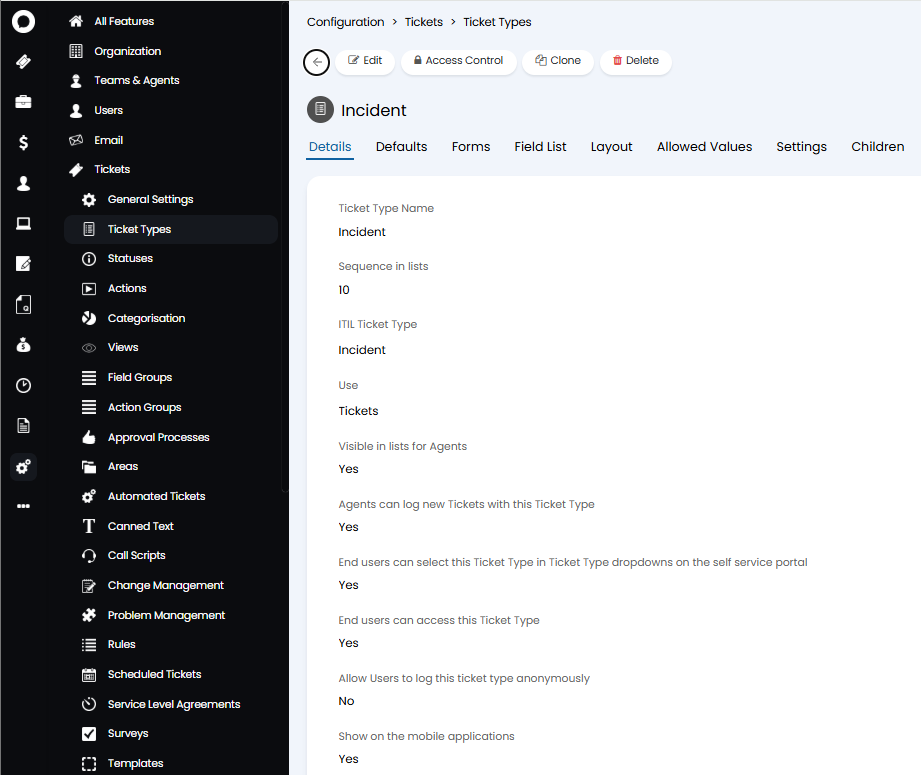
Fig 1. Ticket type configuration
Modifying Fields
To edit or add a Field to your Ticket you will need to head to Configuration > Tickets > Ticket Types, then choose the relevant Ticket Type, and head to the Field List tab. Next click 'Edit'. This provides you with options to modify or remove a Field, or add to your list. To remove a Field you can click the bin icon on the line of the Field you want to remove. To add another Field to the Field List, click the add icon.
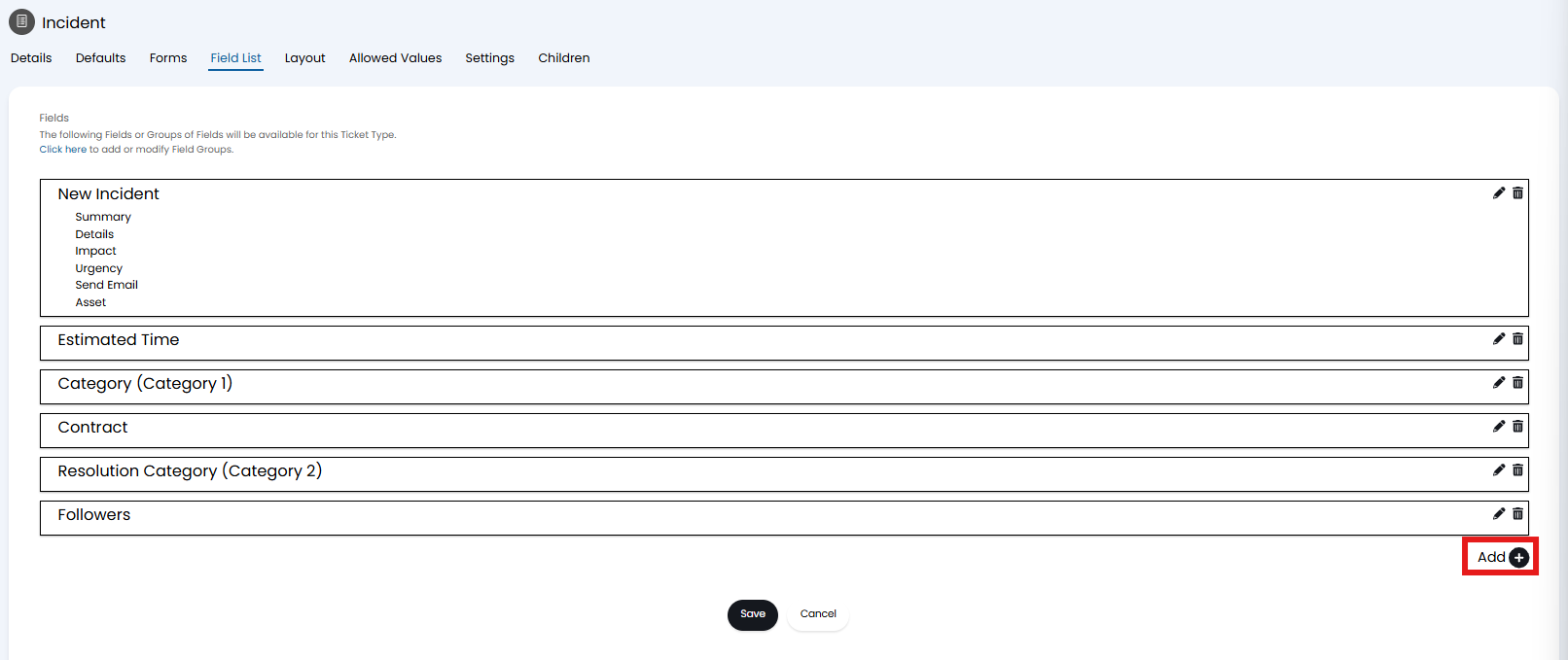
Fig 2. Adding To The Field List
You will then be presented with the option to select the Fields you would like to add to your list:
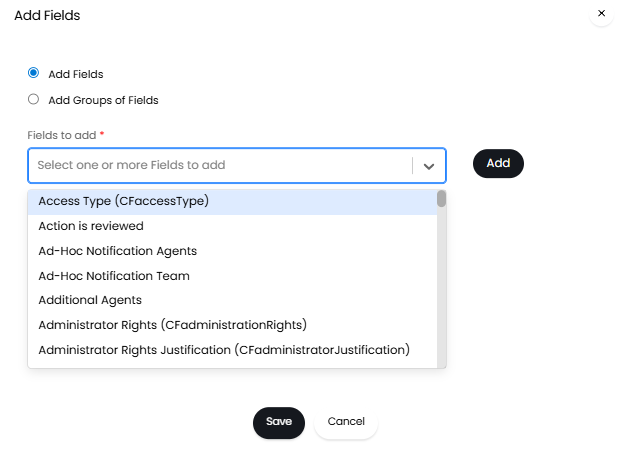
Fig 3. The selection box also allows you to search via text input to help find what you're looking for
Once you are happy with the selection of Fields you would like to add, simply click 'Save'.
Halo provides an extensive list of Fields you can use to capture different types of information, however you may find that you are looking to capture some information that is not presented as an existing Field - in this case you can click the 'Add' button.
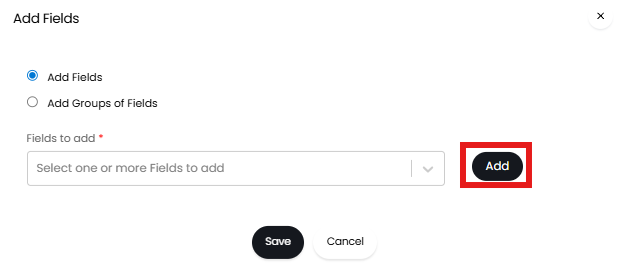
Fig 4. Adding Fields to the Field list
This allows you to create a new Custom Field and will automatically add it to your Field list upon saving.
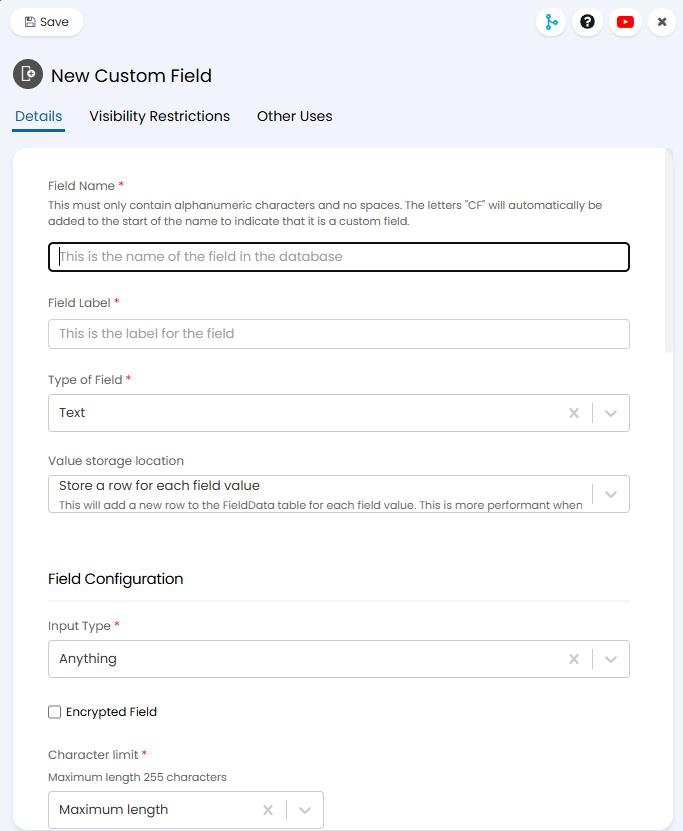
Fig 5. Creating your own Custom Fields.
For more information checkout this guide on Creating Custom Fields.
In Figure 2 we have a list inside the 'General' box - this is known as a Field Group and is a collection of Fields that can be added/modified across several Ticket Types (instead of having to add/modify each Field independently). To add a new Field group click add as normal, but change the selection to "Add Groups of Fields". Again you will be presented with the option to add an existing group, or create a new one.
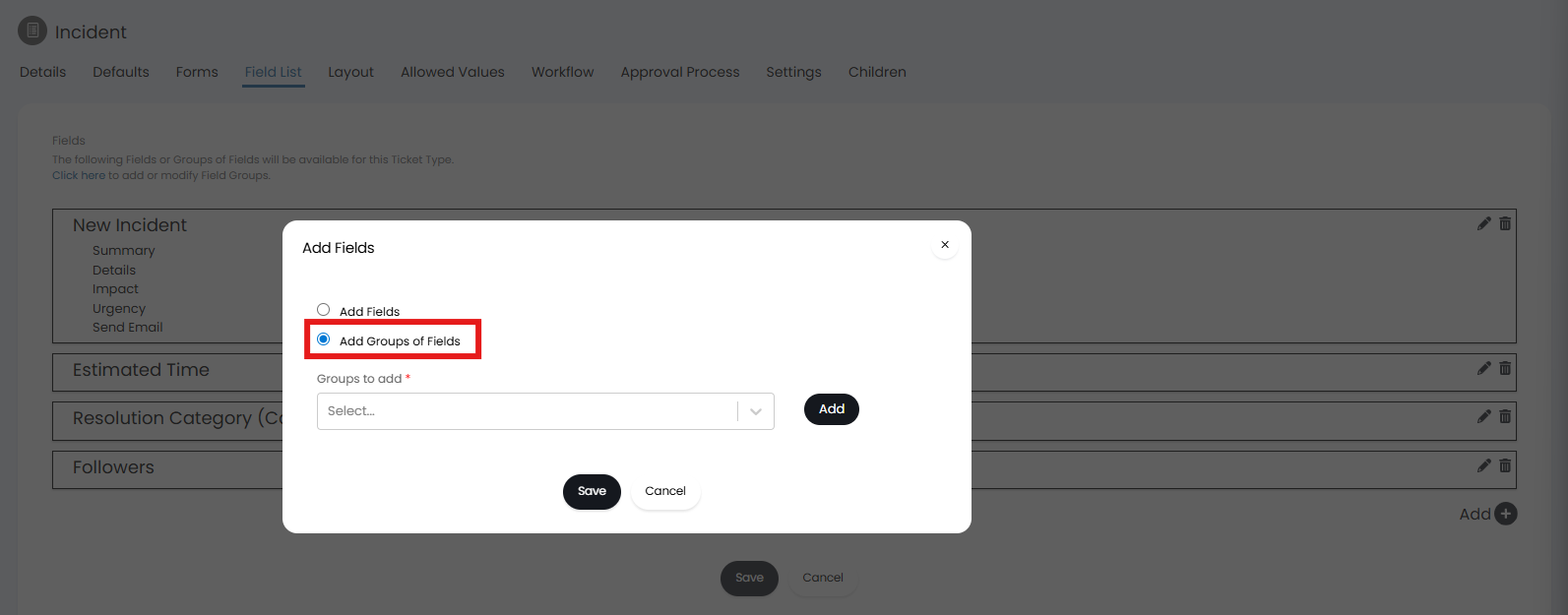
Fig 6. Adding a Field Group
To create a new group click the "Add" button. This will bring up the New Field Group screen. Here you can set a name, header and description for the group. In the "Defaults" tab you can set visibility for the overall group. Now add the Fields you would like to be contained in this group in the Field List Tab. As before you can use the add and remove options in the group's Field List, and you will be able to set the visibility of each Field by clicking the pencil icon.
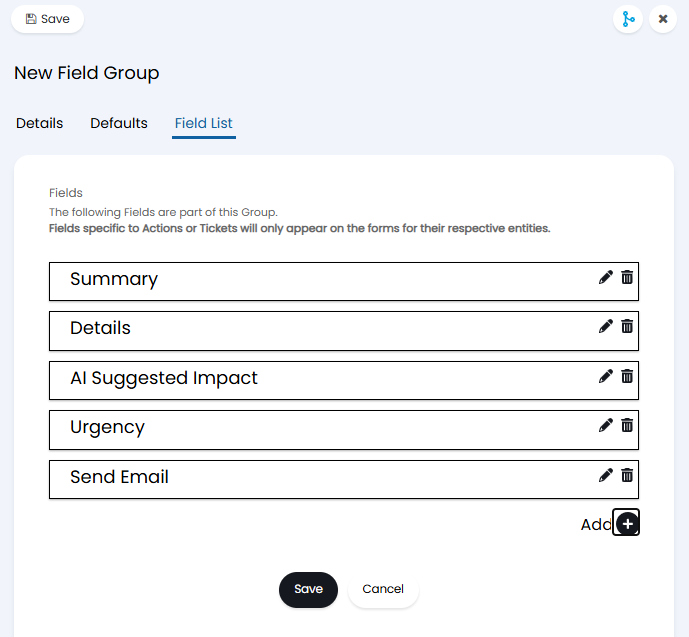
Fig 7. Creating a Field Group
Once you are happy you have added all the relevant Fields to your list, you can then modify their order & visibility settings.
Fields can be re-ordered by hovering over the left hand side until the 8 dots appear.
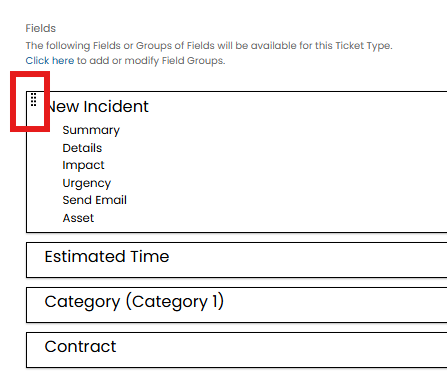
Fig 8. Changing The Field Order of The List
These allow you to drag and drop the Fields into the desired order.
You'll note that, when in edit mode, each Field has a pencil icon to the right hand side. Clicking on this returns the Edit Field options.

Fig 9. Editing a Field
Here you can set the visibility for the Field. Options here control if the field shows, and where it shows.
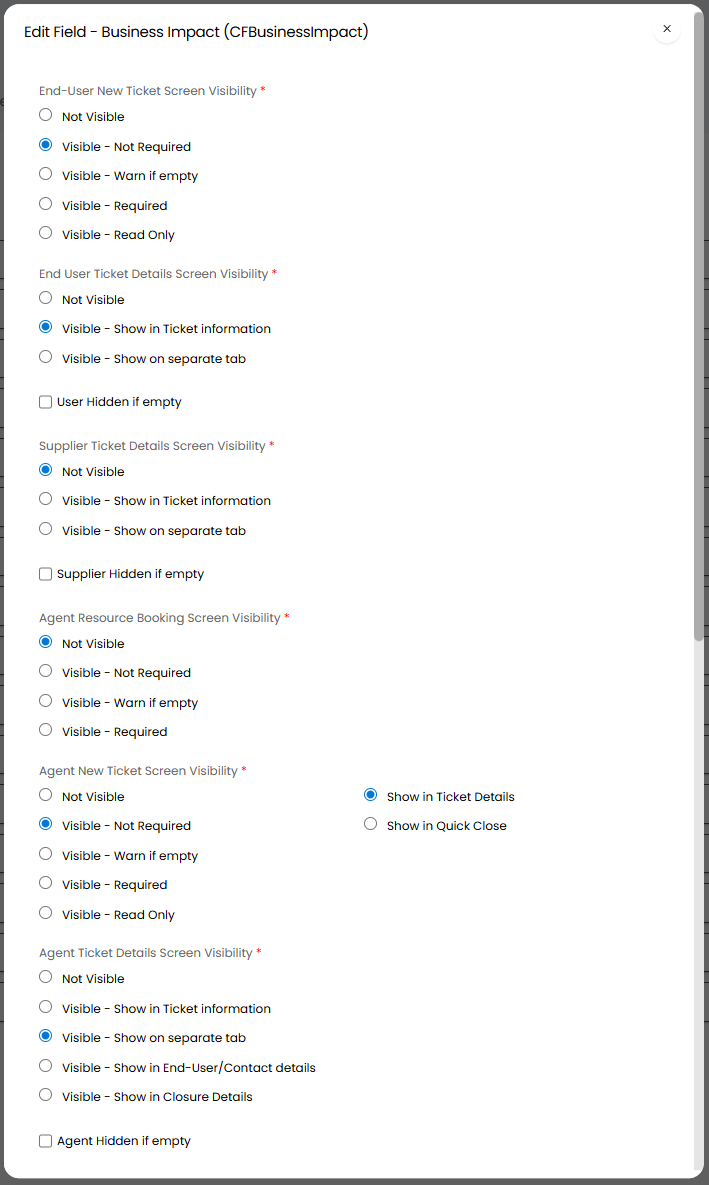 Fig 10a. Field Visibility Options
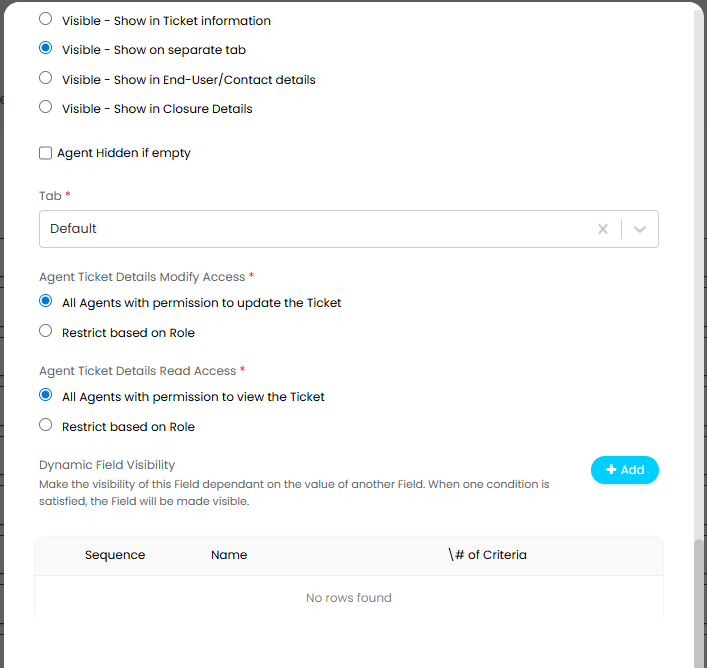
Fig 10b. Field Visibility Options
You will see from Figures 10a and 10b there are options to set if the field shows for each viewer (agent, user, supplier) and for each form of the ticket (new ticket screen, ticket details screen, resource booking screen).
Options to set the "Supplier Ticket Details Screen Visibility" are available from v2.238+ and control if this field is visible to supplier contacts when they view the ticket in the portal.
User/Supplier/Agent Hidden if empty - If enabled, the field will be hidden to users, suppliers and agents (respectively) if there is no data in it.
The visibility options available will differ based on the type of field. Custom fields will have the most options, system fields will have less options as visibility may be dependent on other settings or configured elsewhere.
There a 4 scenarios to consider when determining Field visibility:
- When an end-user is raising a Ticket on the Self-Service Portal.
- When an end-user is viewing a previously raised Ticket on the Self-Service Portal.
- When an agent is raising a Ticket.
- When an agent is viewing a previously raised Ticket.
Note: Priority is not visible in portal unless "Show SLA compliance Information" is ticked in Configuration > Self Service Portal.
For each of these scenarios, you can specify whether or not your Field is visible. If you have created a Field group, you can configure the visibility for the whole group of Fields, rather than needing to do this individually. This is done by editing the group, then editing the Fields within the group.
Dynamic Field Visibility can be used to make certain fields only appear based on the value of another field. This reduces the size of Field Lists and ensures that only relevant Fields show without the need for multiple similar Ticket Types.
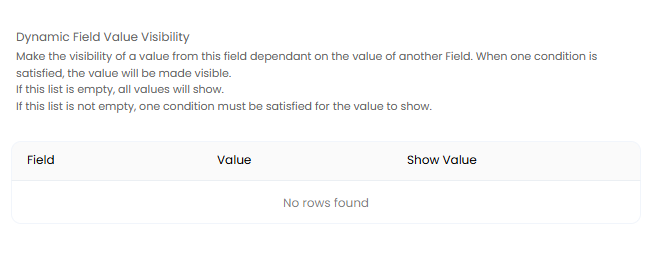
Fig 11. Custom Fields Other Visibility Options
In contrast to Dynamic Field Visibility which makes the whole field appear or disappear, Dynamic Field Value Visibility can be used to make the visibility of certain values of a field dependent on the value of another field. This can only be applied to drop-down selection fields, both single selection and multiple selection.
Dynamic Field Visibility has the option to apply one criteria for the visibility restrictions or a group of criteria.
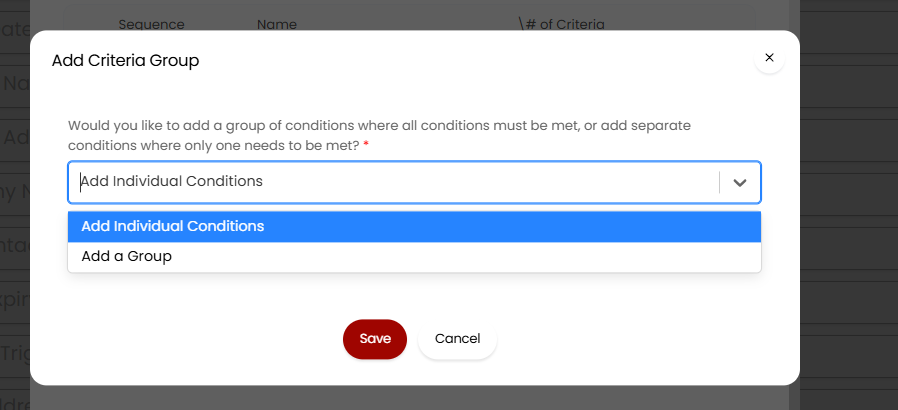
Fig 12. The option of Criteria Groups on Ticket Field Lists
If you add a Criteria Group, then all the criteria in this group must be met in order for the Field to be visible.
From version 2.232.1, Dynamic Field Value Visibility with also have the option of Criteria Groups.
For more information on configuring dynamic field and dynamic field value visibility checkout our guide here.
Override the Field Display Label
Each custom Field will be configured with a "Field Label", this will be used as the label for the field when agent/users fill the field in. However, when editing the field on a Ticket Type (or action) you can override this label. Useful when the same Field is used in various Tickets/actions but it is beneficial to have the field labelled differently for each location it is used.
Override the Field label using the 'Override display label' Field, when editing the field within a Ticket Type (or action). The chosen label set to be used as the override will now show instead.
You can also override the display label for selected system fields. This can be done for the following system fields:
- Summary
- Details
- Team
- Additional Agents
- Ticket Tags
- Contributors
- Estimated Time
This is done by editing the field in the field list and using the "Override display label" field to enter the name you would like the field to have on tickets of this type.
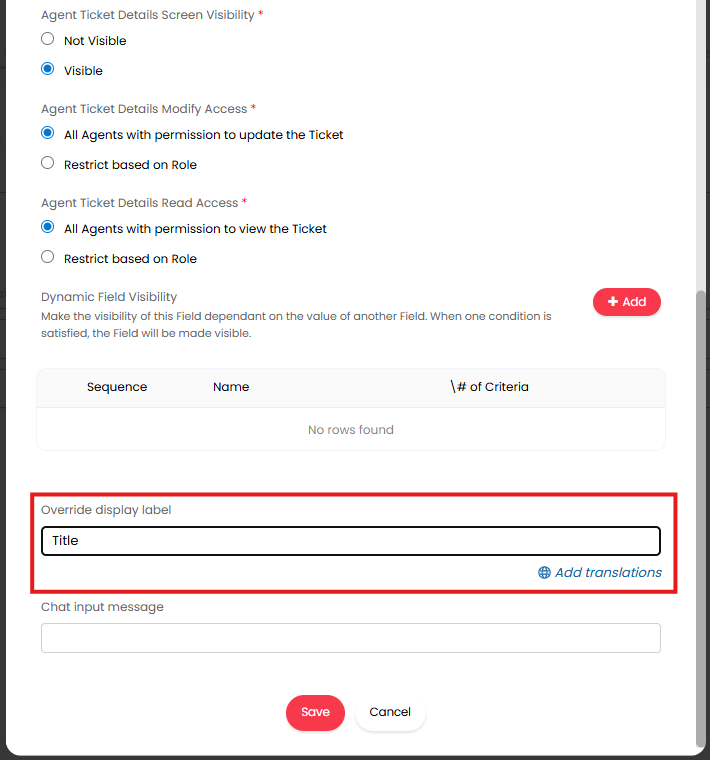
Fig 13. Override the Display Label of the Summary Field
Organise Fields into Pages on the Portal
You can have multiple pages for Ticket Fields, when logging Tickets in the Portal. Providing a sleeker layout for users when they are logging Tickets (Forms) with an extensive Field List.
Note: This only applies when logging Tickets in the portal, not when logging in the agent app.
Fields will be grouped onto pages based on the Field list group they are in, each Field group will represent one page. Once you have organised your Fields into groups based on the pages you would like them to appear in, enable this functionality against the Ticket Type. Head to configuration > Tickets > Ticket Types > select the Ticket Type > Forms Tab > enable 'Show multiple pages split by Field Groups'.
Now when users log Tickets of this type in the portal, the required Fields will be spread across multiple pages. Users will not be able to navigate to the next page until the mandatory fields on the current page are completed.
Adding Signature Fields to Ticket Types
You will be able to add Agent/Customer Signature Fields to the Ticket Type Field List:

Fig 14. Agent Signature and Customer Signature Fields
You will want to use the pencil icon on the left hand side of the Field within the list, to make sure that the Field visibility is correct, i.e. you will not want an agent signature Field on the new Ticket screen for a user on the portal:
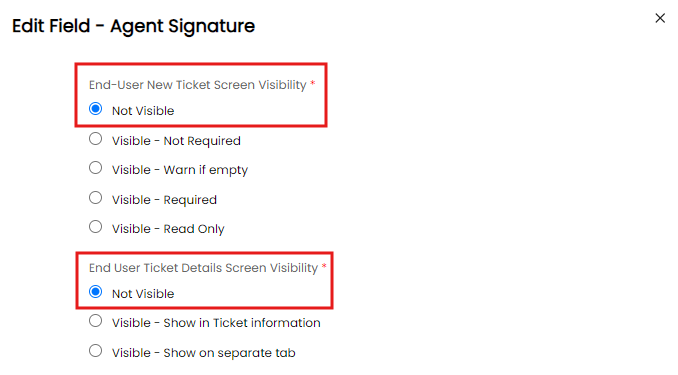
Fig 15. Setting visibility on the Field