Dynamic Field/Value Visibility
In this guide we will cover:
- What Is Dynamic Field Visibility?
- Configuring Dynamic Field Visibility
- What Is Dynamic Field Value Visibility?
- Configuring Dynamic Field Value Visibility
What Is Dynamic Field Visibility?
Dynamic field visibility is the process of making the visibility of a whole field dependant on the value of another field. When the condition is fulfilled then the field will be made visible, otherwise the field remains hidden. This is useful for reducing the amount of noise on a Ticket with a large field list, or for guiding the input of data.
In the below example, we have a New Starter form on the Self Service Portal. You will notice that in the New Starter IT Requirements section only a checkbox field and a comments field is currently showing.
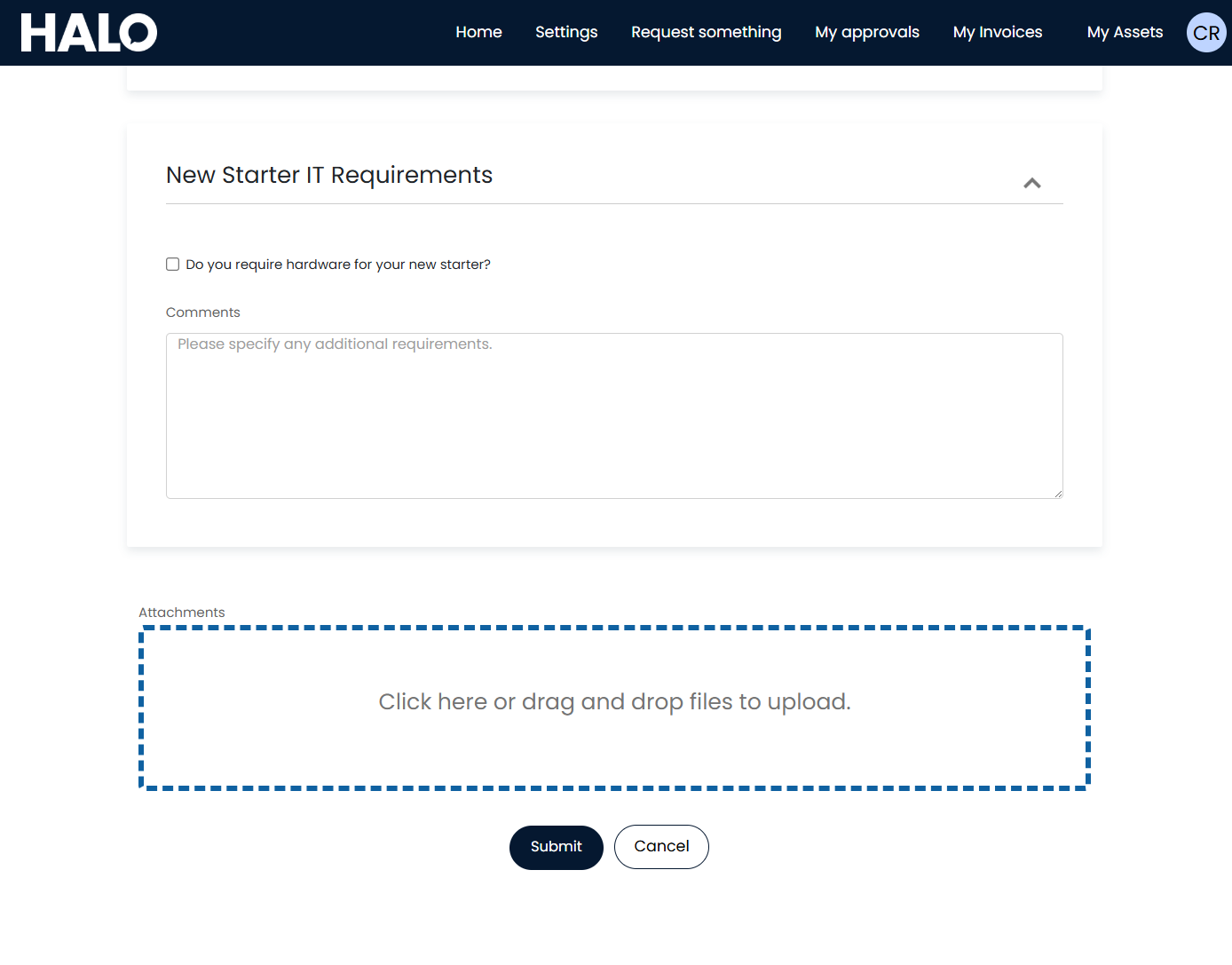
Fig 1. New Starter Form
Upon the User selecting the checkbox, however, the following fields will appear requesting additional details.
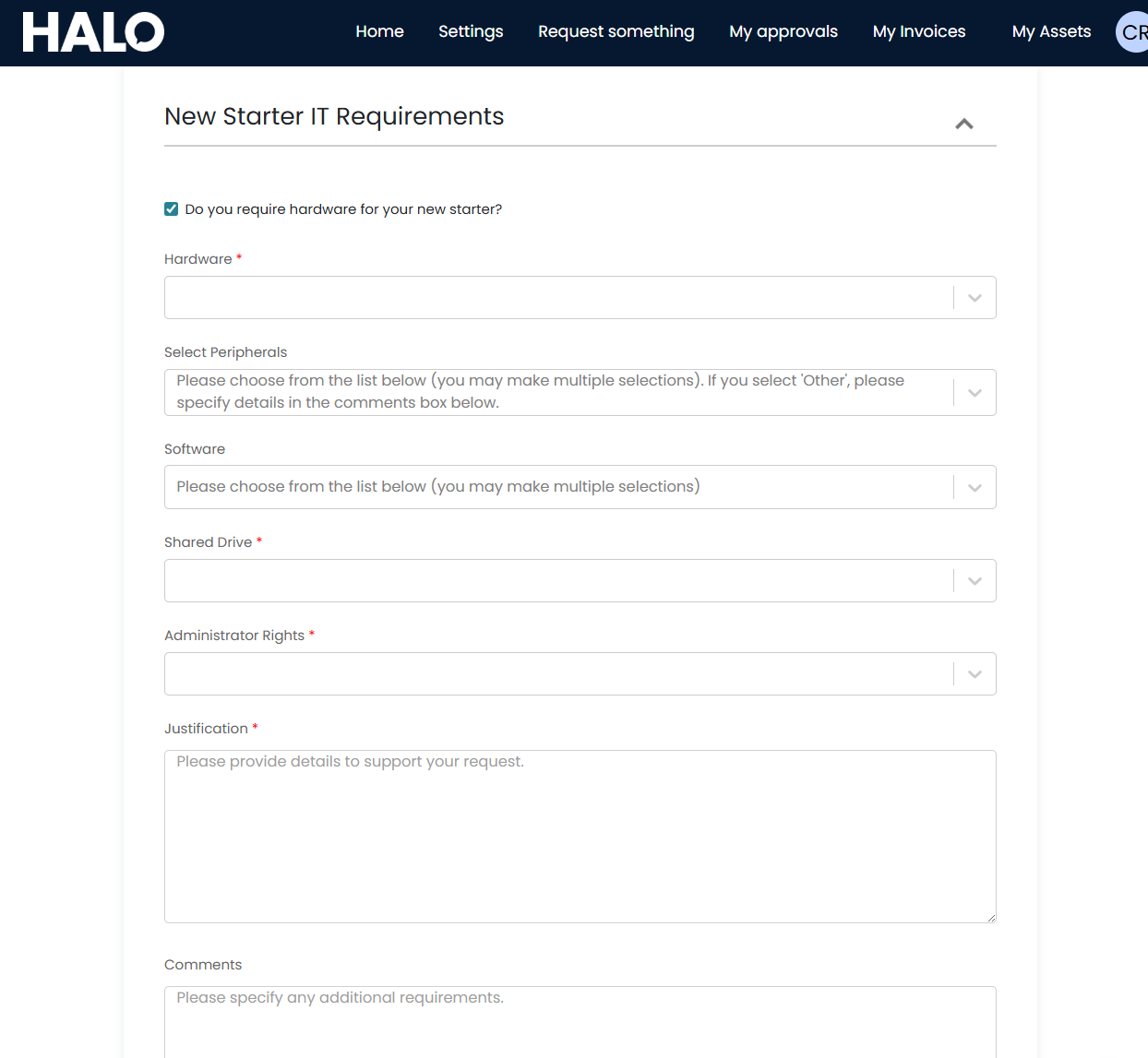
Fig 2. Dynamically Visible Fields Appearing
This is Dynamic Field Visibility.
Configure Dynamic Field Visibility
To configure Dynamic Visibility for a field, navigate to Configuration > Tickets > Ticket Types, click into a relevant Ticket Type and go to the Field List tab. Edit a field that you would like to control the visibility of using the pencil icon that sits at the right of each field.
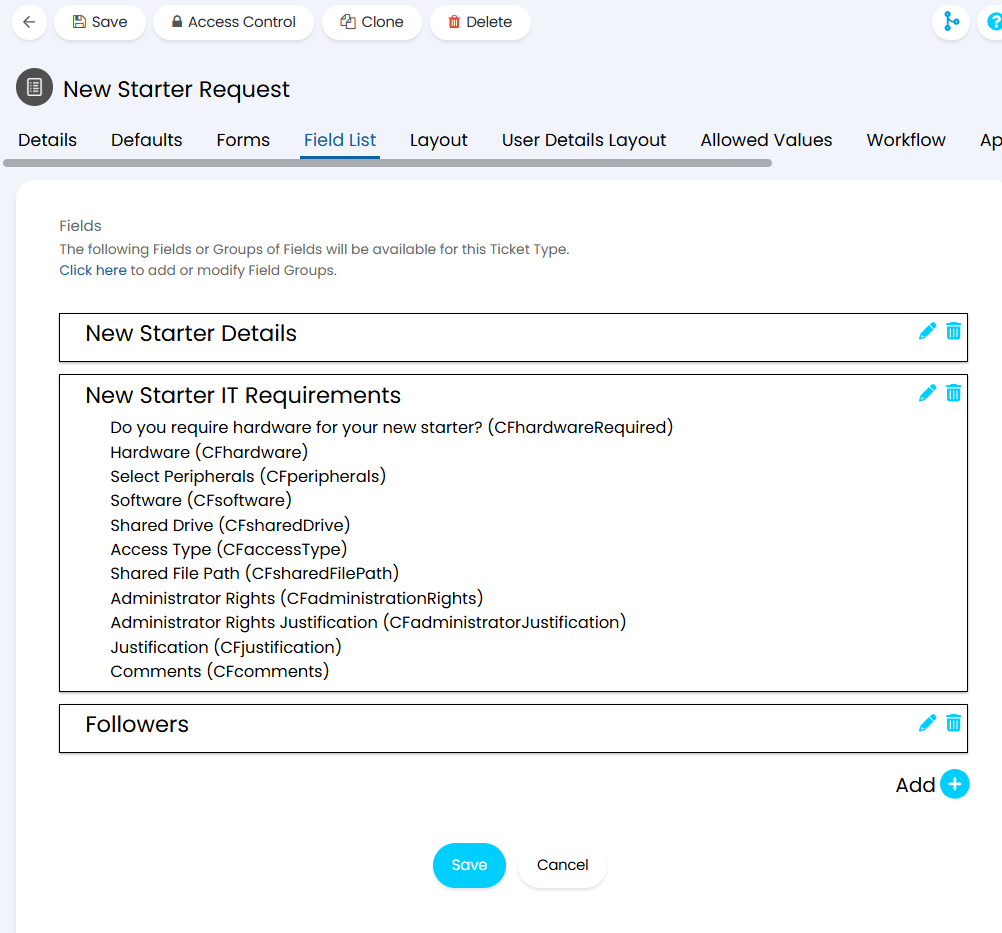
Fig 3. A Ticket field list in edit mode
When you select the pencil icon on a field, a modal screen will appear where you are able to able to configure the visibility for both Agents and Users, and whether the field should be mandatory.
Towards the bottom of this modal screen there is a section labelled "Dynamic Field Visibility". To add in criteria for Dynamic Field Visibility select the "+ Add" button.
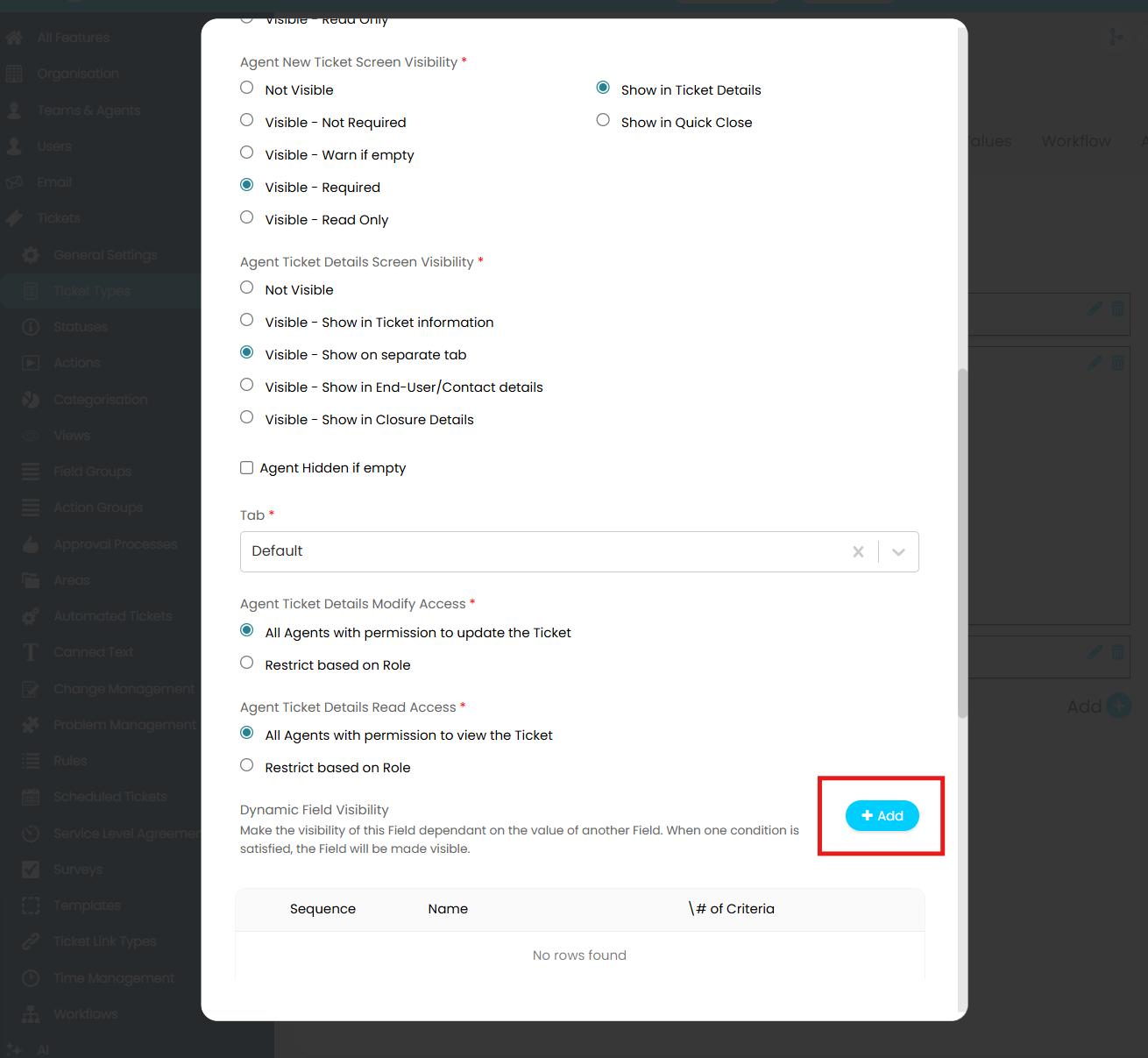
Fig 4. Adding Dynamic Field Visibility to a Field
Selecting the + Add button will bring up a screen that asks whether you would like to add a group of conditions or an individual condition. In this example we are looking at individual conditions, later in this guide we will look at condition groups.
Once you have selected to add an individual condition, you can choose the Ticket field to depend on.
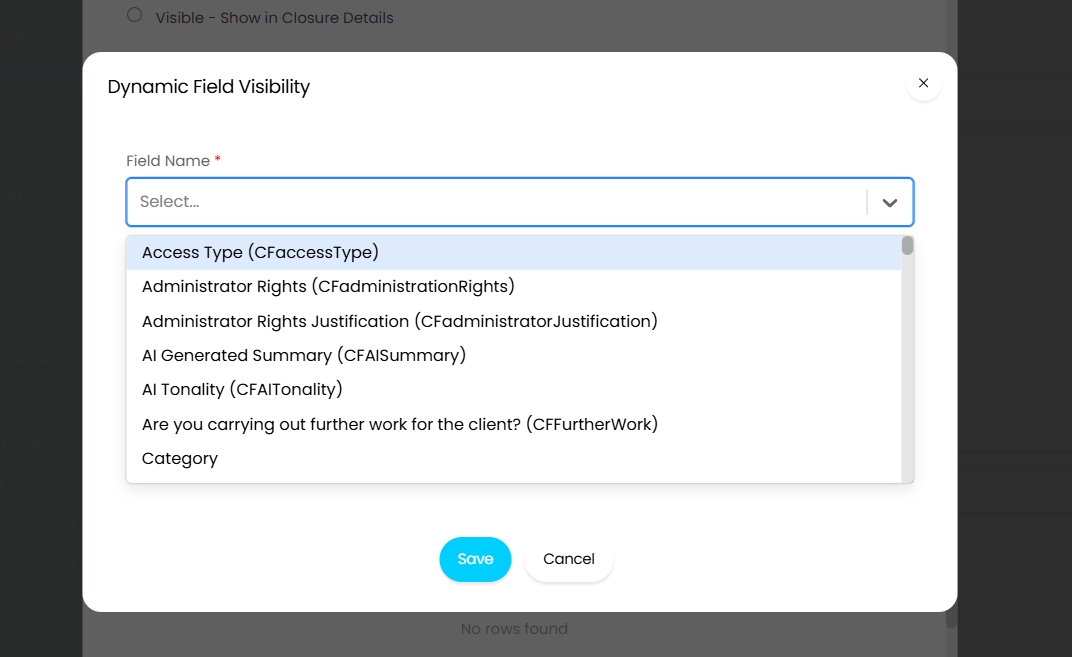
Fig 5. Choosing the field to be used as the dependency for Dynamic Field Visibility
Once you select "Save", you need to choose the value that will determine whether this field shows or not. For example, if you choose a checkbox field in Figure 5, then the value options will be "Yes" or "No".
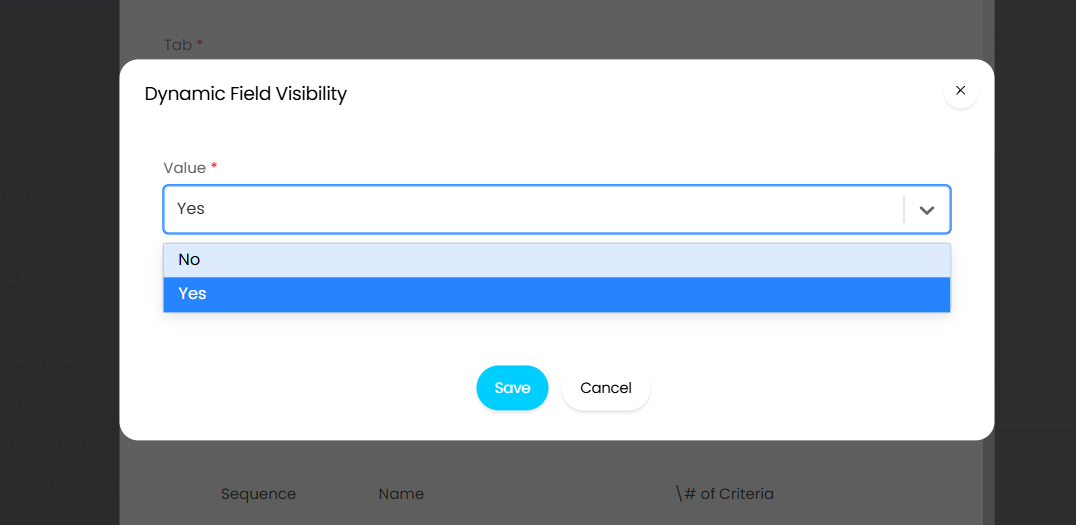
Fig 6. The value options if a checkbox field is chosen as the dependency
Once your criteria is saved, as shown in Figure 7, it will show in the Dynamic Field Visibility section when editing the field.
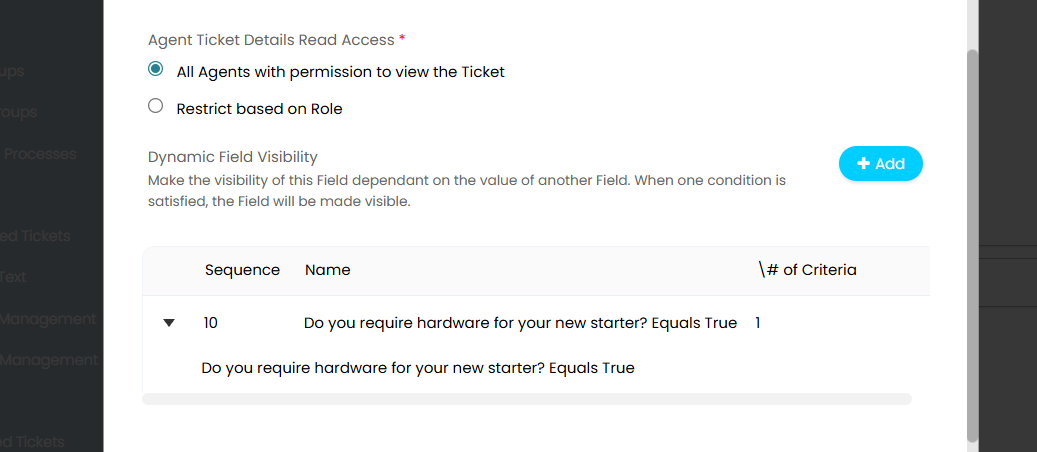
Fig 7. Dynamic Field Visibility criteria
Once this is set for each of the relevant fields, as demonstrated by Figures 1 and 2, the field will only show if "Do you require hardware for your new starter?" is checked.
Note: From version 2.230+, you can use the Sales Closure Category as Dynamic Visibility Criteria on Sales Tickets.
Dynamic Field Value Visibility
When editing fields that are single selection and multiple selection custom fields, i.e. field that contain a set list of values (not SQL lookup custom fields), an additional section below "Dynamic Field Visibility" will appear labelled "Dynamic Field Value Visibility".
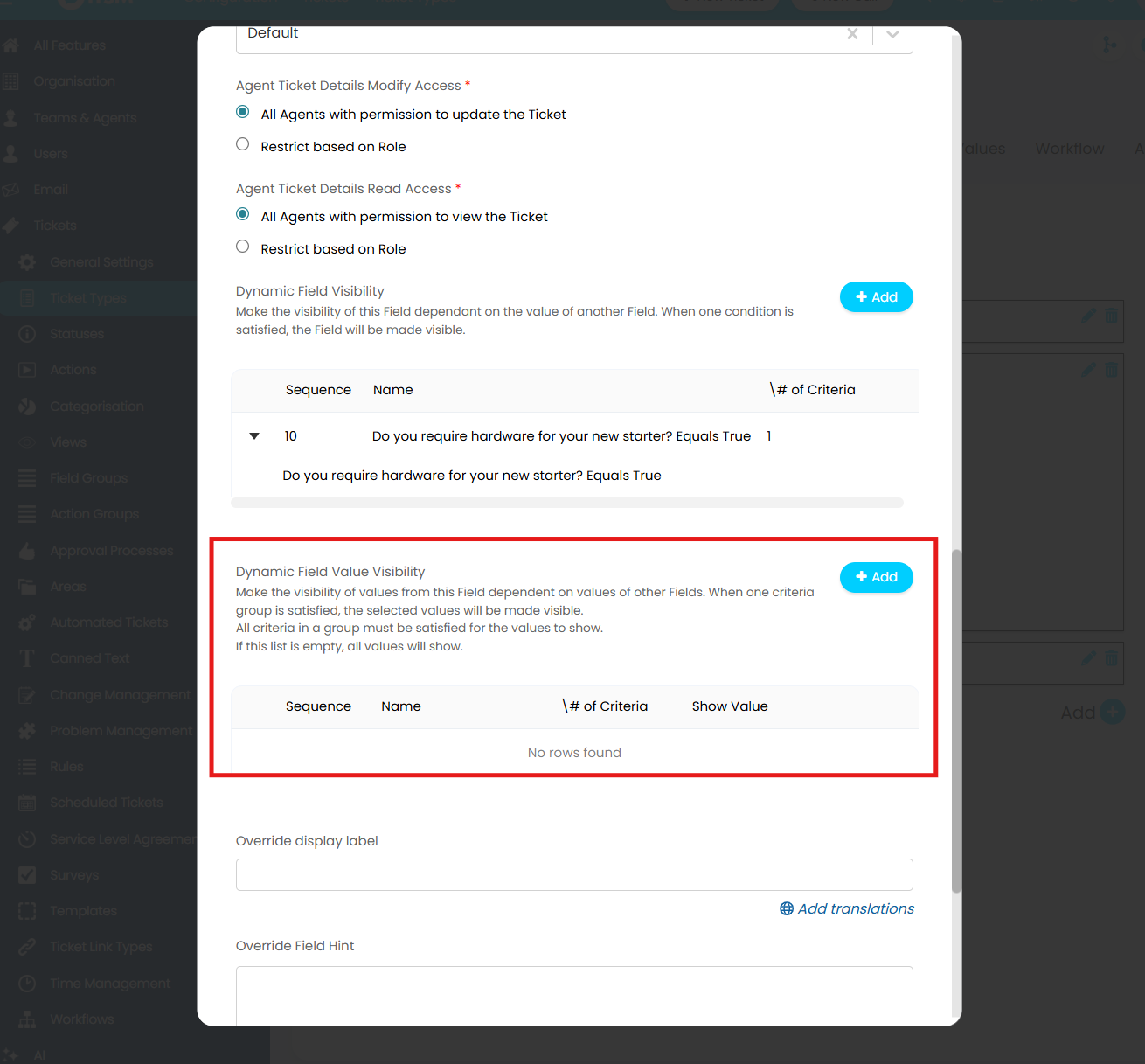
Fig 8. Dynamic Field Value Visibility
In contrast to Dynamic Field Visibility, Dynamic Field Value Visibility allows you to make the visibility of an individual value of the field dependent on the values of others.
For example, I may want to make the hardware options that a User can choose from relevant to their preferred brand. In this case, I would click the "+ Add" button to add a new criteria for Dynamic Field Value Visibility, choose "Add Individual Conditions", choose my "Preferred Brand" field as the dependency, and then I can choose which value to be dependent on (Figure 9).
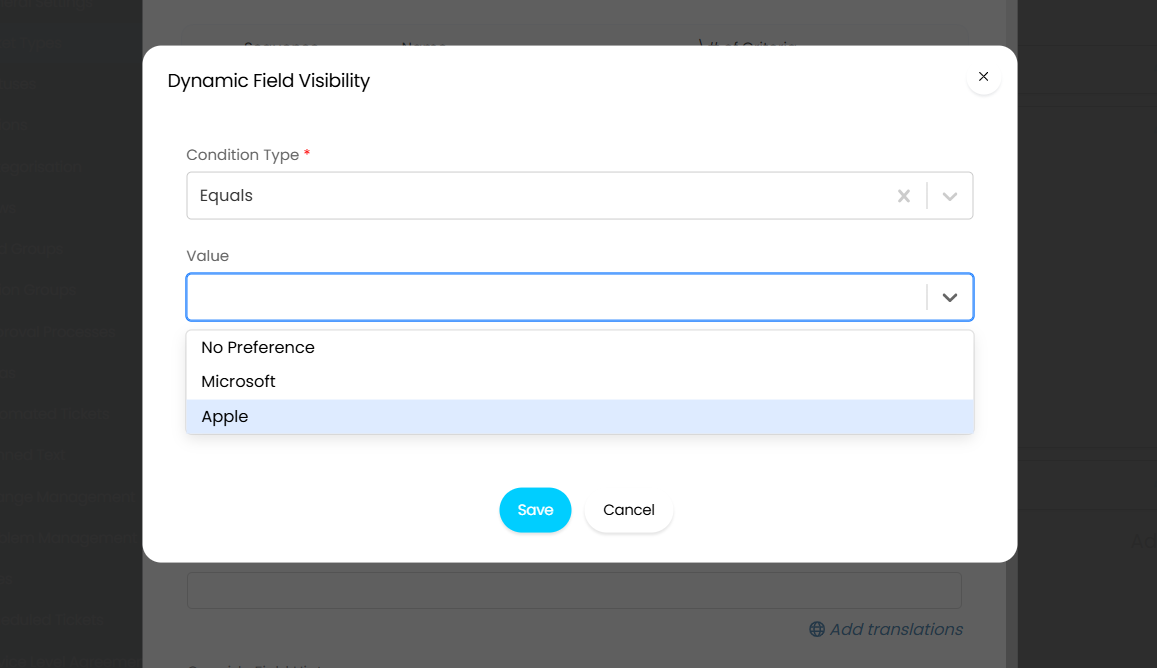
Fig 9. Choosing the value to be dependent on when configuring Dynamic Field Value Visibility
Once Save is selected, I can choose the value that will show according to the value chosen in Figure 9.
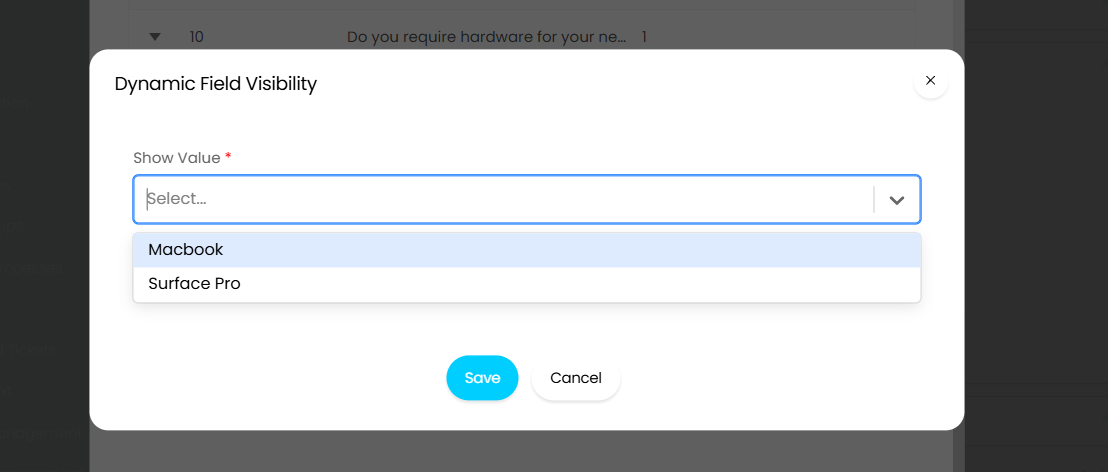
Fig 10. Choosing the values to show when configuring Dynamic Field Value Visibility
As illustrated in Figure 11, this visibility configuration will show in the same way as Dynamic Field Visibility configuration.
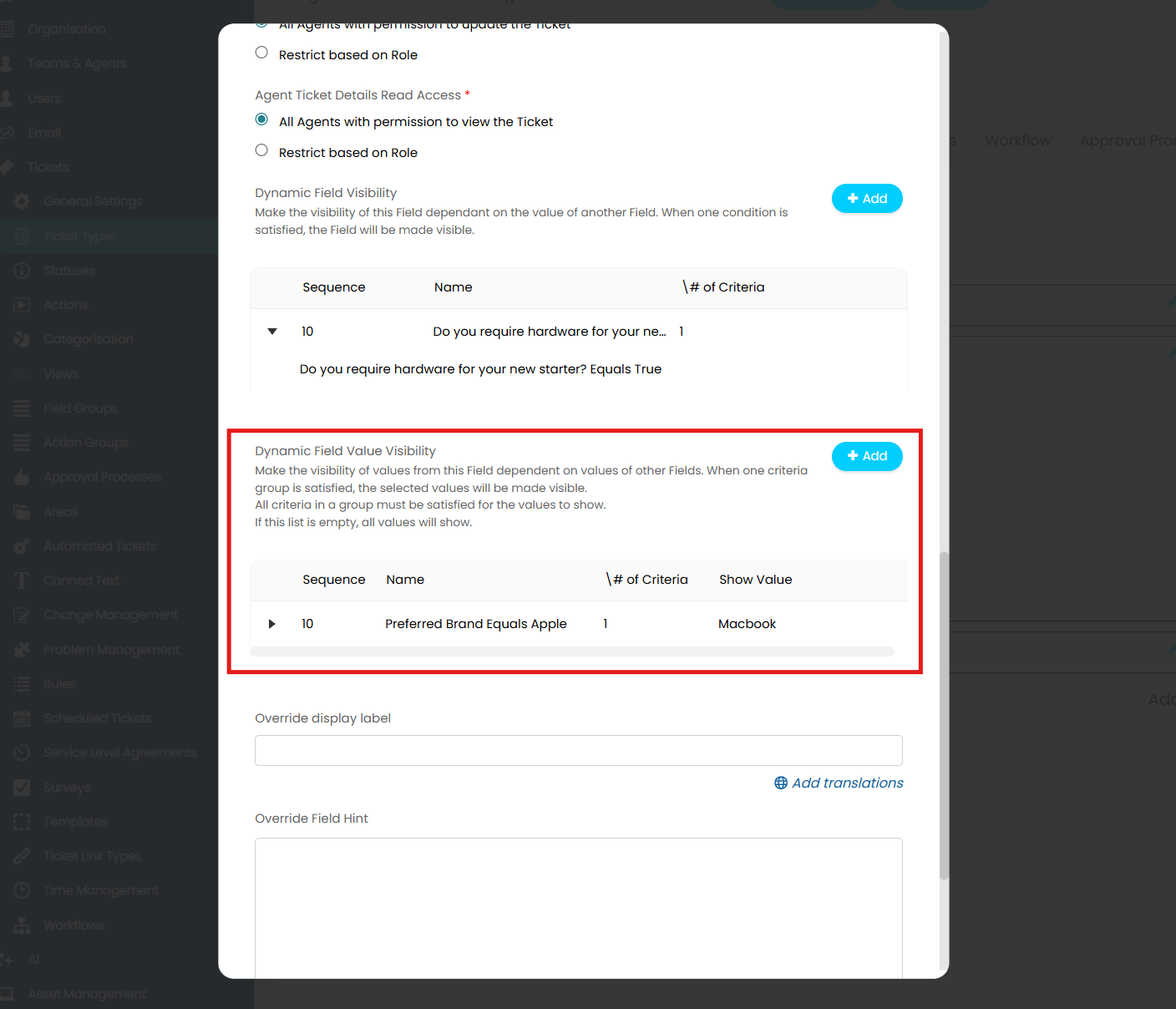 Fig 11. Dynamic Field Value Visibility
Now, when Apple is chosen as the "Preferred Brand" on the form, only "Macbook" will show as an option for the Hardware.
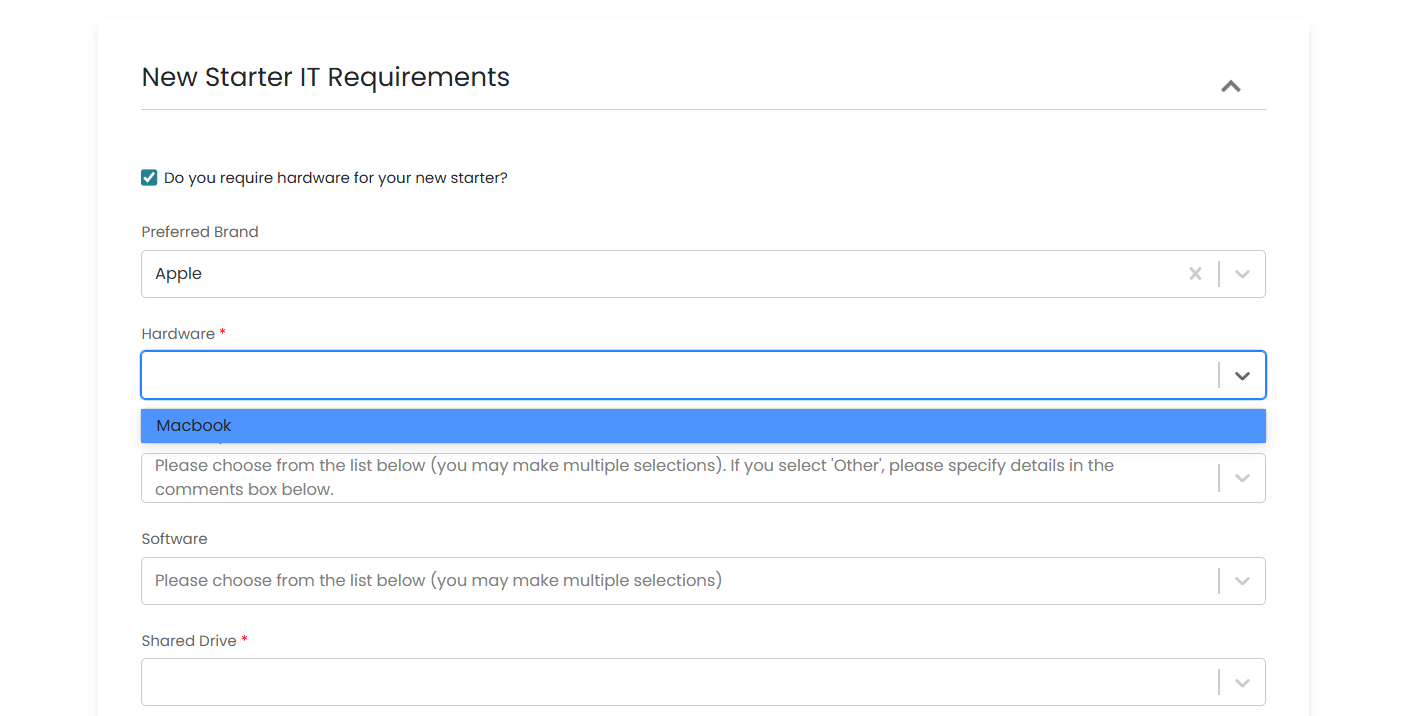
Fig 12. Dynamic Field Value Visibility in action on the Self Service Portal
You can use Client, Site and User Custom Fields for Dynamic Field and Dynamic Field Value visibility to restrict on the New Ticket Screen, Ticket Details and New Action screen. This will apply on both the Agent Application and Self Service Portal for logged in Users. Anonymous Users will not meet visibility criteria using these fields.
Condition Groups
Dynamic field visibility can be either individual conditions, as you have already seen, or it can be a group of conditions. Grouped criteria means all conditions within a list must be met for the field to show.
When adding an entry to the Dynamic Field Visibility table, a dropdown will show to select either an individual condition or a group of conditions.
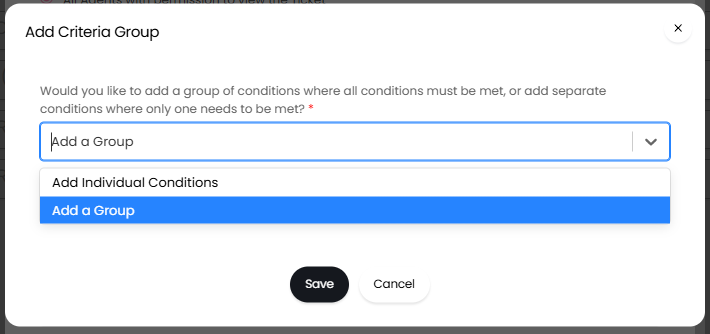
Fig 13. Adding a criteria group.
If using a group, it will appear like below. Both criteria must be met for the field to show.
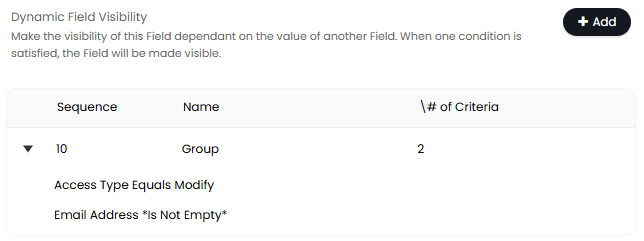
Fig 14. Adding grouped criteria.
If using single conditions, only one will need to be met.
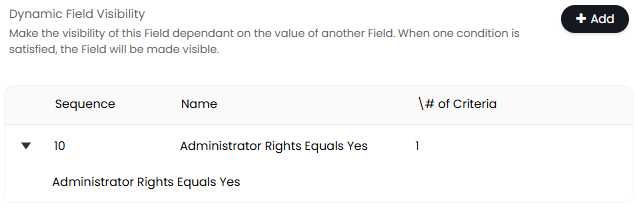
Fig 15. Adding single criteria.
Let's look at a comparison. The first set of grouped conditions from Figure 14 means the "Access Type" field must be set to "Modify", and the email address field must not be empty. Upon setting both of these, the "Administrator Rights" field will appear.
If one of the previous two fields is not set or is set to something else, this field will not show. Both criteria in the group must be met for the field to show.

Fig 16. Grouped criteria showing another field.
Once we set the "Administrator Rights" field to "Yes", the single condition from Fig 15 means the "Administrator Rights Justification" field now appears. If set to "No", this field will no longer show.

Fig 17. Single criteria showing another field.
Note: From version 2.232+, condition groups will be available for use with Dynamic Field Value Visibility as well.