Optional Services
In this guide we will cover:
- What are Optional Services?
- How to Add Optional Service Items to a Service
- Displaying Optional Services in the Service Catalogue
- Optional Services Visibility
Configuration Settings:
Related Guides:
- Allow Users to Self-Issue Items
- The Service Catalogue
- Service Catalogue
- The Service Catalogue – Advanced Configuration
What are Optional Services?
Optional services allow your users to pick additional services from a customised list against the main service being requested. This prompts users to easily raise requests that relate to their original, main, service request.
If an optional service is added this will be created as a child ticket of the main service upon logging.
How to Add Optional Service Items to a Service
When configuring the service request details for a service, optional services can be made available by adding to the "Optional Service Items" table.
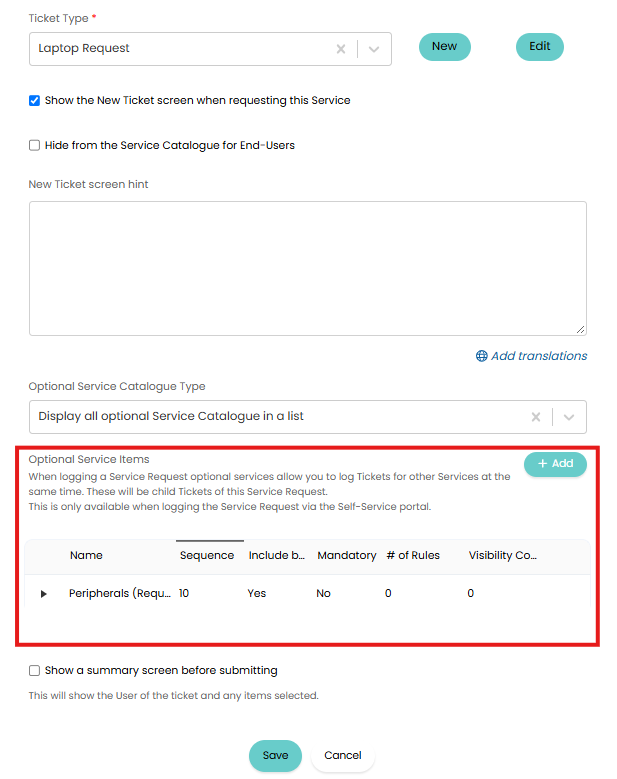
Fig 1. Optional Service Items table
Here, you can choose which of your existing services you would like to be available as optional services.
When adding, you can choose if the optional service item is added by default, expanded by default and if it's mandatory. Dynamic visibility can also be configured, used to show/hide the service based on the details of the main service, this is covered more later in this guide.
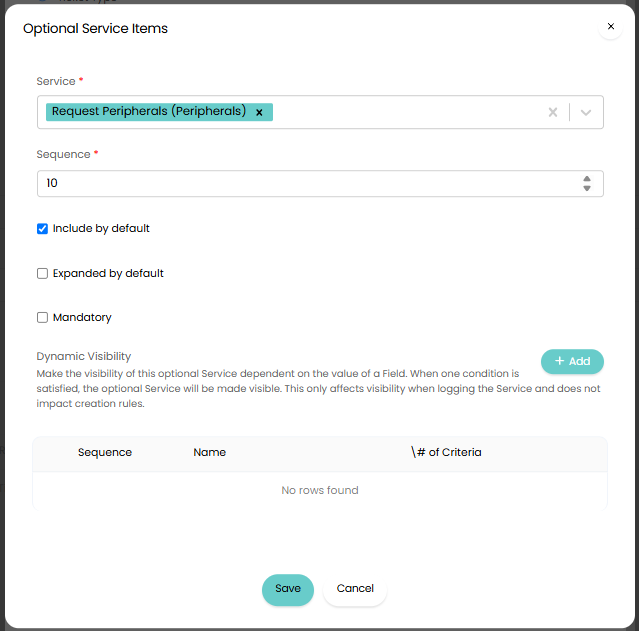
Fig 2. Adding Optional Service Item
Once added you can configure creation rules for the service ticket. This determines when the ticket for this optional service is logged. For example, you can set the optional service ticket to be logged a certain number of days after the main service ticket is logged, useful when the optional service cannot be actioned until the main service has been fulfilled.
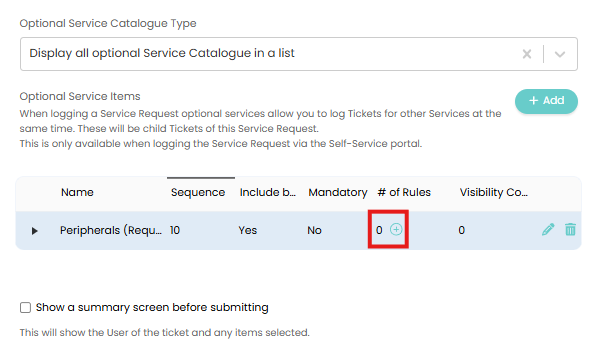
Fig 3. Add creation rule to optional service
Displaying Optional Services in the Service Catalogue
Within the Service you would like to add the Optional Services to, head to the Configuration tab and edit the relevant service request details line.
When adding optional services you can choose how these display, you can have all optional services added to the ticket by default, displaying in a list to prompt the user to complete. Or you can have them displayed in a catalogue view, which does not add any optional services to the ticket by default and instead allows the user to choose which ones they want to add.
To choose which of these to use select the desired option in the drop-down shown in Figure 4.
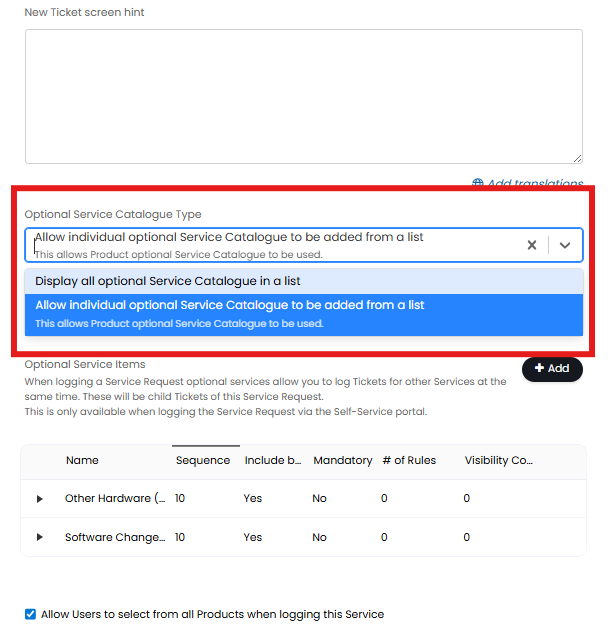
Fig 4. Setting the Optional Services Type
Display all optional services in a list - Displays all the selected optional services in a list. Users can add/remove services by using the toggle against each list item and expand list options to complete the details required.
Allow individual optional services to be added from a list - Displays all the selected optional services in a service catalogue. Users can browse the catalogue and choose which optional services to add. This option also allows item selection services to be chosen as optional services.
Display all Optional Services in a list
When logging the Service Request on the Portal Optional Services will show in a 'Choose Options' tab. These can be selected or deselected using the toggles. This is default behaviour for optional services out of the box.
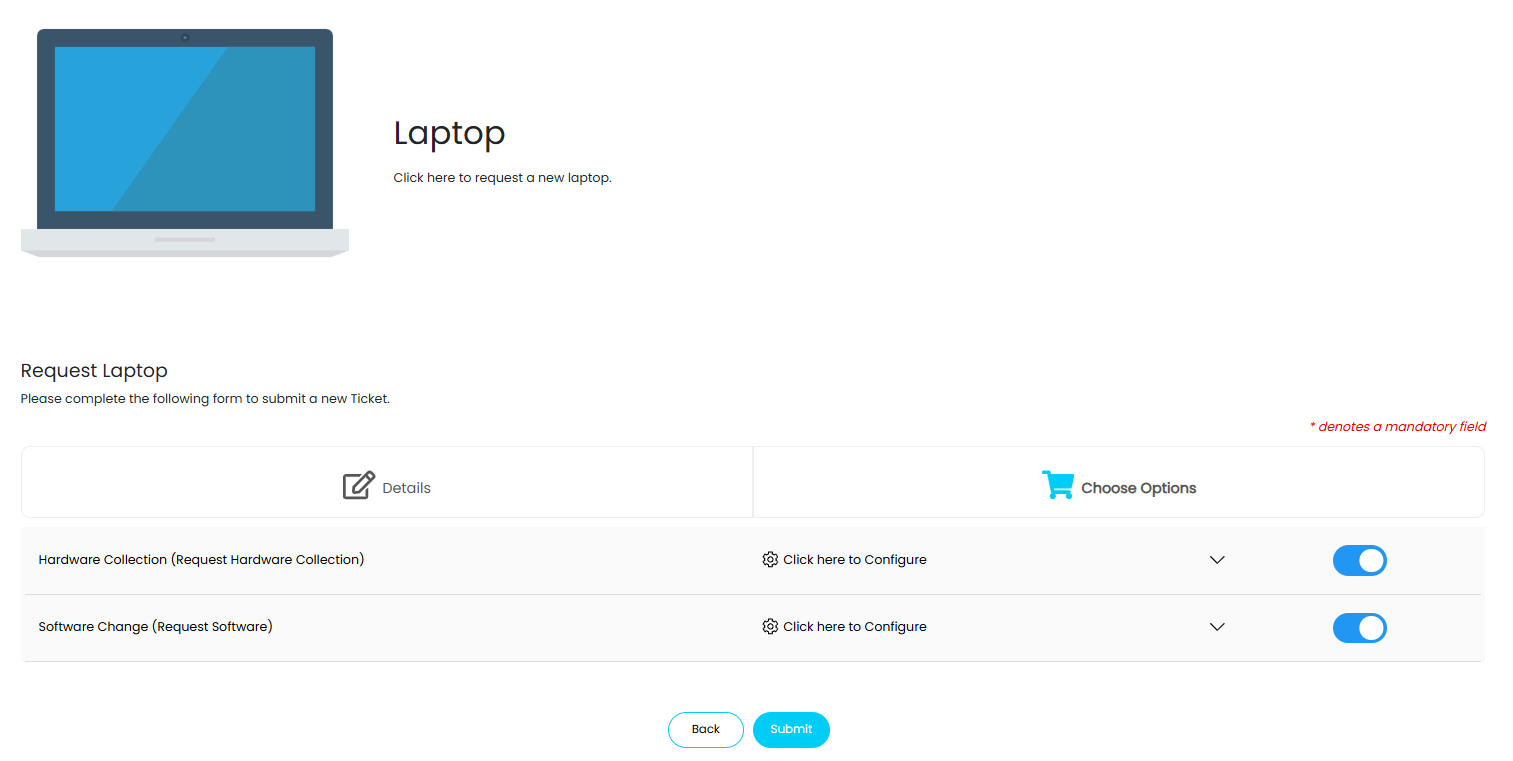
Fig 5. Display all Optional Services in a list
Allow individual Optional Services to be Added from a List
When requesting a service on the Portal, Optional Services will show as a catalogue, similar to the main service catalogue. This also allows item selection services to be selected as optional services.
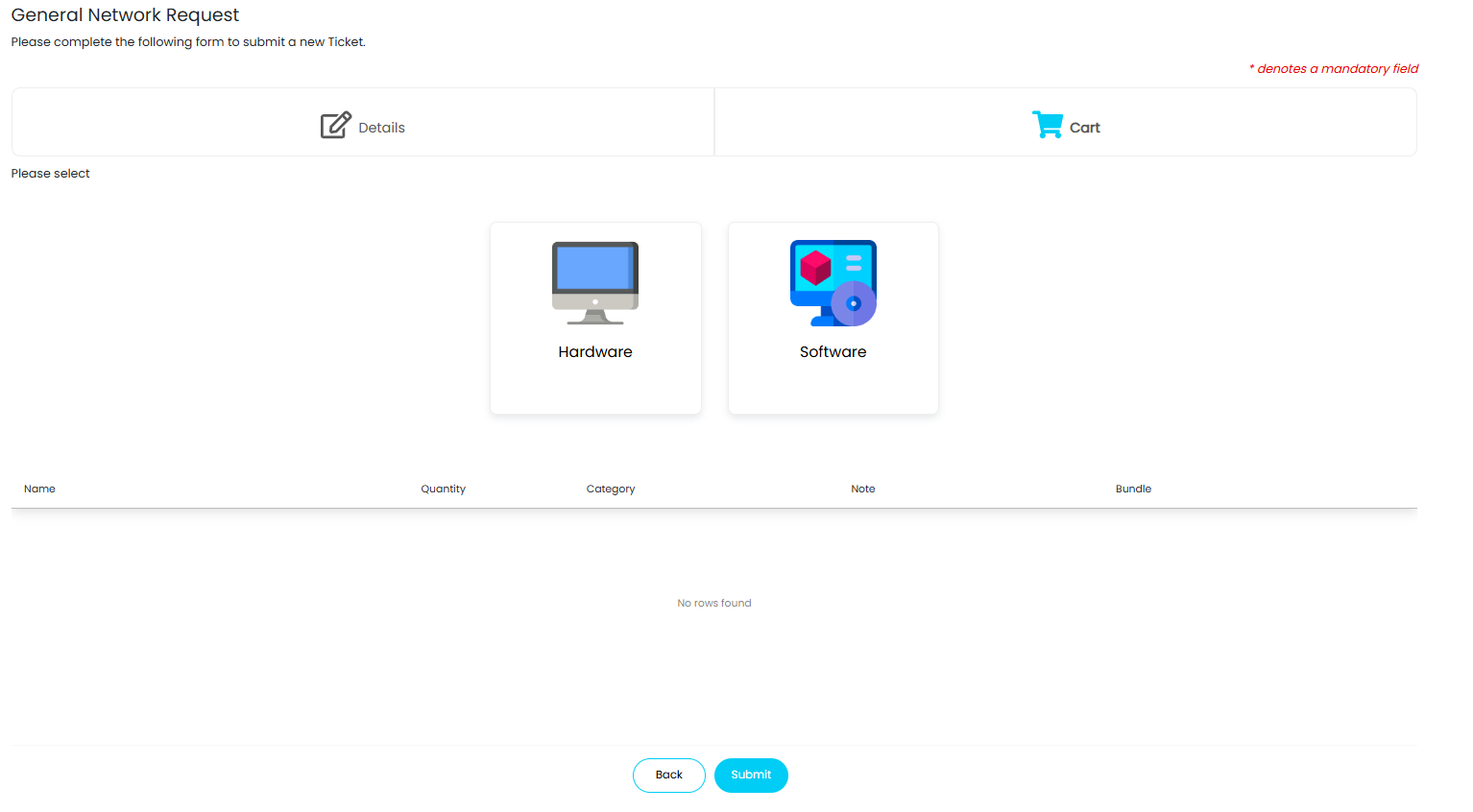
Fig 6. Allow individual Optional Services to be added from a list
Once the optional services have been selected they are displayed in table at the bottom of the page.
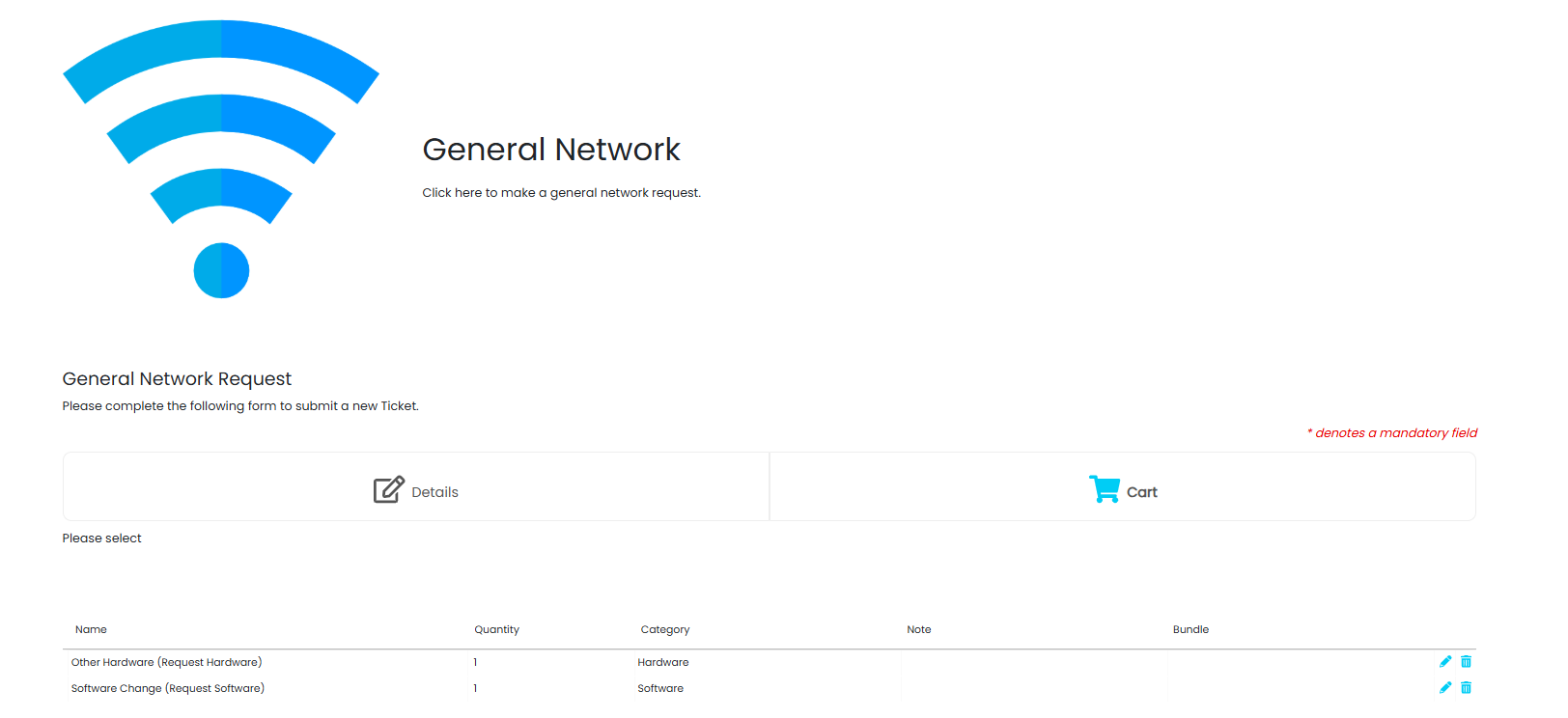
Fig 7. Selected services in the cart
Choose how Services in the Optional service catalogue are organised (v2.251+)
From v2.251+ you can choose how services are organised/rooted in this catalogue view. On versions prior to this services are always organised by category. This gives you the option to have services display in the catalogue directly, rather than users needing to select the service category first.
This is set using the "Top level grouping for optional services" (only available when "Allow individual optional Service Catalogue to be added from a list" is chosen). Here, you can choose if you would like optional services to be grouped by their category, service or service request details.
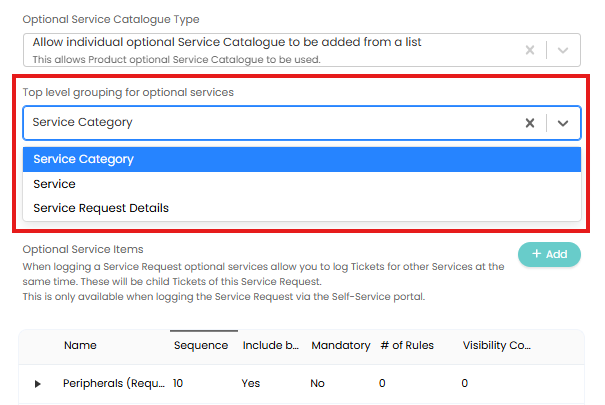
Fig 8. Top level grouping for optional services
Service Category - Shows each of the categories in the catalogue, with each of the respective services sitting underneath them.
Service - Shows each of the services in the catalogue, with each of the respective service request details sitting underneath them.
Service request details - Shows each of the service request details available for each of the optional services. Used when you would like users to choose which service request details they can log for the optional service.
Optional Services Dynamic Field Visibility
Optional services can have visibility conditions, similar to fields and field groups. This allows them to only be displayed when certain field values have been specified on the main service. These only affect the new ticket screen and do not affect the existing creation rules functionality.
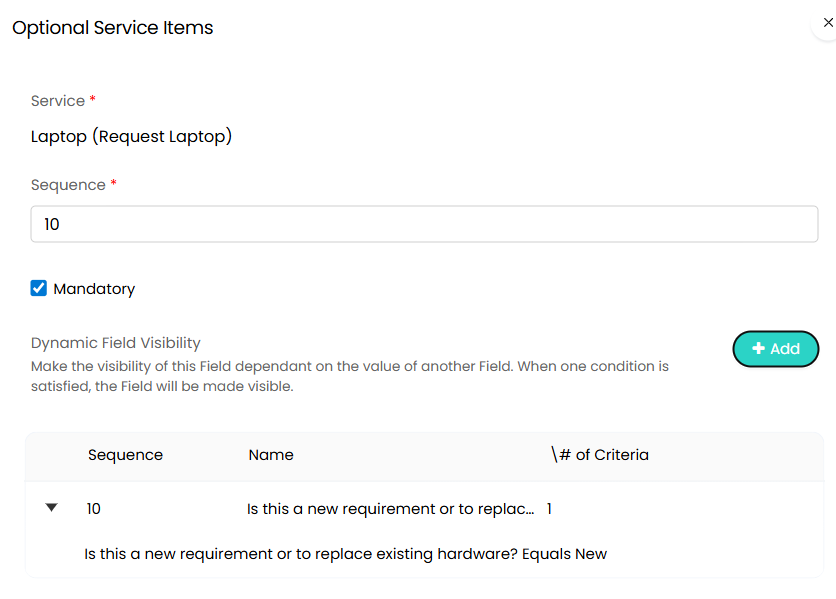
Fig 9. Dynamic Visibility for Optional Service
When adding Dynamic Visibility you can choose a field to make the Optional Service dependant upon, followed by the type and value required for the condition.
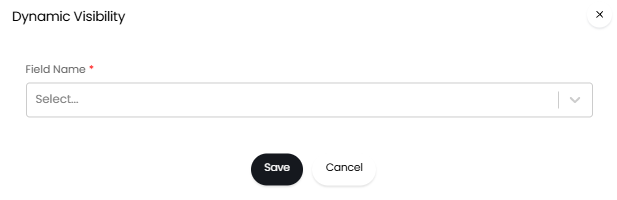
Fig 10. Choosing a field for Dynamic Visibility
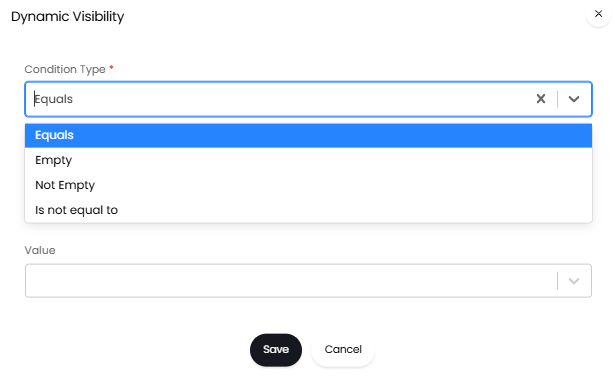
Fig 11. Setting a condition for Dynamic Visibility
For more information see our guide on Dynamic Field/Value Visibility