Allow Users to Self-Issue Items
- portal
- Items
- issue items
- item catalogue
In this guide we will cover:
- How to allow users to issue their own item from the portal.
- How to enable the item catalogue in the portal.
- How to restrict what items users can issue.
- Item Selection Services
Related Guides:
Users may need an item to be issued when an existing item breaks or as part of a service. Agents can issue an item to a ticket anytime using the 'issue product button', however, for particular ticket types you may want the user to be able to issue the item themselves, allowing them to choose their own item. This can be useful when users raise an incident that requires an item for resolution. For internal IT companies, this can also be used when users request a new device as they can select their desired choice from those available.
How to allow users to issue their own item from the portal
To enable this first you must allow users to view items, head to Configuration > Items and Stock Control, enable the setting 'Allow Users to view items'.
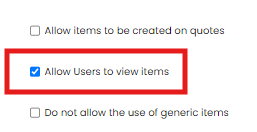
Fig 1. Allow users to view items setting
Once enabled you will need to add the 'Items Issued' field to the ticket types you would like users to be able to issue themselves items on. Head to Configuration > Tickets > Ticket Types > select a type > Field List, add the field.
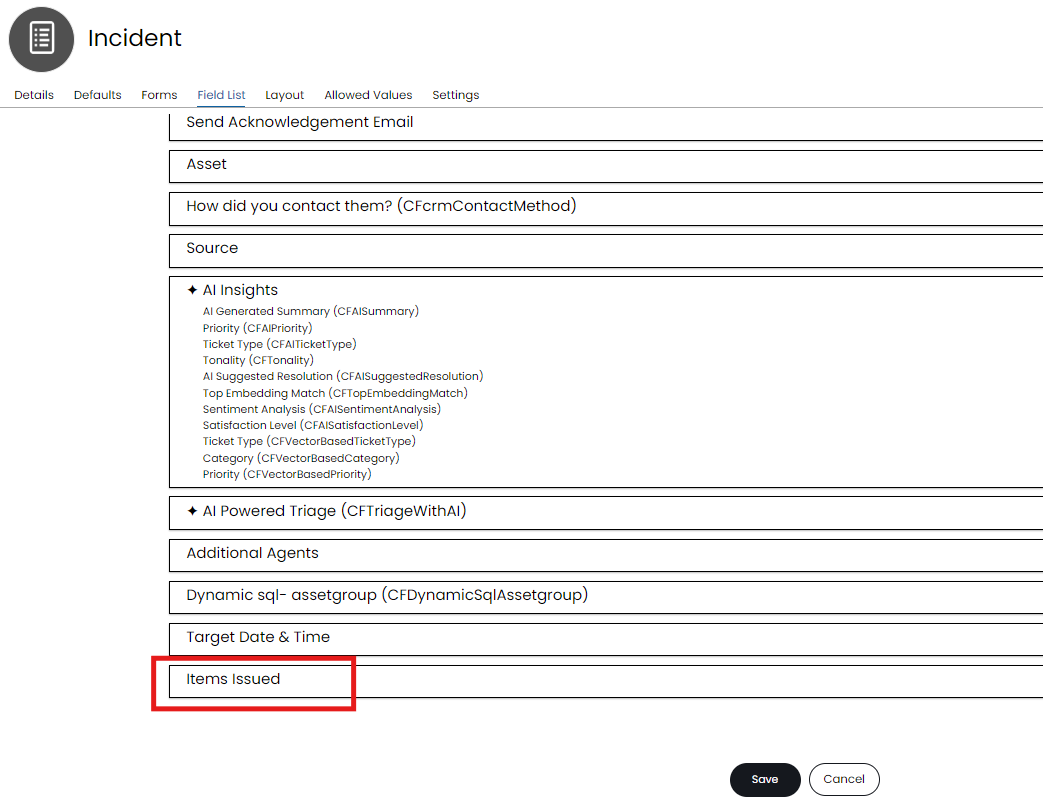
Fig 2. Items issued field
Now, when users log a ticket of this type in this portal the 'Items Issued' drop-down will appear. When adding an item here users will be able to browse through all the items you currently have in your Halo.
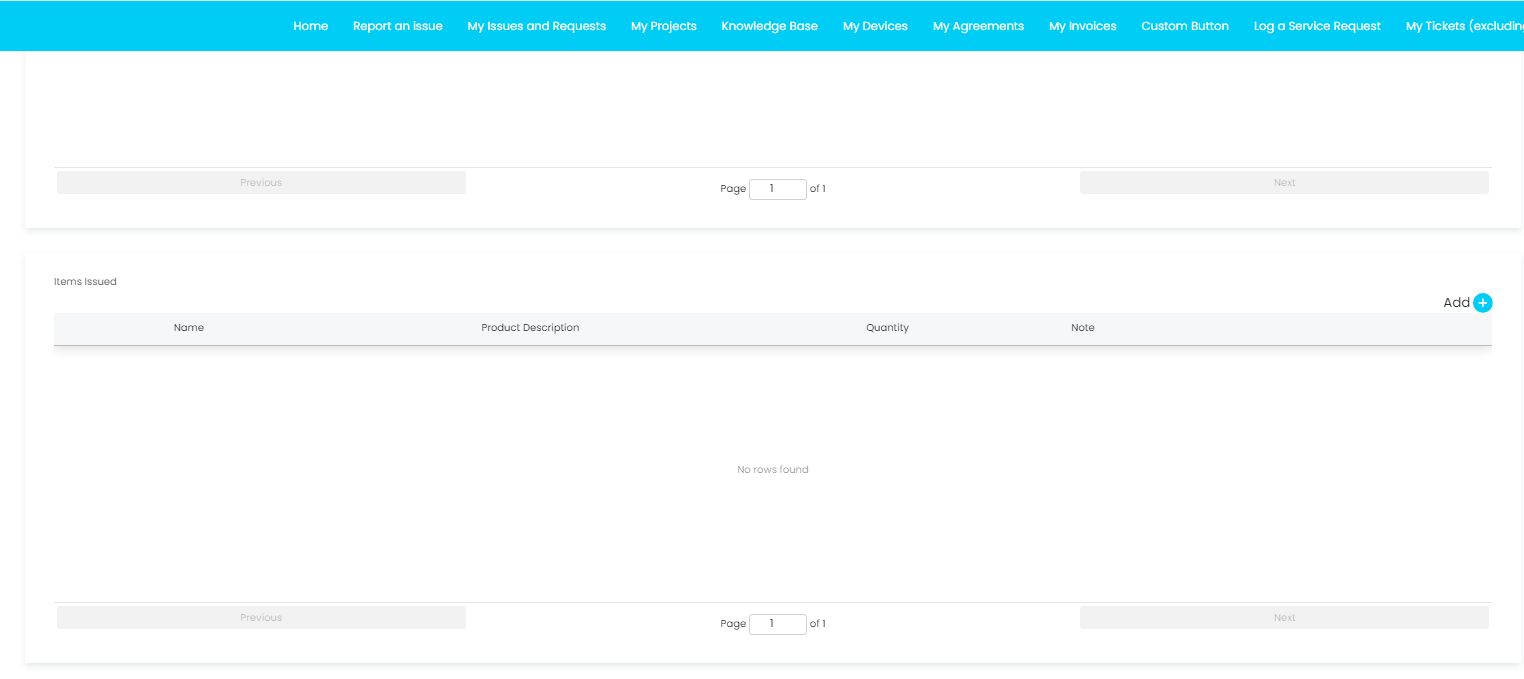
Fig 3. Items issued table in portal
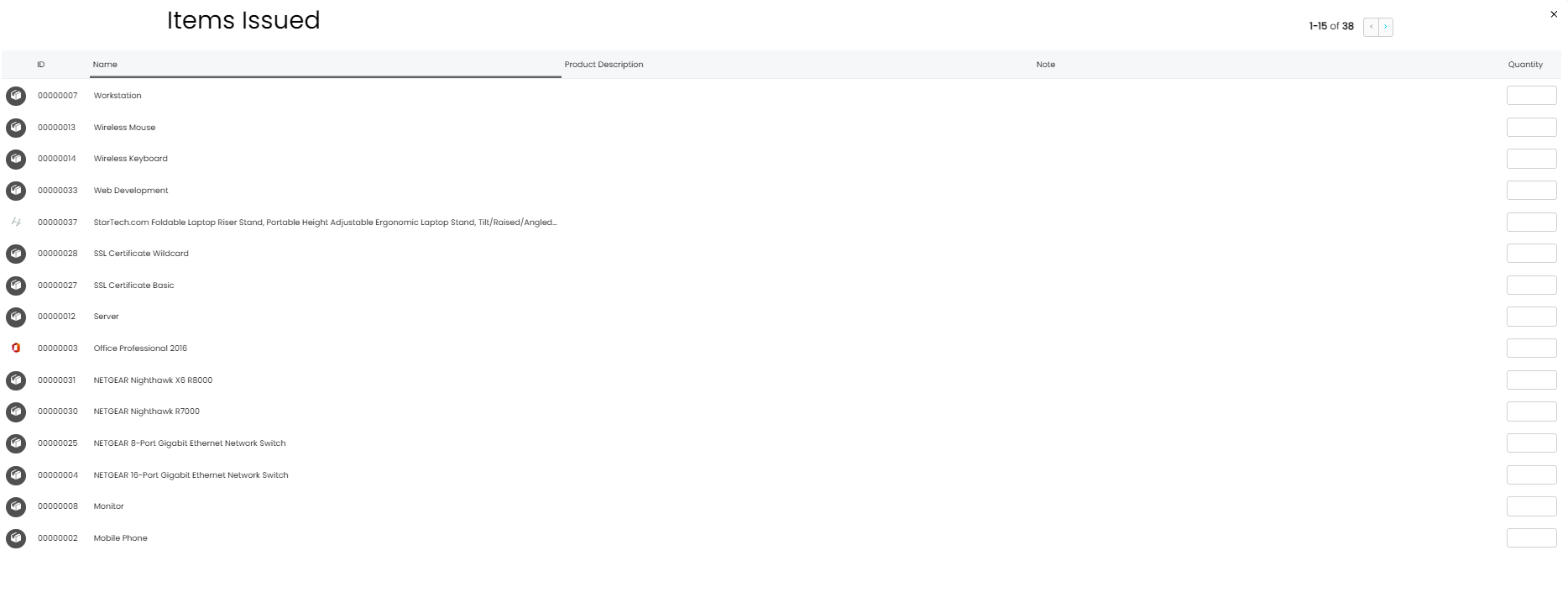
Fig 4. Browsing items to add view
If a user adds an item to a ticket, this will appear under the 'Products' tab for the ticket on the agent side. The agent will still have the option to remove the item and issue more items.
Improving the items issued appearance in the portal
A catalogue view for issuing items in the portal can also be enabled. This can give a more user friendly experience.
To enable this head to Configuration > Self Service Portal, enable the setting shown in Figure 5.
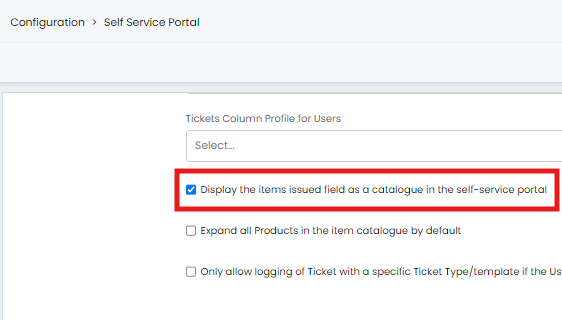
Fig 5. Display the items issued field as a catalogue in the self-service portal setting
Once enabled the items issued table will be replaced with a catalogue of items, when an item is selected the view is expanded showing the icon for the item.
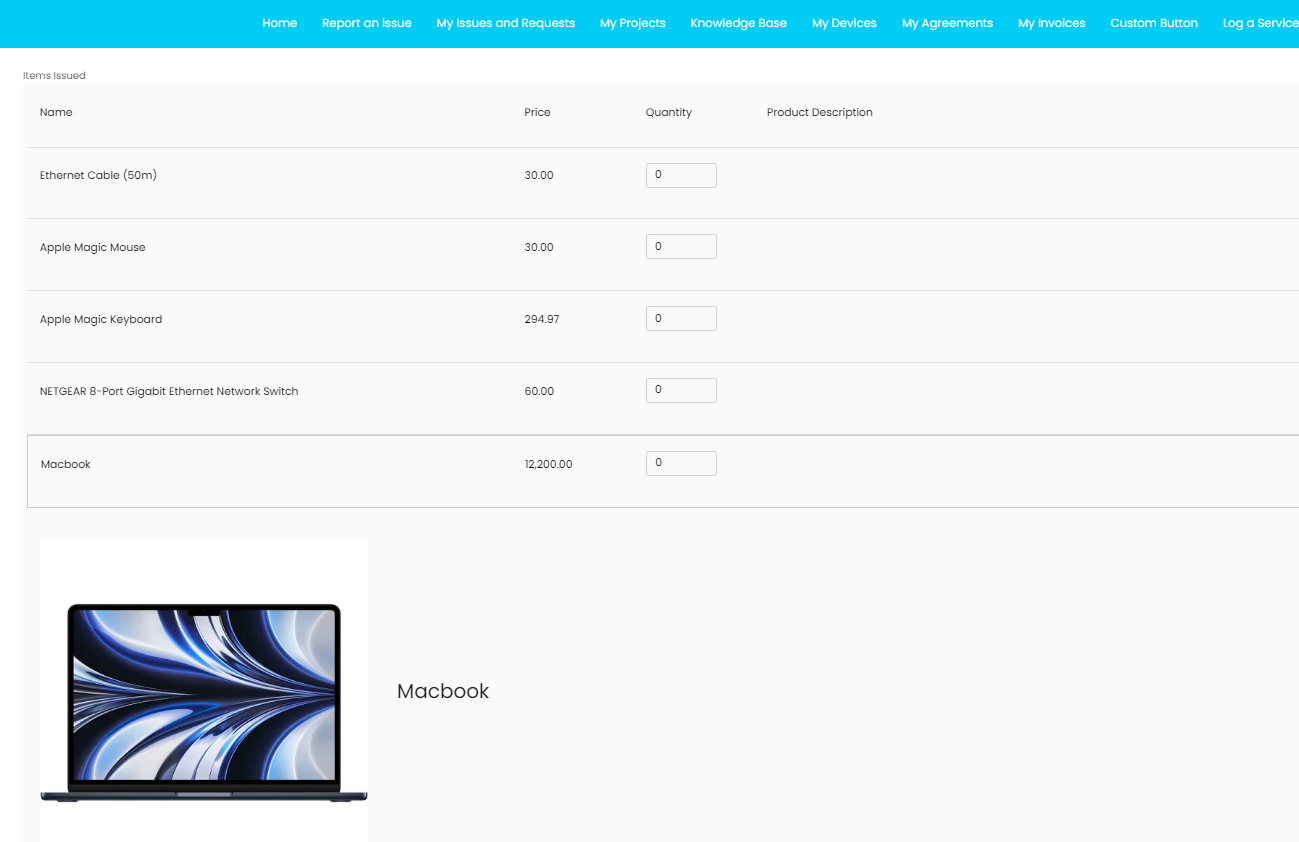
Fig 6. Catalogue view for items issued in the portal
For information on how to set images/icons for items see our guide here.
To have the catalogue expanded by default enable 'Expand all Products in the item catalogue by default' in Configuration > Self Service Portal.
Restrict the items in the catalogue
When using the service catalogue, the product list can be restricted per service. This is useful as allows you to limit choices to types of products that are related to the service being raised. For example a new laptop request can be restricted to only show types of laptop.
To do this, navigate to the 'Services' module in Halo and click into a service > Configuration tab, now edit the service request details button you have against the service.
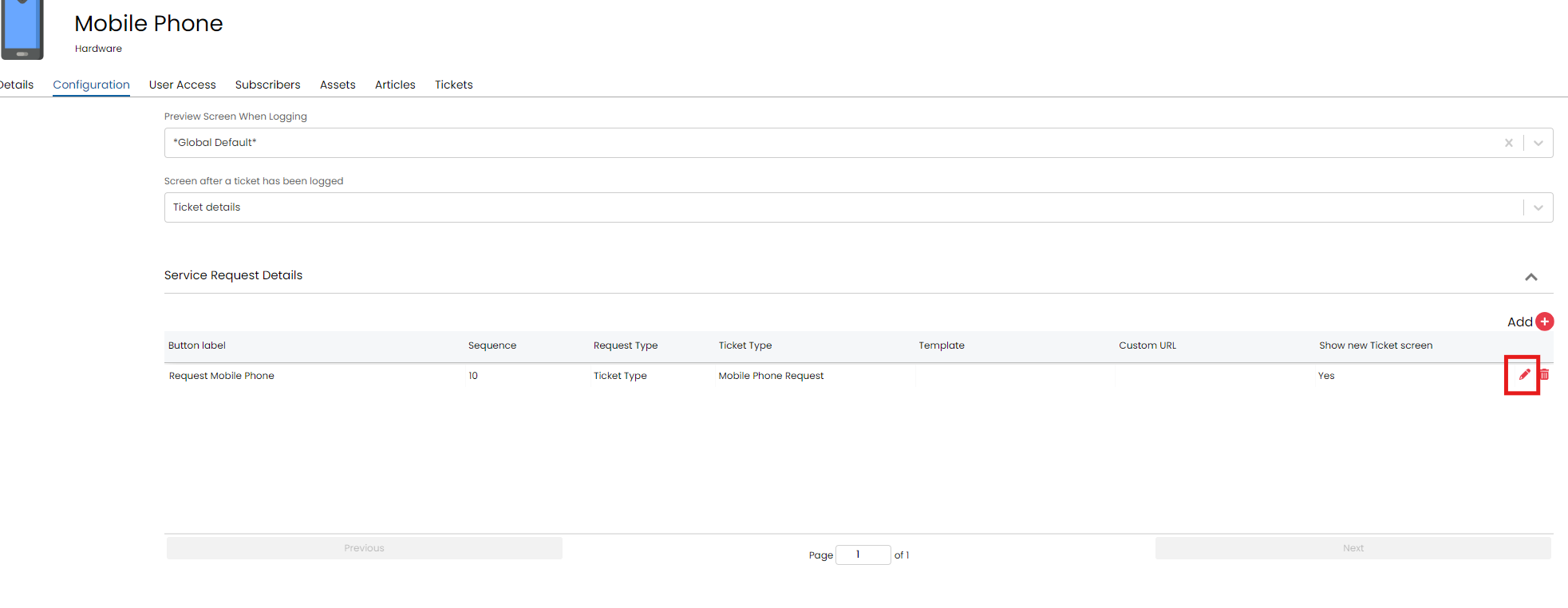
Fig 7. Edit the service request button
When editing this you will see a setting to 'Allow Users to select from all Products when logging this Service', once unchecked you will be able to add in the products they can select from when using this service.
After creating the service request in the above table, you can add in the summarising of the items for the ticket being logged and also restrict which items can be issued for the service.
An additional table will show to restrict by Item Group.
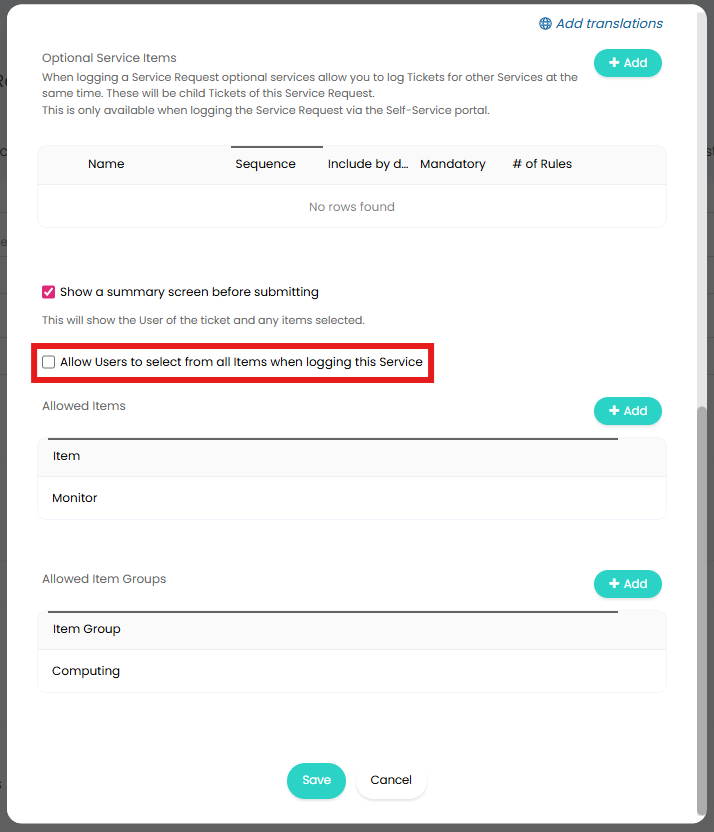
Fig 8. Restricting the list of Items that can be Issued
Now, users will only see these items in the catalogue when logging this service.
Summary of items
If you would like users to see a summary of the items they are requesting before submitting a service request, enable the setting 'Show a summary screen before submitting', shown in Figure 9.
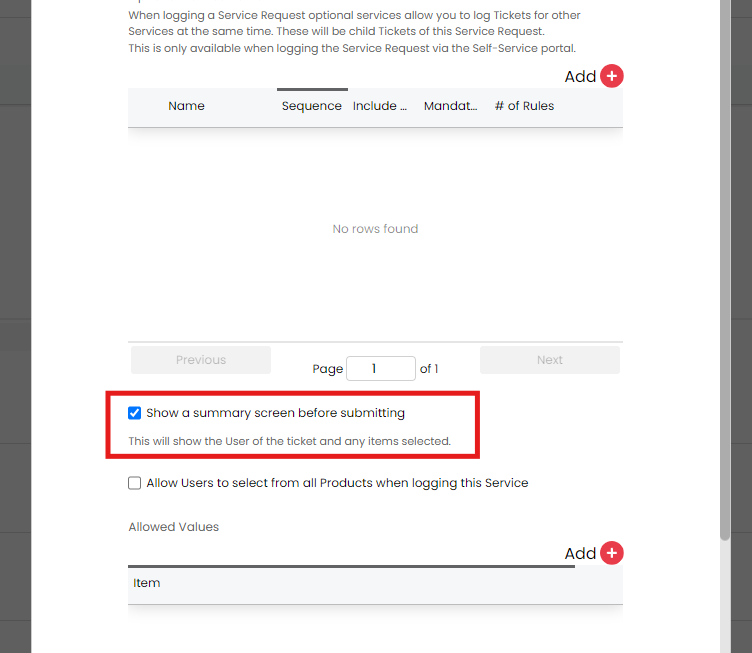
Fig 9. Show summary setting
Once enabled after clicking submit on the portal, users will see a summary table of the items being issued.
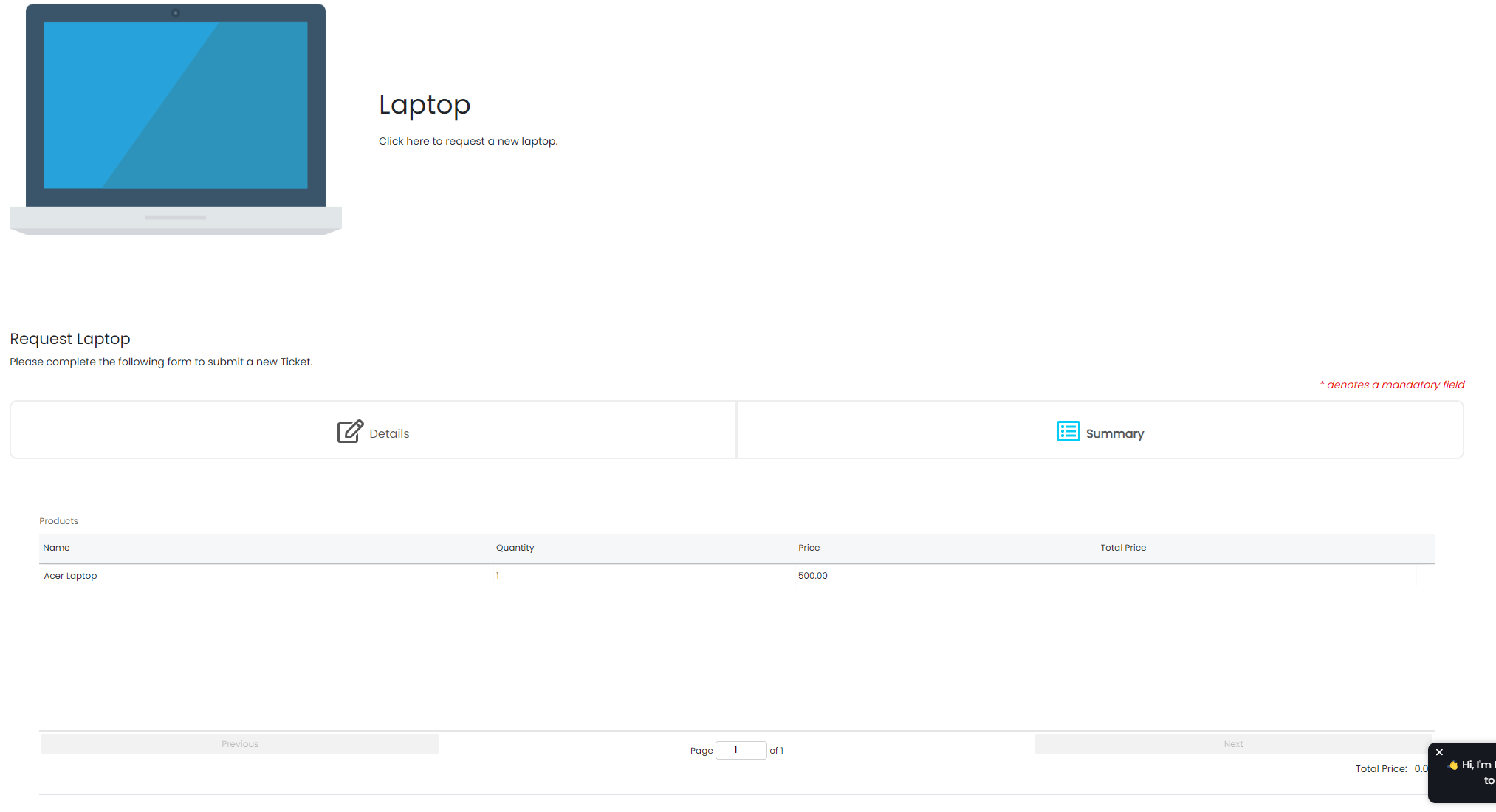
Fig 10. Summary Table
A running total will show of any Items added.
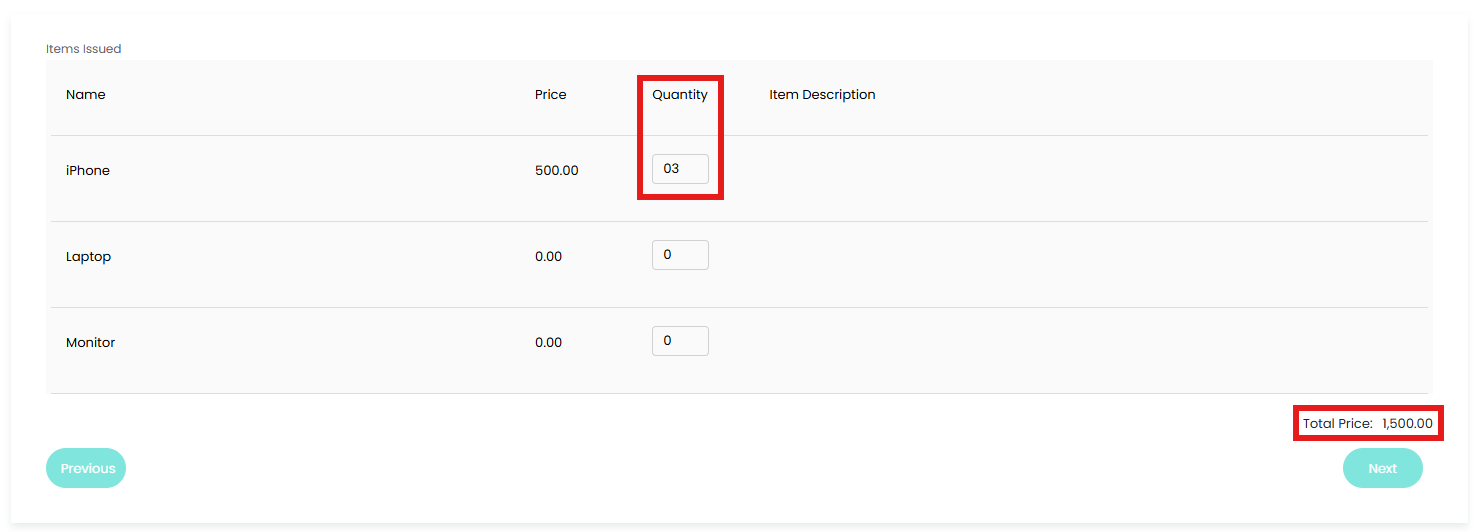
Fig 11. Items Issued running total.
Item Selection Services
Within the Service Request Details you can also set a service to be an item selection service. This allows this service to have items selected against it when logged.
You will first need to set up a Service to link to your optional Items. In the Figure 12 example I have created a new Service called "Item Selection Service".
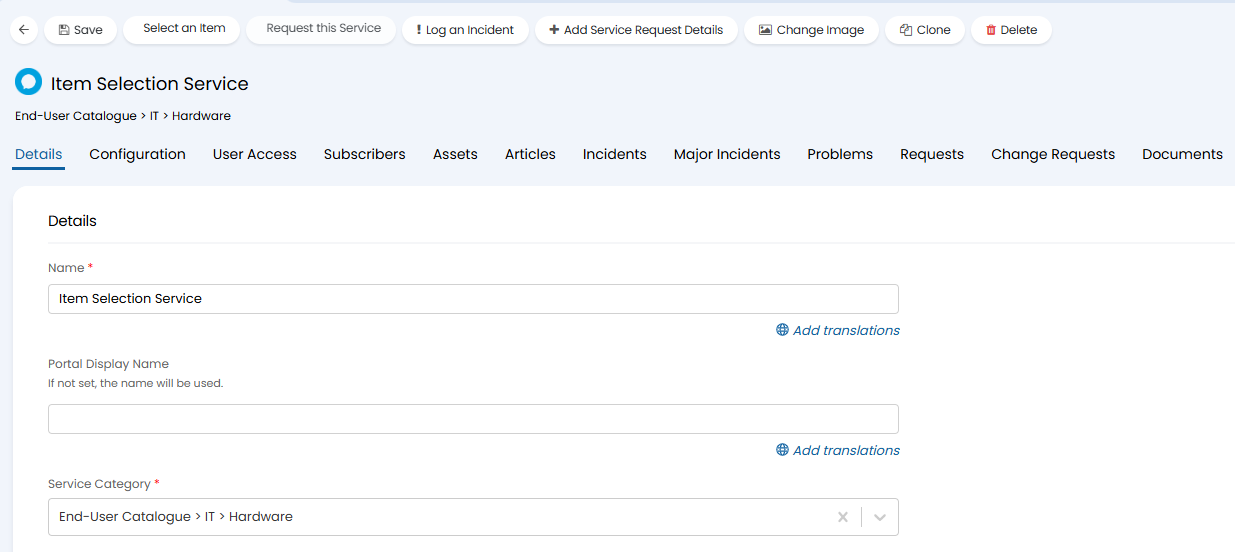
Fig 12. New Service
Within the Configuration tab of your Service you will need to add to the Service Request Details table.
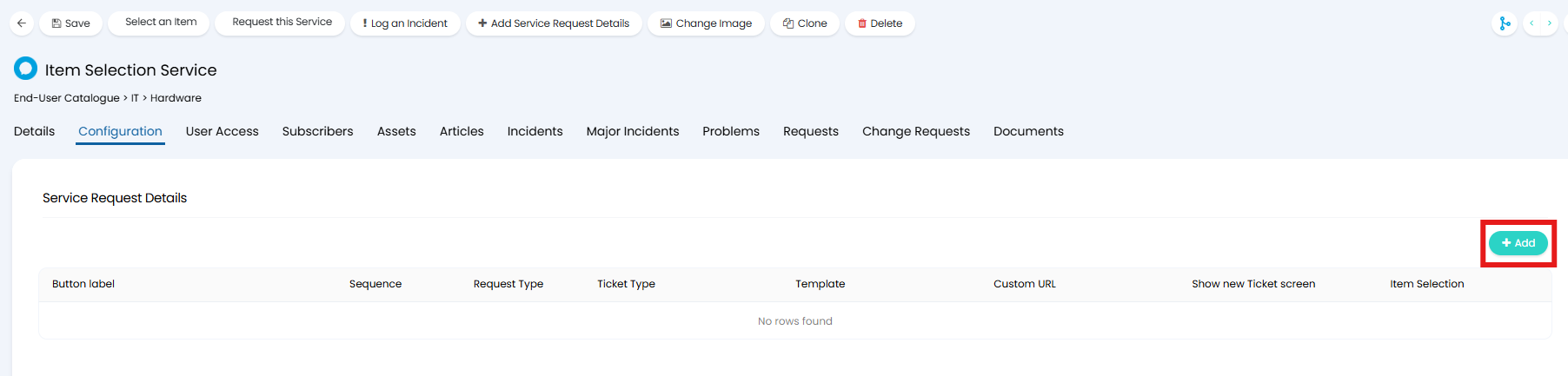
Fig 13. Service Request Details Table
First we need to add the "Item Selection" option. This will allow you to choose which Items or Bundles a User can choose when requesting this Service.
To restrict which items can be added deselect the "Allow Users to select from all Products when logging this Service" checkbox. This will show tables where you can add allowed items or allowed Item groups. You can allow Item Bundles to be selected in the same way by selecting the "Allow Users to select Item Bundles when logging this Service" checkbox. When selected you will be able to specify which bundles to allow. The Bundles must have "Allow Users to use this bundle" enabled for it to be allowed on the Service.
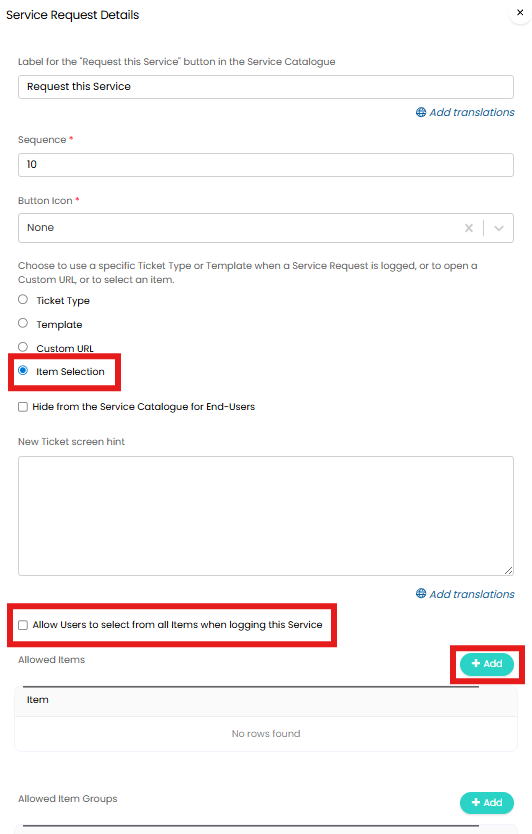
Fig 14. Item Selection
Save your Service, as your new line will need to be saved for the next step.
Next create a new line which uses the "Allow individual optional services to be added from a list" option shown in Figure 15. For more information see the Optional Services guide.
Select the Ticket Type option, and choose the Ticket Type you would like to create. In the "Optional Service Items" find and add the Service with the name of the line you configured in Figure 14.
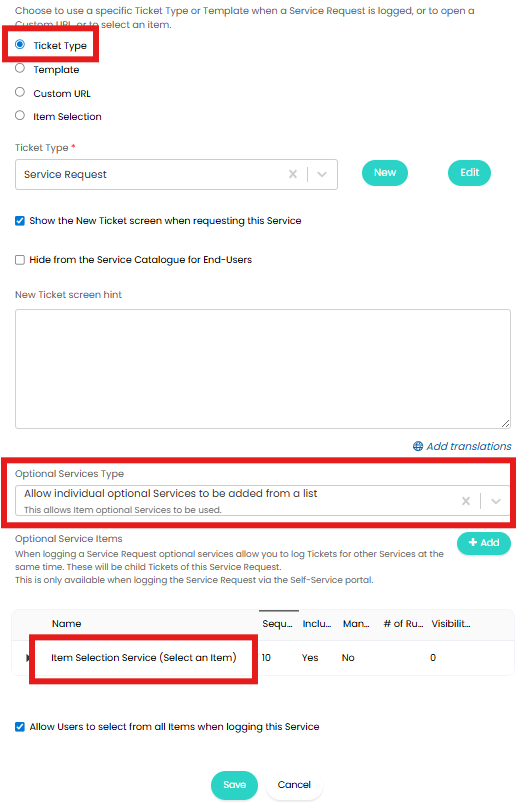
Fig 15. Allowing Item selection for Optional Services
Note: You can hide the buttons from End-Users in the Portal by selecting the "Hide from the Service Catalogue for End-Users" checkbox.
When this Service is logged on the Portal the User will raise a Ticket under the "Details" tab. Once the Ticket details are completed the User will be able to click the "Next" button where they will be able to click into the Optional Service and select items.
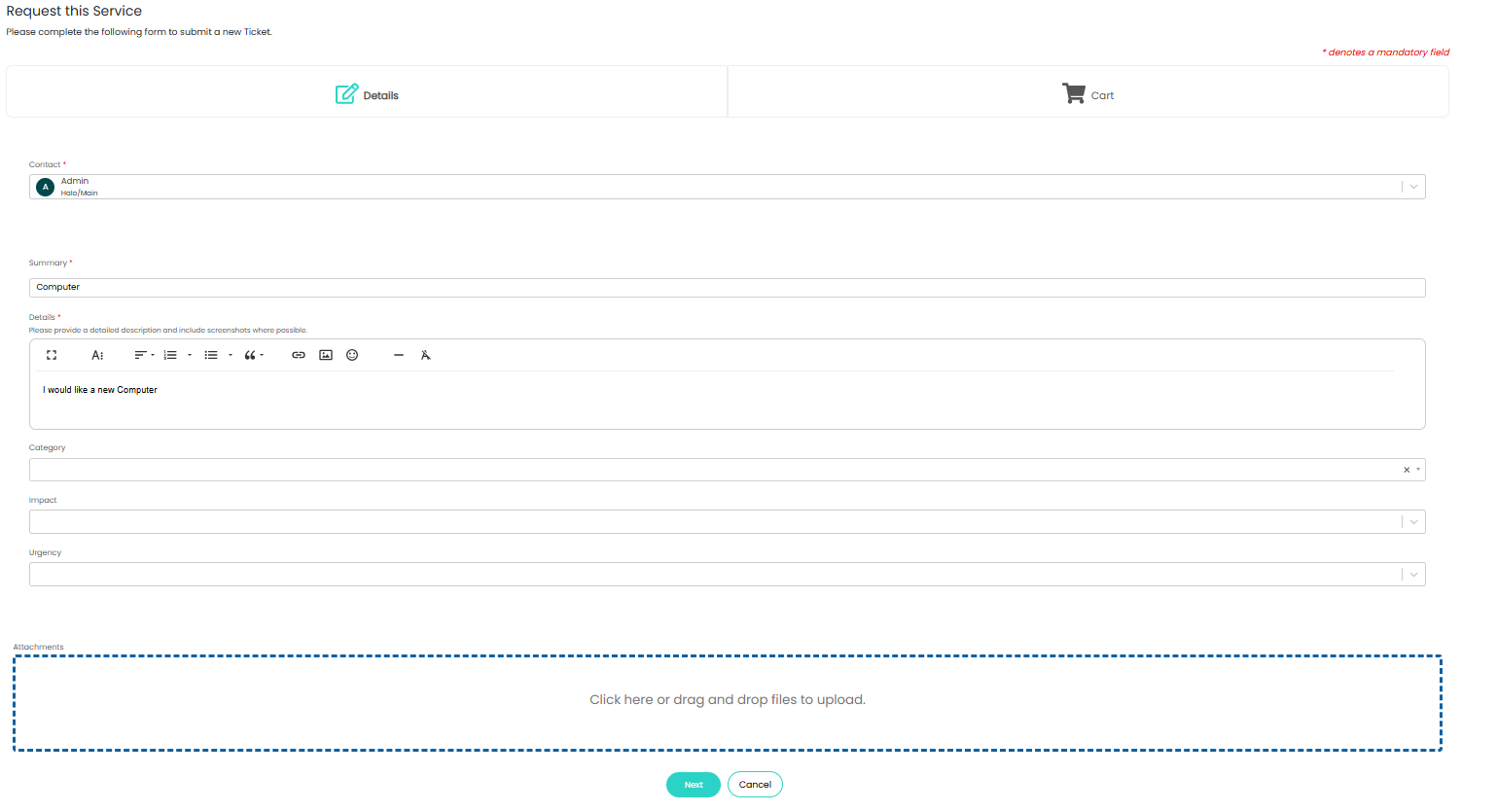
Fig 16. Optional Service
In the Cart tab Users will be able to click through the tiles to select the desired Item.
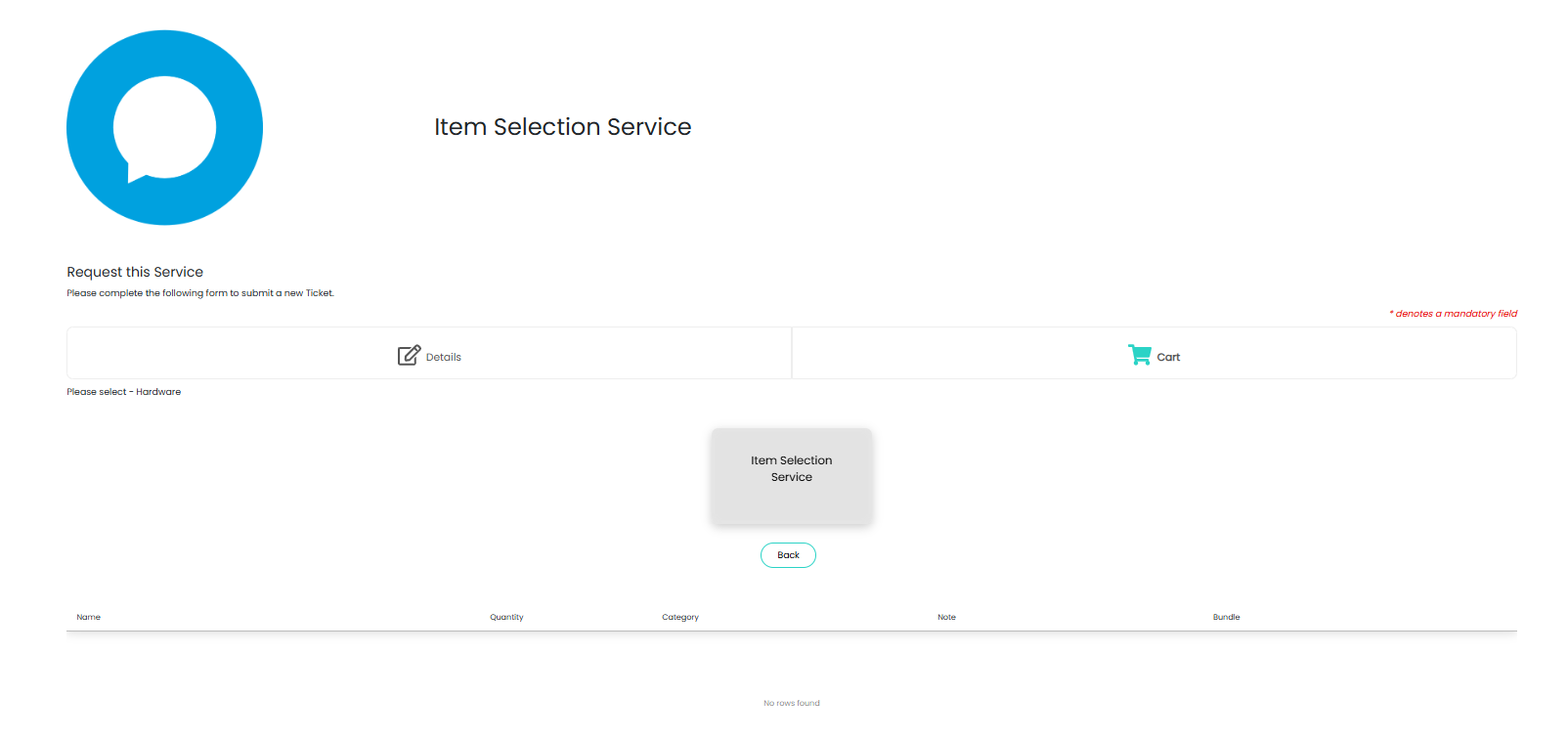
Fig 17. Select Item option
Clicking this option will allow you to add items, adjust the quantity and write a note. Once added, these will show in the table at the bottom of the page.
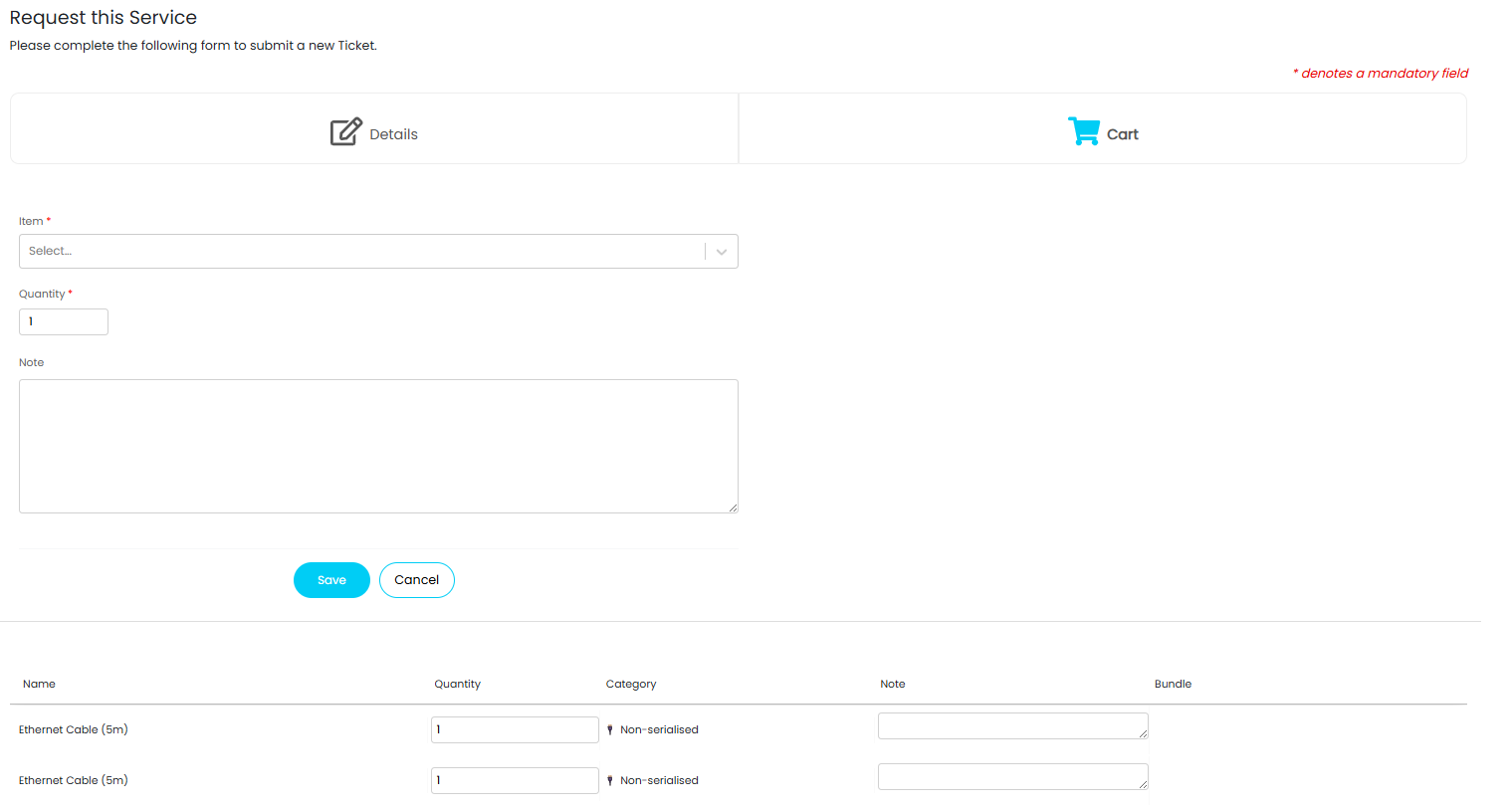
Fig 18. Adding Items