Issuing Products
- bill for issued items
- issue items
In this guide we will cover:
- How to issue products from a ticket
- How to bill for these issued products
- Printing Tickets with Issued Items
How to Issue Products from Tickets
The 'Issuing Products' feature allows you to add a product or multiple products to a ticket in order to bill a customer for them. This is typically used when an item has been issued to a customer in order to resolve an issue. There are a few ways to issue a product on a ticket.
This can be done by selecting the 'issue product' button within the ticket, highlighted in figure 1.
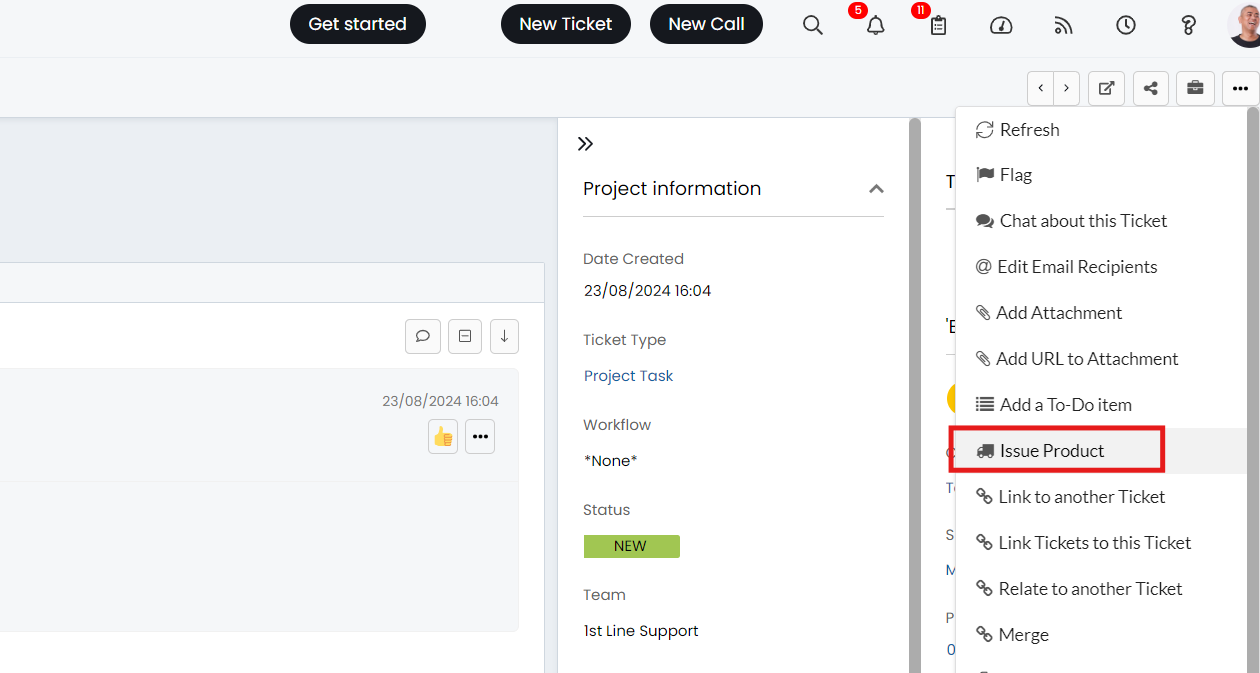
Fig 1. The Issuing Product System Action
From here you are able to select which product you would like to invoice along with the quantity.
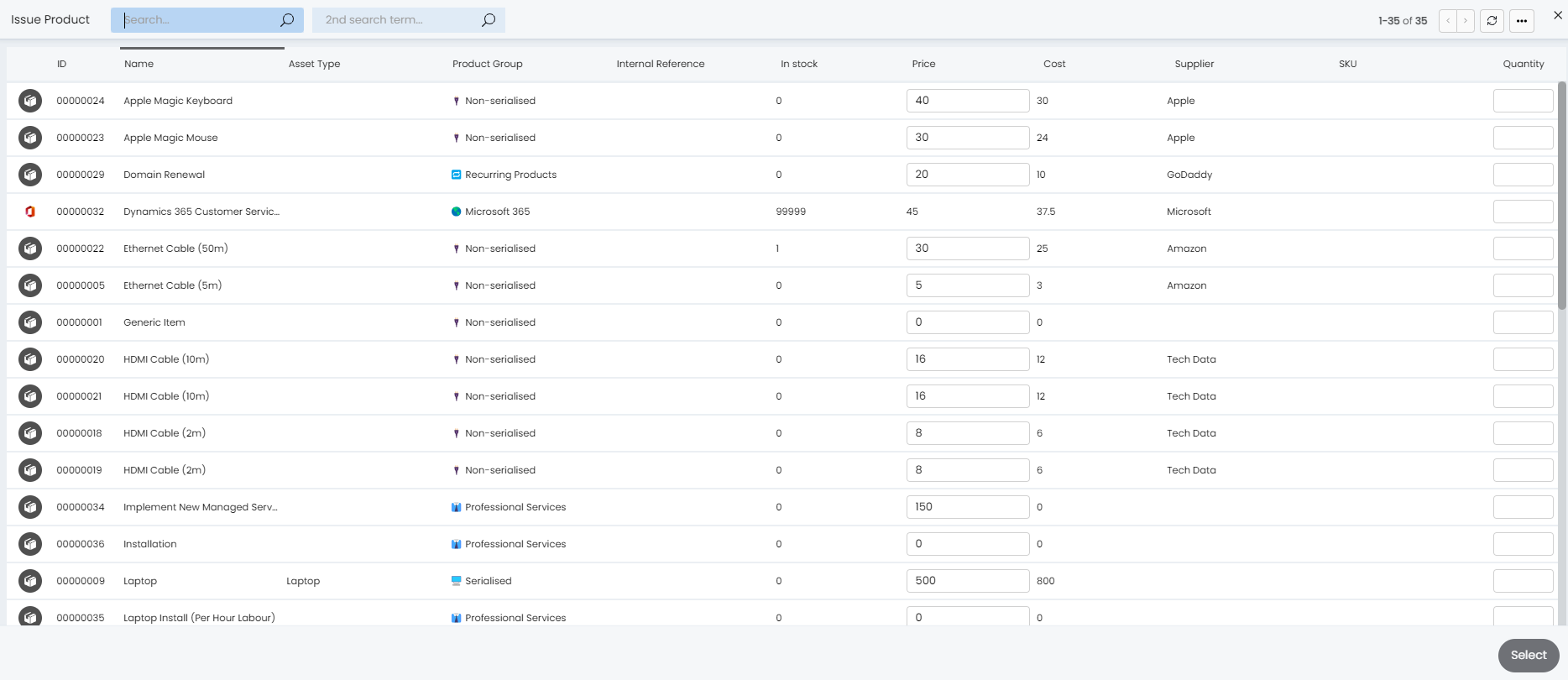
Fig 2. Adding Products to the Ticket from the Issue Products Button
Products can also be issued using an action. To do this you will need to head to configure an action with the system use 'Issue Products'. Head to Configuration > Tickets > Actions > New, set the 'System Use' field to be 'Issue Products', configure the rest of the action to your preference. For example you may want the 'note' field in the field list for the action so the agent can provide a justification for issuing the item.
An additional dropdown for "Product" will show underneath upon selection. This is where you can select if agents will choose a product upon using the action, or if a pre-set product will be issued from that item.
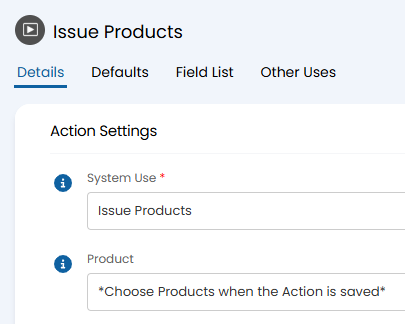
Fig 3. Issue product system use
Once configured you can add the action to the relevant workflows, making it available to use on tickets. When the action is used you will need to fill in the ticket fields, press save, then the item selection screen will appear.
Once issued a new tab will appear under the ticket called 'products', any items selected will appear here.
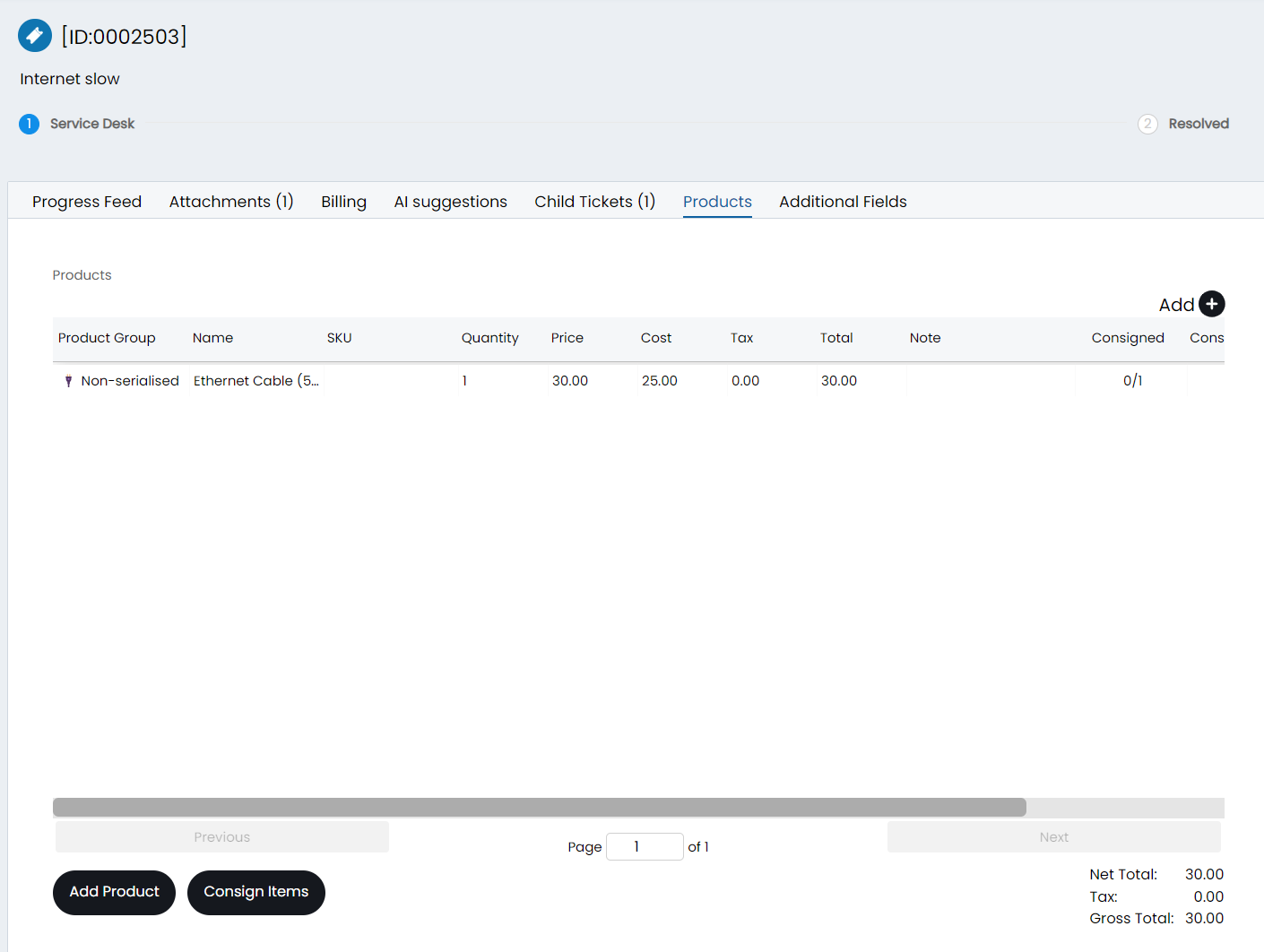
Fig 4. Item issued against ticket
If you track stock of items use the 'Consign Items' button once the item has been taken out of stock to be given to the customer.
Billing for items issued
Note: The product issued must have a product group assigned to it to appear in ready for invoicing.
Once an item has been issued on a ticket and the ticket has been closed it will appear in the 'Ready for invoicing' area, under the 'Items issued' section.
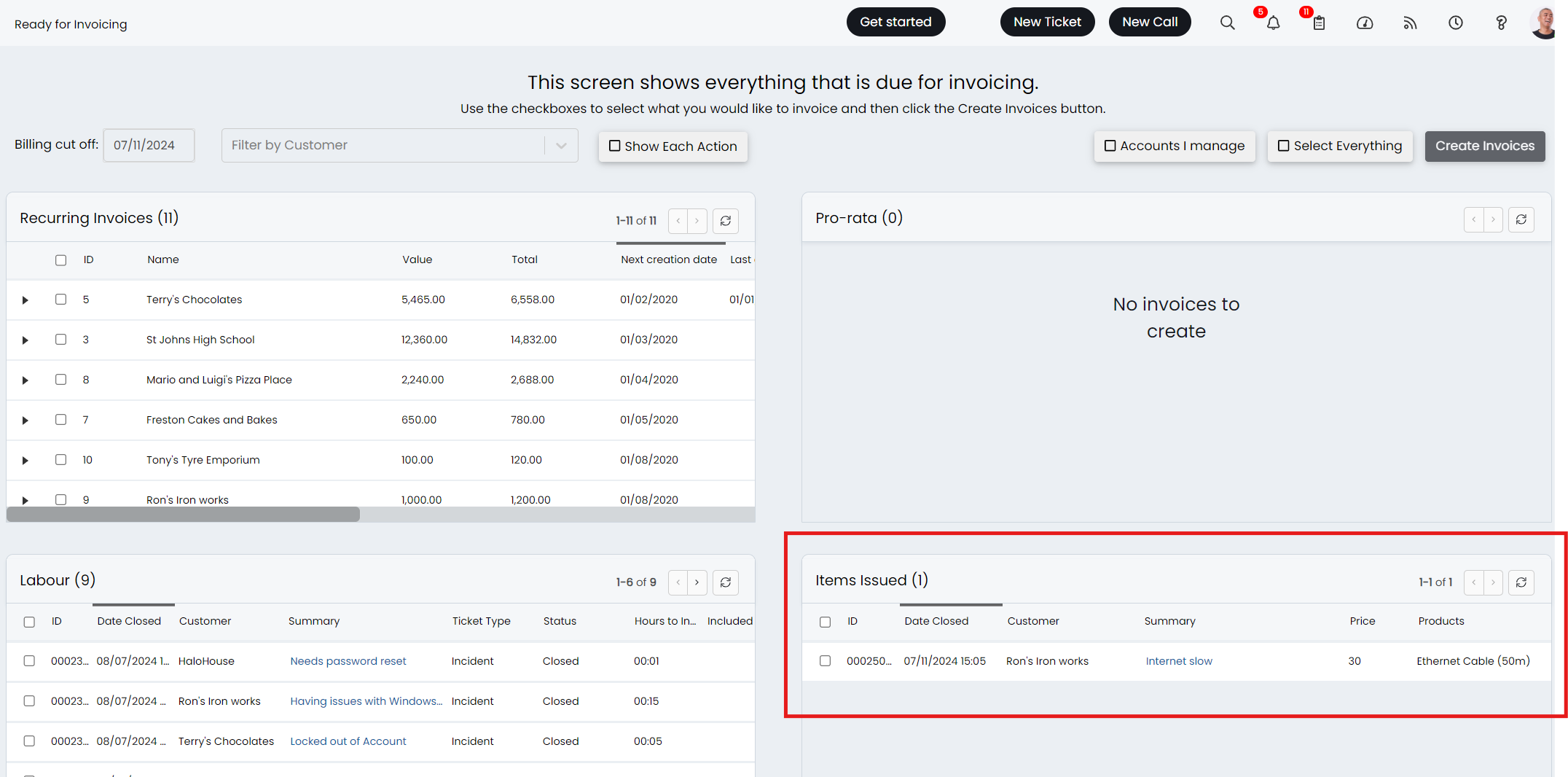
Fig 5. Items issued in ready for invoicing
Note: If you would like to prevent items being invoiced until they are consigned enable the setting 'Orders and Items must be consigned to be invoiceable' (in Configuration > Billing > Invoice Creation).
To have the item appear on the same invoice as the labour for the ticket, simply select the item and the labour for the ticket before hitting 'create invoices'.
If you would like the item on it's own invoice, have only the item selected when creating invoices.
Customise invoice item description
To change the description for the issued item that appears on the invoice, head to Configuration > Billing > Invoice Creation, here see 'Issued Item Invoice description'. You can enter variables in this field to determine the description, by default this will use $-itemdesc and $-faultid, which will pull through the name if the item and the ticket ID. For more information on variables and those available see our guide here.
The variable "$-ITEMASSETS" can be used to pull the asset numbers for the items issued, and this will show in a list format.
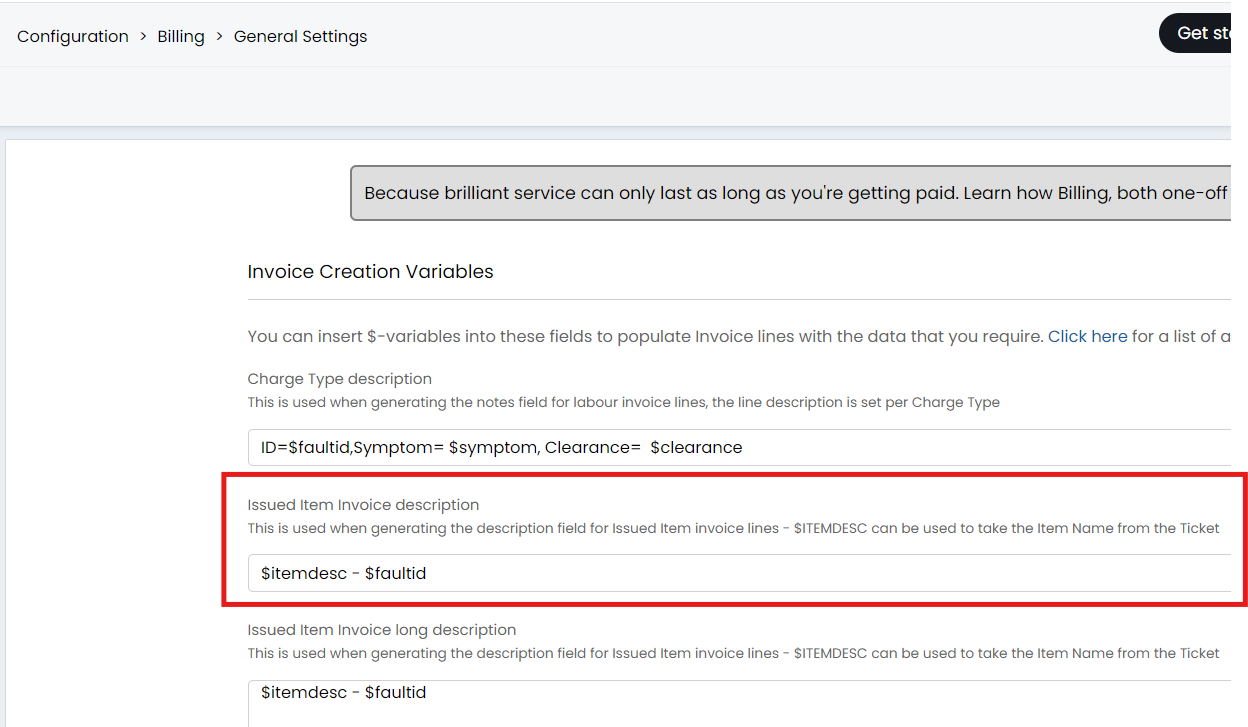
Fig 6. Change item description on invoice
Printing Tickets with Issued Items
Tickets can be printed with an overview of the items issued on that ticket by hovering over the three dots in the top right, and choosing "Print Ticket".
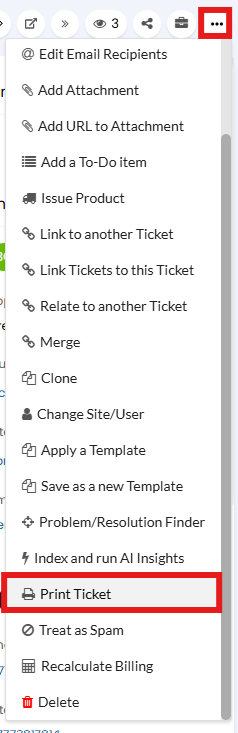
Fig 7. Print Ticket action.
The ticket PDF will be generated based on the default template set against the ticket type.
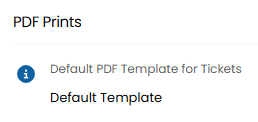
Fig 8. PDF template selection.
Within Configuration > Reporting > PDF Templates, you can find this template. The "Items Issued Table" tab will allow to select fields to include in the table. Once the HTML mentioned at the top of the screen is added to a page in the template, the PDF will populate these items.
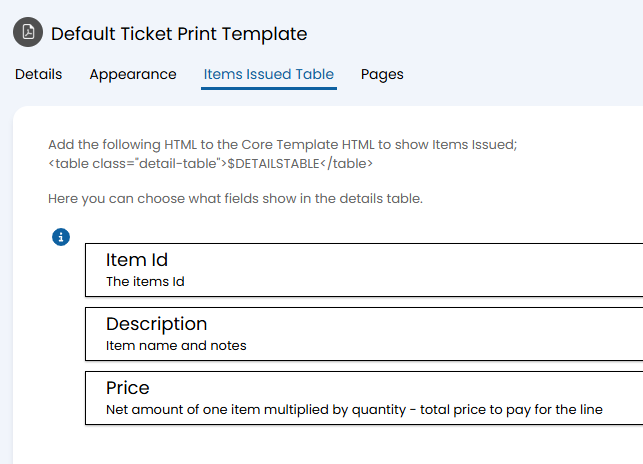
Fig 9. Items Issued Table configuration.
The example above will look like this.
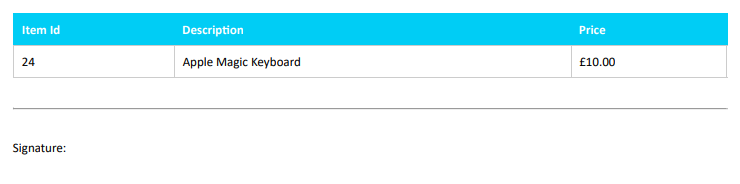
Fig 10. Items Issued Table on a PDF.
You can add the variable $-TICKETID to a PDF to show the ticket ID the item was issued on.