$-Variables (Dollar Sign Variables)
In this guide we will cover:
- What Variables can be Used
- PDF Variables
- Using Variables in Custom Fields
- Formatting Variables
- Variable Suggestions
Note: Any variable written in this guide is written with a hyphen between the $ sign and the word. This is so there is no replacement of them if this guide is shared through any Halo action. When used, they should be used without a hyphen (-).
What Variables can be Used
Variables can be used throughout HaloPSA for a variety of functions, some of which include:
- Returning Ticket-specific information on emails.
- Returning date-specific information on invoices.
- Returning customer-specific information on PDF templates.
You can find a list of the available variables via heading to your Halo URL, and adding:
.../variables
i.e.:
[YOURHALOURL].com/variables
This is the 'main' list of variables, most commonly used in email templates. However, this isn't the list of all available variables.
Dollar Variables will have a dropdown filter, so that the entity types for variables do not have to be appended onto the URL:
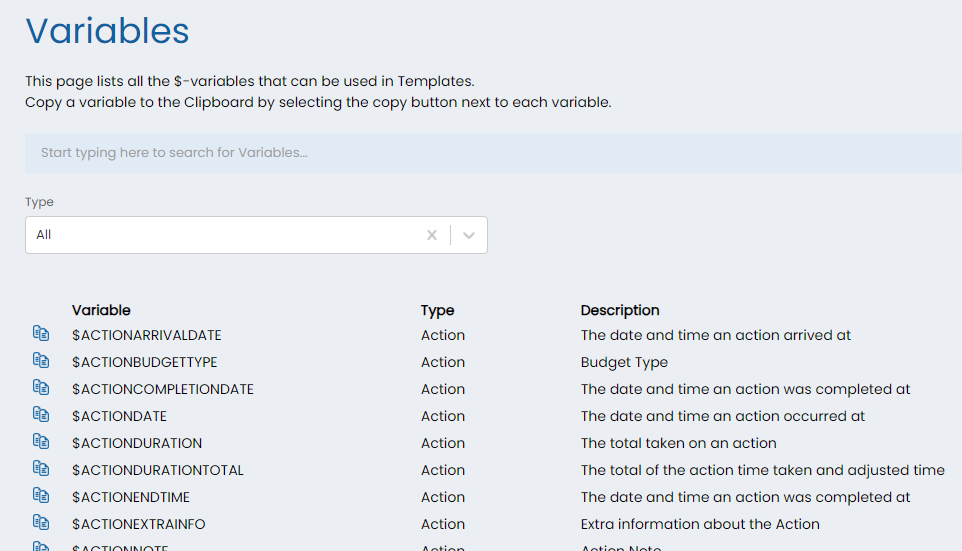
Fig 1. Variables list
PDF Templates
Variables can be placed directly into the HTML of PDF templates and will be replaced with the relevant information whenever previewing/generating the PDF. Below are the endpoints you can navigate to in order to view variables for PDF templates of a particular type:
/variables?type=154 - variables that can be used in Recurring Invoice lines
/variables?type=53 - variables that can be used in Ticket PDFs
/variables?type=50 - variables that can be used in Quotation PDFs
/variables?type=52 - variables that can be used in Sales Order PDFs
/variables?type=14 - variables that can be used in Purchase Order PDFs
/variables?type=54 - variables that can be used in Invoice PDFs
/variables?type=56 - variables that can be used in Report PDFs
/variables?type=59 - variables that can be used in Composite Report PDFs
/variables?type=62 - variables that can be used in Consignment/Delivery Note PDFs
/variables?type=63 - variables that can be used in Stats Card templates
/variables?type=71 - variables that can be used in KB Article PDFs
You can also find the above Dollar Variable URL's by selecting the PDF Template entity associated to the variable type and then clicking on 'View $-variables' action:
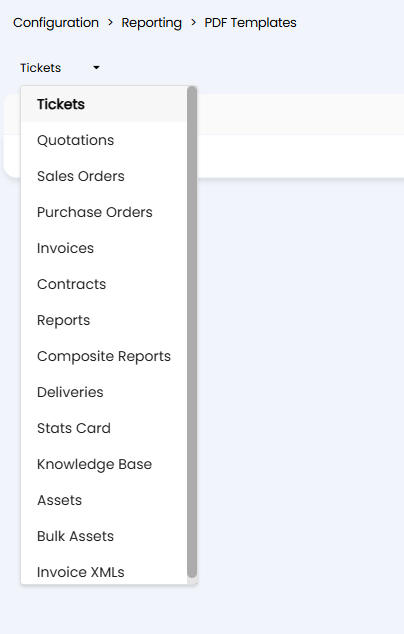
Fig 2. Selecting the PDF template area
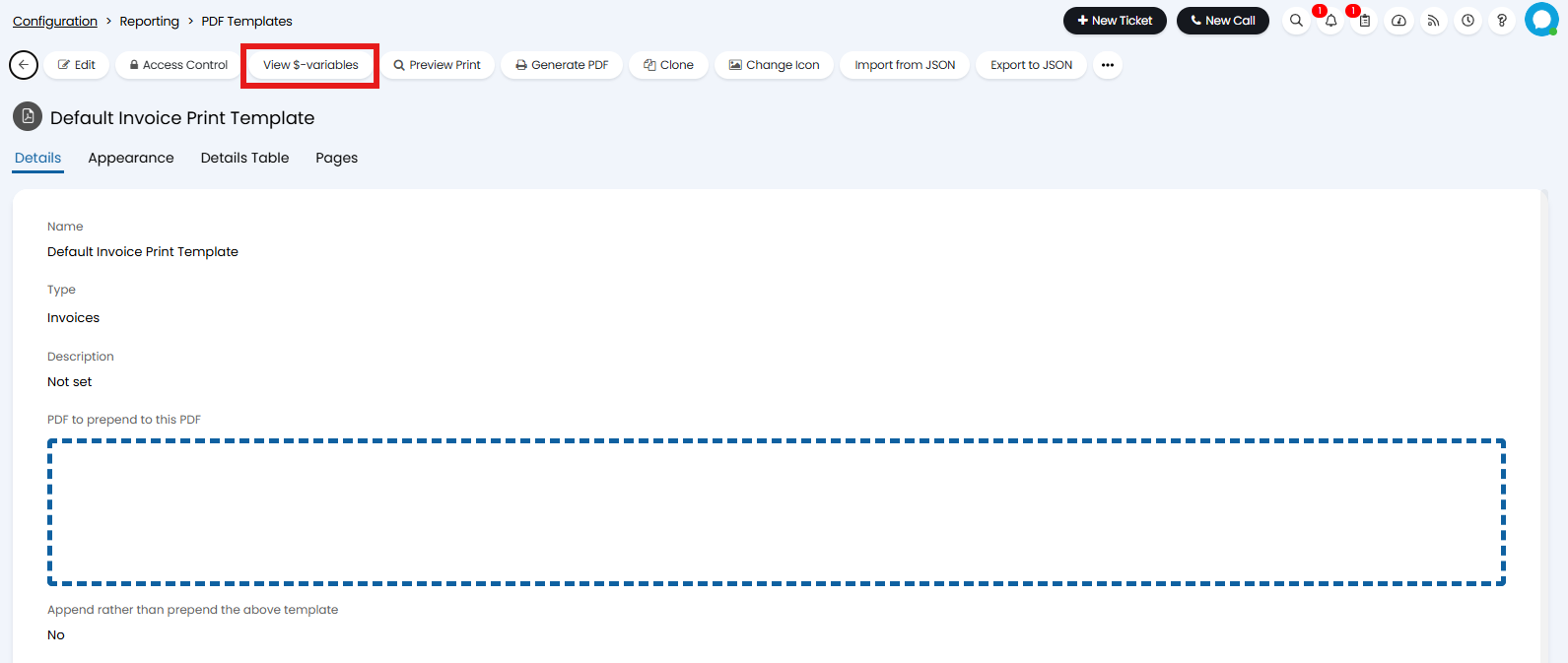
Fig 3. View $-variables button on a template
Then after clicking on view variables, a new tab will open on your browser with the variable list for the specific entity you have selected (in this example it was the invoices entity):
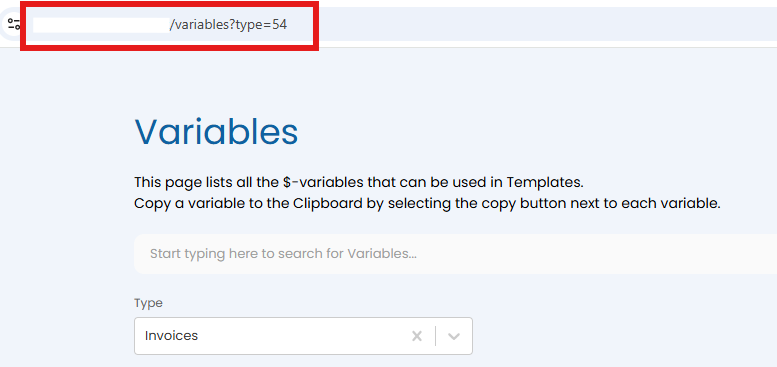 Fig 4. Variables URL
Custom Fields can also be used as Dollar Variables within their respective entity. If there was a Custom Field called 'CFclientaddress' which was a text Custom Field of entity "Ticket" this could be displayed on an action (as long as the ticket has this custom field added to its field list and the custom field on the ticket has a value). The Custom Field dollar variable would be $-cfclientaddress
Using Variables in Custom Fields
On versions 2.186 and above variables entered into rich text custom fields can populate in the Custom Field, not just the PDF. This allows agents to enter variables into fields when logging tickets, and then have the field populated with the variable data once the ticket is saved/logged. If you would like to be able to do this, this will need to be enabled against each custom field.
Note: This is only possible for rich text custom fields.
Head to Configuration > Custom Objects > Cusrtom Fields > select the Custom Field the variable will be entered into, enable "Allow the use of dollar variables in the field value".
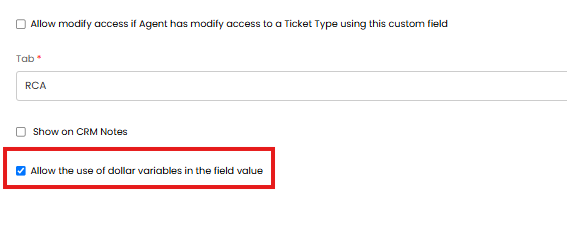
Fig 5. Enable use of Dollar Variables in the field value
Now I can enter a variable into this field.
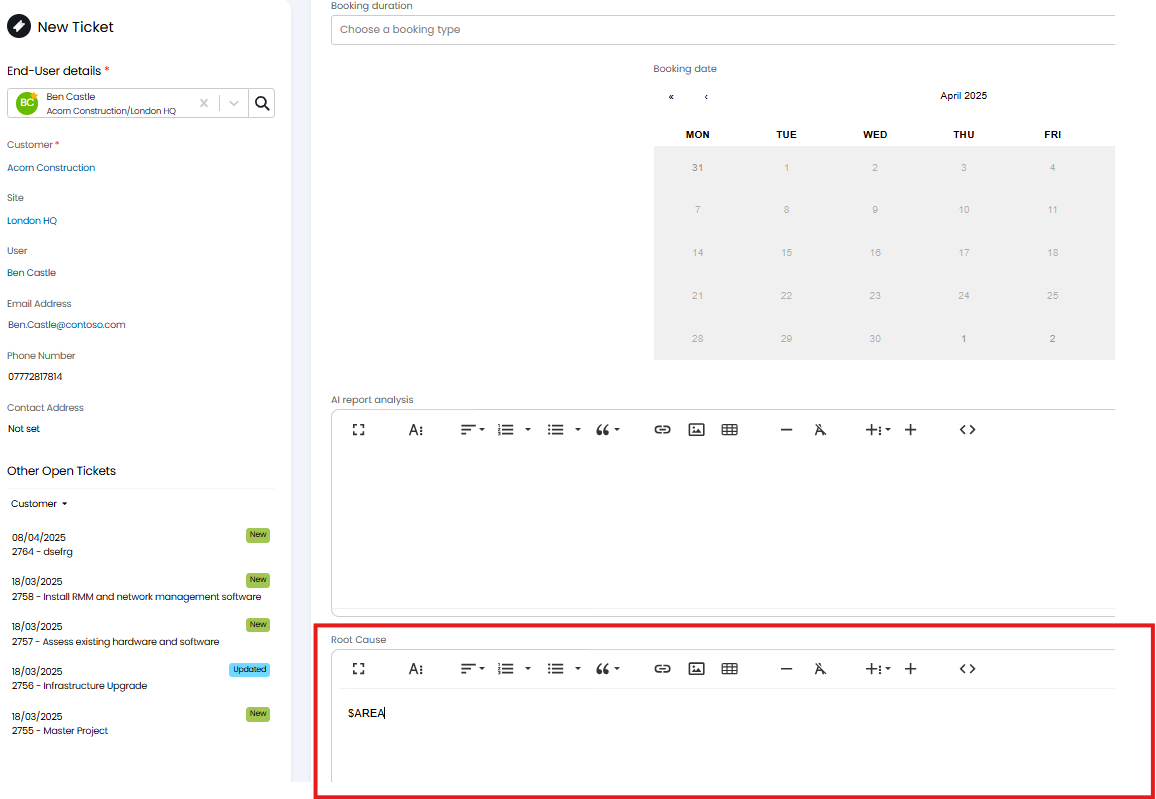
Fig 6. Variable in rich text custom field
Once the ticket is logged, I can see the data this variable pulls through is present against the ticket.
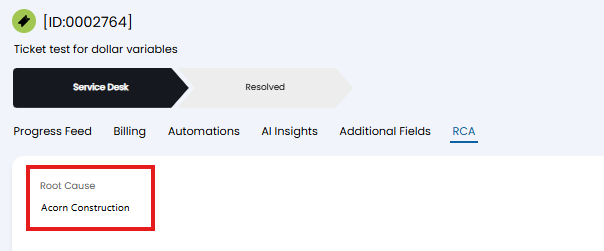
Fig 7. Variable populate on ticket
This is useful for fields storing information such as a statement of work or terms and conditions, as these fields will often contain content that benefits from Dollar Variables, such as a variable to pull through the customer or user name. Although these variables will populate on the PDF generated for the ticket, which is sent to the customer, it can be useful for agents to be able to see the completed field before generating/sending a PDF.
Rich text custom fields can also be populated into PDF and email templates.
Formatting Variables
Parameters can be added to your variables to change how they display. Multiple parameters can be added to a variable by seperating them with the "|" character.
For example: $-Subject{MAXLENGTH:100|OVERFLOW:...}
MaxLength
You can apply formatting to text $-variables used on templates (email and PDF). Formatting can be applied to restrict the number of characters variables return. This is useful when you would like to prevent large strings cluttering up your PDFs and emails. Formatting can be applied like so:
$VARIABLENAME{MAXLENGTH:20}
In the above example only the first 20 characters of data the variable pulls through will appear on the PDF/email.
Note: MAXLENGTH must be capitalised.
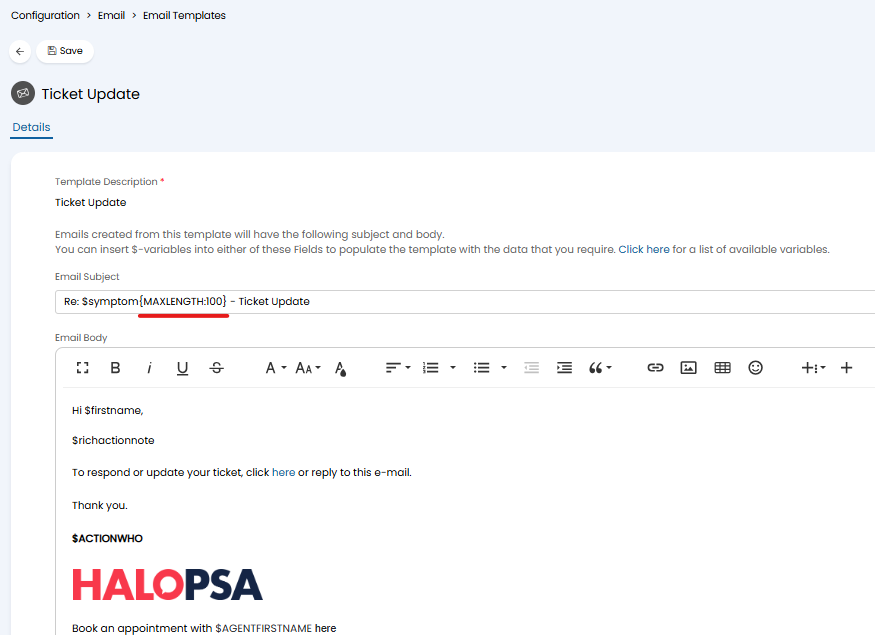
Fig 8. Variable for ticket summary formatted on email template
When using max length to limit the characters used you may want to end the output with a symbol or statement such as "...please view this ticket for more information". This parameter can be used with max length by formatting the variable like below;
$VARIABLENAME{MAXLENGTH:20|OVERFLOW:...please view this ticket for more information}
In the above example only the first 20 characters of data the variable pulls through will appear on the PDF/email. After the first 20 characters the output "...please view this ticket for more information" will display.
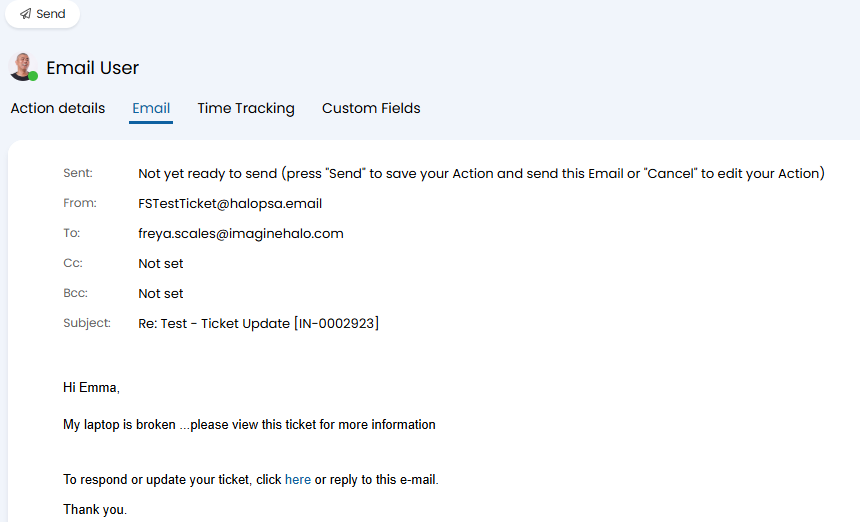
Fig 9. Overflow parameter example
Prefixes
Prefixes can be added to variables. Like variables, the prefix will only populate when the field the variable is pulling the data from has something to populate with.
Add curly brackets/braces "{ }" to the end of the variable, and within those brackets format the text like:
$VARIABLENAME{PREFIX:Name to use:}
Ensure you add the colons either side of the name to use.
For example, the below text for the Priority variable ($_SERIOUSNESS).
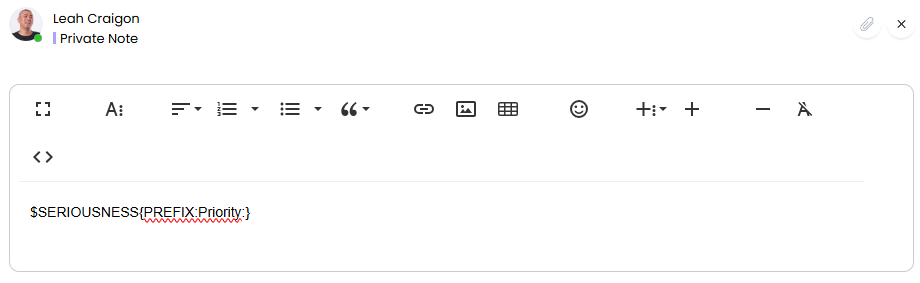
Fig 10. Variable prefix format.
This example will then populate like below.

Fig 11. Variable populated with a prefix
Suffixes
Suffixes can be added to variables. Like variables, the suffix will only populate when the field the variable is pulling the data from has something to populate with.
Add curly brackets/braces "{ }" to the end of the variable, and within those brackets format the text like:
$VARIABLENAME{SUFFIX:Name to use}
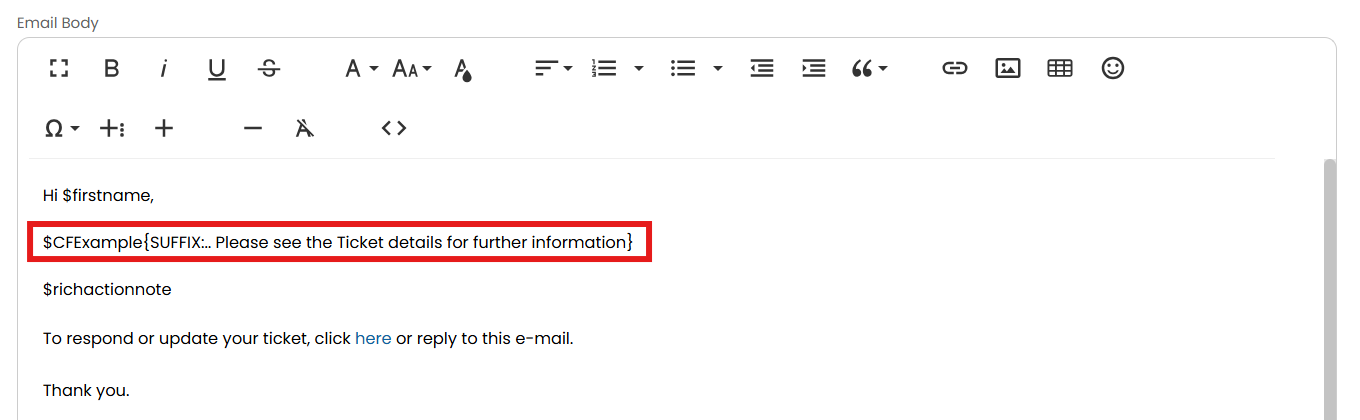
Fig 12. Variable suffix format
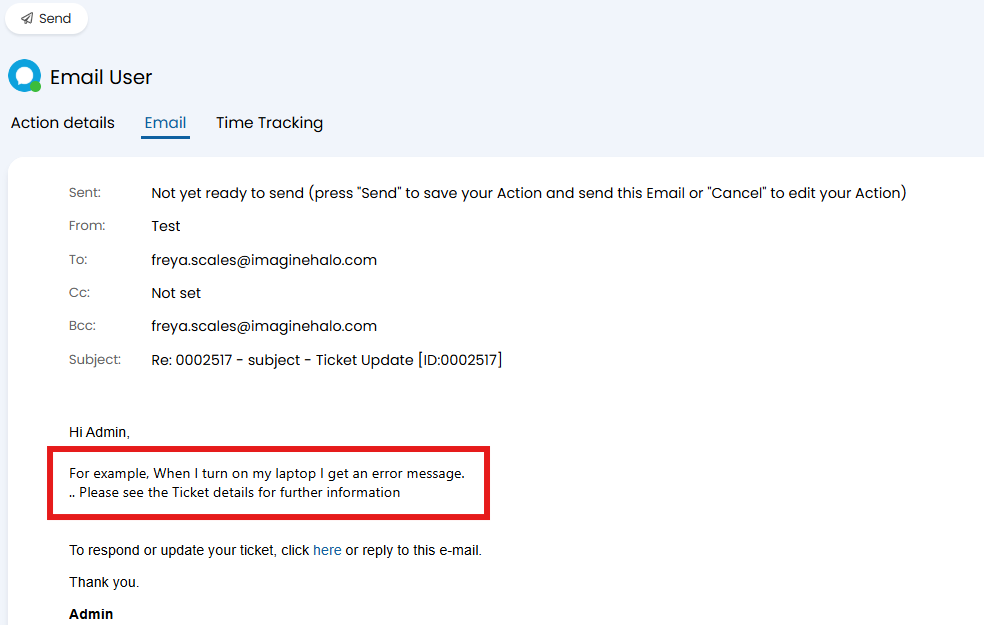
Fig 13. Variable populated with a suffix
Default values
A default value for a System Ticket Field can be set using the parameter: {DEFAULT:____}. The value set here will show when the Field is empty. This is useful in email templates when certain information has not been provided for a particular field, allowing you to display a message or value, such as "No information provided".

Fig 14. Setting a default for a Ticket Field
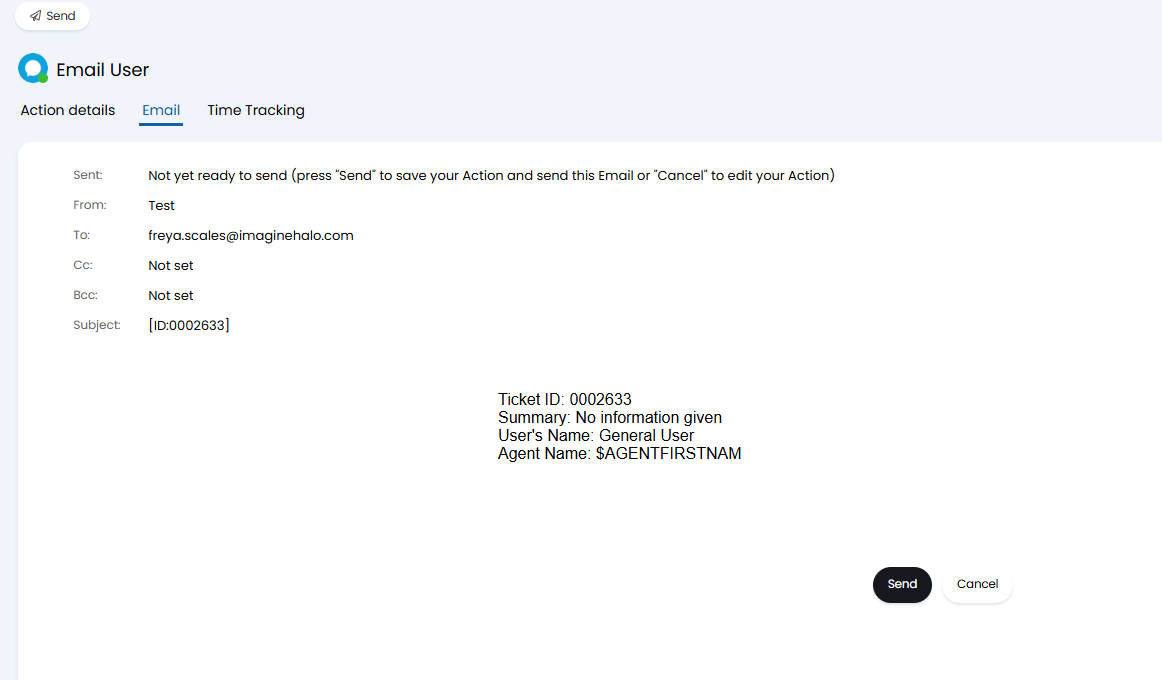
Fig 15. Variable populated with a default due to no summary being set
Note: If you wish to add multiple formatting options to the same variable, format it like this "$-VARIABLE{SUFFIX:Value|PREFIX:Value}" with a pipe character in between each.
Return ID
The parameter: {USE_ID} can be used to force the response from a single select field to be an ID rather than text. When creating email templates or default notes, it is useful to pull the ID of a field value in order create a links.
Return as plain text
The parameter: {TYPE:PLAIN} can be used to output the contents of a field in plain text. This is useful for URL fields which output in HTML by default.
Formatting a Date based on language (v2.246+)
To format a date according to a specific language, use the parameter: {dddd MMMM yyyy|language:Value}, where the value is replaced with your chosen language's ISO code.
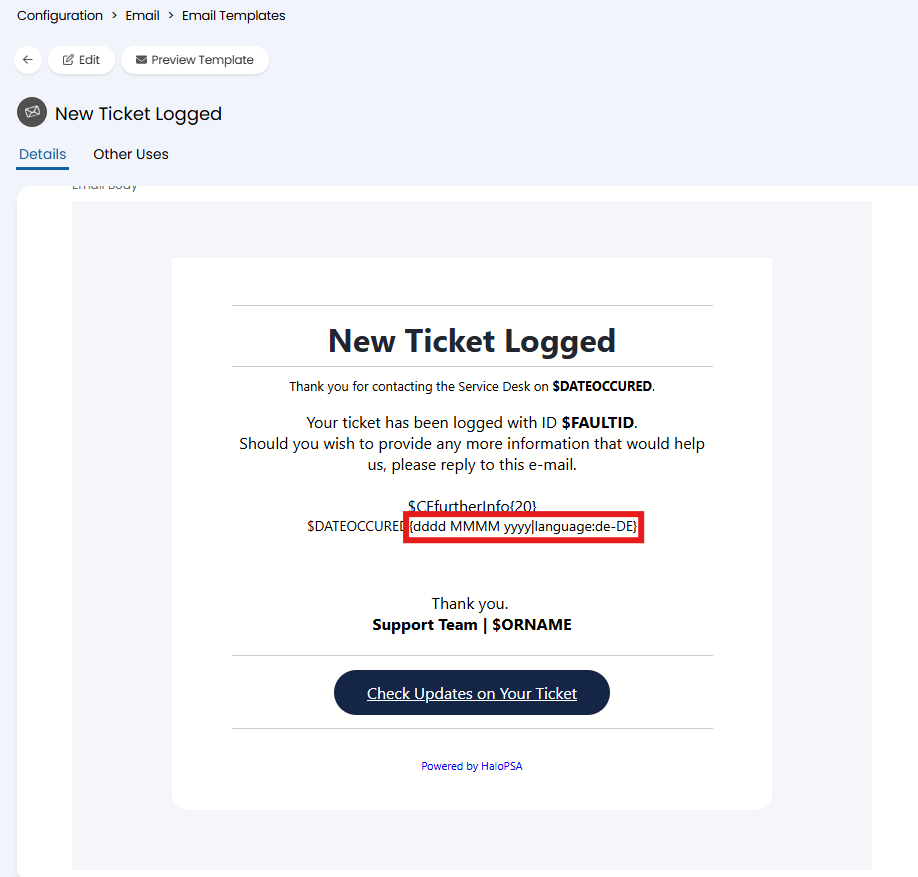 Fig 16. Date formatting on a variable
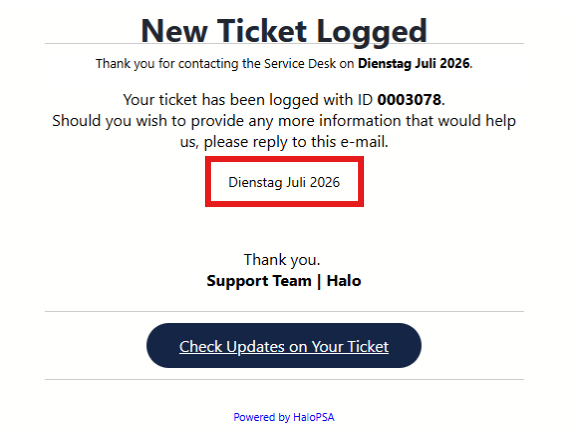
Fig 17. Variable populated with a date formatted in German
This parameter can be adjusted to show the shorthand or numerical values for the day/month as well. To do this adjust the parameter to use 3 'd's or 'M's to show the shorthand.
For example: $DATEOCCURED{ddd MMM yyyy|language:DE}
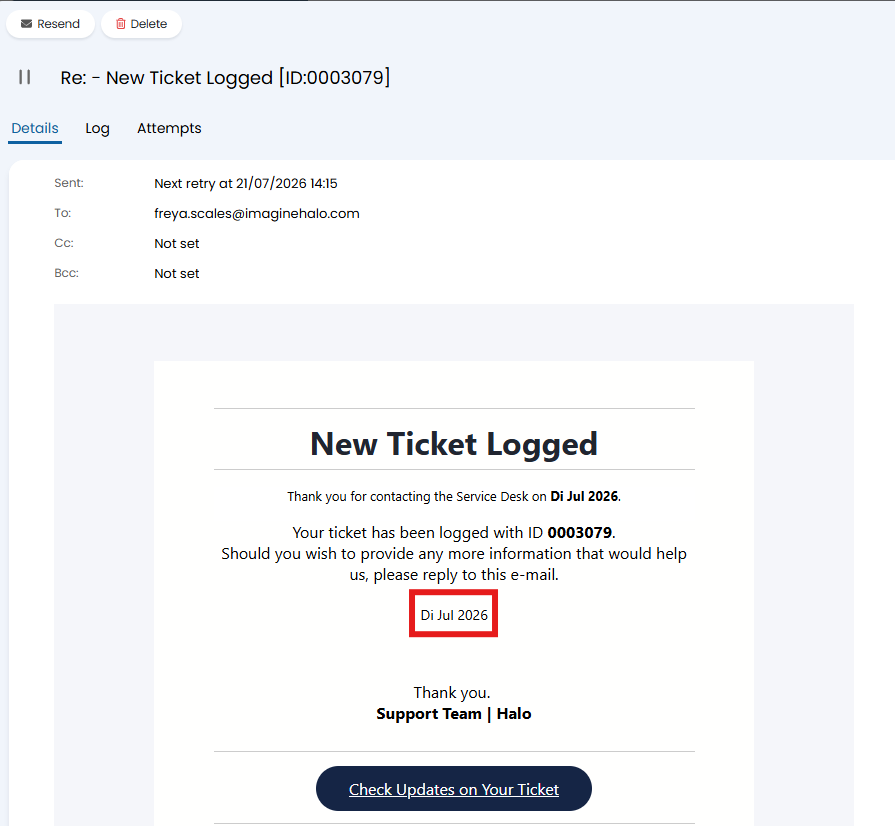
Fig 18. Shorthand Date
Or use 2 to show the value as a numerical value.
For example: $DATEOCCURED{dd MM yyyy|language:DE}
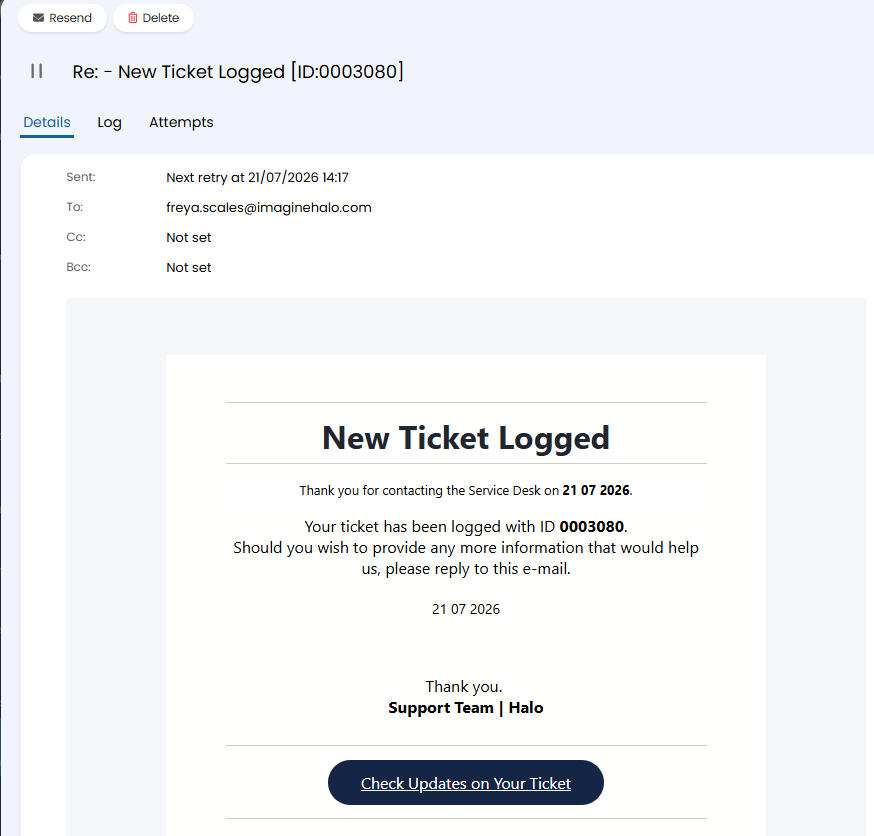
Fig 19. Date shown in numbers
Note: This parameter is case sensitive and must use lowercase 'd' and 'y', with uppercase 'M'.
Variable Suggestions
You can select suggested variables from a list or text search when configuring the following:
- Actions
- Column Profiles
- Email Templates
- Templates
- Canned Text
- Ticket Type
To enable this head to Configuration > Advanced Settings, and change the "Allow Variable Suggestions" to the desired option as outlined below.
Variable text search - This option will show a list of suggested variables when the dollar symbol ($) is typed. This works in a similar way to mentions.
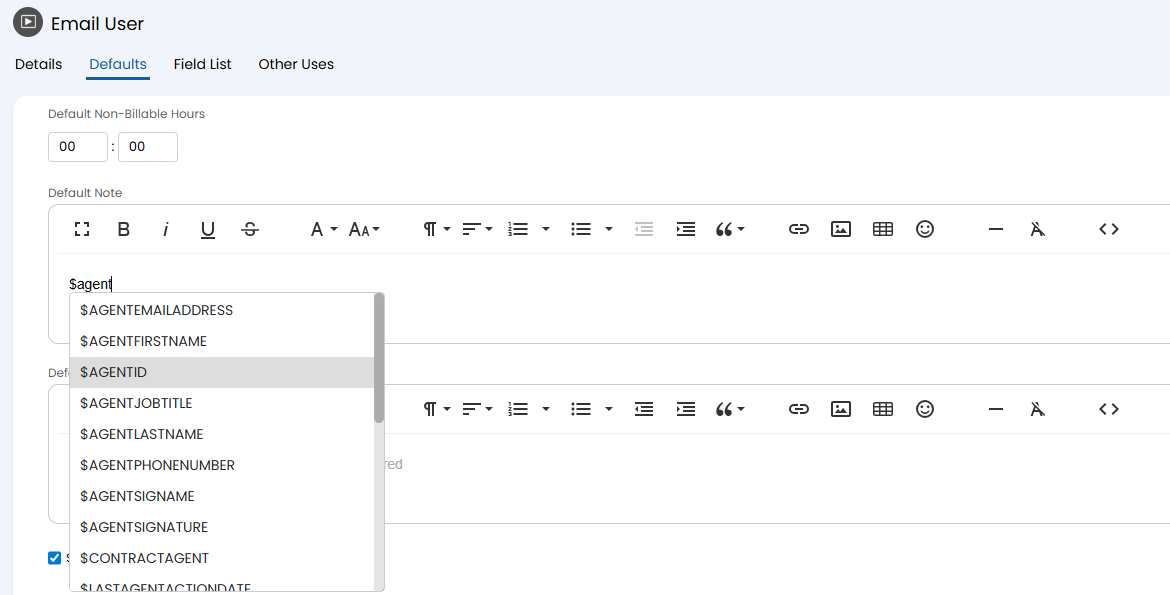
Fig 20. Variable text search
Insert variable from list - Similar to Canned Text, this will show an Ohm symbol (Ω) in your text editor which will display a list of suggested variables when clicked.
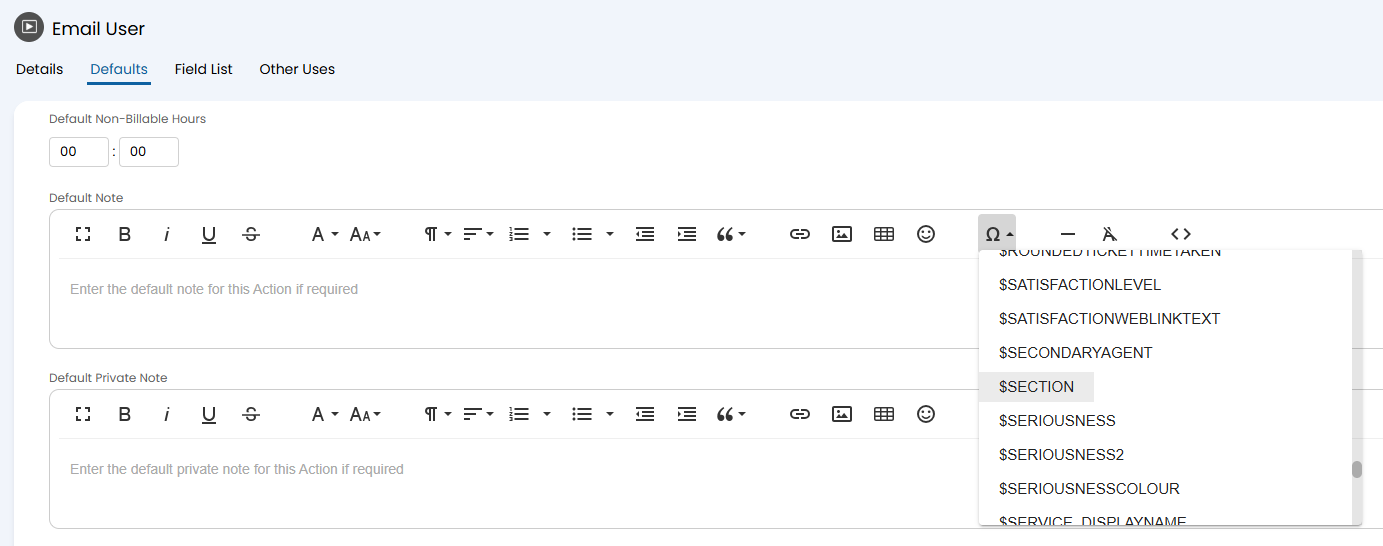
Fig 21. Insert variable from list