Email Templates and their System Use - A Basic Walkthrough
- templates
- template system use
- email templates
- system use
In this guide we will cover:
- Navigating to Email Templates
- When Email Templates are Used
Configuration Settings:
Related Guides:
Note: This guide covers the base templates that are most commonly used to reference as a starting point. For a comprehensive list, please check out the "Email Templates and their System Use" guide.
Navigating to Email Templates
A list of email templates is available in Configuration > Channels > Email > Email Templates. This will bring up a list of email templates from the "Standard Messages" dropdown. These are our default, out-of-the-box email templates that are tied to different actions within Halo, and what we will be discussing within this guide.
Each template has an "ID" against it, shown in the left column, followed by a "Description", which is the name of the template for easy reference. We will refer to each template within this guide via its "ID" and "Description".
These templates can be customised to your company with additions like text, links, and your company logo. If you would like assistance completing this, or have any questions relating to the content of this guide, please contact the support team via support@halocrm.io.
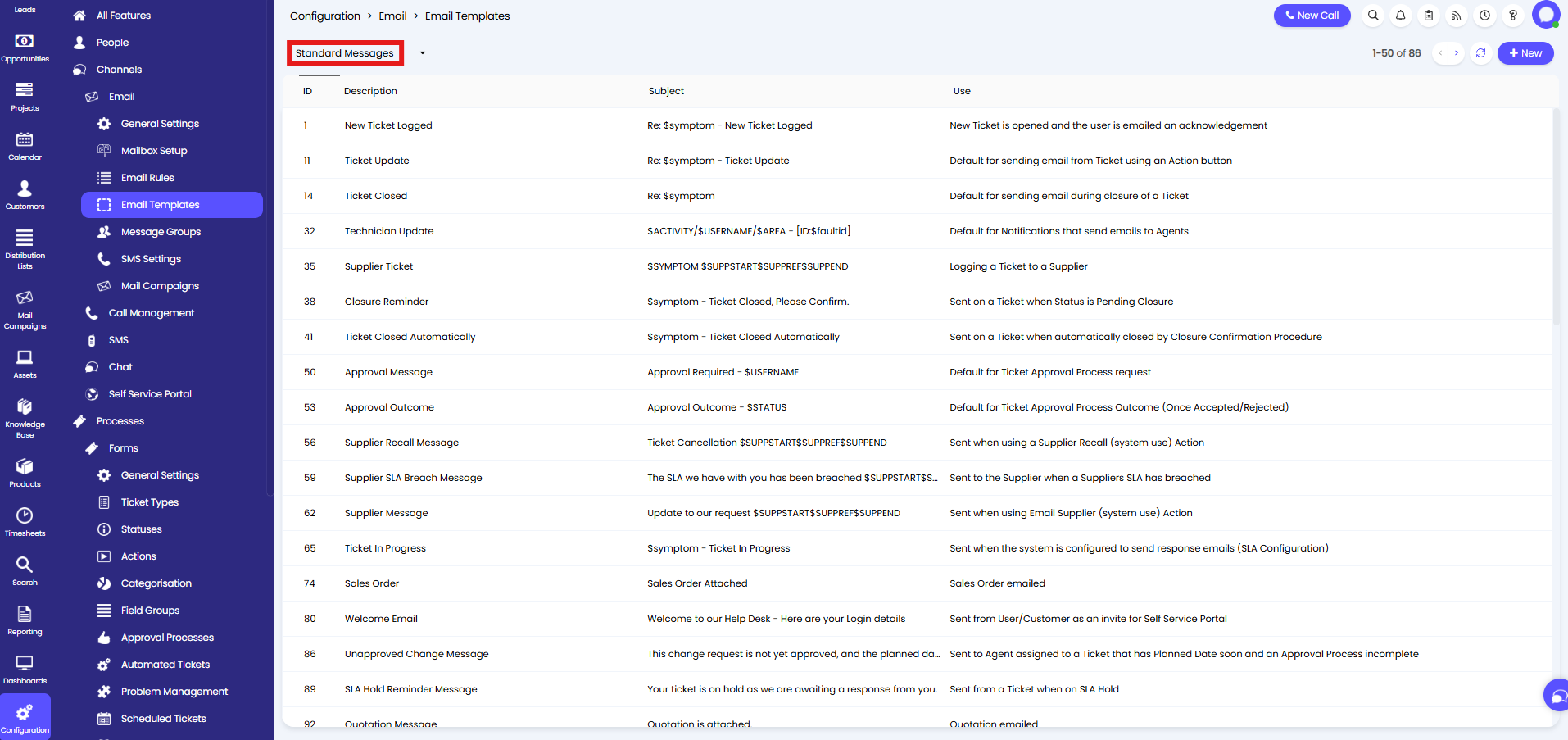
Fig 1. List of email templates.
When Email Templates are Used
We can now look into when each email template is used. You will notice a majority of these templates include words with a "$" in front of them. These are variables that are added to the template to auto-populate certain information. A list of variables can be accessed via "https://[YOUR HALO URL]/variables", and you can learn more about these in the guide on "$-Variables (Dollar Sign Variables)".
ID 1 New Ticket Logged – This template will be used to send acknowledgement emails to contacts when they log new tickets.
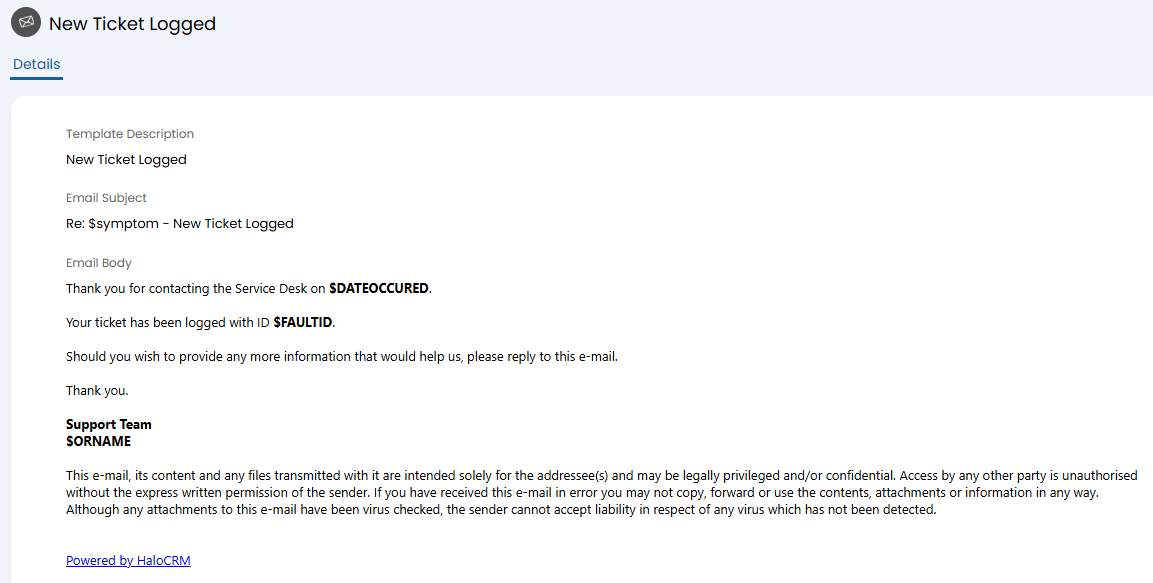
Fig 2. New Ticket Logged template.
Any contact that is set to receive new ticket acknowledgements will receive an email. This is set in the contact's profile > Preferences tab > Email/Marketing Settings dropdown.
This can also be enabled/disabled on the customer profile > Settings tab > Email Defaults dropdown > set "New Ticket acknowledgement" to "Send Email" or "Don't Send Email".
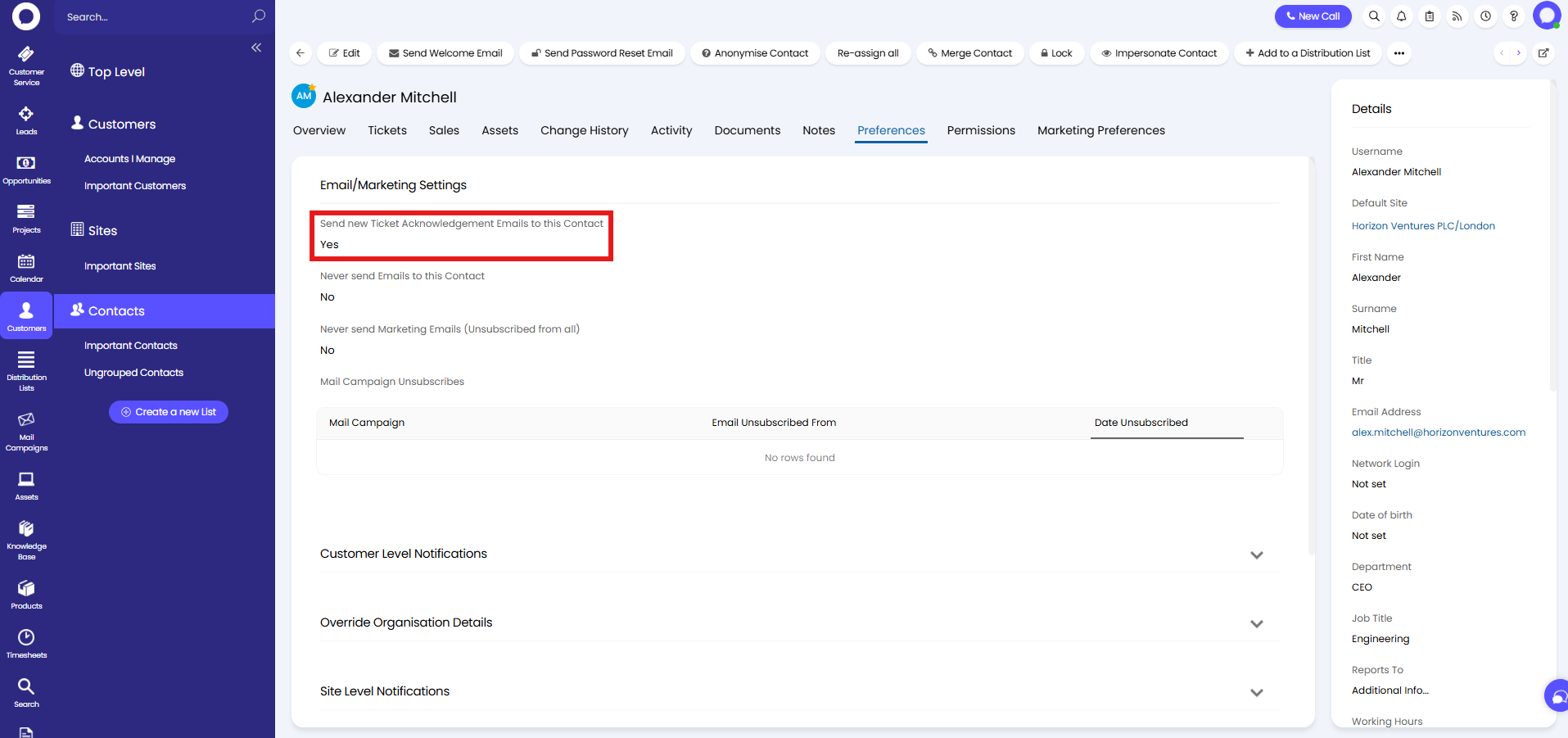
Fig 3. Enabling new ticket logged emails to be sent to a contact.
ID 11 Ticket Update – This template will be used when sending an email from a ticket, unless overridden on the action.
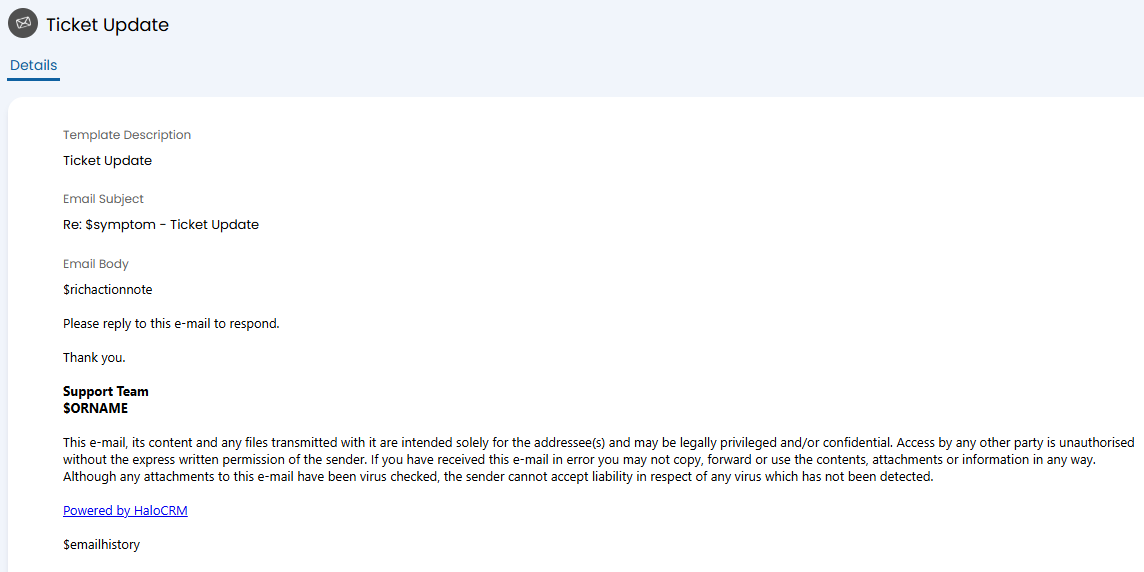
Fig 4. Ticket Update template.
The default "Reply" action will use this template as any action configured to "Send an Email" will use this. This can be set against an action in Configuration > Processes > Forms > Actions > Defaults tab.
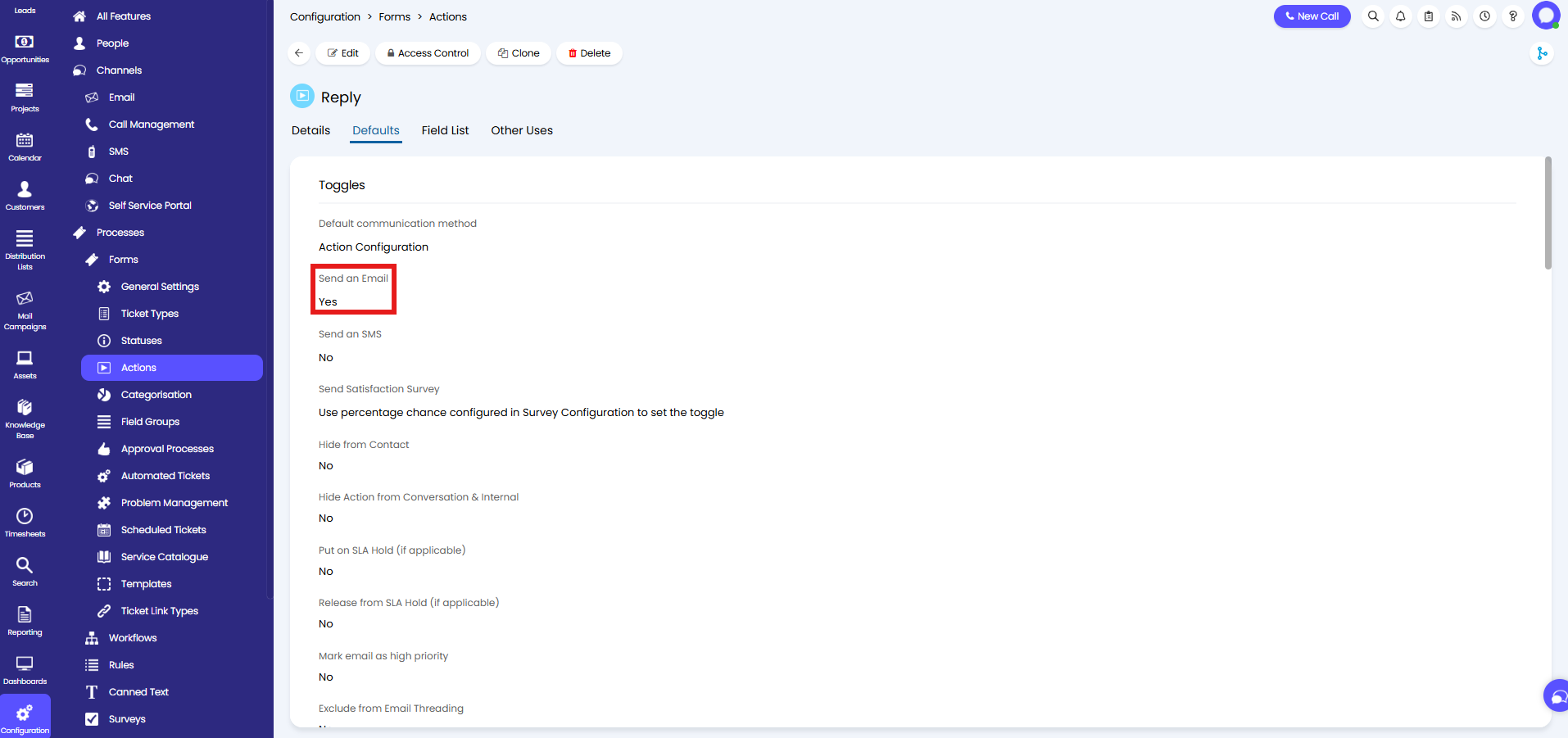
Fig 5. Setting an action to send an email.
ID 14 Ticket Closed– This template will be sent to the contact when their ticket is closed.
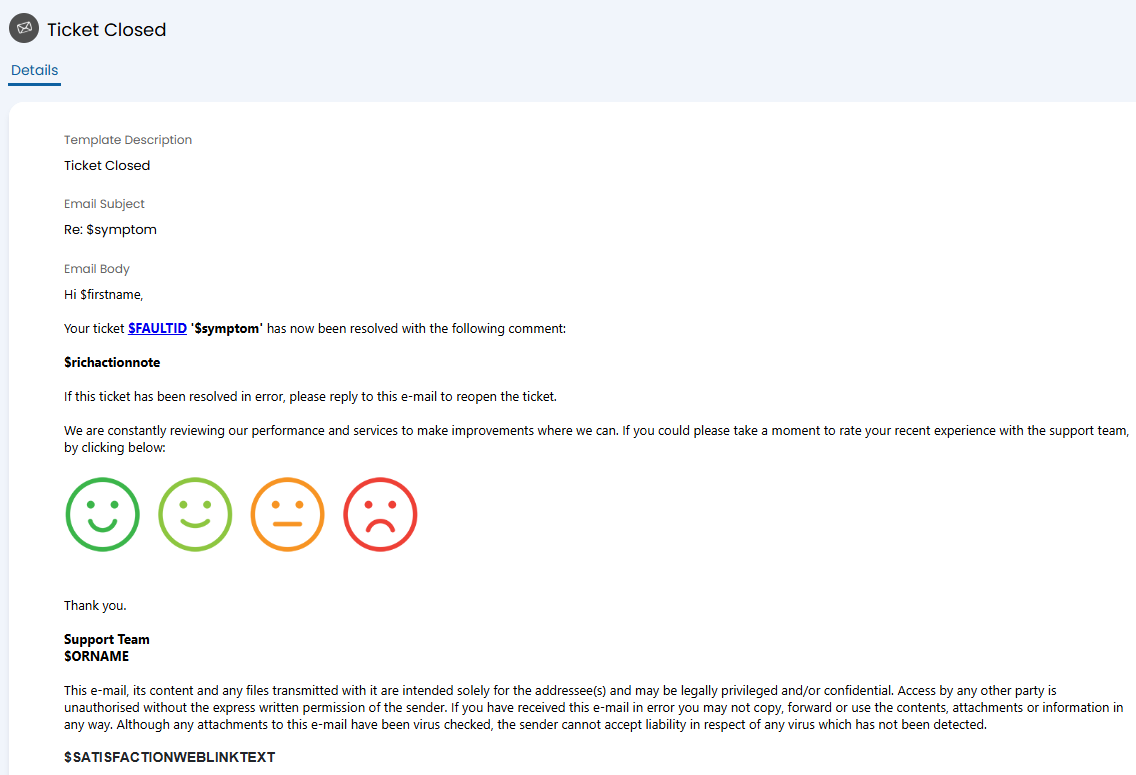
Fig 6. Ticket Closed template.
The default "Close Ticket" action will send this template out, as will any action set to "Send an Email" in the same way as Fig 5 and change the status to "Closed" as below. This is set in Configuration > Processes > Forms > Actions > Details tab.
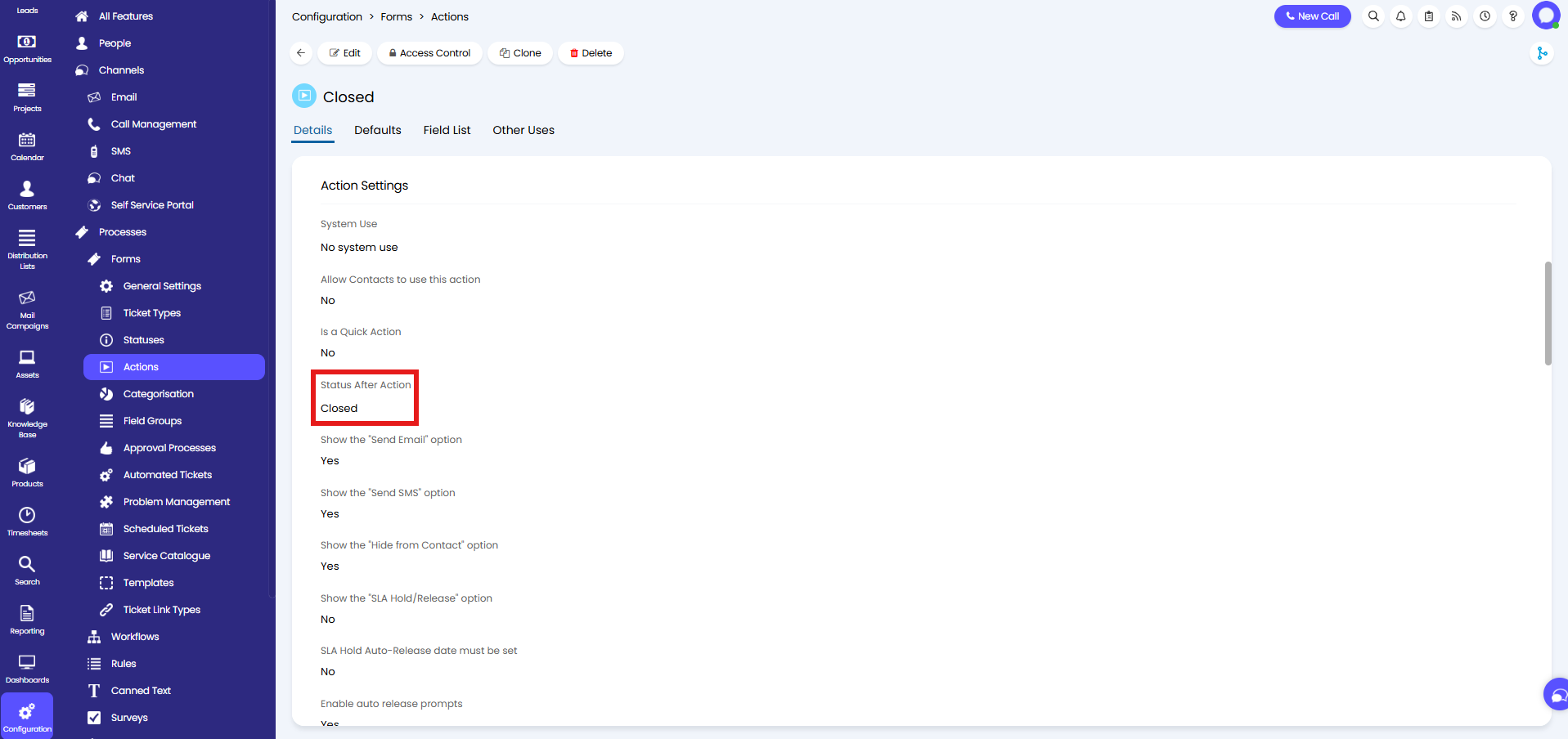
Fig 7. Setting an action to change the ticket status to "Closed".
ID 32 Technician Update – This is the template used when a notification is configured to send to an agent via email.
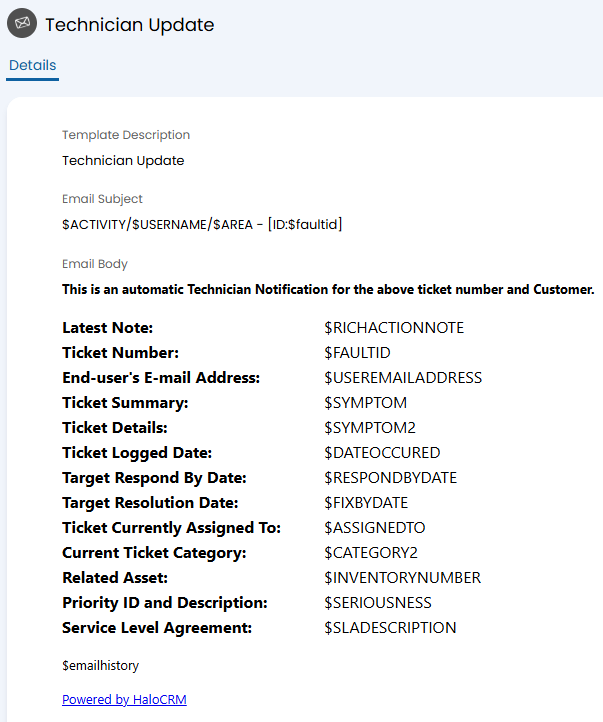
Fig 8. Technician Update template.
In Configuration > Processes > Notifications > Notifications, you can create a custom notification with the delivery method of "Send an Email" like below.
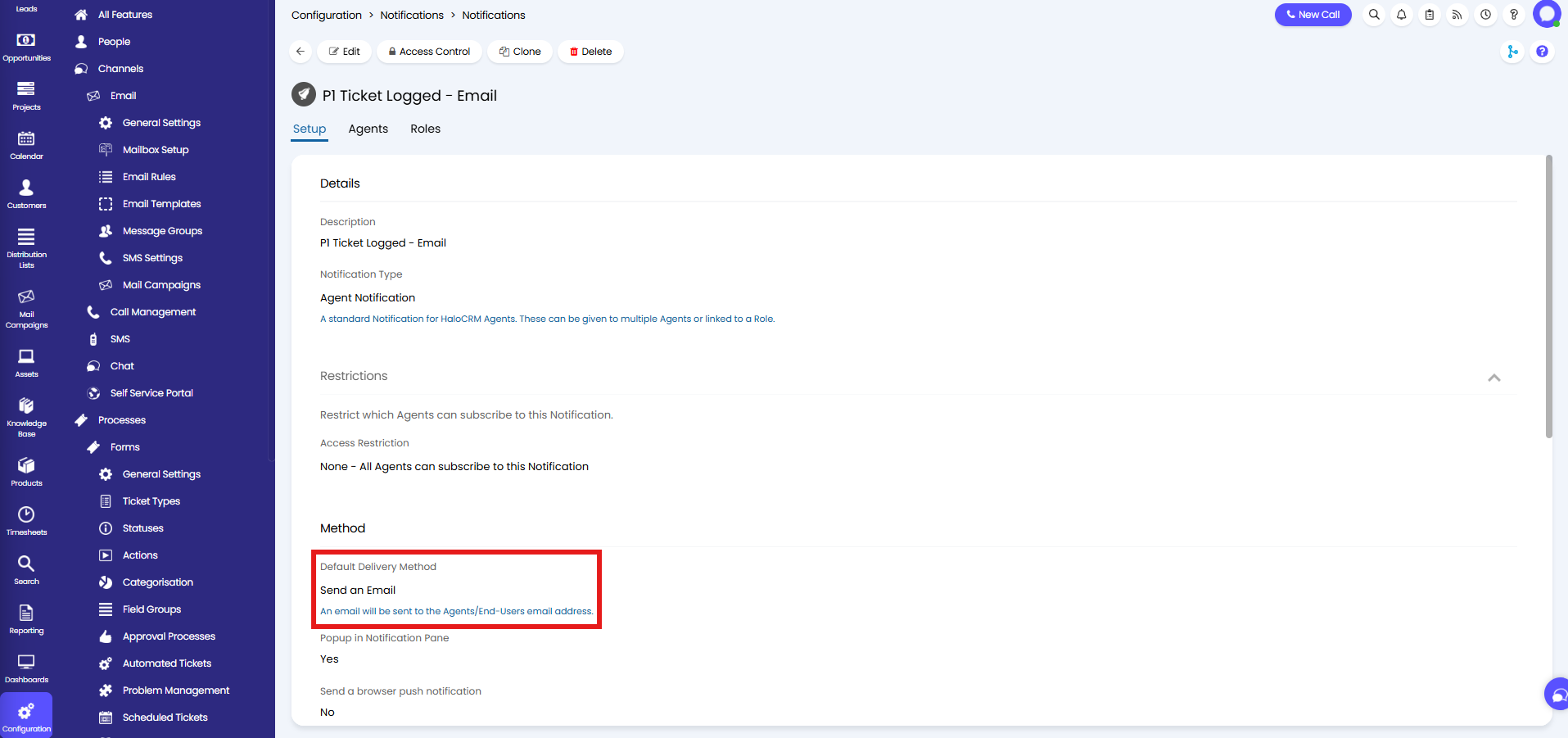
Fig 9. Notification configured to send an email.
Scrolling to the bottom, this is where you can see this template is being used. This can be changed to another template here if you wish.
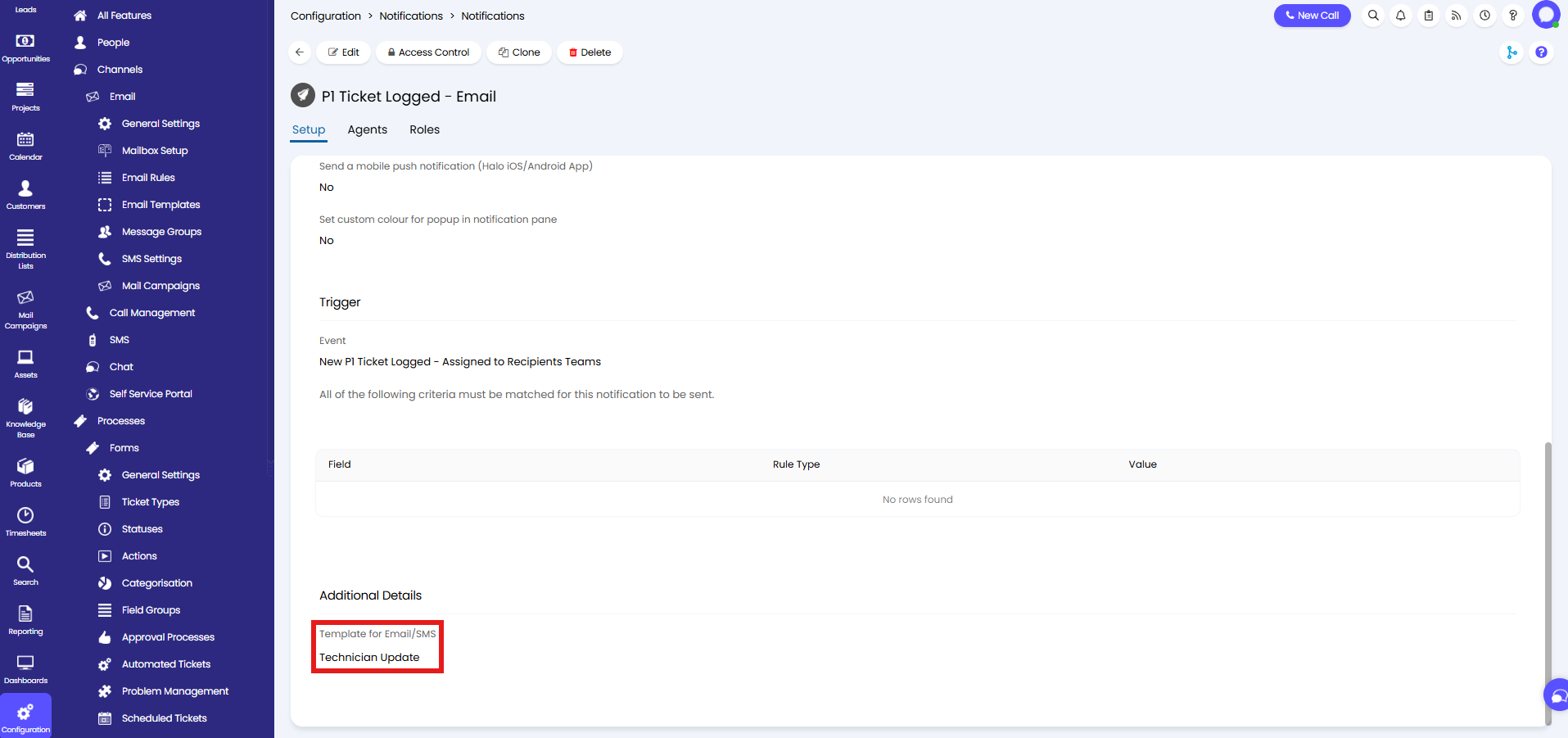
Fig 10. Technician Update template set on a notification by default.
ID 80 Welcome Email – This template will be used when a welcome email is sent to contacts.
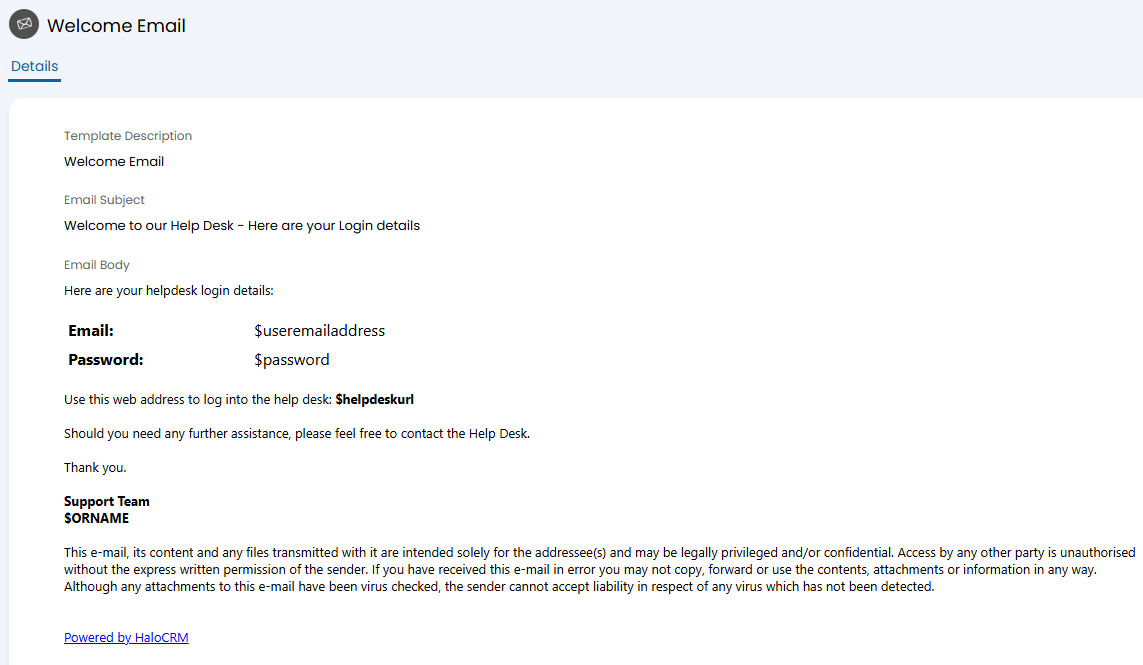
Fig 11. Welcome Email template.
This can be sent by clicking the "Send Welcome Email" button on the contact's profile. This can also be sent automatically when a contact is created: Configuration > Channels > Self-Service Portal, enable "Send welcome email to new Contacts".
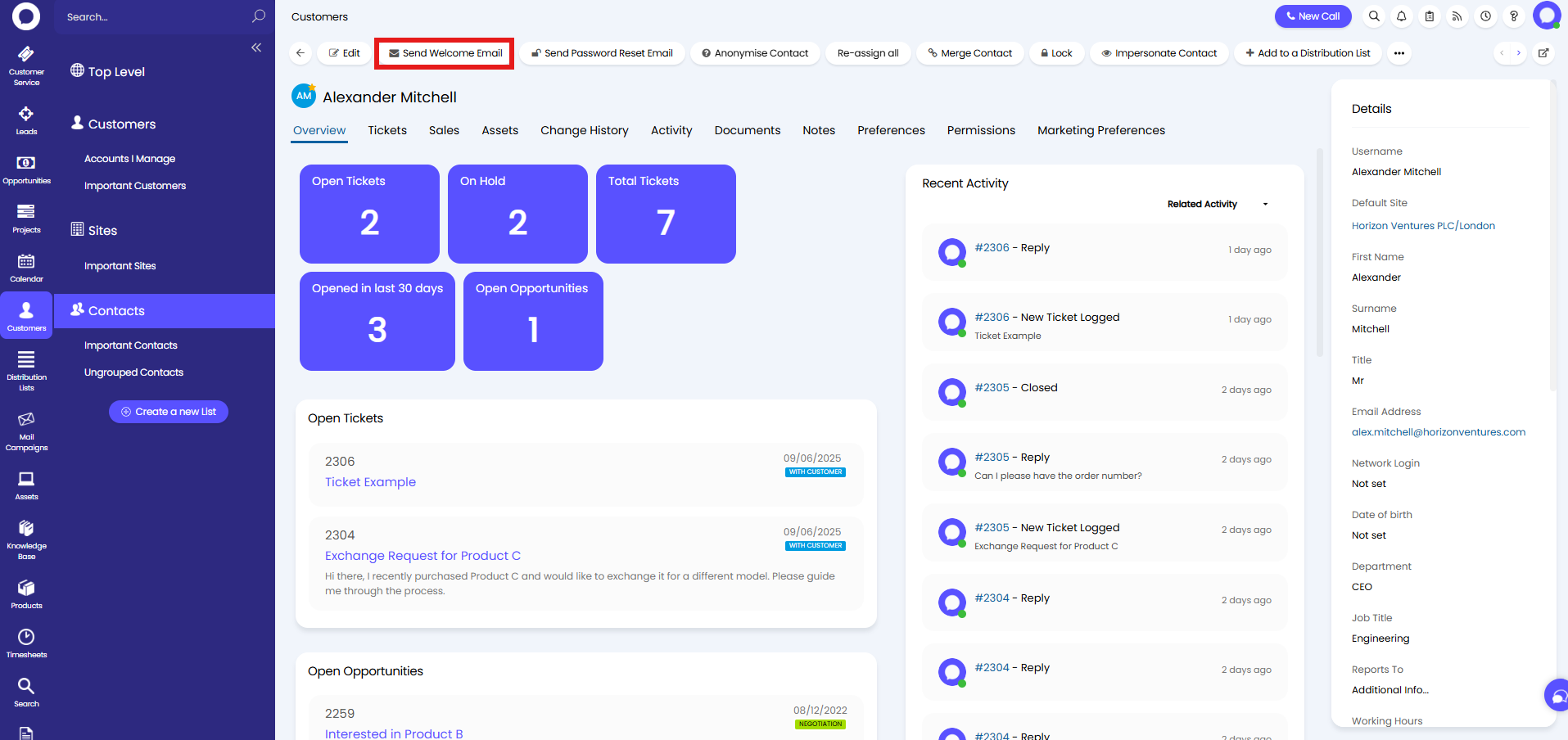
Fig 12. Sending the welcome email manually.
ID 89 SLA Hold Reminder Message – This template will be used to send a reminder email to a contact when their ticket is on SLA hold for a certain period.
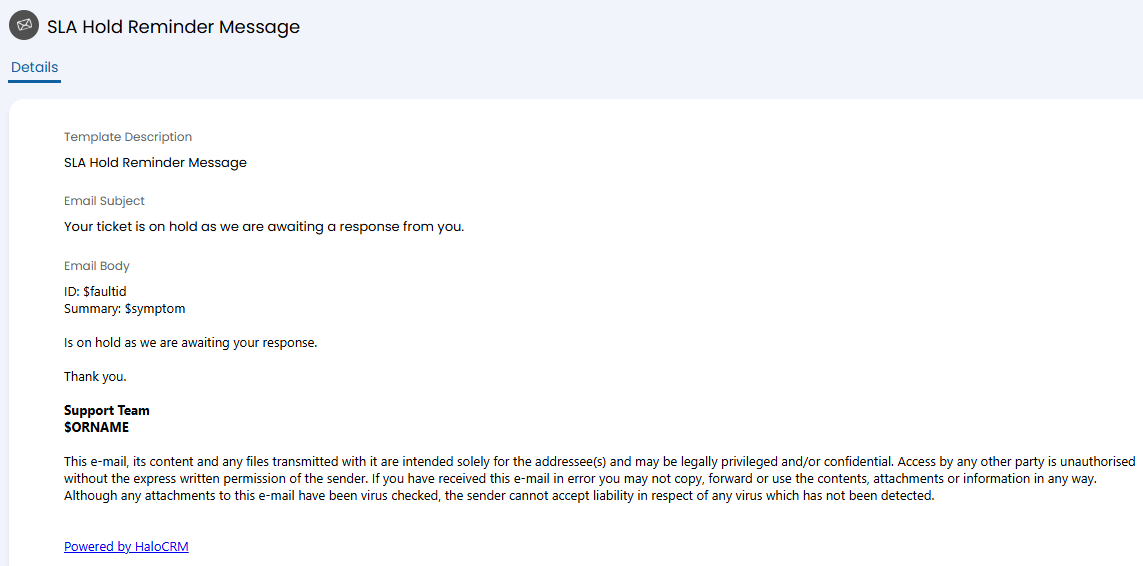
Fig 13. SLA Hold Reminder Message template.
This requires SLA hold reminders to be enabled and configured in Configuration > Processes > Service Level Agreements > General Settings. After enabling the below checkbox, the additional configuration options show underneath will then appear.
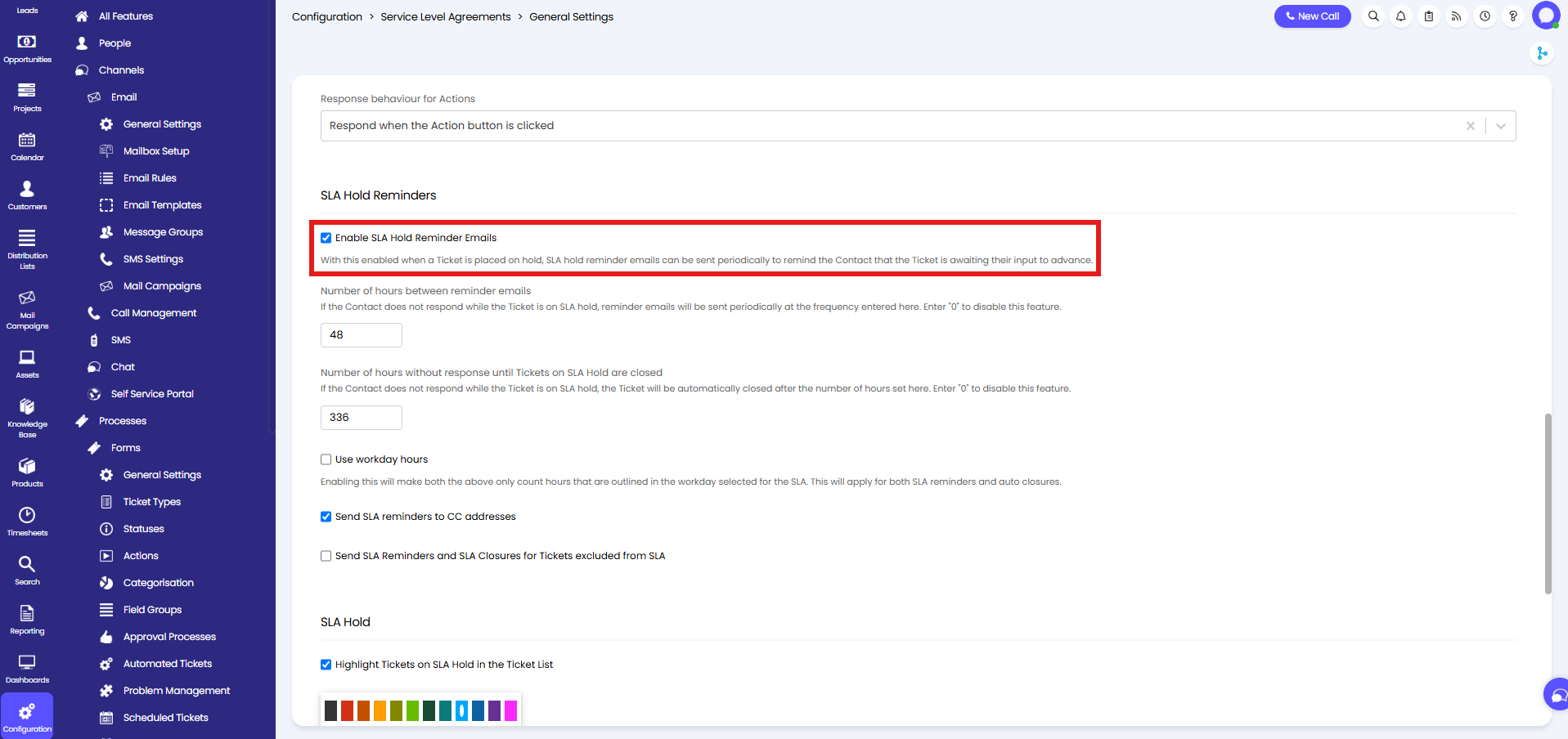
Fig 14. Enabling SLA hold reminder emails.