Items/Products
- Items
- products
- product catalogue
In this guide we will cover:
- What are Products?
- Creating Product Groups
- Creating Products
- Billing for Products
Admin Guides:
Related Guides:
- Creating Projects from Products
- Issuing Products
- Linking Products to Assets
- Receiving Stock for Serialised Products & Delivering to the Customer
What are Products?
Products in Halo hold information on all of the Products and/or Services that you provide. Products can be issued on a ticket, quoted for and used to track stock of physical assets.
Your product catalogue (a list of all your current/previous products) can be found in the products module.
Fig 1. The Products Module
From v2.252+, you can create custom Column Profiles for Products. This allows you to display the most relevant information within your column view. This column profile will show anywhere Products are viewed (e.g. Quotes).
Creating Product Groups
Product groups are used to categorise/organise your products/items, to easily sort the products and make it easier to find specific ones. You may have serialised/non-serialised items, as well as groups for your services for example. Within the configuration of these groups, you can set defaults and billing settings for items in that group to follow.
On the left hand side you will see the product group. These can be edited or added to by right clicking on them.
You can also access a list of groups from Configuration > Items and Stock Control > Asset Groups.
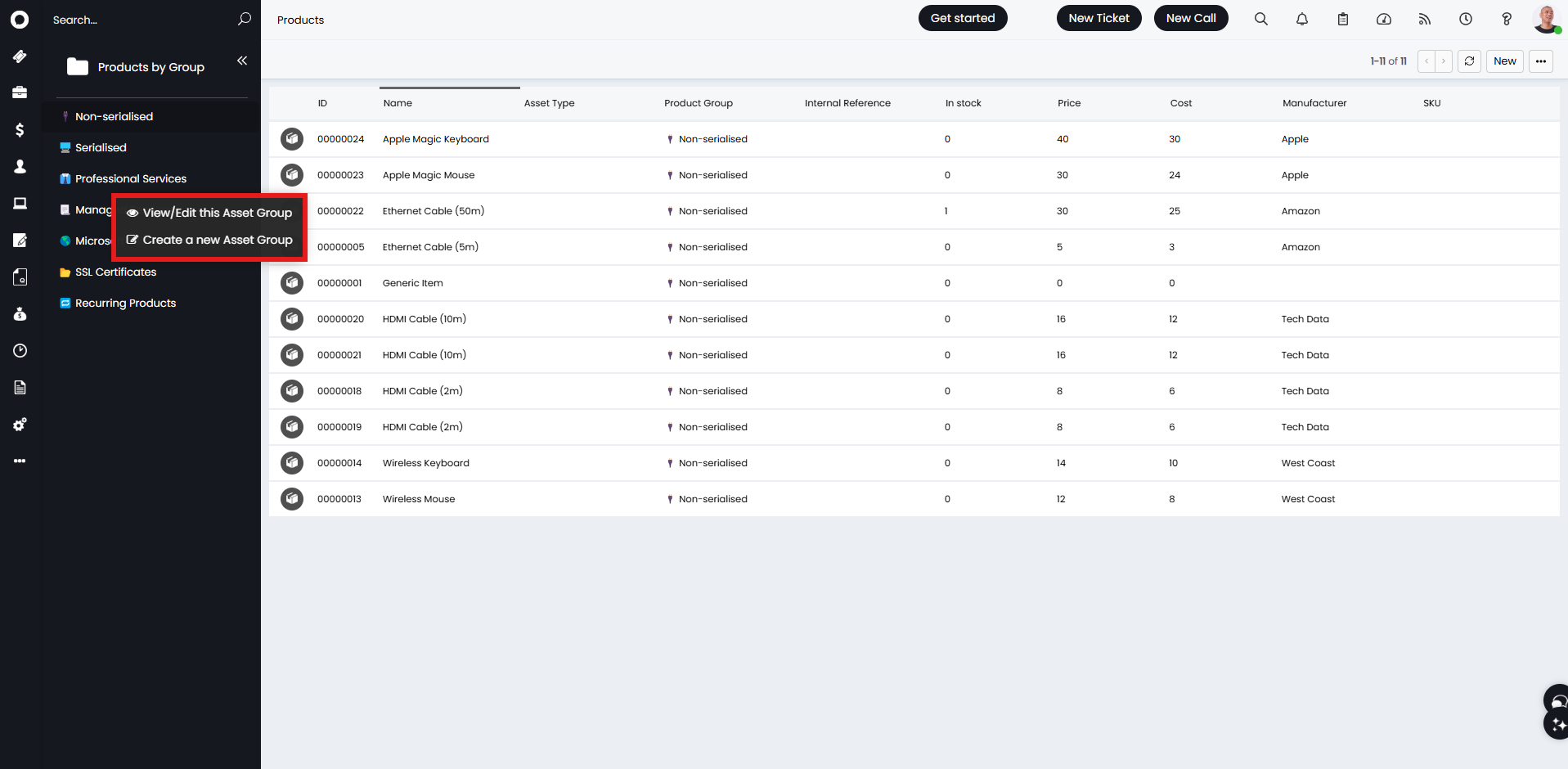
Fig 2. Products area in "Products by Group" list
This popup screen will then appear where you can name the product group. Although the title says "New Asset Group", enabling "Use for Items" will make it a product/item group.
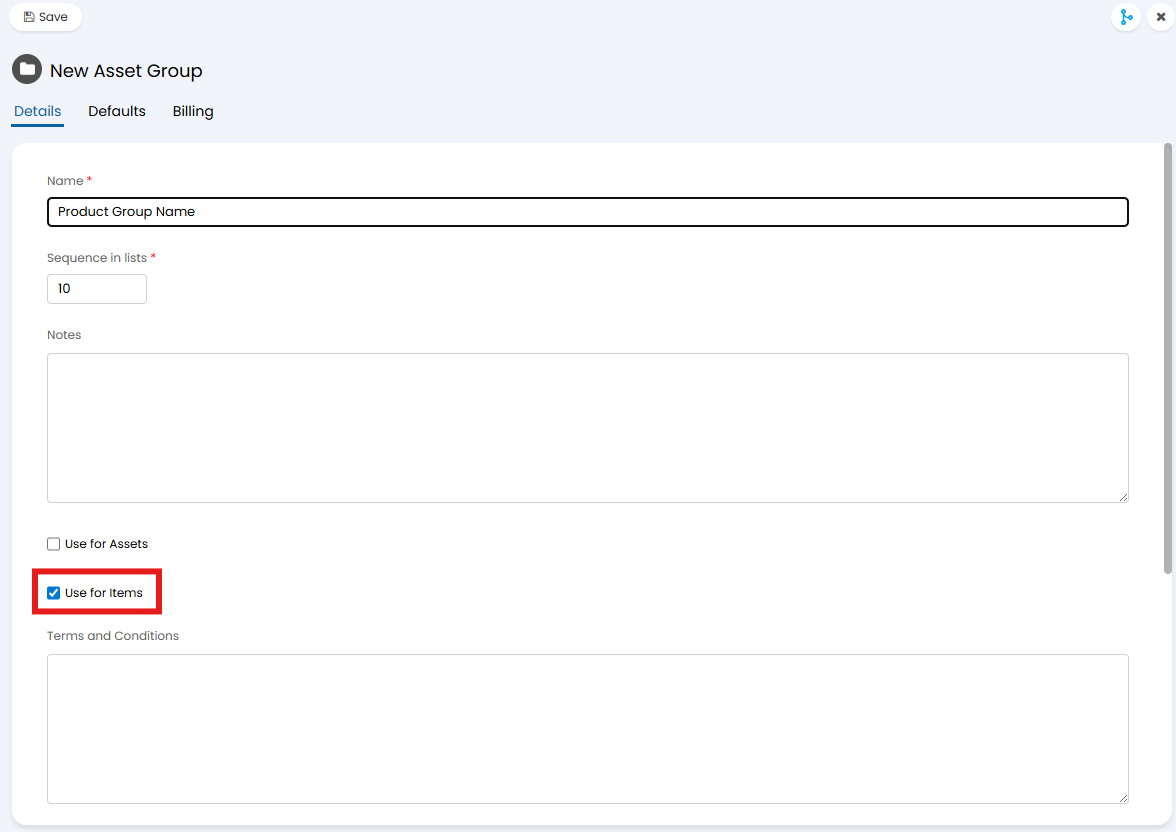
Fig 3. Creating a product group
You can also use product groups as a way of excluding certain items from 3rd party accounting integrations. Once "Use for Items" is enabled, "Exclude from Accounting Integration" can be selected. This will exclude items from within that group from being synced. This can be useful if you use a catalogue integration and do not want these products syncing to your accounting integration.
You can then set defaults for products within that group, such as if the product is consignable or whether stock is tracked.
You can set defaults for "Is Taxable", "Do not receive on Purchase Orders", and "Do not invoice on Sales Orders". For example, you may wish to use the purchase order default on a product group that contains additional add-ons, such as shipping charges.
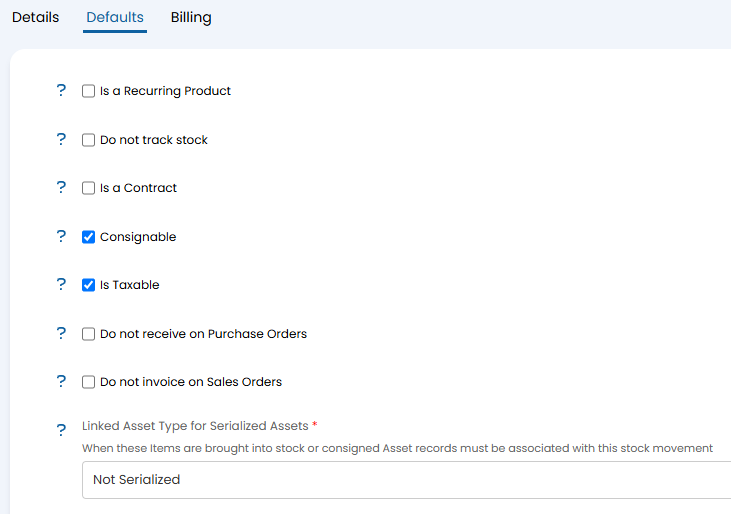
Fig 4. Product group defaults
You can then link any relevant billing information, such as accounts and tax codes.
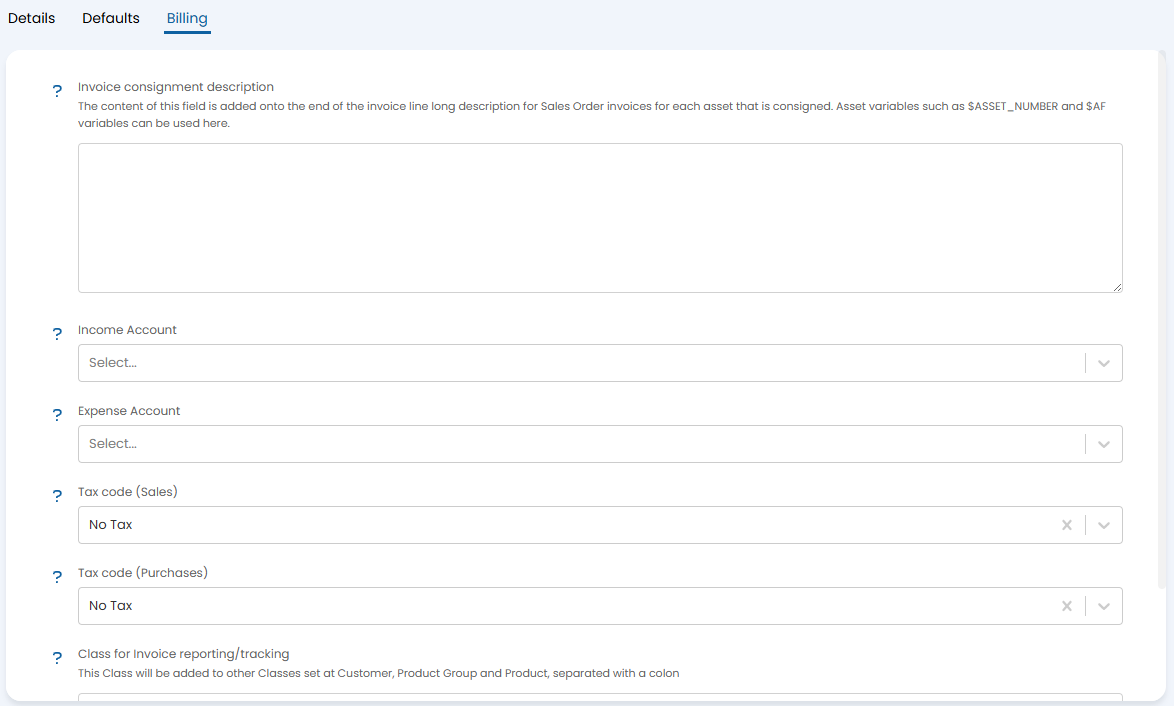
Fig 5. Billing defaults
Now when creating products with that group, the fields will default to what is set on the product group, i.e. here a new product under the group has defaulted the tax rates from it.
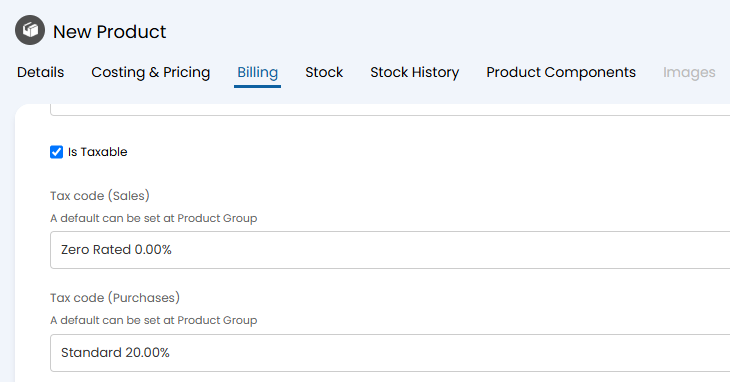
Fig 6. Tax on a new product defaulting to group values
Creating Products
To create a new product you can select "New" on the top right of the screen in the Products area.
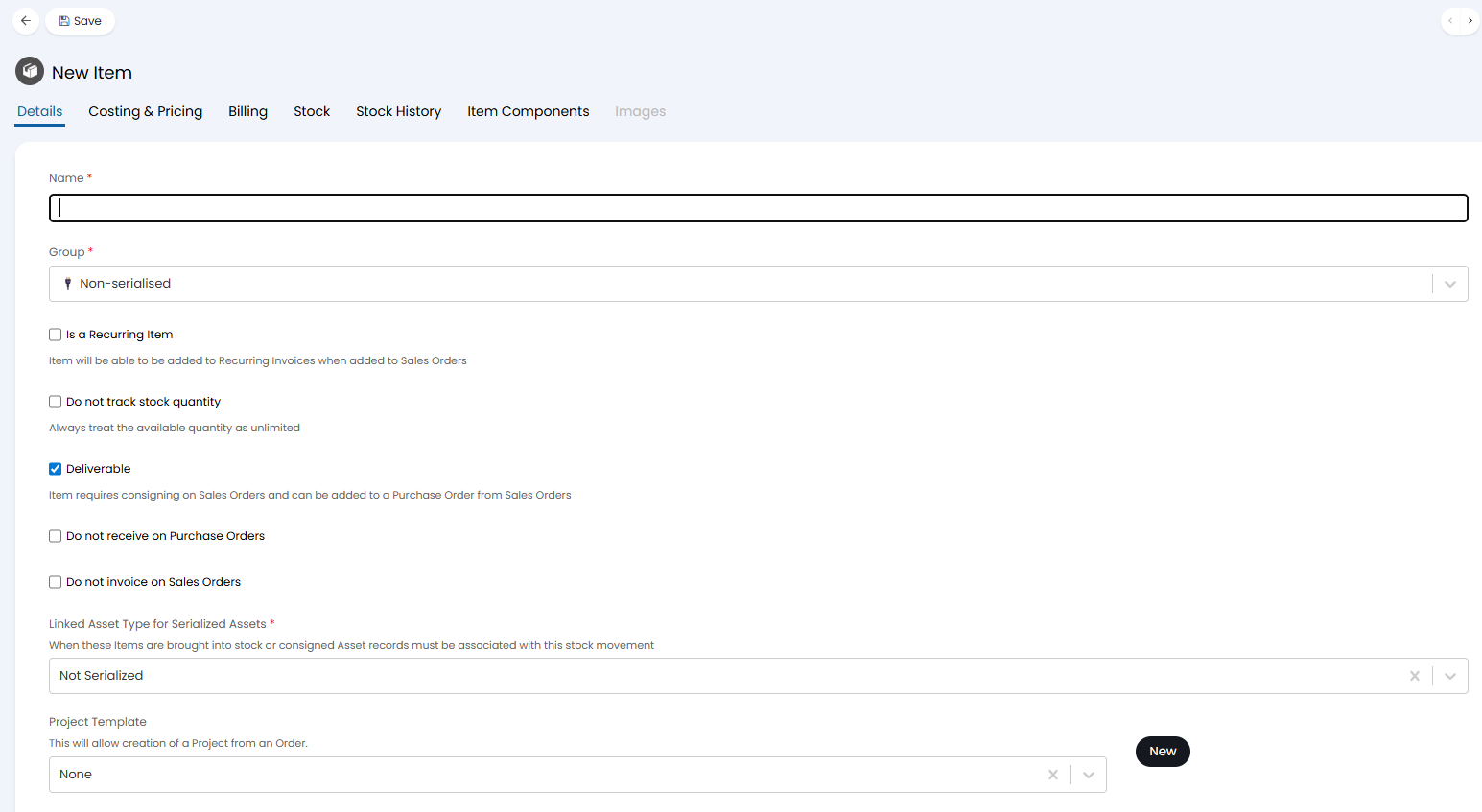
Fig 7. Creating a new product
The configurable options on products:
- Product Name - The name of the product, Only the first 50 characters will be used when the item is created/updated Xero.
- Product Group - (on the left hand side in the products view you can set the view to "Products by Group" as shown in Fig 2.) Groups can be edited/ created by right clicking on the group names when the view is set to "Products by Group".
- Is a Recurring Product - Whether or not the product is a recurring product. This can be toggled on or off and must be enabled for products to show on the recurring items/products lookup. Item will be able to be added to Recurring Invoices when added to Sales Orders
- Do not track stock - Stock checks will not be made for this Product, meaning you will not be able to add/remove stock of this product. Enabling is is non-reversable for the product. When enabled the stock count will show as "9999" but this 'count' will never change.
- Consignable - This means the product is stock tracked and requires consigning from the Sales Order.
- Do not receive on Purchase Orders - This will ensure the item cannot be received on a PO, the use case being for setting carriage/delivery charges. This setting is for allowing items to be created and classed as a shipping/freight charge and therefore would never need to be received on a PO as they are a charge.
- Linked Asset Type for Serialized Assets - When these Items are brought into stock or consigned, Asset records must be associated with this stock movement. See Lesson on: Linking Product to Assets.
- Project Template - This will allow creation of a Project from an Order. See Lesson on "Creating Projects from Products".
- Budget Type - Adds this Budget Type to a Project from a Sales Order line.
- Is a Contract - This setting allows you to create a contract from this product line on the Sales Order.
- Do not invoice on Sales Orders - Allows you to not invoice a product on a Sales Order. An example might be not invoicing for licences on a Sales Order which was created from a quote. You may only want to invoice clients for licences on a Recurring Invoice. This allows you to prevent billing clients twice so you can convert both the Sales Order and the Recurring Invoice.
- Minimum Purchase Quantity - When raising a new Purchase Order this will check that the quantity on the PO is greater than or equal to the minimum set at Item level. This is also checked when raising a PO from a Sales Order line.
- Status - This determines if the product is active or obsolete. Making a product obsolete will make the product inactive, meaning these products cannot be used on any new Quotes, Orders or Invoices (Pre-existing versions of these will remain unchanged). Note: If you sync your products to Xero these will be impacted.
Product Components
The "Product Components" tab is used to track which products make up another, i.e. the CPU and motherboard make up a server. They differ from product bundles, as they refer to the individual parts of a single product instead of a group of related products.
You can choose to calculate the price or cost based off the components' price/cost, or simply use these to track internal costs of a product.
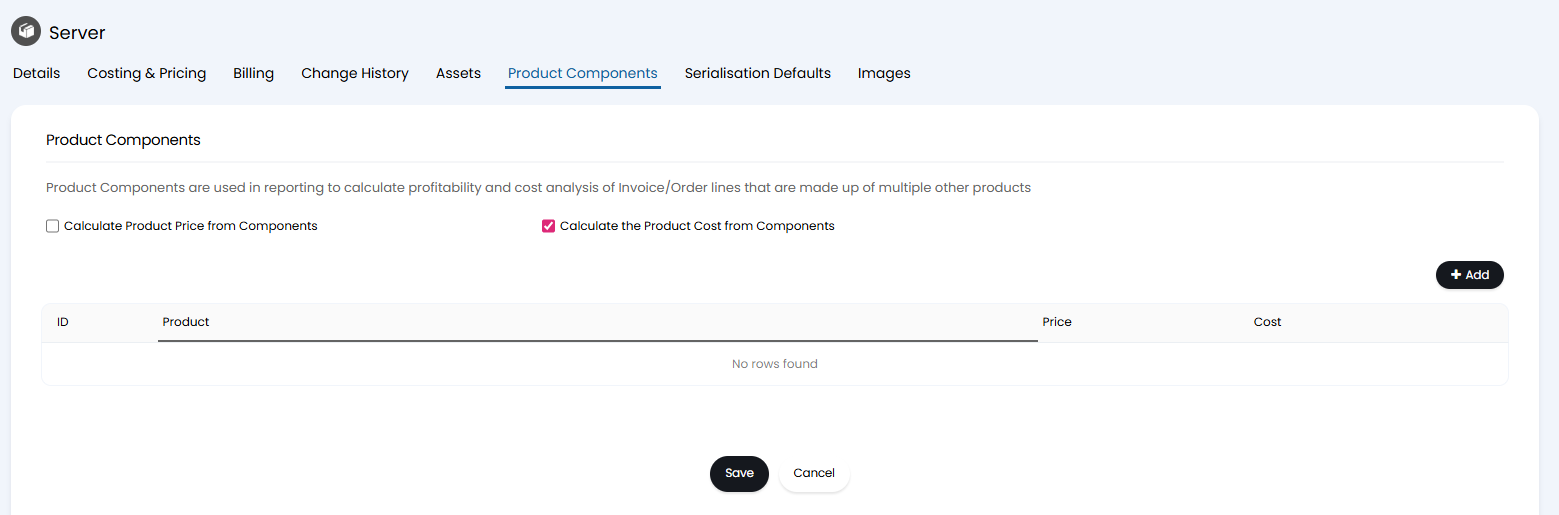
Fig 8. Product components
Importing Products
Products can also be created via an XLS spreadsheet. Hover over the three dots in the top right and click "Import Products".

Fig 9. Import Products button
This will bring up an import screen, and the "Download Samples" link can be clicked to download a ZIP file of default spreadsheets with common import headers.
Overriding item and price data can be imported via this method. This allows an easy way of keeping prices up-to-date, using the following columns:
- overridingsupplierid
- overridingclientid
- overridingcurrencyid
- overridingcurrencycode
- overridingcurrencysymbol
- overridingprice
- overridingcost
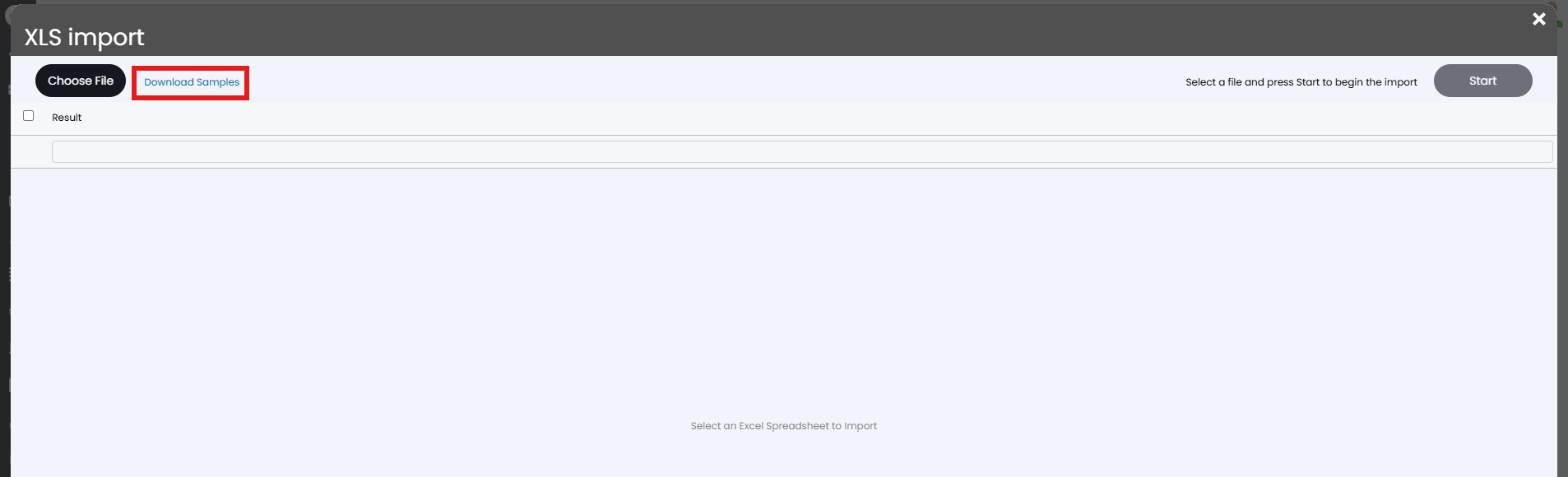
Fig 10. Import screen
Billing for Products
If you bill clients for products/services Halo supports invoicing for these products. The way in which products are billed varies depending on how the product/service is being provisioned. That is, if it has been quoted for, if it has been issued as part of a ticket, if it is invoiced on a recurring basis etc. For information on invoicing products we recommend checking out our guides in the "Billing" list. Some relevant guides include: