Project Billing - Time and Materials
In this guide we will cover:
- Categorisation
- Adding to Billing Rules
- Restricting Category Values on Ticket Types
- Issue Products on Tickets
- Invoicing a Percentage of a Sales Order
Admin Guides:
Related Articles:
Categorisation
Once a Project has been completed, it is time for billing. One of the most efficient ways to do this is to create a Category to allocate to the project ticket for PAYG Projects or for Prepay projects. This can be done by going to Configuration > Tickets > Categorisation > Category 3 Values and creating 2 new Categories.
You can create the new categories with Level 1 as “Projects” and Level 2 as “PAYG” or “Pre-pay”.
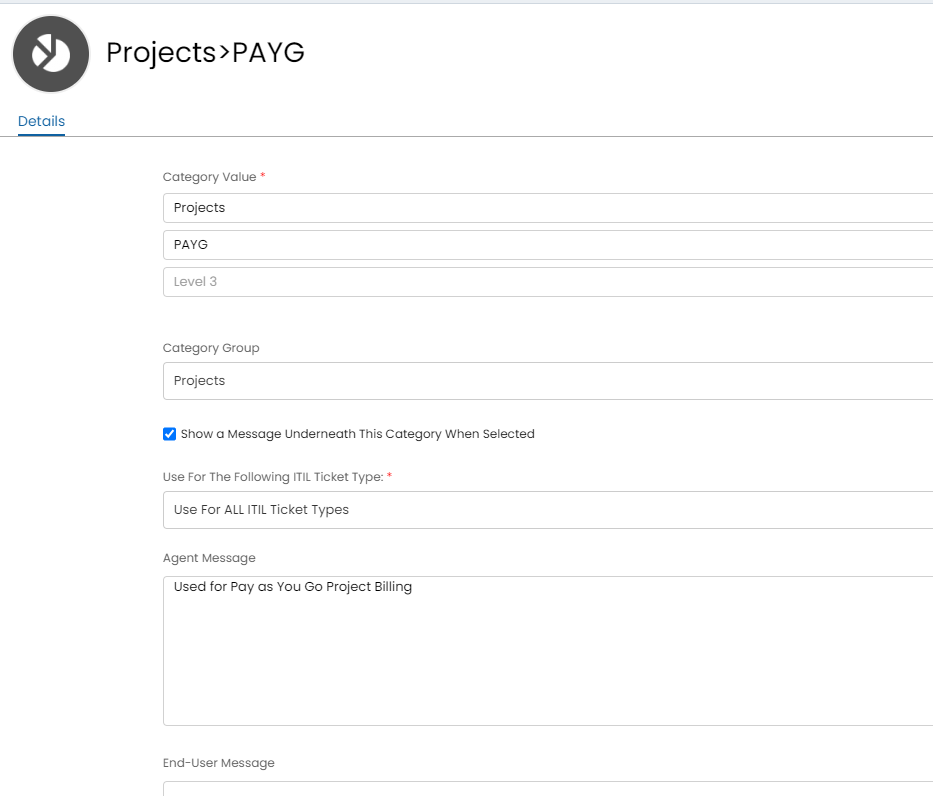
Fig 1. New Category Screen
Adding to Billing Rules
You will need to create Billing Rules against the client’s profile to bill for a Project. This can be done by going to the client’s profile, then heading to the Billing Rules header, under the Billing tab.
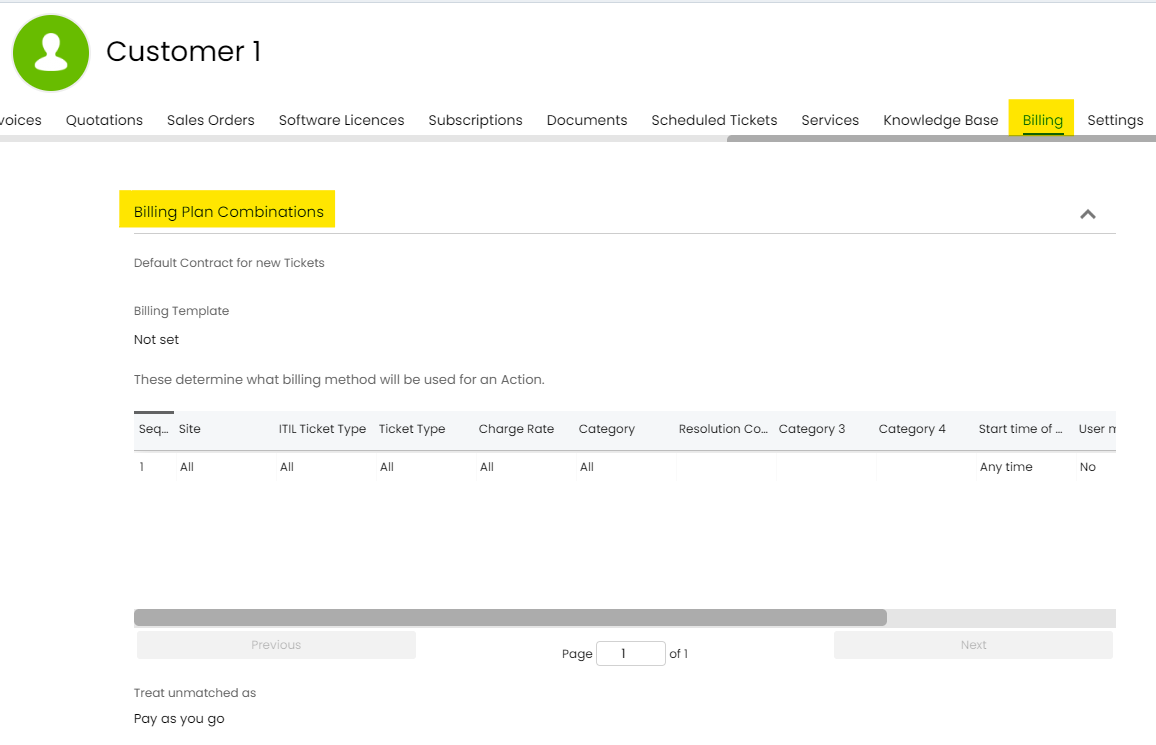
Fig 3. Configuring Billing Rules for a Client Record
When you click on the Add button, you must fill in all the details and set the ticket type to Project. You can set the Category to be either of the categories we created, in this instance “Projects>PAYG” and then set the Billing plan to correspond. When setting the Pre-pay category, it is best to set this to “Do not invoice” as the project will have already been paid.
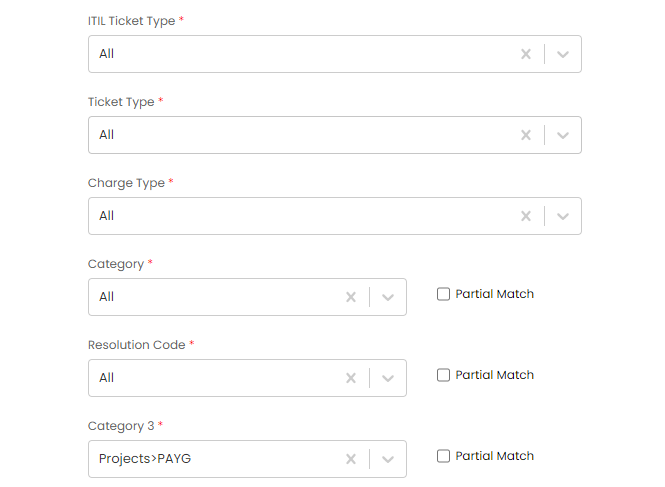
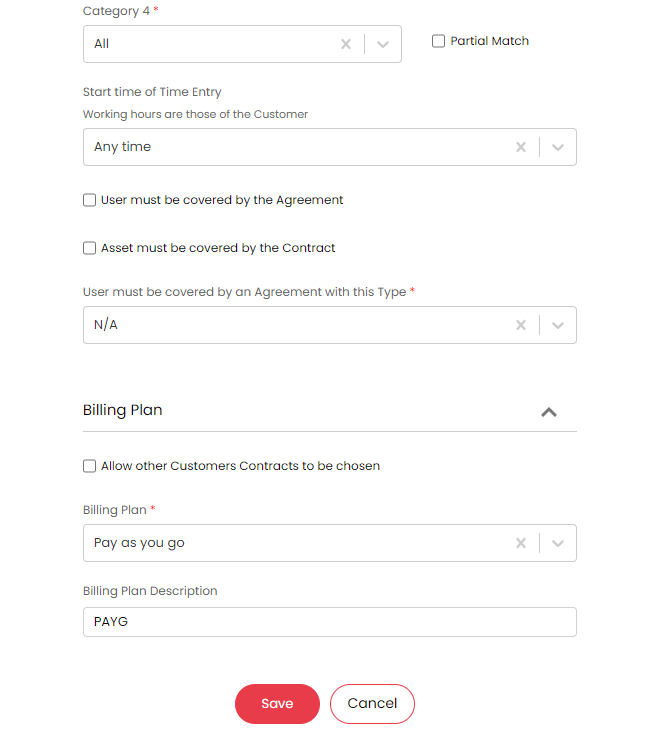
Fig 4. Adding Billing Rules
Note: You will also need to ensure that your Project Ticket has the Category 3 field added to the Field List.
Restricting Category Values on Ticket Types
You can also set the allowed values to only allow for these categories (Category 3 values) if you like, but this is not required. You can do this by clicking on the allowed values tab on the Project Ticket type and changing the Category 3 values to only allow Projects > PAYG and Projects > Pre-Pay. You can also add this to the Projects Task ticket type.
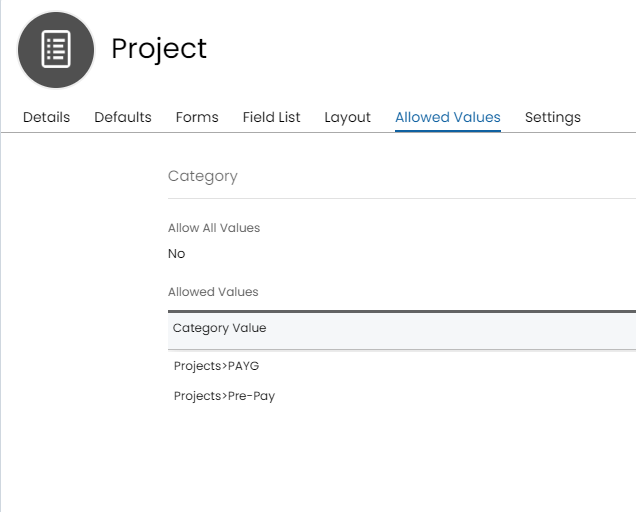
Fig 5. Project Ticket Allowed Values for Categories
Once you have completed all of your Project Tasks and are ready to invoice your Project, it will appear under our Projects tab under the Ready for Invoicing Section.
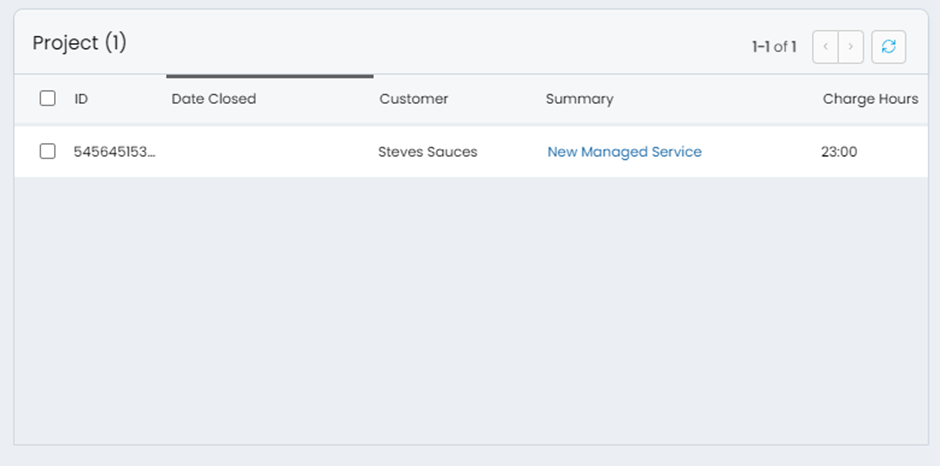
Fig 6. Projects in Ready for Invoicing
Note: Project billing takes the summation of all billable time on Child Tickets (Project Tasks) and applies this to the Parent Project in the Ready for Invoicing module.
Milestone Billing (Method used before the Milestone Checkbox was Added)
There are currently two methods by which milestone billing is implemented: Adding Products onto Project Tasks or Invoicing for a percentage of the associated Sales Order.
Issue Products on Tickets
The first method involves creating a Product with name similar to 'Project Milestone'. You can then issue this Product on Project Tasks where milestones have been met.
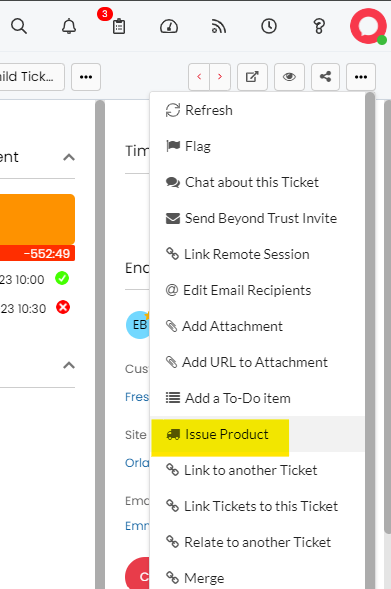
Fig 7. Issuing a Product on a Ticket
You can then edit the price/description to reflect the milestone that has been met & invoice for this accordingly.
Invoicing a Percentage of a Sales Order
The second method can be utilised when creating an Invoice from a Sales Order - one available option when creating invoices from Sales Orders is to invoice for a percentage of the Order:
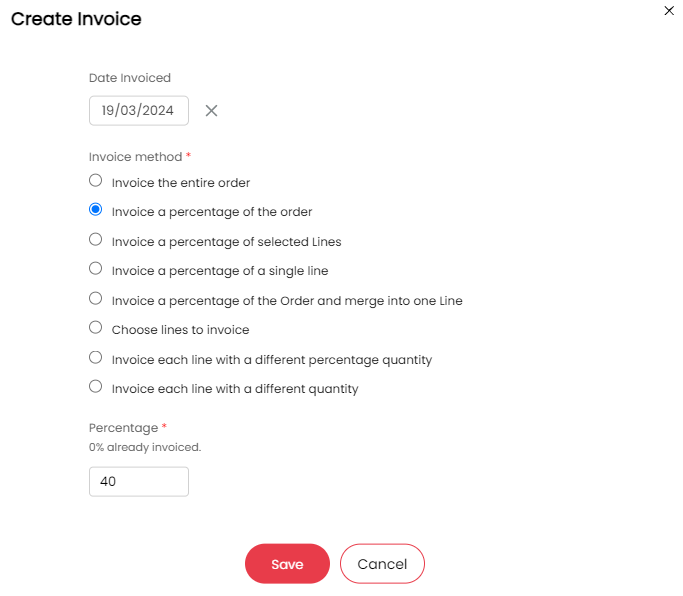
Fig 8. Creating an Invoice for a Percentage of the Order
Once you invoice for some percentage of the Order, you an come back to the Order and invoice for the remaining percentage.
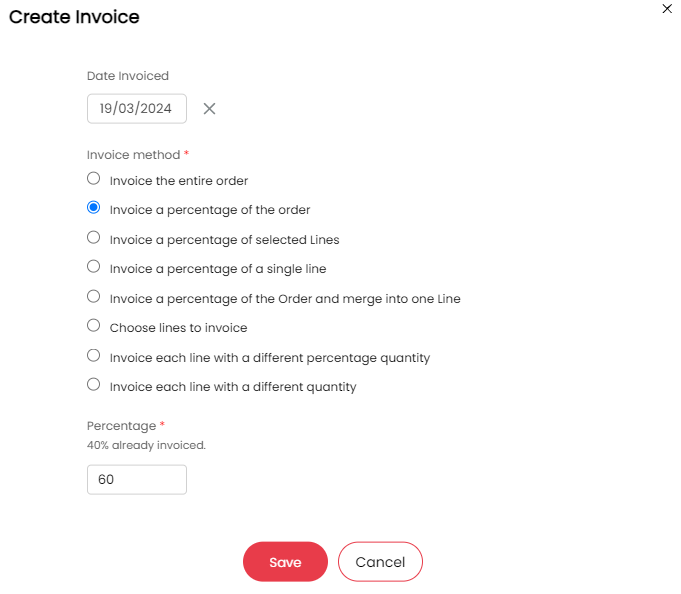
Fig 9. Invoicing for a Percentage of the Sales Order, after some other Percentage has already been Invoiced
Choose Project Loading method
You can choose the method that is used to load projects to bill in Ready for Invoicing.
Head to configuration > Billing > General Settings > Advanced Settings, here see 'Project loading method'.
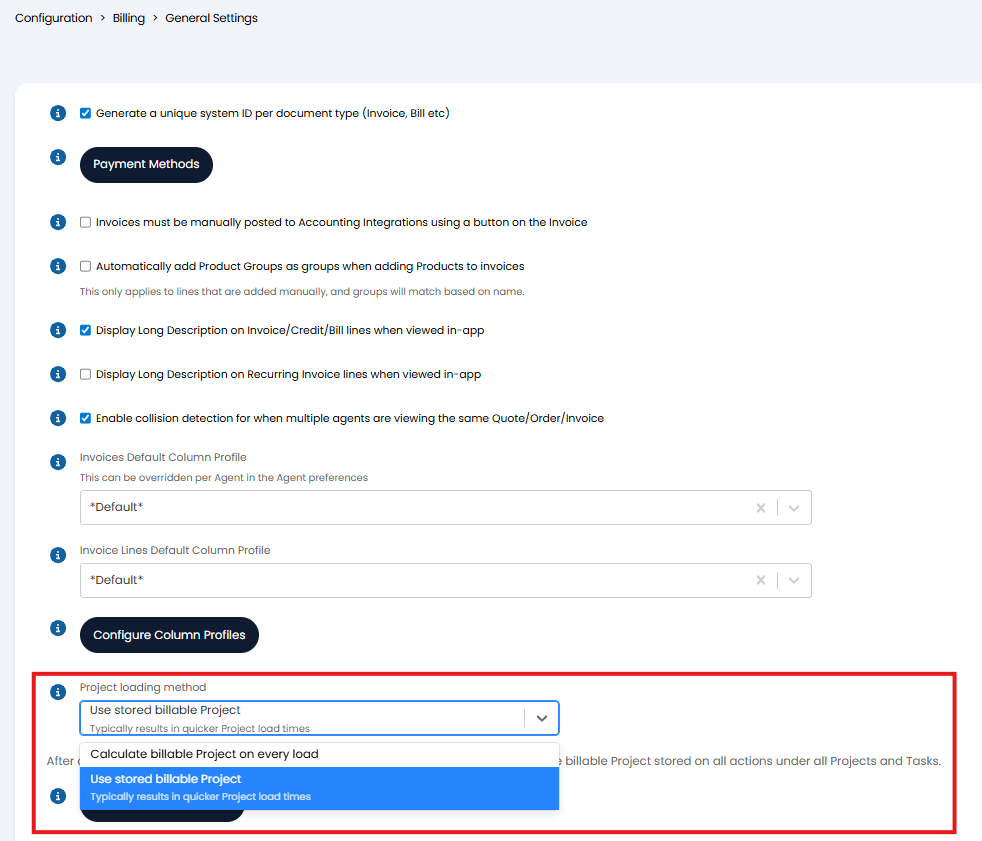
Fig 10. Project loading method
For faster loading times choose 'Use stored billable Project', this changes how projects to bill are loaded in the backend.
Once 'Use stored billable Project' is selected, use the button 'Update billable Projects' to ensure existing projects use the new method. This task will run in the background.