Halo have removed this guide from their knowledge base. This is our last mirrored copy, kept so existing links keep working — it may now be out of date.
Configuring PDF Templates
- templates
- customisation
- print request details
Guide to using HTML PDF templates
This guide details the function of PDF templates as well as editing the default PDF templates and the creation of custom PDF templates.
PDF templates are used when printing or generating PDFs for various entities. This allows those entities to be exported in a document-friendly format for distribution to customers, agents, or anyone else outside of Halo. The entities that can be exported as a PDF are as follows:
- Reports
- Contracts
- Invoices
- Purchase Orders
- Sales Orders
- Quotations
- Tickets
These entities will all use a standard PDF template by default, some of which (e.g. contracts) will need editing before they are suitable for use. Each of these entities can also use a custom PDF template. PDF templates can be edited and added via Configuration > Reporting > PDF Templates. You can select which entity's templates you're viewing in the top-left:
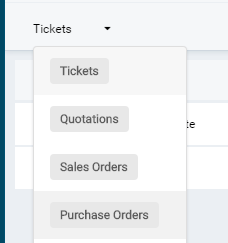
The default templates will be labeled as such and can be edited by clicking on them and then clicking the Edit button. You'll also see buttons for previewing and editing the resultant PDF. The 'Appearance' tab has options for customising:
- Colour
- Orientation
- Margin
- Background image
- Header (with the option of specifying a HTML header and hence setting a fixed height)
- Footer (with the option of specifying a HTML footer and hence setting a fixed height)
The HTML tab is where the body of the PDF is customised and uses HTML as the format by which the content is generated. This can be edited directly or you can paste HTML over from your HTML editor of choice. The 'View $-variables' button will bring up a page listing all of the variables that you can use in the PDF body HTML.
You will also notice an 'Action Appearance' sub-heading on the HTML tab. This is used for adding a recurring section of HTML to the body of the PDF by using the '$ACTIONLIST' variable inside the main body HTML. Currently, this is only used for customising the display of the action list inside a Ticket Details PDF.
Each entity can use a different PDF template, if required. The configuration of each is located below:
| Entity | Where the PDF template is configured |
| Reports | On each report, under Edit > Details > PDF Template |
| Contracts | On each contract, under Settings > PDF Template |
| Invoices | On each invoice, under Print Options > PDF Template |
| Purchase Orders | On each purchase order, under Print Options > PDF Template |
| Sales Orders | On each sales order, under Print Options > PDF Template |
| Quotations | On each quotation, under Print Options > PDF Template |
| Tickets | Globally, under Configuration > Tickets > General Settings > PDF Templates |