Linking Products to Assets
- serialise asset
- consign asset
In this guide we will cover:
- Setting a Linked Asset Type for Serialised Assets
- Setting a Default product for an Asset type
- Creating Serialised Assets
Admin Guides:
Related Guides:
Products/items can be linked to serialised assets for sales orders, and after consignment will show against the customer's site. This is done by linking a product to an asset type for serialised assets.
Setting a Linked Asset Type for Serialised Assets
You can set a linked asset type for serialised assets. This allows you to select an asset tag when consigning or receiving stock for the product and converting to an asset.
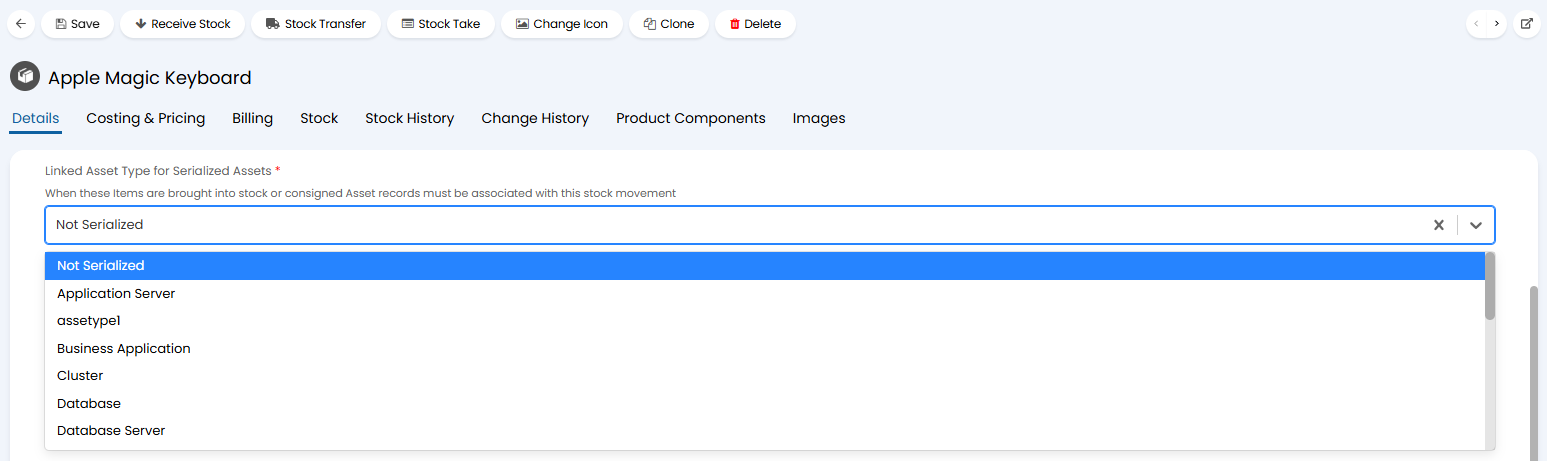
Fig 1. Linked Asset Type.
Setting a Default product for an Asset type
Each asset type can have a default item set against it. This is used to link any assets of this type to the correct product when they are created outside of a stock flow (when created manually or from an integration).
This is done using the 'Default Product for new Assets' field.
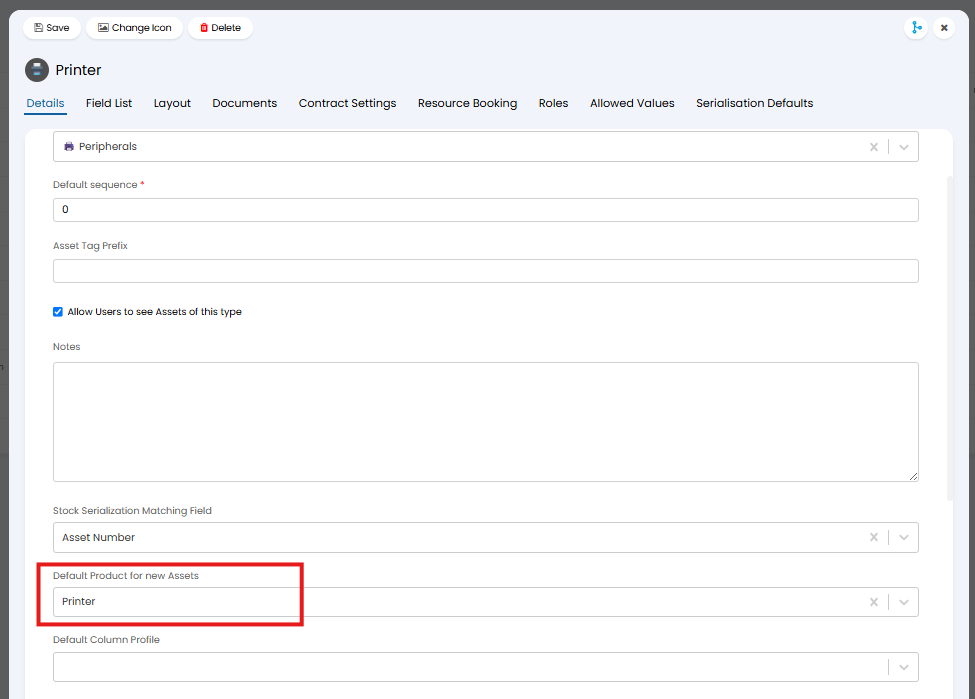
Fig 2. Default Product for new Assets
Assets need to be linked to a product to be able to be consigned to sales orders/tickets containing this product. If this field is not populated assets of this type created manually (or from an integration) will not be able to consigned as they will not be linked to a product. This field should be populated with the product associated with assets of this type.
When assets are created via stock processes (outlined below), the asset created will be linked to the item it was created from rather than the default product set against the asset type.
Creating Serialised Assets
To decide when the serialising occurs, you can set a default in Configuration > Items and Stock Control > Stock Control section. In this example, consignment happens when stock is added, however the process is the same.
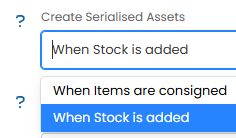
Fig 3. Create Serialised Assets.
Once your product is in stock (either by existing stock or via a purchase order), you can consign your items.
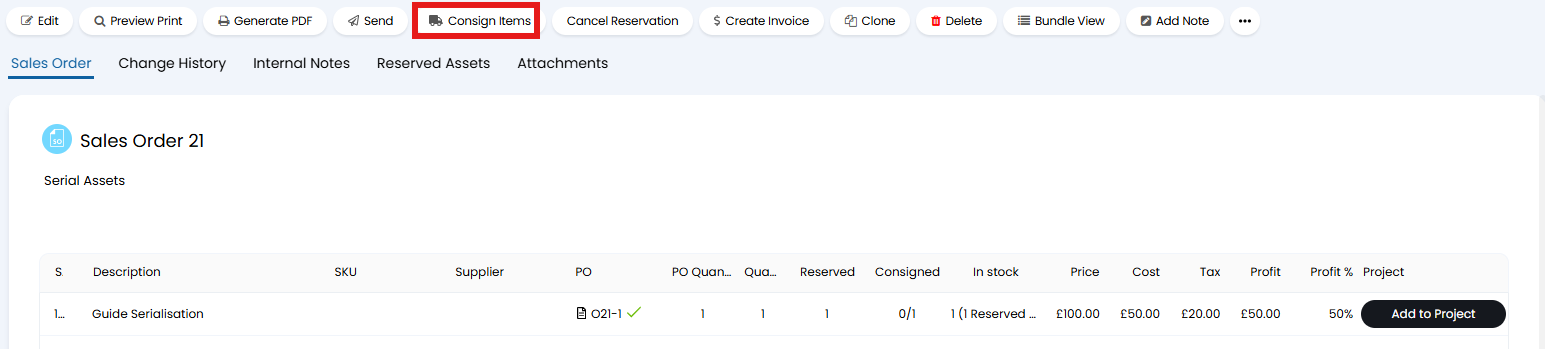
Fig 4. Consign Items button.
A popup will show to select the stock location, and then serialise the assets. When consigning products that have a linked asset type, you will be asked to serialise each asset. If an asset linked to this product already exists (and is not already consigned elsewhere), then an existing asset can be selected. You can browse stock to link to existing (already serialised) assets. If there are no available assets to consign you can create a serialised asset off the back of the product, this asset will then be linked to this product.
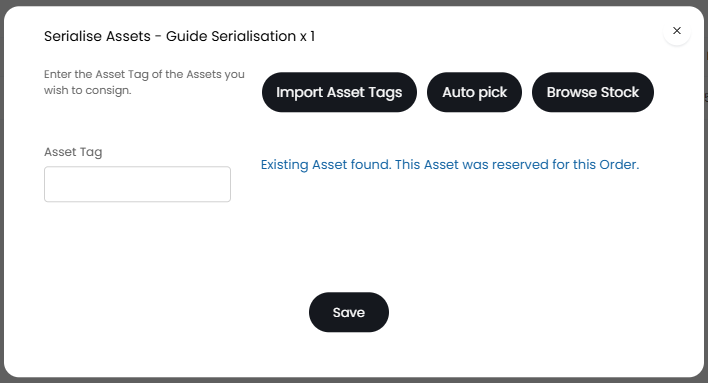
Fig 5. Serialising assets.
You can consign existing unlinked serialised assets on Purchase Orders providing the "Allow consignment of existing Assets when delivery it set to Deliver to the User" checkbox is selected in Configuration > Purchase Orders. This allows existing assets to be linked during consignment.
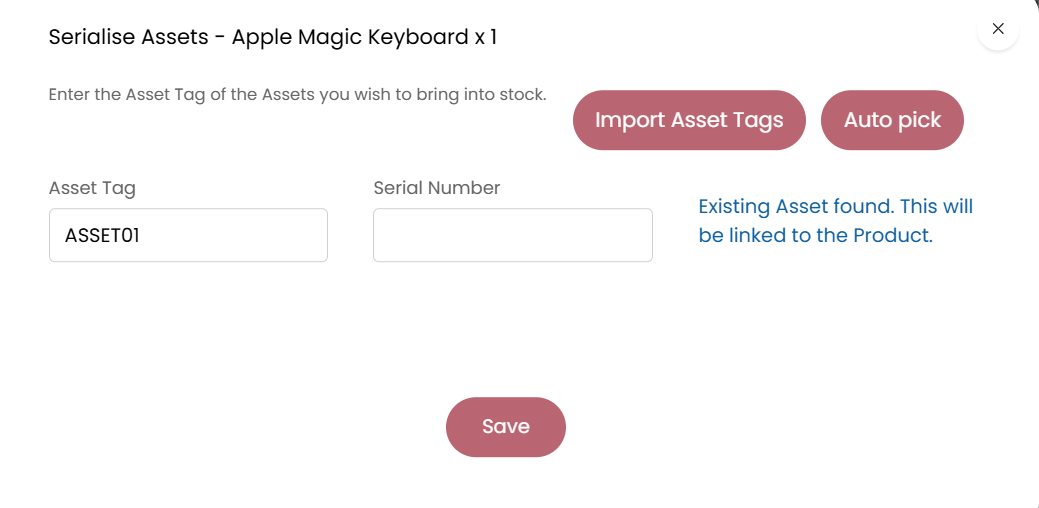
Fig 6. Consigning existing assets
The newly created assets will be taken out of stock, and moved to the consignment location. When existing assets are consigned the will also be moved to the consignment location.
You will see that the items have now been consigned on the sales order, as well as via a popup in the right corner.
Note: There may be a column on the sales order for "Consigned Products". This is simply the count of products that have been consigned and the quantity on the sales order, i.e. 4/10 would mean 4 items have been consigned out of a possible quantity of 10, 10 being the quantity of HP Laptops set on the sales order.

Fig 7. Consigned item on the sales order.
If you click on the "Consignment" column of the line, you can view the assets that have been serialised in that consignment. Through here, you can also navigate to the main asset page to assign it to a certain user within that site.
You can also delete the consignment here. Deletion is the only way to make the "Consign Items" button appear afterwards, and the "Consigned" column on the line will go down by the relevant number as well.

Fig 8. Serialised Assets connected to the consignment.
When viewing the site of the end-user set against the sales order, the asset will appear within the list.
 Fig 9. Serialised asset on site.