Reviewing Articles
- knowledge base
- articles
- article reviews
In this guide we will cover:
- Enabling Article Reviews
- Reviewing an Article
- Filtering for Articles That Need Review
- Notifications for Articles That Need Review
- Automated Tickets for Articles That Need Review
Article reviews can be used to set a review date for articles, allowing you to edit them on a recurring cycle and ensure the information within them remains up-to-date.
Enabling Article Reviews
Article reviews can be enabled within Configuration > Knowledge Base, and within the first section named "Articles". The default number of days between reviews determines the number of days until the next review, from when you last reviewed the article.
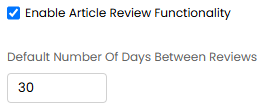
Fig 1. Enabling articles to be reviewed.
The article tile will state what the next date is that they are set to be reviewed.

Fig 2. Article Set For Review
For articles that are past the review date, the date will show in red.

Fig 3. Article That Has Exceeded Its Review Date
Reviewing an Article
To review an article, this "Review" button will appear at the top of the article. Access to this button is dictated by the agent permission named "Knowledge Base Access Level" (Agent profile > Permissions tab > Feature Access section). Any agent with "Read and Modify" or "Read, Modify and Delete" permissions will be able to do this.

Fig 4. Review action button.
Clicking this will take you to a screen similar to the edit screen. Here you can edit the article and ensure it is up-to-date.

Fig 5. Reviewing an article.
After an article has been reviewed, the next review date will update to the specified number of days that it should be reviewed after. In Fig 1, it is set to 30 days after latest review. As I reviewed it on 12/05/2025, the next review date is 11/06/2025.
If the review is completed late, the next review date would be 30 days after it was actually reviewed, not the 30 days after it was due.
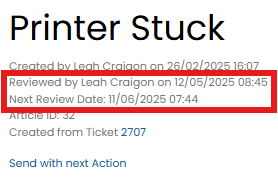
Fig 6. Article review dates.
Filtering for Articles That Need Review
Within the search screen, you can select the filter "Needs Review".
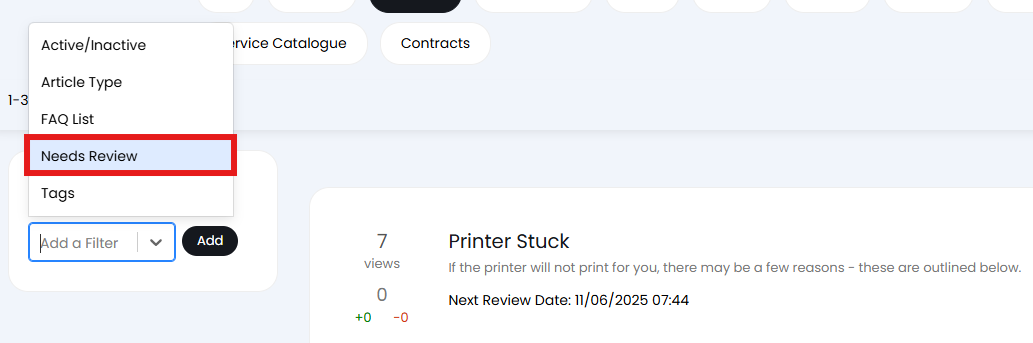
Fig 7. Needs Review filter.
Once selected, click "Add" to add the checkbox to the list, and click to enable the filter. Now, only articles in need of review will be shown.
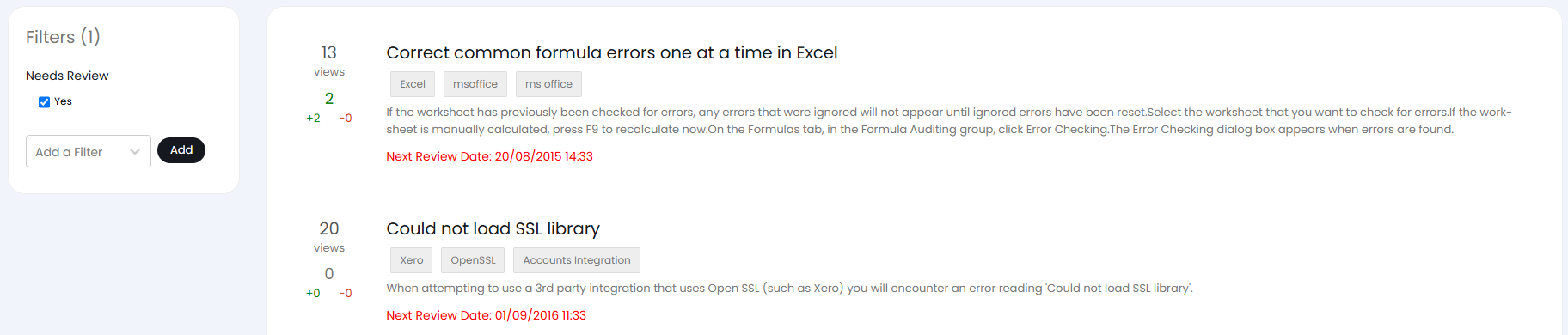
Fig 8. Filter applied to list.
Notifications for Articles That Need Review
You can also create a notification that triggers when an article is a certain number of days before the review date. For example, the configuration below will create a notification on the due date of the article.
Go to Configuration > Notifications > Notifications, and create a new one. Set the trigger as "Article review due", and set the number of days ahead of the due date you wish to trigger this. Configure the rest of your notification as normal - select the delivery method, and subscribe agents to it.

Fig 9. Article review due trigger.
Automated Tickets for Articles That Need Review
This can also be done through an automated ticket. This may be a useful method if you are setting the review date before the due date and you do not want your agents to forget to review the article. This method will create a ticket instead of a notification, so it will stay as a constant reminder in the agent's queue until it is closed.
Go to Configuration > Tickets > Automated Tickets, and create a new ticket example. Set the name, team/agent, etc. as normal, and set the "Automation Criteria" as "Articles". Select the end-user, and then you can add either of the below criteria.
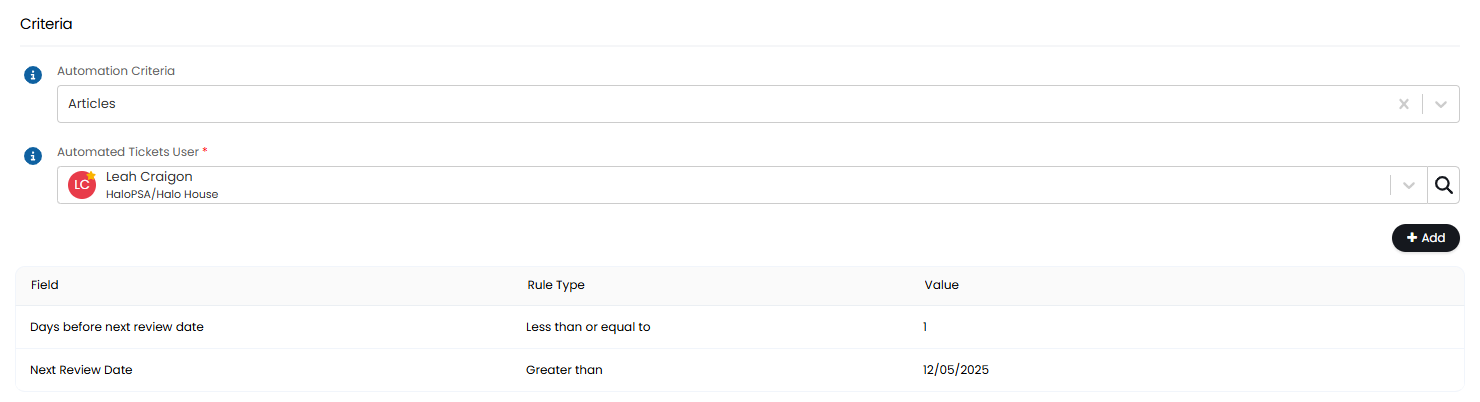
Fig 10. Automated ticket for review date.