Using CRM Notes
- actions
- Customers
- customer relationship
In this guide we will cover:
- Using the CRM Note Functionality
- Customising CRM notes
- Creating CRM Notes from a Ticket
- Using the "Next Call Date" Field to Create Automated Tickets
- Reporting
- Worked Example
- Use AI to Generate CRM Notes
The CRM note functionality allows you to track and manage customer relationships. You can log information against a customer account in regards to customer satisfaction and arrange follow up work/meetings.
Using the CRM Note Functionality
Under each customer profile, the tab 'CRM Notes' can be found. Here you can log information against a customer. To log information select the '+' icon in the top right (see Fig 1).
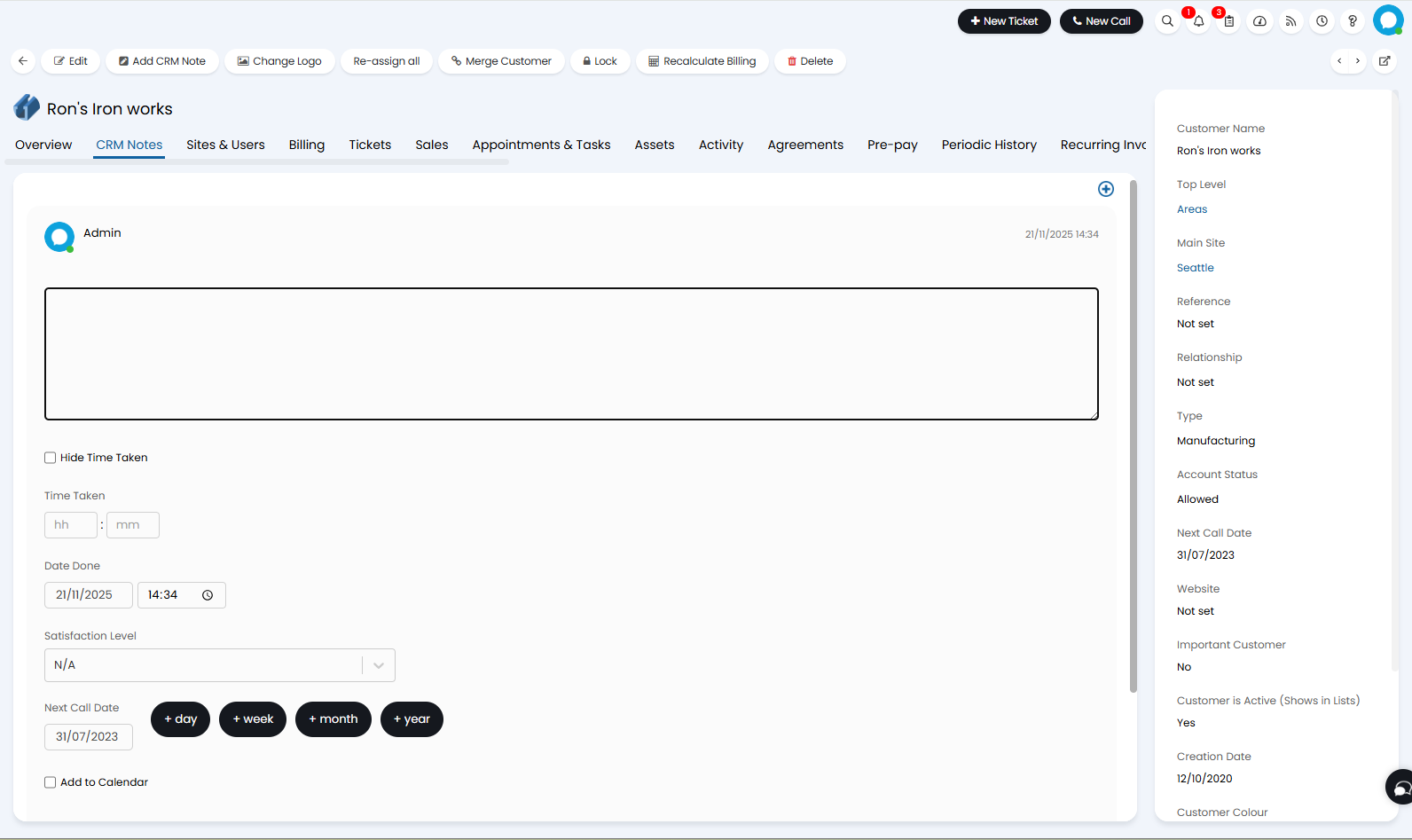
Fig 1. New CRM note against customer
Here you will see there are various default fields you can use.
There is a text box to enter notes against the customer.
The "Time Taken" field allows you to log time against the customer for billing and time tracking purposes. If populated a ticket will be logged against the customer so this time can be billed for, a link to the ticket will appear against the CRM note. The ticket type that is logged is determined by the default ticket type used for logging time - this is set under Configuration > Time Management > Time Logging section, by the setting "Ticket type used for logging time". You can hide this field using the "Hide Time Taken" checkbox if you do not want this action to be billable/to track time.
The "Date Done" field records the time you opened the action. You can edit this to back-date the action.
The "Satisfaction Level" field allows you to record how satisfied the customer is using a numeric scale. This is useful for tracking customer satisfaction over time and spotting any trends.
The "Next Call Date" field allows you to schedule a date to follow up on this action. This can be used to create an automated ticket (covered later in the guide), or create a calendar appointment. By default this date is set to the last "Next Call Date" for the customer. To have the next call date create an appointment in your calendar, check "Add to Calendar". This will create an appointment in your calendar for this date. When checked you will be able to set the subject, duration and user for the appointment.
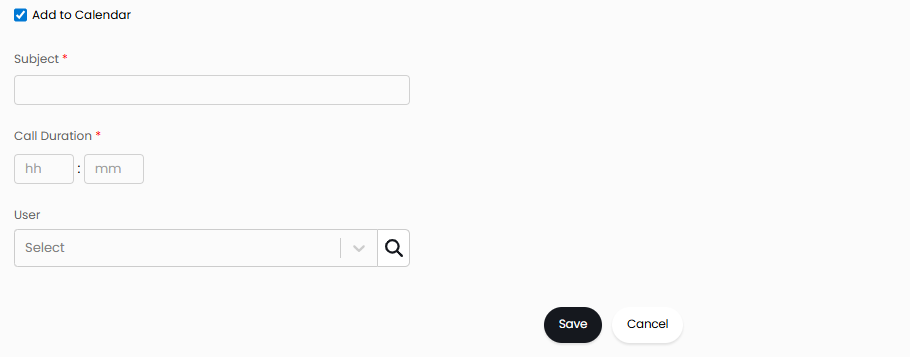
Fig 2. Creating appointment for the next call date
The appointment type is determined by the default appointment type, the default appointment type is the first appointment type in the list of types. If you have not deleted any appointment types in your Halo this will be "Reminder".
As of version 2.238, you can also attach files when creating a new CRM note.
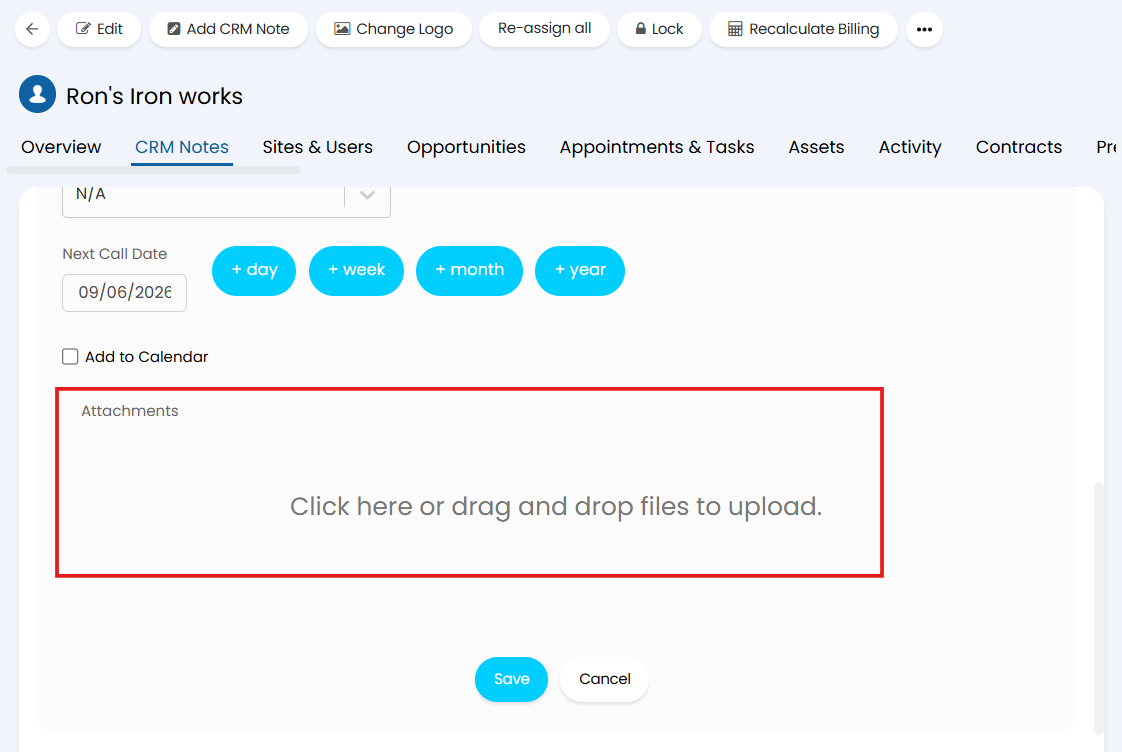
Fig 3. The to ability to add attachments to CRM notes (v2.238+)
CRM notes can also be added against a specific user under their user profile. These CRM notes are stored separately to the CRM notes against the customer, but have the same functionality. Site and User notes can all be viewed under the associated Customer record. To do this you will first need to enable "Show Site and User CRM notes on the Client record" under Configuration > Users > General Settings. With this enabled you will see a filter in the top left of your Customer CRM notes which allows you to change which entity's CRM notes you are viewing.
CRM notes also have a reply arrow which allows Agents to respond to the CRM note.
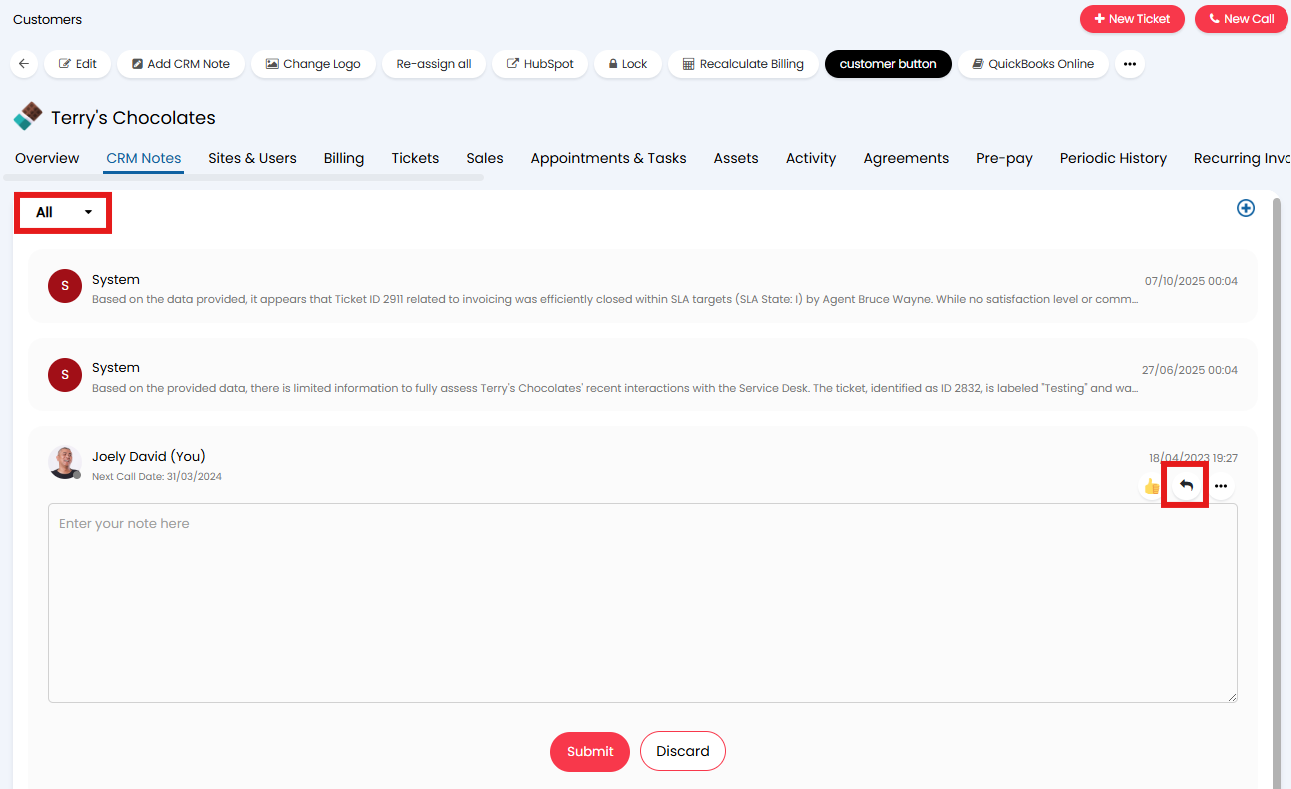
Fig 4. Changing the entity and replying to a CRM note
As of v2.238+, you can pin CRM notes to the top of the note list using the "Pin" option found under the three dots (...).
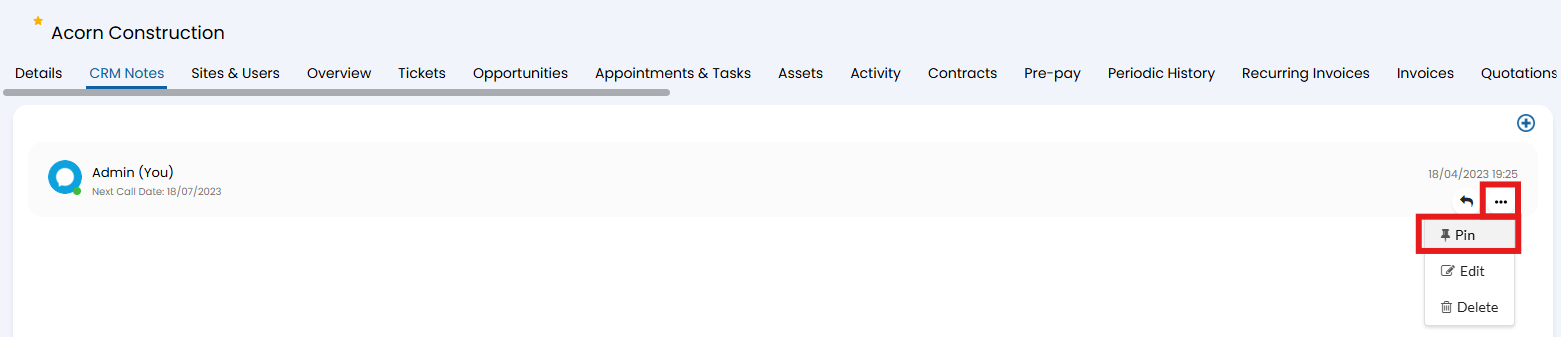
Fig 5. Pinning a CRM note
Customising CRM notes
Some additional fields can be added/removed from the CRM note.
Head to Configuration > Users > General Settings. Here there are various settings to enable/disable CRM note fields.
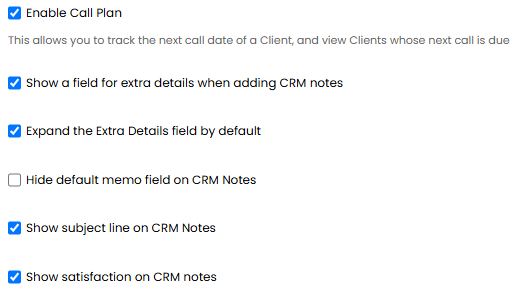
Fig 6. CRM note field settings
Enable Call Plan - Toggles the 'next call date' field on/off.
Show a field for extra details when adding CRM notes - Toggles a rich text box for additional details. This text box is required if you would like to be able to mention teams or agents from a CRM note. As this is a rich text box you can also include HTML here.
- If HTML is added here the CRM note will be collapsed after saving and will need to be expanded to view. You can ensure the note is always expanded by default by enabling "Expand the Extra Details field by default" found under Configuration > Users > General Settings.
Hide the default memo field on CRM notes: When enabled, the memo field "Note" will be hidden when adding CRM notes.
Show subject line on CRM Notes: When enabled, an additional "Subject" field is made available when adding CRM notes. The subject will appear in bold on the note.
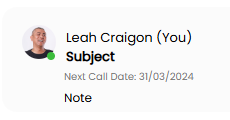
Fig 7. Subject on a CRM note
Show satisfaction on CRM notes - Toggles the "Satisfaction Level" field on/off.
Mention agents/teams from a CRM note
To be able to do this you will need to have the rich text box for additional details enabled against the CRM notes, then head to Configuration > Notifications > General Settings. Enable the settings shown in Fig 7.
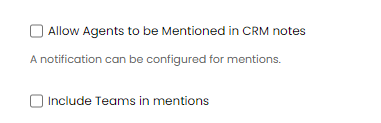
Fig 8. Settings required for team/agent mentions
To mention someone type '@' followed by the agent/team name, see figure 5 for reference. You will need to log out/back in after enabling these settings before they will take effect.
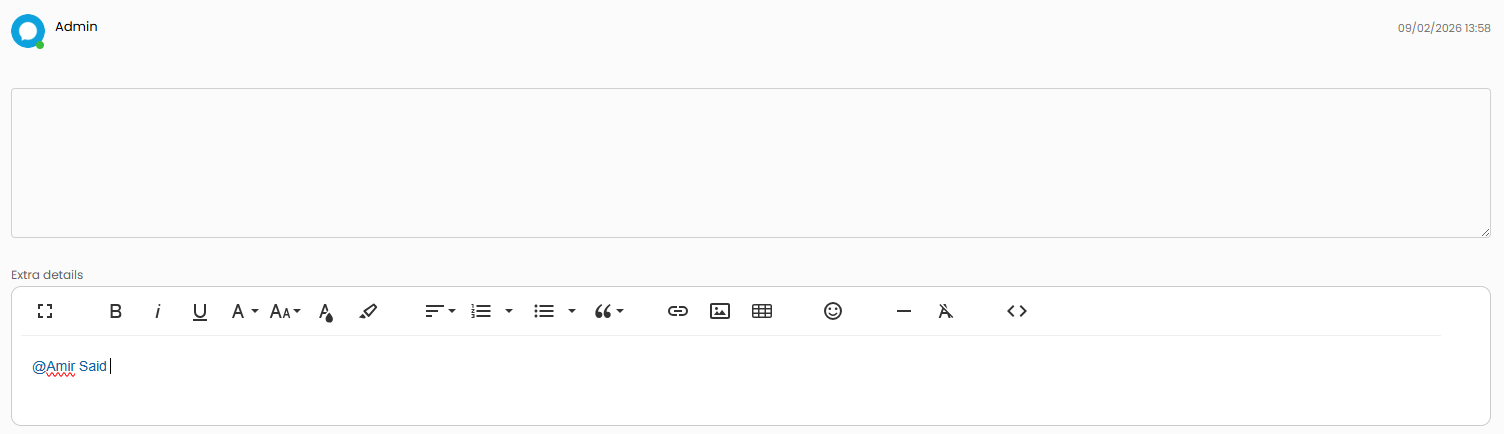
Fig 9. Mentioning an agent on a ticket
You can use variables to pull information from CRM notes. These variables can be used in email notifications for mentions on a CRM note.
- $-CLIENTID
- $-CRMNOTE
- $-CRMDETAILS
- $-CRMSUBJECT
- $-CRMTIMESTAMP
More information on these variables can be found on the variables page (YOURHALO.com/variables)
Note: Mentions can only be used in the additional details rich text box on the CRM note, not in the standard text box.
To add custom fields to the CRM note, head to Configuration > Custom Objects > Custom Fields, for fields under the ticket entity there is a setting against each field called "Show on CRM notes". When checked this field will appear on all CRM notes and all actions with the system use "Add CRM note". You can control the order in which these fields appear on the CRM note against the customer using the sequence against the custom field.
If you change the entity to "CRM Notes", in the custom fields area, you can create fields used only for CRM notes. You will need to enable the same setting "Show on CRM Notes" against this field for it to appear. These fields will not be able to be used on ticket actions, only CRM notes created within a customer profile. From v.2.216 you can restrict visibility of these custom fields using the "Restrict field visibility to specific entities" checkbox. This will then display a multi-select drop-down allowing you to add entities to allow the field to show against.
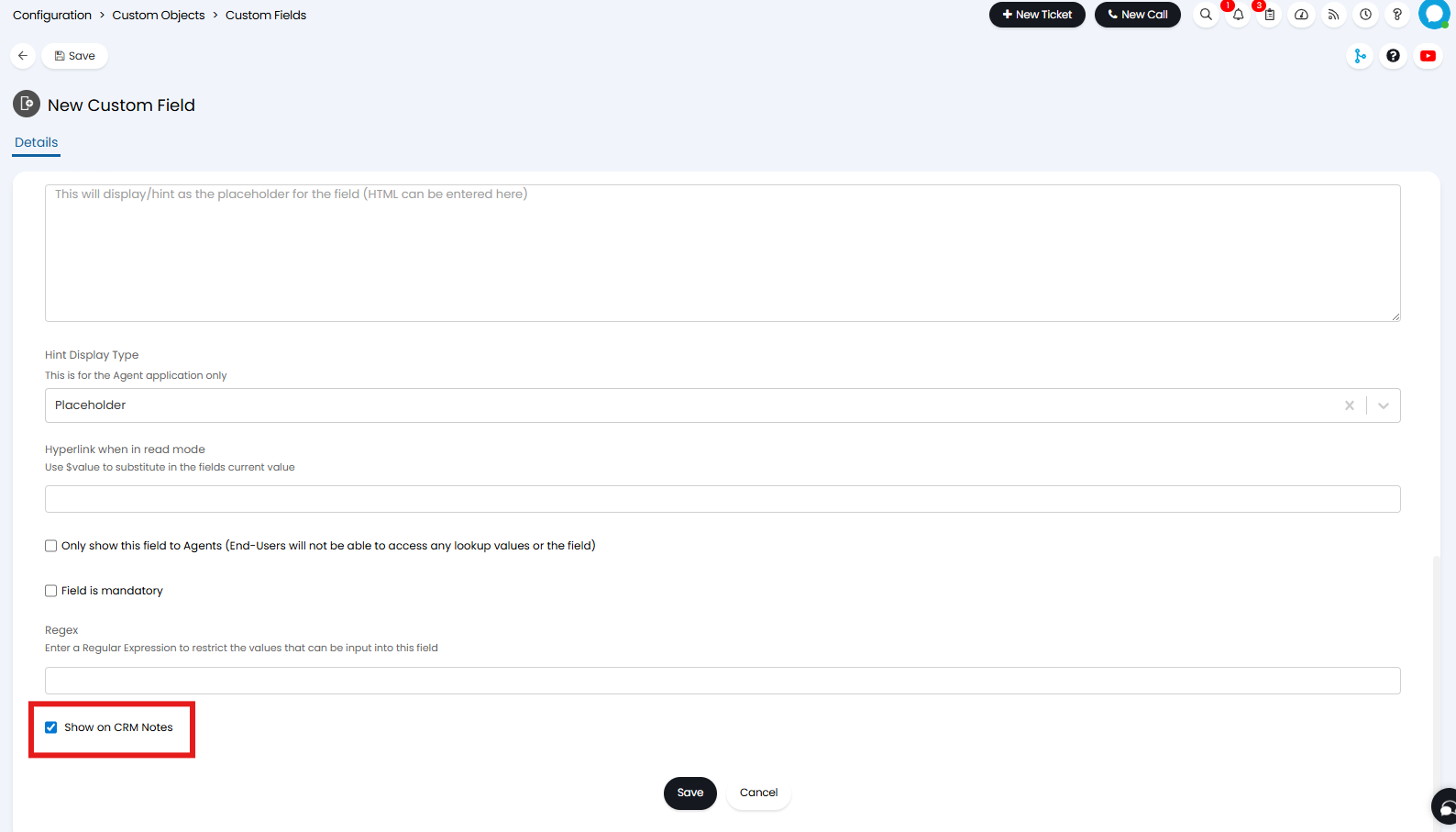
Fig 10. Show on CRM Notes setting
Creating CRM Notes from a Ticket
A CRM note can be created from a ticket using an action, when a CRM note is created within a ticket this will add the information to the "CRM Notes" area against the customer the ticket is assigned to.
To configure an action to do this, head to Configuration > Tickets > Actions > New, call the action something like "Add CRM note". Set the system use of the action to be "Add CRM Note". Under the field list tab add the "Note" field and any other custom fields you would like on the action. Now add this action to the workflow it will be used on.
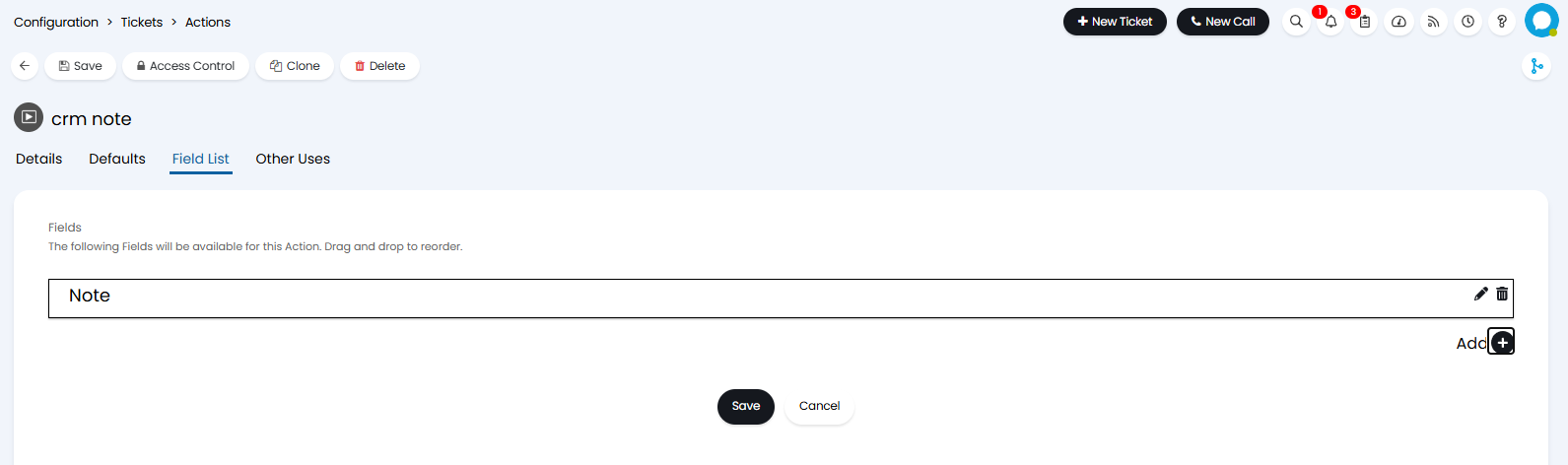
Fig 11. Action field list
Now when working on a ticket you will have use of this action.
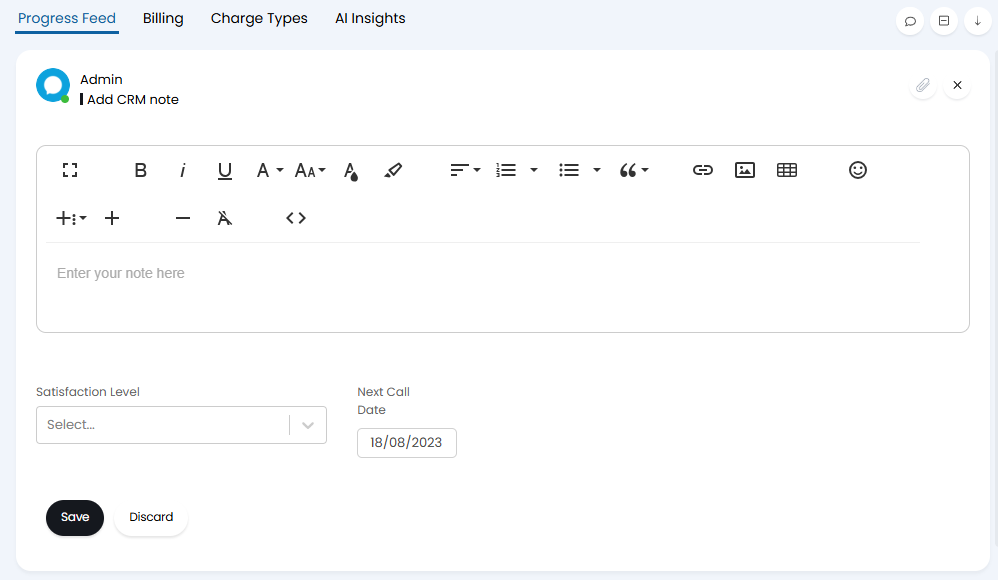
Fig 12. Using 'Add CRM note' action on a ticket
As I have enabled satisfaction level and next call date fields to be on CRM notes, these will appear on the action as well as my note field.
Note: Any ticket custom fields that have the "Show on CRM Notes" setting enabled will be visible on the action even if the field is not in the field list.
Once the action on the ticket is complete, this will be visible on the customer's account.
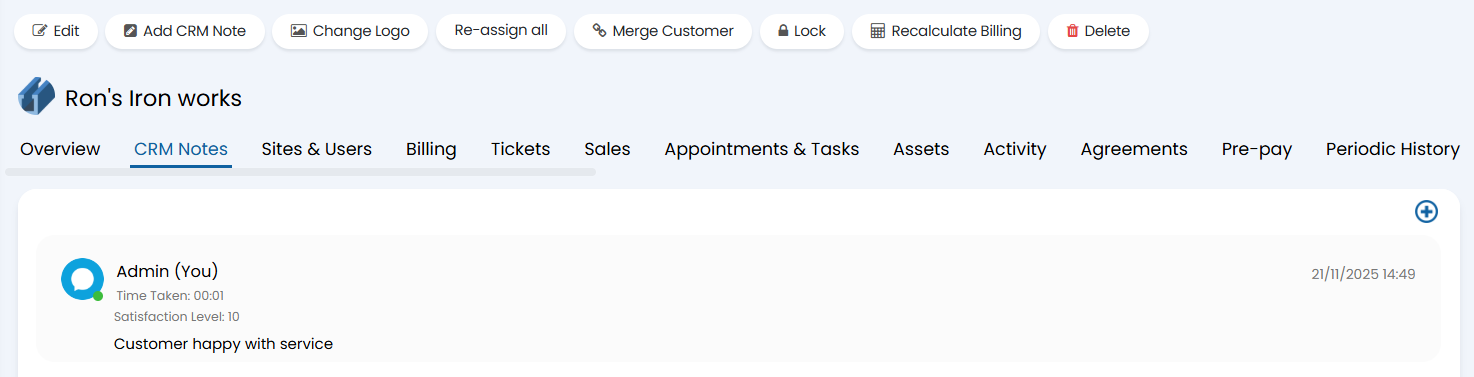
Fig 13. Ticket action against customer account
Be notified when a CRM note is created, update or deleted
From version 2.196+ a notification can be configured to notify selected agents/users when a CRM note is created, updated or deleted.
To do this head to configuration > notifications > notifications > new, in the 'trigger' field the following triggers can be selected:
- CRM note created
- CRM note updated
- CRM note deleted
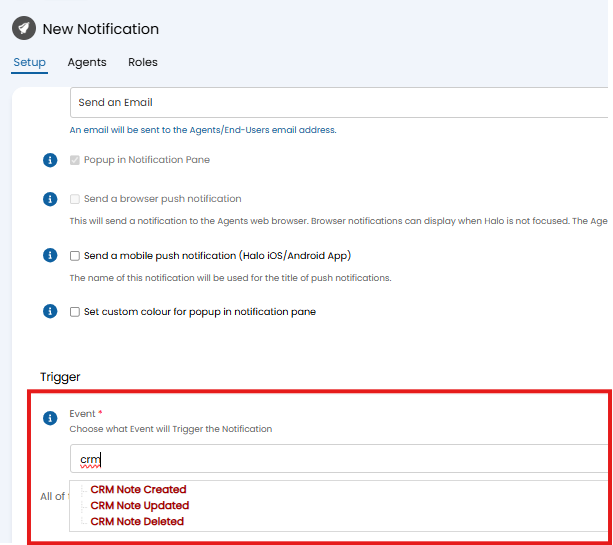
Fig 14. Notification trigger for CRM note
You can then set additional criteria for the notification so it only triggers for selected customers/tickets etc. For more information on configuring notifications check out Notifications
Using the "Next Call Date" Field to Create Automated Tickets
Automated tickets can be created based on the next call date field, this allows you to schedule follow up work using a ticket. This is useful when you would like to schedule some work to be completed prior to a meeting with a customer.
To set this up head to Configuration > Tickets > Automated Tickets > New, give this a name and assign it to the relevant ticket template group. Now you can set the automation criteria, set this to "Customers". In the criteria table set the criteria for when you would like the tickets to create.
"Next Call Date" will create the ticket when the next call date is equal to a particular value.
"Days Before Next Call Date" will allow you to choose how many days before the next call date the ticket is created.
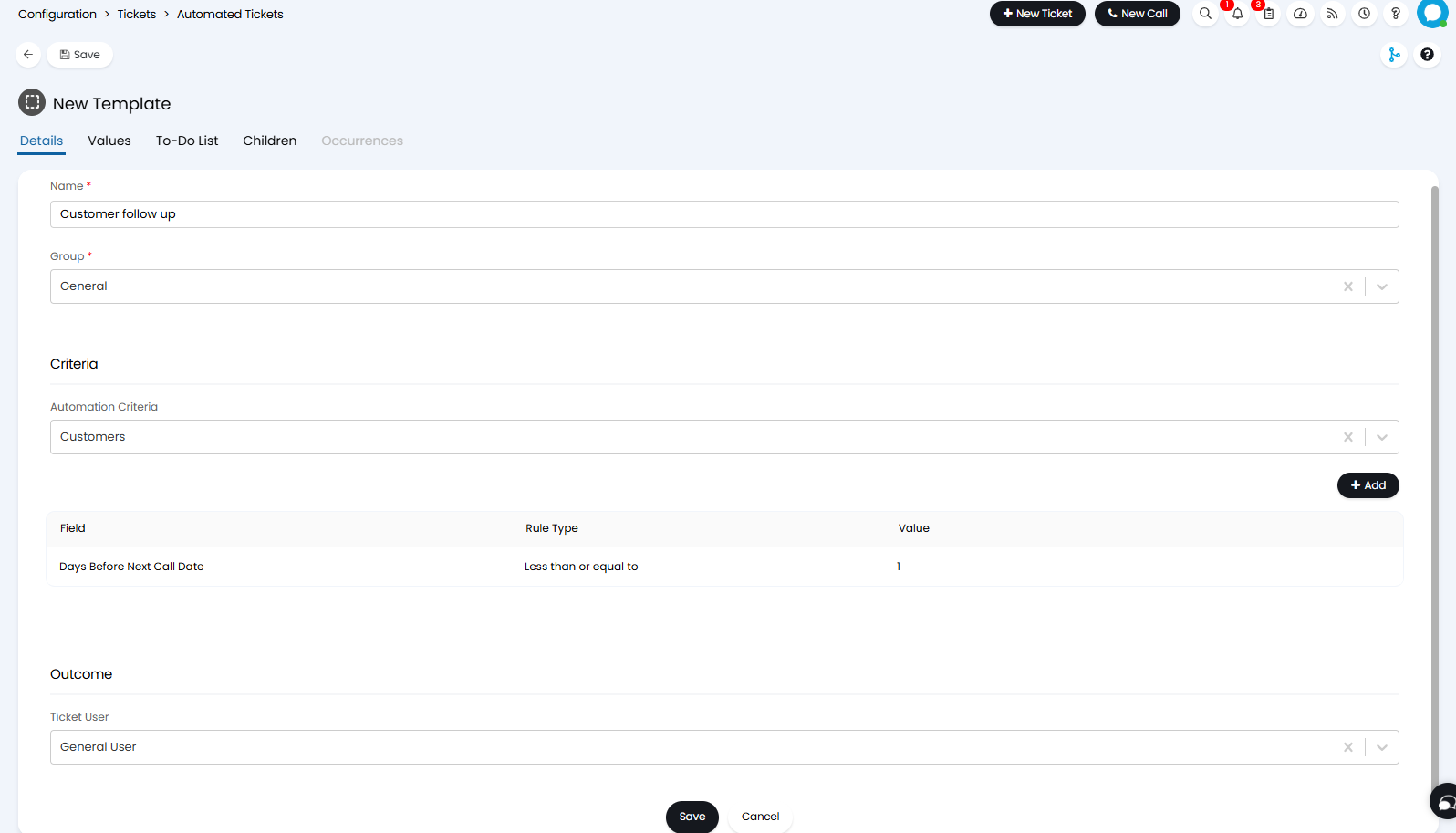
Fig 15. Automated ticket set to create 1 day before the next call date.
In the Fig 15 example an automated ticket will be created the day before the next call date, this will apply to all customers. If a customer has multiple next call date entries a ticket will be created for each next call date that meets the criteria, working through them in sequence. Configure the rest of your automated ticket as desired, choosing the ticket type/template for the ticket.
When the ticket is created it will be created under the general user for that customer.
Reporting
If you are creating an automated ticket linked to a CRM note, you may find it beneficial to add some reporting data to the ticket. This is beneficial if you have some data for the agent/account manager to review before the meeting, such as customer profitability. For more information on how to make reporting data visible from a ticket, see our guide here. See Figure 1A in the appendix for an example report on customer CRM notes.
Note: If any users have CRM notes stored against them, this will also create tickets for the users that have a next call date in their CRM notes.
Worked Example
In this example, we need to book a follow up meeting with the customer and are going to set up an automated ticket that is created 2 days before the meeting to ensure any meeting preparation has been completed.
Use AI to Generate CRM notes
AI can be used to analyse a customer's recent ticket information and upload a summary of their recent experience to the customer's profile as a CRM note based on this. This can be used to provide your account manager with key insight into the customer experience without them having to analyse customer data themselves.
For more information on this functionality and how to configure this see our dedicated article here: AI Client Profiling.
Appendix
Figure 1A - SQL script for report customer CRM notes overview
select Aareadesc as [Customer],
uname as [Agent],
ANHmemo as [Message],
ANDate [Date Created],
ANTimeTaken as [Time Taken],
ANNextCallDate from areanote
join area on aarea=anarea
join uname on unum=anwho
where andate between @startdate and @enddate