AI Client Profiling
- ai
- Ai client profiling
- AI customer profiling
- AI CRM notes
- AI customer management
- AI customer experience
- AI customer evaluation
In this guide we will cover:
- What is AI Client Profiling?
- How to configure AI client profiling
What is AI Client Profiling?
AI Client profiling allows you to use AI to analyse a customer's recent ticket information to formulate a summary of their recent experience. This summary will then be uploaded to the customer's profile as a CRM note. Allowing you to automate the monitoring of your clients' experience using your services. This can be used to provide your account manager with key insight into the customer experience without them having to analyse customer data themselves.
How to configure AI client profiling
Once AI Client profiling is configured client ticket history/information will be reviewed by your AI model on a scheduled basis, each time the scheduled review takes place a CRM note will be added to each customer profile.
Note: The more customers/ticket data you have, the more tokens this process will use. As such, if you are using your own AI connection, please ensure you have sufficient tokens before using this functionality.
To enable this functionality head to Configuration > AI > Feature Library, Customer Profiling section > enable 'Enable AI Customer profiling analysis'.
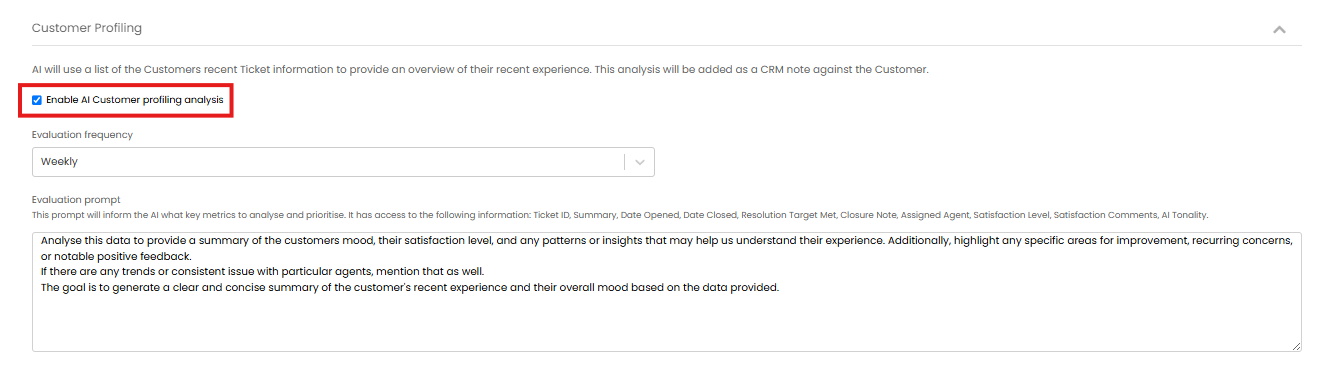
Fig 1. Enable Customer profiling
Once enabled some additional configuration options will appear.
Evaluation Frequency - Here set how frequently you would like customer profiling to be evaluated. The schedule will start on the day/time you enable this functionality.
Evaluation Prompt
In the 'Evaluation prompt' field you will need to enter a prompt to give the AI model to instruct the model on how to evaluate the data, highlighting what information/metrics you are interested in. When evaluating, the following fields will be used to evaluate the customer profile/experience:
- Ticket ID
- Summary
- Date Opened
- Date Closed
- Resolution Target Met
- Closure Note, Assigned Agent
- Satisfaction Level
- Satisfaction Comments
- AI Tonality
Here is an example prompt but you will benefit from creating your own customised and more detailed prompt:
"Analyse this data to provide a summary of the customers mood, their satisfaction level, and any patterns or insights that may help us understand their experience. Additionally, highlight any specific areas for improvement, recurring concerns, or notable positive feedback.
If there are any trends or consistent issues with particular agents, mention that as well.
The goal is to generate a clear and concise summary of the customer's recent experience and their overall mood based on the data provided."
Now all configuration is complete. The task scheduler will run automatically at the scheduled time to trigger your AI model to evaluate customer ticket data and create a CRM note. However, you can run this manually to check your configuration and the quality of the CRM note produced.
To run the task scheduler manually head to configuration > integrations > Halo integrator > Backend service monitoring, select 'Run Task scheduler now'.
Note: Running the task scheduler manually will run all scheduled tasks not just AI profiling.
Now you can head to a customer's profile > CRM notes tab, here a new note will be created by AI. Change/adjust the prompt to change the information that the AI returns in the CRM note.