Stripe Integration
- recurring invoices
- Invoices
- Stripe
- Payment
- Stripe Payment
- Payments
In this guide we will cover:
- What is the Stripe Integration?
- How to connect to Stripe
- Syncing Customers
- Configuring Invoices Payment
- Automatic Payments
- Manual Payments
- Making Payments
- Have Customers Update their Own Payment Methods
- Email Notifications/Confirmations for Payments
What is the Stripe Integration?
The Stripe integration is used to enable you to take payments for your invoices in Halo. Agents can take payment for customers and customers can make payments themselves through the Halo portal. Automatic payments can also be setup to have payments for recurring invoices be taken automatically.
Connecting to Stripe
First you will need to enable the stripe module. Head to configuration > integrations and enable the Stripe integration module using the '+' icon. Once enabled click into the module to pull up the integration setup page.
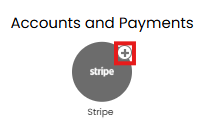
Fig 1. Enable integration module
To connect your Stripe to Halo, you will need to obtain a Publishable & Secret Key from Stripe. Head to Developers > API Keys in Stripe to get these.
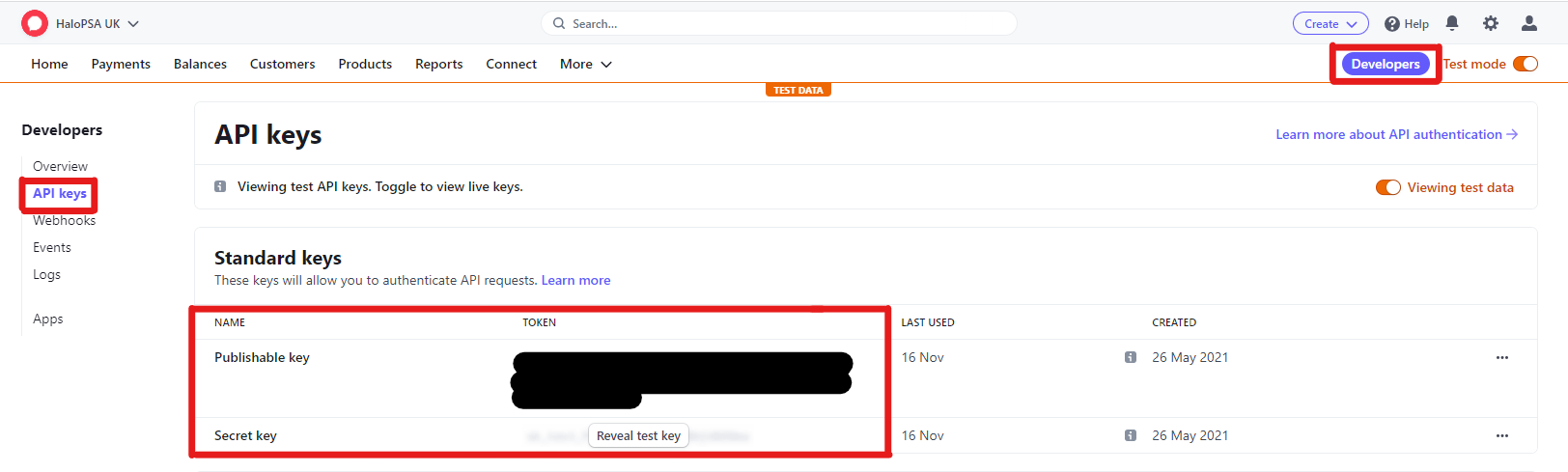
Fig 2. API keys in Stripe
Once obtained enter these keys into the relevant fields in Halo.
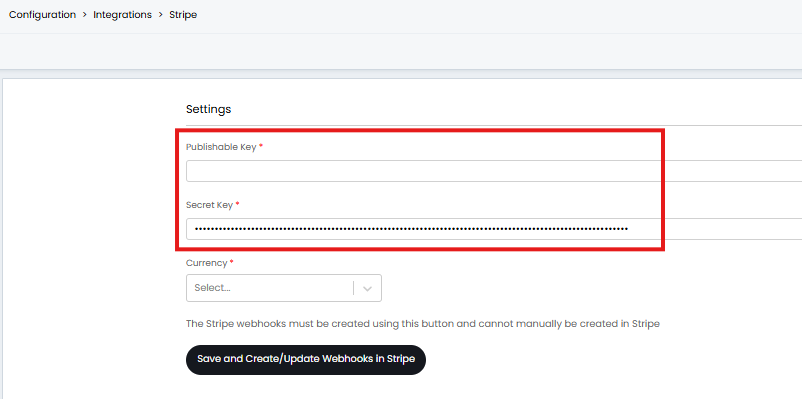
Fig 3. Key fields required to connect to stripe
Once connected, you will need to set a currency for payments made in Stripe. This is the currency you would like to receive payments in.
Syncing Customers
Customers from Stripe can be mapped to an existing Halo customer. Each customer that you would like to take payments for will need to be present in the customer mappings table (found on the integration setup page).
To create a mapping add to the table and choose the Halo and Stripe customer to map together. If your customers in Halo and Stripe have identical names you can use the 'generate mappings' button to have the mappings automatically generated, this will only work if the names are an exact match. Once customer is mapped they will be able to make payments in Halo using Stripe and will have an additional 'Stripe' section under the billing section of their customer profile.
If you would like customers to be created and updated in Stripe when a customer is created or updated in Halo, enabled the setting highlighted in Figure 4.
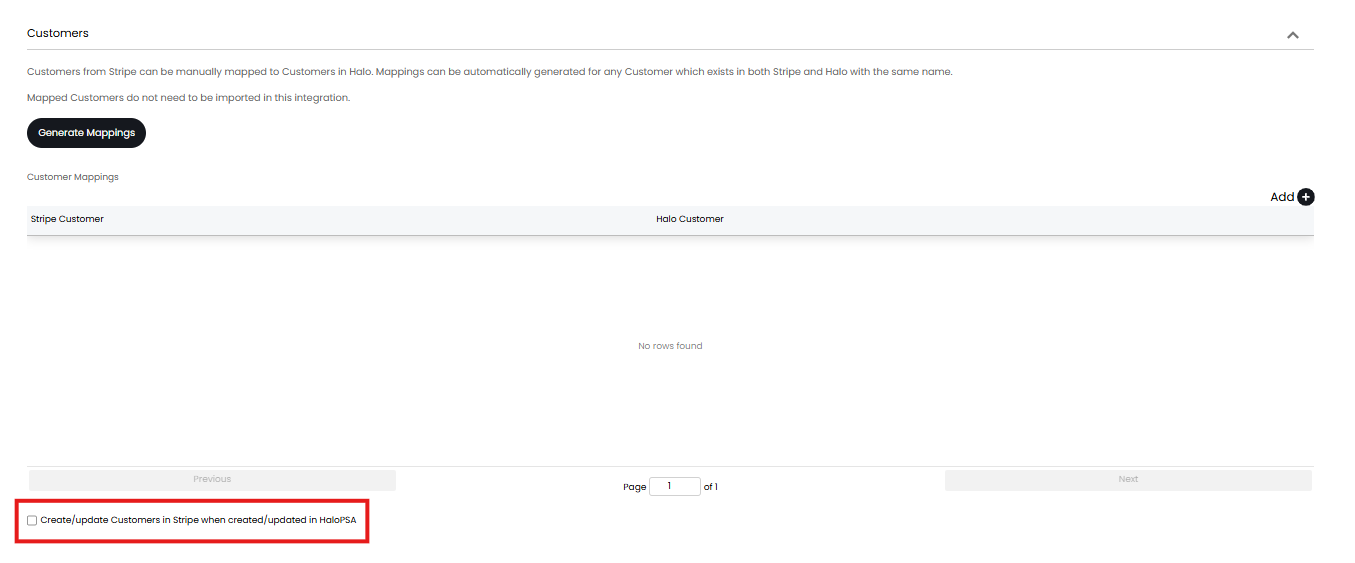
Fig 4. Update customers in Stripe when updated in Halo
Configuring Payments
Now you are connected to Stripe you can begin configuring how payments can be made. Payments can be taken manually by agents in the agent app, or by customers through the self-service portal. Automatic payments can also be scheduled for recurring invoices.
Before configuring manual/automatic payments you will need to set which payment methods are imported from stripe using the field shown in Figure 5.
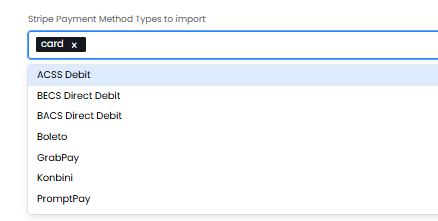
Fig 5. Stripe payment methods to import
Customers will only be able to use the payment methods selected here so ensure this encompasses all the payment methods your customers use.
Configuring Automatic Payments
To enable this functionality you will need to enable the setting 'Enable the automatic payment of recurring invoices when generated as invoices' on the integration setup page.
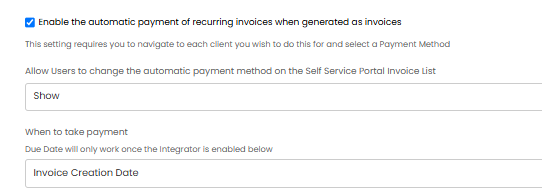
Fig 6. Enable automatic payments
Once enabled you will need to set when payments are taken automatically using the 'When to take payment' field. Payments can either be taken when invoices are created or on the due date of the invoice. The creation date refers to the date that the invoice is created from the recurring invoice.
Now you will need to set the payment method that is used for each customer when automatic payment is taken. This is set against the customer profile under the billing tab > stripe section, see Figure 7.
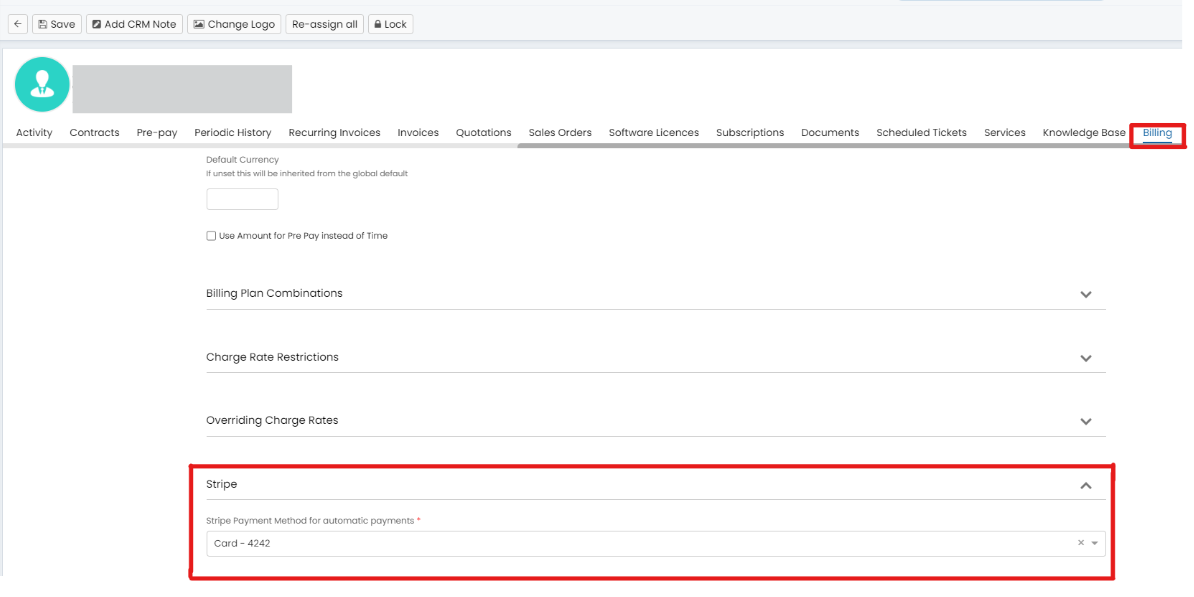
Fig 7. Payment method used for automatic payments
Note: If 'invoice creation date' is selected, payment is collected from this Payment Method as soon as any recurring invoice is created for the selected client
The payment methods that are available to choose from here (against the customer) will be determined by the payment methods you have imported from Stripe and the payment methods linked to the customer's account in Stripe.
Customers can update the payment method they use for automatic payments through the end user portal. See the section 'Have customers update their payment methods' for more information on this.
The last step of the setup is to enable the Halo integrator for the integration, this is enabled using the setting shown in Figure 8 on the integration setup page.
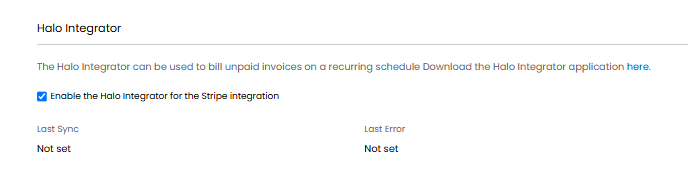
Fig 8. Enable Halo integrator
The Halo integrator will check any invoices that are awaiting payment (due date has passed), on a scheduled basis. It will then take the payment using Stripe. This will run on a daily basis so invoices are checked for outstanding payments daily. This will only take payment for invoices linked to a recurring invoice, other invoices will need to be paid for manually.
Auto payments processed via Stripe on the integrator will use idempotency keys. This helps prevent the same request (payment) being processed twice when you are running stripe on two integrators at once.
Auto-pay will not occur for invoices that have a 'pending' or 'action required' payment, to ensure payment is not taken again if an early payment has been taken manually.
Note: If 3DS authentication is in use any automatic payments will remain in 'action required' until authentication has been provided. For more information on this see the section "Taking Payments when 3DS authentication is in use of this guide.
$ Variable for automatic payment method
The variable $-PAYMENTMETHOD can be used on PDF templates (recurring invoice templates) to pull through the automatic payment method the customer is using. This is useful if you would like your customers to have a record of the payment method that was used for the invoice.
If customers do not have an automatic payment method set, the variable will populate with the string 'No automatic payment setup'.
Configuring Manual Payments
Manual payments can be made for invoices either through the agent app or the end user portal. Before payments can be taken manually you will need to set the payment methods that are allowed for manual payments, using the setting shown in Figure 9 (in the integration setup page).
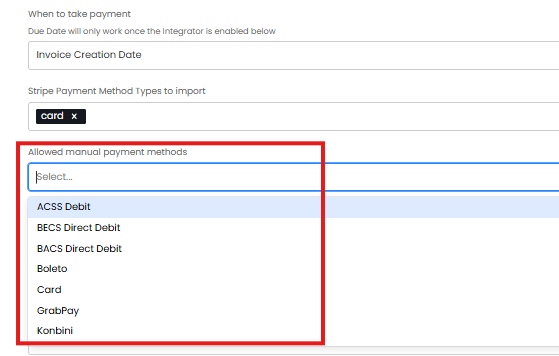
Fig 9. Allowed manual payment methods
This can be used to restrict the payment methods customers can use. If this field is left empty the allowed payment methods will be determined using the 'Stripe Payment Method Types to import', so there will be no restrictions on the payment methods that can be used.
Note: ACSS payment method is available for US customers.
Processing fee
A processing fee can be set, this is a percentage price that will automatically be added to all customer invoices that are paid using stripe. You can set what the processing fee is using the 'Processing Fee (Percentage)' field on the Stripe setup page.
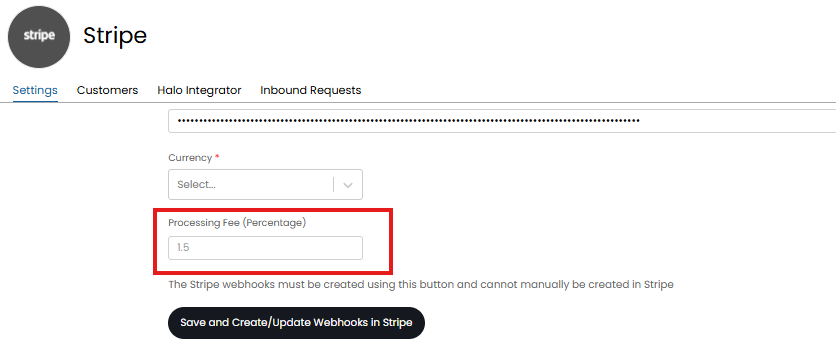
Fig 10. Processing fee
Once the field is populated this percentage amount will automatically added to the price of the invoice (as it's own line) when customers pay for the invoice using Stripe. If the customer pays for multiple invoices at once, a processing fee will be calculated for each individual invoice.
The total for the processing fee will be paid into the account you have setup to use for processing fees (this is setup in Stripe).
Making/Receiving Payments
Receiving payment in the Agent App
For agents to be able to take payments for customers the agent will need to have the permission 'Can Receive Manual Stripe Payments'.
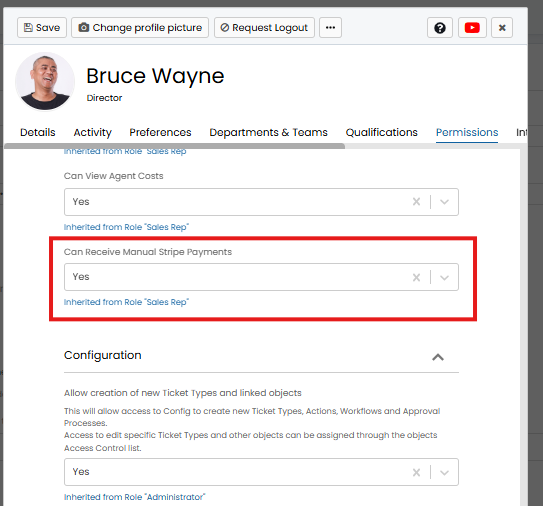
Fig 11. permission to receive manual payments
Now these agents will have the option against invoices to 'Receive Payment (Manual)'.
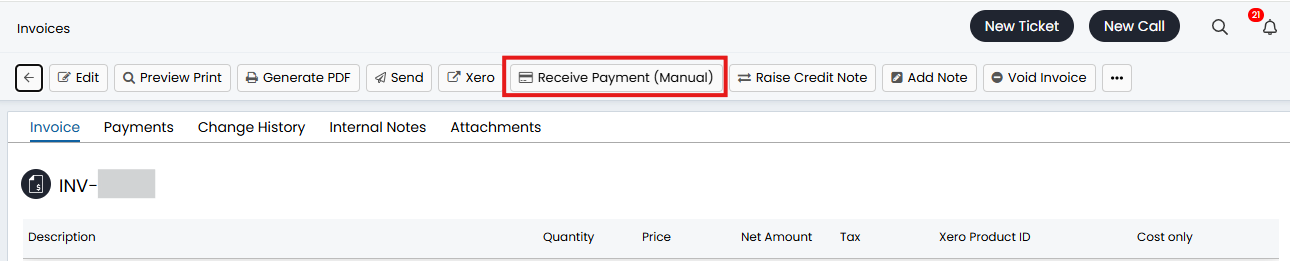
Fig 12. Receive manual payment button
When used a payment form will be displayed allowing the agent to take payment from the end user.
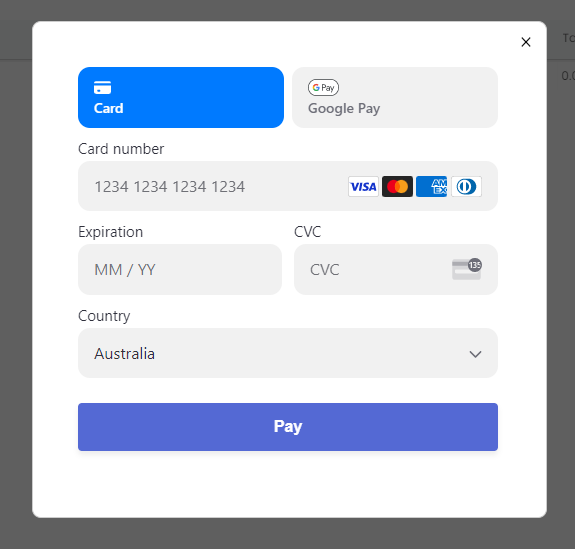
Fig 13. Payment form
For invoices that are configured to have payments taken automatically, agents will have the option to 'Receive Payment (Auto)' on the invoice. This can be used to take payment prior to the due date of the invoice.

Fig 14. Receive Automatic payment button
When used, this will take payment using the client's "Stripe Payment Method for automatic payments".
In the self-service Portal
In order for end users to pay invoices in the portal the customer must have a default payment set, i.e. 'Stripe Payment Method for automatic payments' must be populated.
Invoices can be paid by navigating to the 'Invoices' area of the portal. For any invoices that have not been paid a pay button will appear against the invoice.

Fig 15. Pay button against invoice in portal
Users will also have the option to pay all outstanding invoices at once with a single payment. When paying this was a single payment will be created in Stripe but each invoice will have a payment record logged against it, marking each invoice as paid.
When paying users can choose between using a saved payment method (the default against the customer) or entering new details. If entering new details they will need to complete the payment form (shown in Figure 13).
Setting Invoice Access
The users that will be making payments in the portal will need to have access to the invoice area of the portal as well as access to the appropriate invoices.
To add the invoices area to the portal head to Configuration > Self Service Portal and add the 'My Invoices' button.
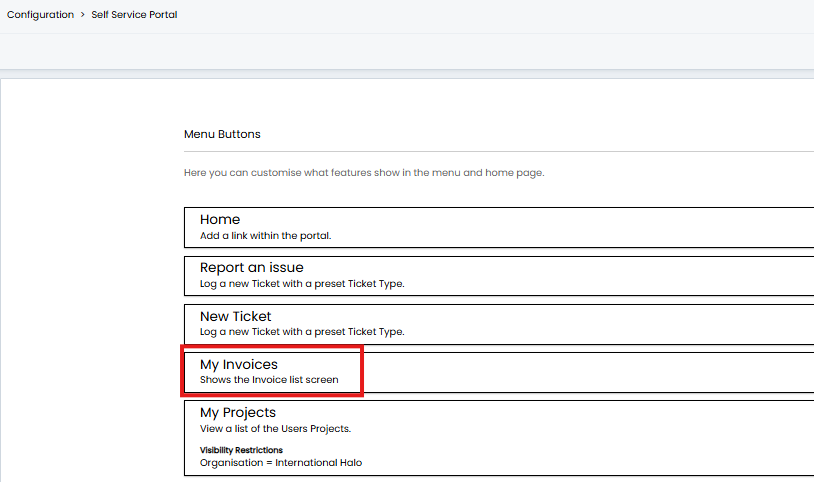
Fig 16. Invoices portal area
To set restrictions on who can access this area edit the button and set visibility restrictions.
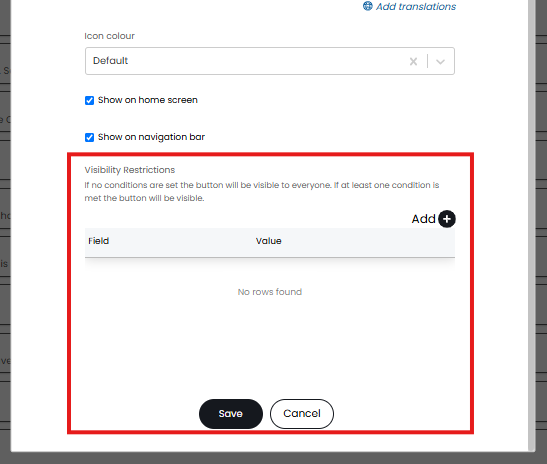 Fig 17. Visibility restrictions for portal area
Now, you will need to give users permission to view the invoices for their customer. This is set under the "Permissions" tab of the user profile using the permission "Invoice Access Level".
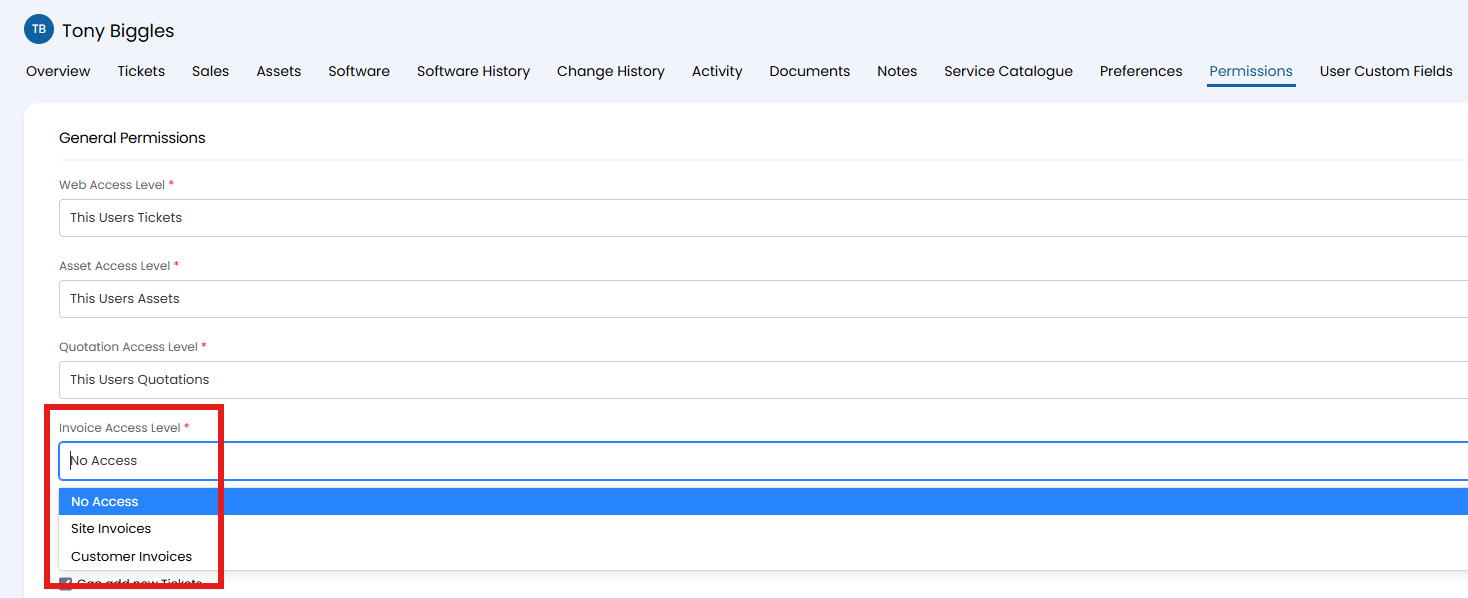
Fig 18. Invoices permission
Taking Payments when 3DS authentication is in use (v2.246+)
If 3DS is integrated into your Stripe checkout flow clients will need to provide confirmation before automatic payments can be taken from them. This only impacts automatic payments.
Any payments configured to automatically be taken when the invoice is generated or when it's due date is met, will not be made if 3DS authentication is required, and the payment will remain in the 'Requires action' status in Halo (in the background). Users will need to confirm/authenticate the payment in the portal before this can be processed.
If an agent attempts to 'Receive Payment (Auto)' on an invoice, when 3DS is in use they will be shown the pop-up shown in Figure 19.

Fig 21. Pop up shown when attempting to receive a payment that requires authentication
This indicates that the client needs to authenticate the payment request before payment can be taken.
Confirm/Authenticate Payments in the Halo Portal (v2.246+)
For any payments that require 3DS authentication, users can confirm/authenticate the payment request in the portal.
When viewing invoices from the 'Invoices' area of the portal, users will have use of a 'Confirm' button against any invoices that have payments pending. These will be invoices which have payment taken automatically.
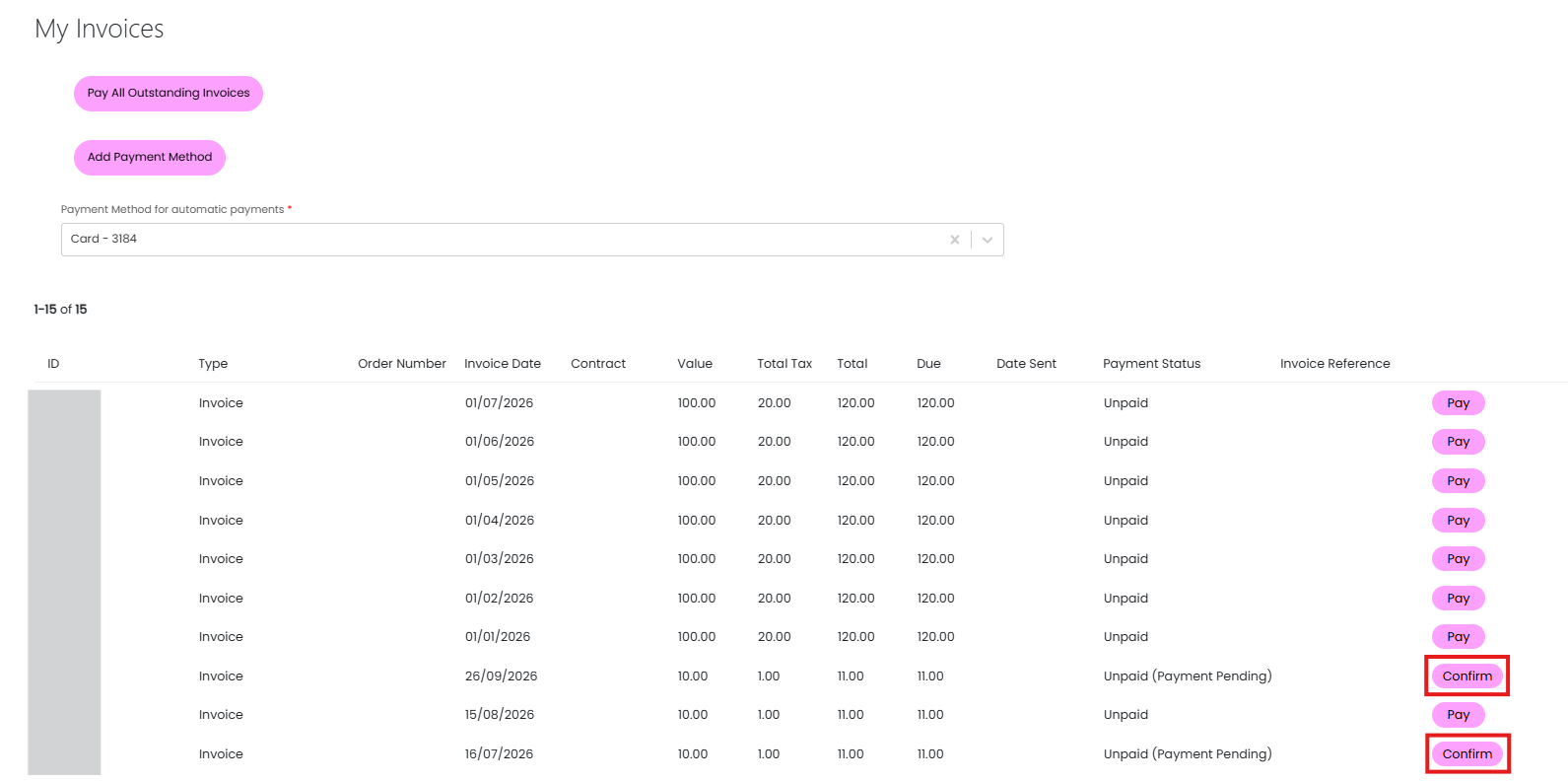
Fig 20. Option to confirm payment in portal
When used this will confirm the automatic payment and complete the processing of the payment.
Notify Users a Payment Confirmation is Required
If an automatic payment is pending as authentication is required, their bank may notify the client of this, prompting them to provide authentication (depending on the bank).
Otherwise you can make use of automated tickets in Halo to notify your team/the client when payments are overdue.
Have Customers Update their Own Payment Methods
Agents can set the default payment method each customer will use against the customer profile in the agent app, which is used for automatic payments. However, users can update the default payment method themselves in the portal too.
Enable this functionality using the setting shown in Figure 21 (on the integration setup page).
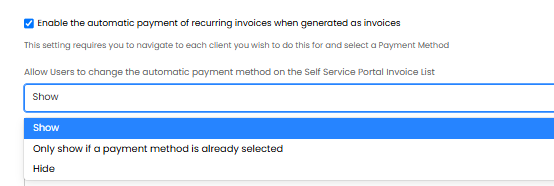
Fig 21. Setting to allow users to update the payment method used for their automatic payments
Hide - Users will not be able to update payment methods
Only show if a payment method is already selected - Only customers that have an automatic payment method already set will be able to change the method. Customers that do not have this set (so do not use automatic payments) will not be able to set an automatic payment method.
Show - Users will be update to update and add a new automatic payment method if one is not already set.
Once enabled users will have the option to 'Add Payment method' in the invoices area of the portal.
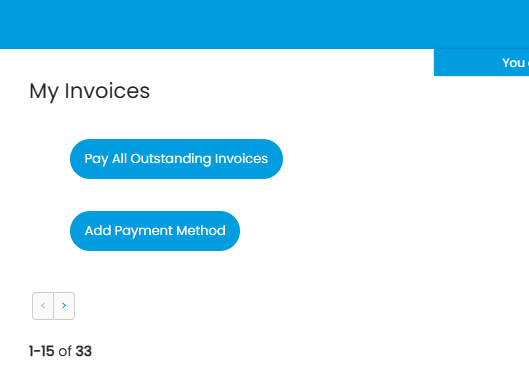
Fig 22. Add payment method option in portal
When this button is used the user will need to enter the new payment method details. The field 'Stripe Payment Method for automatic payments' against the customer profile in Halo will then be updated to reflect these changes.
As an alternative to customers updating their payment methods through the Halo portal they can also do this through the stripe portal. To do this would will need to set up a stripe customer portal (in Stripe) and share the link to the portal with the relevant users. When in the Stripe portal users will be able to update their payment methods.
Allow Users to Delete Payment Methods (v2.250+)
If a customer has any saved payment methods against their customer account in Halo, you can allow them to delete these themselves from the portal. Allowing them to remove outdated payment methods themselves.
Enable this using the "Allow Users to delete payment methods on the portal" option found in the "Settings" tab of the Stripe integration setup page.
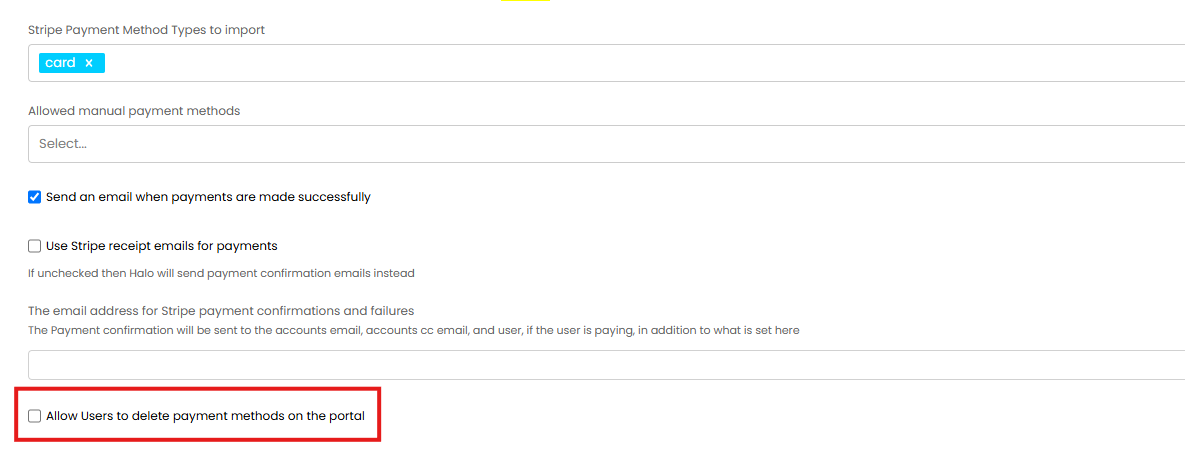
Fig 23. Enable users to delete payment methods
When enabled, users will have the option to edit and then delete a payment method when viewing their invoices in the Halo portal.
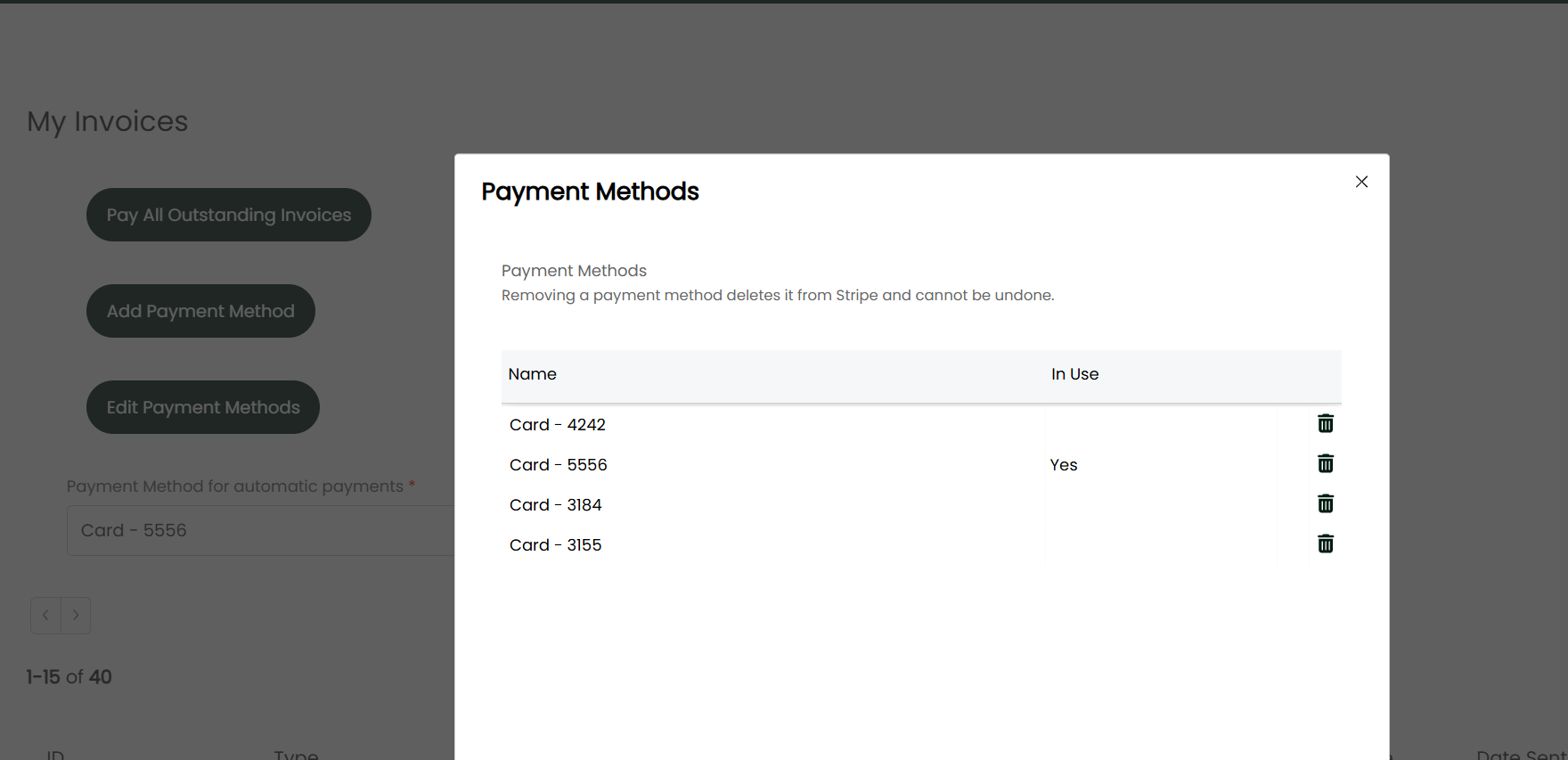
Fig 24. Viewing/Editing Payment Methods in the Portal
When a user deletes a payment method from the Halo portal this will also delete the payment method in Stripe and cannot be reversed.
Payment methods that are set to be used for automatic payments for this customer will be set as 'In Use'.
Email Confirmations for Payments
Email notifications can be configured to send each time a payment is successful or has failed.
Have notifications send for failed payments only
To configure this head to Configuration > Integrations > Stripe. Ensure that the setting 'Send an email when payments are made successfully' is disabled. You can then enter the email address you would like payment failure notifications to be sent to.
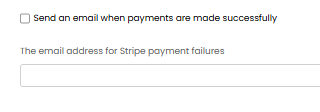
Fig 25. Settings to have notifications send for failed payments
Failed payment emails will use the email template titled 'Stripe Payment Failure' (ID=285). This template will need to be edited to change the contents of the email that is sent for failure notifications.
Have notifications send for successful and failed payments
If you would like email confirmations for successful payments as well as failed payments enable 'Send an email when payments are made successfully'.
When enabled you will have an additional setting called 'Use Stripe receipt emails for payments'. When this is enabled stripe will send out payment confirmation emails (rather than Halo). Therefore, the content of the confirmation email will need to be amended in Stripe.
If disabled Halo will send out confirmation emails using the template titled 'Stripe Payment Confirmation' (ID=264).
Then you will need to set the email address that confirmations and/or failures are sent to using the field below these settings.
Note: The Accounts email address and accounts email CC address set against the customer will be CC'd into the payment confirmation/failure email for that customer. The user who is making the payment will also be CC'd into the email.
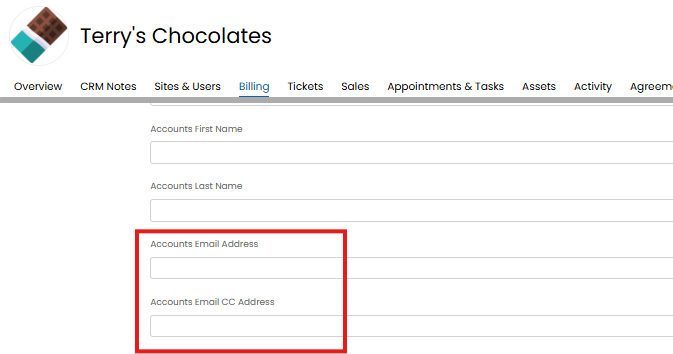
Fig 26. Accounts email addresses against customer profile
Note: Stripe email notifications sent from Halo will use the same Mailbox used when sending an Invoice.
Stripe Webhooks
On the integration setup page for the integration you will see the button 'Save and Create/Update Webhooks in Stripe'.
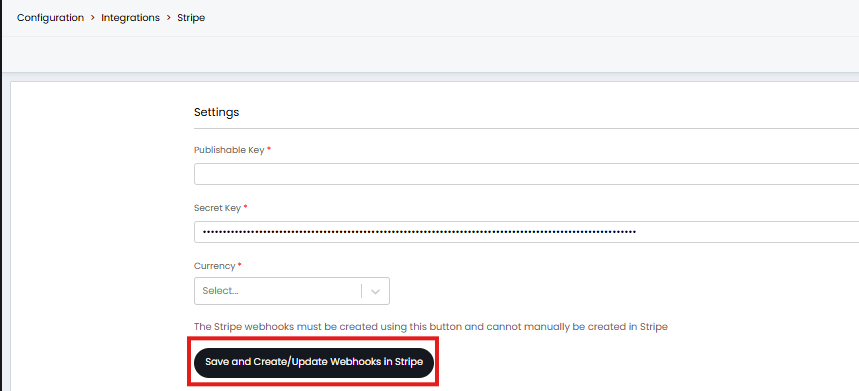 Fig 27. Button to enable Stripe Webhooks
When used additional webhooks for Stripe will be created. When the webhooks are created Halo can update Invoice Payments records in Stripe for the following events:
- Payment Success
- Payment Failure
- Payment Processing
- Payment Cancelled
- Payment Requires Action
By default, everyone should have webhook subscriptions for both payment success and payment failure, however 'Processing', 'Cancelled' and 'Requires Action' may need to be added in Stripe manually for those who enabled the Stripe integration prior to version 2.127.1. For information on how to add these manually see the guide here.