Tax Rates
- tax rate heirarchy
In this guide we will cover:
- What are Tax Rates?
- Configuring Tax Rates
- Tax Rate hierarchy
- Composite Tax
Configuration Settings:
Related Guides:
What are Tax Rates?
A Tax Rate is a percentage charge applied per billable Item on an Invoice.
Configuring Tax Rates
To create your Tax Rates head to Configuration > Billing > Tax, and click the "Tax Rates" button.
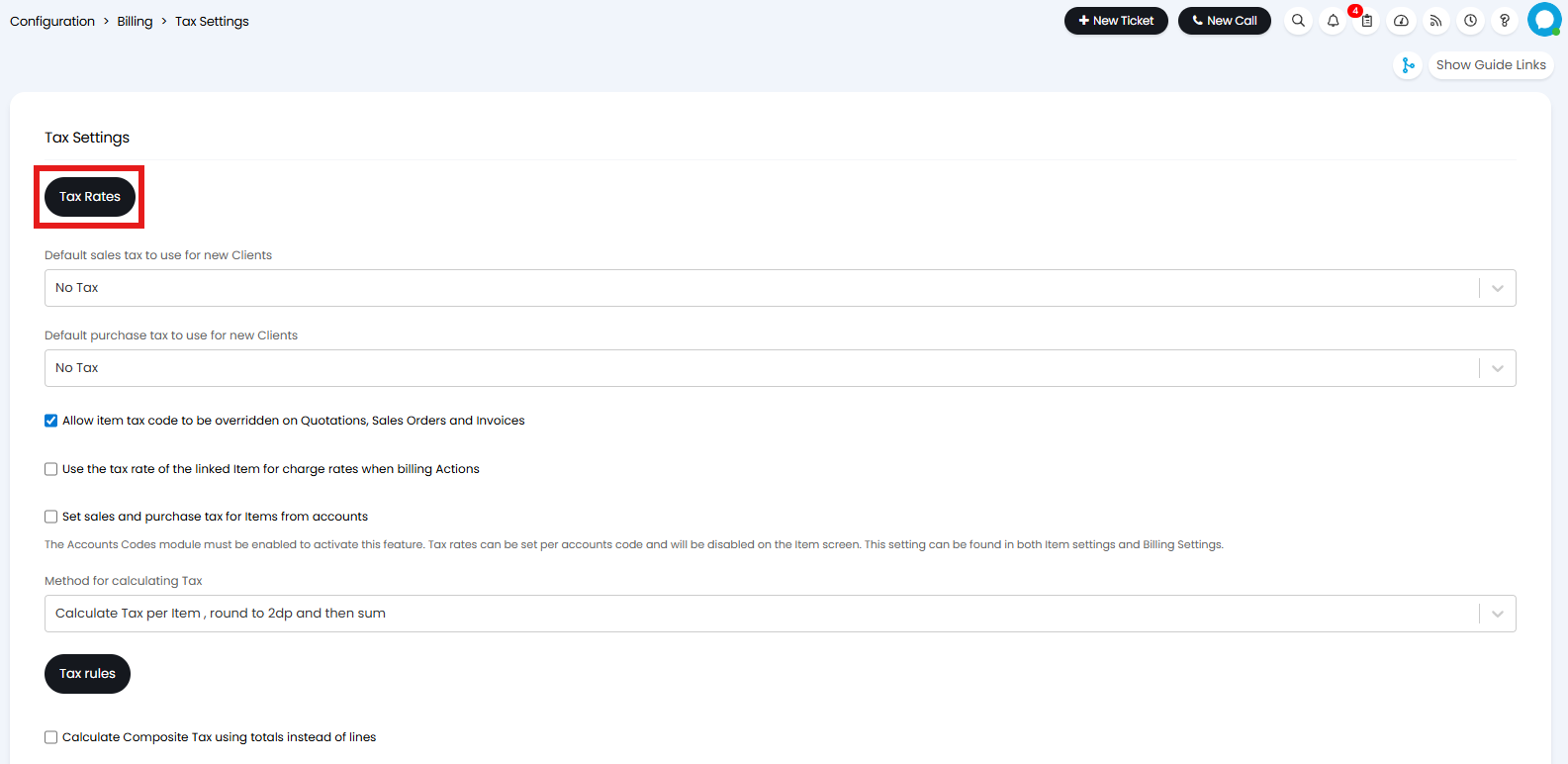
Fig 1. Tax Rate Settings
This will show you your existing Tax Rates which you can click into to edit. If you would like to create a new Tax Rate click the "New" button.

Fig 2. Your Tax Rates
Here set a name and rate for your new Tax Rate. The rate you set here will be the percentage of the price of invoiced Item which will be applied as tax.
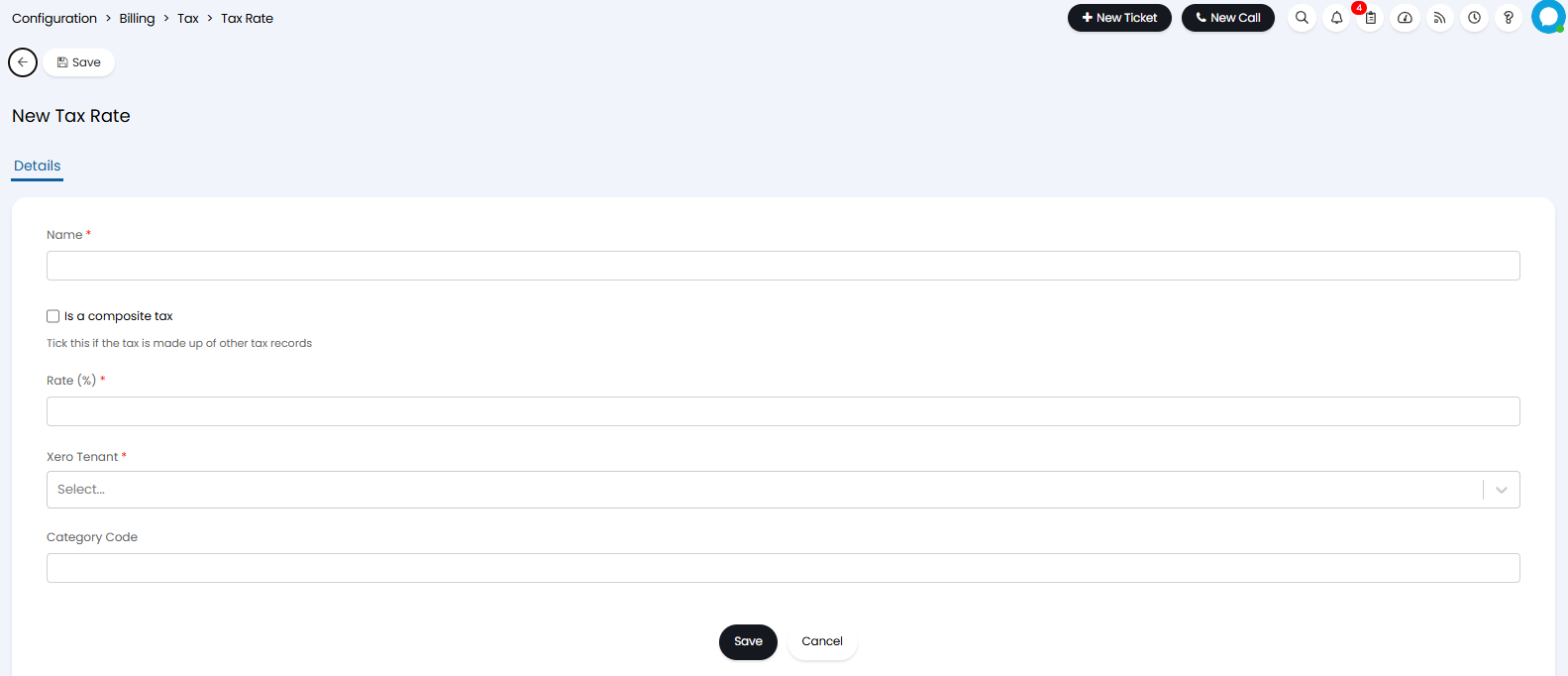
Fig 3. Creating a new Tax Rate
You can set a Tax Rate as the default for Items, Labour, Contracts and Pre-pay. To do this head to Configuration > Billing > Tax Settings and use the drop-downs to pick a Tax Rate.
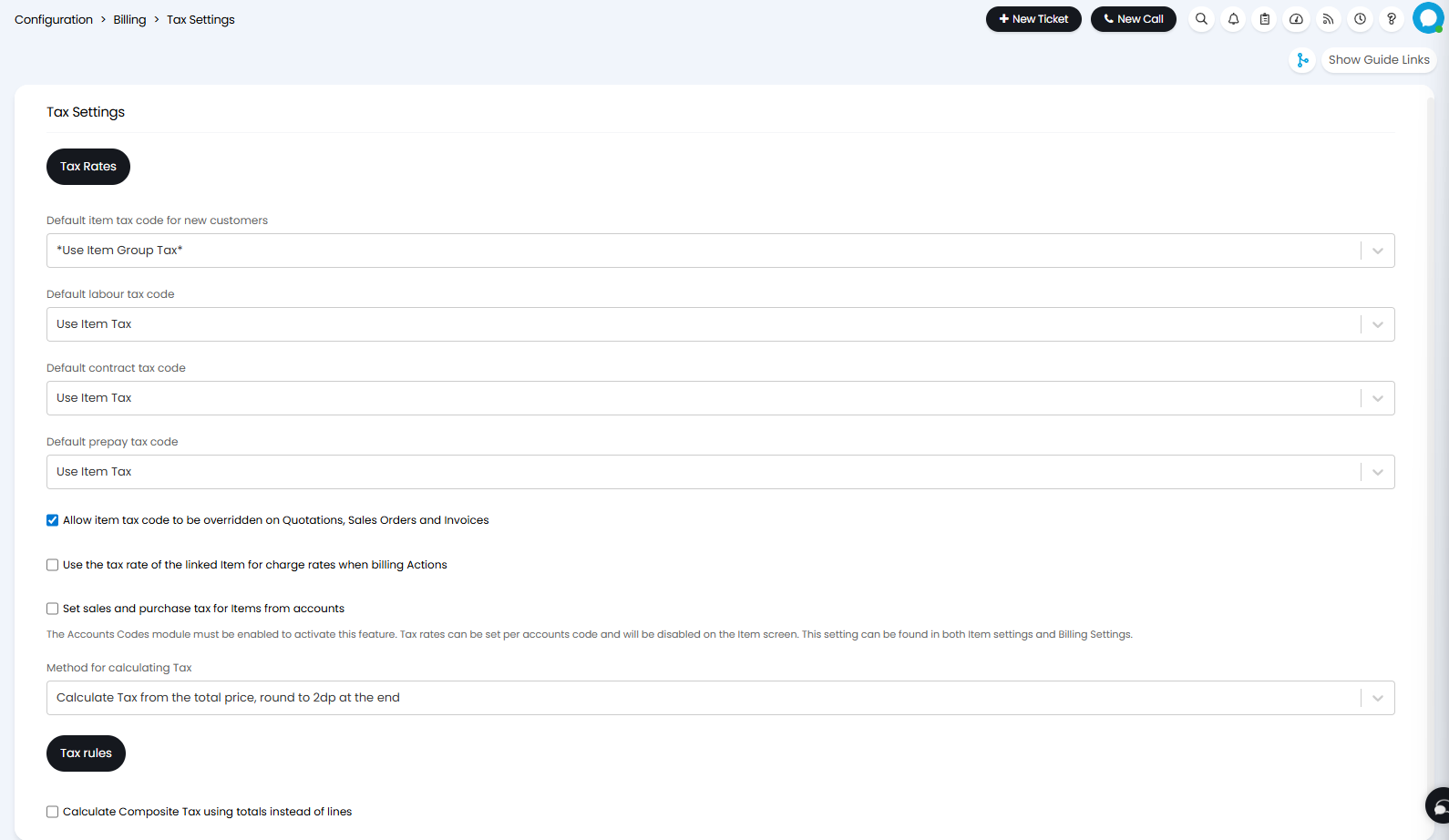
Fig 4. Setting Default Tax Rates
Tax Rates can also be set at a Customer, Site or Item level, or applied through a Tax Rule. To set Tax Rates for a Customer, Site, or Item, head to their record and select the Billing tab. Under this tab use the Tax code drop-downs to set default Tax Rates.
Tax Rate hierarchy
Tax rates are applied according to the following hierarchy:
- Quickbooks Online Automatic Sales Tax (See our guide on the QuickBooks Online Integration)
- Tax Rules
- Site Tax Rates
- Customer Tax Rates
- Item Tax Rates
- Default Tax Rates
This means when an invoice is created, Tax rules will be applied first, overriding Tax Rates set elsewhere (unless you have QBO Automatic Sales Tax enabled). If no Tax Rules are matched, The Tax Rates will be applied according to the next level of the hierarchy to be matched. Regardless of which level of the hierarchy is matched and applied, Tax Rates can be manually overridden by editing the Invoice line.
Composite Tax
A Composite tax is a single tax record comprised of multiple elements.
To create a Composite tax select the "Is a composite Tax" checkbox. When checked, you will see a 'Linked tax records' multi-select field. The rate used will be the sum of the calculated tax for each of the rates. The total composite tax rate will be applied to each invoice line as a single amount.
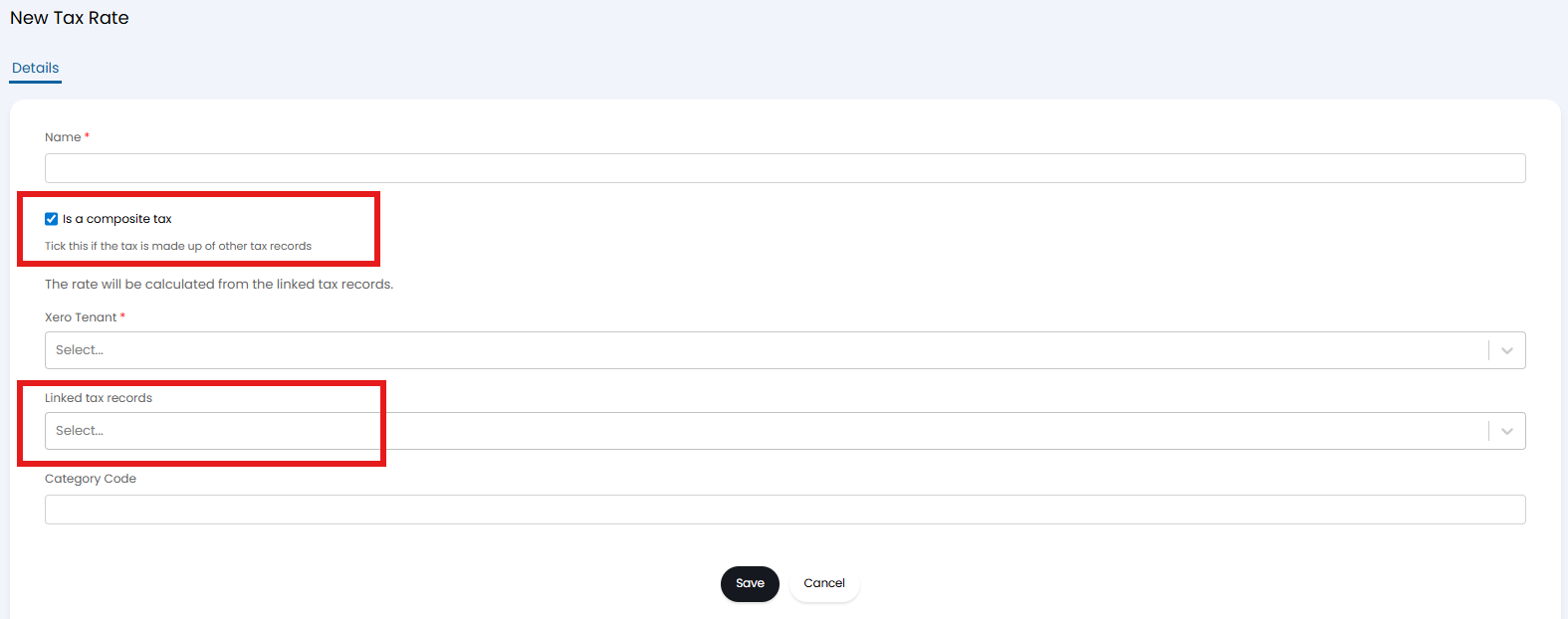
Fig 5. Creating a Composite Tax Rate
To improve the accuracy of your tax calculations it is recommended you select the "Calculate Composite Tax using totals instead of lines" checkbox in Configuration > Billing > Tax. This will calculate the composite tax for each separate rate and line, adding the tax from each individual rate rather than applying to each line as a single amount. From v2.252+, this setting can be found in the "Method for calculating Tax" dropdown.

Fig 6. Composite Tax using totals instead of lines
If you import your Tax Rates from an Integration any imported Composite Tax rates will display as a single tax record. When an invoice is sent across to your accounting integration this will be re-calculated as a Composite Tax following the set up in your accounting tool.