Deferred Revenue for Pre-Pay
- deferred revenue
- revenue account
- defer recognition
In this guide we will cover:
- Setting up Deferred Revenue
- Setting Up a Project to have it's Revenue Deferred
- Invoicing the Project
- Creating the Project
- Recognising Revenue as work is completed
- Invoicing from the Sales Order
- Deferred Revenue for Down payments
Halo has the ability to configure deferred revenue for Pre-Pay, with expansions beyond this in the near future. This is designed to allow you to take payment for a project but defer the 'recognition' of the revenue. For example, you may take payment in January for work that is not carried out until May, so to accurately account for the revenue you may want to defer the revenue until May.
Deferred revenue for pre-pay allows you to take payment for pre-paid hours upfront, but only recognise the revenue from the hours bought as they are used. When hours are used, the revenue (value) of the hours used will be moved from the deferred revenue account to your income account.
To defer revenue for projects, we recommend using the newer method outlined in the guide here. While the functionality in this article can also be used for projects, it isn’t the recommended approach.
Considerations when enabling Deferred Revenue in live instances
If your Halo instance is live and you have already been using Halo to invoice your customers, you will likely already have some Pre-Pay records on your instance. When you already have Pre-Pay records (against a contract) there are some additional considerations to make when enabling the deferred revenue functionality.
Once deferred revenue is enabled, all existing pre-pay records against contracts (no matter how old) will be assumed to be deferred revenue. This means any labour logged against these contracts will appear in the deferred revenue section of Ready for Invoicing as Halo will detect the payments for these records have not been 'recognised'.
To prevent this from happening ensure you enable "Do not create deferred revenue invoices for this Agreement" against each of your existing agreements. When this is enabled payment for pre pay hours associated with this contract will not be deferred.
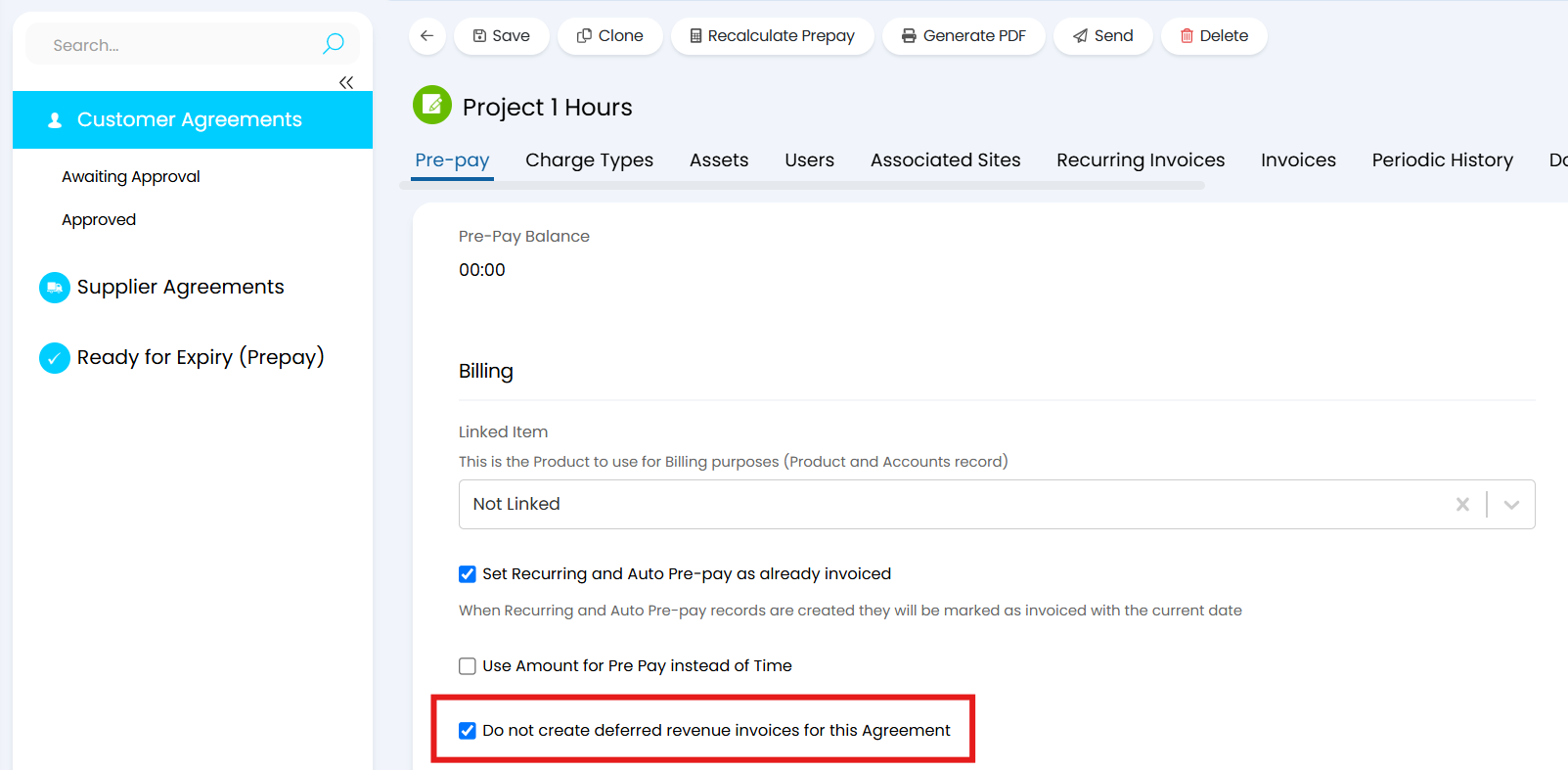
Fig 1. Set Agreement to not have it's revenue deferred
This setting is available from v2.246+, if you are on a version prior to this, speak to your consultant or our support team before using this method to defer revenue.
Setting up Deferred Revenue
First, you will need to enable deferred revenue. This is enabled under Configuration > Billing > General Settings, 'Enable Deferred Revenue'.
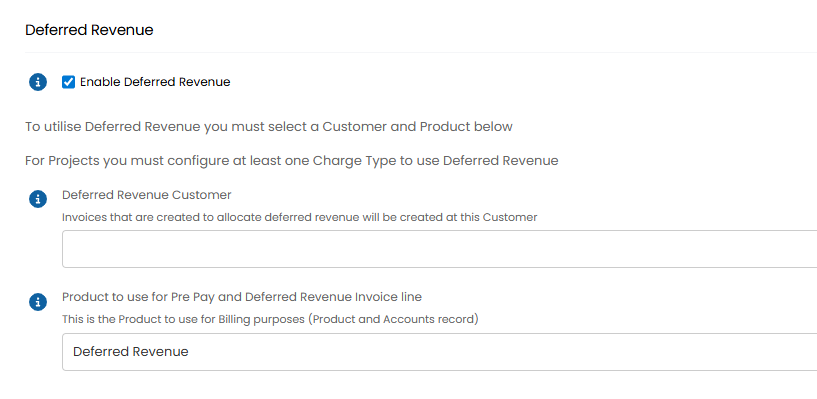
Fig 2. 'Enable Deferred revenue' setting
Now, you can set a 'Deferred Revenue Customer' (optional) and a 'Product to use for Pre Pay and Deferred Revenue Invoice line' (mandatory).
Deferred Revenue Customer - If you would like deferred revenue to be stored against a different customer to the customer that generated the revenue, choose a customer here. If set, all deferred revenue will be stored against this customer until it is recognised. If not set deferred revenue will be stored against the customer that generated the revenue.
Product to use for Pre Pay and Deferred Revenue Invoice line - Here, choose the product that you would like to represent pre-pay on invoices when using deferred revenue for pre-pay. The product chosen here should be assigned the accounts code used for your deferred revenue. Alternatively, the product can be linked to the item in your accounting integration that is mapped to your deferred revenue account. You may wish to create a new product in Halo for this, as we have done in figure 2.
Setting Up a Project to have it's Revenue Deferred
When a customer purchases a project, create a quote and sales order for these as usual, using the method in which the project is created from a sales order. You will need to ensure the line item representing the project is marked as a contract (this will allow us to create a pre-pay contract for the project hours).
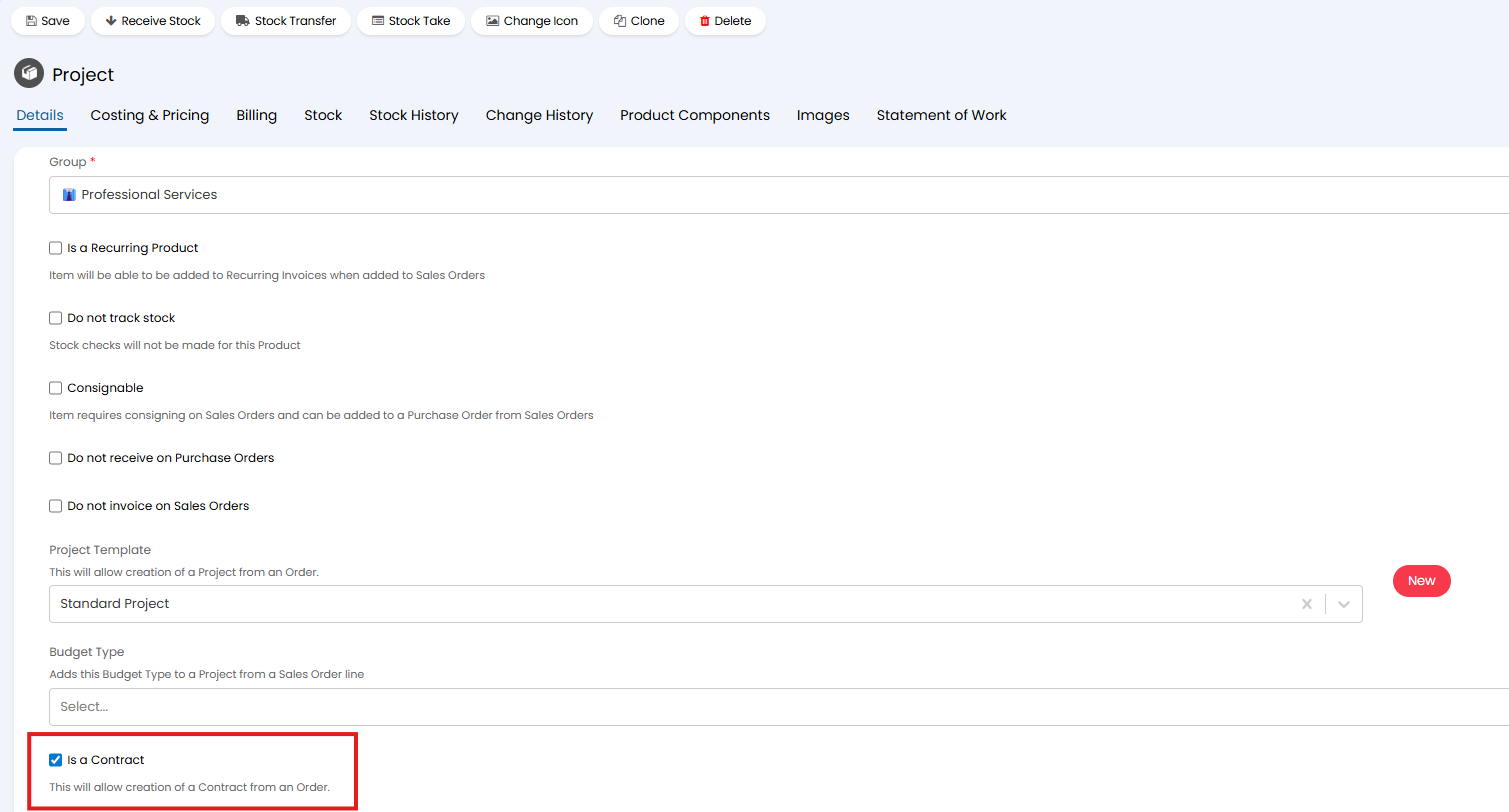
Fig 3. Mark project item as a contract.
Now, from the sales order you will first need to create a contract, do this before creating the project. In this example we are quoting for a project that includes 10 hours of work. The customer will be paying for these hours upfront.
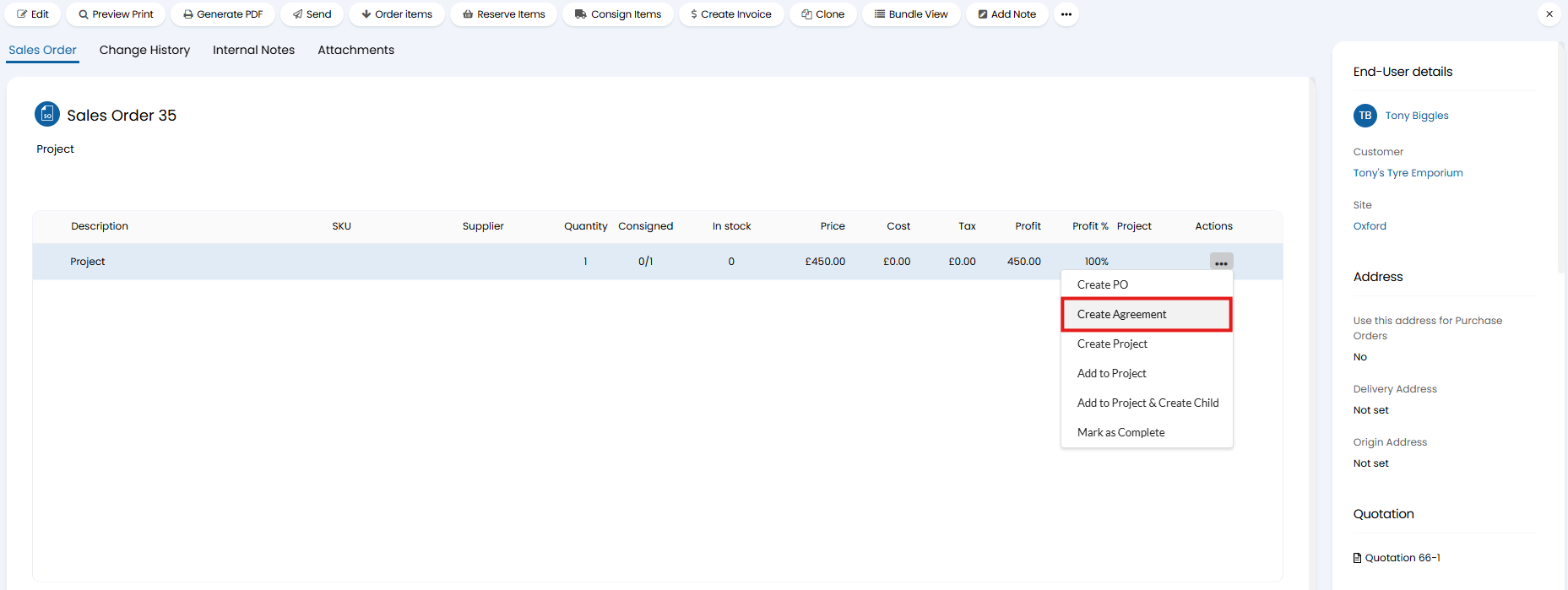
Fig 4. Create agreement (contract) from the Project sales order.
Note: A contract for the hours used by the project does not have to be created off the back of the Sales Order, this can be created standalone and applied using Billing Rules. If using this standalone method you do not need to have the Agreement field against your Ticket Type. However, as a contract will need to be created for each project you would like to defer the revenue of, it is easiest to create this from the sales order.
Setup an agreement with the following criteria:
- Labour Type = Pre-Pay.
- Set an overriding charge type that overrides the rate of charge types in line with the value of the hours quoted for the project.
- Set 'Charge Types selection' to 'Agreement Charge Types and Global Charge Types with an override.
- Add a pre-pay record containing the number of hours sold as part of the project, and the amount as the value you are charging for the project.
Let's look at the setup in more detail.
In this example, I have setup the agreement as shown in figure 5 and 6.
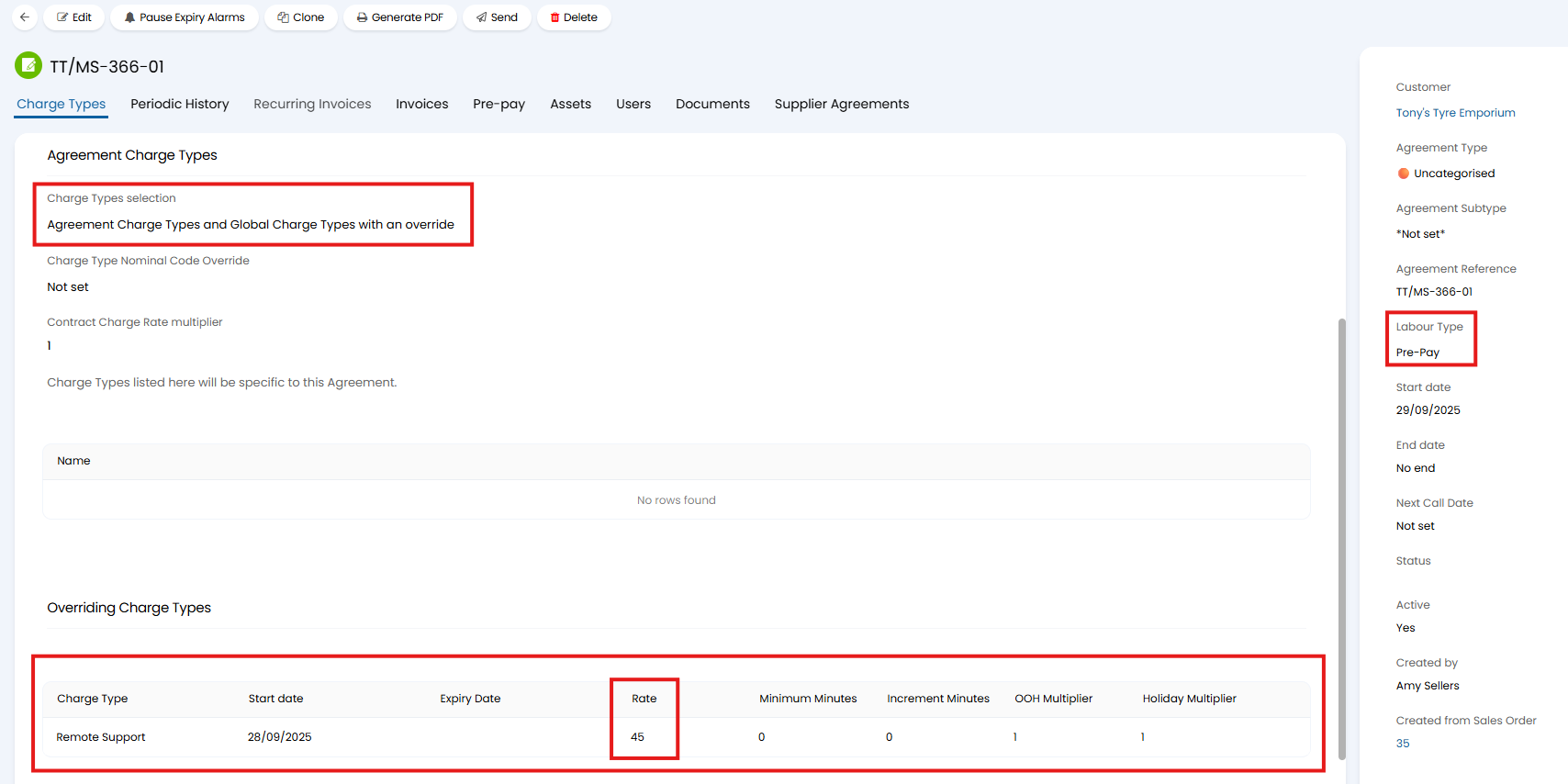
Fig 5. Pre-pay contract for project hours.
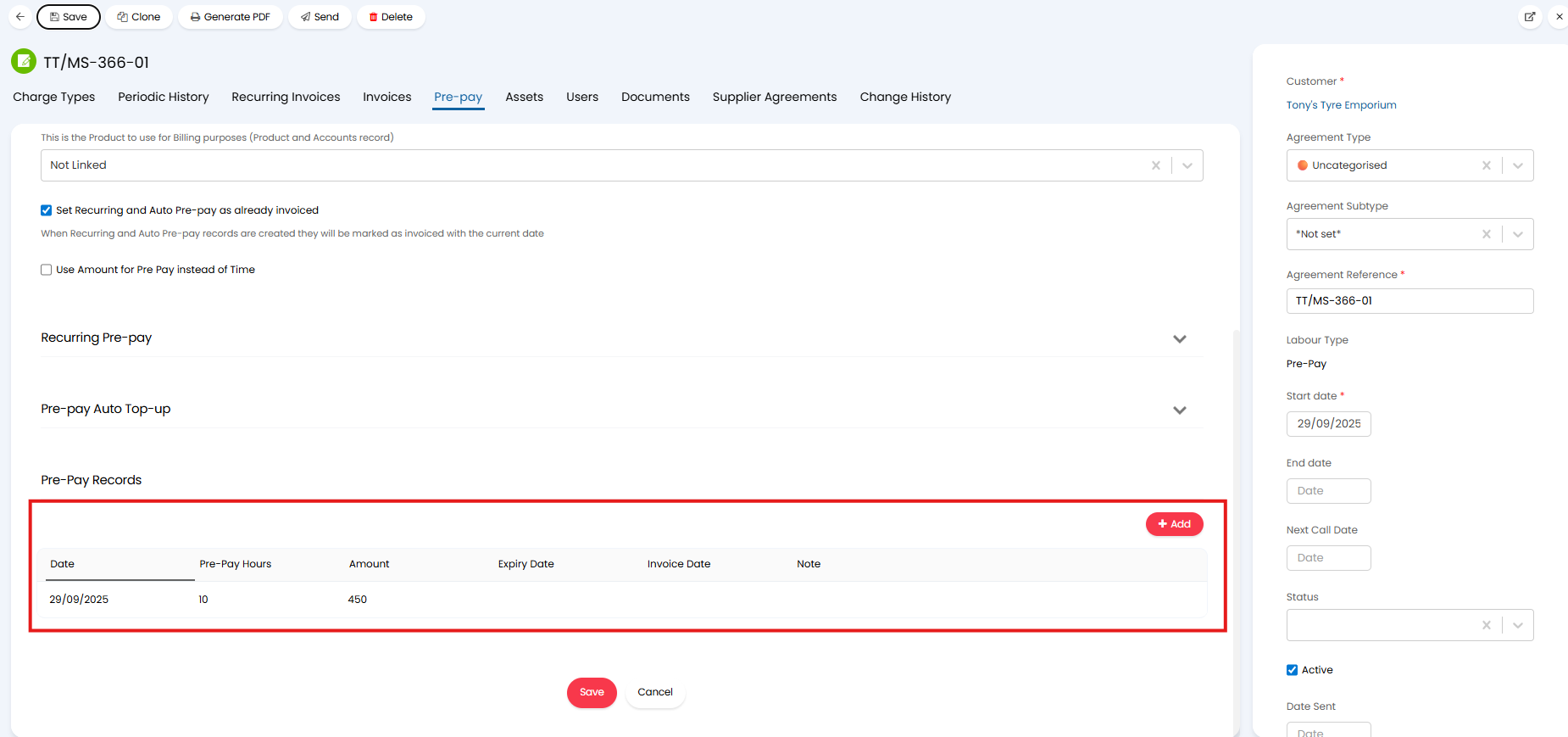
Fig 6. Pre-pay record added for the number of hours sold as part of the project.
I have set an overriding rate for my Remote Support charge type (figure 5). This rate reflects the hourly revenue earned for each hour worked on the project. In this example the project was sold for £450 so if 10 hours of work are to be completed, this would generate a revenue of £45 per hour.
I have also set the 'Charge Types selection' to be 'Agreement Charge Types and Global Charge Types with an override' (figure 5). This will ensure, when this contract is associated with a ticket (the project ticket) agents will only be able to choose from charge rates that have an override set against the contract.
I have also added a pre-pay record for 10 hours, that is worth £450 as £450 will be what the customer will be charged for the project (figure 6).
Note: Ensure you do not set an 'Invoice Date' against the Pre-Pay record, otherwise you will not be able to generate an invoice for this.
From v2.246+, when "Do not create deferred revenue invoices for this Agreement" is enabled for a Pre-Pay Agreement, any time logged against the Agreement will not appear in the Deferred Revenue section of Ready for Invoicing. This allows you you only defer revenue for selected Pre-Pay agreements. This allows you you only defer revenue for selected Pre-Pay agreements. In order to use this setting you must first set a "Product to use for non-deferred prepay invoices" in Configuration > Billing > General Settings.
Once your contract is setup, you can invoice for the project.
Invoicing the Project
In order to have the value paid for the project hours transferred into your deferred revenue account you cannot invoice the project from the sales order. Instead, you will need to invoice the project using the pre-pay record added to the contract.
To do this head to Ready for Invoicing > Pre-Pay and create the invoice from here.
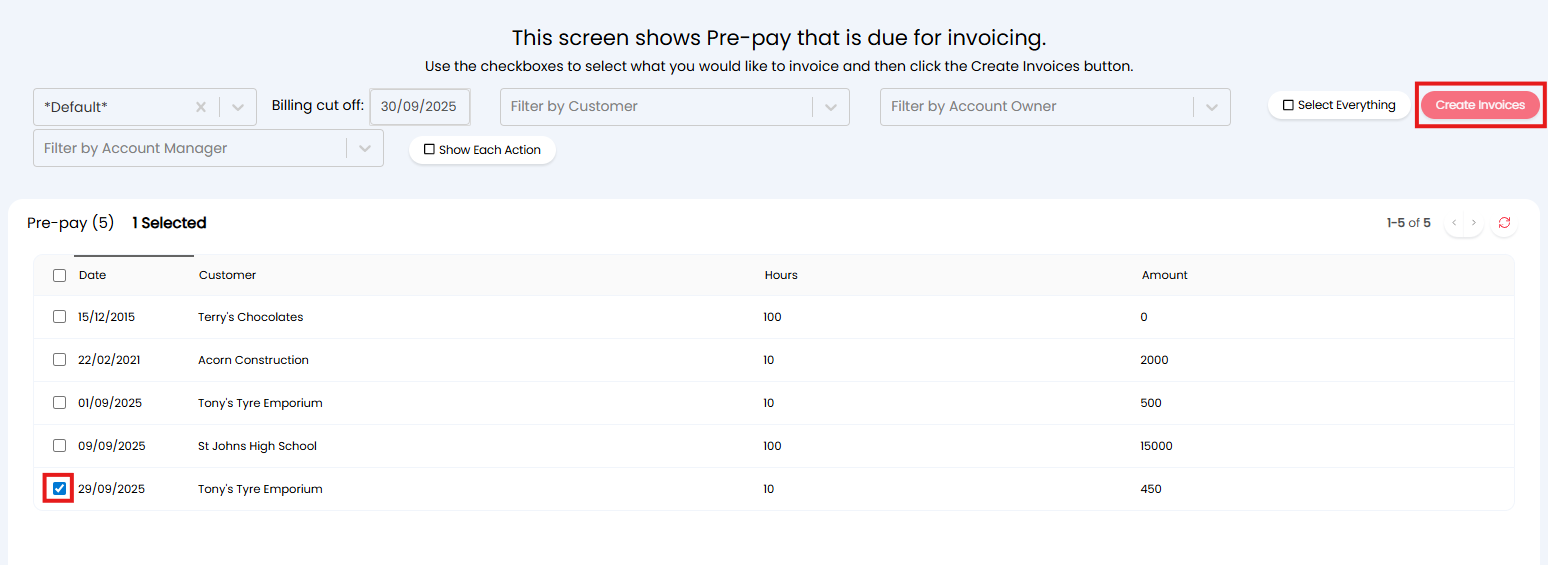
Fig 7. Create invoice for project.
The invoice created will have the value taken from the pre-pay record added to the contract. The line will be called 'Pre-Pay' by default, but this can be customised. The item selected earlier in the 'Product to use for Pre Pay and Deferred Revenue Invoice line' field will be used to represent the line. Should this item be setup correctly, this means the value of this line will be paid into your deferred revenue account. The invoice will be linked to the agreement created for the project automatically.
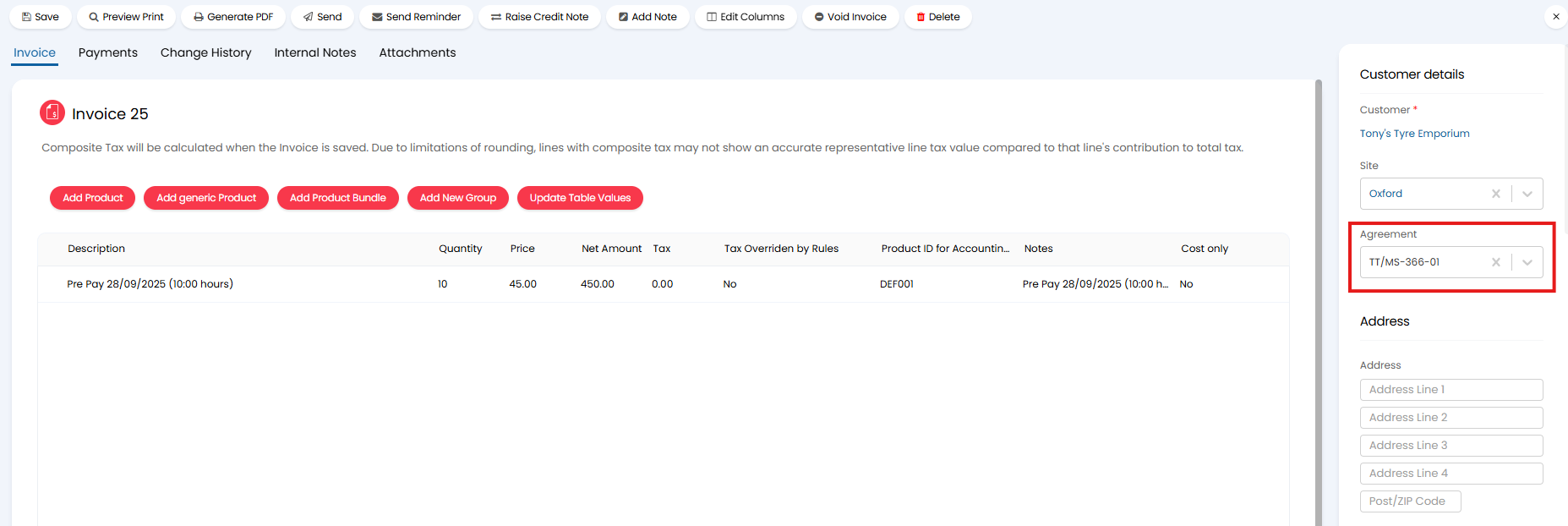
Fig 8. Project invoice to defer the revenue.
Now the invoice is created you can create the project itself.
Creating the Project
Before creating the Project ensure you have added the 'Agreement' field to both your Project and Project task ticket types.
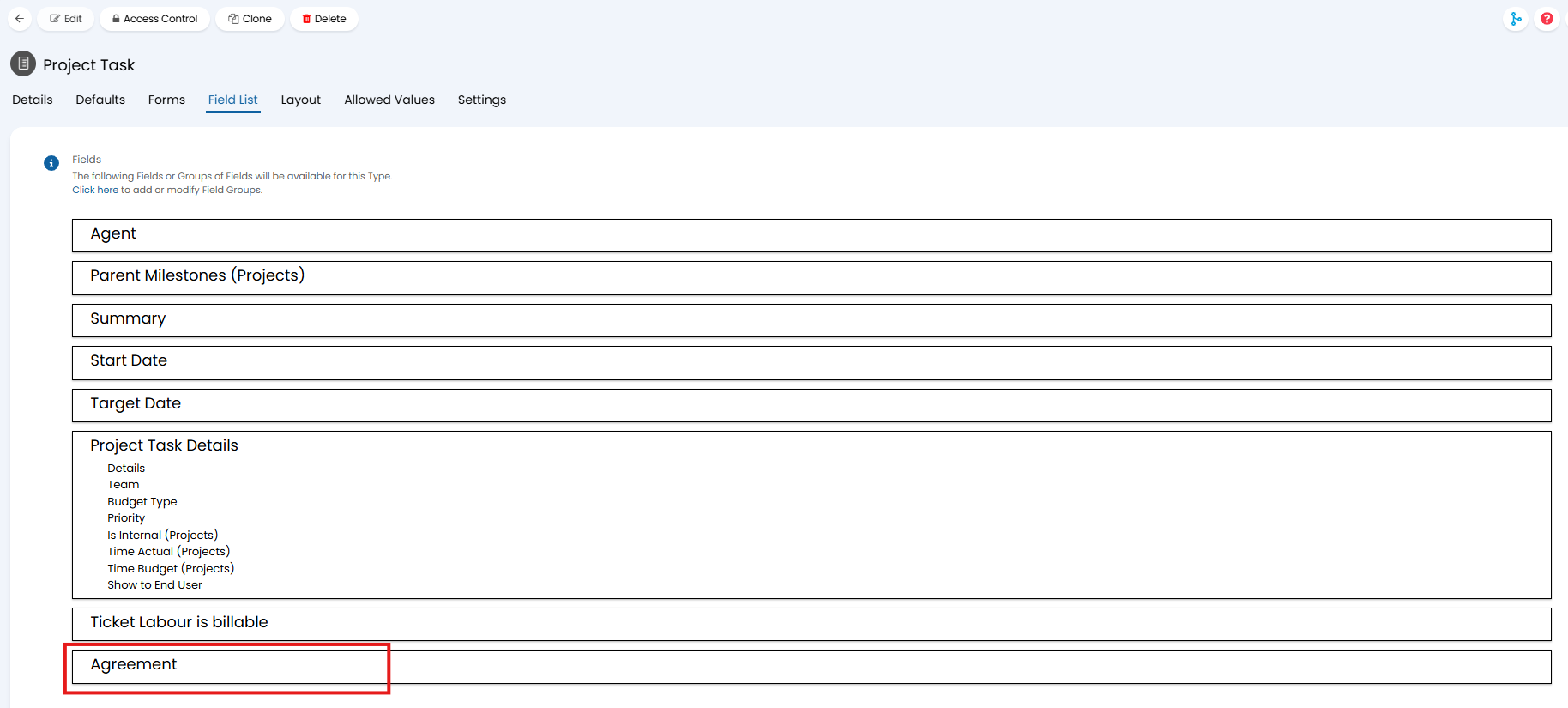
Fig 9. Agreement field added to Project Task ticket type.
Before creating the project from the sales order, you may wish to enable the ability to have the contract created from the sales order associated with the project and the project tasks automatically. The setting to enable this functionality is found under Configuration > Sales Orders, as shown in figure 10.
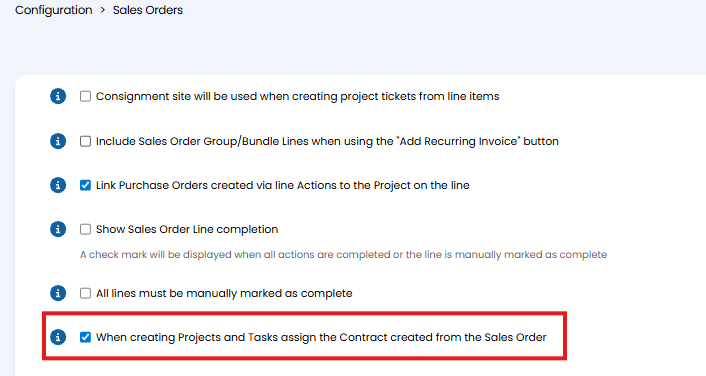
Fig 10. Setting to automatically link the contract created from the SO to the project tasks.
Now go ahead and create the project from the sales order.
Ensure both the project, and it's tasks are linked to the contract using the 'Agreement' field.
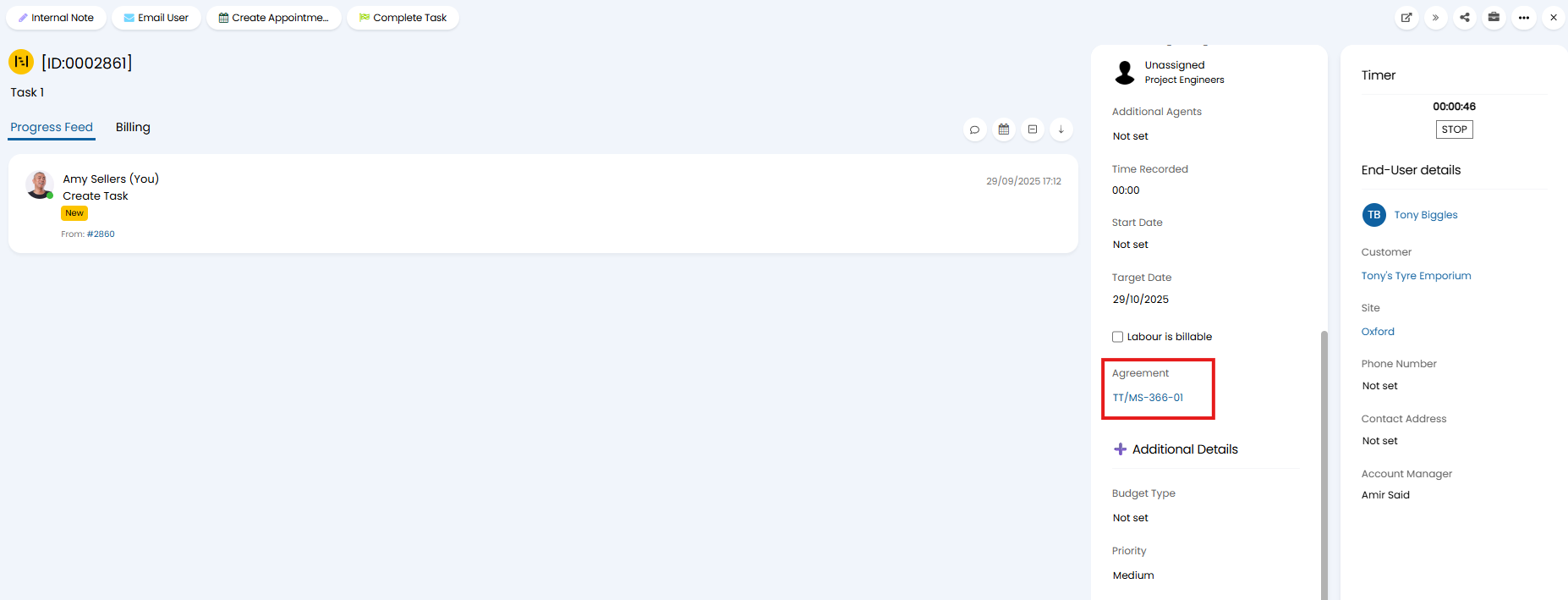
Fig 11. Project task associated with agreement using agreement field.
Now the project is setup you can log time on the project as usual. When completing actions, agents should only be able to select from charge types that have overrides set on the contract setup.
Recognising Revenue as work is completed
Agents can now log time on the project as they complete it, time logged here will automatically be deducted from the hours against the agreement associated with the project (overriding any billing rules).
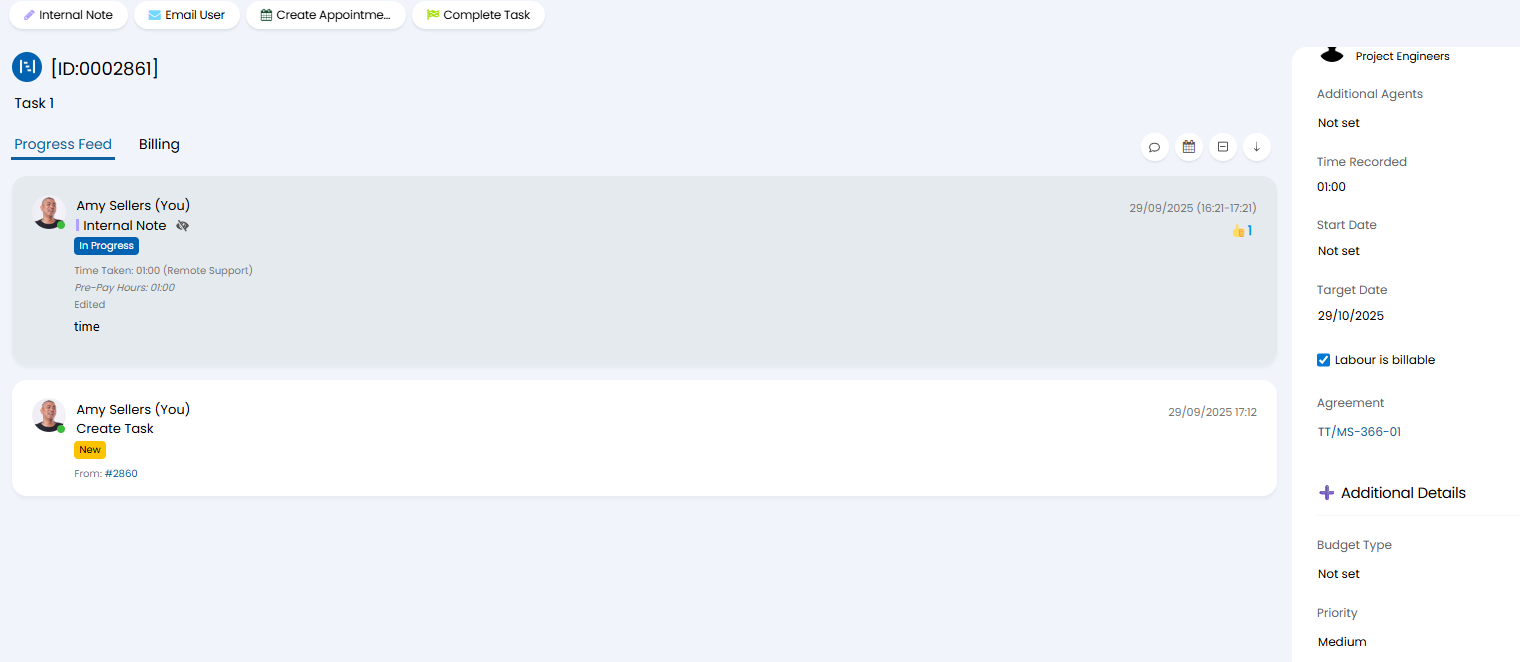
Fig 12. Time logged on project
Once each project task is closed the hours logged on the task will be available to have their value recognised.
Note: If you would like to recognise value before the task is closed adjust the 'Status of Tickets before they are able to be invoiced' against the ticket type.
To do this, head to Ready for Invoicing > Deferred Revenue. Here, you will see the hours that have been completed in the 'Deferred Revenue for Pre-Pay table'. Select the entries you would like to recognise the revenue for and create an invoice.
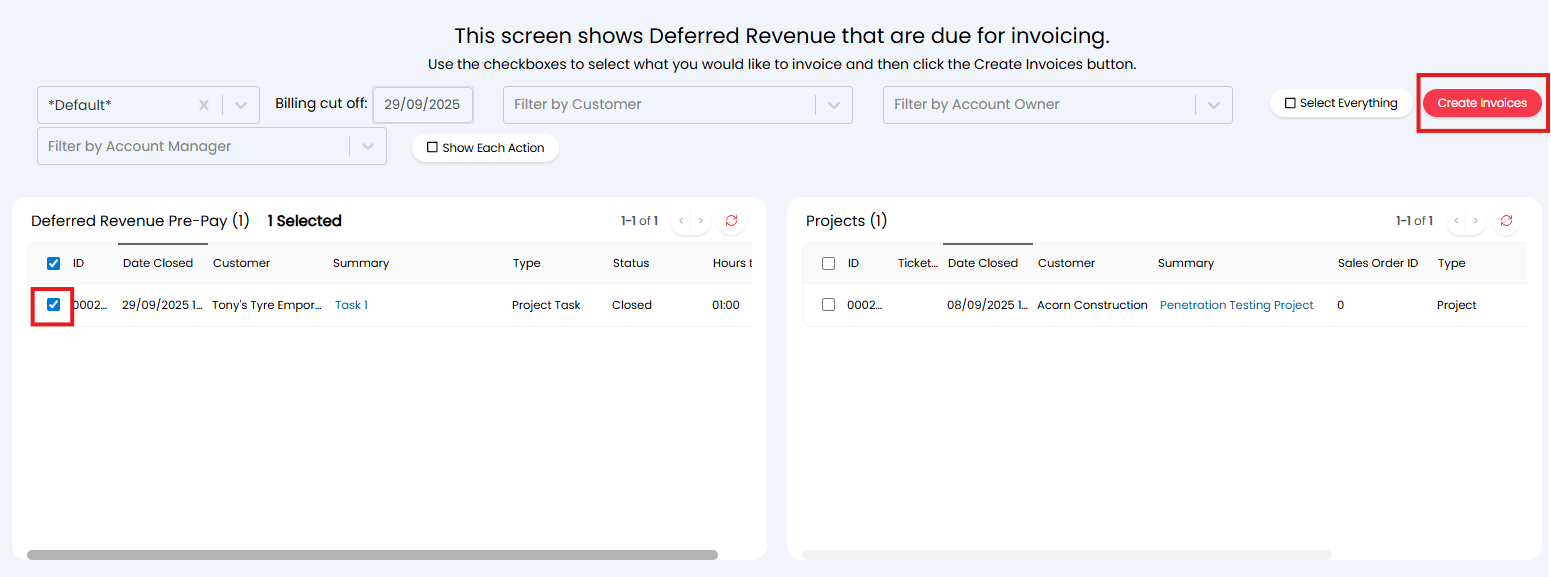
Fig 13. Create invoice for deferred revenue
The created invoice will look as shown in figure 14.
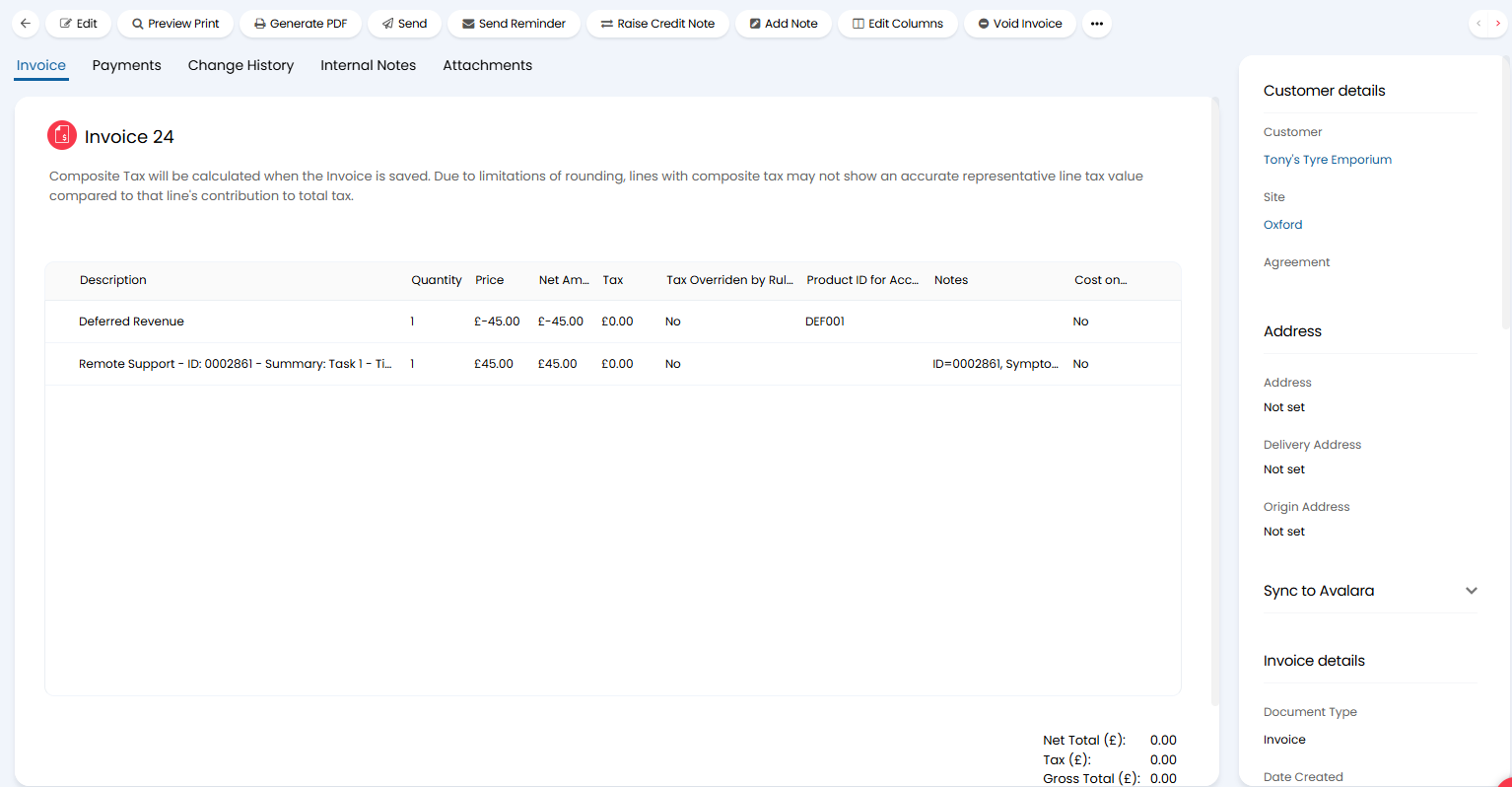
Fig 14. Invoice created to recognise the revenue
You will see here there is a positive and negative line on the invoice for the same value, this gives the invoice an overall value of 0.
The positive line represents the value of the hours that have been worked, that is, the value of the hours that need to become recognised revenue.
The negative line represents the deferred revenue account being used to 'pay' for this invoice. In other words, the amount of money that is being taken out of the deferred revenue account.
As the invoice has 0 value the customer will not be sent the invoice, this invoice is just created in order to sync to your accounting tool, moving the revenue from your deferred revenue account into your standard income account. Resulting in the revenue now being recognised.
These deferred revenue invoices will need to be created on a regular basis, usually in line with your (weekly/monthly) billing cycles, to ensure the revenue is recognised at the correct time.
Once the project is complete ensure to recognise any leftover hours. If the customer exceeds the hours purchased the deferred revenue allocated to the project will be exhausted. This means the customer will need to be charged on a PAYG basis for the work completed or not be invoiced (and you absorb the cost).
Invoicing from the Sales Order
Invoices created from a sales order can be recognised as deferred revenue by manually linking the records together.
After creating a sales order, create an agreement against the line as before. Ensure the product used is marked as "Is a contract".
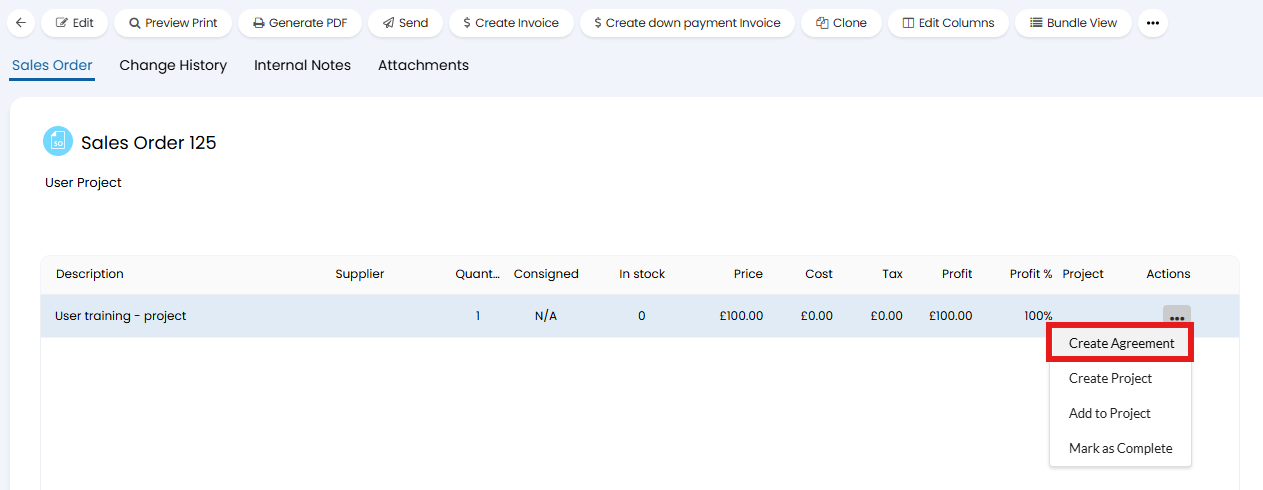 Fig 15. Creating an agreement from a sales order.
When creating the agreement, ensure the "Labour Type" is set to "Pre-Pay".
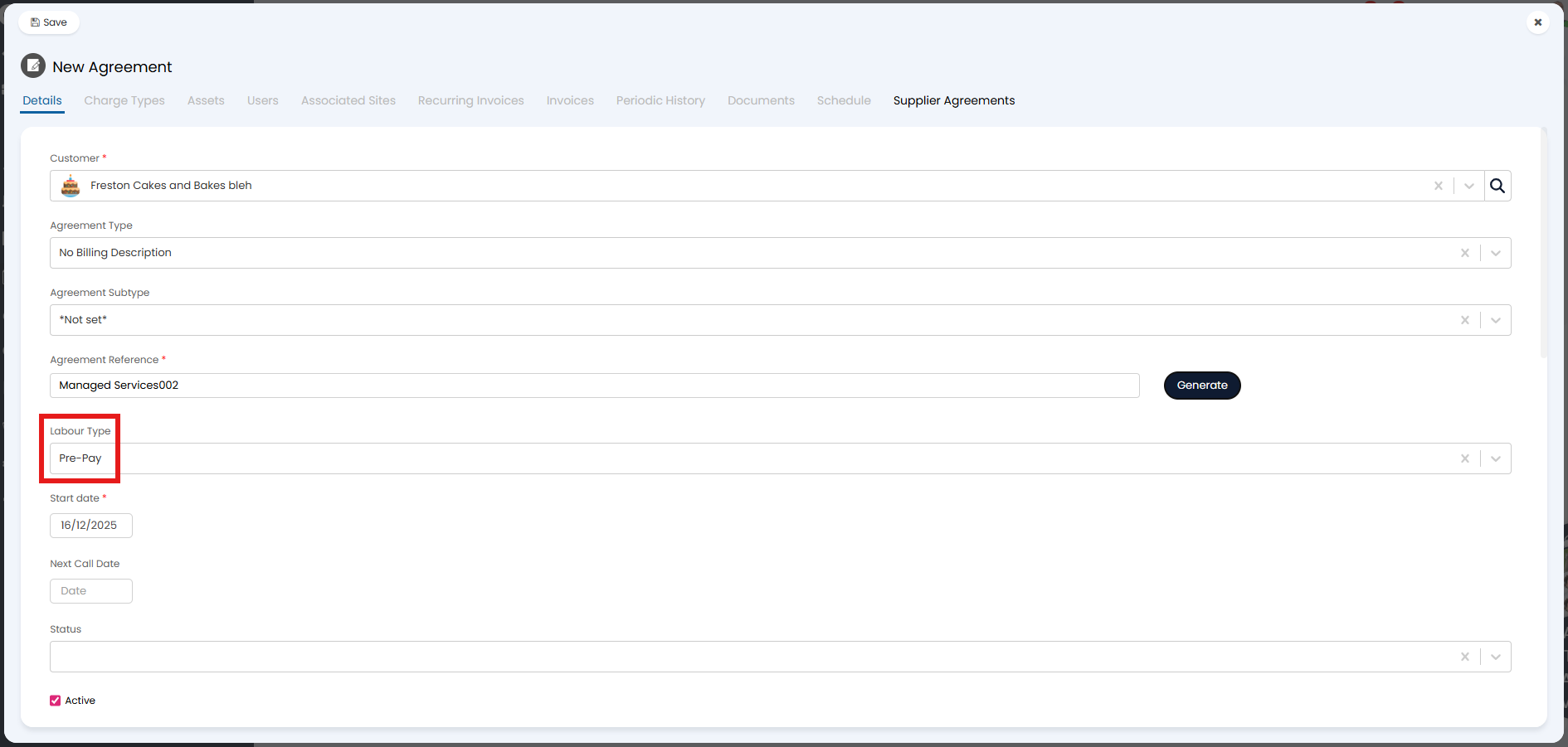
Fig 16. Creating a pre-pay agreement.
Using this method, you will now be able to click the "Create Invoice" button on your sales order, and choose the method/percentage that you wish to invoice.
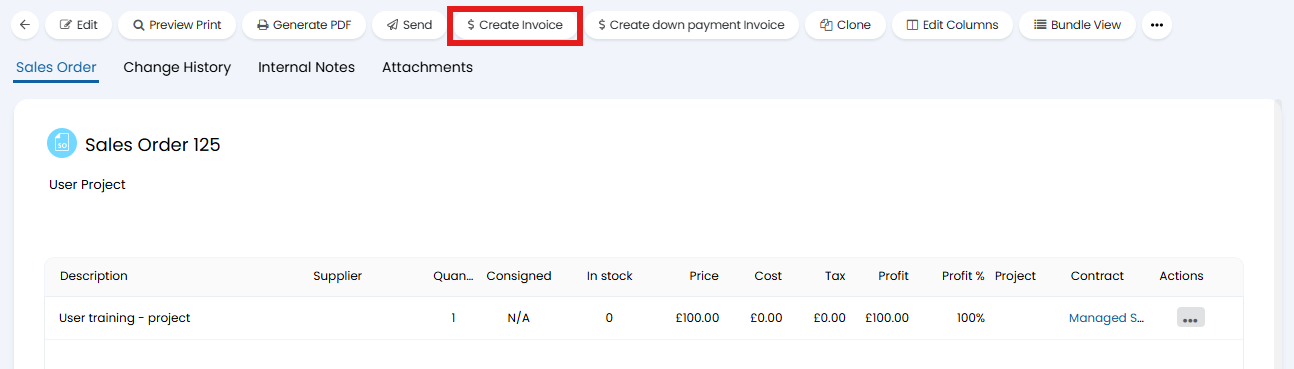
Fig 17. Creating the invoice.
Now that you have created the invoice, you will now be able to manually link a line on that invoice to a pre-pay records against the agreement you created from the sales order. Click the "Add" button here.
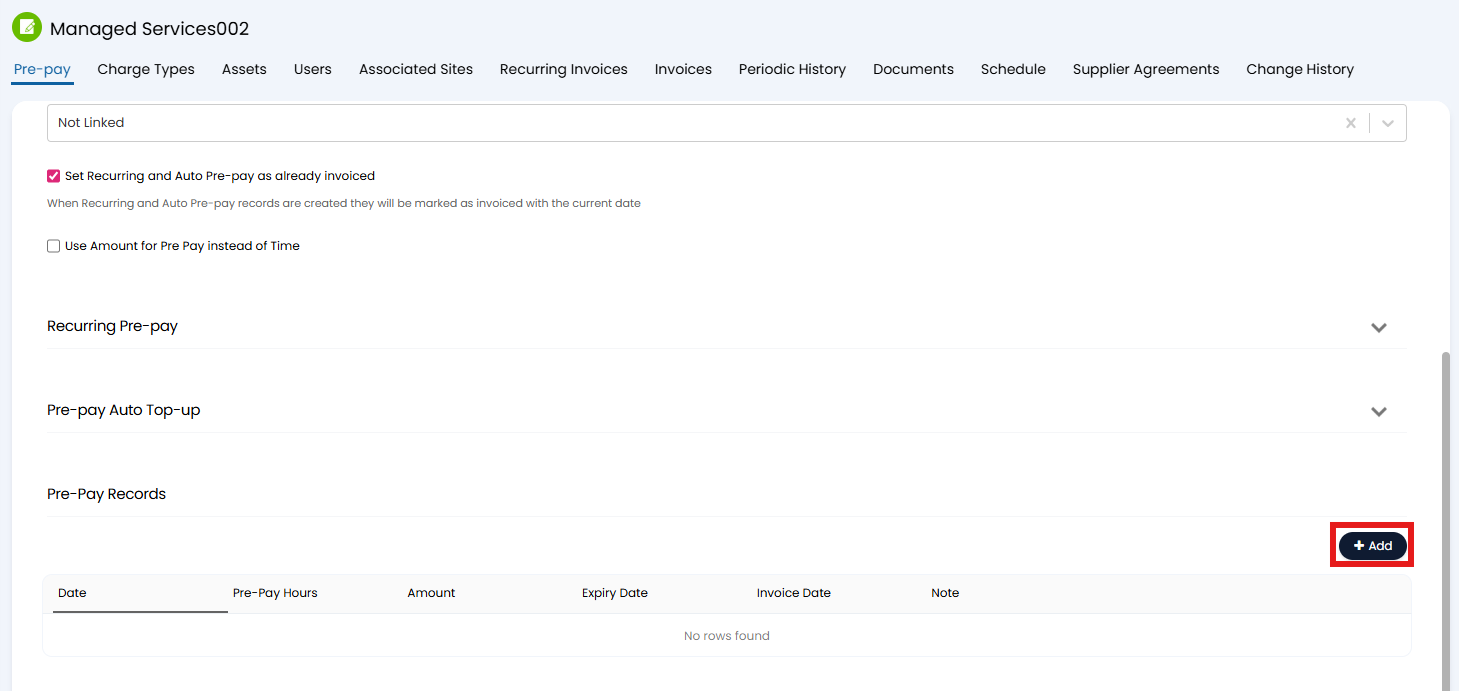 Fig 18. Pre-pay records on an agreement.
Against the record on the agreement, set the pre-pay hours and amount. Then, link the relevant line on the invoice we created within the "Related invoice line" dropdown.
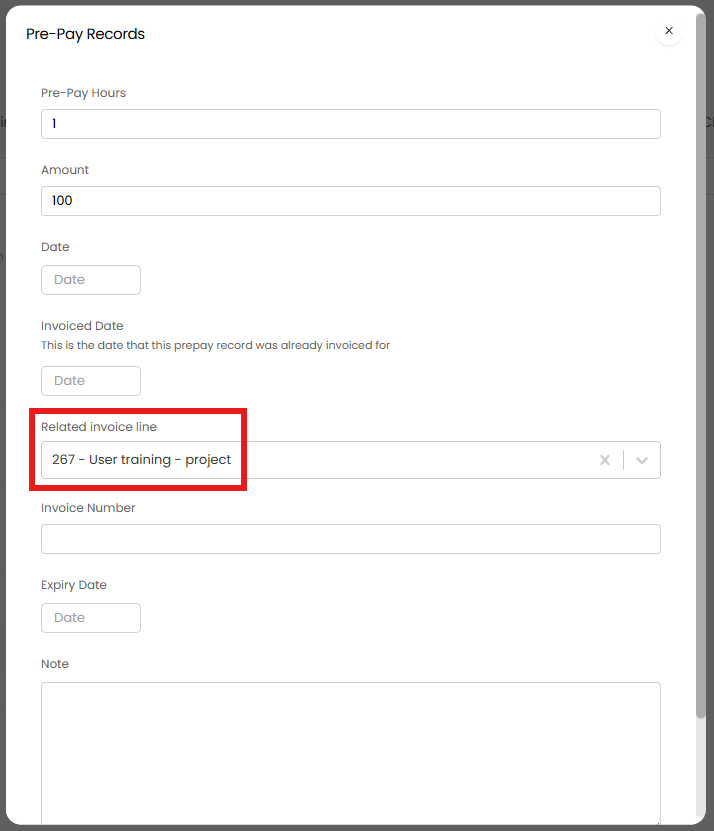
Fig 19. Linking the invoice line to the pre-pay records.
Going back to the sales order, you can now create a project from the line. Ensure a project template is set against the product.
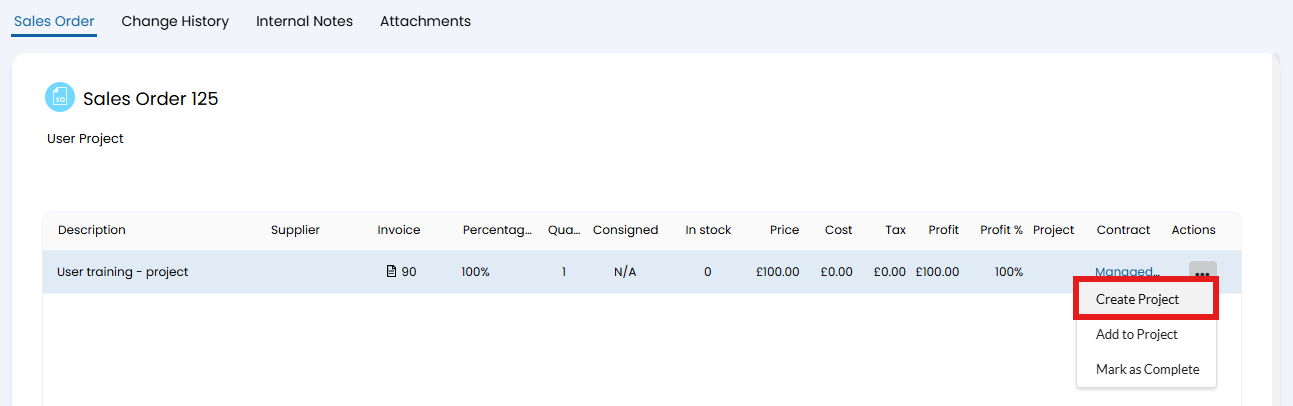 Fig 20. Creating a project from a sales order line.
You can now log time against your project, which will go against the pre-pay hours of that agreement.
Note: Ensure the "Agreement" field is added to the ticket type and has the agreement that was created set in that field.
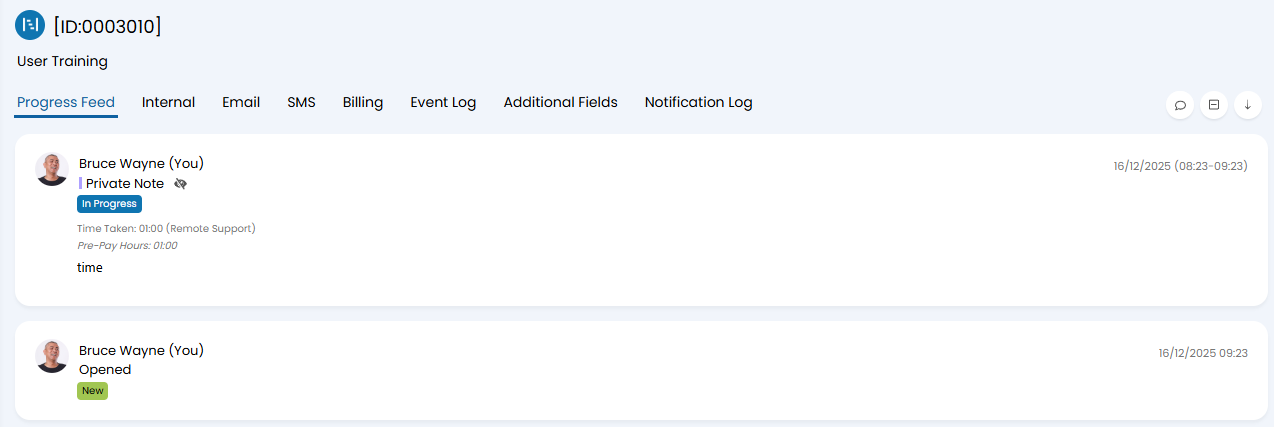 Fig 21. Logging time on the project.
The time will show in the "Deferred Revenue" section of "Ready for Invoicing", within the "Deferred Revenue Pre-Pay" table. Here you can create the invoice for the time against the project to recognise the revenue.
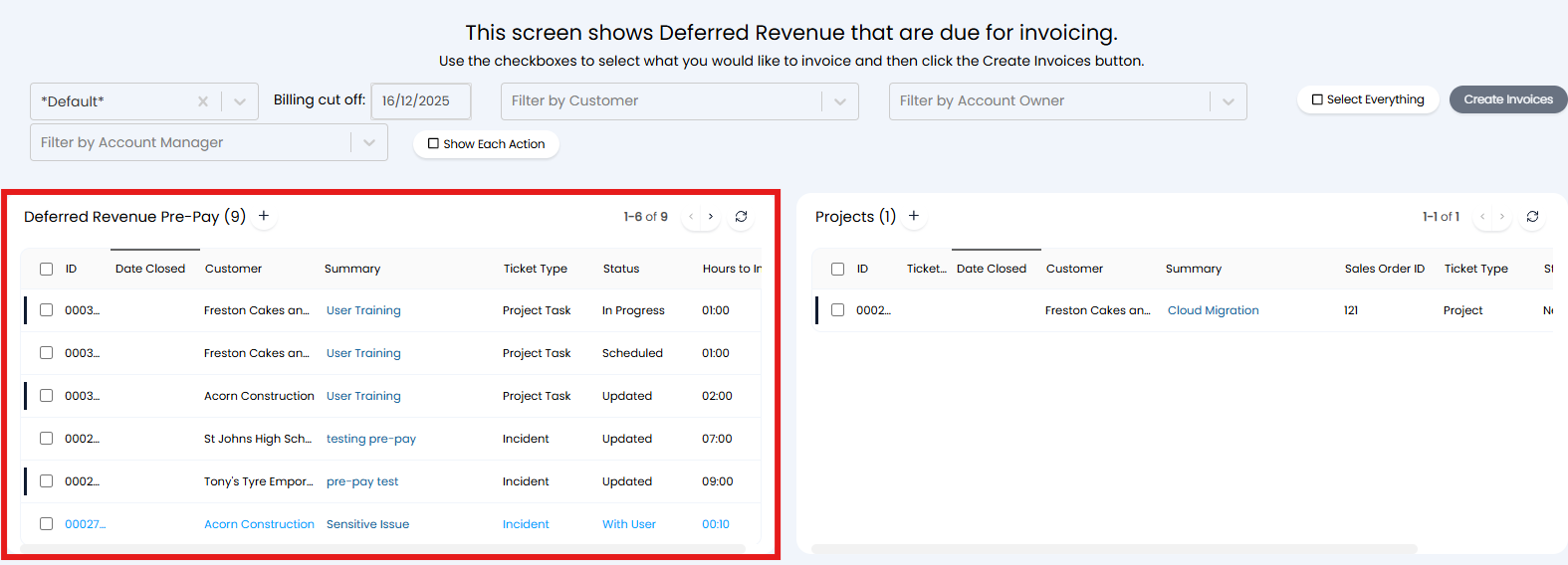
Fig 22. Deferred revenue in Ready for Invoicing.
The invoice will be created in the same format, with a positive and negative line to equal 0 overall, which will sync to your accounting tool and move the revenue from your deferred revenue account into your standard income account. Resulting in the revenue now being recognised.
These deferred revenue invoices will need to be created on a regular basis, usually in line with your (weekly/monthly) billing cycles, to ensure the revenue is recognised at the correct time.
Once the project is complete ensure to recognise any leftover hours. If the customer exceeds the hours purchased the deferred revenue allocated to the project will be exhausted. This means the customer will need to be charged on a PAYG basis for the work completed or not be invoiced (and you absorb the cost).

Fig 23. Invoice created recognising the revenue.
From v2.248+, if the customer exceeds the hours or amount of pre-pay you can control how this is reflected on the Deferred Revenue Invoice. In Configuration > Billing > General Setting, when the option "Recognise all deferred revenue pre-pay time entries, ignoring existing invoice totals" is selected, any Deferred pre-pay entries which have resulted in a negative balance will be ignored.
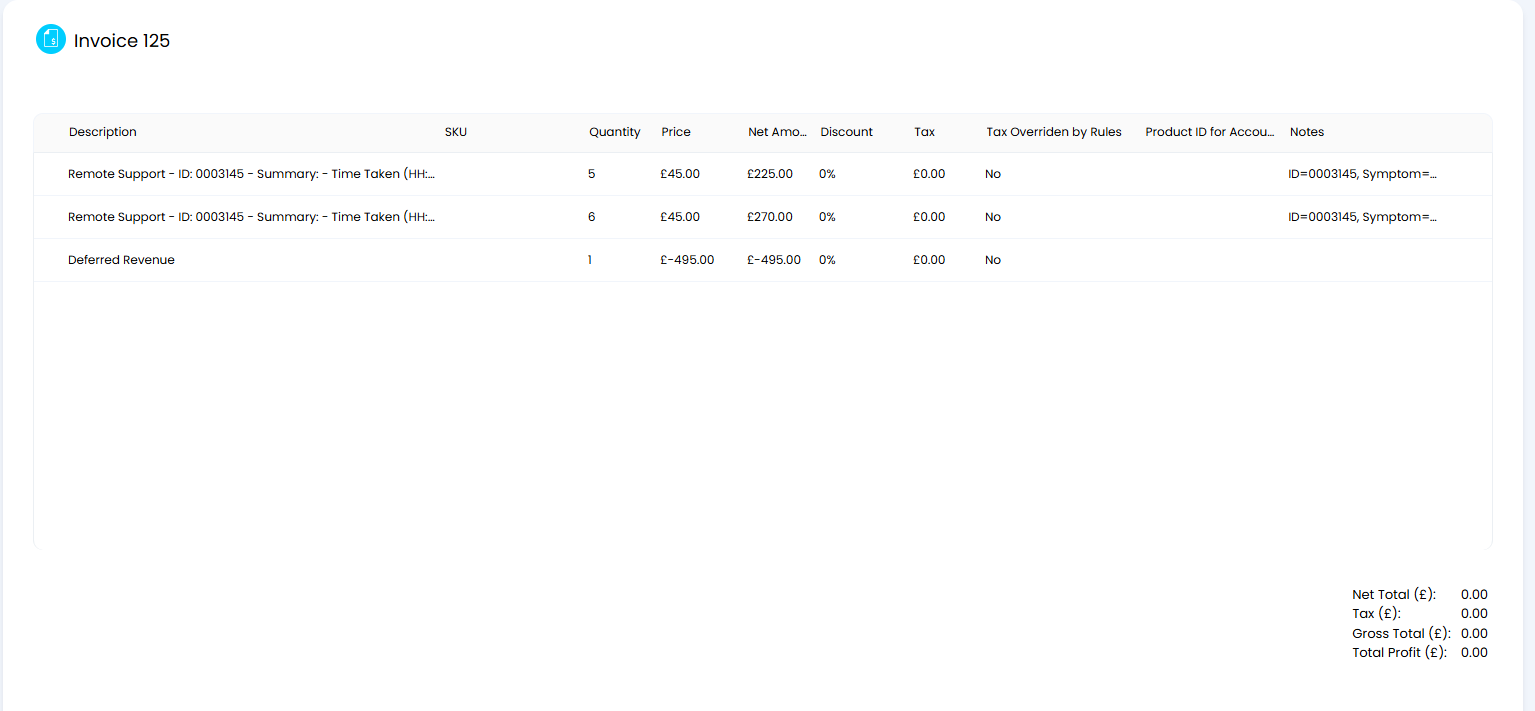
Fig 24. Recognised Pre-Pay
When this setting is deselected, the invoice will include the excess used as profit.
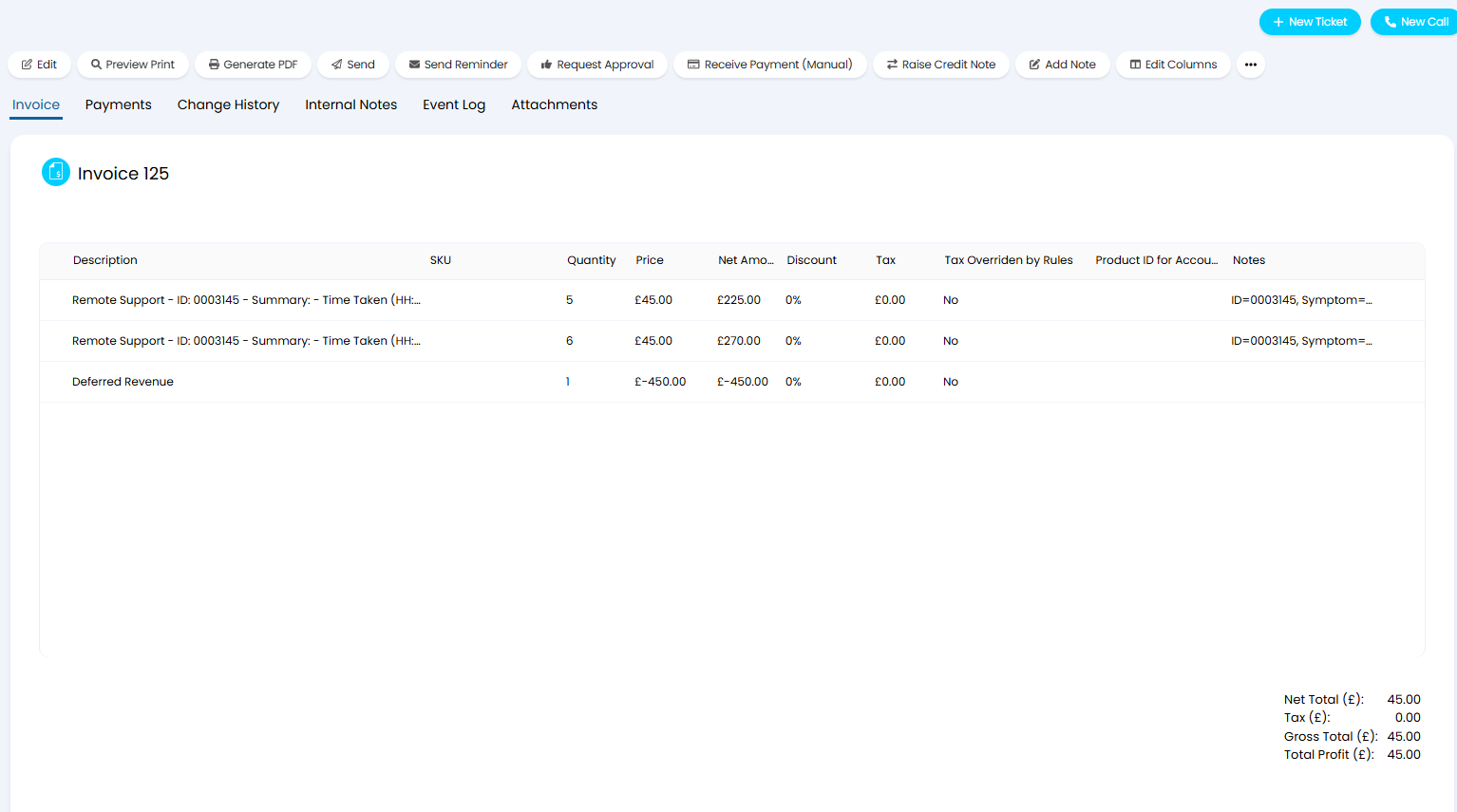
Fig 25. Recognised Pre-Pay with profit
From v2.248+, you can opt to exclude tax, applying the deferred revenue item tax instead, or include tax without taxing the recognition line. To do this choose the relevant option from the "Deferred Revenue tax method" dropdown in Configuration > Billing > General Settings. If you choose to "Exclude Tax from recognition total and apply deferred revenue item tax", the recognition line of your invoice will show the Deferred Revenue Item's tax. If you instead choose to "Include Tax from recognition total and do not tax recognition line", the recognition total will be taxed.
Deferred Revenue for Down payments
For information on deferred revenue for down payments checkout our dedicated guide Down Payments.