Deferring Project Revenue
In this guide we will cover:
- Initial Setup
- Creating Down Payments
- Recognising Down Payment Revenue from Fixed Price Projects
- Recognising Down Payment Revenue from Time and Materials Projects
Deferred Revenue functionality in Halo allows you to take down payments (deposits) for projects upfront, but not yet have this revenue recognised in your accounting tool. You can recognise this revenue later on, when project work has begun and the revenue has been 'earnt'. Both fixed price and T&M projects can have the down payment revenue recognised at any point during the project, or when invoicing the final outstanding project amount. Time and material (T&M) projects can also have the down payment revenue recognised as labour (time) is logged on the project.
Initial Setup
Enable Deferred Revenue
First, you will need to enable deferred revenue. This is enabled under Configuration > Billing > General Settings, 'Enable Deferred Revenue'.
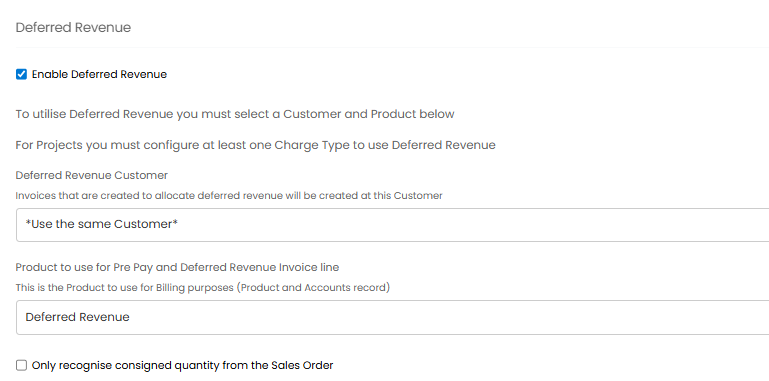
Fig 1. 'Enable Deferred revenue' setting
Now, you can set a 'Deferred Revenue Customer' (optional) and a 'Product to use for Pre Pay and Deferred Revenue Invoice line' (mandatory).
Deferred Revenue Customer - If you would like deferred revenue to be stored against a different customer to the customer that generated the revenue, choose a customer here. If set, all deferred revenue will be stored against this customer until it is recognised. If not set deferred revenue will be stored against the customer that generated the revenue.
Product to use for Pre Pay and Deferred Revenue Invoice line - Here, choose the product that you would like to represent pre-pay on invoices when using deferred revenue for pre-pay. The product chosen here should be assigned the accounts code used for your deferred revenue. Alternatively, the product can be linked to the item in your accounting integration that is mapped to your deferred revenue account. You may wish to create a new product in Halo for this, as we have done in Figure 1.
Only recognise consigned quantity from the Sales Order - If enabled, only items that are consigned will be able to be recognised (should a down payment be taken for the item). Enable this if you want to recognise the revenue of an item sold only after it has been consigned to the customer.
Enable Down Payments
Also under, Configuration > Billing > General Settings, you will need to enable "Allow creation of down payment invoices from sales orders".
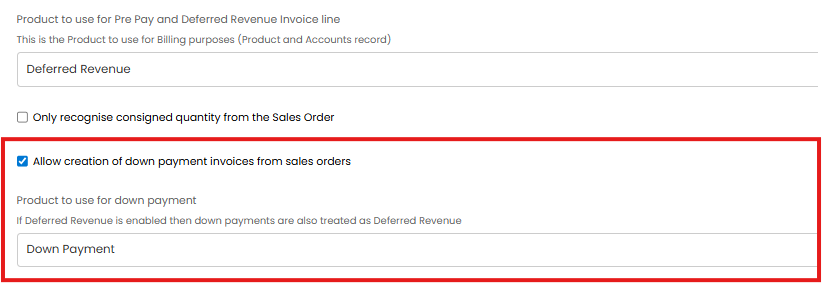
Fig 2. Enable the ability to create down payment invoices from sales orders
This will allow you to take down payments for sales orders. These down payments will have their revenue deferred. The product chosen here should be assigned the accounts code associated with your deferred revenue account. Alternatively, the product can be linked to the item in your accounting integration that is mapped to your deferred revenue account. You may wish to create a new product in Halo for this, as we have done in Figure 2.
Product Setup - Fixed vs Time and Materials Projects
When deferring project revenue using Halo, you will need to create the project ticket from a sales order. The products representing the project on the sales order must be configured accordingly. For information on the general setup of products to allow projects to be created from a sales order checkout Creating a Project From a Sales Order.
Against your project products you will also need to set whether the product is being billed using a fixed price or on a T&M basis. This is set using the "Project billing type" field against the project.
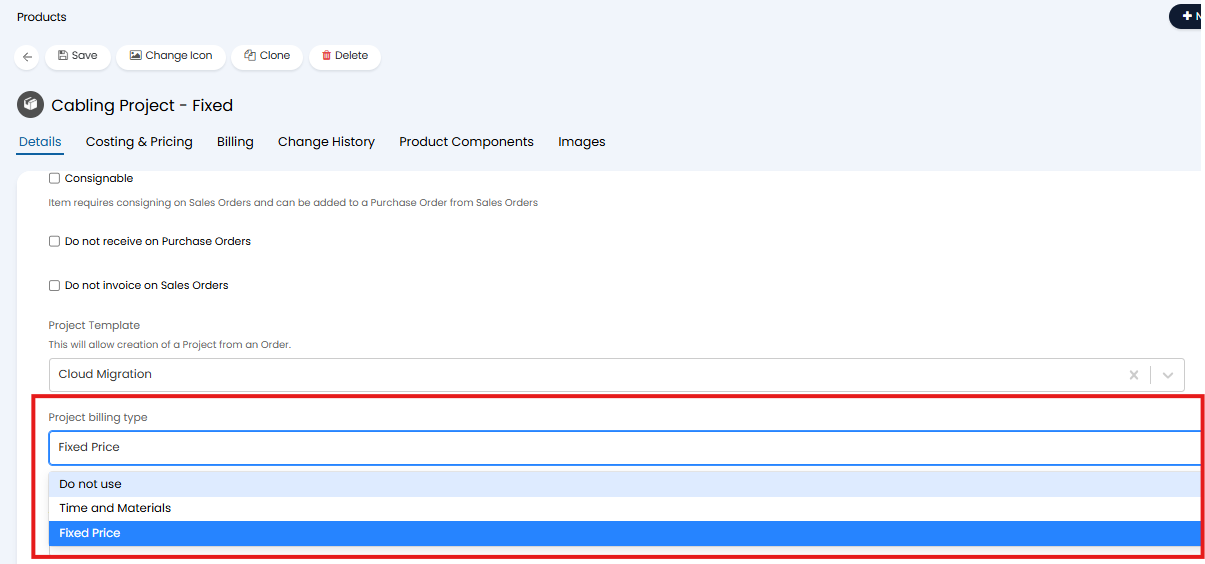
Fig 3. Project billing type for product
Charge Rates - Time and Materials Only
If billing projects on a T&M basis you will need to create a new charge type(s) to use for deferred revenue. These charge types will need to be marked as being used for deferred revenue to allow the value of the labour to be deferred.
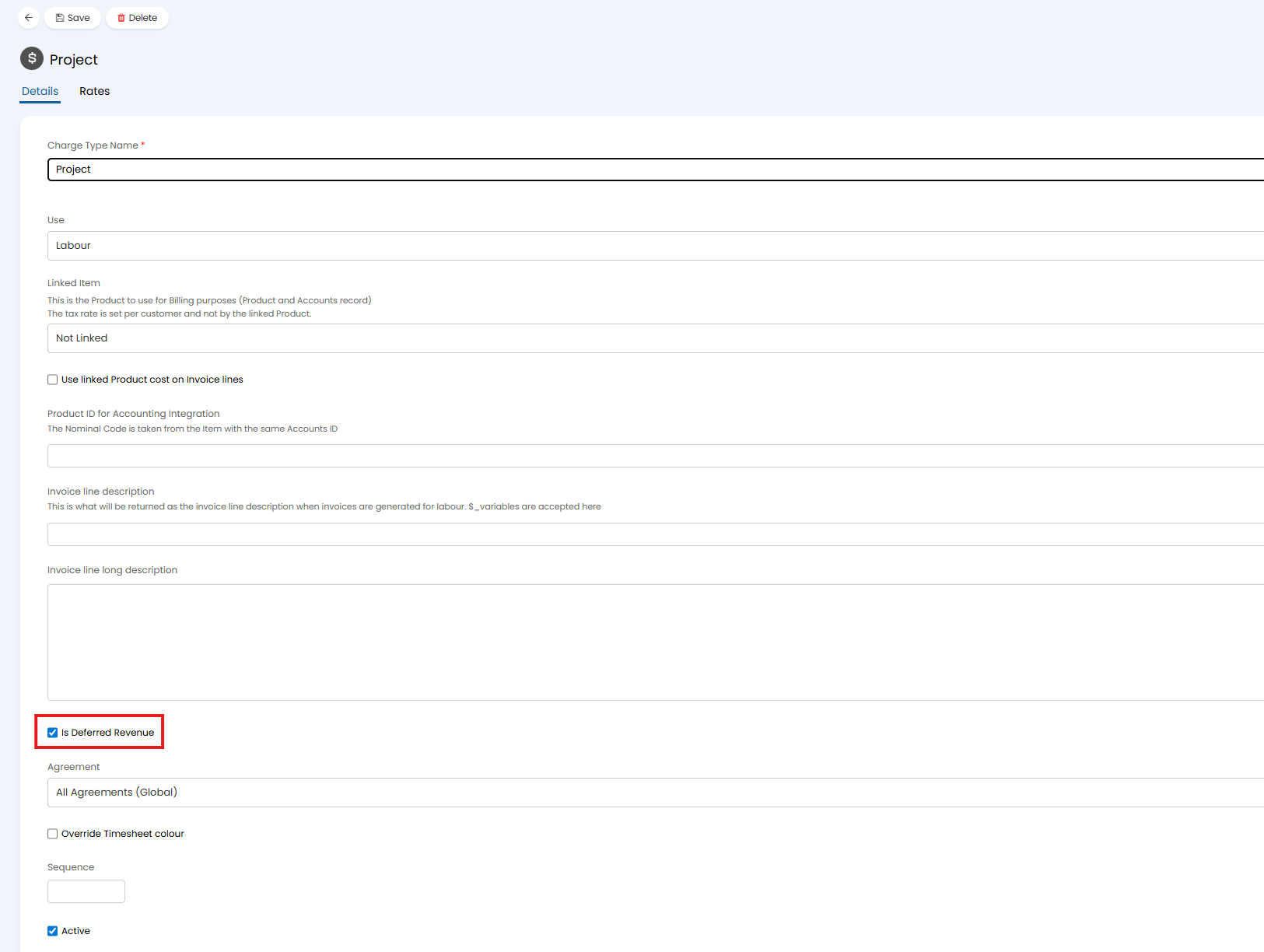
Fig 4. Mark charge type as being used for deferred revenue
The rates of your charge type(s) will determine the amount of revenue work generates. It is important to keep this in mind when quoting projects, as if quoting for 10 hours of work, the price of the line should equate to the charge rate x quantity of hours, to ensure value is deferred correctly.
If you have multiple rates of work, you will need to create multiple deferred revenue charge types, and quote these as separate lines.
Add lines to Project
Once the project has been created from the sales order ensure you add any other lines to the project. This is done using the "Add to Project" action.
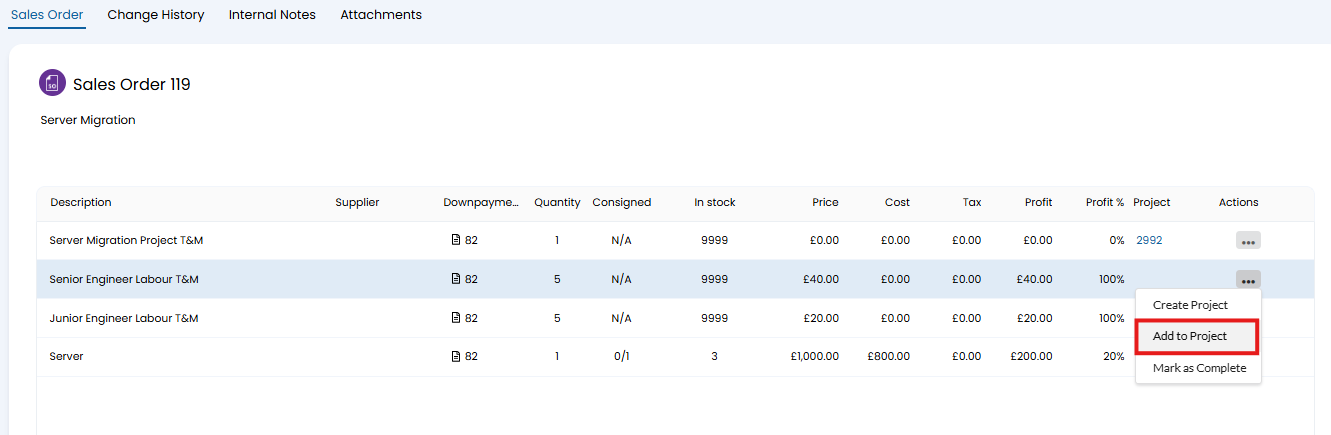 Fig 5. Add line item to Project
Creating Down Payments
Down payments are created from the sales order for the project, using the "Create down payment Invoice" button.
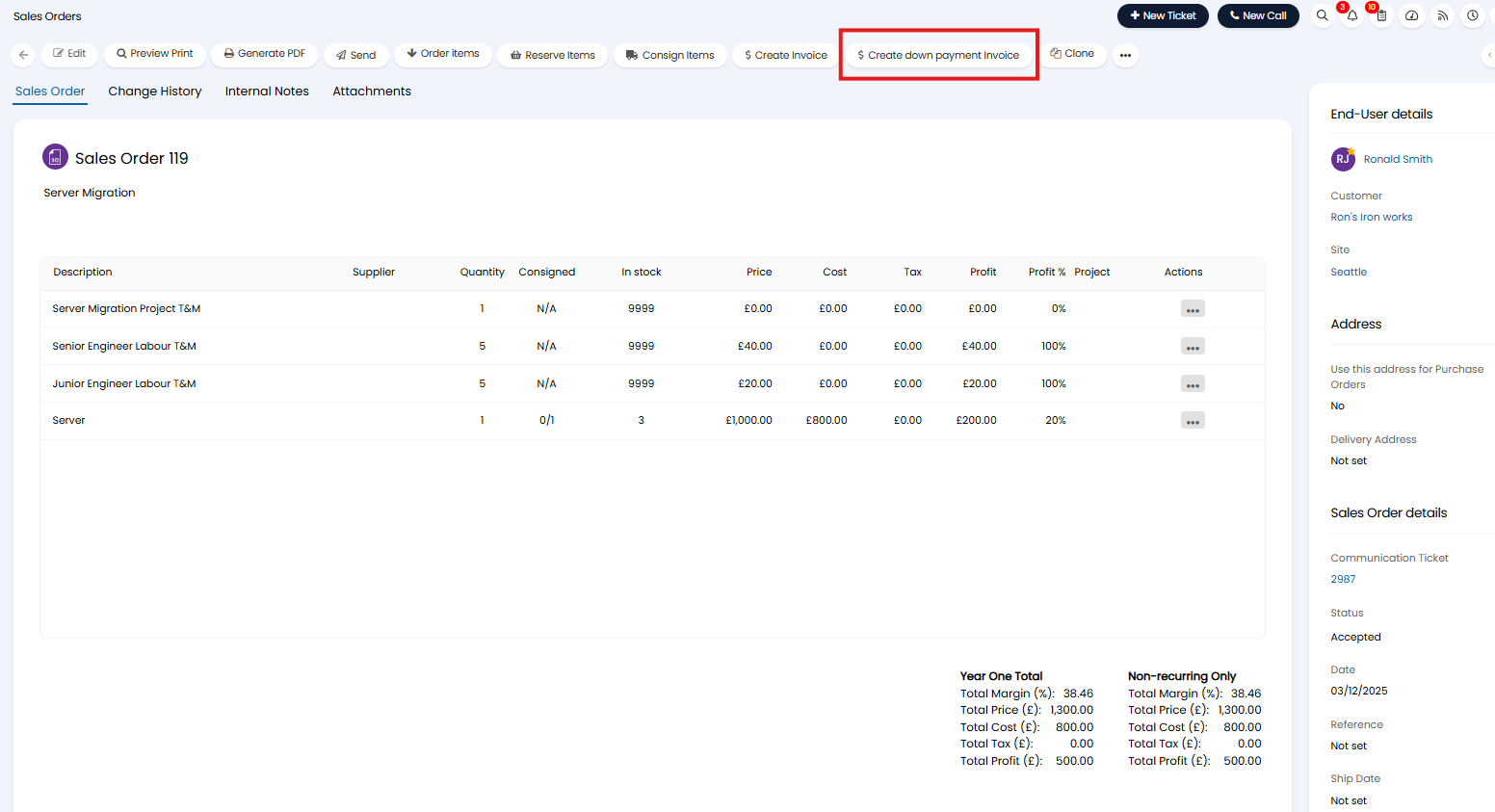
Fig 6. Create Down payment
When creating a down payment you have various options to control how much of the order a down payment is taken for.
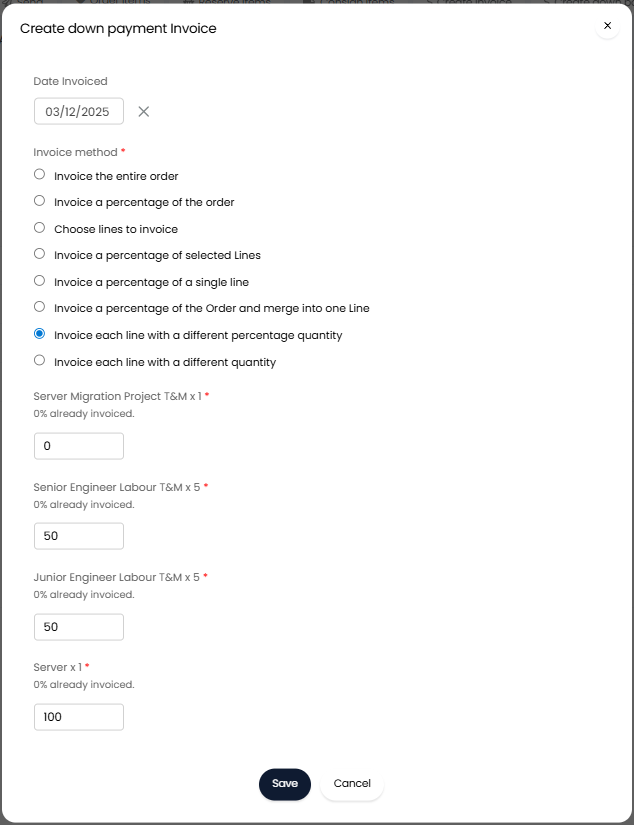
Fig 7. Create down payment
In the Figure 7 example we have selected "Invoice each line with a different percentage quantity" which allows us to choose the percentage of each line we would like to take payment for. The hardware is being invoiced in full, but the labour is being partially invoiced.
A 'down payment invoice' will be created and linked to the sales order.
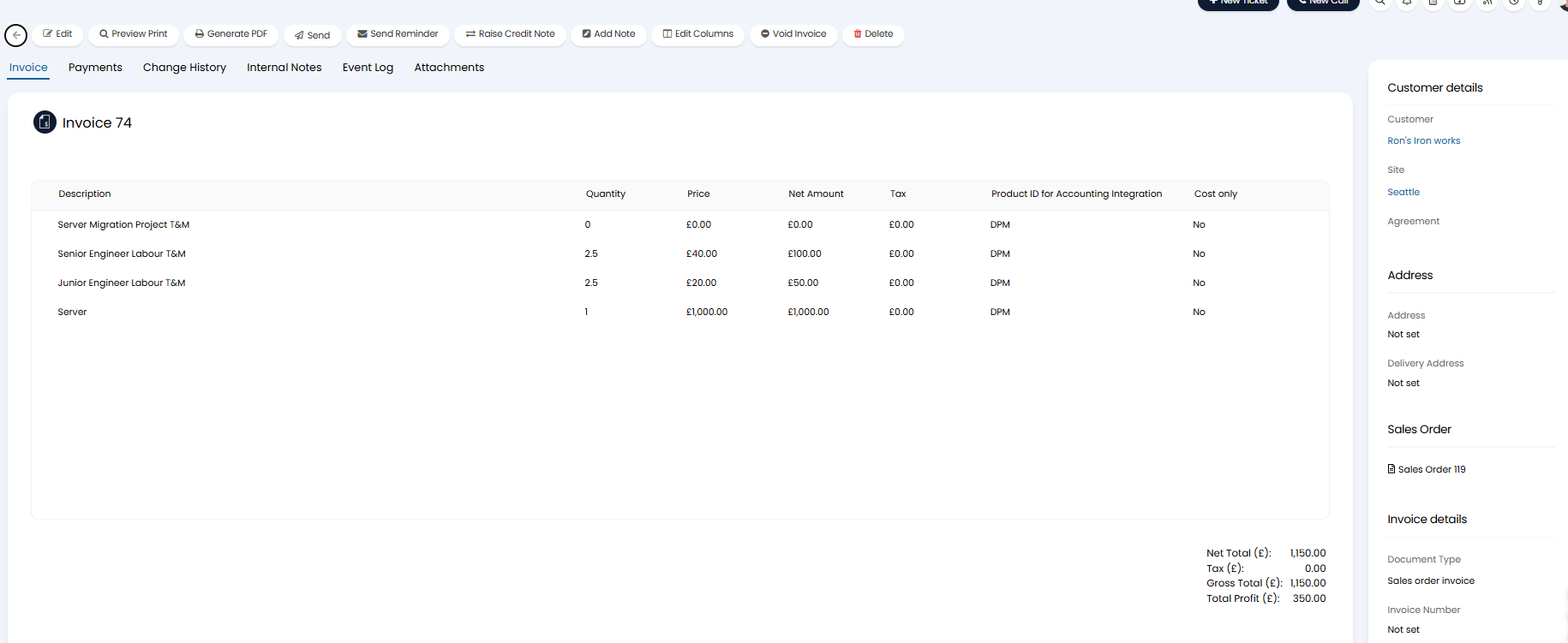
Fig 8. Down payment invoice
The names of the lines on the invoice will be copied from the sales order lines, but all lines will use the down payment product (set earlier). This means when the invoice is synced to your accounting tool, the revenue will be attributed to your deferred revenue account.
This invoice will be sent of to the customer so payment can be taken.
Recognising Down Payment Revenue from Fixed Price Projects
Down payments taken for fixed projects can be recognised in one of two ways. The full value of the down payment can be recognised at any point from the ready for invoicing area (manually). Or, the the down payment value can be recognised at the same time as invoicing the outstanding amount on the sales order.
Recognise Down payment value manually
To do this head to the "Deferred Revenue" section of the Ready For Invoicing area, here you will see a table containing "Downpayments (from Sales Orders)".
Here, select the down payment invoice you would like to recognise, and generate the invoice.
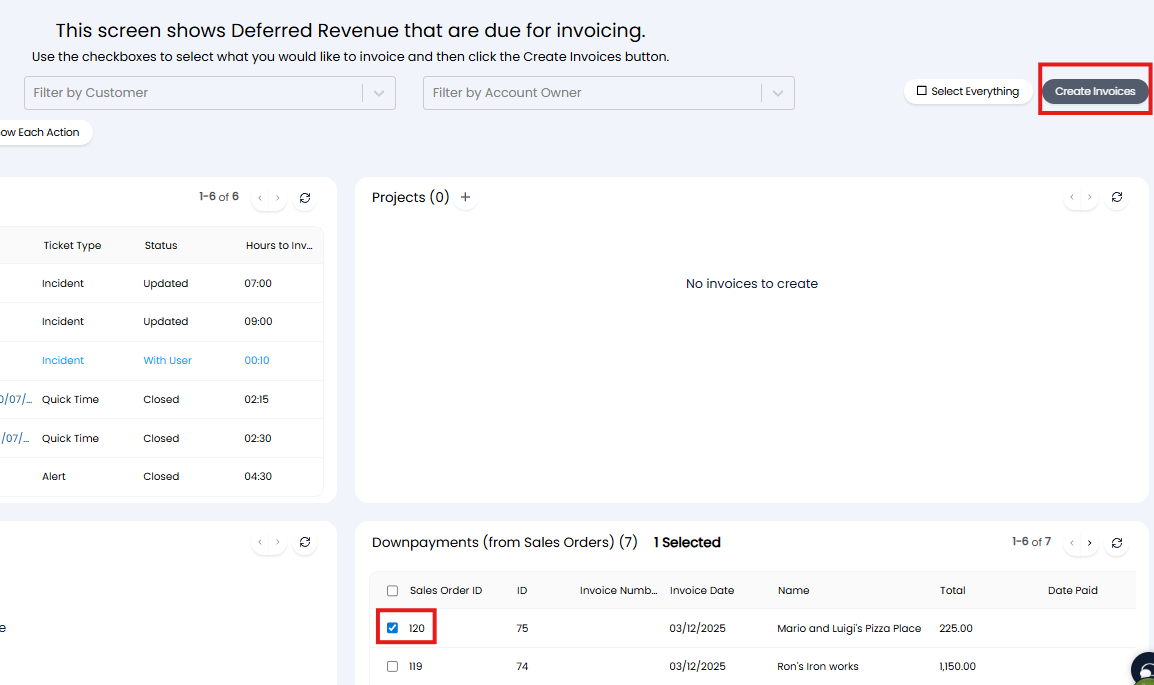
Fig 9. Recognise down payment
This will create a zero value invoice, as shown in Figure 10.
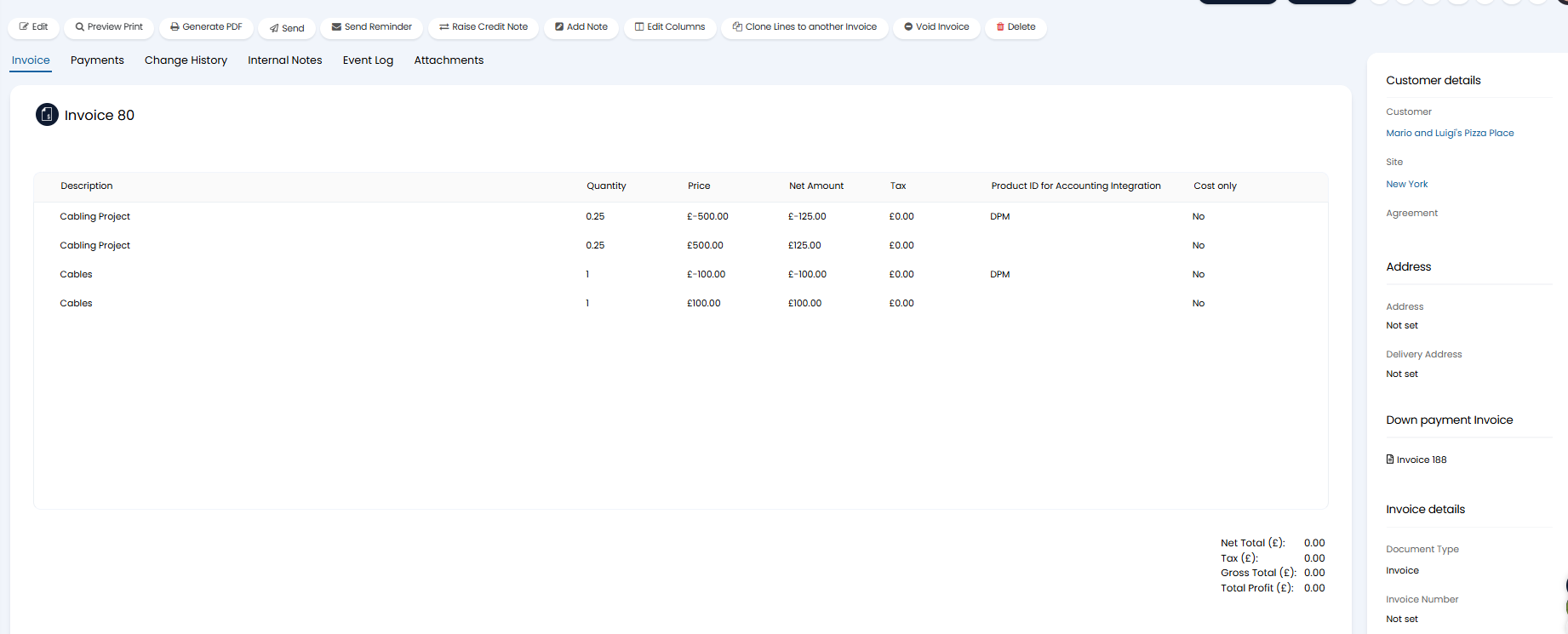
Fig 10. Recognition Invoice
You will see here there is a positive and negative line on the invoice for the same value, this gives the invoice an overall value of 0.
The positive line represents the value of the project that is becoming recognised revenue.
The negative line represents the down payment that is being used to 'pay' for this invoice. In other words, the amount of money that is being taken out of the deferred revenue account.
As the invoice has 0 value the customer will not be sent the invoice, this invoice is just created in order to sync to your accounting tool, moving the revenue from your deferred revenue account into your standard income account. Resulting in the revenue now being recognised.
Further down payments can be created from the sales order at any time, allowing you to take instalments from the customer and recognise the revenue of these as the project progresses.
Recognise down payment value when invoicing the outstanding amount on the sales order (recognise on completion)
To do this head to the sales order and use the "Create Invoice" button to invoice the rest of the sales order, select the option "Invoice the entire order".
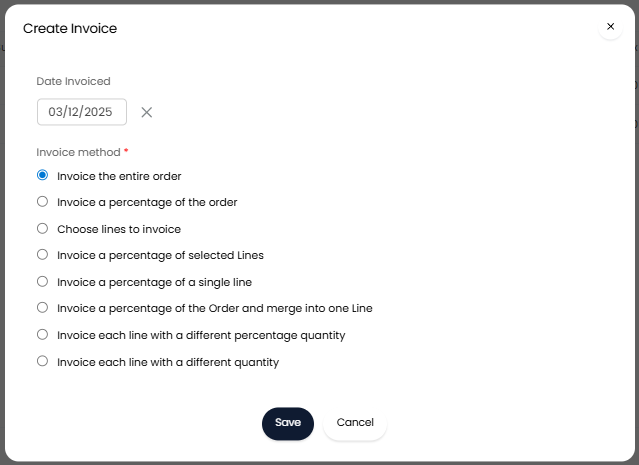
Fig 11. Invoice the rest of the sales order
This will create an invoice that is equal to the total value of the sales order, minus the value of the down payment already paid.
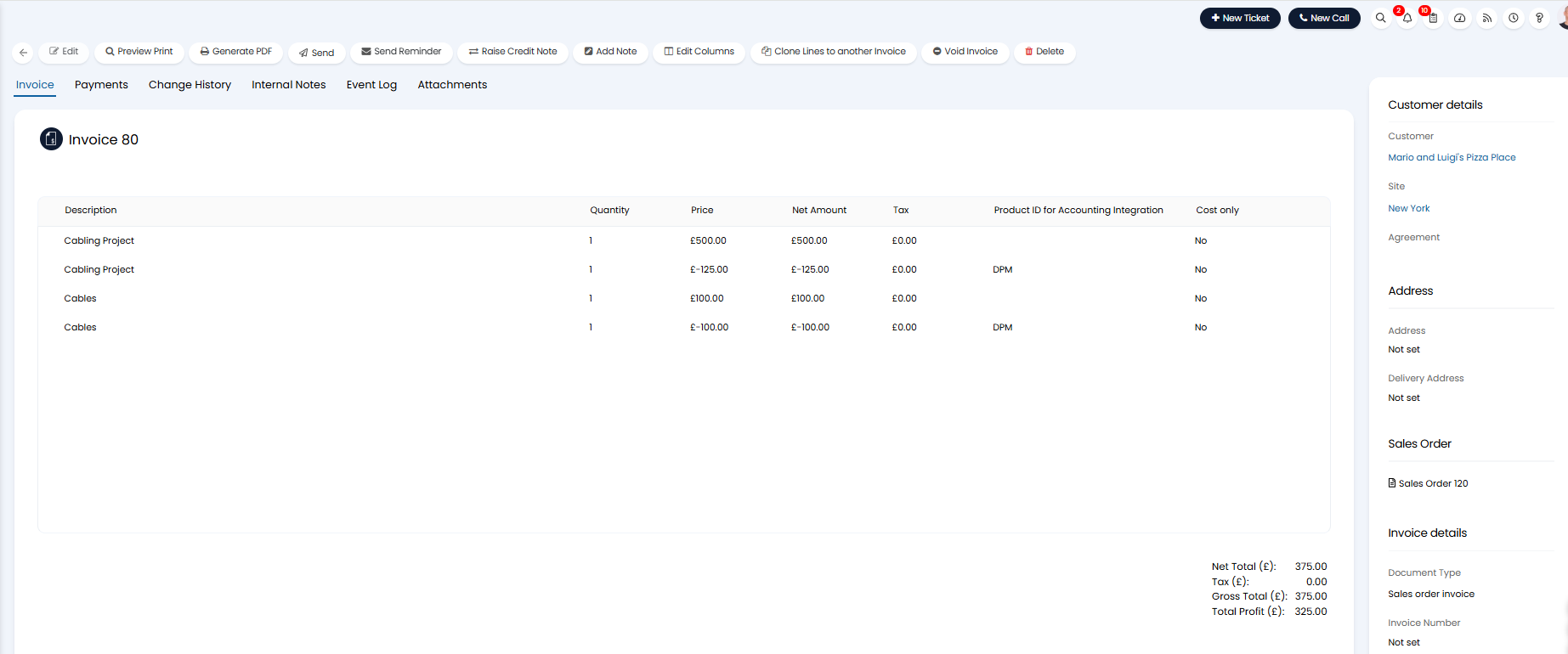
Fig 12. Invoice to recognise down payment and bill for the rest of the project
This will result in the total value of the project (including the down payment value) being recognised, and the down payment value value being moved out from your deferred revenue account.
Recognising Down Payment Revenue from Time and Materials Projects
Time and materials projects can have their down payment revenue recognised as time is recorded for the project (the revenue of the whole down payment can also be recognised at any time using the method outlined in the "Recognising Down Payment Revenue from Fixed Price Projects" section).
To do this ensure the project ticket has been created from the sales order. Also ensure any other lines on the sales order for the project have been added to the project, if you do not add these lines the down payment of these lines will not be able to be recognised as time is logged on the project.
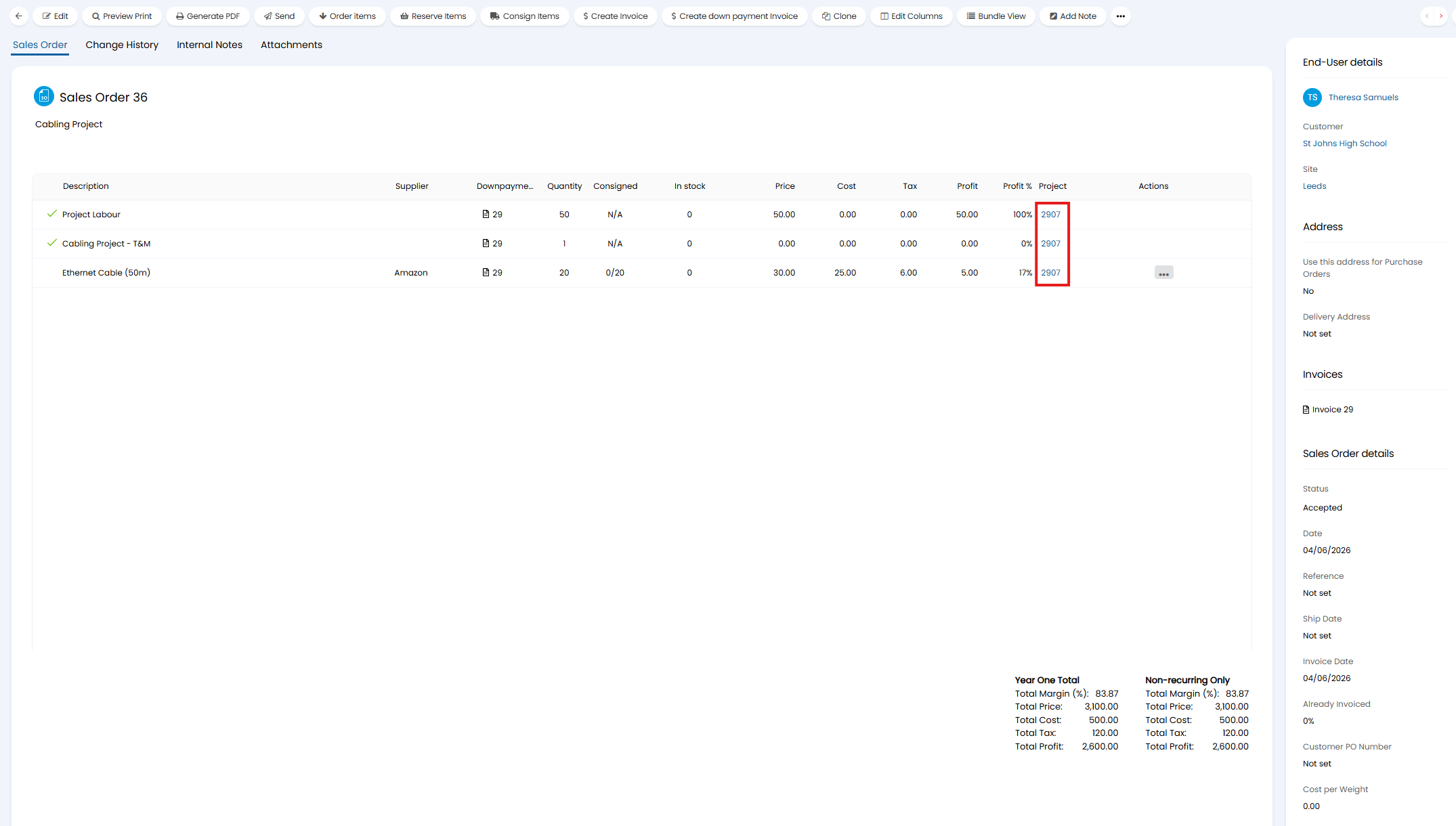
Fig 13. Project created against sales order
Note: In this example, a down payment has been taken for 50% of the project labour line and 100% of the other lines.
When logging time on the project ensure the charge types used to log time are marked as deferred revenue.
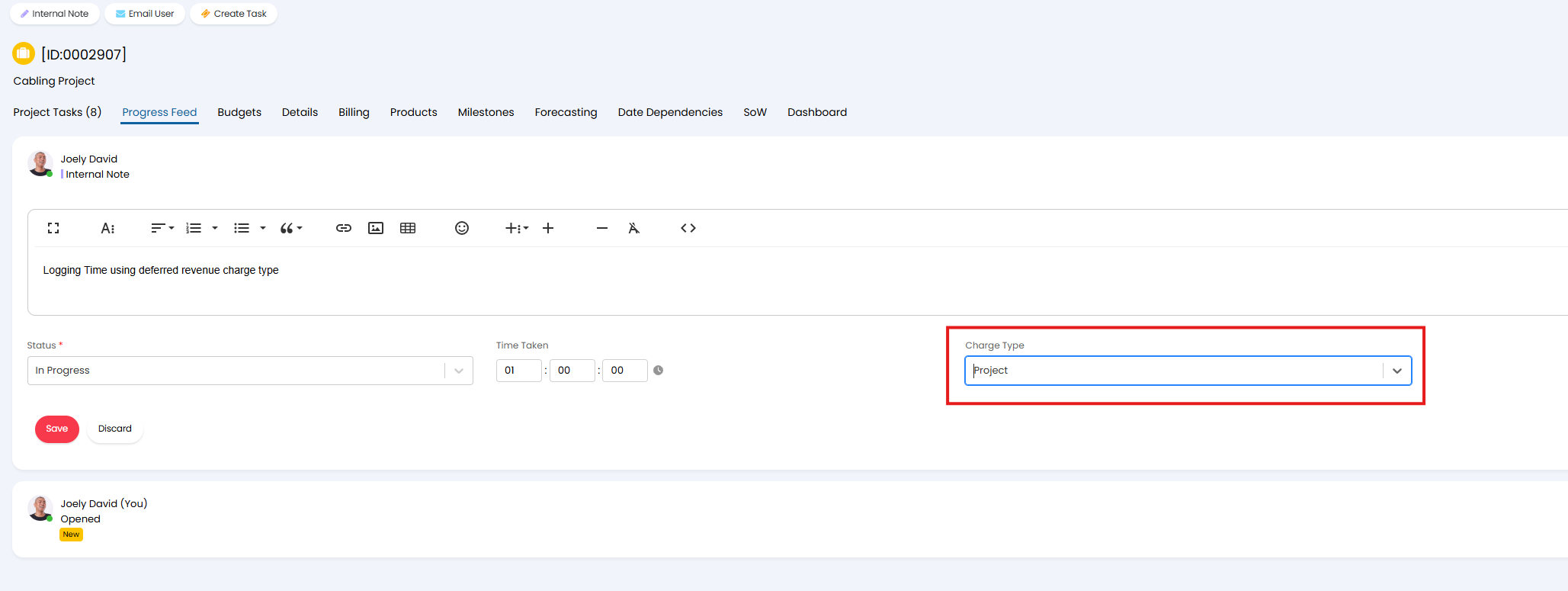
Fig 14. Logging time using a charge type that is marked as being used for deferred revenue
If a non-deferred revenue charge type is used on the project this time will be billed separately (in line with usual billing). The value of this time will not allow you to recognise revenue.
As time is logged this will become available to recognise in the deferred revenue section of ready for invoicing, within the "Projects" table.
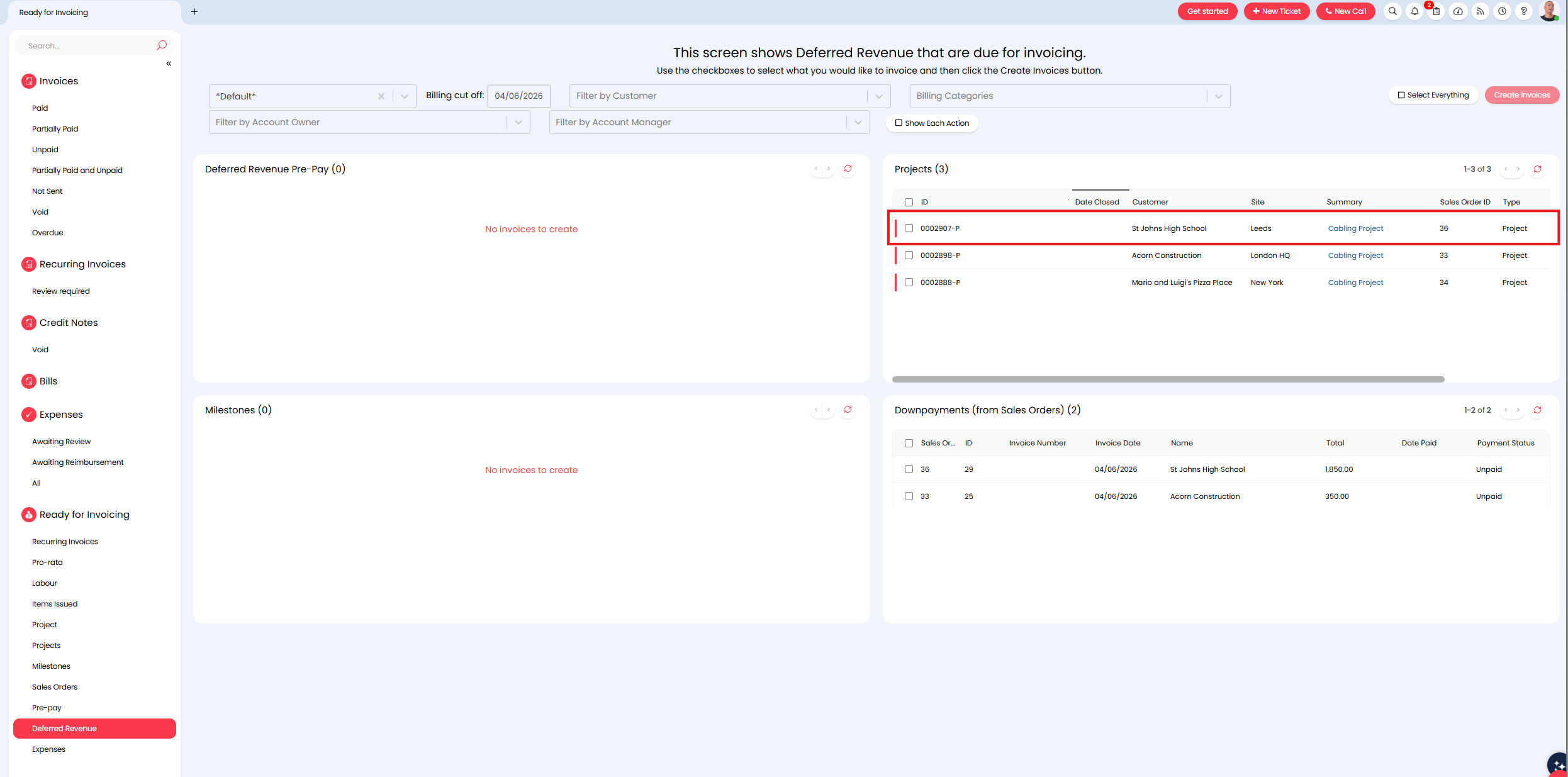
Fig 15. Value available to be recognised once time logged on a project
Creating the invoice here will recognise the value of the time logged on the project so far.
The positive line represents the value of the project that is becoming recognised revenue, and moving into your income account.
The negative line represents the down payment that is being used to 'pay' for this invoice. In other words, the amount of money that is being taken out of the deferred revenue account.
As the invoice has 0 value the customer will not be sent the invoice, this invoice is just created in order to sync to your accounting tool, moving the revenue from your deferred revenue account into your standard income account. Resulting in the revenue now being recognised.
Each time you would like to recognise the value of the time logged against the project generate a deferred revenue invoice here. The invoices generated here will continue to be zero value until the down payment 'credit' has been 'used up'. After this invoices generated will be positive as the customer will need to pay for this work.
In the Figure 16 example the amount of labour logged/to bill exceed the amount of down payment left to recognise, so the difference will be chargeable.
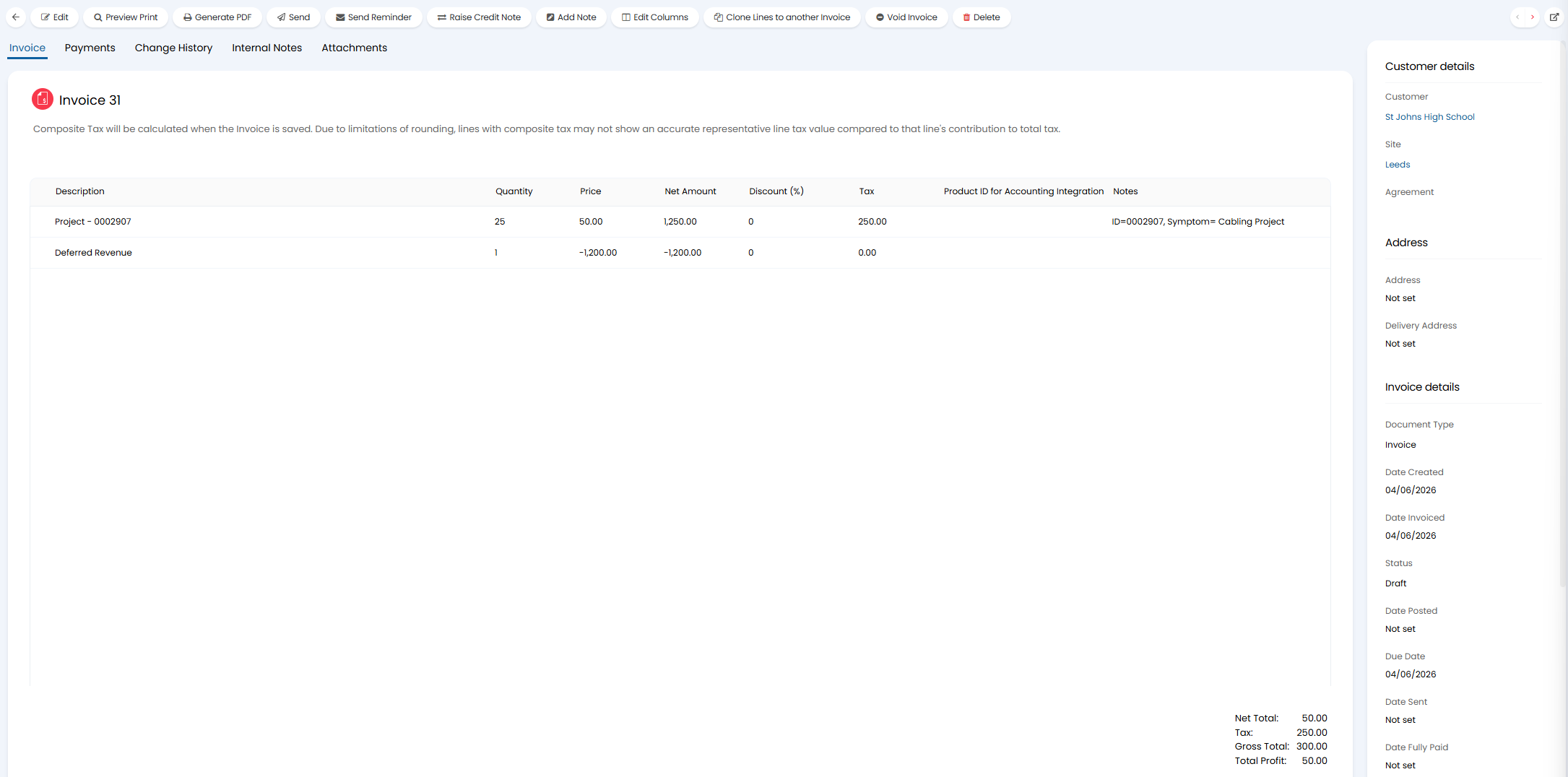
Fig 16. Invoice to recognise remaining down payment value
Down payments taken for any items issued on the project will not be used to 'credit' labour logged on the project.
If you still need to invoice the remainder of the sales order this can be done using the "Create Invoice" action on the sales order, using the option here to 'invoice the entire order' will invoice the remainder of the sales order, accounting for the down payment that has already been paid.
Further down payments can be created from the sales order at any time, allowing you to take another instalment from the customer and recognise the revenue of this as your agents log time on the project.