Sales Order Statuses
- status
- sales order
- so
In this guide we will cover:
- What are sales order statuses?
- How to Change the Status of a Sales Order
- Setting Defaults for sales order statuses
- Creating/Editing Sales Order statuses
Admin Guides:
What are Sales Order Statuses?
Each sales order in your Halo will have an status, this status denotes the stage of the ordering process the sales order is in. The status of a sales order will determine the area of the 'Quotes and Orders' module' it will appear in. For information on the criteria that need to be met for a sales order to show on each section of the Quotes and Orders module see our guide here.
How to Change the Status of a Sales Order
The status of a sales order can be changed manually using the 'status' dropdown in the sales order details.
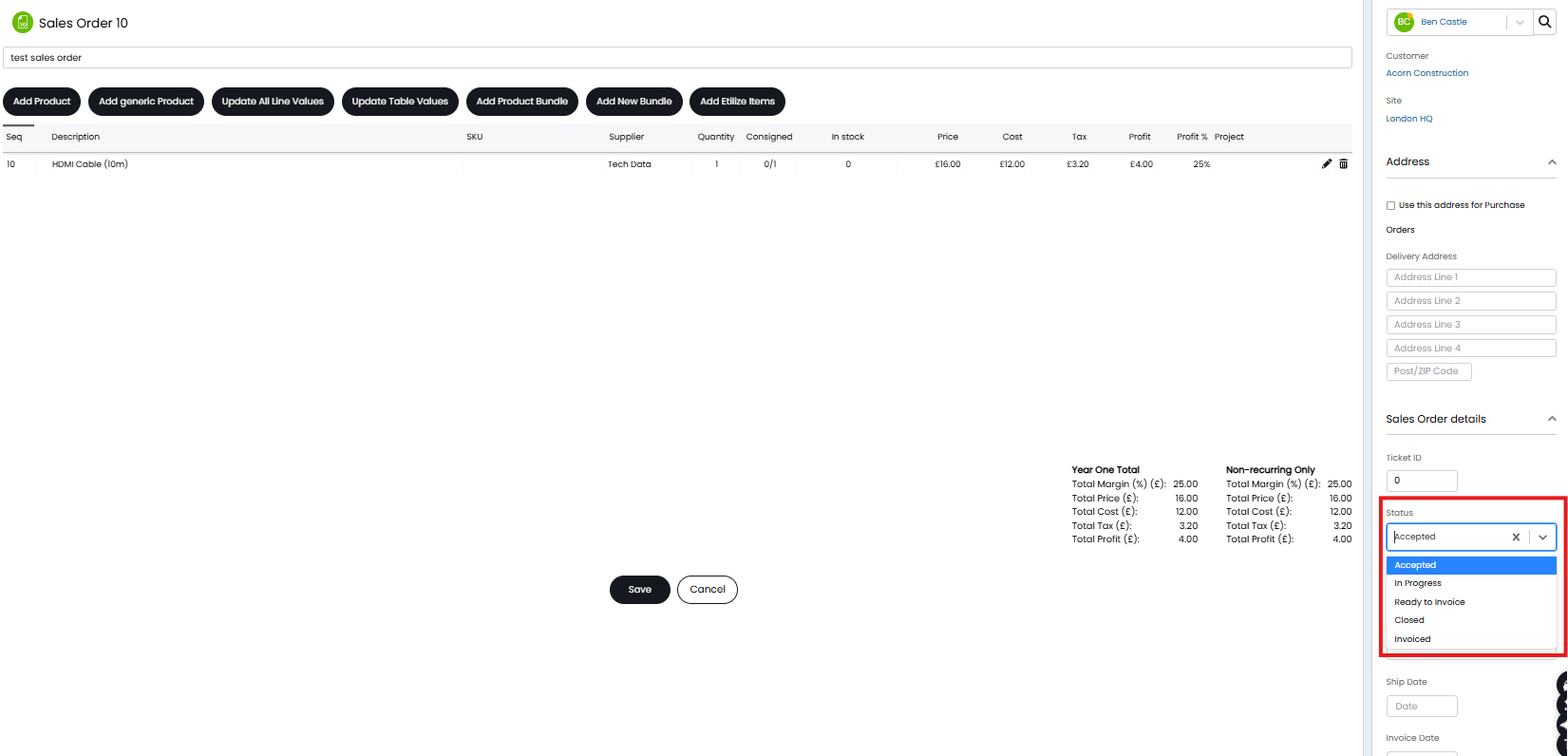
Fig 1. Sales order status dropdown
The status of a sales order is also changed automatically when particular actions are completed on the sales order. For example when an invoice is created from a sales order the status of the sales order will change to 'Invoiced' (or a status that has the system use invoiced). However, you are able to configure which status a sales order changes to after certain events.
Setting Defaults for Sales order statuses
Head to configuration > sales orders, here you will see various settings to determine what status a sales order will have when a particular event/action occurs.
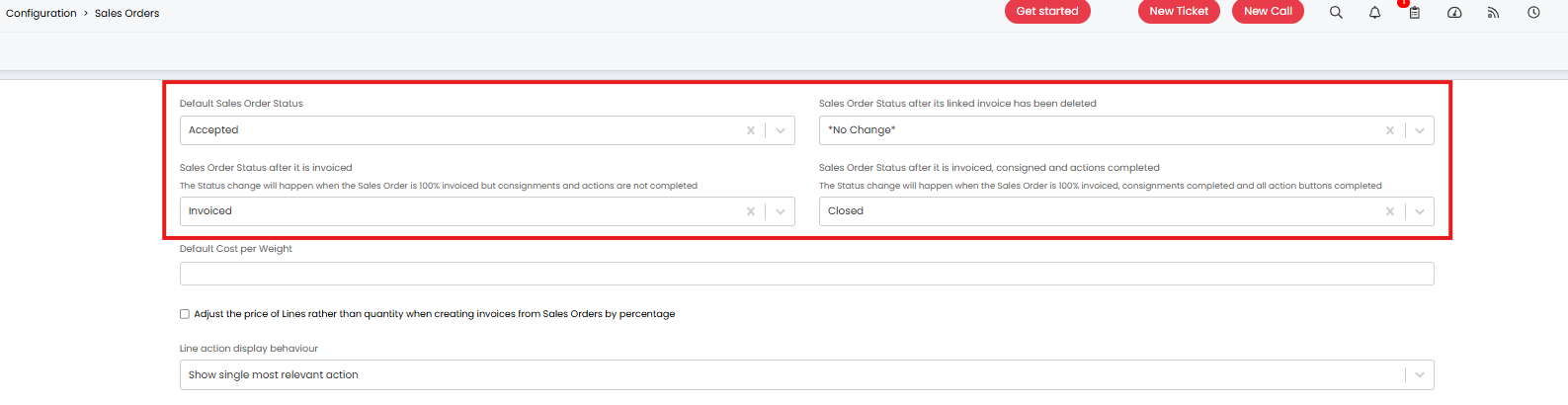
Fig 2. Sales Order statuses defaults
Default Sales Order Status - The status selected here will be the status the sales order has when it is first created.
Sales Order Status after it is invoiced - The status selected here will be the status the sales order has after an invoice has been raised from the SO. The Status change will happen when the Sales Order is 100% invoiced but consignments and actions are not completed.
Sales Order Status after its linked invoice has been deleted - The status selected here will be the status the sales order has after the invoice linked to the SO has been deleted. We recommend setting this to 'Invoiced' (or your equivalent status).
Sales Order Status after it is invoiced, consigned and actions completed - The status selected here will be the status the sales order has after the invoice has been (100%) invoiced, consigned and all outstanding actions completed.
Creating/Editing Sales Order statuses
To customise your sales order statuses head to configuration > sales orders > sales order statuses > new.
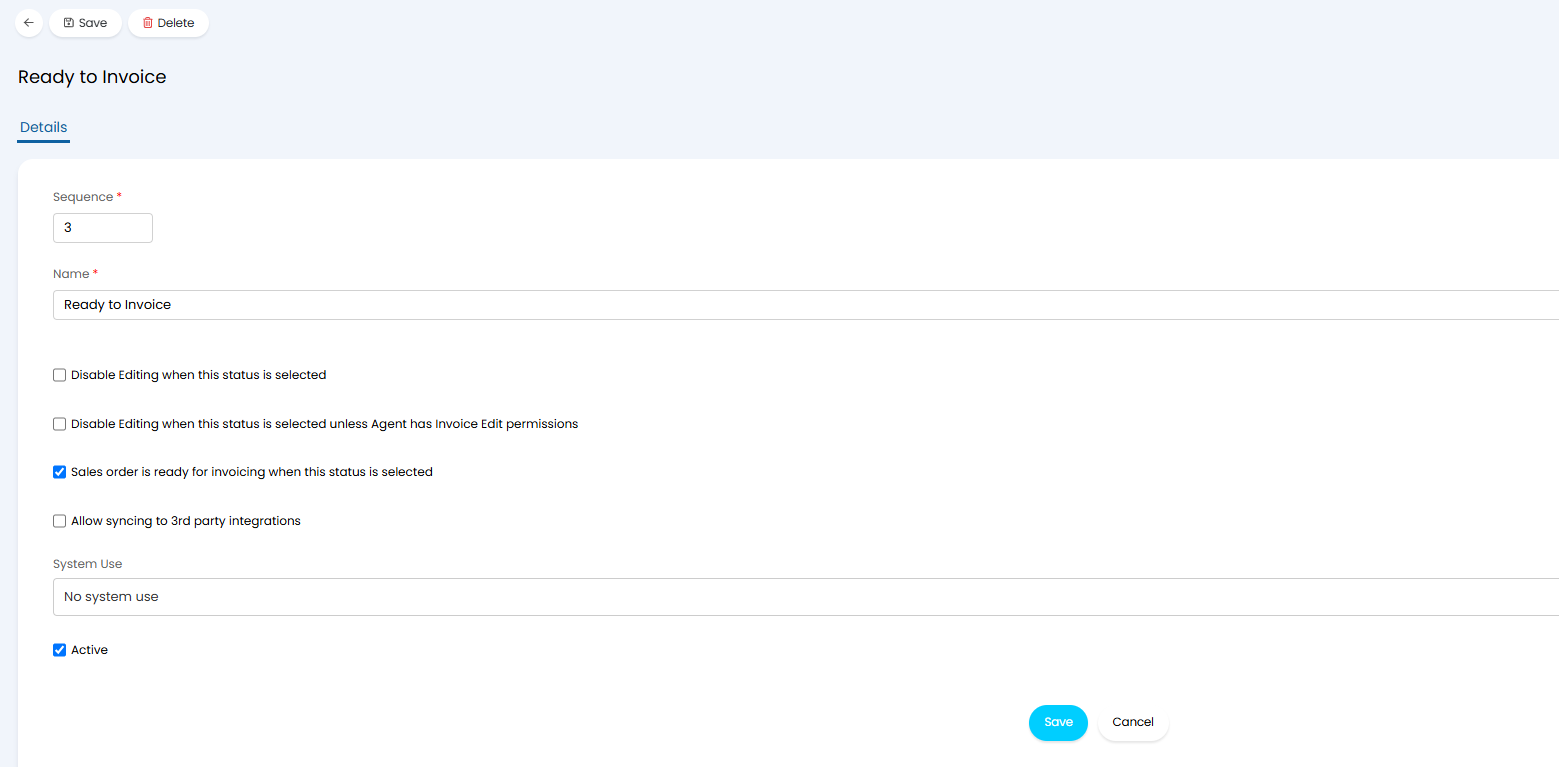
Fig 3. New sales order status
Here you can give the status an appropriate name based on what it represents. The additional settings against the status will impact what can be done on the sales order when it is in this status and what area of the quotes and orders module the sales order appears in.
Disable Editing when this status is selected: When enabled the sales order will not be able to be edited when it has this status. This is useful for statuses such as 'Invoiced' where no further action needs to be taken on the sales order.
Disable Editing when this status is selected unless Agent has Invoice Edit permissions: When enabled the sales order will not be able to be edited when it has this status unless the agent has permission to edit invoices. This is useful for statuses such as 'Invoiced' as if an invoice raised form this sales order needs to be amended the agent amending the invoice can also amend the associated sales order. But other sales only agents will not be able to change the sales order.
Sales order is ready for invoicing when this status is selected: When enabled sales orders that have this status will appear in the 'Requires Invoicing' section of the quotes and orders module.
Allow syncing to 3rd party integrations - Only applicable if "Only sync Sales Orders to 3rd party integrations on certain statuses" or "Only sync selected entities to 3rd party (tax) integrations on certain statuses" is in use. Allows sales orders with this status to be synced to third party integrations. Useful when you would like to prevent sales orders from syncing to other tools when they are in a draft/editing status.
System Uses
The system use of the status will affect area of the quotes and orders module the sales order appears in when it has this status.
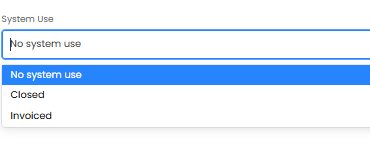
Fig 4. SO status system uses
No system use - When sales orders have a status with this system use they can appear in all areas of the quotes and orders module (sales order section) except for 'closed orders'.
Closed - When sales orders have a status with this system use they will appear in the 'closed orders' area of the quotes and orders module.
Invoiced - When sales orders have a status with this system use they will no longer appear in the 'requires invoicing' area of the quotes and orders module.
Once you have created a new status this will be available in the status change dropdown against all sales orders.