Credit Notes
- credit
- refund
In this guide we will cover:
- What credit notes are used for
- How to determine the ID of the credit note
- How to raise a credit note
- How to use a credit note
- How to adjust credit lines
- Syncing Credit Notes to accounting integrations
- Voiding Credit Notes
- Adding Credit as a Payment
- Viewing Credit Notes
What are Credit Notes used for?
Credit notes are used to issue 'credit' to a customer following the creation of an invoice. This may be because the customer has been invoiced for products that they no longer need. If the invoice has not yet been paid and the whole invoice is no longer required the invoice can be 'voided'. In cases where only some of the invoice needs to be redacted it is best to raise a credit note.
Setting system ID for credit notes
When created, the ID assigned to credit notes will be assigned in sequential order, similarly to invoices. In Configuration > Advanced Settings > set next system ID section, you can set the starting ID values for tickets, invoices, quotes etc. Credit notes will use the same ID sequence as invoices. That is, if you set the next system ID for invoices to be '1' the first credit note you create will have an ID of '1', if you set the next system ID to be '1001', the first credit note you create will have an ID of '1001'. Although they use the same sequence, credit note IDs are assigned independently to invoice IDs, so a credit note and an invoice can have the same ID value.
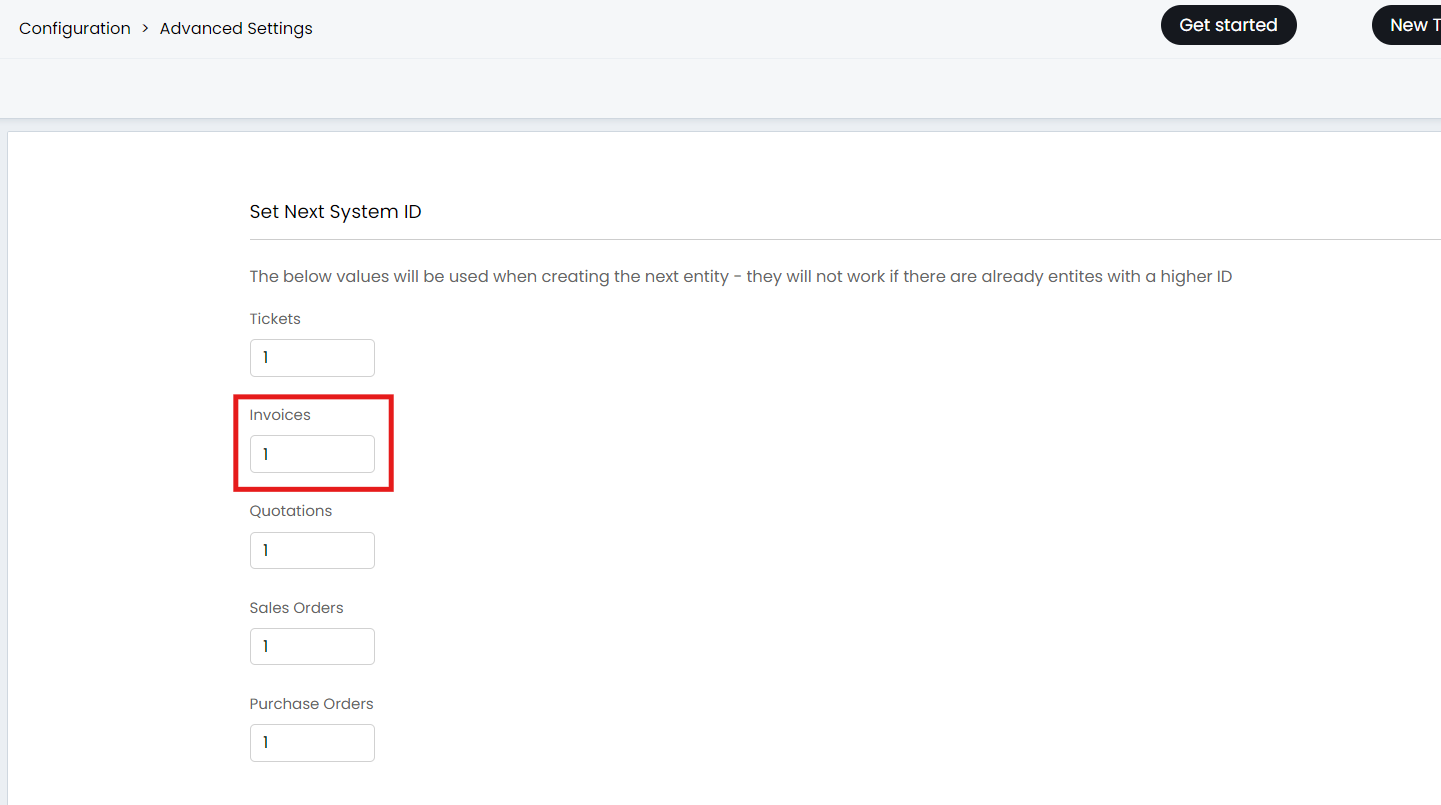
Fig 1. Set next system ID for Credit Notes
How to raise a credit note
When viewing an invoice in your Halo, you will have the option to 'Raise Credit Note'.
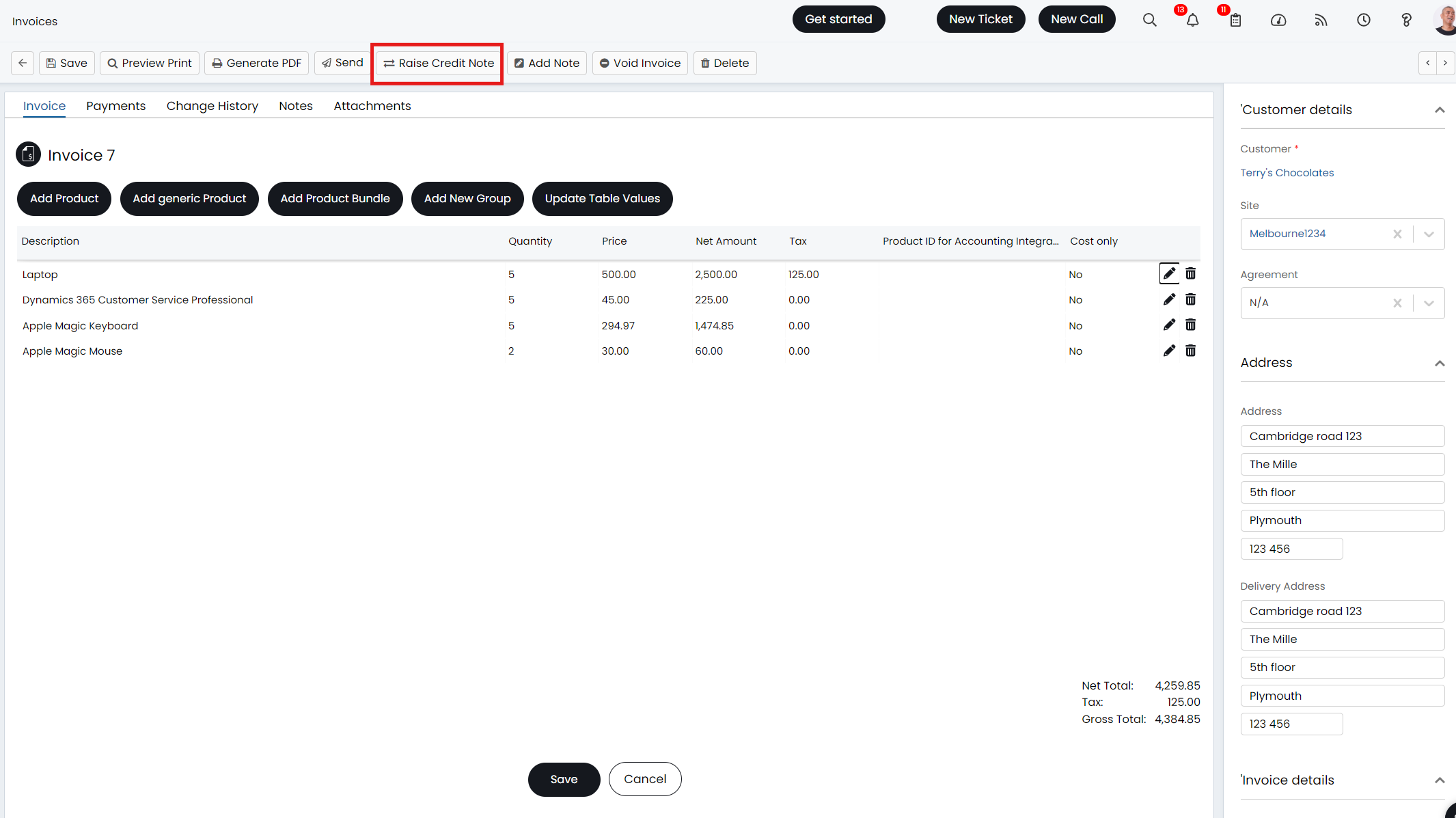
Fig 2. Raise Credit Note button
Note: On versions prior to v.2.248 you will not be able to raise credit notes against invoices that have a status which prevents them from being edited. On versions v2.248+ you will be able to raise a credit note for an invoice, even if it is in a status that does not allow editing.
When this button is used a credit note will be created, the credit note will be identical to the invoice you raised the credit from. You will need to edit the credit note so that it only contains the line items/quantities you would like to credit. For example, if you would like to credit one item on an invoice, you will need to remove all the other line items from the credit note and set the quantity of the item to 1. If you would like to credit for a particular cost, rather than a particular item, you can edit the price of a line item to reflect the value you want to credit. The 'Gross Total' displayed at the end of the credit note is the maximum amount of credit you can assign the customer.
When Credit Notes are created, the date will default to the date on the Invoice the Credit Note was created from. This can be changed to "Use today's date for credit note date" in Configuration > Billing > General Settings > Credit Notes dropdown.
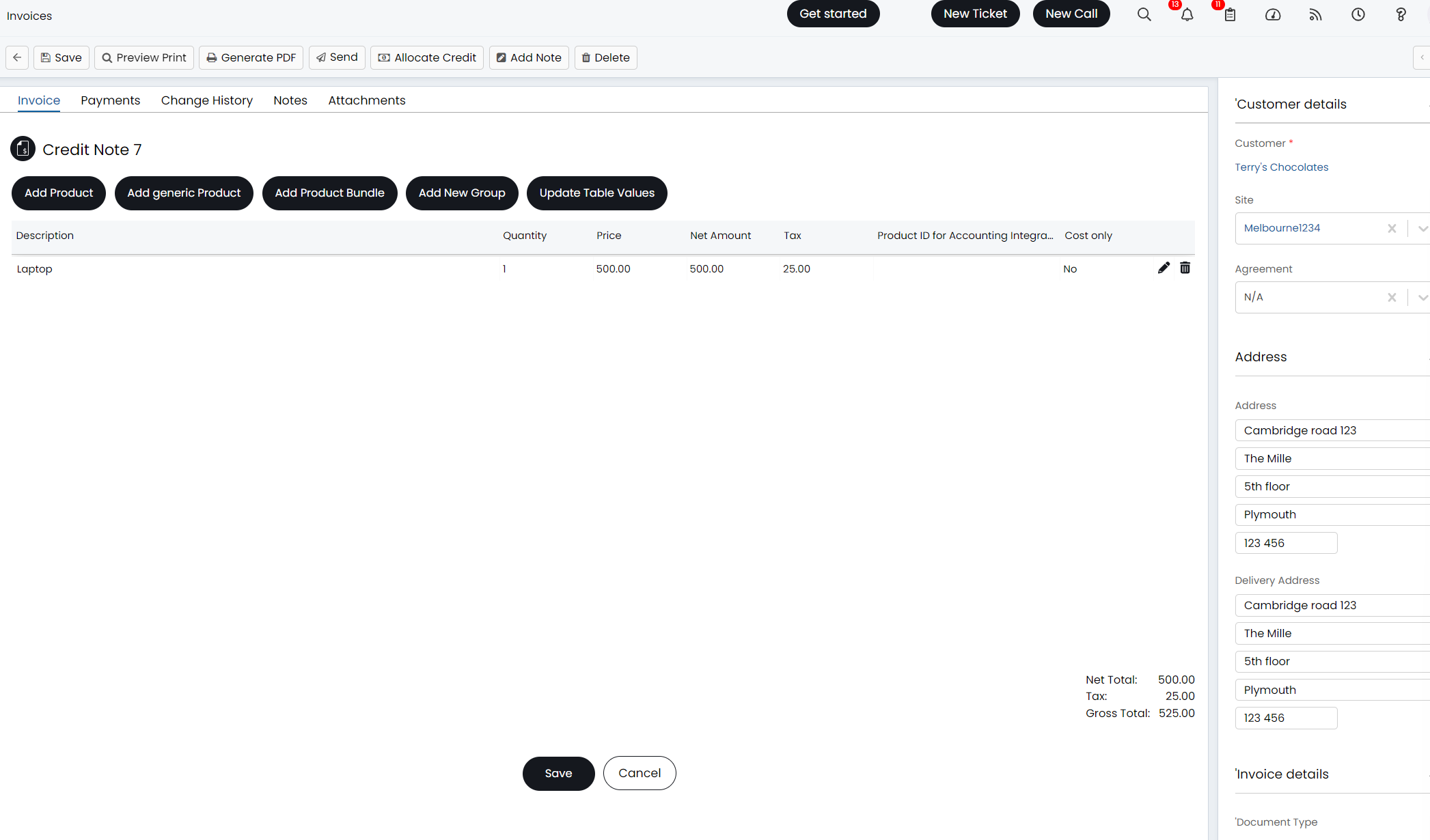
Fig 3. Credit Note after editing
From v2.256+, credit notes created off the back of an Invoice will be linked in the Invoice Details pane.
How to Allocate Credit to a customer
Once you are happy with your credit note you can allocate credit to a customer using the 'Allocate Credit' button. This will deduct the value of the credit note from an existing invoice in your Halo. When selected you will be prompted to choose the invoice you would like to allocate the credit to, and how much credit you would like to allocate. Note you can only allocate credit to an invoice under the same customer the credit was taken from.
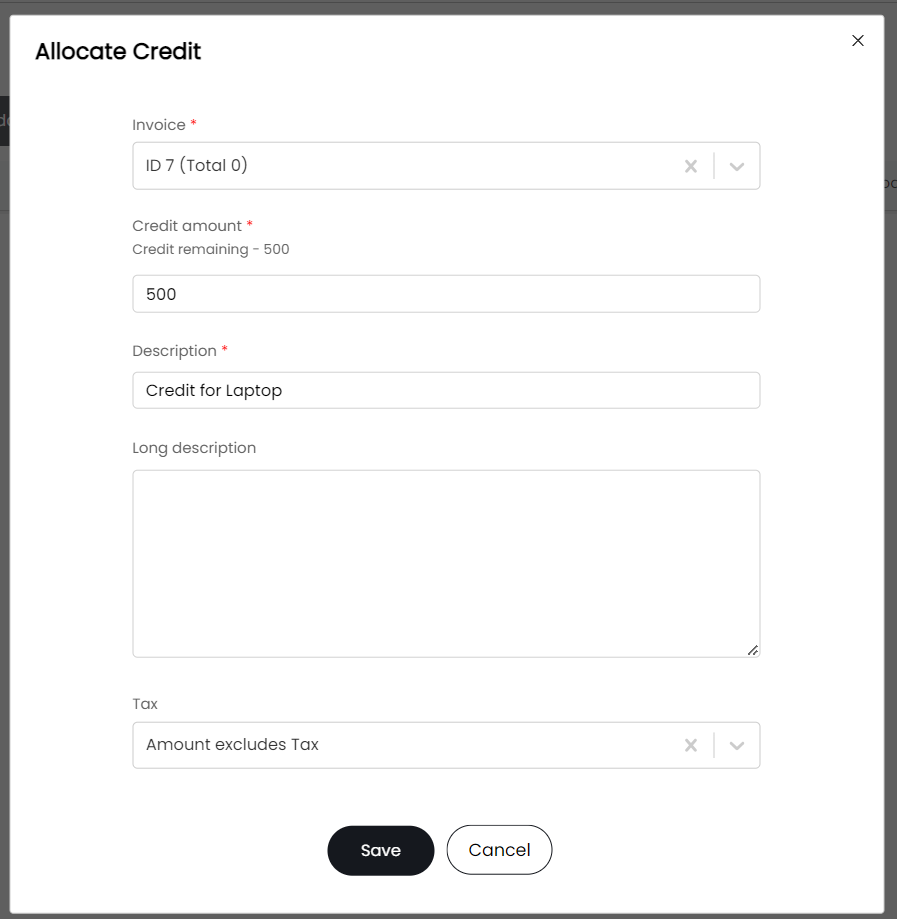
Fig 4. Allocate Credit screen
Credit amount value - The amount of credit you have available to allocate on this credit note, minus the tax. Here enter the value of the credit you would like to allocate
Description - The text for the line item that will appear on the invoice the credit note is allocated against.
Long Description - The text that will appear on the invoice the credit note is allocated against, in the long description section (only applicable if you use long text descriptions on your invoices)
Tax- This determines the amount of tax that is allocated
- Amount includes tax - Assumes the value entered in 'credit amount' is the amount you would like to credit including tax. The tax will be calculated from this value, using the value and the tax rate on the invoice. So if 100 is entered in the credit amount, and the tax rate on the invoice is 20%, 80 will be credited with 20 tax added on.
- Amount excludes tax- Assumes the value entered in 'credit amount' is the amount you would like to credit excluding tax. The tax will be calculated from this value using the tax rate on the invoice and this will be added on to the credit amount specified. So if 100 is entered in the credit amount, and the tax rate on the invoice is 20%, 100 will be credited with 20 tax added on.
- No tax- Assumes the value entered in 'credit amount' is the total you would like to credit, and there is no tax on this. No tax will be added/calculated from the amount. So if 100 is entered in the credit amount, 100 will be credited with not tax additions.
Once you have allocated credit, a line will be added to the invoice you allocate it to, subtracting the credit value from the invoice total. See Fig 5 for reference.
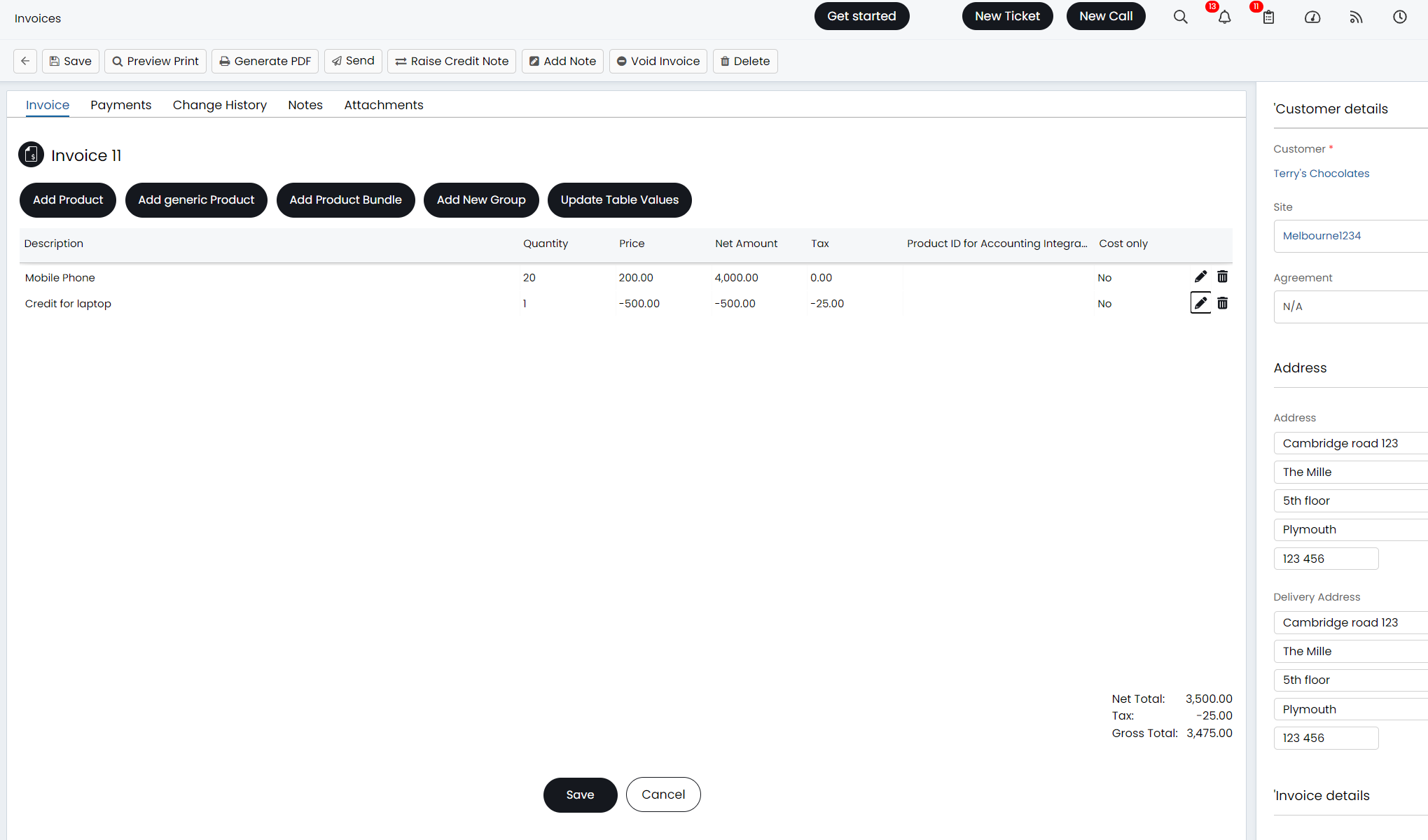
Fig 5. Invoice that has credit applied
You can add credit as a payment record on the invoice instead of a negative line like above. Within Configuration > Billing > General Settings > Credit Notes dropdown, enable the below setting.

Fig 6. Adding credit as payment records
Once the credit is allocated to the invoice with the above method, the "Payments" tab of the invoice will show a payment record linked to the credit note.
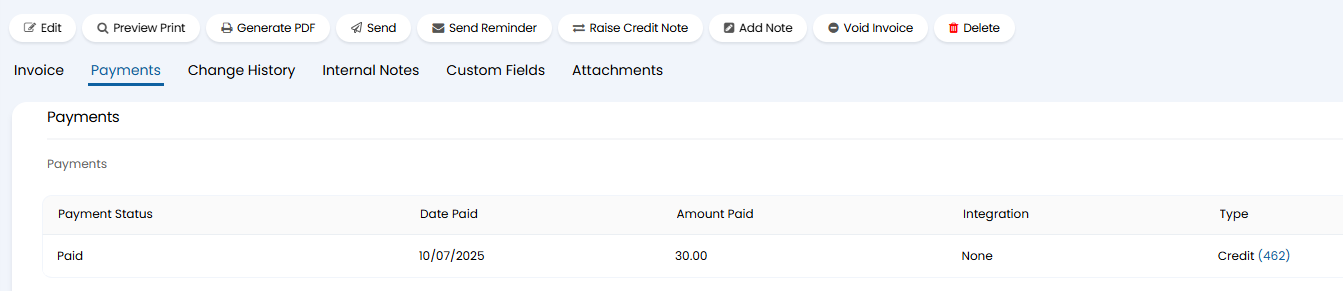
Fig 7. Payment credit note
The credit note will stay in your system, under the 'Credit notes' section of the invoices module. Against the credit note details, you can see the invoice the credit has come from, and the invoice the credit has been allocated to. When editing the credit note you can change the invoice the credit note was credited (created) from, using the dropdown.
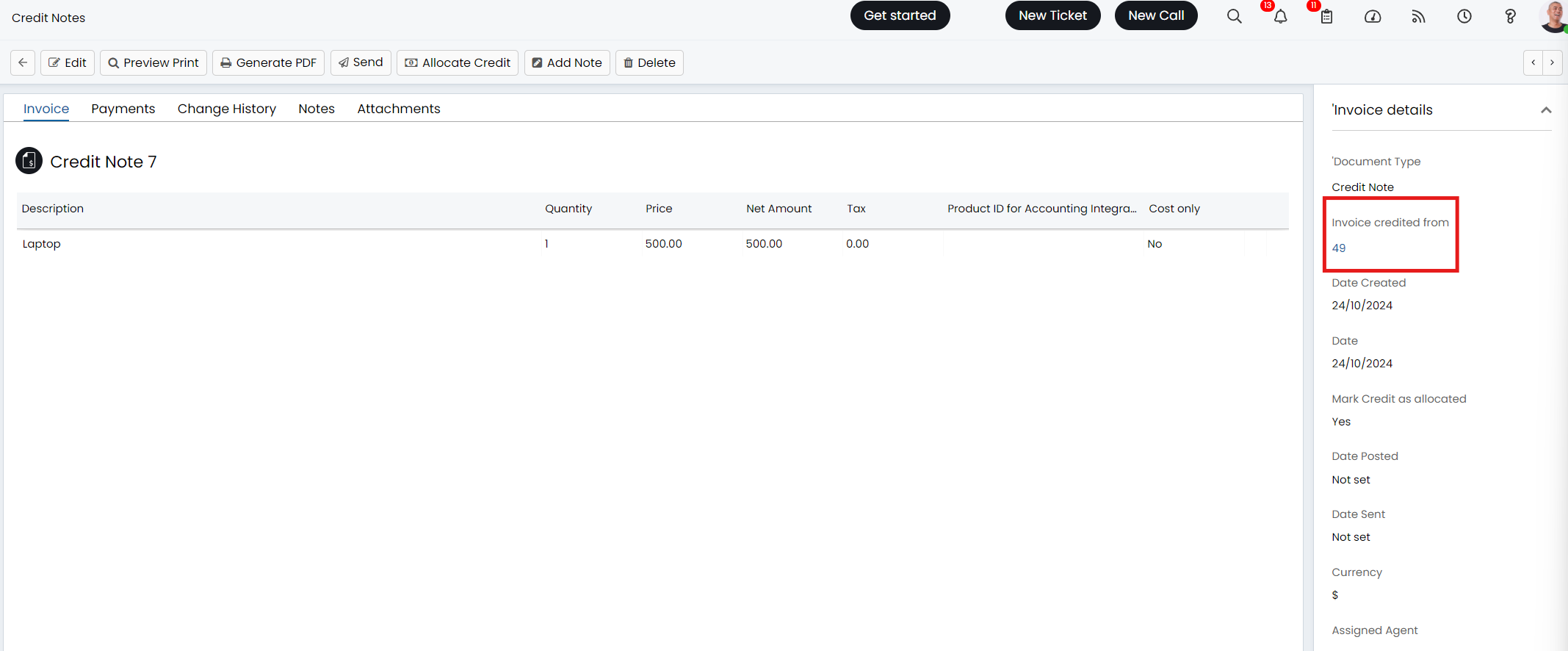
Fig 8. Invoice credit note created from
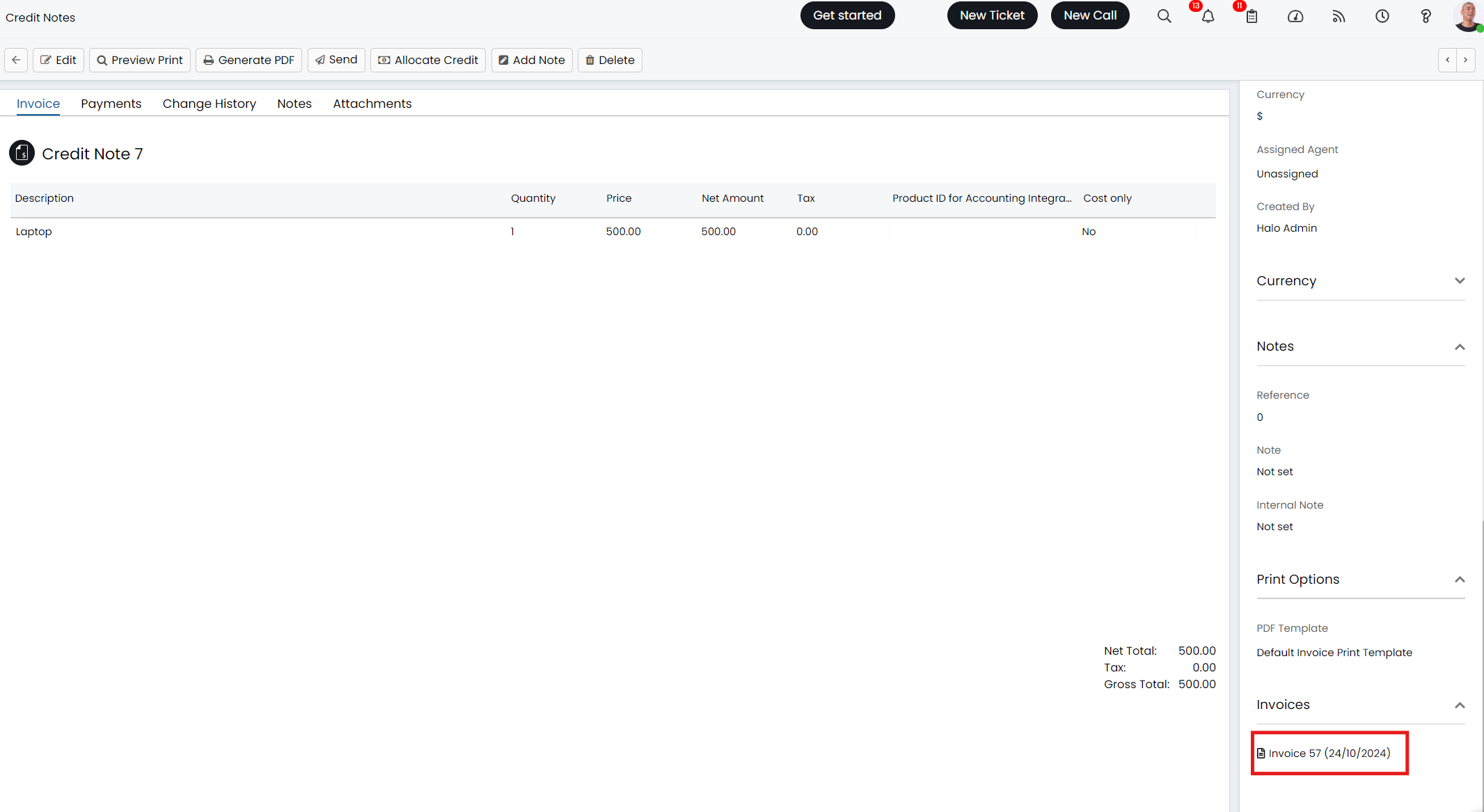
Fig 9. Invoice credit note allocated to
If credit is allocated incorrectly, you can delete the credit line on the invoice that the credit has been assigned to. This will re-load the credit value against the credit note and you will be able to allocate this credit to another invoice.
Sending Credit to a customer
If the customer does not want to use their credit right away or does not have any outstanding invoices to be credited you can store the credit note and send them a copy of the credit note to use at a later date.
Credit notes are sent in the same way as invoices using the 'Send' action against the credit note. PDF templates can be applied to credit notes in the same way as invoices, and can be changed by selecting the 'PDF template' against the credit note. Credit notes use the same PDF templates as invoices.
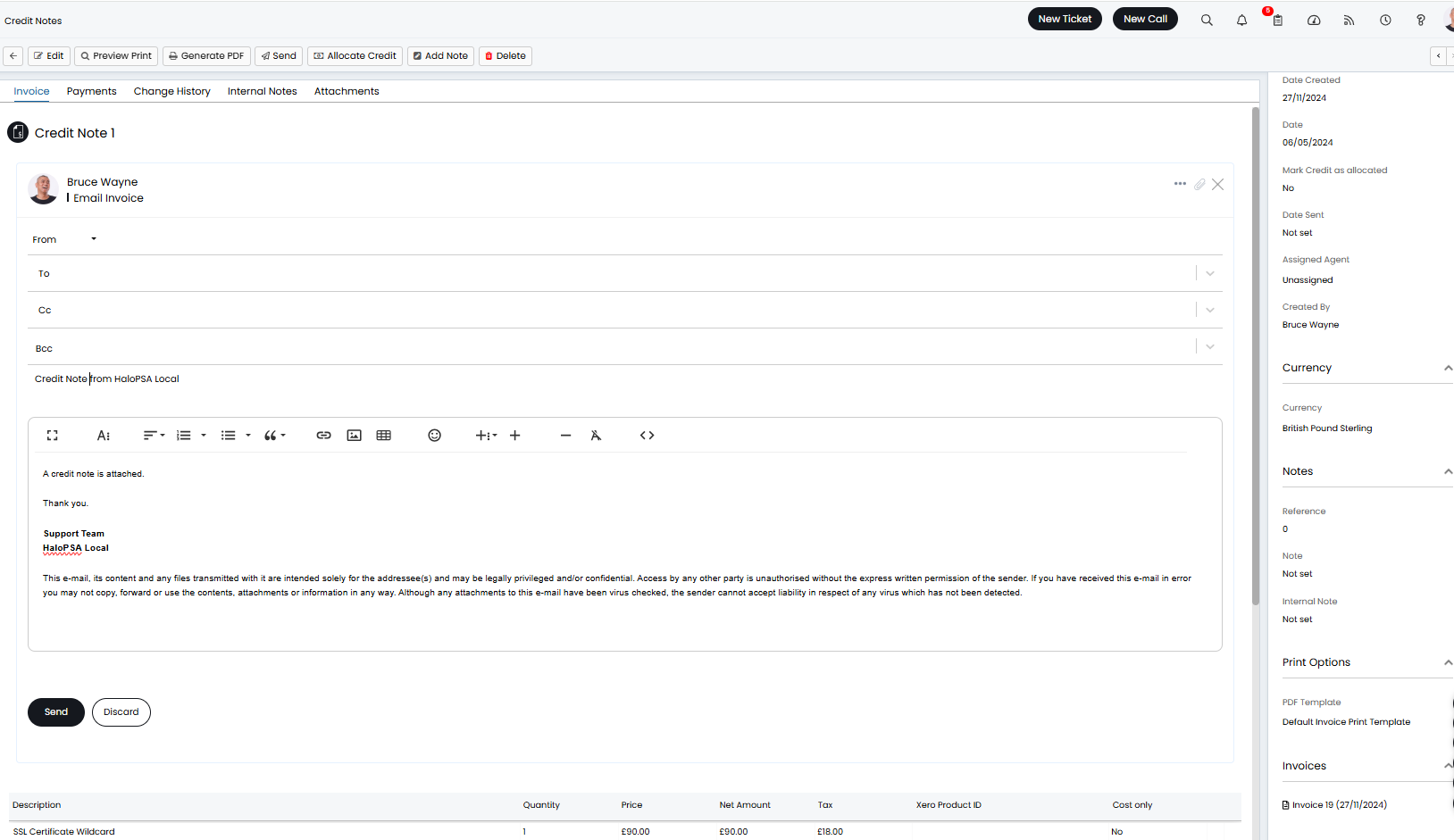
Fig 10. Sending Credit note
The email template with ID=342 will be used when the credit note is being sent out.
Changing the allocated item
When issuing credit to an invoice you will need to set the item that the credit is logged as. To do this head to Configuration > Billing > General Settings > Credit Notes section, here you can see the setting for 'Item to use for credit lines'. This allows you to choose an item that any credit lines on an invoice are logged as. We recommend creating an specifically for this, only used for crediting.
Changing how credit appears
By default credit notes will have positive values, as shown in Fig 3. If you would like your credit notes to have negative values, head to Configuration > Billing > General Settings > Credit Notes, enable the setting 'Credit Notes have negative values'. See Fig 12 for how credit notes will look with this setting enabled. This does not change how credit is allocated/calculated, only how they look.
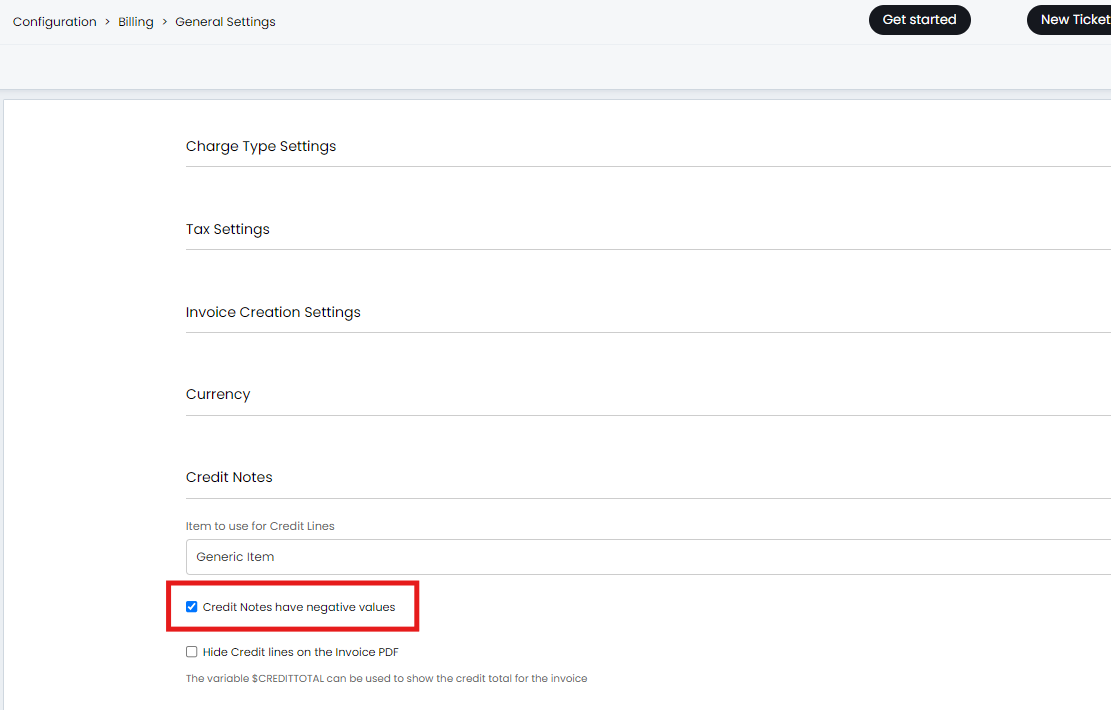
Fig 11. Credit notes have negative values setting
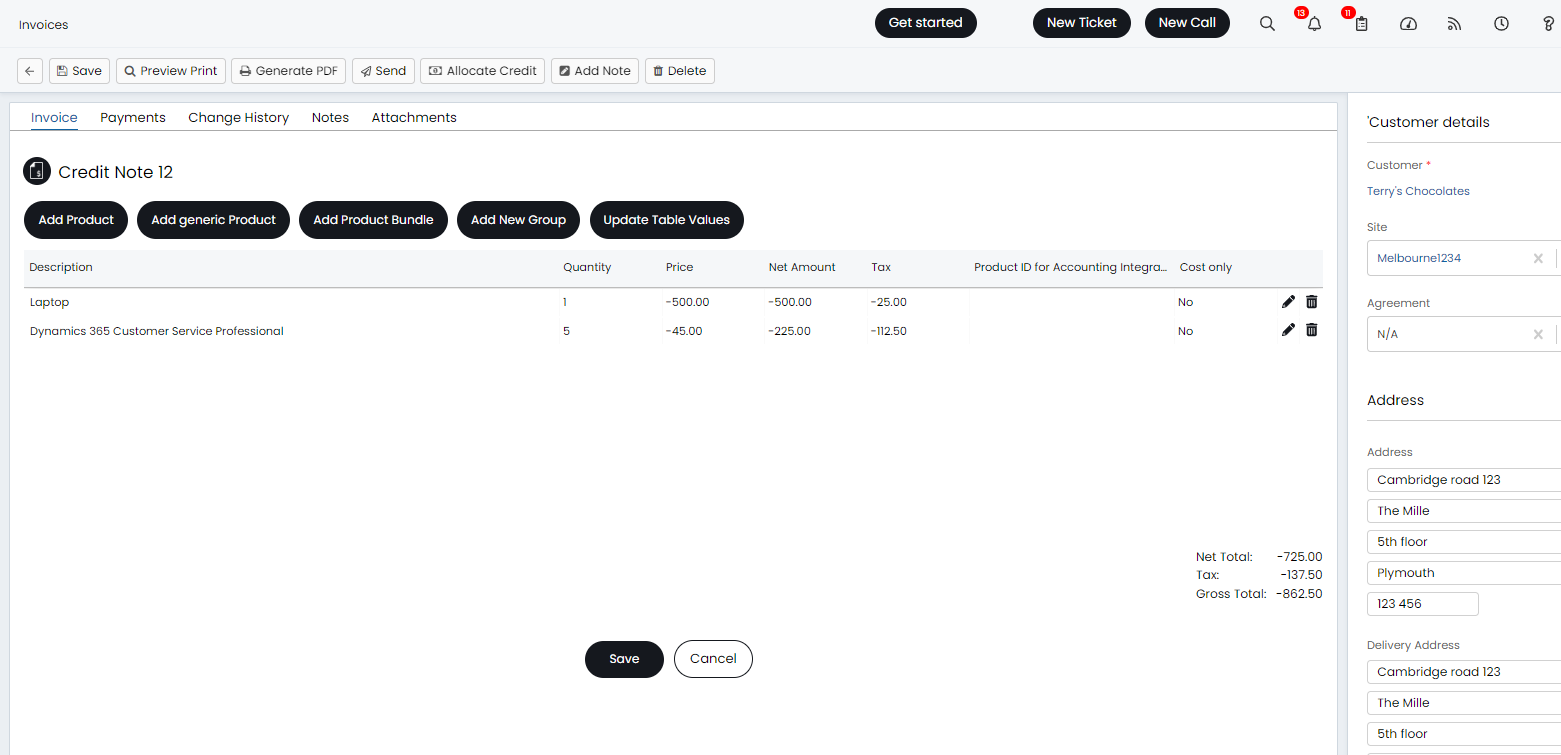
Fig 12. Credit note when credit notes have negative values setting enabled
Changing how credit appears on an invoice
By default, when credit is allocated to an invoice this will appear as a line in the 'details' table on the invoice PDF, similarly to other invoice line items. Except the credit line has a negative value.
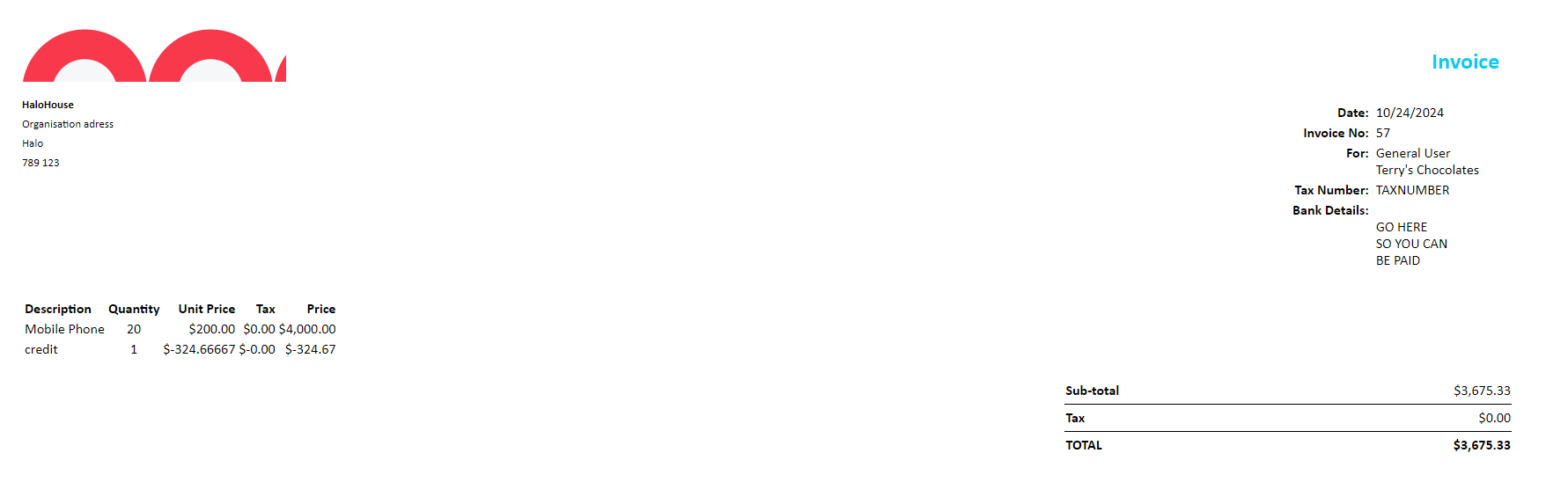
Fig 13. Invoice PDF showing credit
If you would like the credit to not be included in the details table along with the other invoice lines, head to configuration > billing > general settings > credit notes. Here you can enable 'Hide Credit lines on the Invoice PDF'. This will remove the line representing the credit on the invoice, but the total for the invoice will still have the credit deducted.
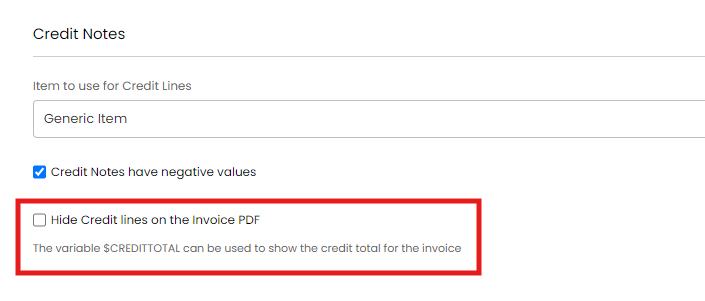
Fig 14. Hide credit lines on invoice PDF setting
If you are going to enable this setting, it is recommended that you add the variable $-CREDITTOTAL (without the hyphen) to your invoice pdf templates. This will then show the total credit that is being deducted in the sub-totals of the invoice.
To do this head to Configuration > Reporting > PDF templates > change entity to "Invoices" > select a template > Pages tab > edit the main page so you can see the HTML for the template. Where and how you enter the variable will depend on your template. If you are using our default, out of the box template you can use the highlighted query shown.
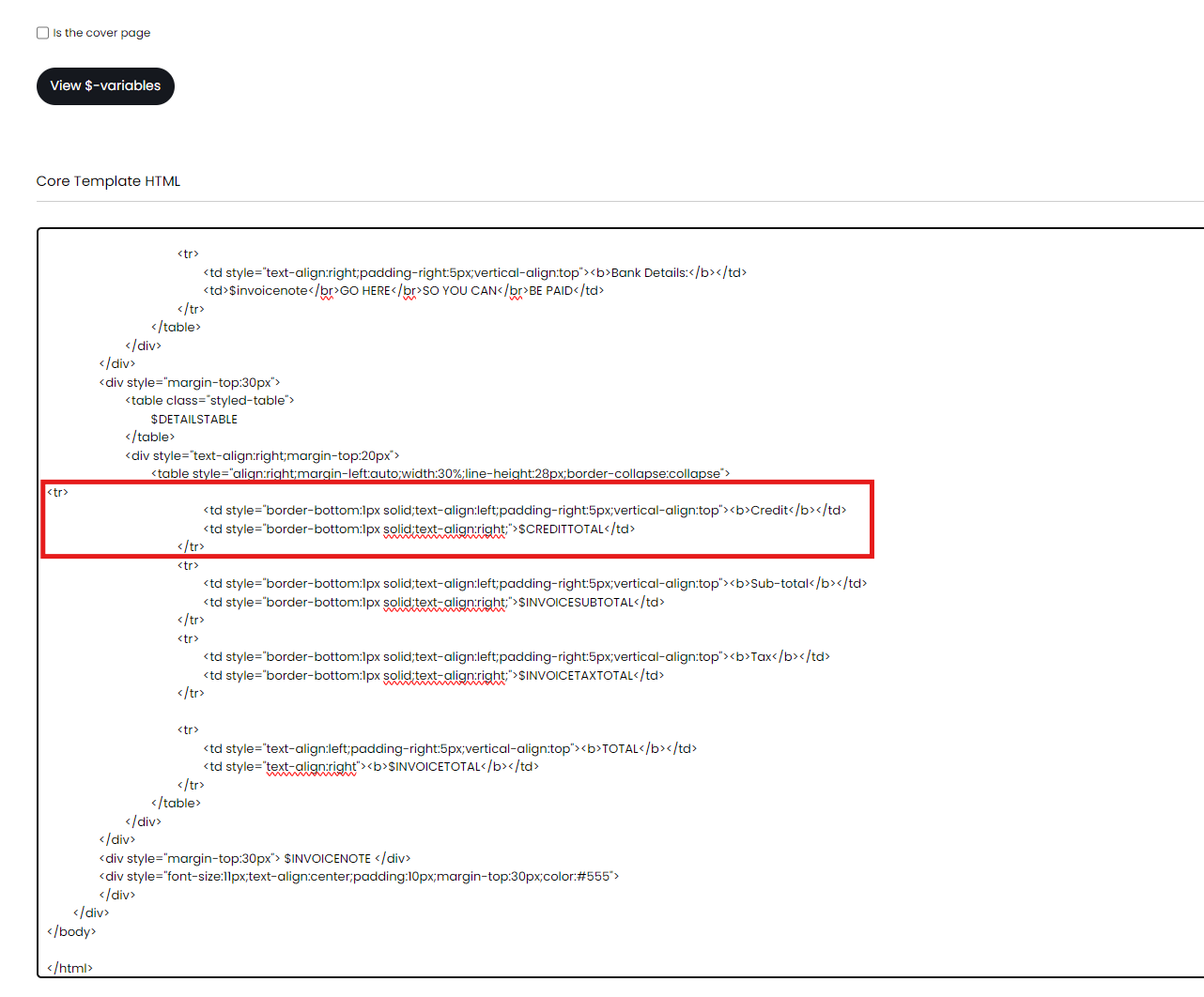
Fig 15. $-CREDITTOTAL in invoice template
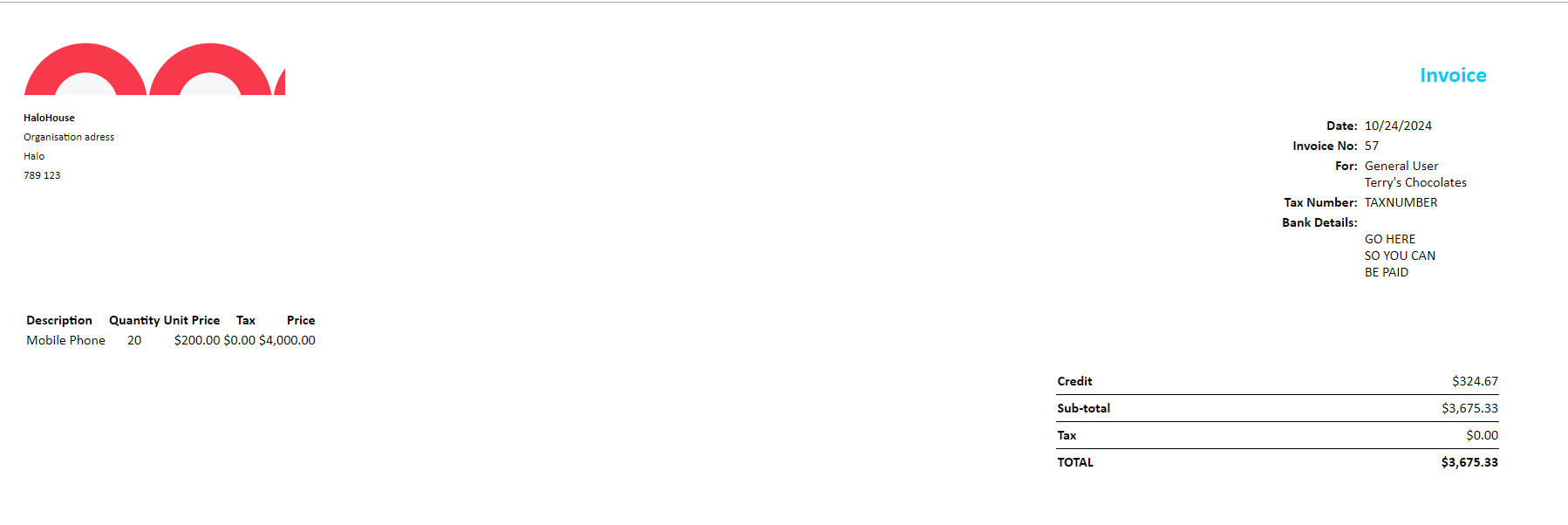
Fig 16. Invoice PDF with credit as sub total rather than in details table
Syncing Credit notes to accounting integrations
Credit Notes can also be synced to certain accounting integrations. To check if credit notes can be synced to your accounting integration head to the configuration for the accounting integration in Halo. Here, check the entities that can be synced with the integration, if credit notes are an option, these will be able to be synced.
Voiding Credit Notes
You will notice there is a subsection of the 'Credit Notes' area in the ready for invoicing module called 'Void', this will show all credit notes that have been voided. Credit notes can only be voided through the API or by an account integration, when voided they will appear here so they are still visible.
Viewing Credit Notes
Viewing Credit Notes in the Self-Service Portal
If a User has the the "Invoice Access Level" permission, the "Invoices" section on the Self-Service Portal will show Credit Notes as well.
A "Type" column has been added to distinguish the two.
The User can then view the PDF of the Credit Note by clicking onto it.
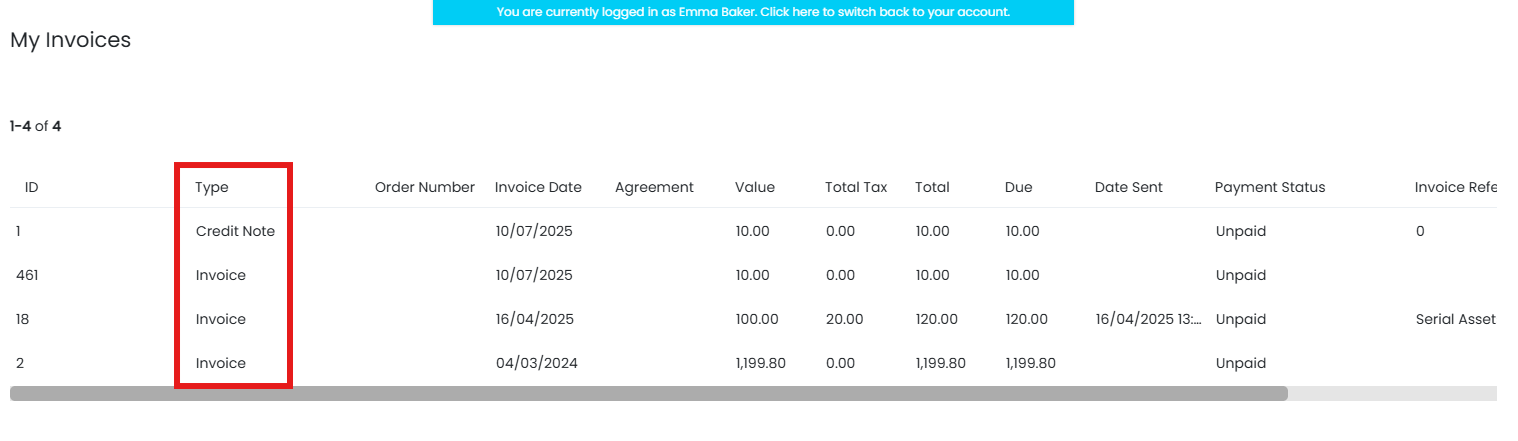
Fig 17. Credit Note in the portal
Viewing Credit Notes for a Customer/Site/Top Level
On versions prior to v2.232 credit notes can be found within the "Invoices" tab of a customer/site/top level.
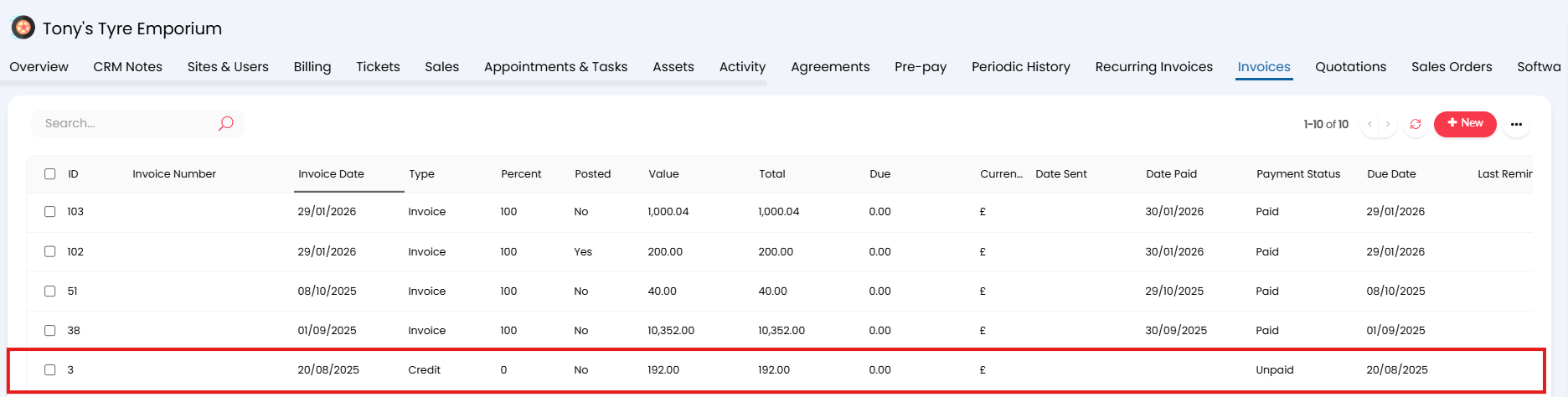
Fig 18. Credit Note under invoices tab
If you would like to show credit notes separately, you can have them show in their own tab. To do this head to Configuration > Billing > General settings > Credit Notes section > enable "Split Invoices into Invoices and Credit Notes Tabs under Customers, Sites and Top Level".
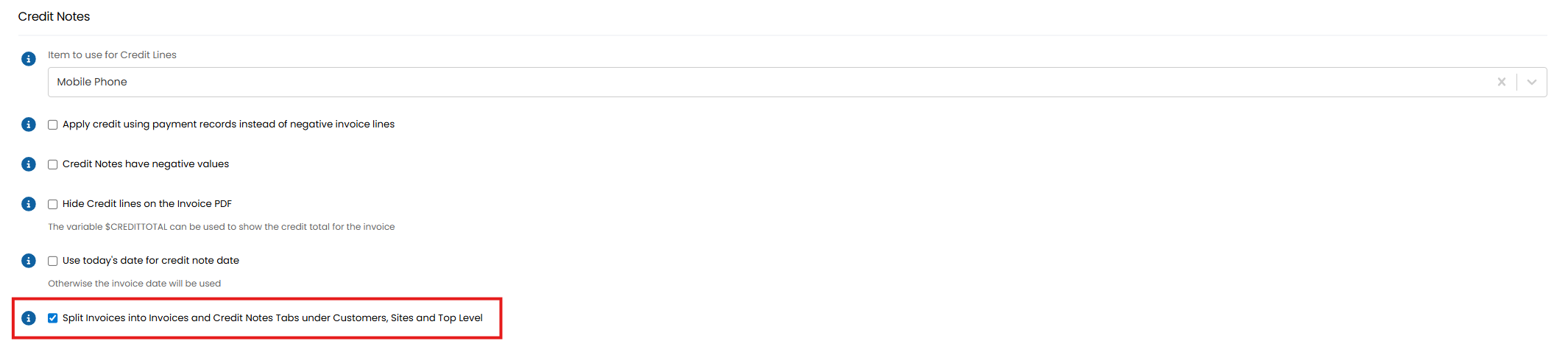
Fig 19. Split Invoices into Invoices and Credit Notes Tabs under Customers, Sites and Top Level
Once enabled, customers, sites and top levels will have an additional tab called "Credit Notes".
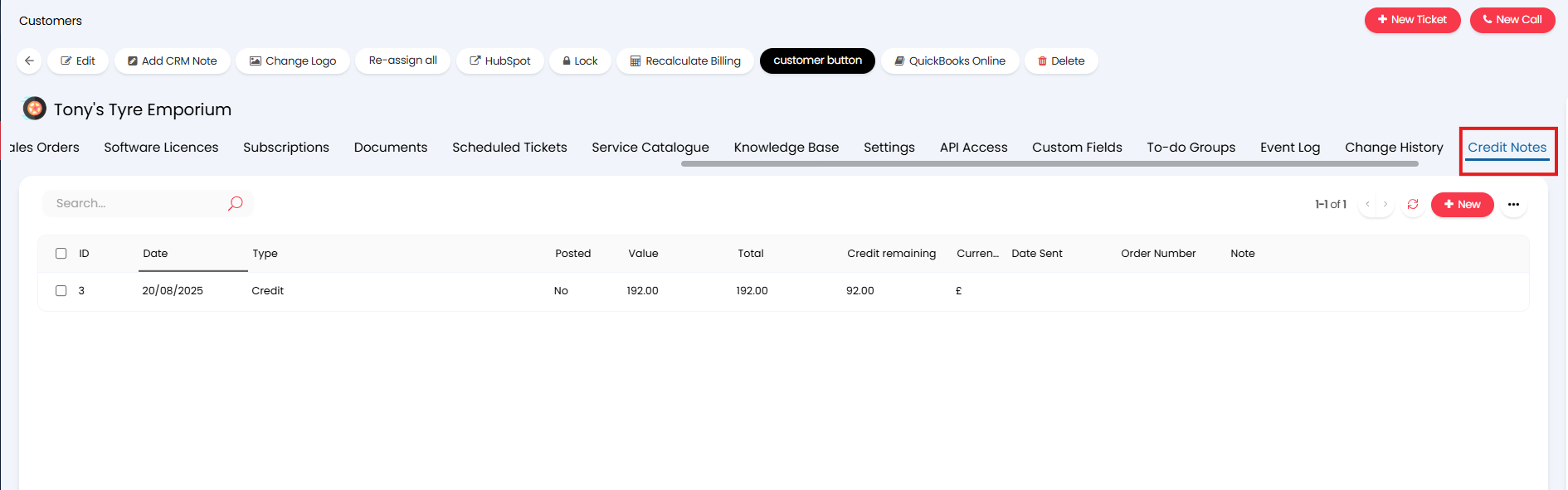
Fig 20. Credit Notes tab for Customer
To change the order of these tabs, customise the screen layout profile for the entity.