Searching the Knowledge Base
- search
- meta words
In this guide we will cover:
- How to Search for Articles
- Which Elements of the Article are Checked as part of a Search?
- Improve Search Using Meta Words
- Search using Article IDs
- Force an FAQ list to be Chosen before Returning Articles in the Search
- Filtering and searching on Custom Fields
Related Guides:
How to Search for Articles
There are various ways articles can be searched for in the Halo Agent App, articles can also be searched in the portal.
Use Global Search
The global search bar is found in the top right hand corner of page, this can be used to search knowledge base articles. Before searching ensure you select "Articles" as the entity to search.
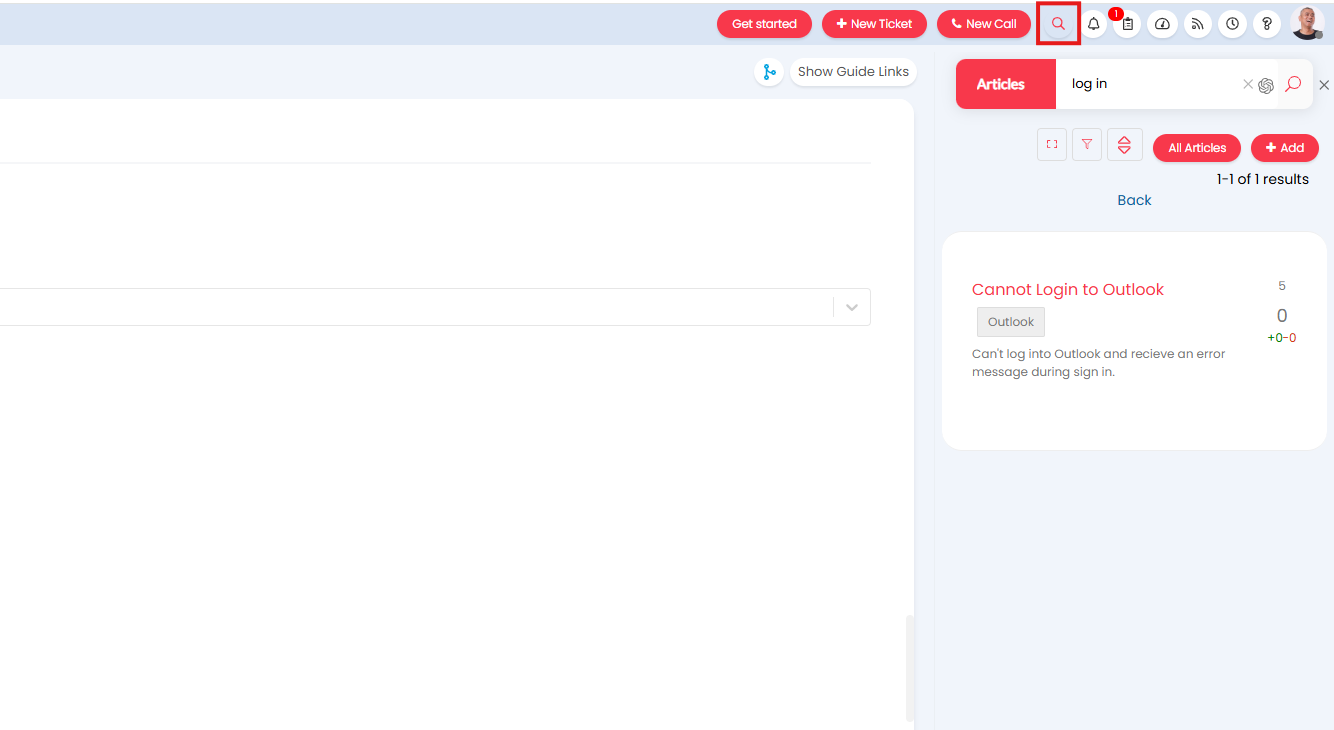
Fig 1. Global Search Bar
If you have "Show the quick search in the navigation bar" (under Configuration > Advanced Settings) you will not need to select an entity before searching, instead all entities selected for the 'All Search' option will be searched. To have articles returned in the search ensure "Articles" are checked here.

Fig 2. Entities to search when using the quick search in the navigation bar
Search in the Knowledge Base module
When in the knowledge base module you will also have an option to search for articles.
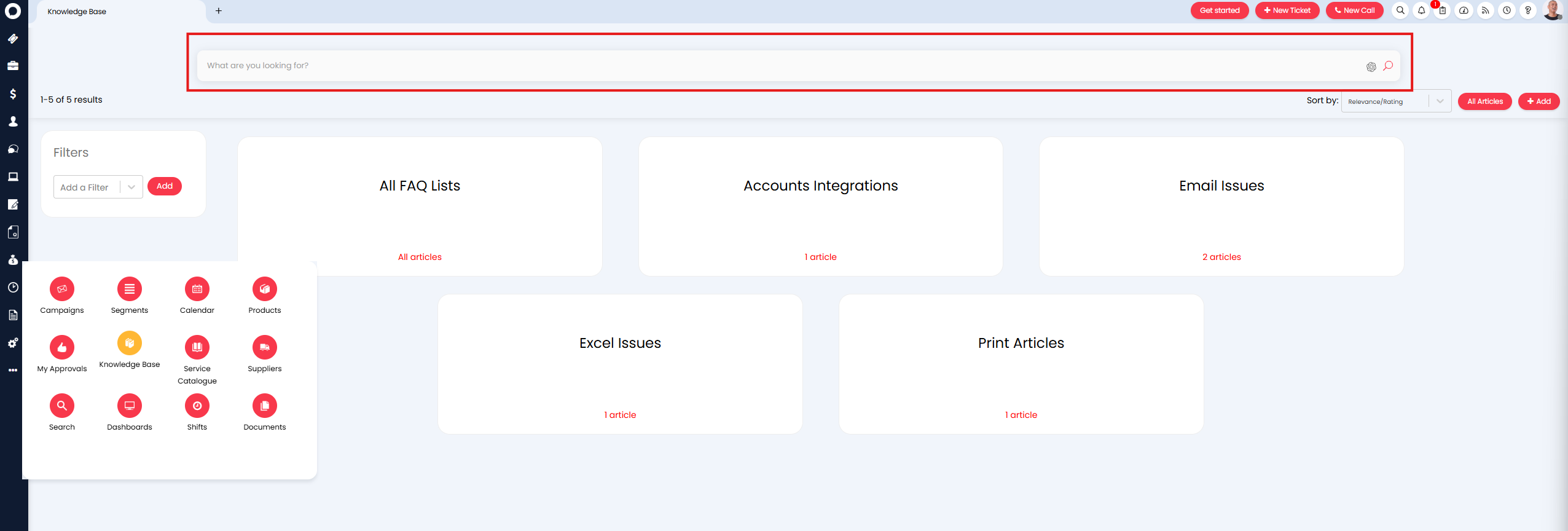
Fig 3. Searching in Knowledge Base
Search in the Search Module
Articles can also be searched for in the "Search" module, by selecting "Articles" as the entity.
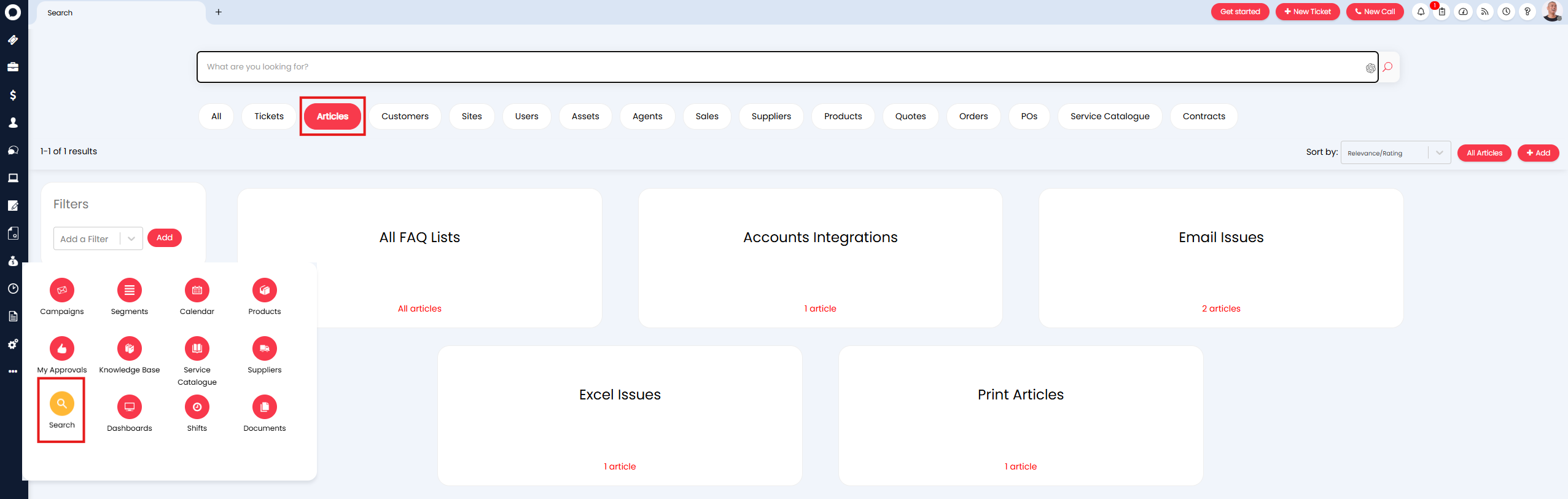
Fig 4. Searching in the Search Module
Search in the Portal
Users can also search for articles in the Portal from the knowledge base area.
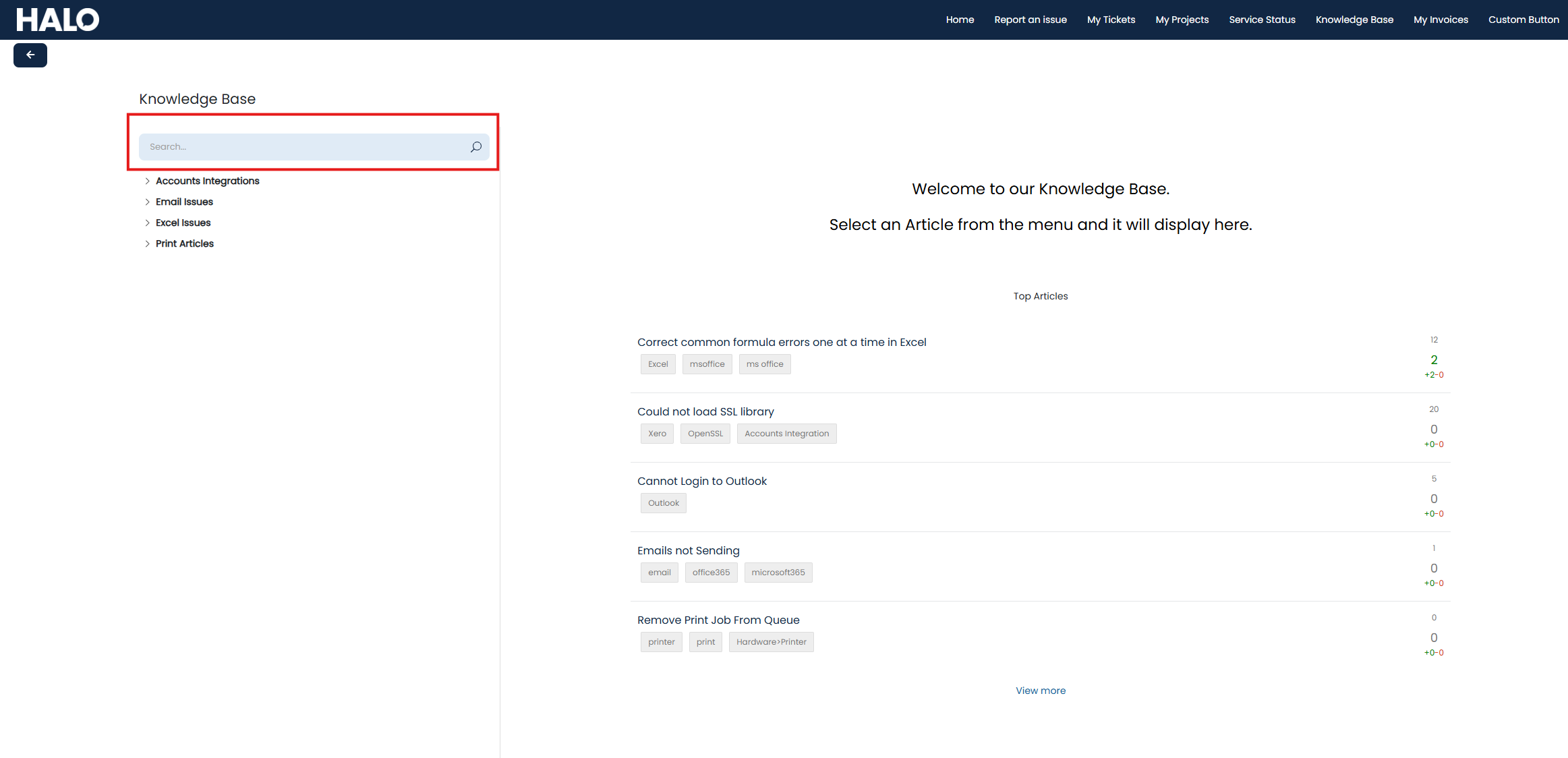
Fig 5. Searching the Knowledge Base in the Portal
From v2.242+, filters can be hidden from Users on the Portal by selecting the option "Hide Article search filter on the User portal" in Configuration > Knowledge Base.
From v2.246+, you can opt to display the search results using the tile mode. This will display the same as the Knowledge Base Tile mode Menu Button. To do this, head to Configuration > Self Service Portal, and enable "Use the Knowedge Base Tile Search for Article searching". This will also make clicking Top 5 Articles on the home screen take the User to the tile mode view.
Note: This setting will remove the "all" entity from your search.
Which Elements of the Article are Checked as part of a Search?
The following elements of articles will be checked when searching:
- Title
- Description
- Resolution
- Internal Memo
- Tags
All the text in each of these fields will be compared to the string entered into the search bar, if any of the text can be matched to the search string the article will be returned.
The way in which the article text is matched to a string is controlled by the "Knowledge Base Search Type" you have set. This is set under Configuration > Knowledge Base.
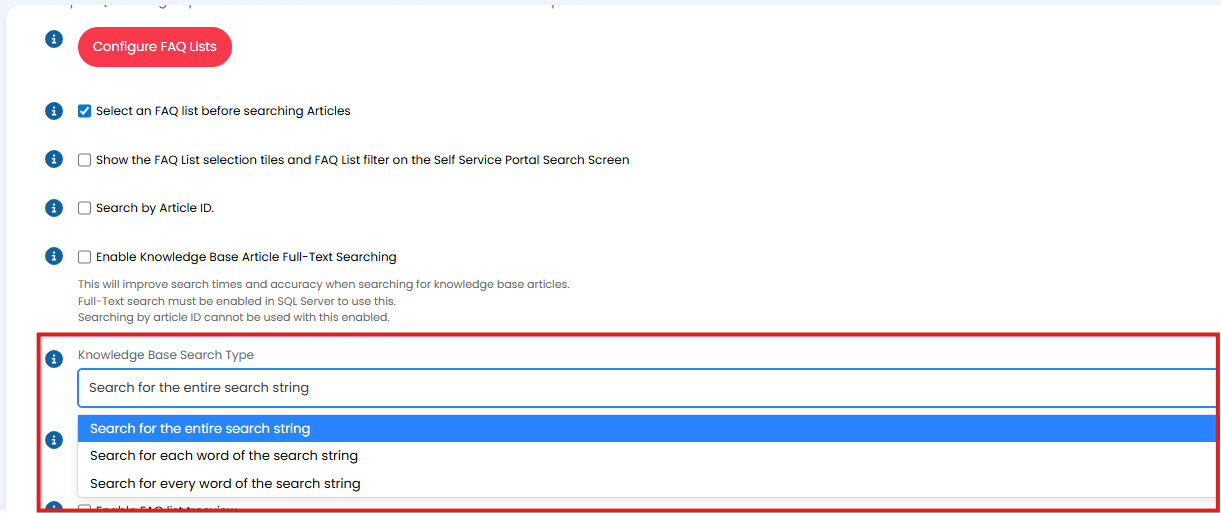
Fig 6. Knowledge Base Search Type
Search for the entire string - Each article will be checked to see if it contains the whole string in the search bar. Articles that only contain selected words in the search string will not be returned.
Search for each word of the search string - Each article will be checked to see if it contains any of the words in the search string. Articles that do not contain any of the words in the string will not be returned.
Search for every word of the search string - Each article will be checked to see if it contains any of the words in the search string, if it contains each of the words in the string it will be returned. The article must contain all the words in the search string to be returned, but they do not have to appear in the same order as they do in the string.
To optimize this search, "Enable Knowledge Base Article Full-Text Searching" can be switched on in Configuration > Advanced Settings > Searching. Full text searching searches for the entire string, rather than each individual word within the string, which not only speeds up searching, it also makes it more accurate upon doing so. This functionality will return search results which contain the whole, unbroken search phrase higher than articles which otherwise match the search phrase when using the search type "Search for each word of the search string" or "Search for every word of the search string". From v2.242+, If you are using Full-Text searching you will have the option to determine whether to include the Internal Memo in Agent search results using the checkbox "Full-text search the internal memo field when an Agent is searching". If you are not using Full-Text searching, Agent search results will always include Internal Memos.
Improve Search Using Meta Words
Meta words can be enabled for knowledge base articles. Meta words allow you to boost the rank of an article in search results when particular search terms are used. For example you may add the meta word/phrase 'not turning on' to the article titled "Device issues", so that when users search for the phrase 'device not turning on' the article "Device Issues" returns higher in the search. Unlike titles, descriptions and tags, meta words are not visible to users, and you can add as many as you like.
Keep in mind meta words cannot be used to return articles in search results alone. The search string will still need to match to an article, meta words just improve how high up an article appears in search.
The weighting of meta words can also be set to determine how influential meta words are over how highly an article is returned in the search.
Enable Meta Words
Pre-requisites
- Knowledge Base Article Full-Text Searching must be enabled
To enable the use of meta words, head to Configuration > Knowledge Base > enable "Enable Meta for Searching".
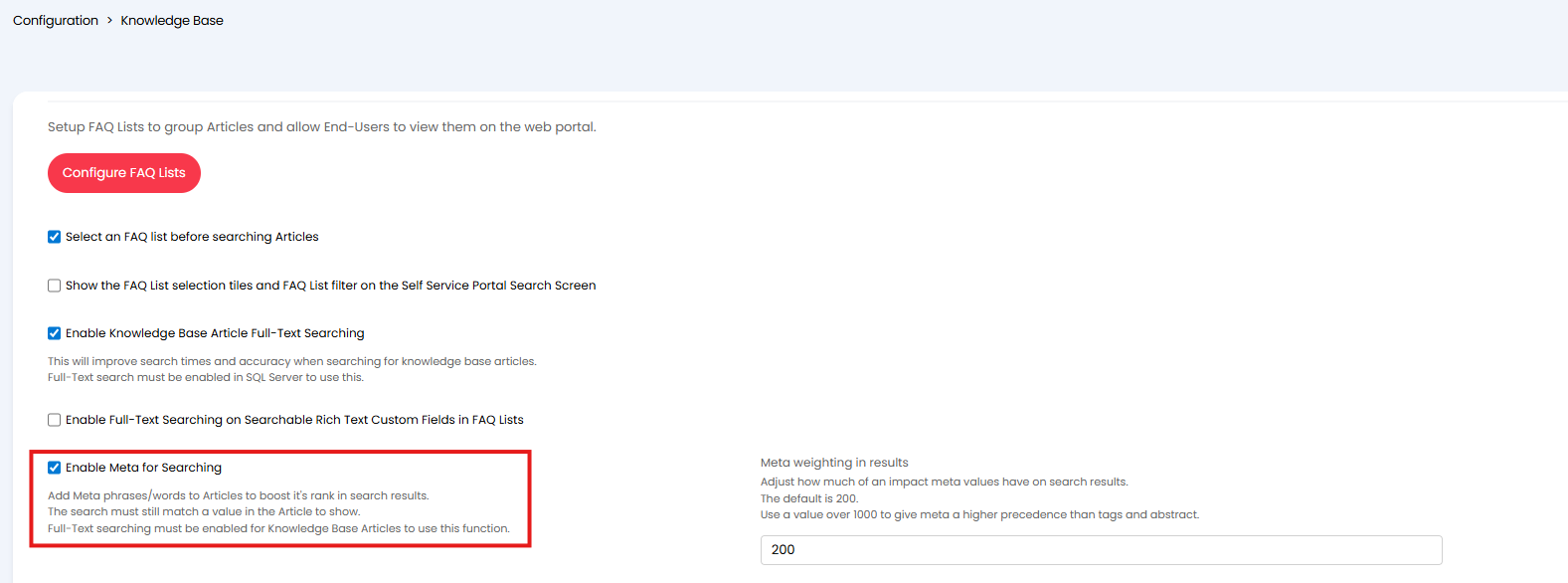
Fig 7. Enable Meta for Searching
Once enabled, you can set the "Meta weighting in results", this determines how much weighting meta words have over other elements of the article. Lower values mean meta words have a lower precedence. If you would articles that have meta words matching the search string to be returned higher in the search than articles that have a title/resolution/tag etc that matches the search string, set this to 1000 or more.
Adding Meta Words to Articles
Once meta words are enabled, you will have a new field available against each article called "Meta". Here, add all the meta words relevant to this article, to add multiple words/phrases use a comma separated list.
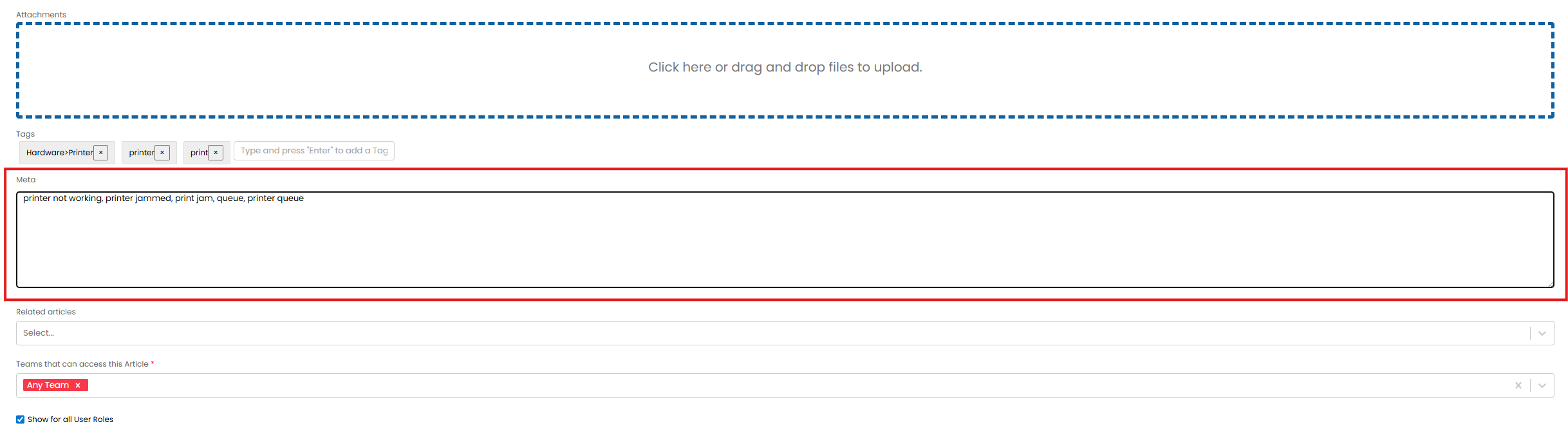
Fig 8. Meta Words on an article
Now, this article will be returned higher in if the search string matches one of these meta words as well as another element of the article.
Search using Article IDs
The ID of a knowledge base article can be found in the URL of the article when viewing this, as shown in Figure 9.
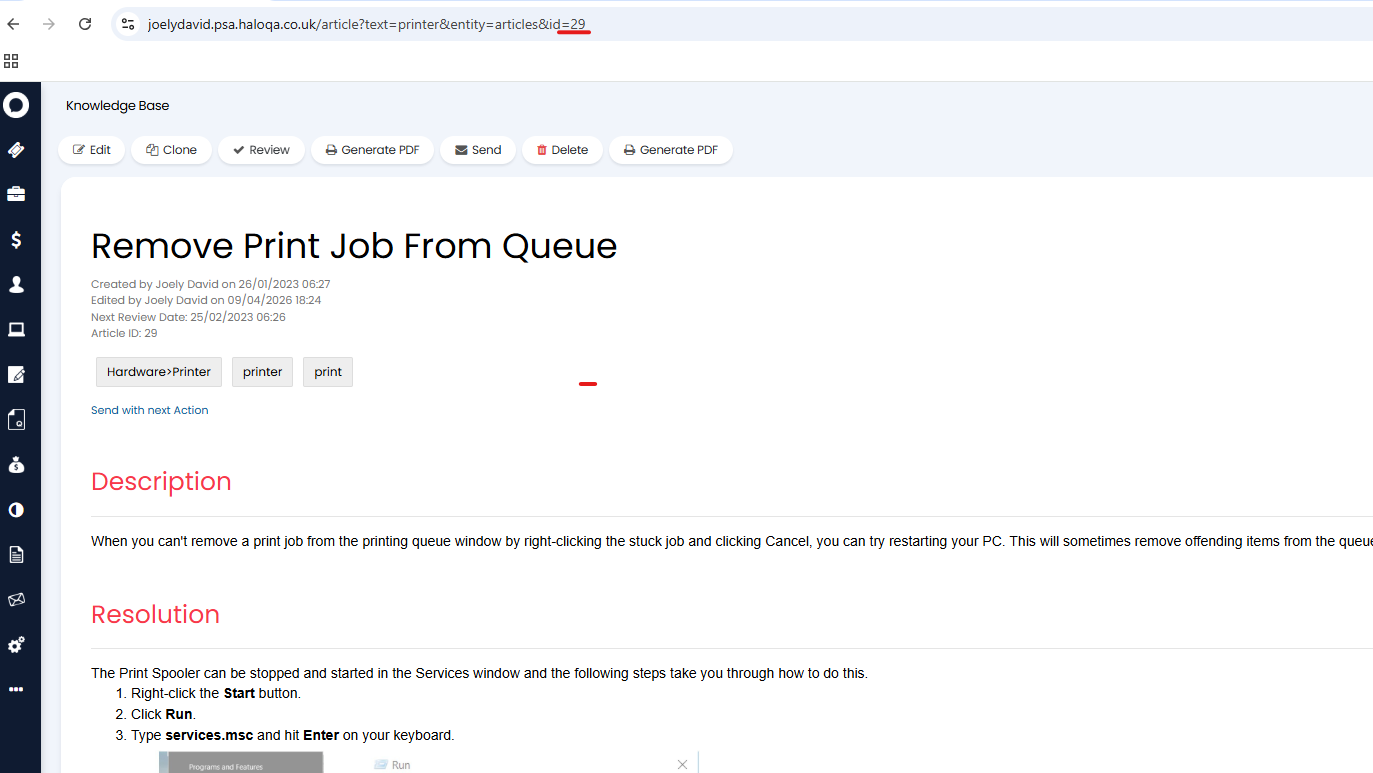
Fig 9. Article ID
If you would like to be able to search articles using this ID, this can be enabled. Head to Configuration > Knowledge Base > toggle "Article ID Search Behaviour".
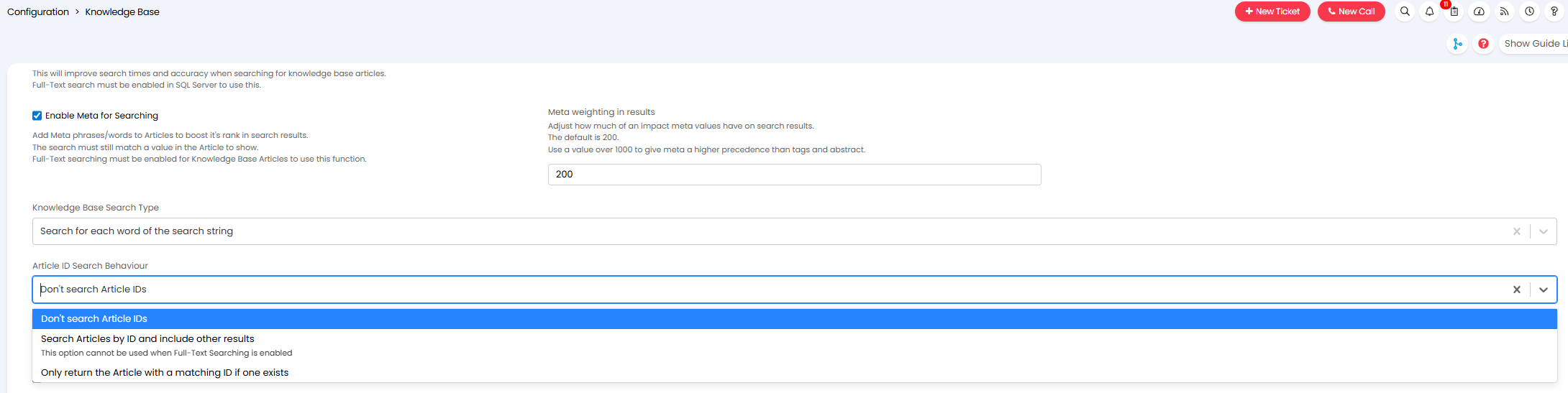
Fig 10. Article ID Search Behaviour
Don't Search Article IDs - IDs entered into the search will not return articles.
Search Articles by ID and include other results - Article IDs entered into the search will return articles with this ID, articles that contain this numerical value in their searchable elements will also be returned. This cannot be used in conjunction with Knowledge Base Article Full-Text Searching.
Only Return the Article with a matching ID if one exists - Article IDs entered into the search will return only the article with this ID. Articles that contain this numerical value in their searchable elements will not be returned.
Force an FAQ list to be Chosen before Returning Articles in the Search
If you would like agents/users to be required to choose which FAQ list to search before articles are returned, you can enable this for your knowledge base. This is useful if you have a lot of content in your knowledge base and would like to encourage agents/users to only search within a chosen FAQ list, rather than searching the whole knowledge base.
To enable this for agents head to Configuration > Knowledge Base > enable "Select an FAQ list before searching Articles".
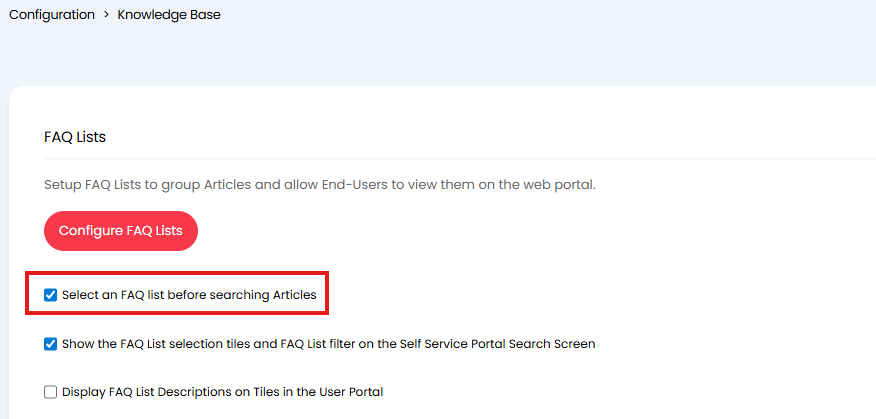
Fig 11. Select an FAQ list before searching Articles
Once enabled, agents will be prompted to choose an FAQ list to search within after they have entered their search string, as shown in Figure 12.
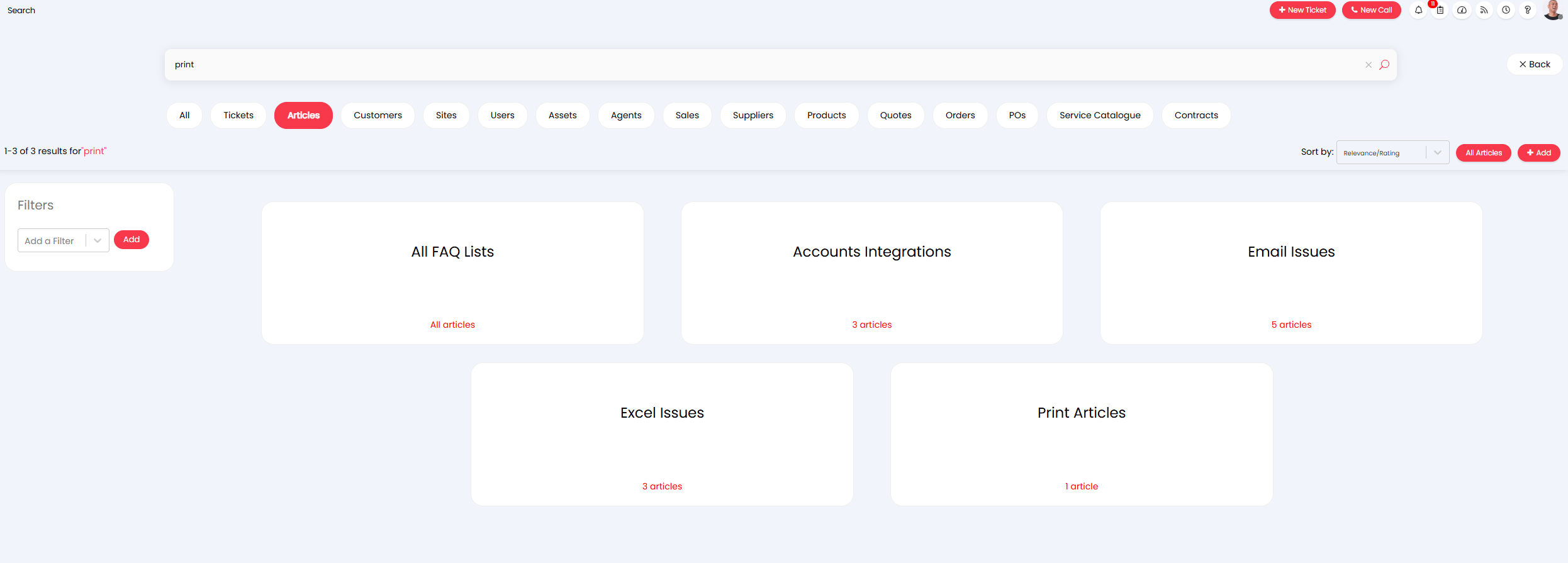
Fig 12. Choose an FAQ list before articles are returned
To enable this for users head to Configuration > Knowledge Base > enable "Show the FAQ List selection tiles and FAQ List filter on the Self Service Portal Search Screen".
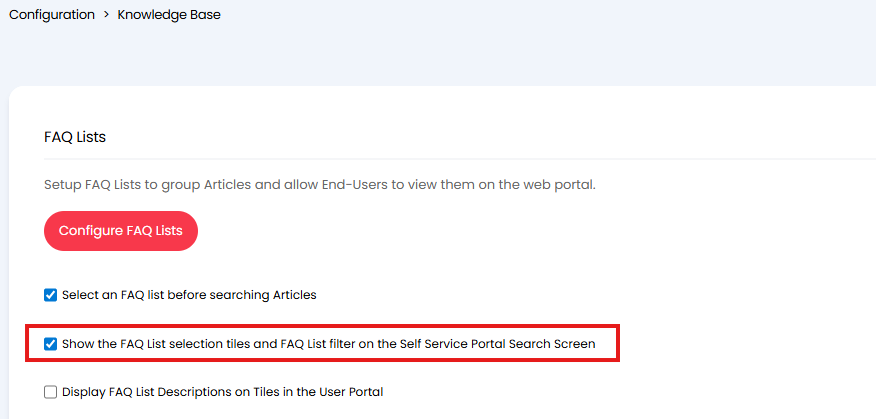
Fig 13. Show the FAQ List selection tiles and FAQ List filter on the Self Service Portal Search Screen
Once enabled, users will be prompted to choose an FAQ list to search within after they have entered their search string, as shown in Figure 14.
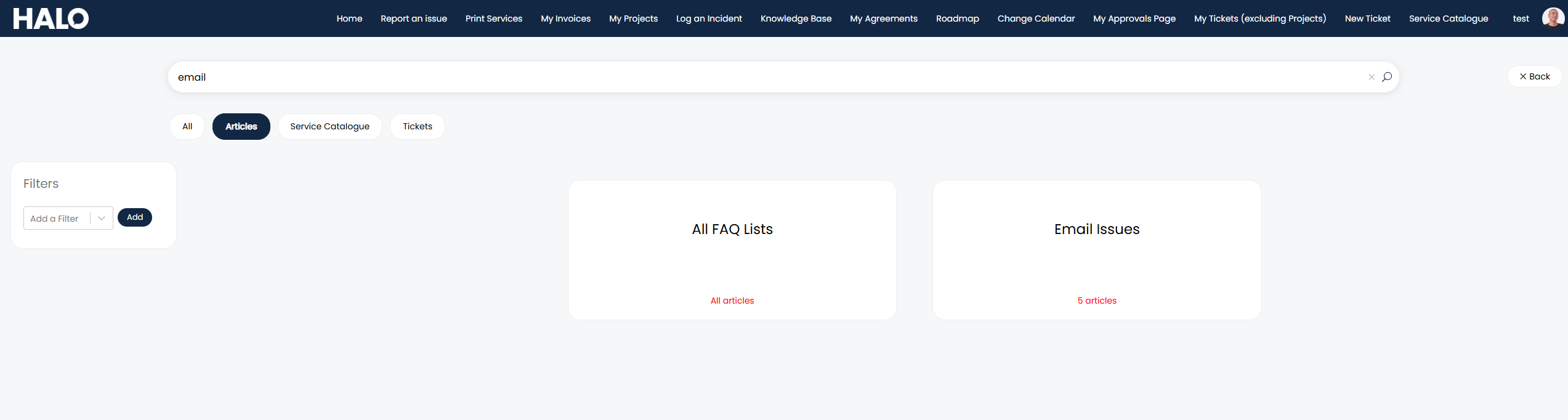
Fig 14. Choose an FAQ list before articles are searched (in the Portal)
All the FAQ lists the agent/user has access to will appear as tiles, by default. If you would only like FAQ lists that contain a matched article to show/be selected enable "Hide FAQ tiles with no search matches" under Configuration > Knowledge Base. Keep in mind this setting only applies to searching in the portal.
If you would like to search the whole knowledge base rather than a specific FAQ list choose "All FAQ Lists".
Filtering and searching on Custom Fields
Custom fields of types text, single-select, multi-select, and checkbox fields, which have been added to an FAQ list can be filtered and searched on. In order to filter on a Custom field you will need to ensure "Hide this Field from the Agent search filters" is not selected in the details tab of your Custom Field. Now when searching for an Article you can use the Filters section to restrict which results show based on the contents of the Custom Field.
Custom Fields using the "Store a row for each field value" will be searchable without any additional set-up required.
However, Custom Fields which use the "Store as a column in the parent table" will need to be saved, and edited again in order to see the "Include this field in searches" option against the Custom Field. Selecting this will allow you to search for the contents of this field.
If you would like to search on Rich Text Custom Fields, and you are using Full text searching, you will need to enable the new setting "Enable Full-Text Searching on Searchable Rich Text Custom Fields in FAQ Lists" in Configuration > Knowledge Base. With this enabled the contents of Rich Text Custom Fields can be searched for when looking for an Article.