Tiered Pricing
- Items
- pricing
- products
- tiered pricing
In this guide we will cover:
- What is Tiered Pricing?
- Setting Tiered Pricing on an Item
- Quotation/Sales Order/Invoice Process
- Tiered Pricing on Recurring Invoices
Admin Guides:
Related Guides:
What is Tiered Pricing?
Tiered pricing allows the price of the item to change dynamically based on the number of units of the product on a quotation, sales order or invoice.
This allows options such as providing overall discounts for larger orders, or an introductory deal with cheaper prices for the first few units, both providing incentives for your customers to purchase from you.
Setting Tiered Pricing on an Item
In the "Products" module, select an item/product or create a new one.
In the "Costing & Pricing" tab, enable "Use Tiered Pricing". The area below to configure tiered pricing will then appear.
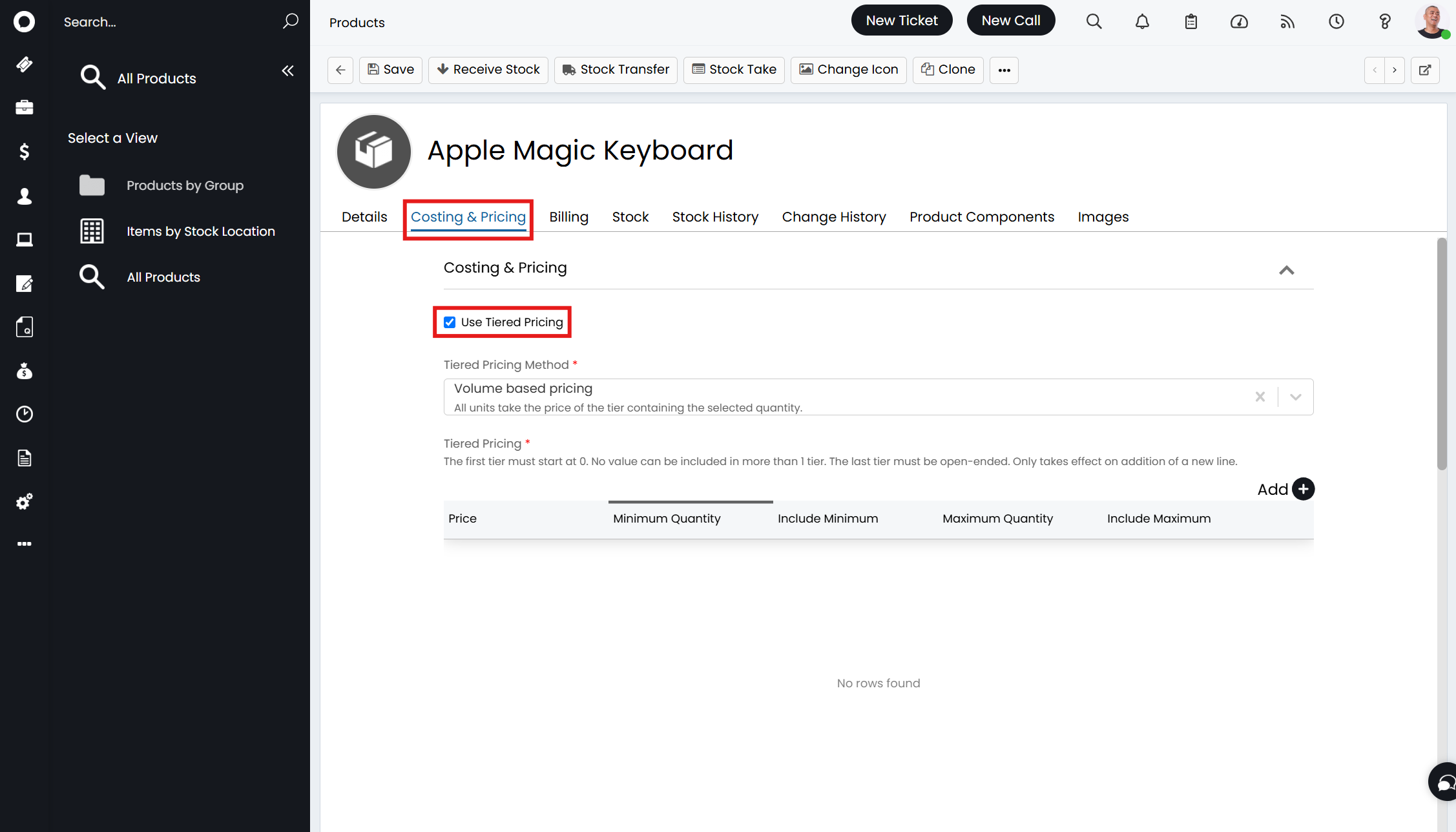
Fig 1. Enabling tiered pricing on a product.
The next dropdown "Tiered Pricing Method" is where the method of calculating the tiers is set.
"Volume based pricing" means that if you have tiered pricing for under or over 100 units, if an order contained 120, all 120 would be charged the over 100 price.
"Tiered based pricing" means that the same 120 units would be split into 100 charged the under rate, and the remaining 20 the over rate.
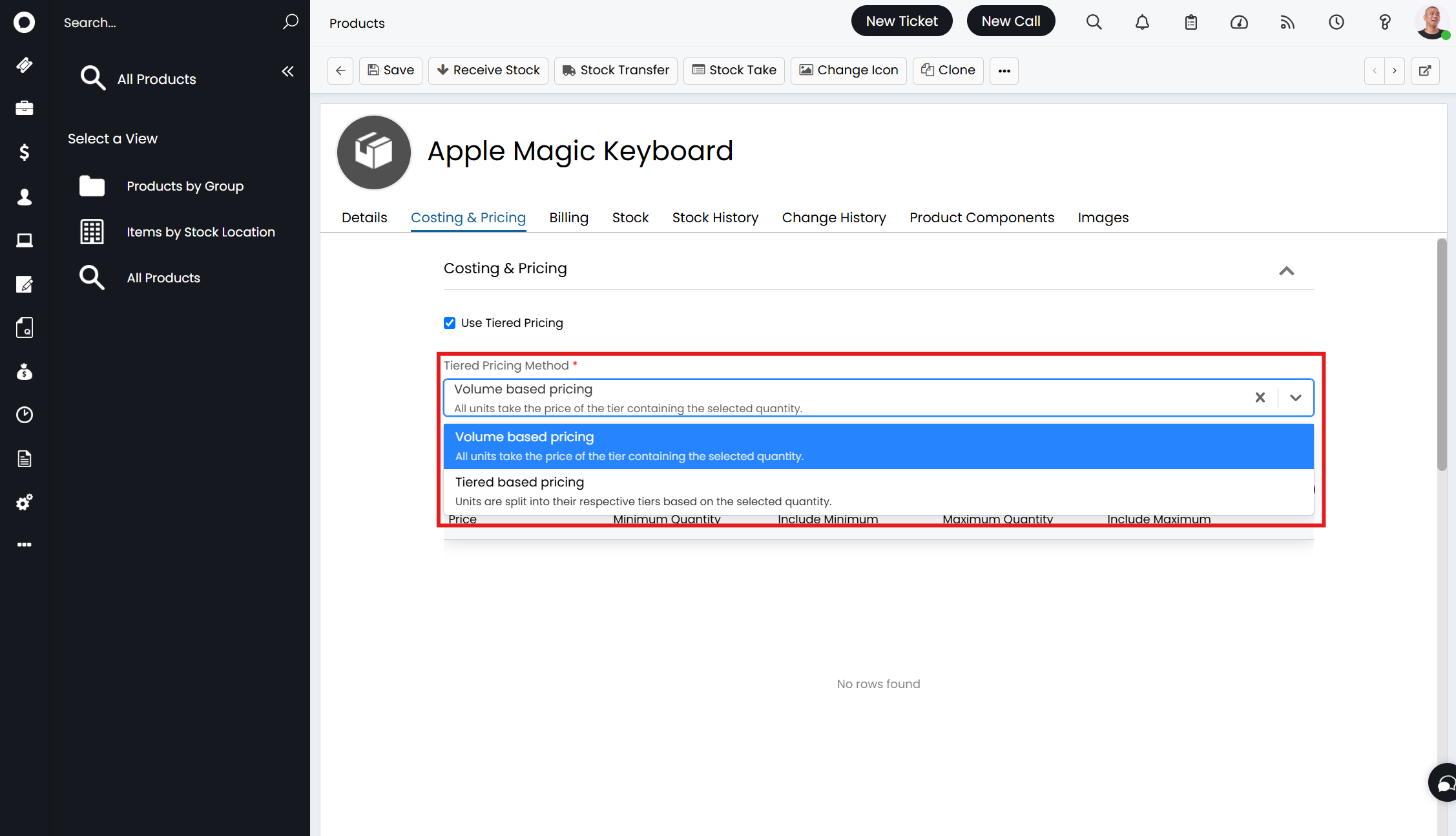
Fig 2. Setting the tiered pricing method.
Clicking "Add" to the "Tiered Pricing" table is where the price tiers are set.
Fig 3 also shows the configuration for the example this guide will be using throughout. Volume based pricing has been set, with a cheaper price if more than 5 units are bought.
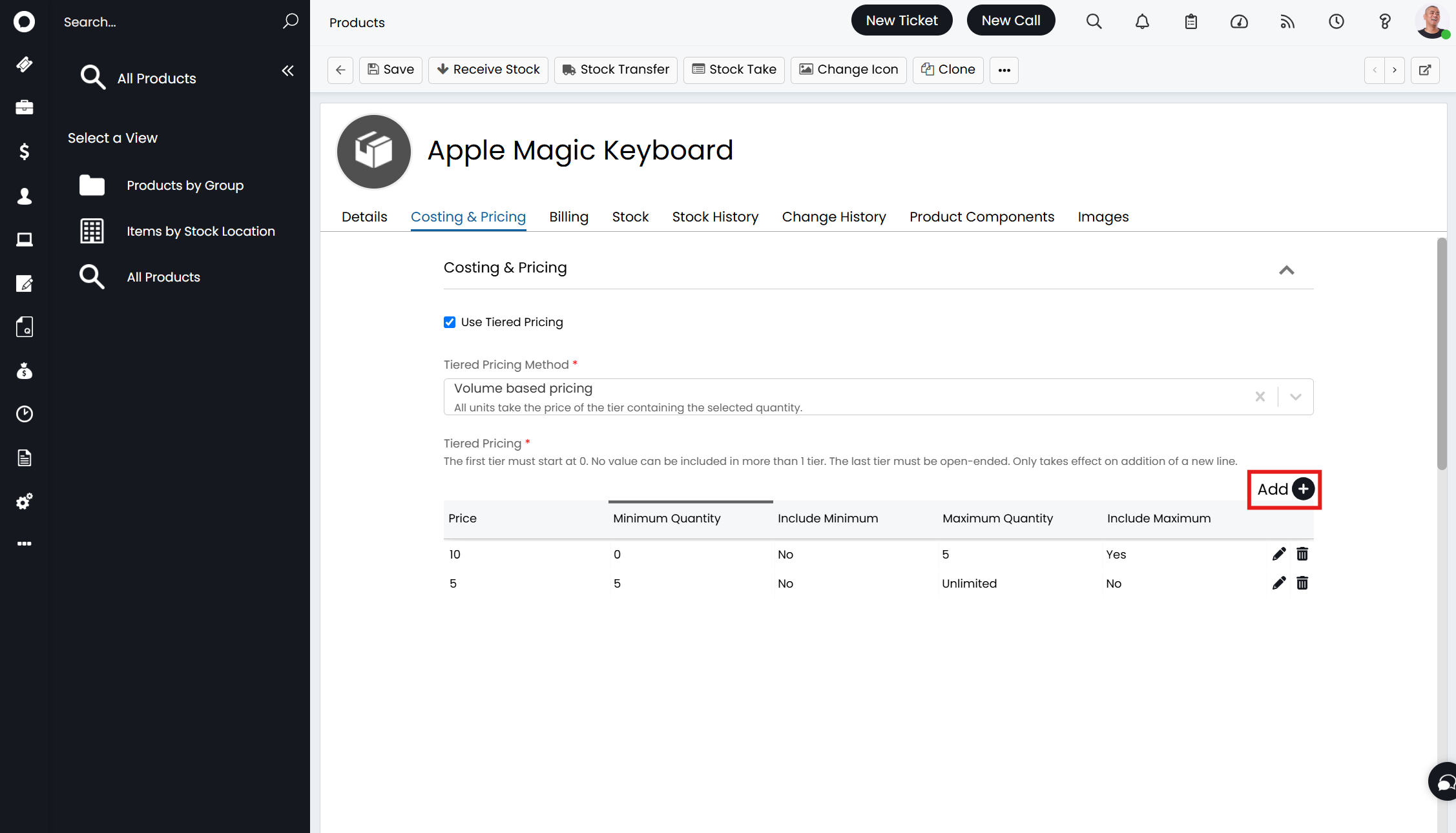
Fig 3. Adding the price tiers.
Upon clicking "Add", the following popup will appear to configure a tier. Here you can set the price, and then the number of units that price should correspond to.
The range is set between the minimum and maximum. The minimum is mandatory, and can be 0, but no maximum is needed as it can show "Unlimited" if none is set.
The checkboxes for "Include Minimum" and "Include Maximum" are for whether the unit values entered should be included in the range or not.
For example if the "Minimum Quantity" is set to 3, checking "Include Minimum" will show the range as 3 or over, and unchecking it will show the range as 4 or over.
The same applies for "Include Maximum" but the other way around. If the "Maximum Quantity" is set to 5, checking "Include Maximum" will set the range as anything 5 or below. Unchecking it will set the range as 4 or below.
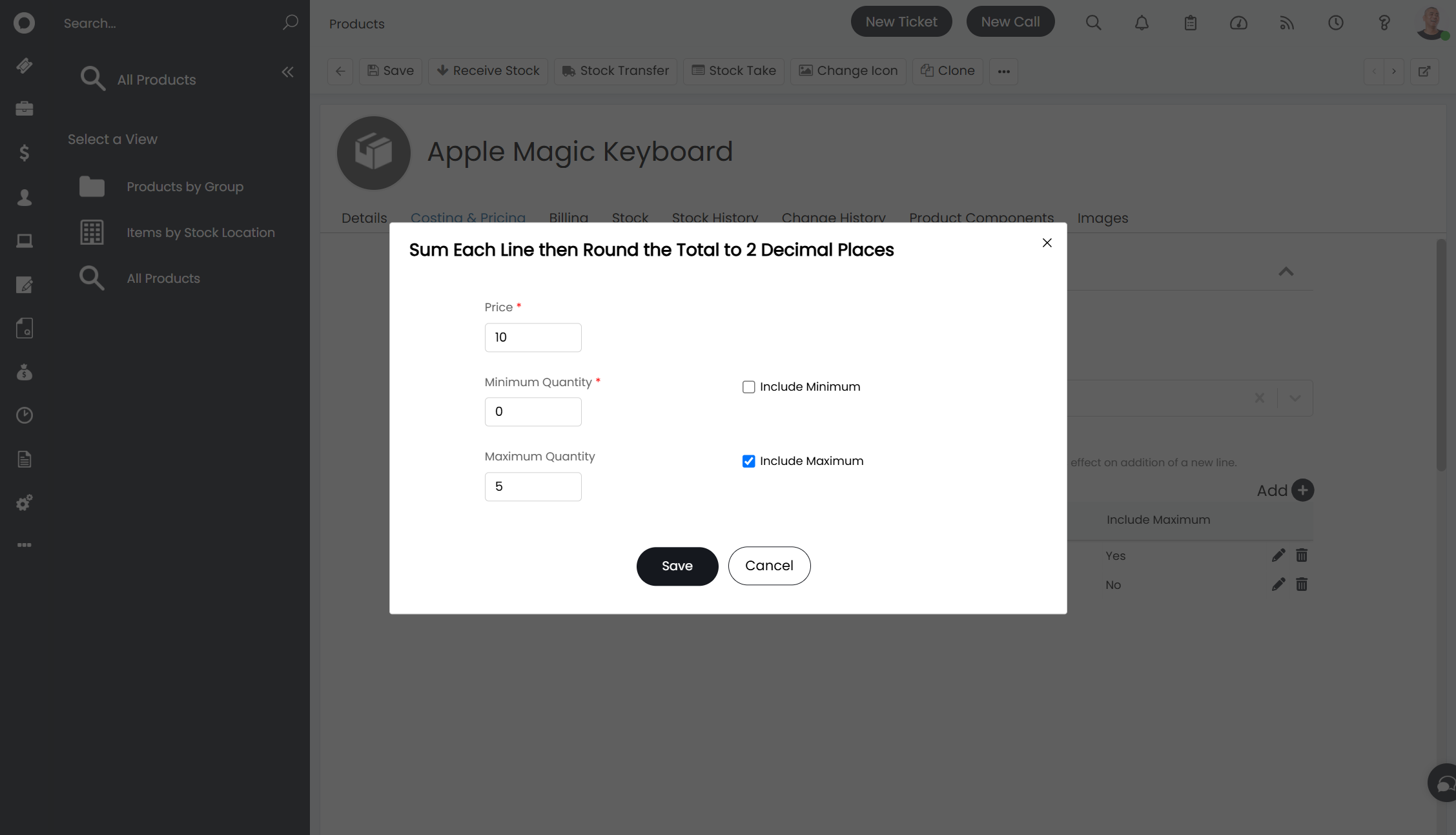
Fig 4. Setting price and tier ranges.
Quotation/Sales Order/Invoice Process
Now that the tiers are configured, the prices set against them will default when creating quotations, sales orders or invoices.
Note: The profit margin on the item line will only update fully when the quote/SO is fully saved.
In Fig 5, the quotation only has 1 unit added, falling under the 5 unit threshold, so it has a price of 10 to the customer.
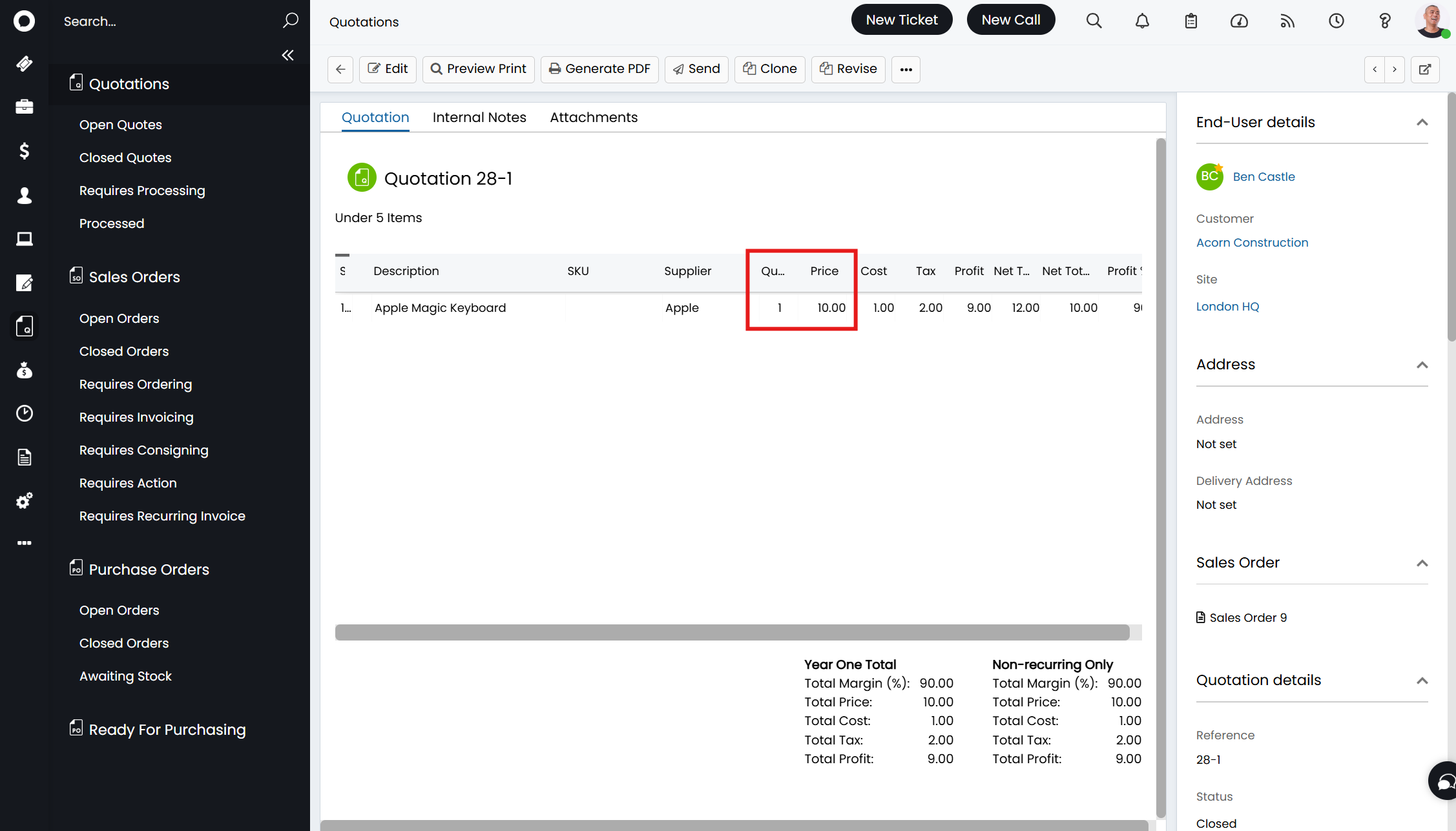
Fig 5. Quotation with the first price tier.
In Fig 6, the quotation has 6 units added. This goes over the 5 unit threshold we configured, and therefore has a price of 5 instead.
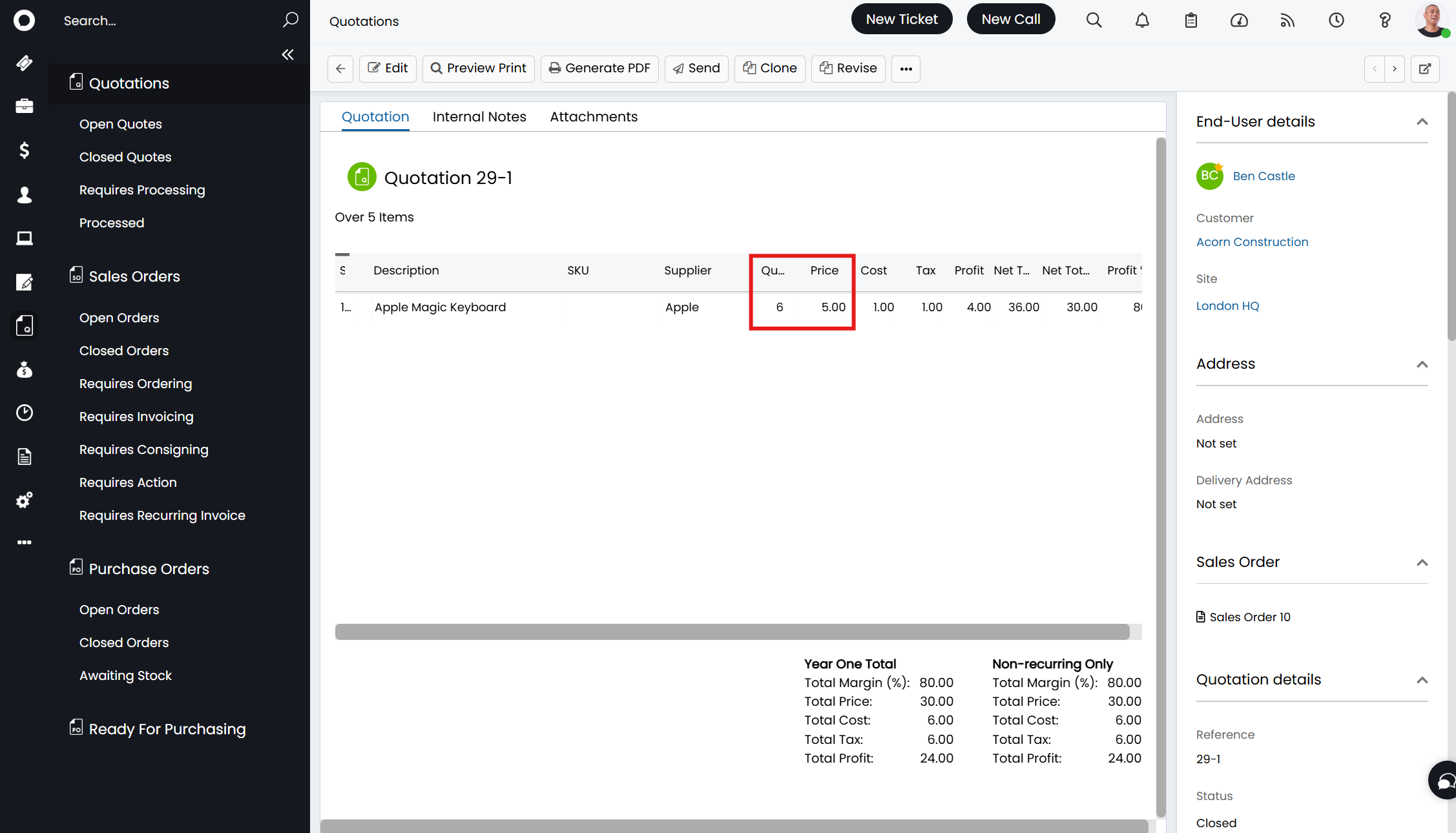
Fig 6. Quotation with the second price tier, applying a discounted rate.
Creating a sales order from that quotation transfers this price over.
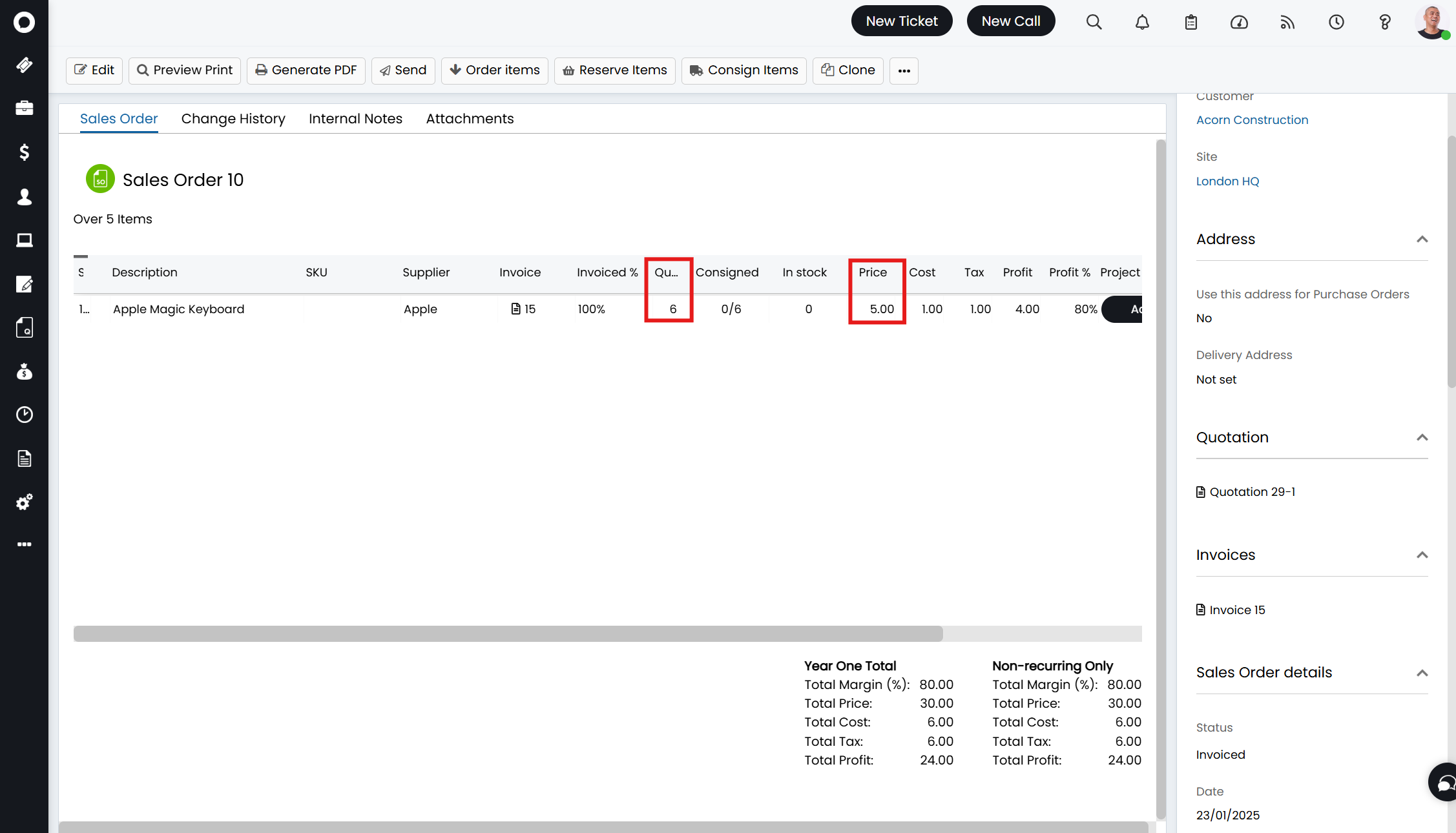
Fig 7. Sales order made from the quotation price.
The same then occurs when creating an invoice from the sales order.
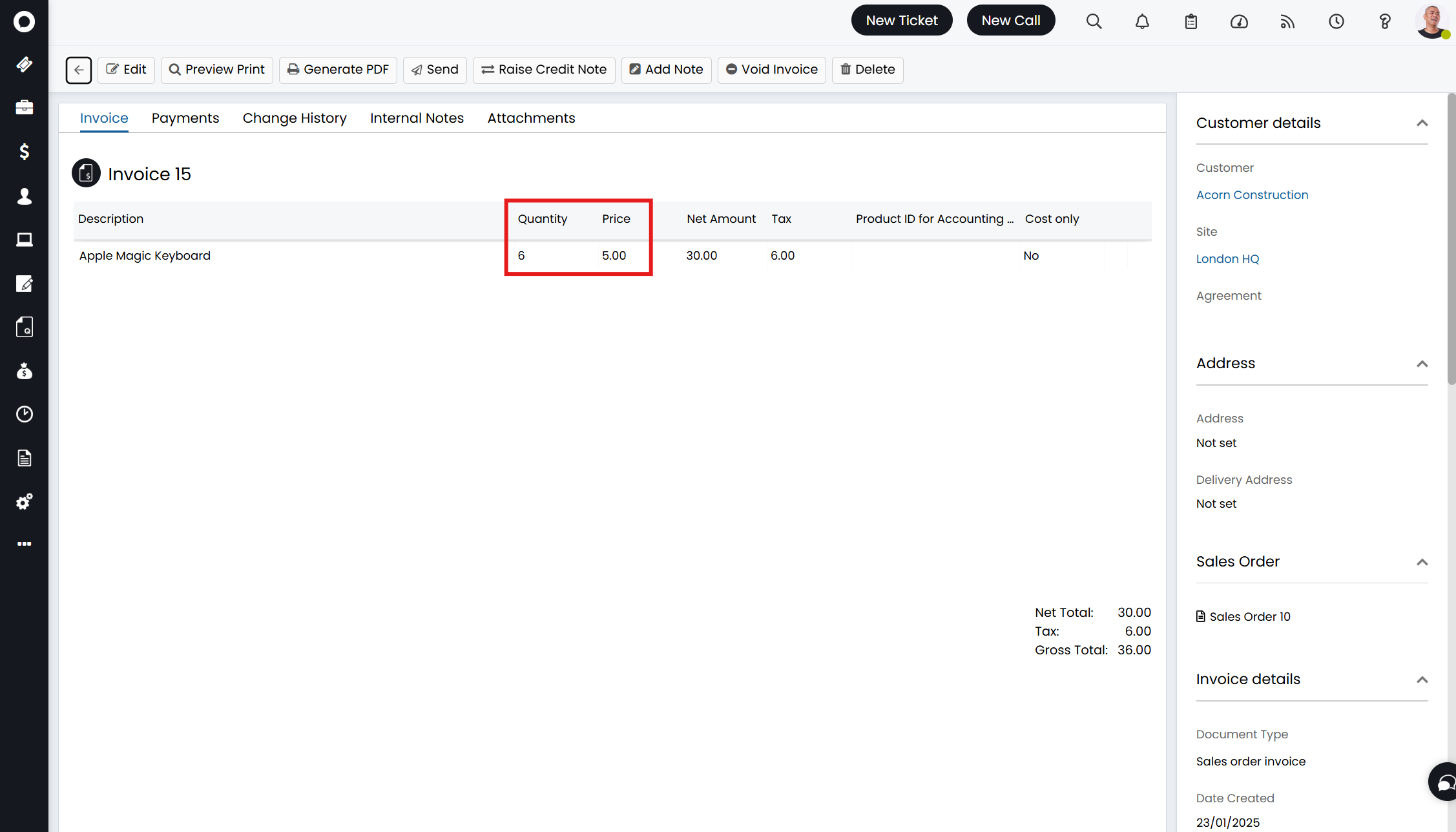
Fig 8. Invoice made from the sales order.
If instead using "Tiered based pricing" in the dropdown in Fig 2, the average price will show on the line in the quotations. The same tier mappings in Fig 3 mean adding 10 units averaged the price to 7.50 (5 units for 10, and 5 units for 5). The price transfer between quotations, sales orders, and invoices will then function the same as above using the volume method.
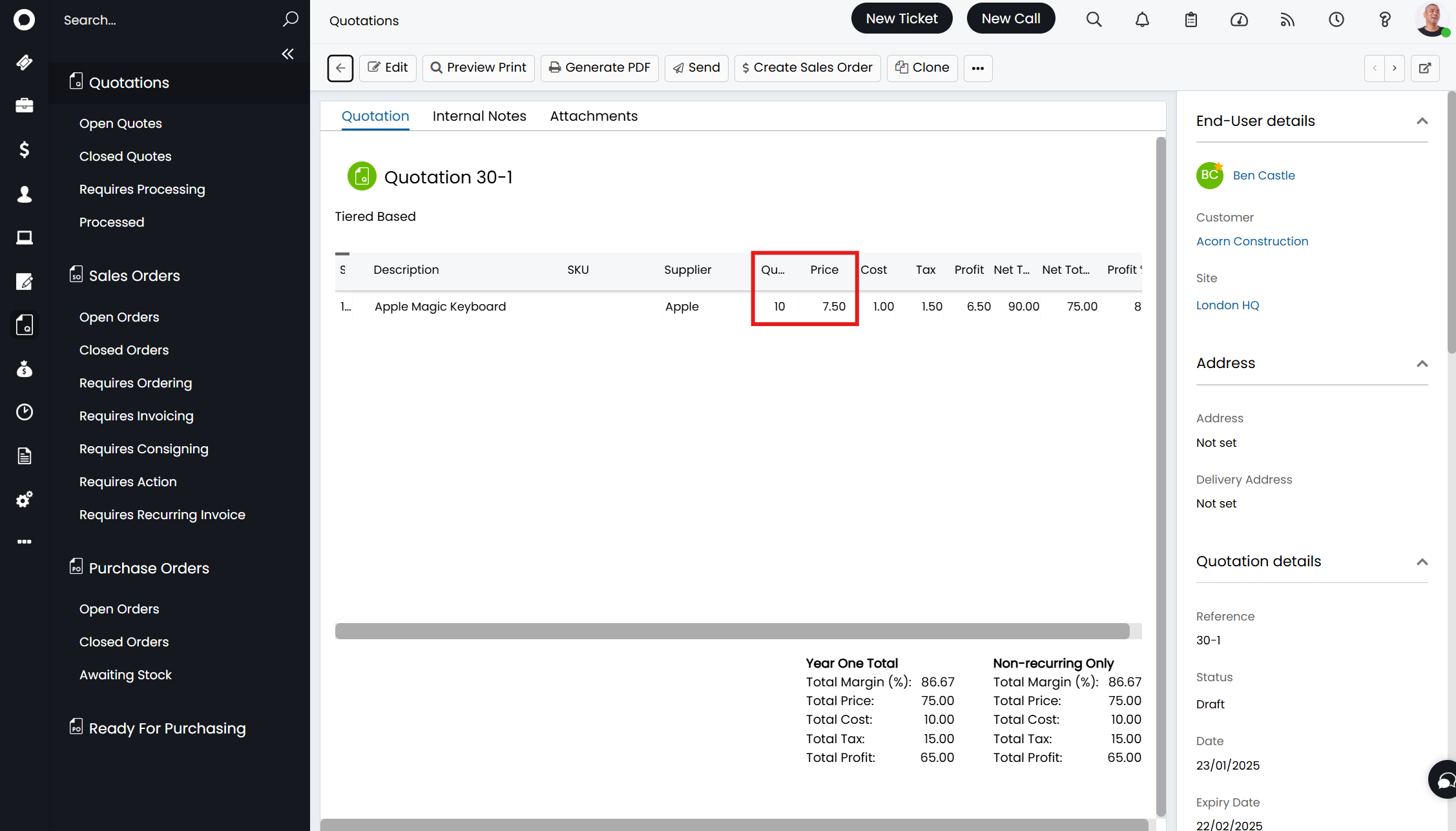
Fig 9. Tiered based pricing on a quotation line.
Tiered Pricing on Recurring Invoices
Tiered pricing configured for a product will be compatible with recurring invoices in Halo. This means as the quantity of the item changes on the recurring invoice, the price will change in line with the tiered pricing set for this product.
Price updates are reflected when quantity changes are made to the recurring invoice both manually and automatically. This means if you have the quantity of items on recurring invoices set to change dynamically, based on licence counts in Azure for example, the price will also update dynamically if the item uses tiered pricing.