Internal Quote Approvals
- quotes
- internal quote approval
- quote approval
In this guide we will cover:
- Enabling Agent Quote Approvals
- Approval Configuration
- Determining which Agents can Approve Quotes
- Simple Quote Approvals
- Using Opportunity/Ticket Approvals
Admin Guides:
Enabling Agent Quote Approvals
In Configuration > Quotations, enable "Allow Quotations to be approved before being sent or Sales Orders created".
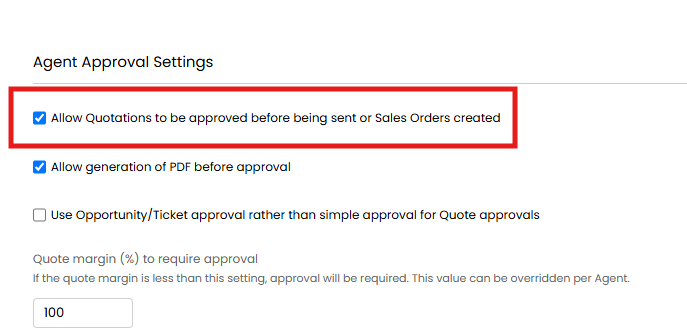
Fig 1. Allow Quotations to be approved before being sent or Sales Orders created
Approval Configuration
Once quote approvals are enabled as in Fig 1, you will see some additional options appear.
Configuration > Quotations > "Ticket status after Quote Accepted/Rejected/Sent/Expires" - If the quote is linked to a ticket/opportunity you can set what status the ticket changes to at each event.
Configuration > Quotations > Agent Approval Settings > "Allow generation of PDF before approval" - When enabled the action button to 'Generate PDF' for the quote can be used before the quote has been approved. When disabled a quote PDF can only be generated after the quote is approved.
Configuration > Quotations > "Use Opportunity/Ticket approval rather than simple approval for Quote approvals" - When enabled opportunity/ticket approval processes can be used to approve quotes, used when a more complex approval process is needed. Note: The "Simple Quote Approvals" section of this guide is in relation to this being off. The "Using Opportunity/Ticket Approvals" section of this guide is in relation to it being on.
Configuration > Tickets > Approval Processes > Process Rules > add criteria of "Average Quote Margin (%)" - Here you can determine which quotes will require approval based on the discount applied, and which agents they are routed to for approval.
Configuration > Tickets > Approval Processes > Process Rules > add criteria of "Line Margin Below Product Minimum for Selected Product Group" (v2.238+) - Here you can determine which quotes will require approval based on if the line within the selected product group has a margin below the item’s configured minimum. This margin can be set in the Costing & Pricing tab of an item.
Configuration > Teams & Agents > Agents > Details tab "Quote margin (%) to require approval" - Here you can determine which quotes will require approval based on their margin. If the quote margin is less than the value set here, approval will be required. This can be overridden per agent against the against the agent profile under the 'details' tab.
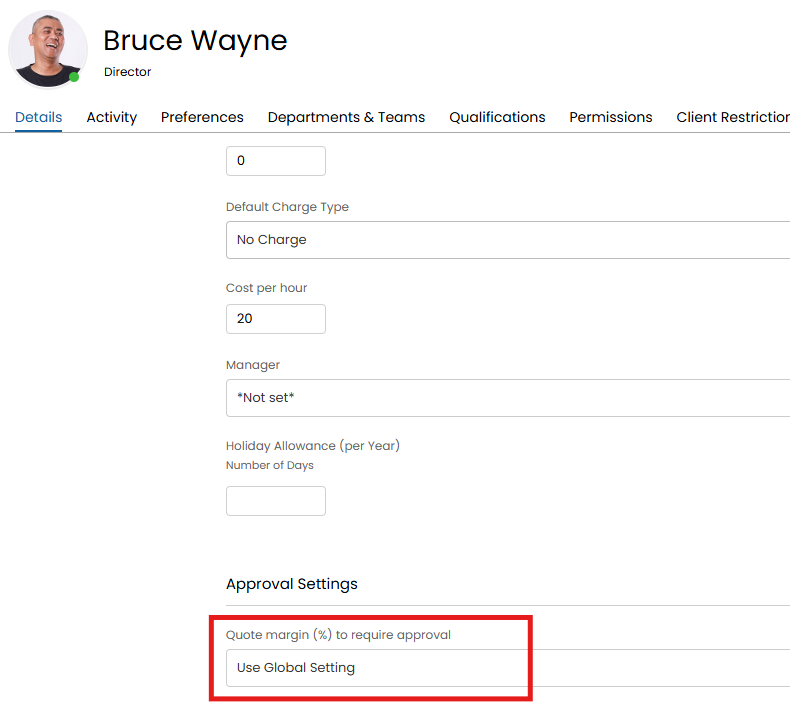
Fig 2. Quote margin to require approval against agent
Determining which Agents can Approve Quotes
To set an agent as a quote approver head to the agent's profile under Configuration > Teams & Agents > select an agent > Details tab, under the Approval Settings section you will see the setting 'Can approve Quotations'. When checked this agent will be able to be selected as an approver when a quote is submitted for approval.
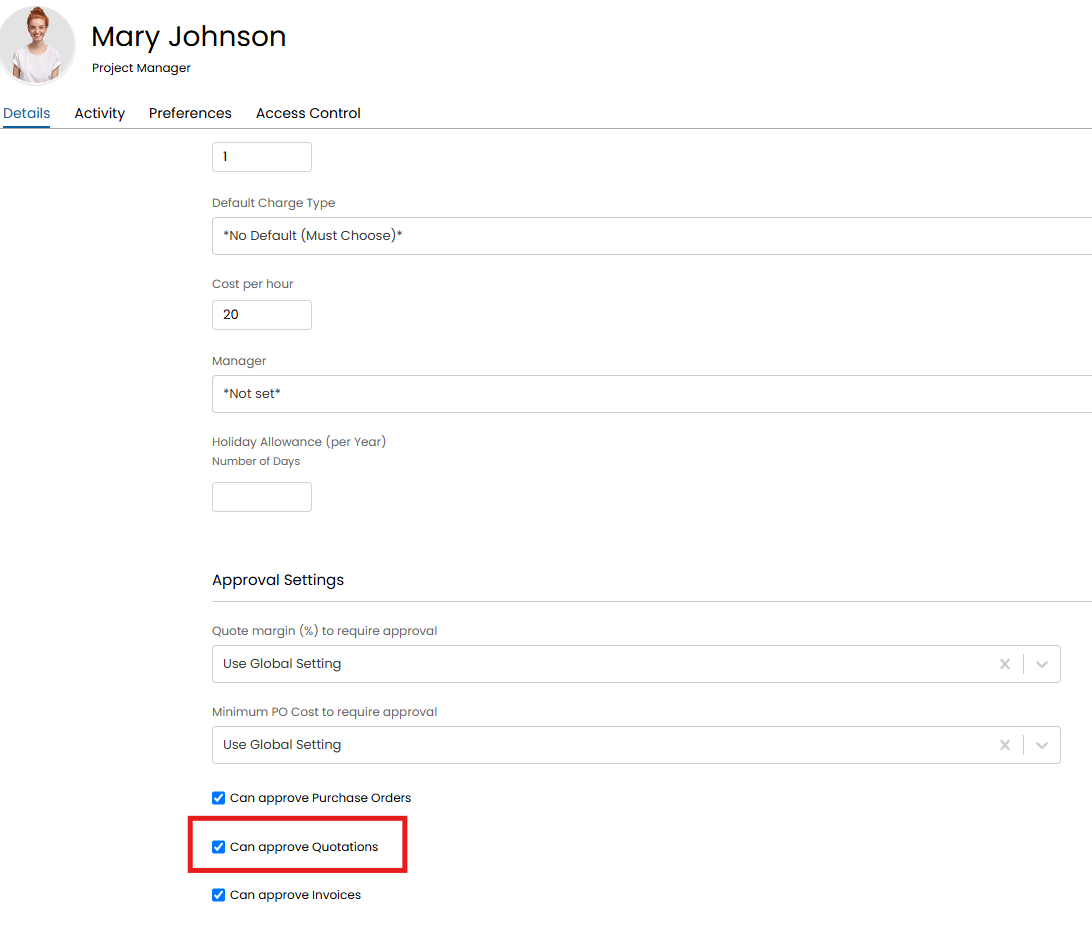
Fig 3. Can approve Quotations Setting
Auto-Approve when an Approver is Requesting (v2.251+)
From v2.251+ you can have quotes automatically approved if the agent requesting approval is a quote approver. This is controlled using an agent permission, allowing you to control who's invoices are automatically approved. Even if an agent is an administrator, they still require this permission.
To do this give approval agents the permission "Can self approve on billing entity approval processes" against their agent profile or their role.
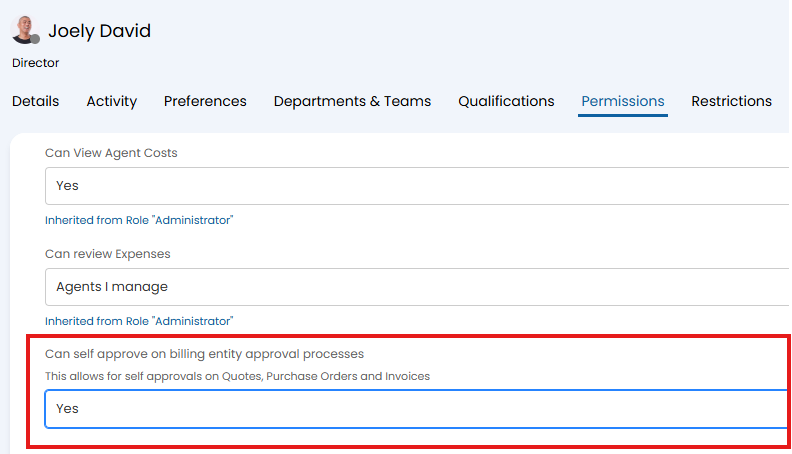
Fig 4. Can self approve on billing entity approval processes permission
Note: This permission will also allow purchase orders and invoices to approve automatically when this agent requests approval, should they be an approver for these entities too.
Now, if an agent with this permission requests approval for a quote , it will automatically approve.
Simple Quote Approvals
Now when viewing a quotation you will be able to use the 'Request Approval' action.
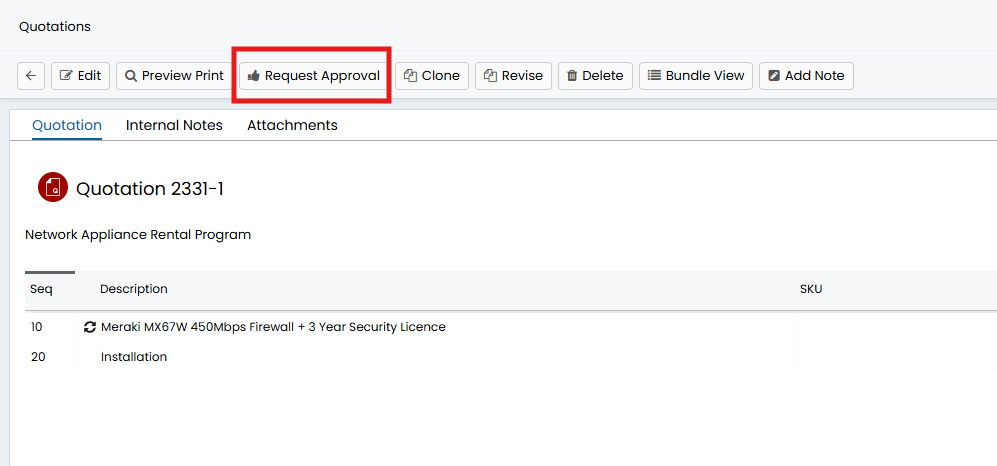
Fig 5. Request approval action
When this action is used you will be prompted to select which agent you would like to approve the quotation. This agent will be sent an email with a link which can be used to approve/reject the quote.
When this link is followed the agent will be taken to the quote and will see two additional actions to 'Accept' or 'Reject' the quote.
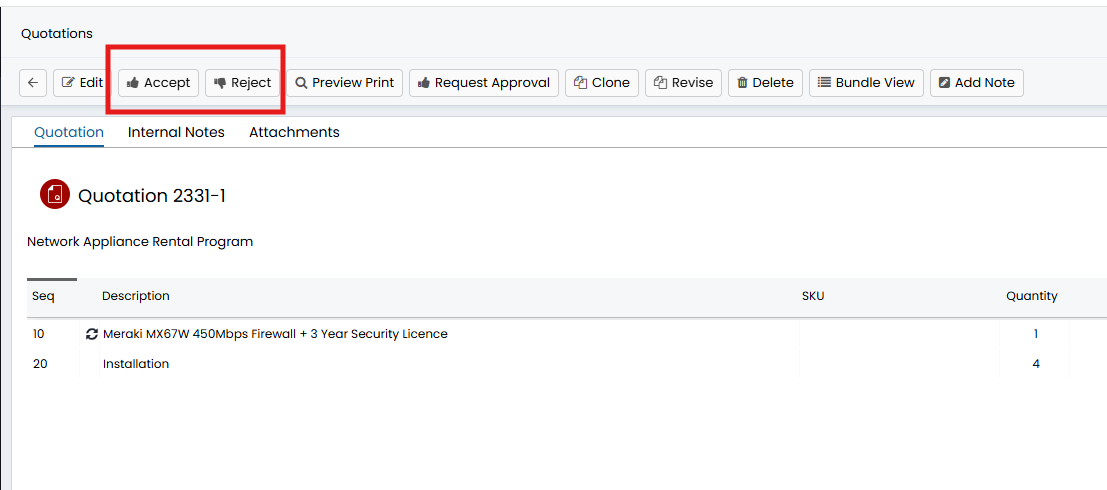
Fig 6. Accept/Reject quote
Once the quote is accepted/rejected the status of the quote will change to accepted/rejected and will then be able to be sent to the customer.
The signature of the agent that approved the quote can be added into the email using the variable $-APPROVERAGENTQUOTESIGNATURE when sending the quotation after the approval.
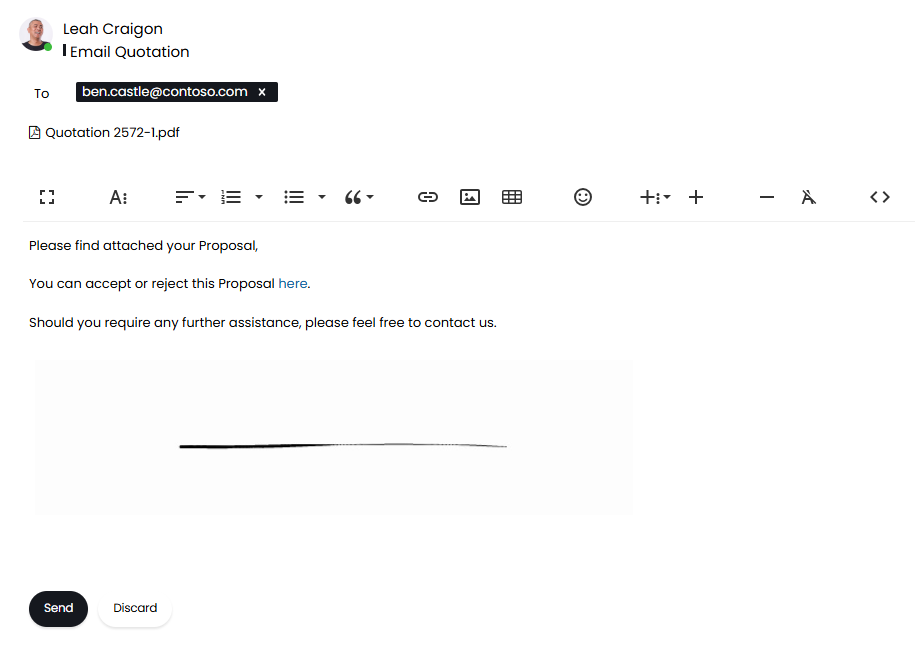
Fig 7. Email with the agent signature.
The variable can show like above when adding the variable into this email template (ID: 92).
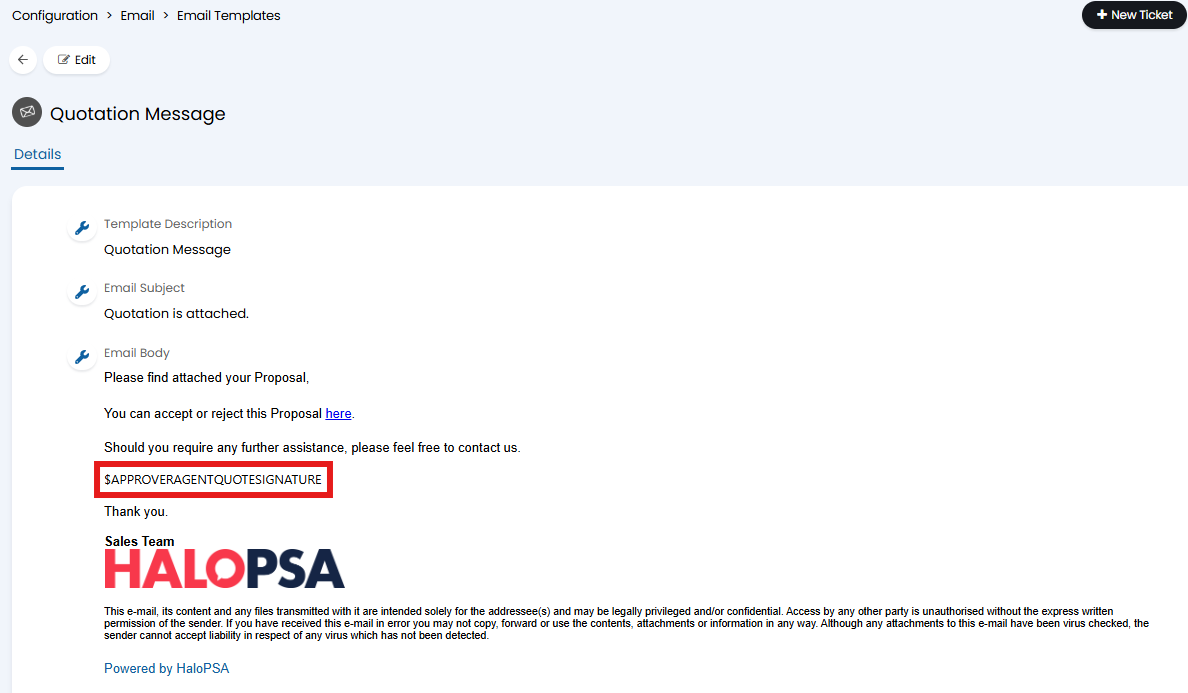
Fig 8. Email with the variable for the agent signature.
The signature that appears will be the one populated in the agent's profile > Preferences tab > Approval Processes > "Agent Signature".
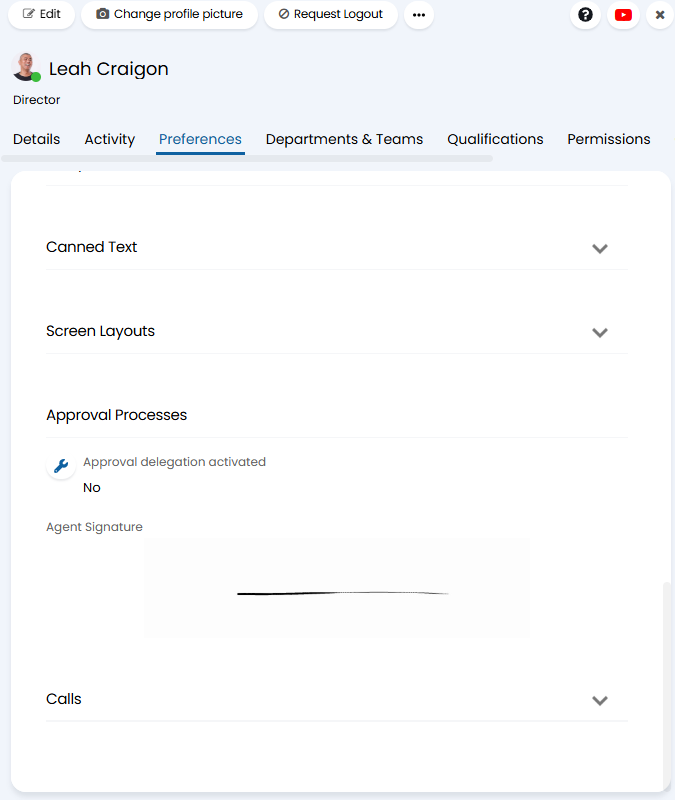
Fig 9. Agent signature.
Using Opportunity/Ticket Approvals
Ticket approval processes can be used instead of the general quote approval shown previously. This allows scenarios where CABs can approve quotes for instance, or it could follow a multi-stage process. This can be helpful for high-value sales.
In Configuration > Quotations, enable "Use Opportunity/Ticket approval rather than simple approval for Quote approvals". This will then show the Approval Process dropdown underneath where the approval process can be selected. A general one can be set, or selecting "*Choose Approval Process*" will provide a pop up each time to choose. This allows different approval processes to be used on different quotations.
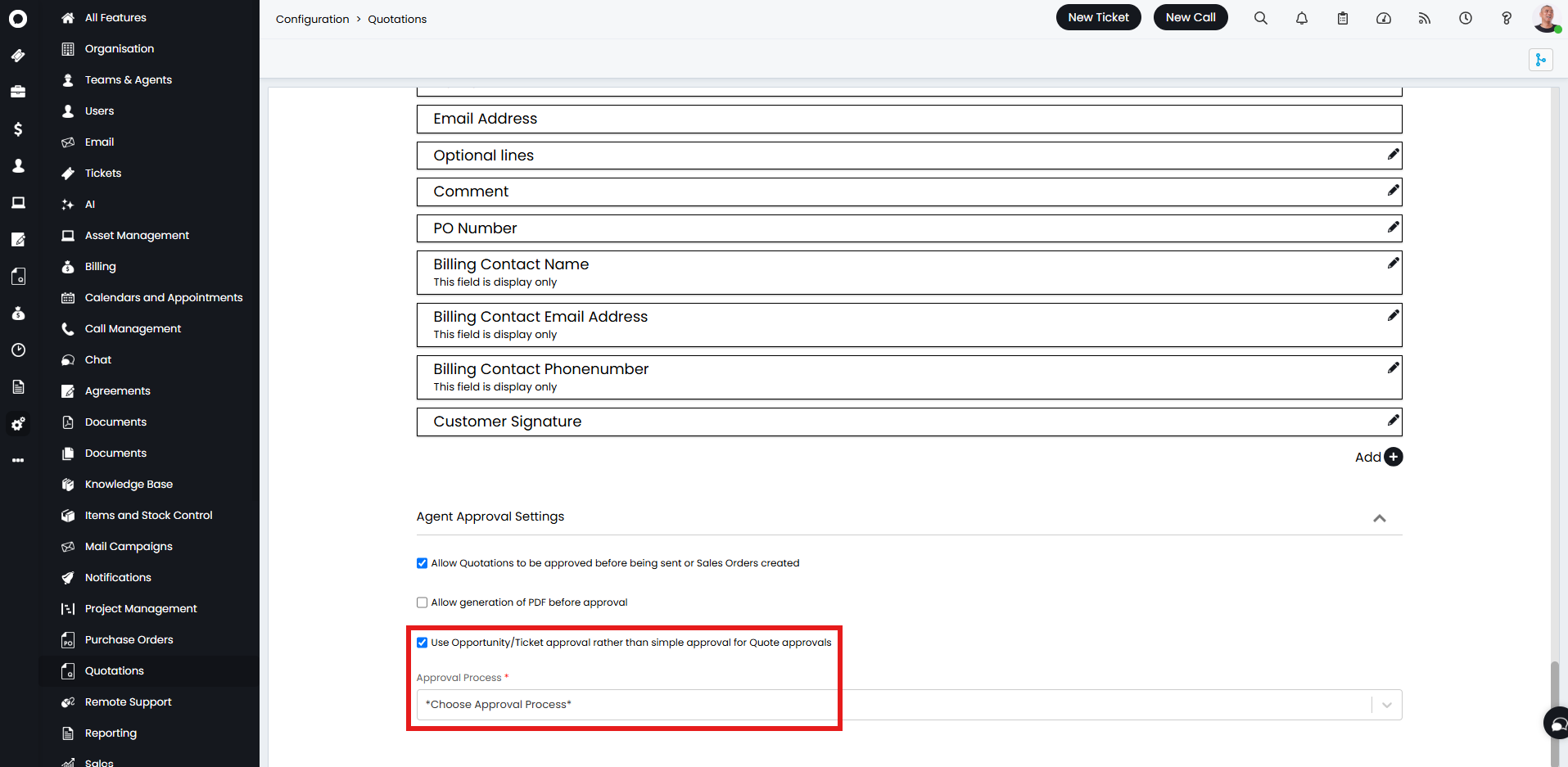
Fig 10. Enabling ticket approval process and choosing the approval process.
Click "Request Approval" on the quotation in the same way as the simple approval.
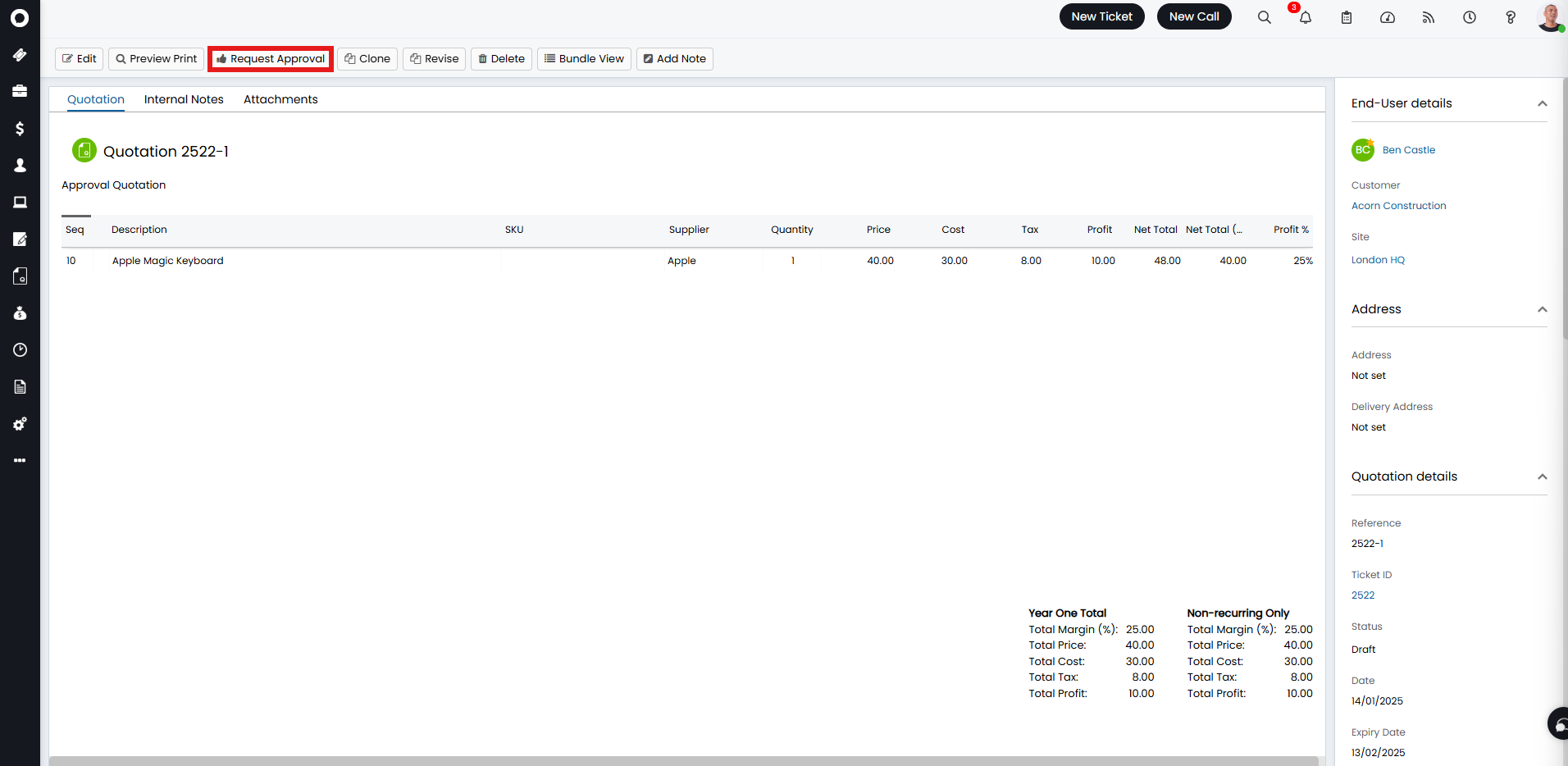
Fig 11. Requesting approval.
This pop-up will then show if using the "Choose Approval Process" setting in the dropdown, where you can select the process. If using a set process, this step is skipped.
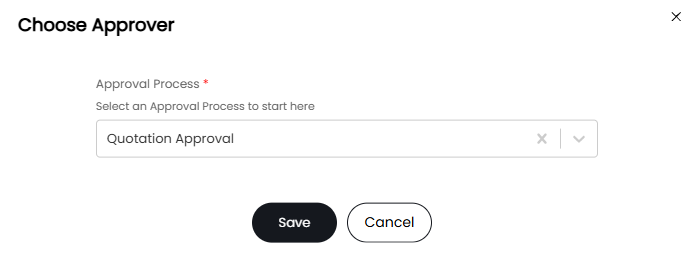
Fig 12. Choosing the approval process to use on that quotation.
In the "My Approvals" area, or on the ticket itself, the agent can then accept or reject the quote.
Note: The approval process is linked to the ticket, so the approval action needs to be done in relation to the ticket itself instead of on the quotation.
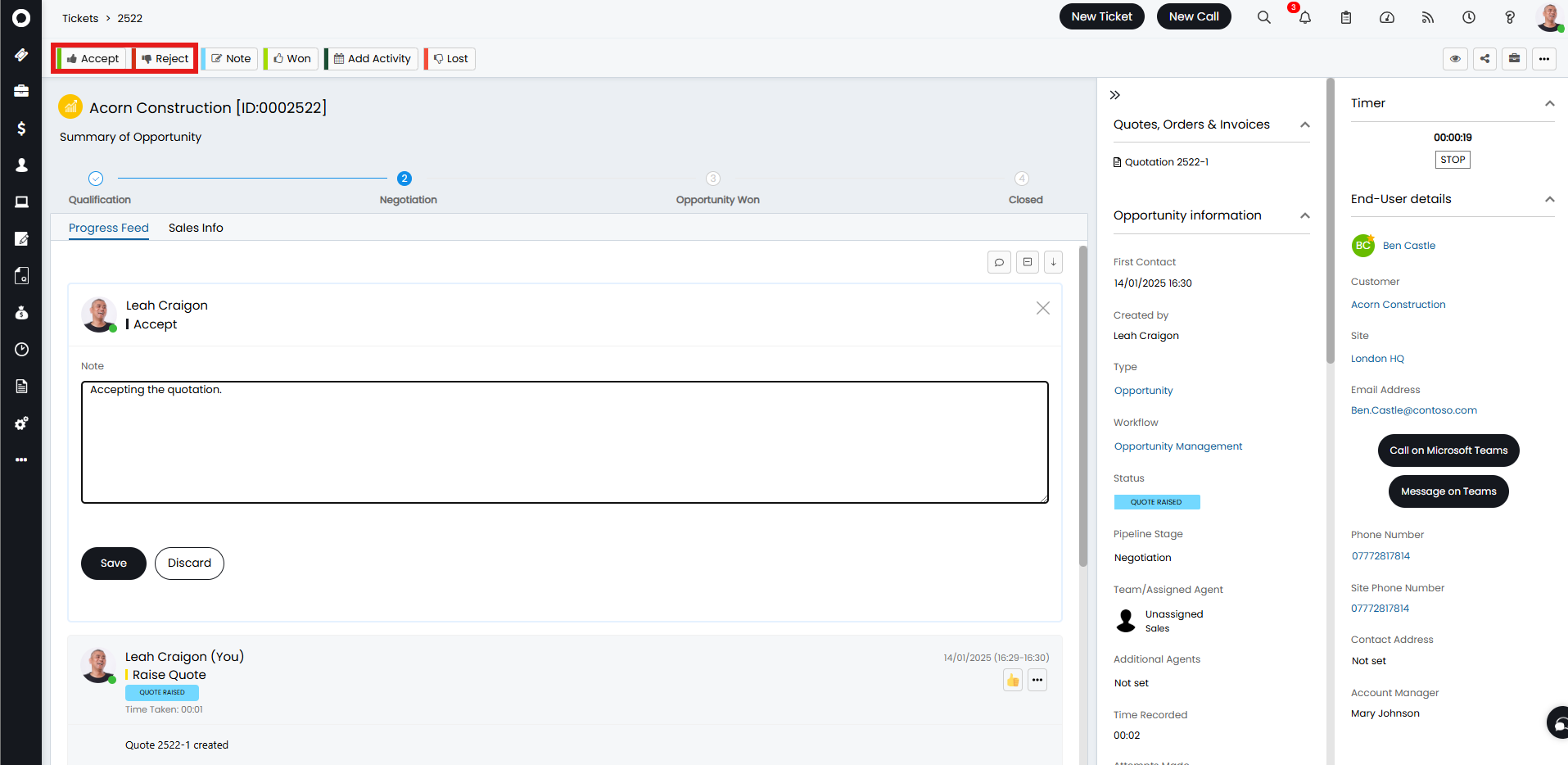
Fig 13. Accepting the quotation.
The quote will then be approved/rejected dependent on the rules of the approval process used. This example required one approval from a Change Advise Board (CAB) of four agents, so it was accepted after one approval. If a multi-step approval process is used, it will move on to the next step.
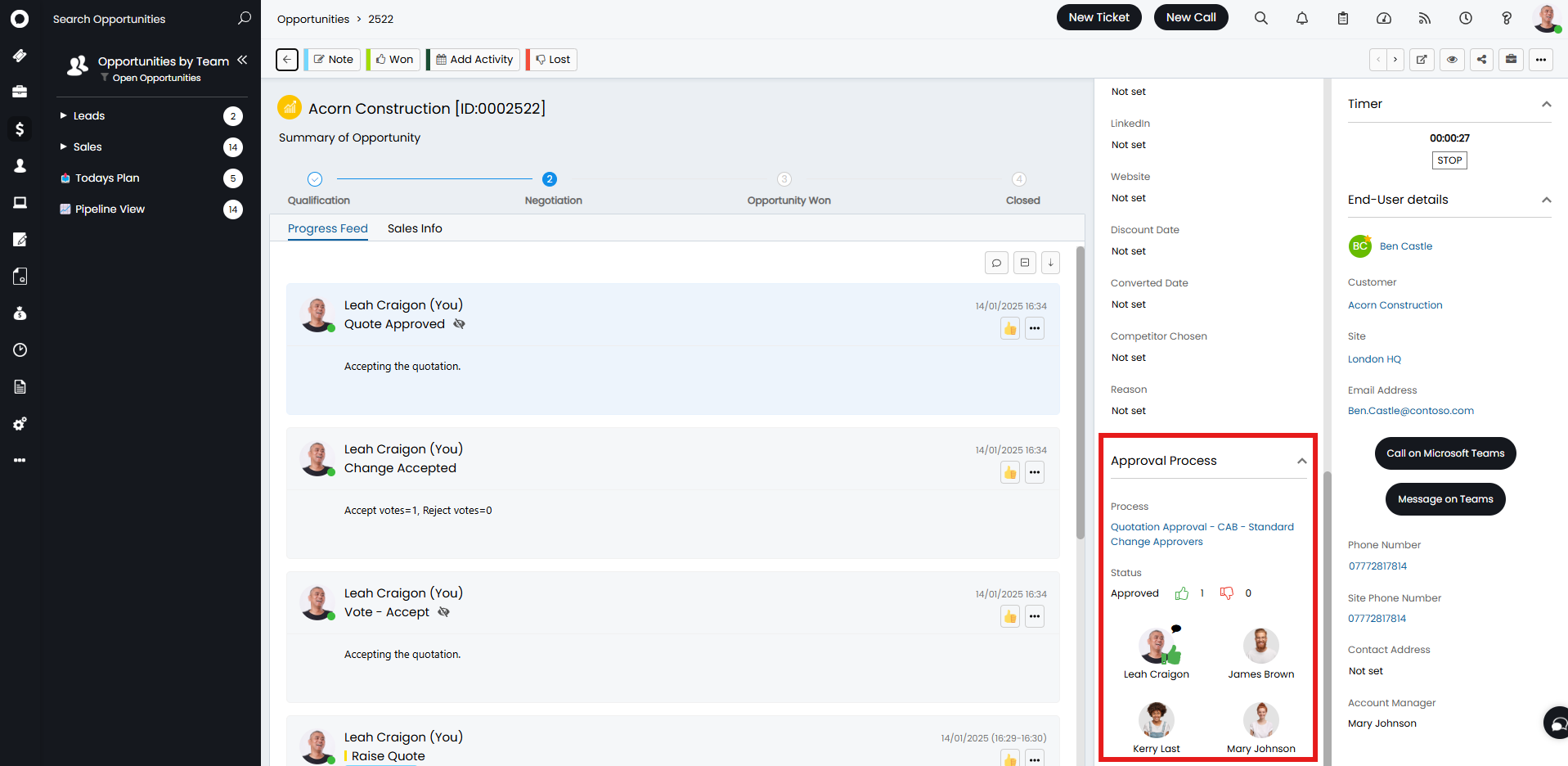
Fig 14. Approval process completing.