Mail Campaign Flows
In this guide we will cover:
- What are Mail Campaign Flows?
- Creating a Campaign flow
- Step Types
- Flow sequence
- Event Based Campaign flows (v2.248+)
Configuration Settings:
Related Guides:
What are Mail Campaign Flows?
Mail Campaign flows are a configuration method which allows Mail Campaigns to be created in the style of a workflow. Campaign flows allow for criteria to be applied against different points within a campaign allowing more control over which emails get send and when.
Creating a Campaign Flow
In order to create a Mail Campaign you will need to enable the Mail Campaign and Distribution List modules. Information on enabling and accessing the Mail Campaigns Area is covered in the Mail Campaigns guide.
Once enabled, you can access the Mail Campaigns Area, and click "New" to create your campaign.
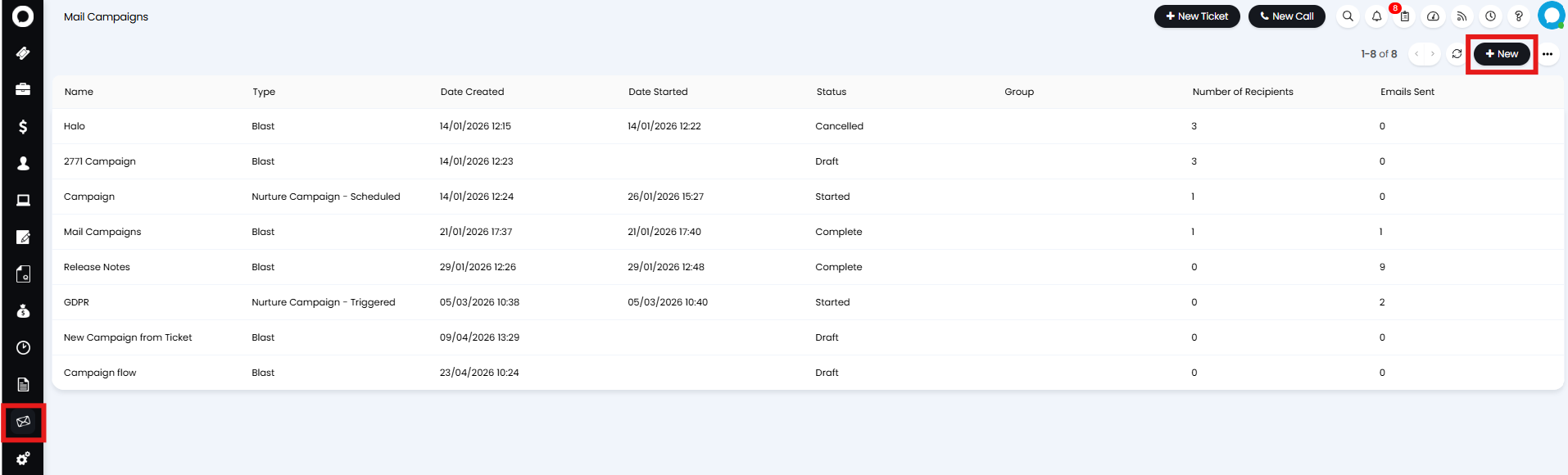
Fig 1. Mail Campaign Area
You will need to set a name for your campaign, set the Configuration style to "Workflow", and choose the type of campaign you would like to create. From v2.248+, you will have the option to set whether the campaign starts from a Distribution List, or events. For more information on starting a Mail Campaign from events see the Event Based Campaign flows section of the guide. On versions prior to v2.248+, or when using Distribution Lists to start the Campaign, any campaign type can be selected. For more information on the differences between the types of campaign, please see the guide linked here.
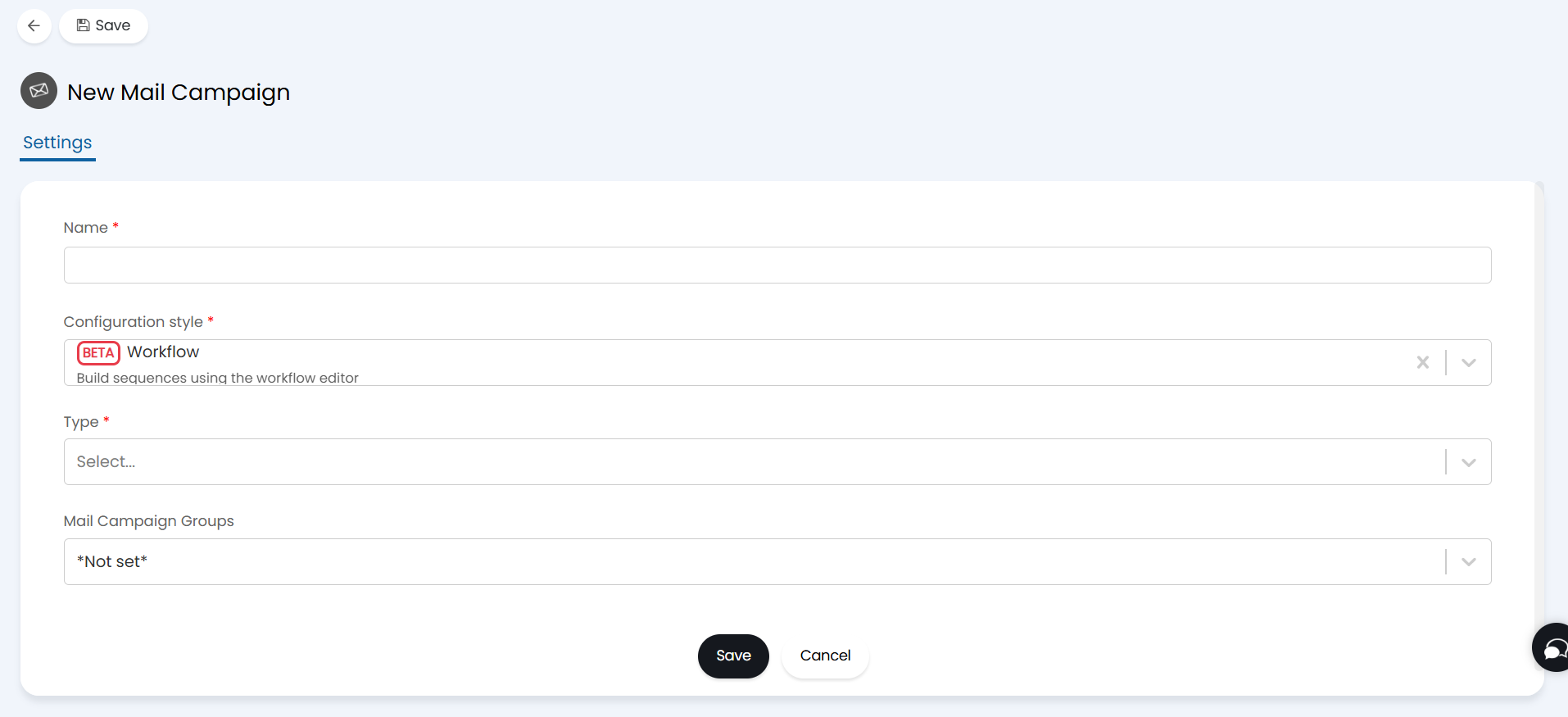
Fig 2. Workflow style Mail Campaign
Now save your Mail Campaign to access the remaining setup.
The Flow Chart tab will now be available. Click into this tab to start creating your Mail Campaign flow.
By default two steps will show on this tab. Click "Edit" in the top left of the screen, then use the pencil icon on the step to open the step's configuration. To add more steps use the "Add a step" button.
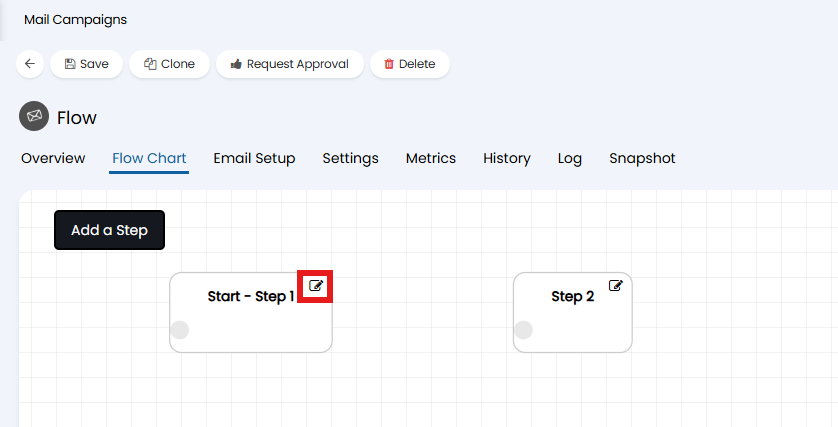
Fig 3. Editing a step in the flow
Here set the name and type for this step. If this is the first step in the flow make sure the "This is the start step" checkbox is selected.
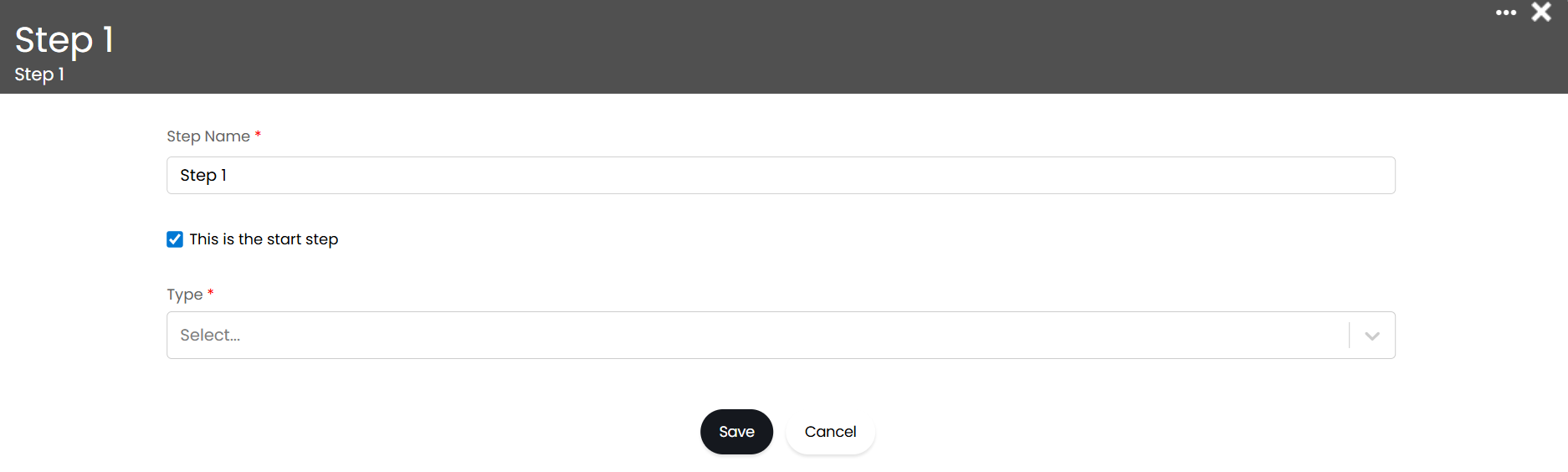
Fig 4. Flow step settings
Step Types
The type of step used determines the behaviour of the campaign. The types available are:
- Split
- Action
- Communication
- End
Split
The Step type "Split" allows you to branch off your Distribution List to different steps depending on specified criteria. Selecting "Split" in the Type dropdown will bring up the Condition and Outcome sections. In the conditions section click "Add" to add criteria to the table. These conditions are added as criteria groups, allowing for "or" conditions. Criteria added to the same group will act as an "And" condition, with all conditions within the group needing to be met for the condition to be met. Each group added (each line in the table) will act as an "Or" condition, with only one line needing to be met for the overall step criteria to be considered to have been met. Hovering over a line in the table will show the pencil and bin icons which allow you to edit or delete the lines respectively.
In the below example, the step criteria will have been met if the User is from the site "Main", and has Amir as their Account Manager, OR, if the User is also an Agent.
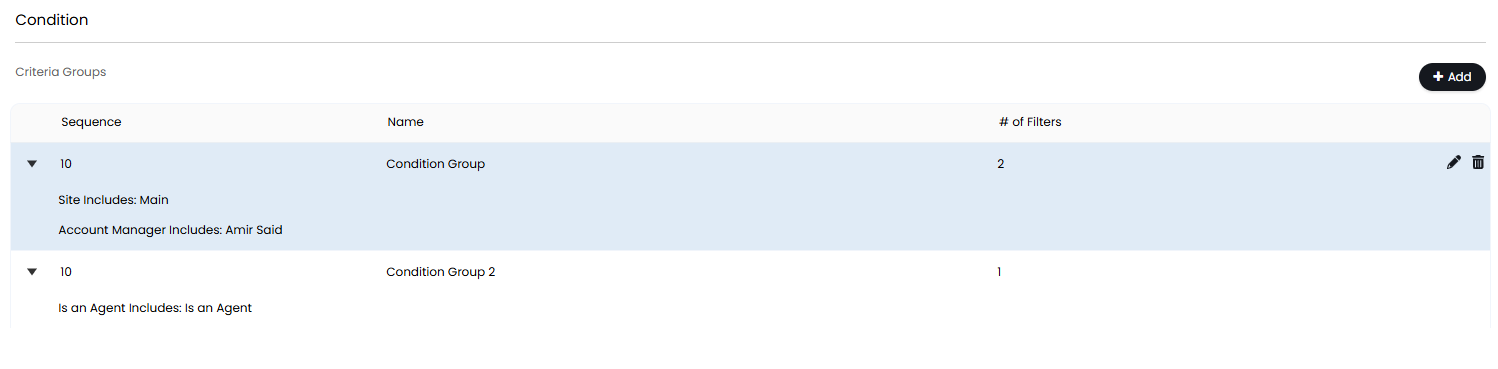
Fig 5. Split step conditions
The Outcome of the step can be set below in the Outcome table. When you hover over the outcome line you will see the the pencil icon. Clicking this allows you to set which step to move to if the criteria has be met, and if the criteria has not been met.
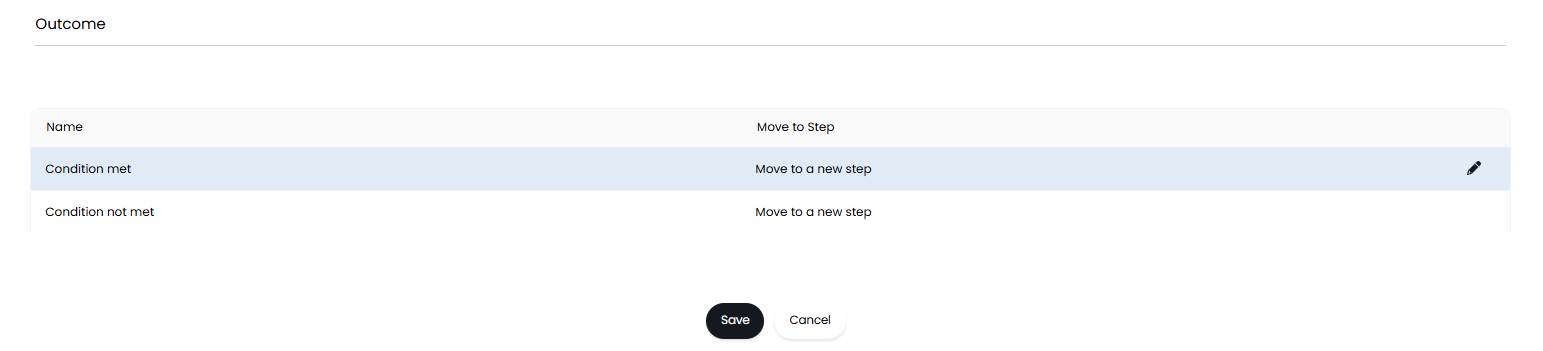
Fig 6. Step outcome
From v2.250+, you will be able to set a Split "Condition Type".
- True / False - This is the standard Split Type, where criteria is either met, or not met, directing the flow accordingly.
Each Criteria Group is a branch - Each Criteria group added will direct the flow to a new step, allowing multiple branches to split from the step.
Random split - Randomly splits the flow into two branches.
Action
The Action step allows you to select from a dropdown of action types to perform at this step of the Campaign flow. This is currently limited to the delay action.
From v2.250+, you can enrol Users/Tickets to sub-campaigns and Distribution Lists using the Action Type "Enroll to another Mail Campaign", or "Enroll to Distribution List"/.
Note: You can only enrol Users/Tickets onto an Event Based campaign using this "Enroll to another Mail Campaign" action.
Delay Action
When selected, the delay action allows you to set a length of time to pause the flow before moving to the next step. The time set here uses a 24 hour clock, not accounting for working hours. This is useful for setting breaks in between the emails sent in your campaign.
The Outcome of the step can be set below in the Outcome table. When you hover over the outcome line you will see the the pencil icon. Clicking this allows you to set which step to move to if the criteria has be met, and if the criteria has not been met.
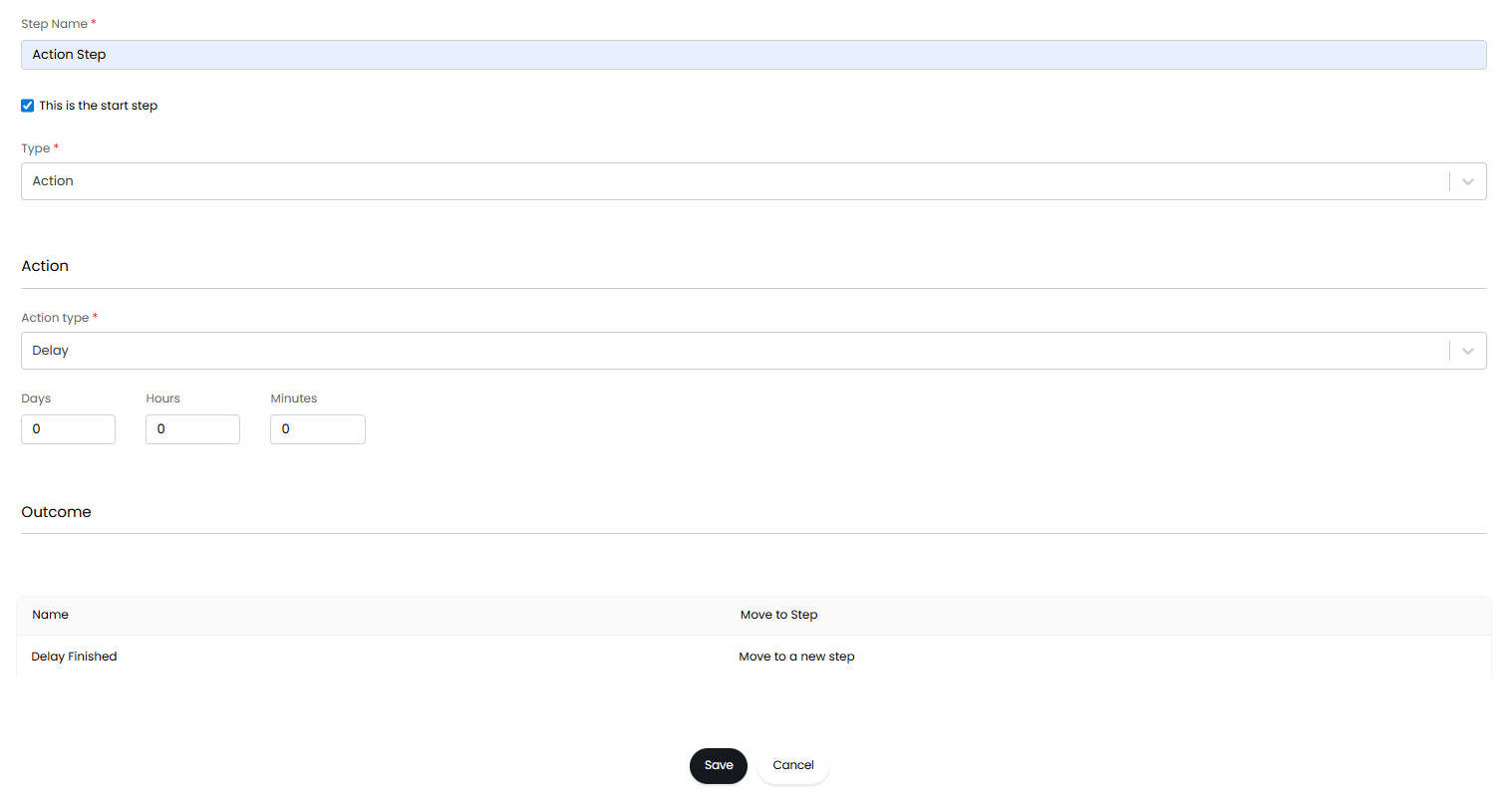
Fig 7. Action step
Communication
The communication step is where you can choose a method of communication, using the "Communication Type" dropdown, to determine what is sent to the User.
Send an Email
When selected, a dropdown will show allowing you to select an email to send. The emails that show here can be configured in the "Email Setup" tab of your campaign. These will need to be created and saved before they will be available to add here. From v2.256+ you can edit selected campaign emails from within the step here, on versions prior they will need to be edited under the "Email Setup" tab of your campaign.
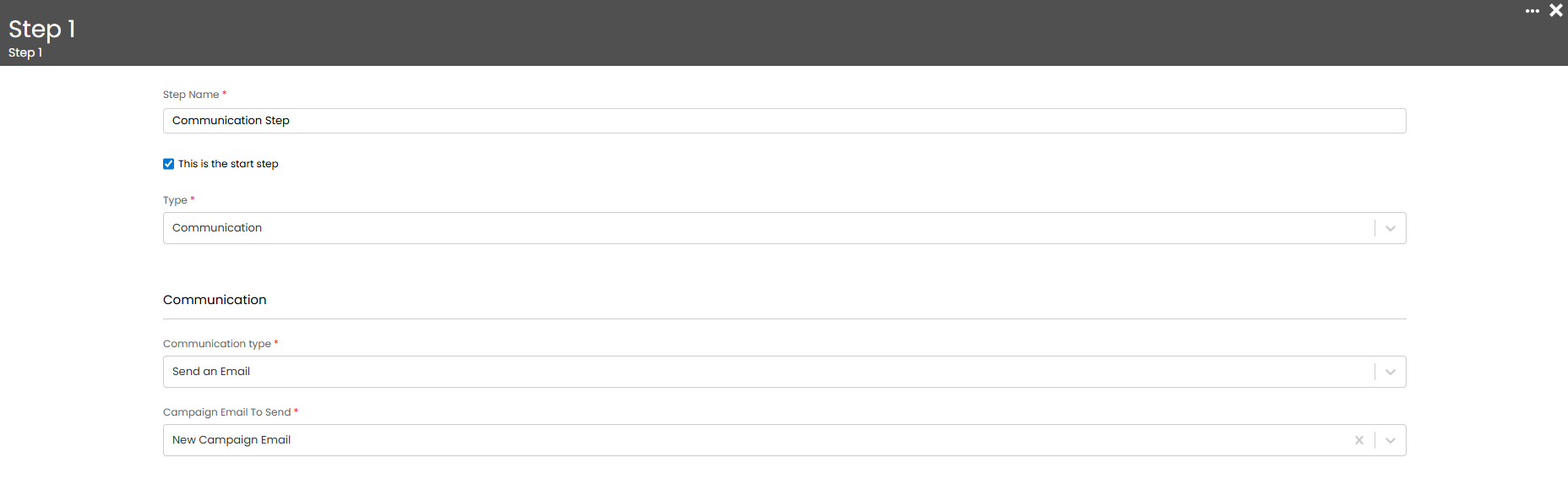
Fig 8. Communication step
If you would like to allow Agents to create an email on the step itself, head to Configuration > Email > Mail Campaigns, and enable the setting "Allow creating emails directly on workflow steps". With this set, the "Campaign Email to Send" dropdown will include the option "New design", which when chosen will open an Email Content section below. Existing email templates can be applied using the Email Template dropdown, and clicking "Apply Template". The content of the email can be edited using the drag and drop options to the right of the email body.
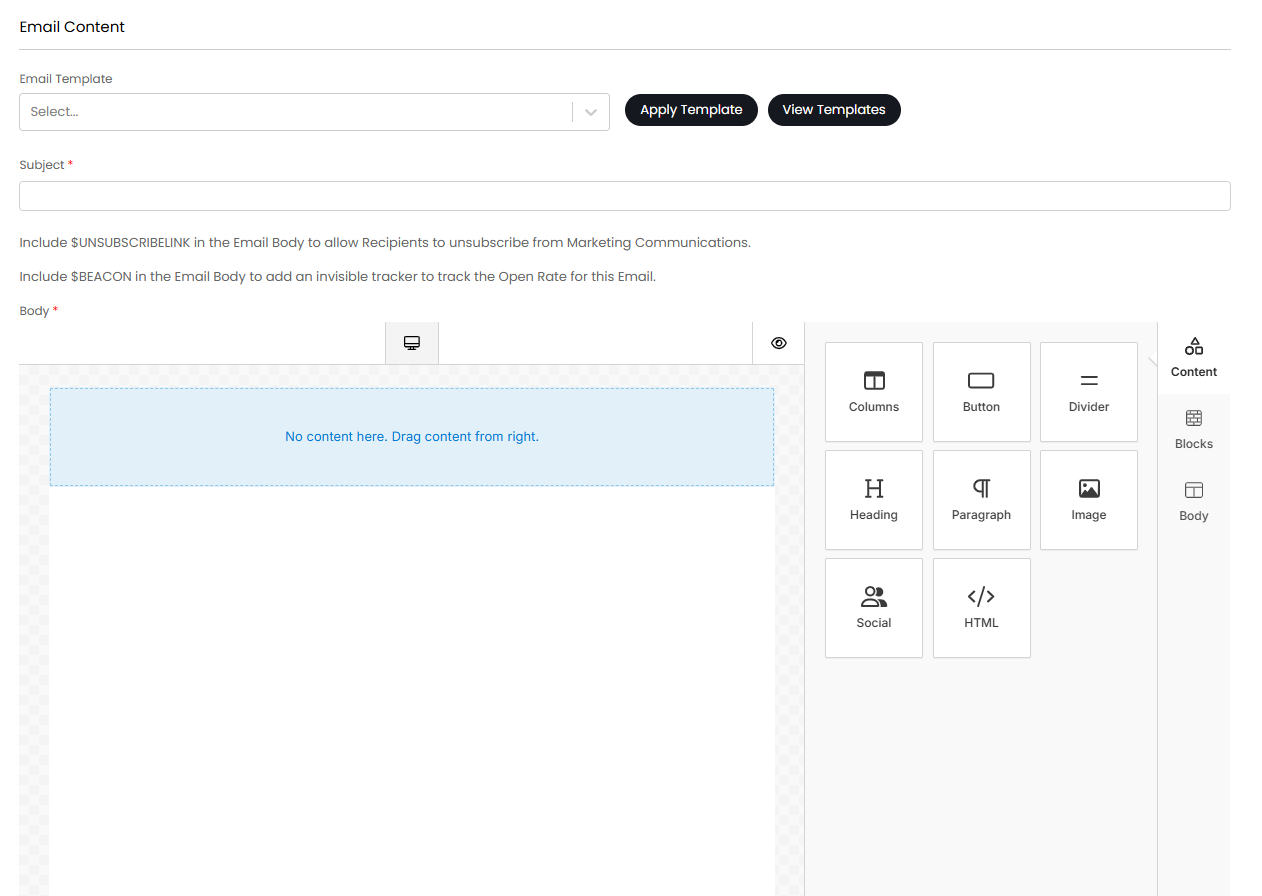
Fig 9. Creating an email on a Communication step
The Outcome of the step can be set below in the Outcome table. When you hover over the outcome line you will see the the pencil icon. Clicking this allows you to set which step to move to once the communication has been sent
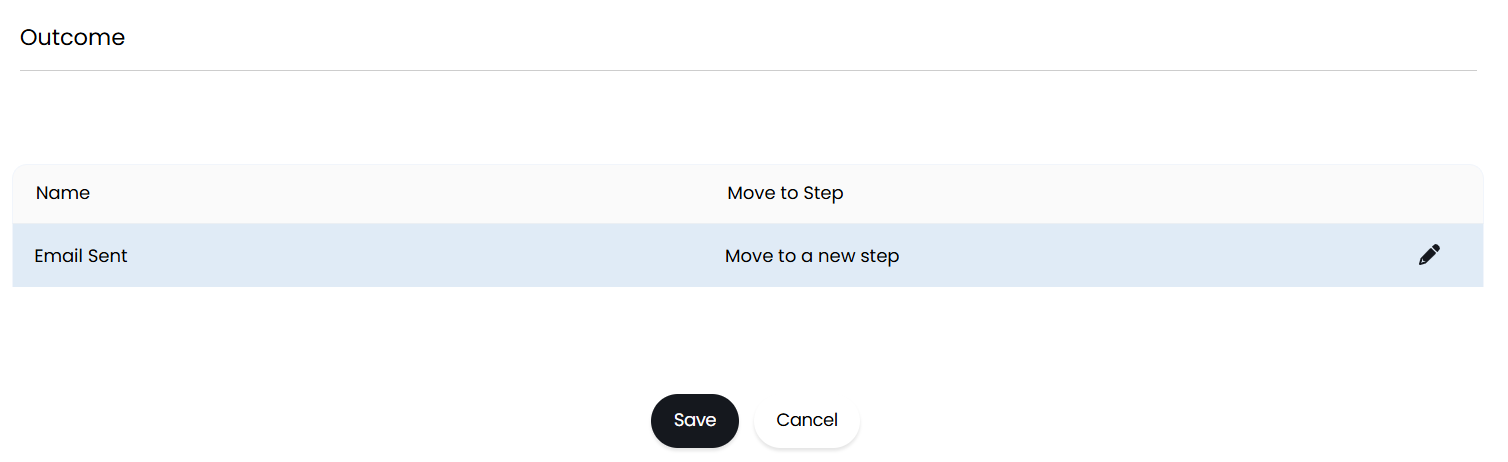
Fig 10. Step Outcome
Viewing Templates from the Flow (v2.256+)
From v2.256+ the template being used for each communication step can be previewed from the flow tab by hovering over the open mail icon as shown in Figure 11.
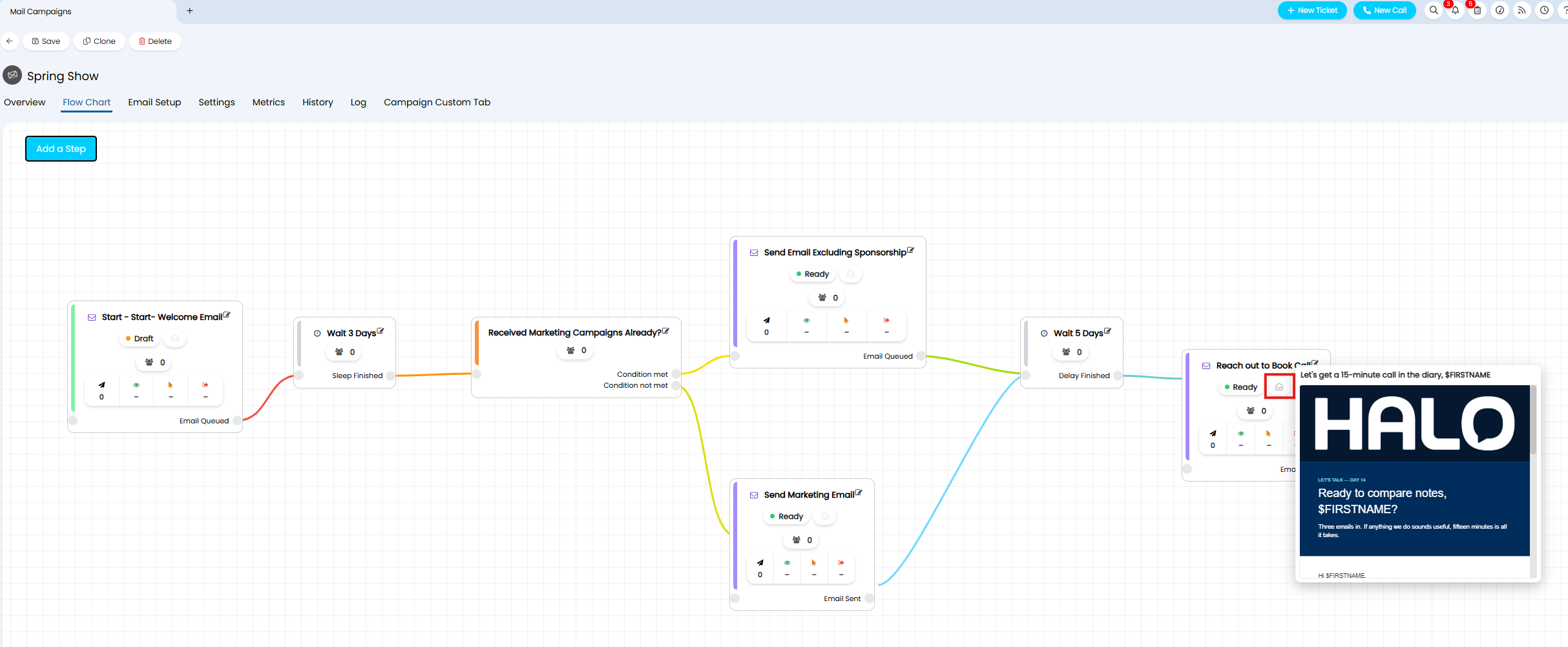
Fig 11. Mail Preview
End
The end step is used to indicate the end of the campaign. There are no limits to the number of end steps, allowing you to set the end of the campaign at a different point for different users, depending on the steps of the flow that they are following.
Flow Sequence
Steps can be linked to any other step within the flow. To adjust the order of steps you can either edit the outcome on the step, or drag-and-drop the steps and lines into the order you would like.
You can also create cyclical sequences, for example, to handle dead leads on a recurring basis. These can be created by adding steps that link together in a loop, causing the criteria to be checked before the action or communication is sent on a loop. For example, using a split step you may check if the User is a dead lead. If the User is a dead lead you may want to send them an email every 6 months promoting your services. This can be done by adding a delay step, followed by an email step, which loops back to the split step. Each time the email is sent the User returns to the split step where their criteria is checked, and if they are still a dead lead the loop will begin again.
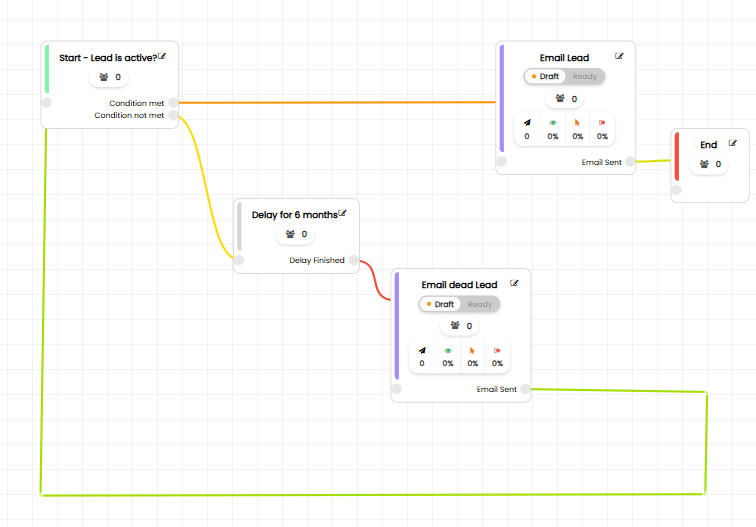
Fig 12. Cyclical flow
When Users are added to the linked Distribution List(s) on a campaign which has already started, they will join the flow at the start step. The flow can be edited after the campaign has started. This allows for you to configure long lasting flows that you can continue to add to.
Note: If Users are on a step you will not be able to delete it.
The example below uses custom fields to identify which products the User has purchased and follows the process:
- Send initial welcome email
- Check if the User has purchased AI
- If yes, move to the Cyber Security step
- If no, send them an email offering the AI product, then move to the Cyber Security step
- Check if the User has purchased Cyber Security
- If yes, move to the IT Support step
- If no, send an email offering the Cyber Security service, then move to the IT Support step
- Check if the User has purchased IT Support
- If yes, move to the End step
- If no, send an email offering IT support, then move to the End step
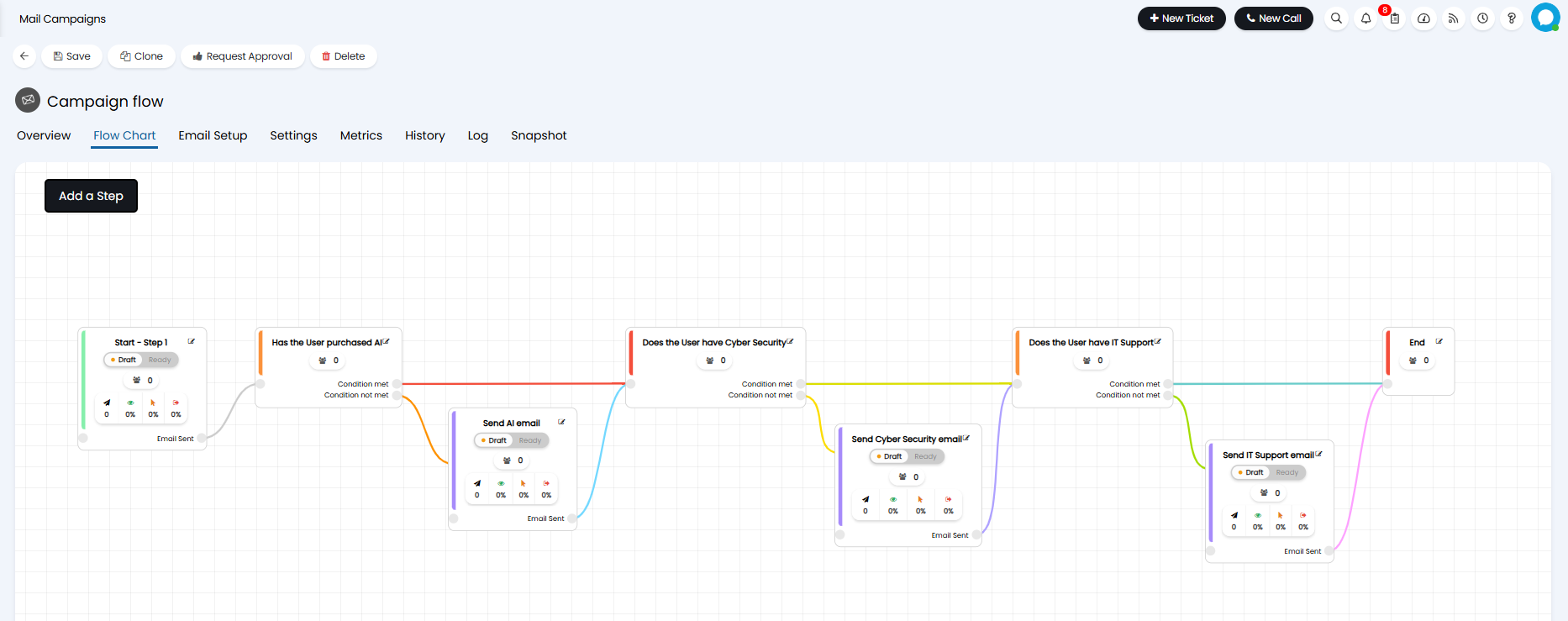
Fig 13. Example Mail Campaign flow
The campaign is "complete" when all Users reach the final step. If the campaign is "cancelled", Users will stop on their current step and no new members will be able to join the campaign. All queued emails that have not yet been processed will also be cancelled. If the flow is cyclical, without a last step, Users will continue along on the campaign flow until it is cancelled.
The remaining setup for your Mail Campaign can be found in the Settings tab. This is covered in the Mail Campaigns guide linked here.
Once the campaign has been started, you will be able to view some metrics against each step, including:
- The number of members currently on the step.
- The number of emails sent (communication steps only).
- Open rate (communication steps only).
- Click rate (communication steps only).
- Unsubscribe rate (communication steps only).
- (v2.244+) The number of people who have completed the step (End steps only).
- (v2.244+) How many (if any) automations for this step have failed
- (v2.248+) How many members are currently paused on this step (Event based Campaigns only)
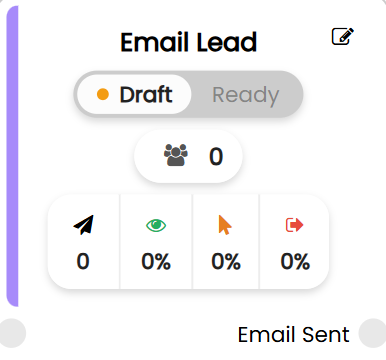
Fig 14. Step metrics
Event Based Campaign flows (v2.248+)
When choosing to use the Workflow Configuration Style for a campaign, you will have the option to choose to start the Campaign from a Distribution List or from events. When you choose to start your campaign from events, the "Event" dropdown will show. Here you can choose if members will be added as Users or Tickets. These Event triggered campaigns are not tied to a Distribution List, allowing you to instead manually add, remove, pause and resume members on campaigns.
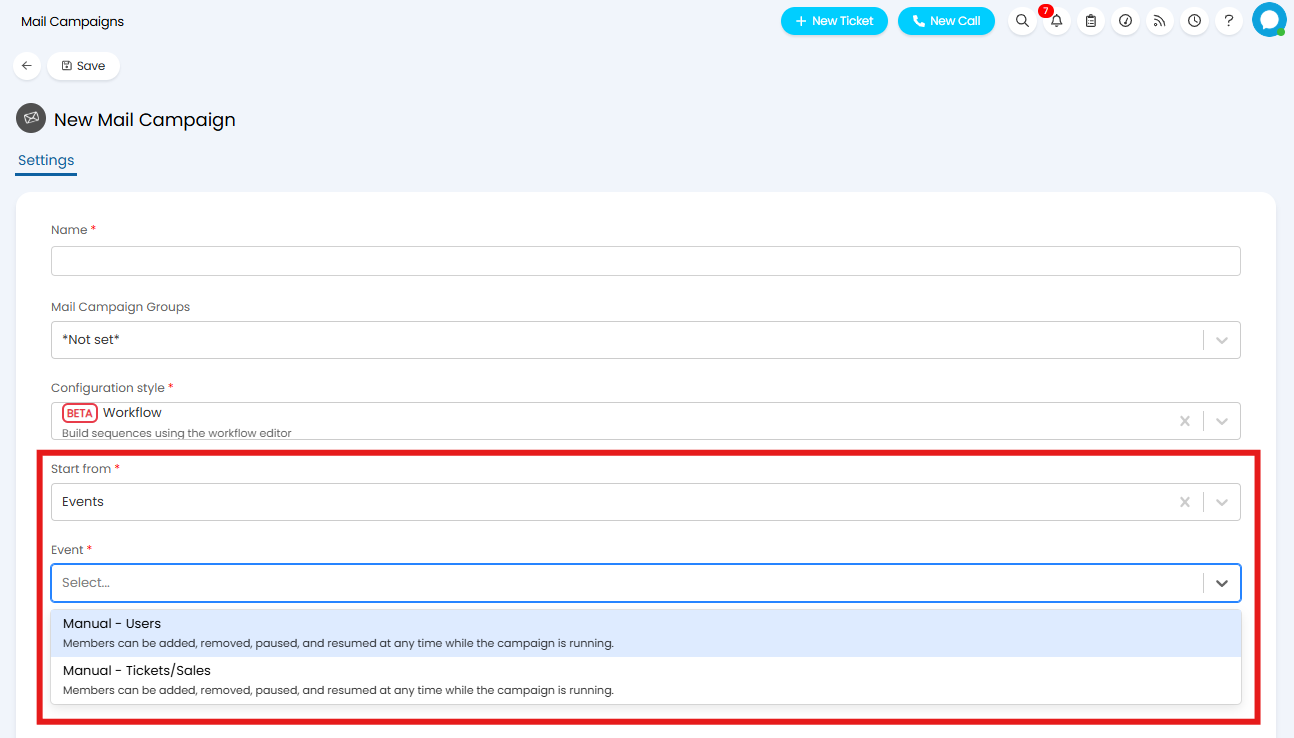
Fig 15. Starting a campaign from events
Once the campaign is started, the tabs "Active members" and "Paused members" will become available. In the Active Members tab you can add, remove, and pause members individually or on bulk. If you selected to use the event "Manual - Tickets/Sales", when adding members you will have to choose the Ticket ID. To pause or remove a member, select the checkbox next to the User(s)you would like to pause or remove, click "Edit", then the action you would like to perform.
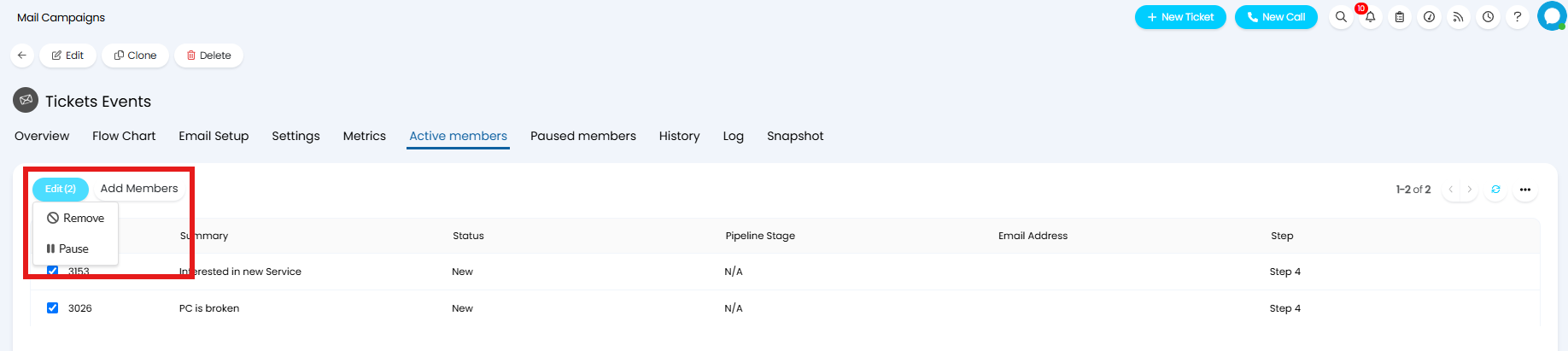
Fig 16. Adding, removing, and pausing members
If a member is paused they will show in the "Paused Members" tab. Here they can be bulk or individually resumed, or removed from the campaign. You can also report on these paused members on the campaign, using the table "CampaignMemberPause".
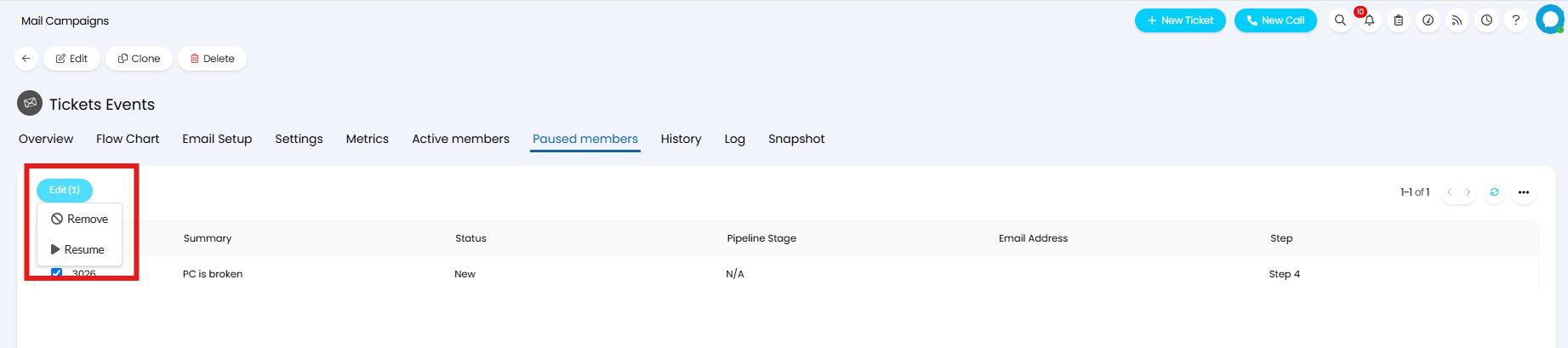
Fig 17. Resuming, and removing members
The "Campaign step" column will be available on the Column Profiles under these tabs for Ticket/Sales events. In order to show this field for User events, this field must be added to the default User Column Profile.
The Event Triggered Campaign also allows members to be controlled via actions on a Ticket. Members can be added, removed, paused, and resumed using actions with the relevant System Use.
Note: These Actions must have the "Campaign" field added to the Field List.
Adding members to a campaign
Actions with the System Use "Add to campaign" will add the End User of the Ticket to the members list of a chosen campaign. In order to specify which campaign the End User should be added to, you must add the "Campaign field" to the Field List.
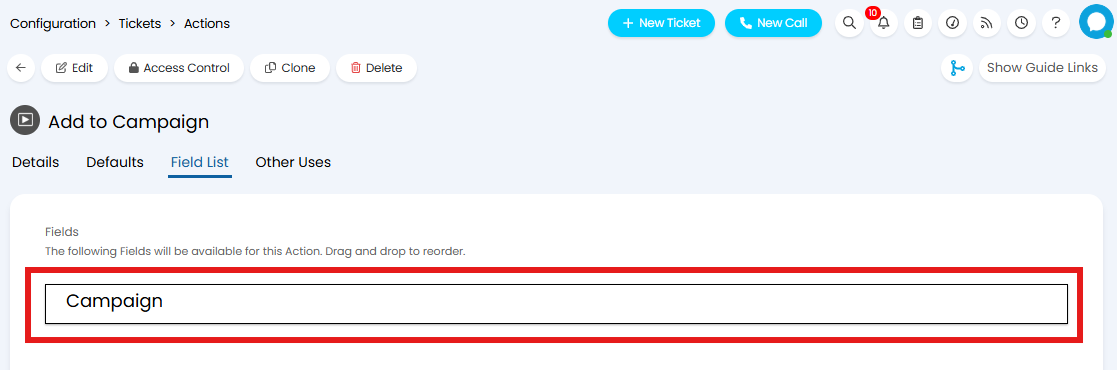
Fig 18. Adding Campaign selection to the Field List
When this action is used on a Ticket the End User will start the campaign, showing in the "Active Members" tab.
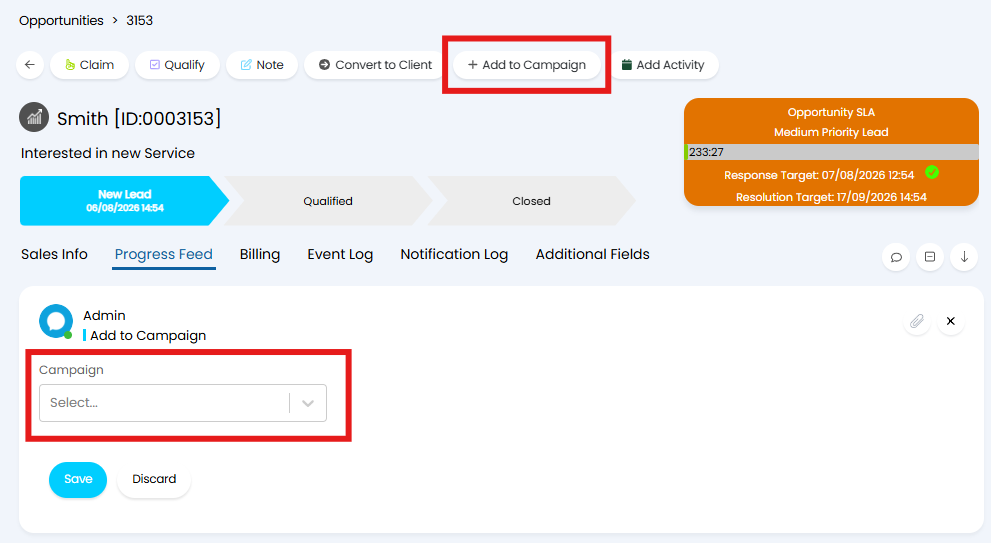
Fig 19. Add to Campaign Action
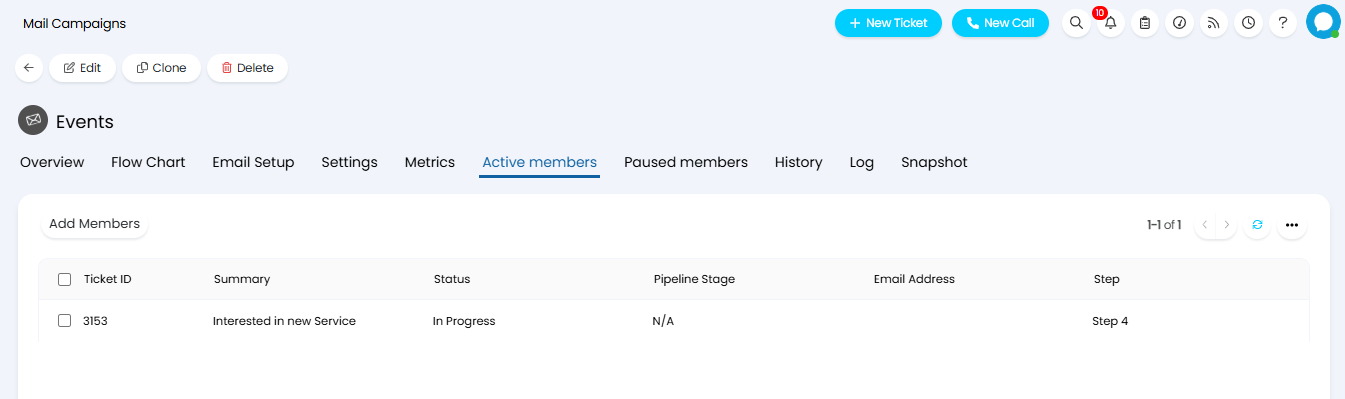
Fig 20. Active Members tab
Removing members from a campaign
Actions with the System Use "Remove from campaign" will remove the End User of the Ticket from the members list of a chosen campaign. This action will only show if the Use has been added to an Event triggered campaign. In order to specify which campaign the End User should be removed from, you must add the "Campaign field" to the Field List.
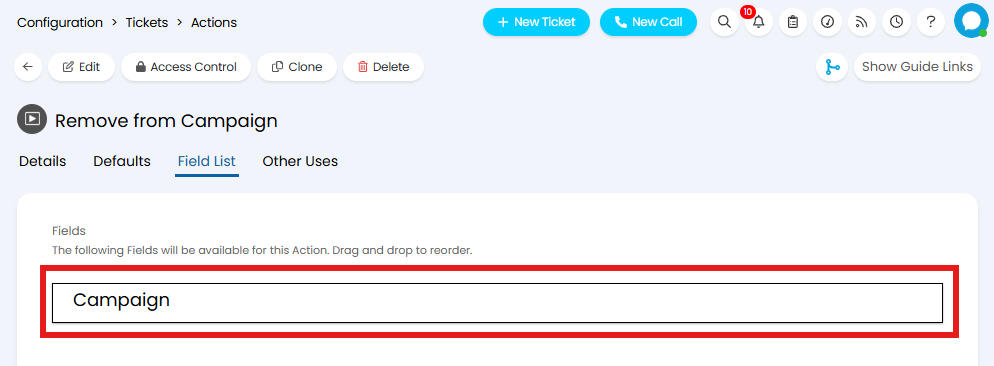
Fig 21. Adding Campaign selection to the Field List
When using the action you will need to use the "Campaign" dropdown to choose which campaign to remove the User from. Only campaigns they are currently a member of will show here. When this action is used on a Ticket the End User will be removed from the campaign.
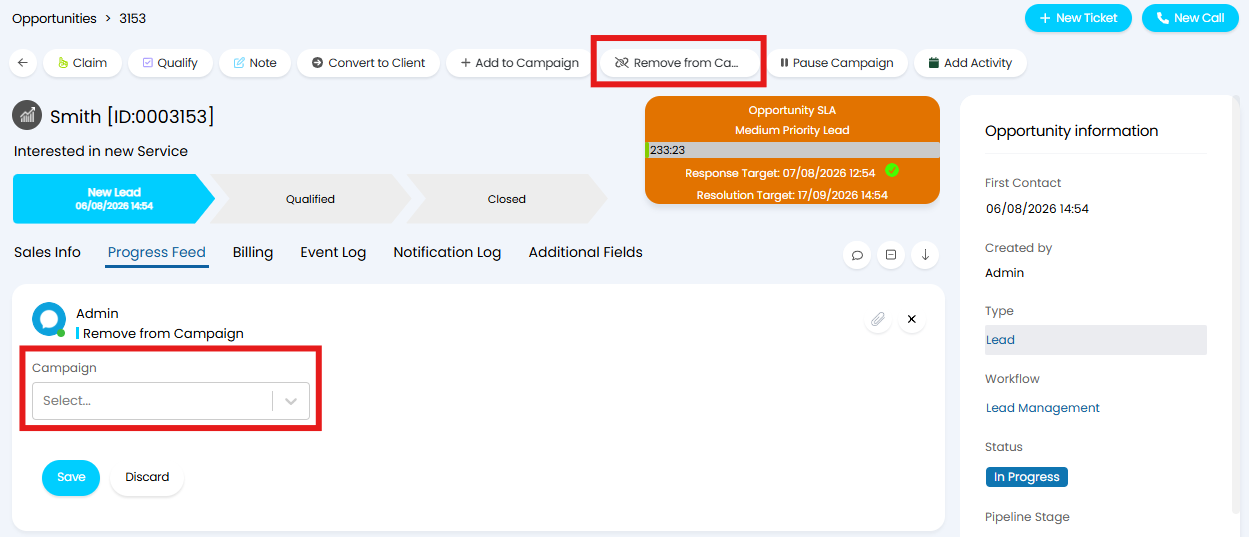
Fig 22. Remove from Campaign Action
Pausing a campaign for a member
Actions with the System Use "Pause campaign" will pause the Campaign for the End User of the Ticket for a chosen campaign. This allows you to pause the flow for specific Users on a campaign directly from a Ticket. This will only show when the User is active on an Event triggered campaign. In order to specify which campaign the End User should be removed from, you must add the "Campaign field" to the Field List.
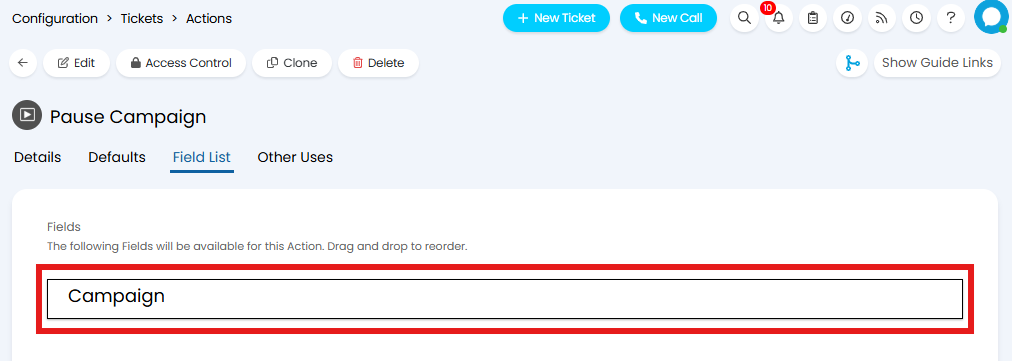
Fig 23. Adding Campaign selection to the Field List
When using the action you will need to use the "Campaign" dropdown to choose which campaign to pause for the User. Only campaigns they are currently a member of will show here. When this action is used on a Ticket the End User will be moved to the "Paused members" tab, and will not progress through the campaign flow until resumed.
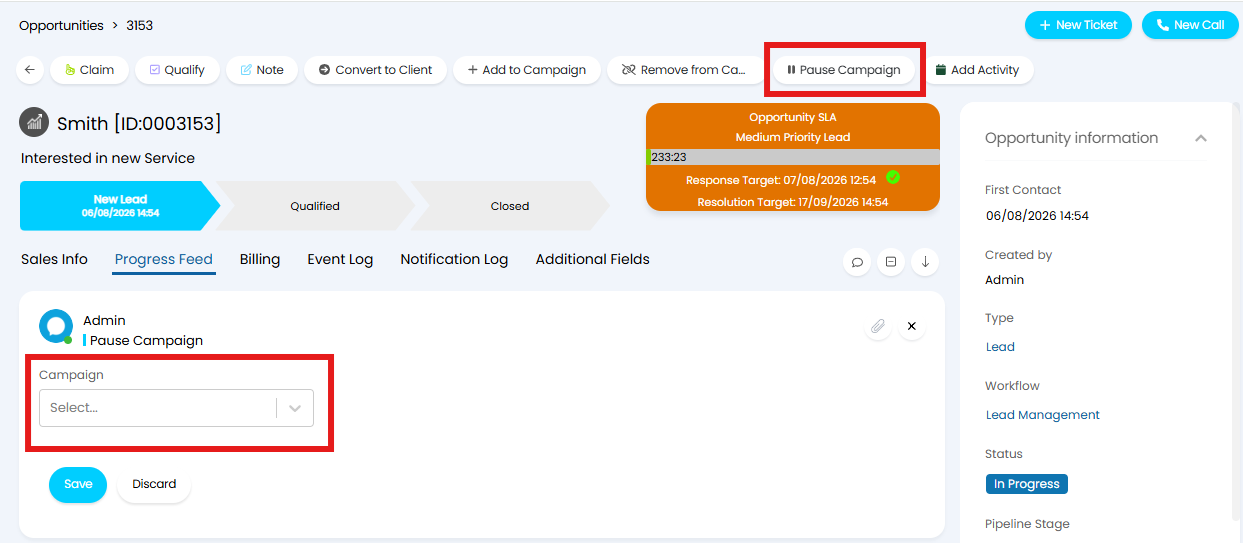
Fig 24. Pause Campaign Action
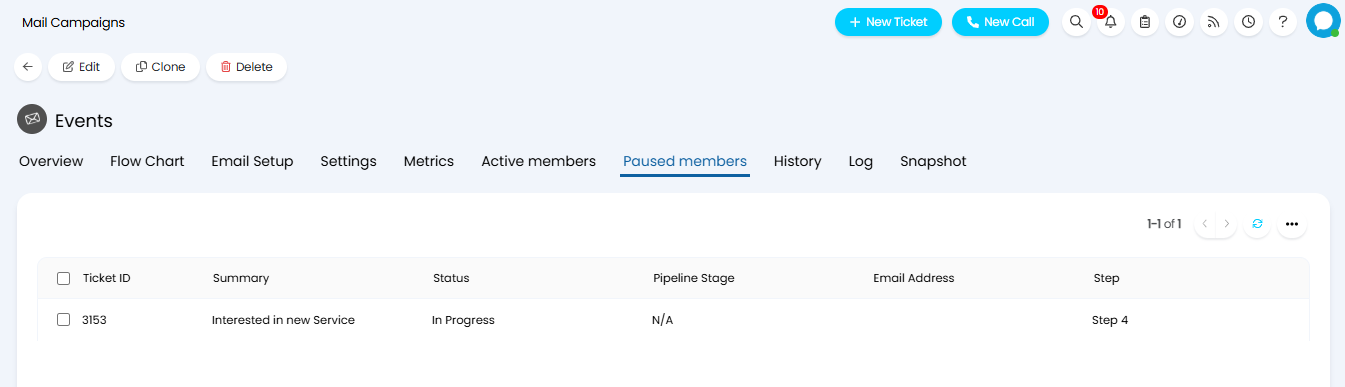
Fig 25. Paused Members tab
Restarting a campaign
Actions with the System Use "Restart campaign" will restart a chosen paused campaign for the End User of the Ticket. This allows you to restart the flow for specific Users directly from a Ticket. This will only show when the User is paused on a campaign. In order to specify which campaign the End User should be removed from, you must add the "Campaign field" to the Field List.
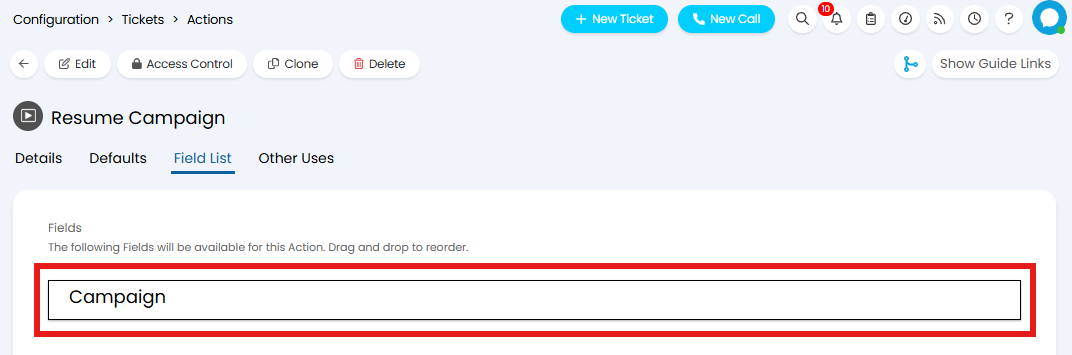
Fig 26. Adding Campaign selection to the Field List
When using the action you will need to use the "Campaign" dropdown to choose which campaign to resume for the User. Only campaigns that are currently paused from this User will show here. When this action is used on a Ticket the End User will be moved back to the "Active members" tab, and will resume their progress through the campaign flow.
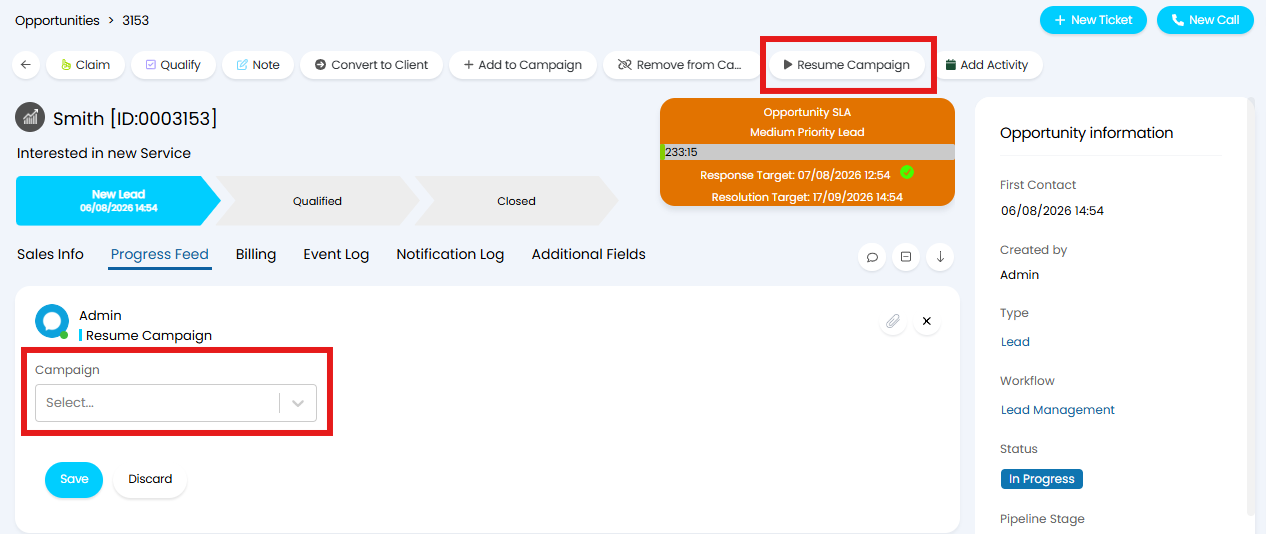 Fig 27. Resume Campaign Action