ServiceNow Integration
- integration
- ServiceNow
In this guide we will cover:
- What is the ServiceNow Integration?
- Connecting to ServiceNow
- Creating tickets in ServiceNow
- Updating Records in ServiceNow through Halo
- Syncing back to Halo
What is the ServiceNow Integration?
The ServiceNow integration allows you to connect a ServiceNow account to each of your Customers and Suppliers. This creates a two way sync between Halo and ServiceNow. Tickets raised in Halo can be synced to ServiceNow as Incidents or Tasks. Incidents/Tasks raised in ServiceNow can be synced to Halo as tickets. Updates can also be synced, with a two way sync of work notes supported. The following ticket fields can be synced from ServiceNow to Halo:
- Status
- Category
- Priority
- Impact
- Urgency
- Assignment Group
- Custom Field
- Services
A combination on webhooks and the Halo integrator are used to support the sync, each supporting different elements.
Connecting to ServiceNow
Start by heading to Configuration > Integrations > ServiceNow and enabled the integration module using the '+' icon.
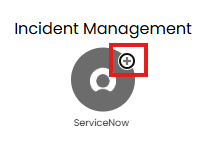
Fig 1. Enable integration module
The integration module is used to enable the Halo integrator and attachment syncing for the integration but the credentials and integration configuration are configured per Customer and Supplier.
Once the integration is enabled, a ServiceNow tab will appear on the Customer and Supplier details page. Here you can enter the credentials for their instance of ServiceNow. These credentials must be validated before setting up any of the mappings.
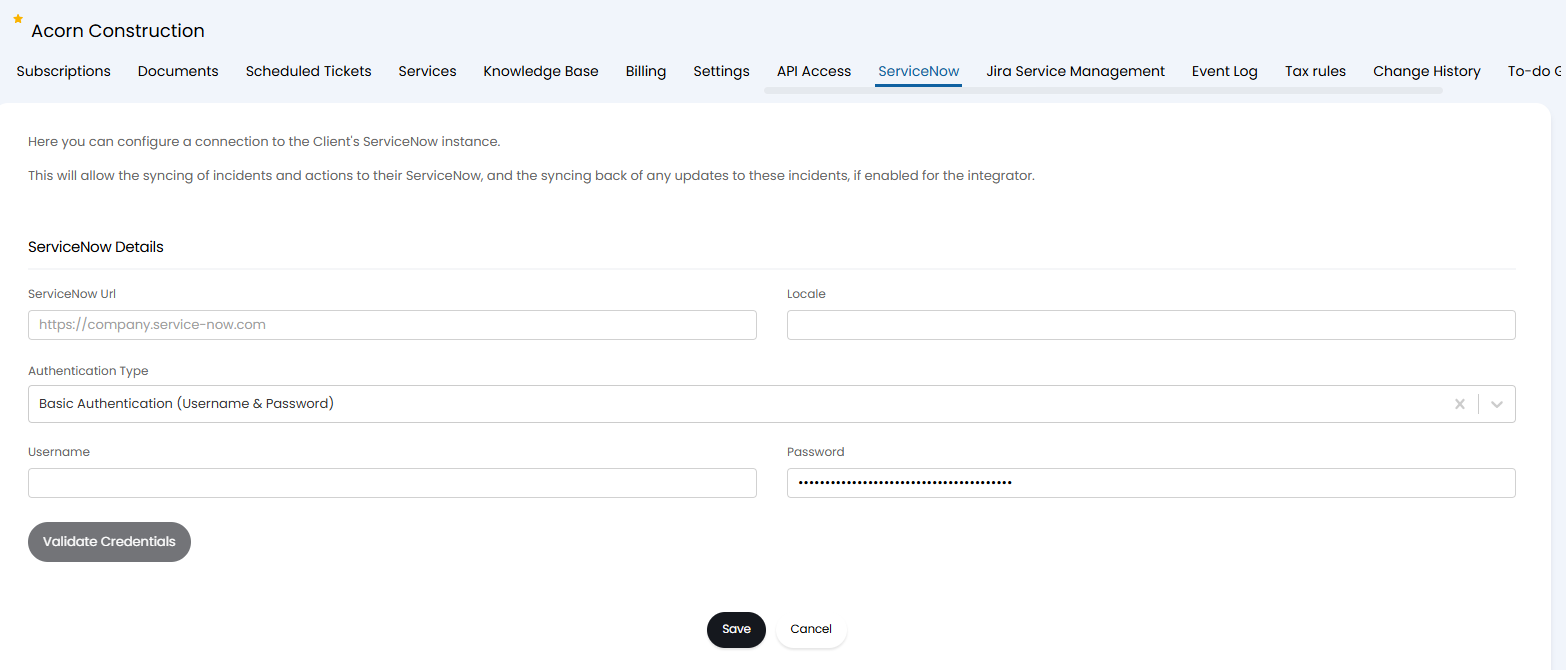
Fig 2. Credentials to connect to ServiceNow
When authenticating the connection you can choose between one of two connection types, basic authentication or client credentials.
Basic authentication- When this authentication type is selected you will need to enter log in credentials for this Customer's ServiceNow. The account logged in with must have permission to access/modify each area of ServiceNow you would like Halo to be able to update/modify.
Note: The user providing the credentials must have the email address used for their account in ServiceNow match a user account in Halo.
Client Credentials (OAuth 2.0) - When this authentication type is selected you will not need to use a specific user's credentials to log in, instead you can generate client credentials (ID and secret) to authorise the application. For information on how to obtain these credentials see this helpful article on ServiceNow's community page: https://www.servicenow.com/community/developer-blog/up-your-oauth2-0-game-inbound-client-credentials-with-washington/ba-p/2816891. If you are using this method a minimum of 1800 seconds should be set for the Access Token Lifespan.
Once you have entered your credentials use the 'Validate Credentials' button. You will need to enter credentials and mappings for each Customer and Supplier using ServiceNow. This allows you to configure different mappings per Customer/Supplier.
Once validated, some additional configuration options will appear.
Field Mappings
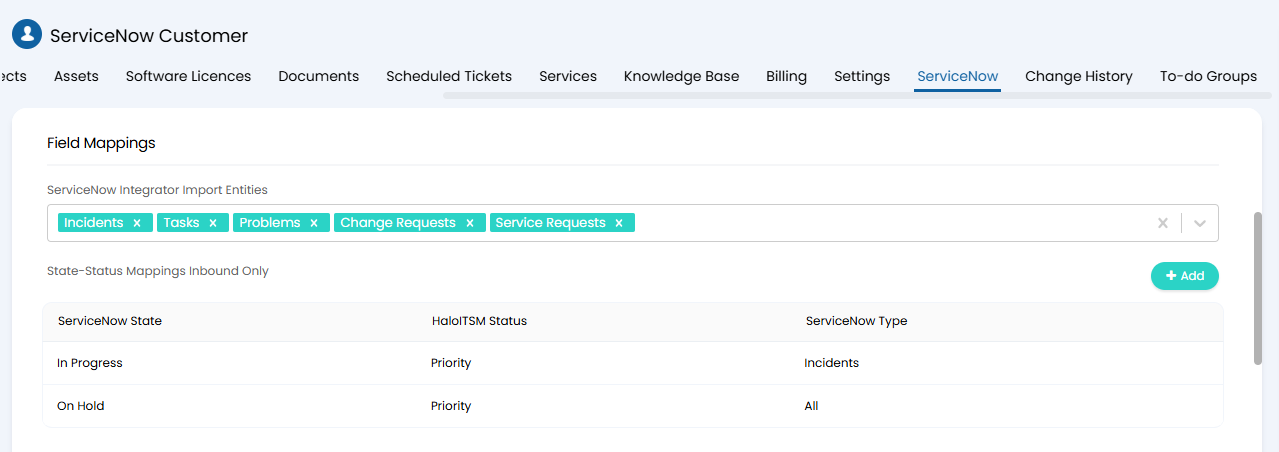
Fig 3. Field mappings
The field 'ServiceNow Integrator Import Entities' will determine which entities are imported from ServiceNow, Incidents, Tasks, Problems, change requests and service requests. These use the existing incident mappings.
Below this you can configure status mappings for Halo fields and ServiceNow states. These mappings will determine what status a ticket will have when created in Halo from ServiceNow. When adding a mapping you can choose whether the mapping applies to both Incidents and Tasks, or you can configure separate mappings for Tasks and Incidents. Tickets created in ServiceNow by Halo (outbound) will have the state 'New' in ServiceNow.
You can then add category mappings to determine what category a ticket will have when created in ServiceNow. These mappings will only apply to Incidents created in ServiceNow, Tasks will not have a category when created.
You can then add priority, impact, urgency, assignment group and custom field mappings to determine what priority, impact, urgency, assignment group and custom fields a ticket will have when created in ServiceNow. When adding a mapping you can choose whether the mapping applies to both Incidents and Tasks, or you can configure separate mappings for Tasks and Incidents by setting the 'ServiceNow Type' the mapping applies to.
Note: When mapping single select custom fields you will need to map the field values (options to choose from) values in ServiceNow field. This will determine what data appears in the ServiceNow field.
Service requests require mapping specific services in Halo to ServiceNow via the below table. After saving, you can then add custom field mappings to each service mapping.

Fig 4. Service mappings.
Once you have configured you mappings you can set a 'Default Assignment Group', this will determine what assignment group the Incident/Task will be assigned to in ServiceNow if the team assigned to the Halo ticket cannot be matched to a mapping.
You will also need to set a 'Default caller', this determines the caller (user) that will be assigned to the Incident/Task in ServiceNow if the user in Halo cannot be matched to a user in ServiceNow (users will match on email address).
- Sync attachments to ServiceNow - This field will determine if attachments are synced to ServiceNow for this Customer. This is enabled globally but can be overridden per Customer using this setting.
- Sync child Tickets when sending problems to ServiceNow - Allows child incidents to be synced when syncing their parent problem.
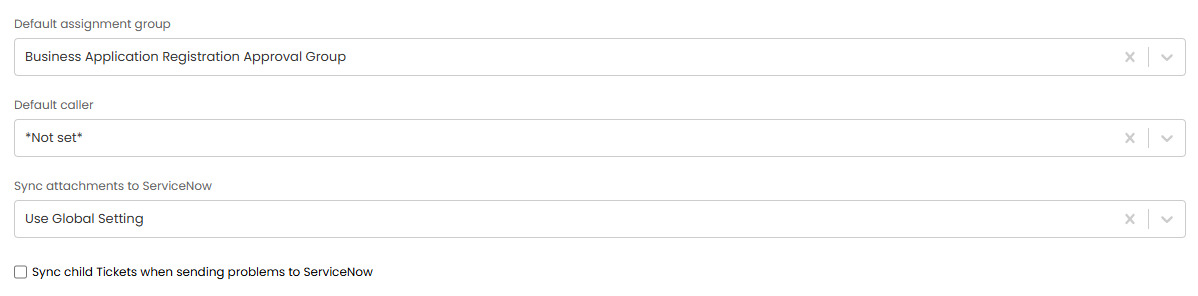
Fig 5. Additional ServiceNow settings against Customer
The following additional mapping options can be used:
ServiceNow tables can be mapped to Halo Ticket Types using the Ticket Types mapping table.

Fig 6. Ticket Type mappigns
Halo categories can be mapped to ServiceNow categories and subcategory fields. These can target specific ServiceNow tables by setting them as the ServiceNow Type.

Fig 7. Category mappings
Webhooks
Webhooks can be enabled per Customer and Supplier. These allow:
- New tickets in ServiceNow to create tickets in Halo automatically.
- Work notes/additional comments added in ServiceNow to sync to the ticket in Halo automatically.
- Updates from suppliers to update existing tickets in Halo.
Note: Supplier webhooks can only be used to update existing tickets, not create new tickets.
First you will need to set the ticket type new tickets from ServiceNow will create as well as the user these ticket will be assigned to. Then you will need to configure the webhooks in the ServiceNow instance to send to Halo.
The webhook to create tickets in Halo will create the ticket and populate any mapped fields using data from ServiceNow. The webhook to update tickets in Halo will sync work notes and additional comments added in ServiceNow to Halo, only the work note is synced, additional field updates will not be pushed across. Field updates are handled by the Halo Integrator (see the section "Syncing back to Halo" for more information on the Halo Integrator).
You can also specify the Team to assign Tickets to using the "Webhook Team" dropdown.
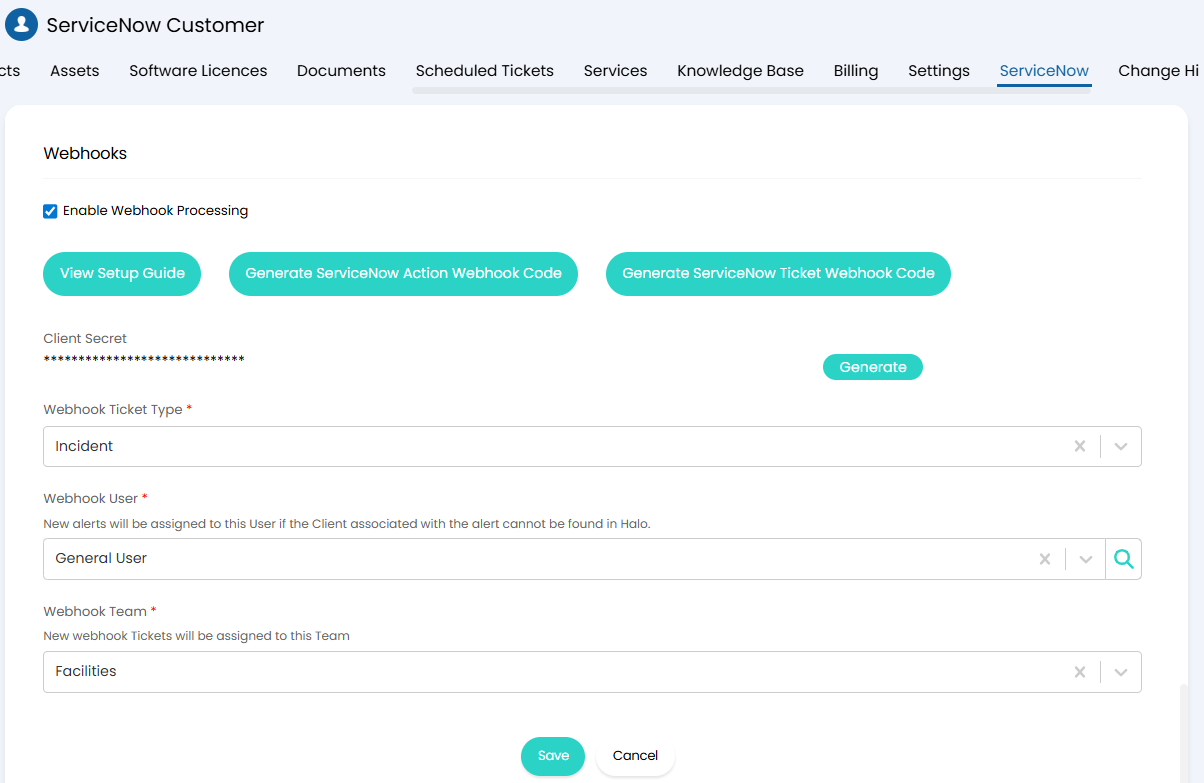 Fig 8. Webhook processing configuration
For information on setting up the webhooks required see our article ServiceNow Webhooks.
Syncing Incidents to ServiceNow
To sync incident and task tickets from Halo to ServiceNow, you will need to create an action with the system use 'Send ticket to ServiceNow'. This will create the current ticket in the the customer's ServiceNow instance, any of the fields mapped earlier will be set. The Customer this will be assigned to is determined by the Customer/User of the ticket so ensure the ticket is assigned to the correct Customer before syncing.
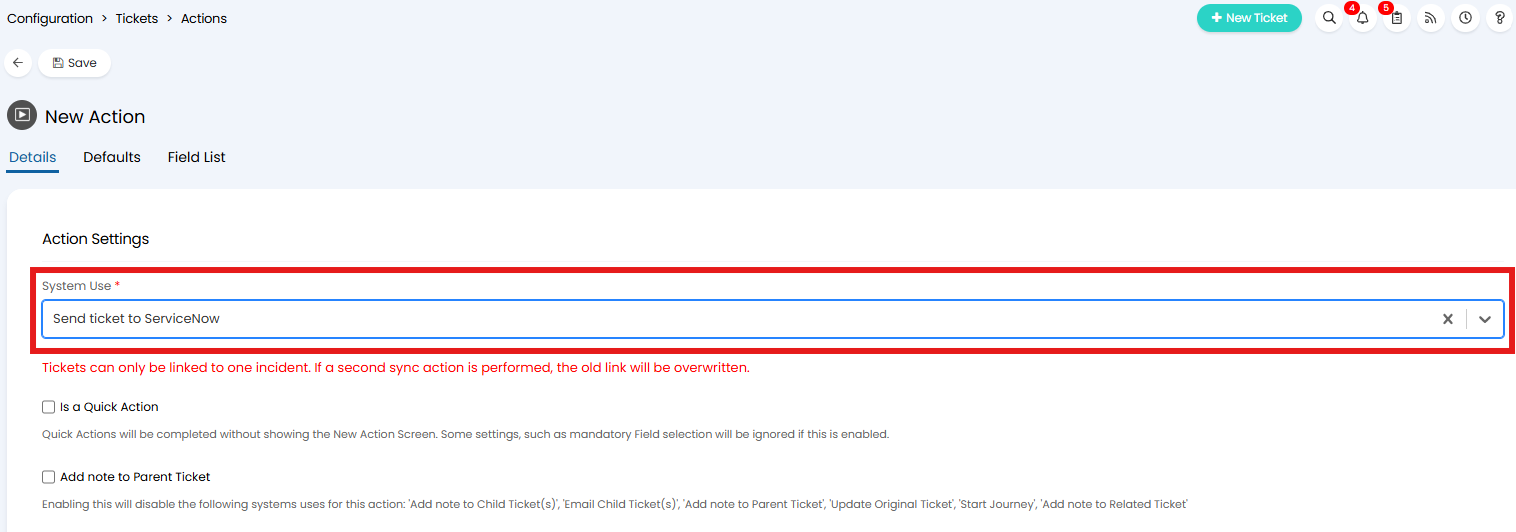 Fig 9. Action to send a ticket from Halo to ServiceNow
There are two ways you can determine what what type of ServiceNow record this ticket will be created as, this can be set against the ticket type, so this Halo ticket type will always be created as the chosen record. Or this can be done using an action, so you can choose per sync what record type the ticket is created as.
- Setting a ServiceNow record type against a ticket type
To set the ServiceNow record against the ticket type head to Configuration > Tickets > Ticket Types, select a ticket type, and head to the Defaults tab. Here you can set the "Default ServiceNow Type".
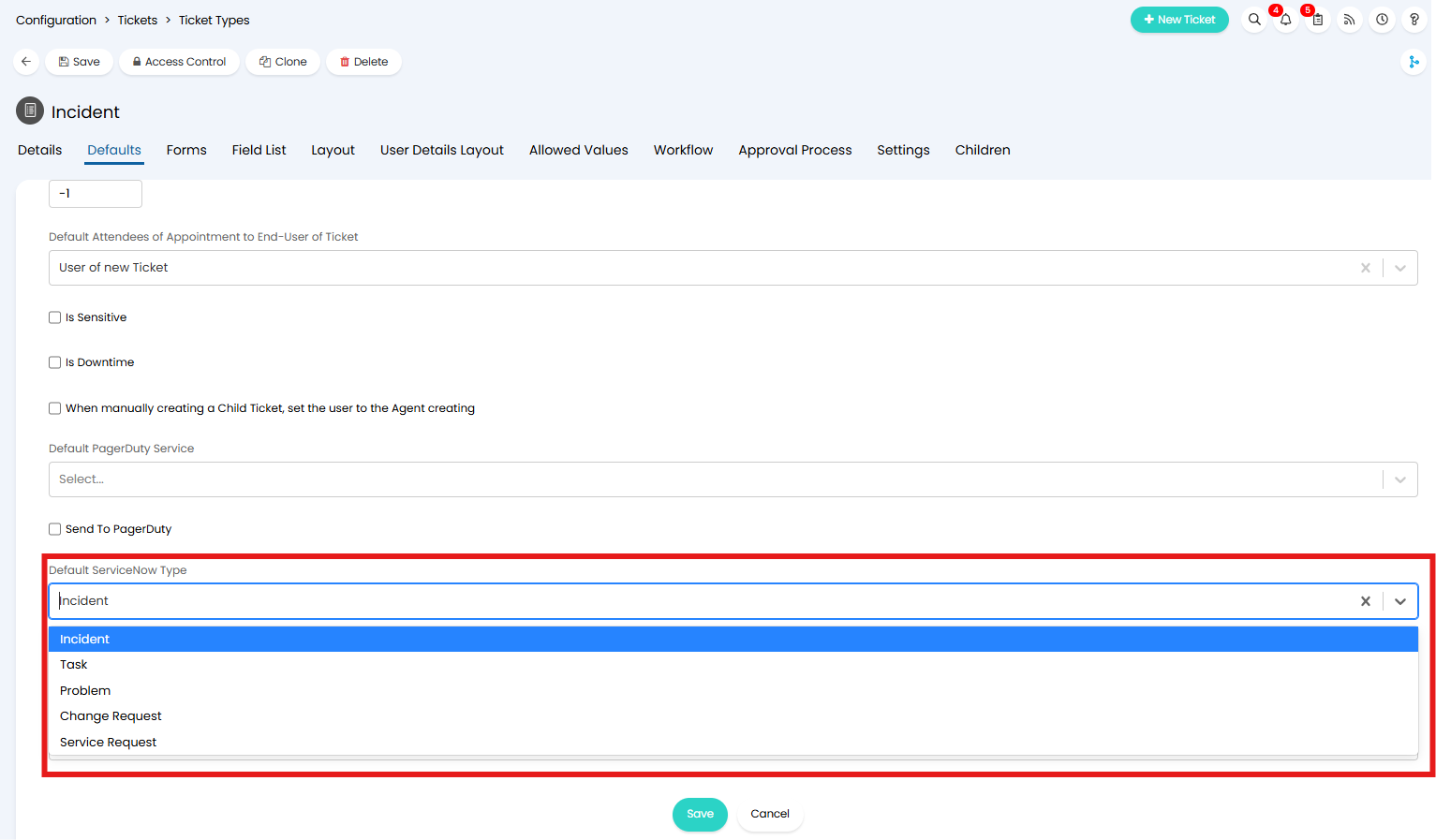 Fig 10. Set the type of record) this ticket type will be created as in ServiceNow
Now when any tickets of this type are sent to ServiceNow they will be created as this type.
- Setting a ServiceNow record type against an action
To use an action to set the ServiceNow record head to Configuration > Tickets > Actions, select the action used to send the ticket to ServiceNow and click the Field List tab, here add 'ServiceNow Type' to the field list.
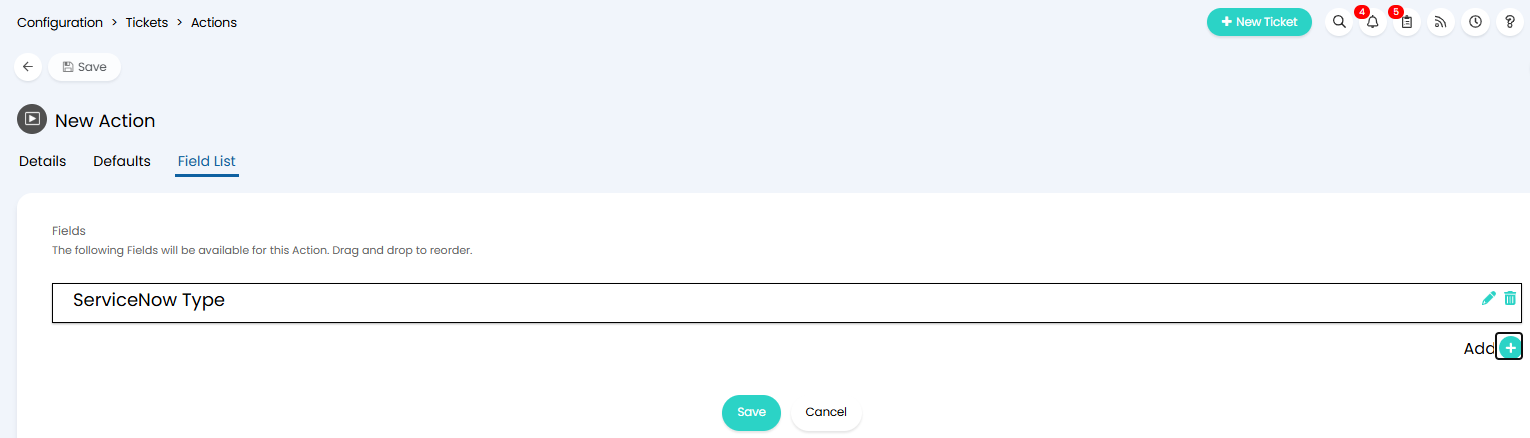
Fig 11. ServiceNow Record field
Each time this action is used the agent can choose what ServiceNow type the ticket will be created as. If a default ServiceNow type is set against the ticket type this can be overridden using an action
Tickets in Halo and incidents/tasks in ServiceNow have a 1-1 relationship, this means only one ticket in Halo can be linked to one incident in ServiceNow at a time, you cannot link multiple tickets to a single ServiceNow incident. If the action 'Send ticket to ServiceNow' is used again to link to a different incident, the existing link will be overwritten.
However, parent and child relationships will remain when syncing tickets to ServiceNow. If a ticket is synced to ServiceNow as a Task and it's Parent Ticket in Halo is synced as an incident in ServiceNow, the Task will be linked to the Incident in ServiceNow, mirroring their relationship in Halo.
The User of the incident will try to match on the End User's email of the ticket in Halo. If the End User's email (of the ticket in Halo) can be matched to a User in ServiceNow, the matched User will be assigned the incident in ServiceNow. Otherwise the default User set against the Customer (in Halo) will be assigned the incident.
You can view if the outbound request has been successful in the Outbound Integration Request log in Backend Service Monitoring.
Syncing Supplier Records to ServiceNow from Halo
If you have connected your Suppliers' instance of ServiceNow an action with the system use 'Log to Supplier' can be used to create the ticket in the Supplier's ServiceNow instance. In order to use this action the Supplier must have an email address set against them.
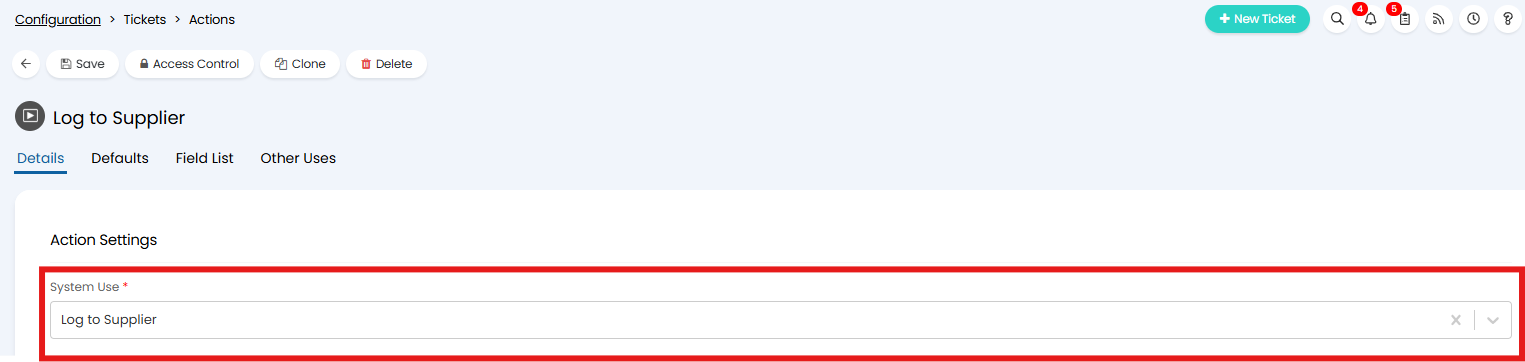
Fig 12. Action with Log to Supplier System use
Actions with this system use will only create a record in ServiceNow if the supplier you are logging to has a ServiceNow instance connected to their Supplier profile in Halo. This allows you to use the same action for logging issues to suppliers for both suppliers using ServiceNow and those who are not.
Syncing Attachments
Attachments can be sent from Halo to ServiceNow, allowing any public attachments that have been added to the ticket in Halo to be created against the linked record in ServiceNow. This is a one way sync (Halo to ServiceNow).
To allow the syncing of attachments head to configuration > integrations > ServiceNow, enable 'Sync attachments to ServiceNow'.
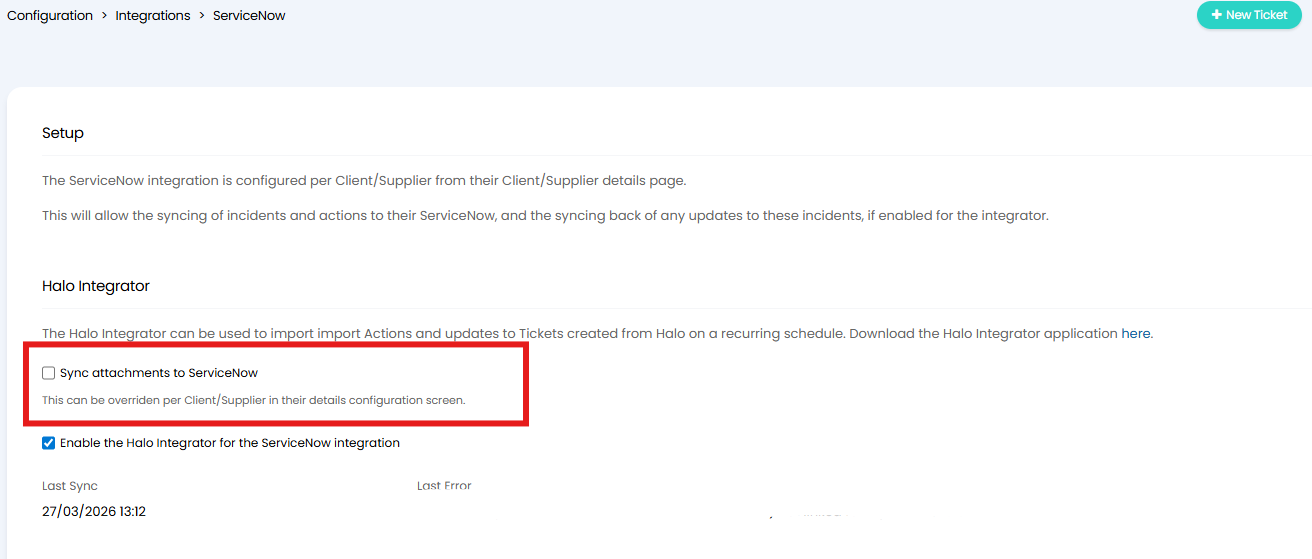
Fig 13. Sync attachments to ServiceNow
This can be overridden per Customer and Supplier using the same setting present against the Customer/Supplier ServiceNow configuration. This allows you to only sync attachments for chosen Customers/Suppliers.
Attachments will be sent to ServiceNow when the ticket is created in ServiceNow, or when an action is used to update the ServiceNow record.
Note: Only attachments that are publicly visible will sync to ServiceNow.
Updating Records in ServiceNow through Halo
Actions added to tickets in Halo can add work notes to the linked ServiceNow Incident/Task. To send a work note you will need to create an action with the "Sync to ServiceNow" field. The note on the action will sync to ServiceNow as a work note as long as this field is checked.
Only the 'Note' field can be synced to ServiceNow from Halo. Any of the earlier mapped fields (priority, impact, custom fields, etc) will not be updated. If additional fields are present on the action this will not affect the sync but the data from these fields will not be synced across.
Note: This field does not apply to a Supplier sync, see the next section for more information on how to configure an action to update a Supplier.
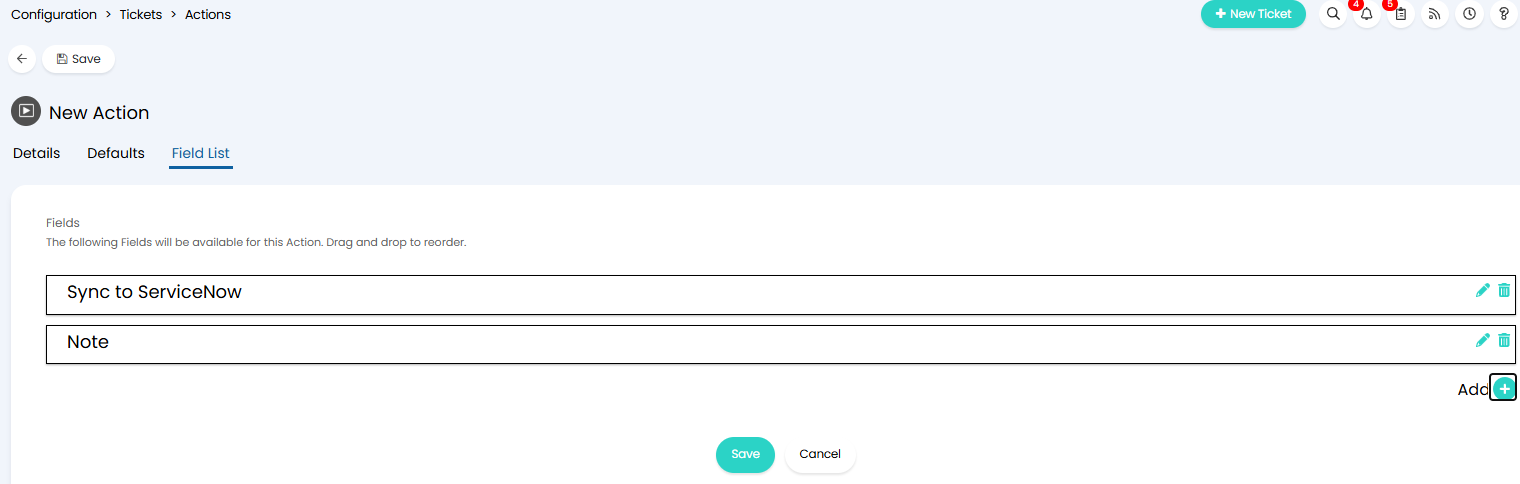
Fig 14. Fields against action to sync the action to ServiceNow
If you would like this checkbox to be selected by default when you use your action you can select the "Sync to ServiceNow" option in the defaults tab.
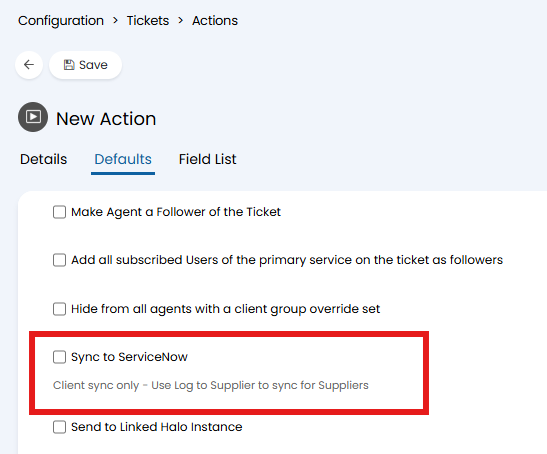
Fig 15. Sync the action to ServiceNow by default
If the action is set to be hidden from the User it will be a Work Note in ServiceNow, otherwise, it will be a Comment.
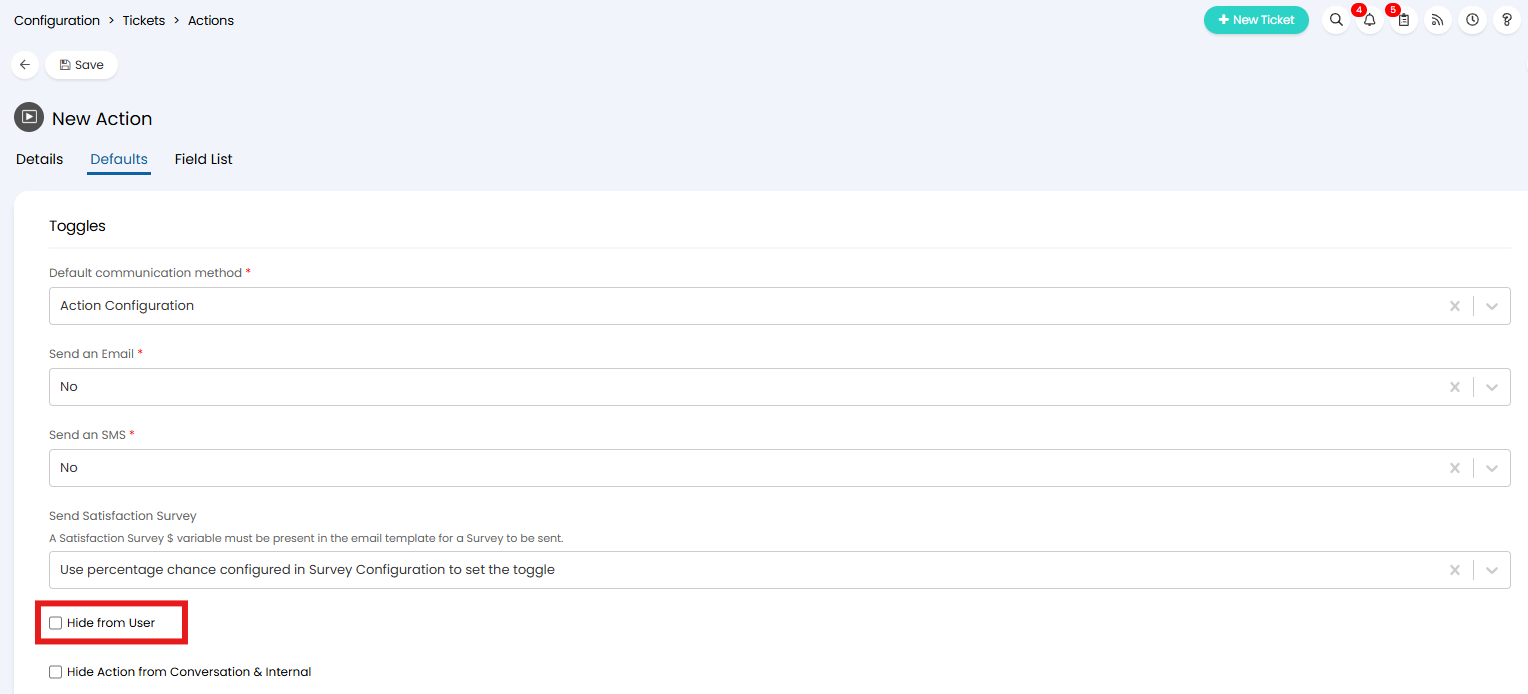
Fig 16. Setting to hide action from the user (private action)
Only actions that have the "Sync to ServiceNow" field checked will send updates to the linked incident in ServiceNow for a Client sync. If you would like all internal and/or public notes to sync to service now you will need to add this field to each of your actions that you use for leaving public/private notes on a ticket.
Sending updates to Suppliers
If you are sending an update to a Supplier ticket you will not need the "Sync to ServiceNow" checkbox to be set on the action. This action will instead need the the system use "Email Supplier". Providing the Supplier has an email address set against their record this action will send the update across to ServiceNow.

Fig 17. Email Supplier System Use
You can view if the outbound request has been successful in the Outbound Integration Request log in Backend Service Monitoring.
Syncing back to Halo
Webhooks are used to sync new tickets and work notes/additional comments from ServiceNow to Halo. If you have webhooks configured each time a Task/Incident in ServiceNow is created or a work note is added, a ticket will be created in Halo, or the linked ticket in Halo will have the work note added. Attributes of the ticket created in Halo will determined by the configuration against the Customer/Supplier.
The Halo integrator is used to pull updates to fields in ServiceNow into Halo. It will also act as an additional failsafe for webhook functionality, creating new tickets and work notes/comments if these have not been created in Halo.
This is enabled under Configuration > Integrations > ServiceNow.
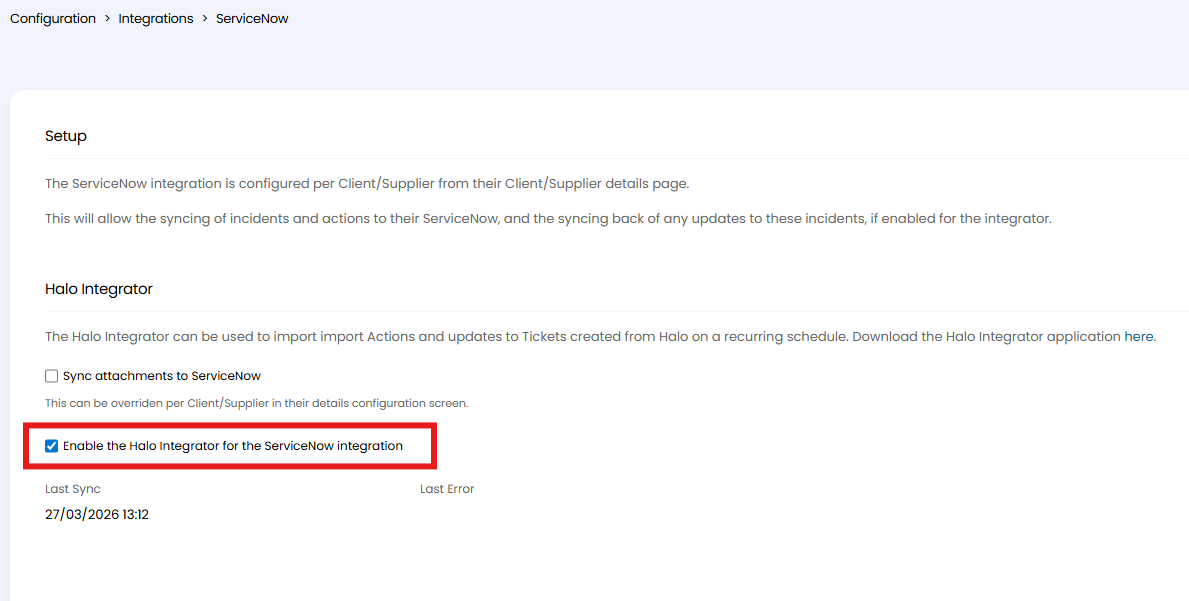
Fig 18. Enable the Halo integrator
The integrator will run on a daily basis and will pull in any updates since the last scan, this includes updates to any of the mapped fields, or newly added work notes or comments.
Note: Only tickets that have been created by Halo will have updates from ServiceNow synced back to Halo.