Ticket/Client Areas
In this guide we will cover:
- What are Ticket Areas?
- Configuring Ticket Areas
- Navigation Menu Layout
- Creating Navigation Profiles for Other Entities
- Override the Screen Layouts Per Agent
- Override the Screen Layout Profile Per Customer
- Split Customer Level Tickets Tab Per Ticket Area
- Option to Pin the Details Tab to the Right Sidebar
- Adding custom translations to a ticket areas entity fields
- Branding ticket areas
Configuration Settings Guides:
YouTube Video on Customising the Layout of Ticket and Client Areas
Disclaimer - We cannot guarantee video content uses the most up to date version of Halo. Please ensure to check the publish dates of videos. For the most up to date information please refer to the information in this guide.
What are Ticket Areas?
Ticket areas are a way of categorising tickets into different modules on the left hand sidebar of the agent application. For example there may be different types of sales that your company makes, so you could configure the different types into areas.
 Fig 1. Halo Areas
The large icons with the names of the module for each module of the Navigation menu, can be configured by going into an agents preferences and changing the appearance.
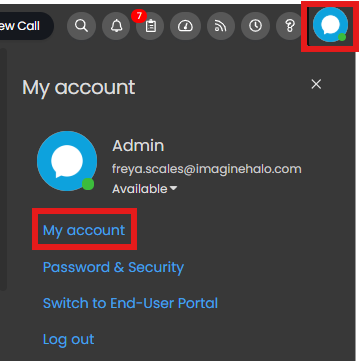 Fig 2. Agent Account Settings
The option to choose for the Navigation menu display should be "Large icons with labels".
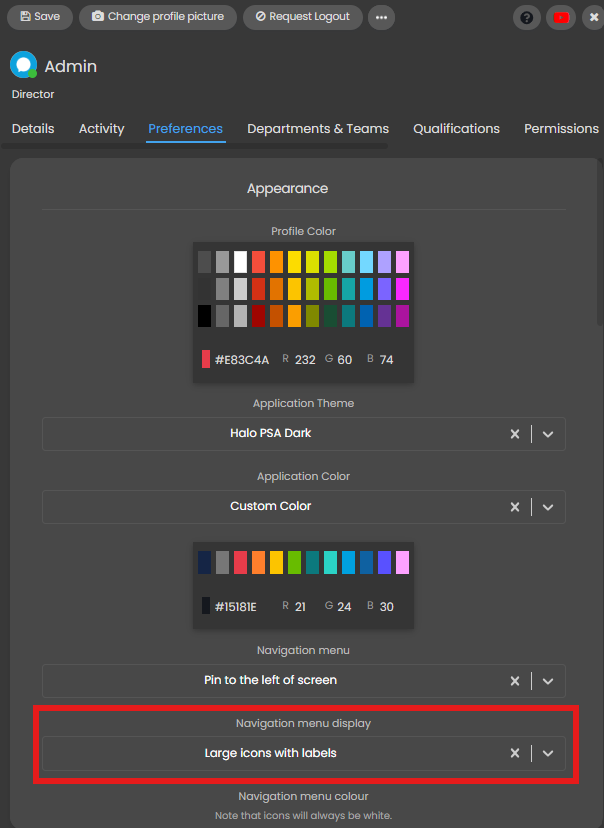 Fig 3. Configuring The Navigation Menu (Left Sidebar)
This can be set globally in Configuration > Advanced Settings but the agent preference will override this setting:

Fig 4. Configuring The Navigation Menu Globally
Configuring Ticket Areas
Ticket areas can be created, deleted and customised under Configuration > Tickets > Areas.
When configuring a new Area you will need to complete the details for the area, for information on what each of the settings here controls checkout our Configuration settings guide on Ticket Areas.
Once details are set you can configure the filters for the area, this will control exactly which tickets will appear in the area.
To configure the filters, click into a ticket area and click on the filters tab in order to define which tickets will appear in this area.
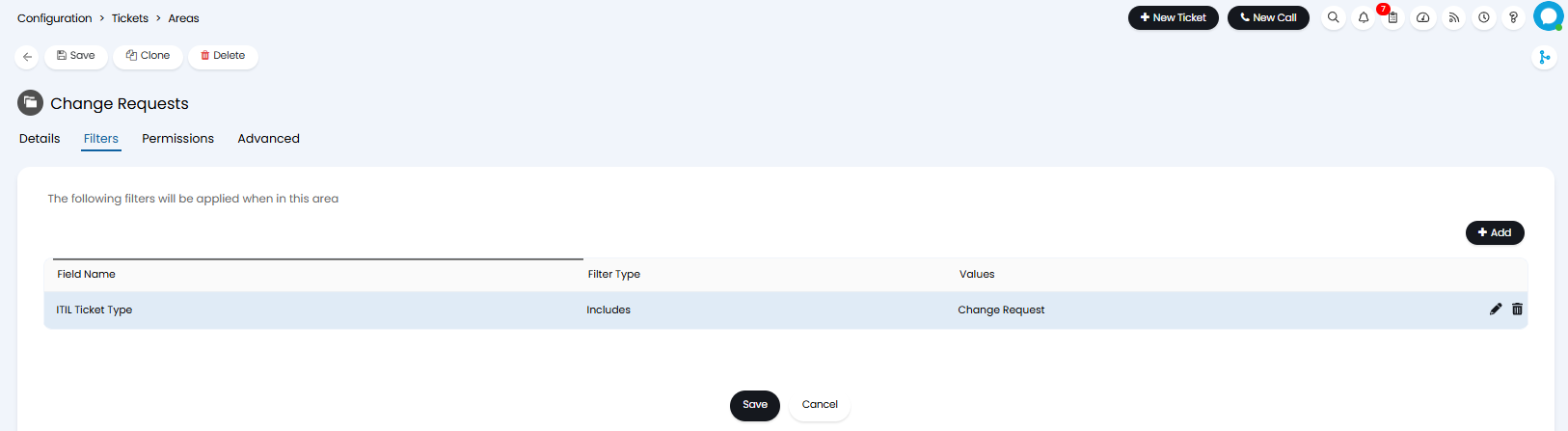
Fig 5. Ticket Area Filters
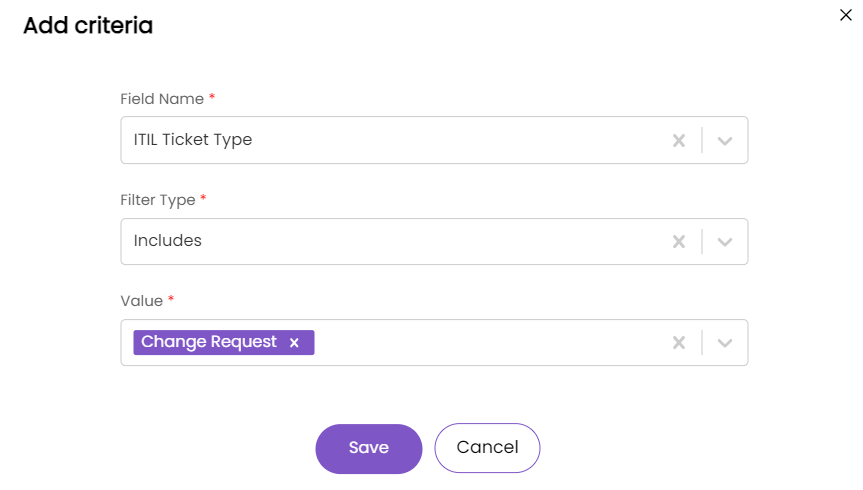
Fig 6. Criteria for Area Filter
Multiple filters can be added to the area, these will have an AND relationship, so tickets must meet the criteria of each filter here to show in this area.
On versions v2.238+ criteria groups can be used when configuring filters for a ticket area. These allow you to configure criteria with OR relationships. When multiple criteria groups are added tickets will need to meet criteria in either group to show in the area. To use filter groups enable "Use Filter Groups".
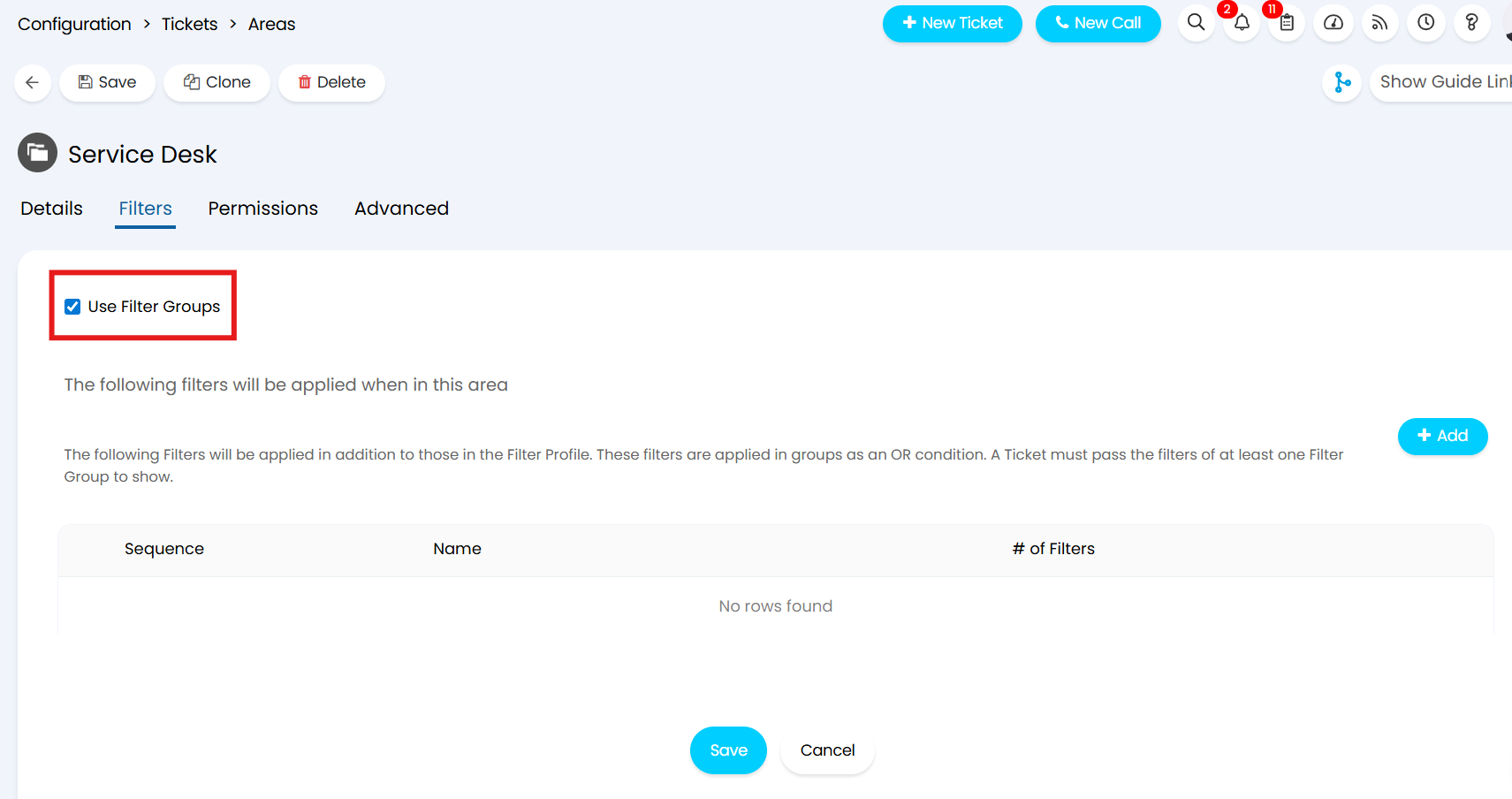
Fig 7. Enable Filter Groups for Ticket Area
Once enabled, adding a filter will add a group rather than a single filter, you will need to name the group then the filters within a group are configured as usual. All filters within a group have an AND relationship, so a ticket must meet all the criteria in a group 'meet' the group criteria, but only one group criteria needs to be met for the ticket to show in the area.
In the Figure 8 example, two filter groups have been created, so that tickets will show in this area if their ticket type includes 'Project Task' or 'Project' OR if the team assigned the ticket includes the 'Project Team'.
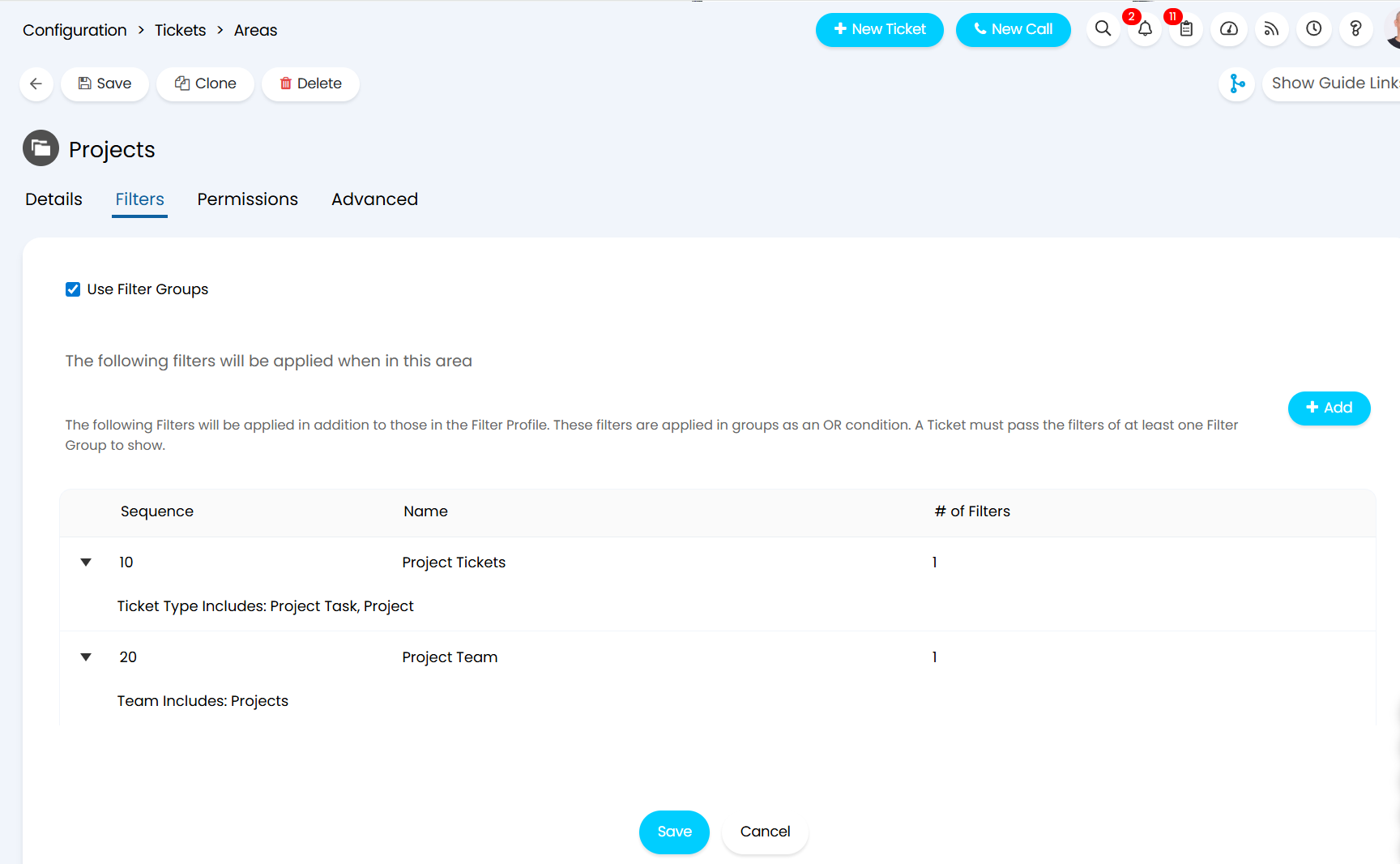
Fig 8. Filter Criteria using criteria groups
The permissions tab determines the teams that will have access to the area. The permissions tab can also be based on role restrictions. This is useful if you want to give access to a larger group of agents.
Note: Only the teams that have permission to access an area will show within the area, even if the team is included in the "Team" filter.
If a new ticket area is added it will show in the overflow view by default, to change this, you will need to go to the screen layout profile.
Note: If this is the first time using the navigation menu, you will need to create a new custom navigation menu, which is explained in the "Navigation Menu Layout" section below.
Navigation Menu Layout
To configure the navigation menu layout head to Configuration > Advanced Settings.
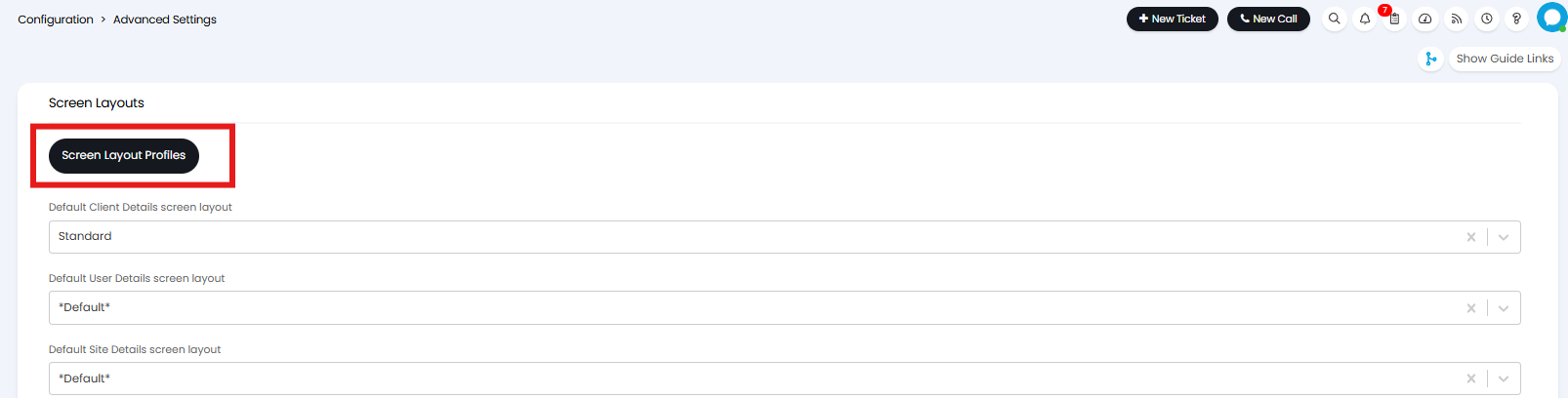 Fig 9. Screen Layout Profiles Button
Then ensure the entity is set to 'Navigation Menu'.

Fig 10. Navigation Menu List
Create a new Profile, or open your default Layout Profile, and click "edit" on the top left. If you create a new profile you will need to set a name and save the Profile before editing again. Now head to the Button Layout Tab and change the Button Layout to "Custom". Find your new area and click the pencil icon to edit.
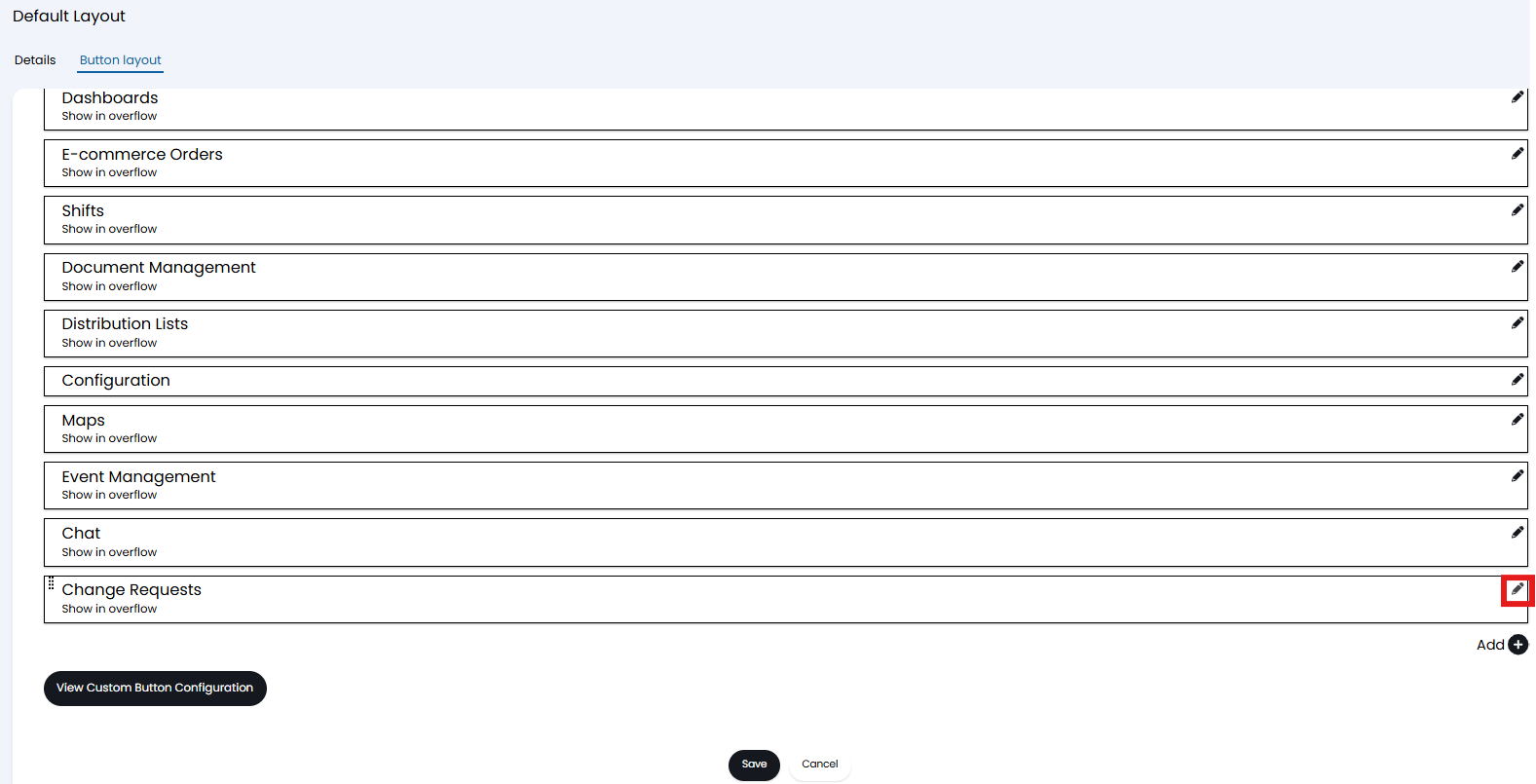
Fig 11. The New Area Showing in Overflow
Change the view to "Show on Menu", the default is "Show in overflow", the overflow section is explained further down this article.
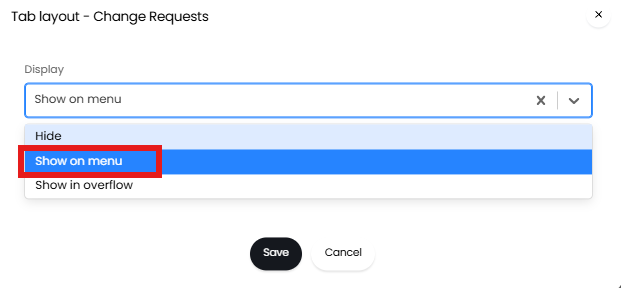
Fig 12. Changing The Tab to Show in The Menu
Now the new area will display on the navigation menu.

Fig 13. New Ticket Area Showing in List
The individual areas can be hidden, shown on the menu, or shown in the overflow (Figure 14). The overflow section appears at the bottom of the navigation menu in the form of an ellipse.
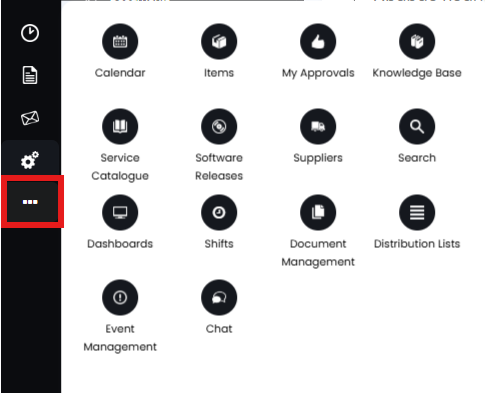
Fig 14. Navigation Menu Overflow Area
To change the order in which the areas show, use the 8 dots against each button in the Screen Layout Profile to drag and drop them into order.
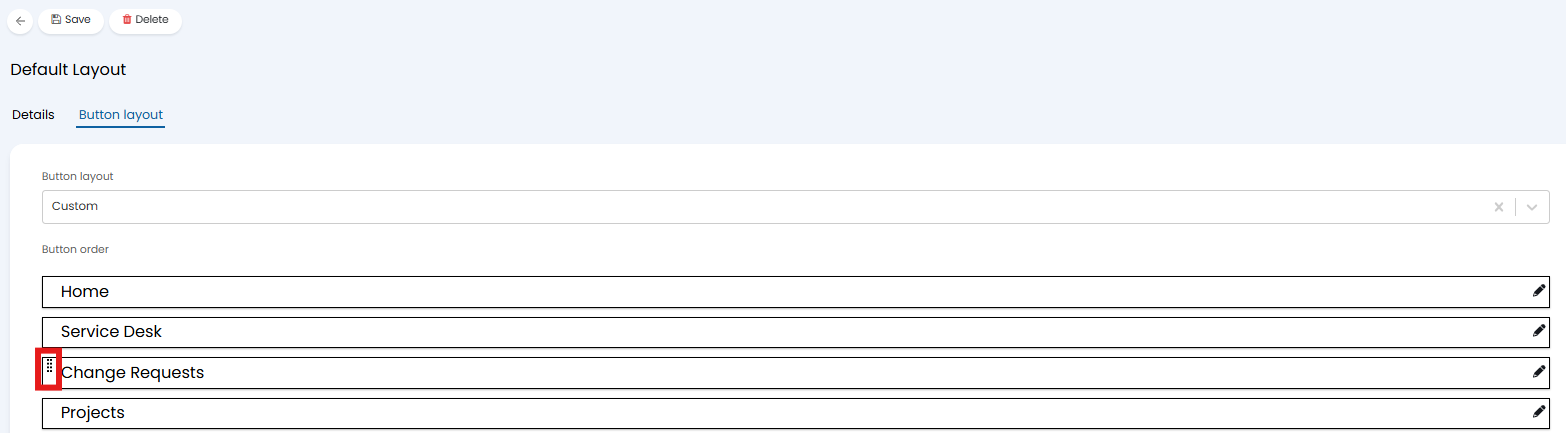
Fig 15. Reordering Areas
To add the newly configured navigation menu, head back to advanced settings and change the navigation menu, after refreshing the page, the navigation menu will be updated to reflect the custom menu you have selected.
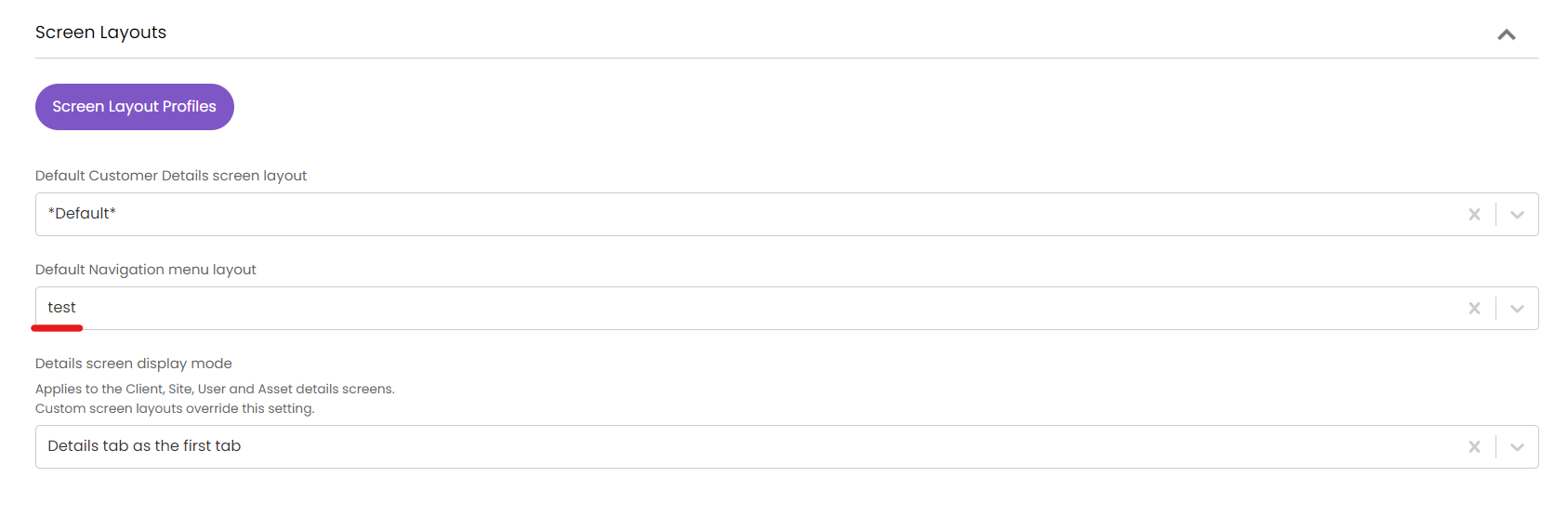
Fig 16. Adding The New Menu Layout
Creating Navigation Profiles for Other Entities
The following entities can have layout profiles set against them:
- Navigation Menu
- Customer
- Site
- User
- Agreement
For all entities, excluding navigation menu, a screen layout profile can be created/edited to change which tabs appear and the order of the tabs under the entity. This is useful in streamlining the data available against an entity.
Setting a screen layout profile will make the custom layout an available option, each profile will then need to be set against a customer or an agent to take effect.
Override the Screen Layouts Per Agent
This will determine the screen layout profile that is used for a particular agent, different profiles can be set for each agent.
You can do this from the configuration menu, or you can click the agent profile icon in the top right of the screen and then click into "My Account".
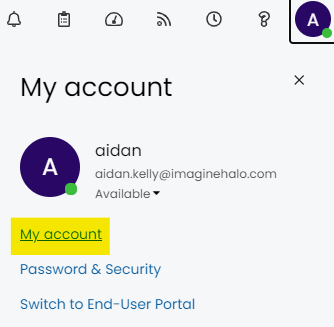
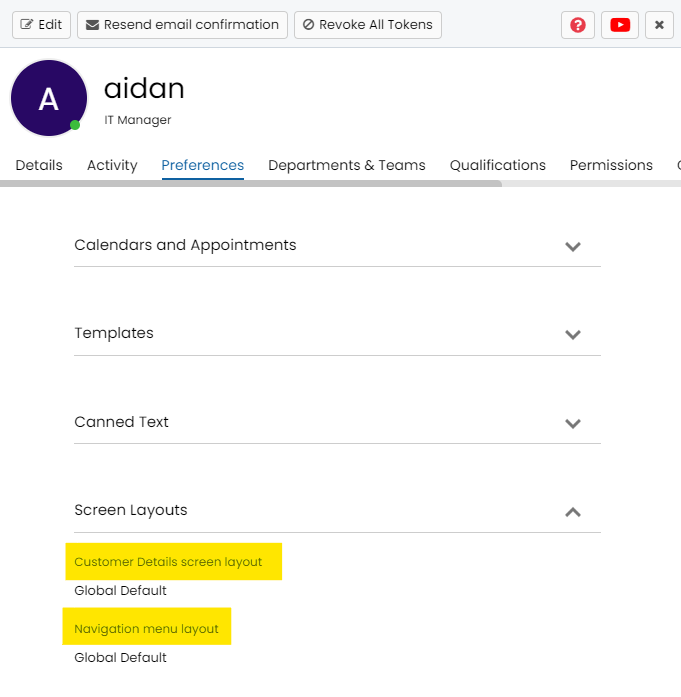
Fig 18. Alternatively to this go to: Configuration > Teams & Agents > Agents > *Click into the Preferences Tab*
Override the Screen Layout Profile Per Customer
In the Settings tab, scroll to the bottom for the miscellaneous settings dropdown, there is the setting "Screen Layout Override".
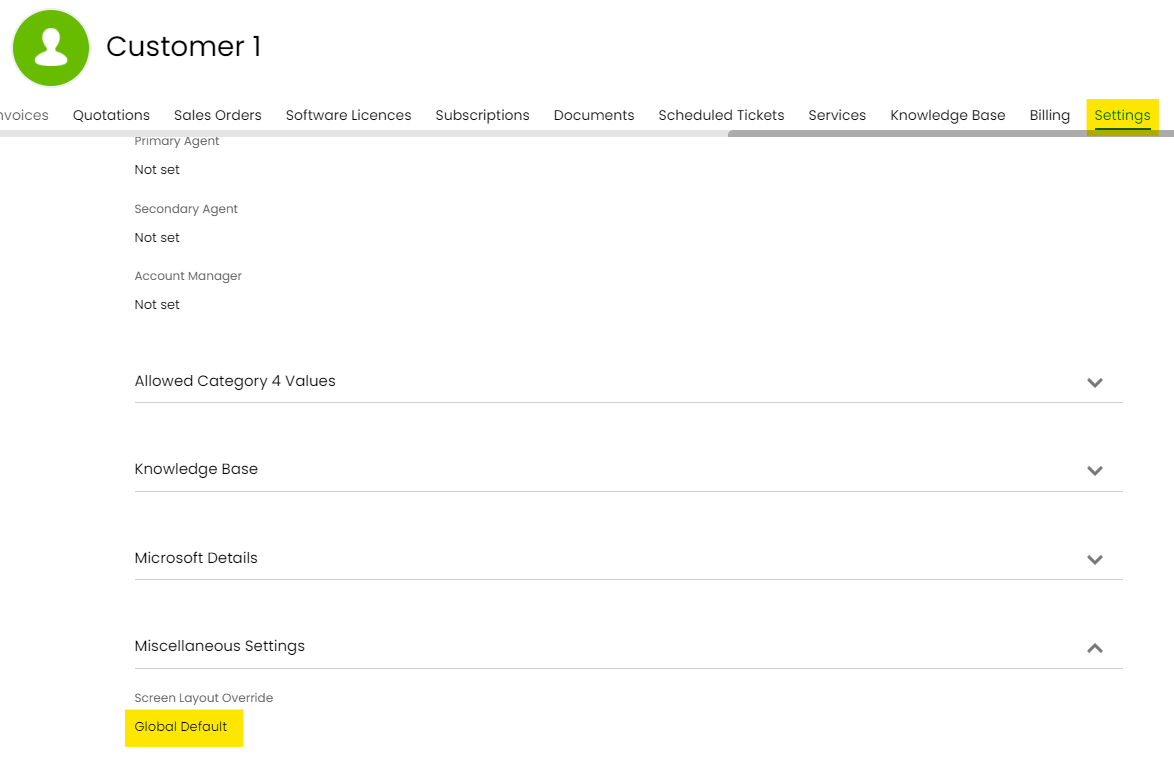
Fig 19. Settings Tab of a Customer
Split Customer Level Tickets Tab Per Ticket Area
The setting 'Split Tickets tabs into Ticket areas' (Configuration > Tickets > General Settings) replaces the tickets tab when viewing customers, sites, users, assets, and services with tabs for each configured ticket area.

Fig 20. Split Tickets tab into Ticket areas checkbox
Against the Customer:
Before splitting into ticket areas, only the tickets tab shows.
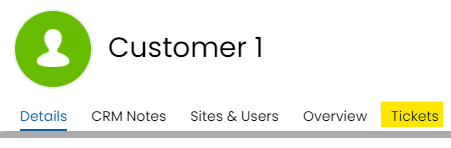
Fig 21. The Default Ticket Tab on a Customer
After splitting we can see there are multiple areas to choose from now.

Fig 22. Ticket Area Tabs Displaying on The Customer, Instead of Just The Tickets Tab
To include our new ticket area on the customers tabs, we can check the following setting in the config of the area (Configuration > Tickets > Ticket Areas).

Fig 23. Show this area as a tab on details screens checkbox
Now our customer area has this ticket area as a tab as well.
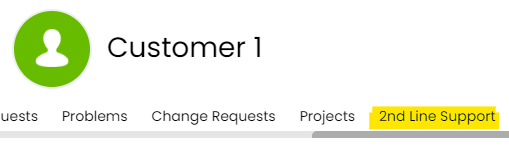
Fig 24. Adding the New Area to the Customers Tab
Option to P in the Details Tab to the Right Sidebar
Instead of having the default tab layout this will pin the details tab to the right, and the first tab on the bar is the Overview tab. This is configured in Configuration > Advanced Settings > *Screen Layouts Dropdown*.
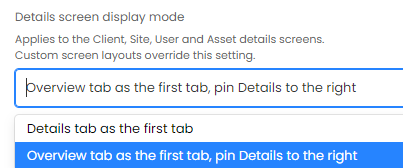
Fig 25. Pinning Details Tab
Details tab pinned to the side on Assets due to the setting chosen in Figure 25:
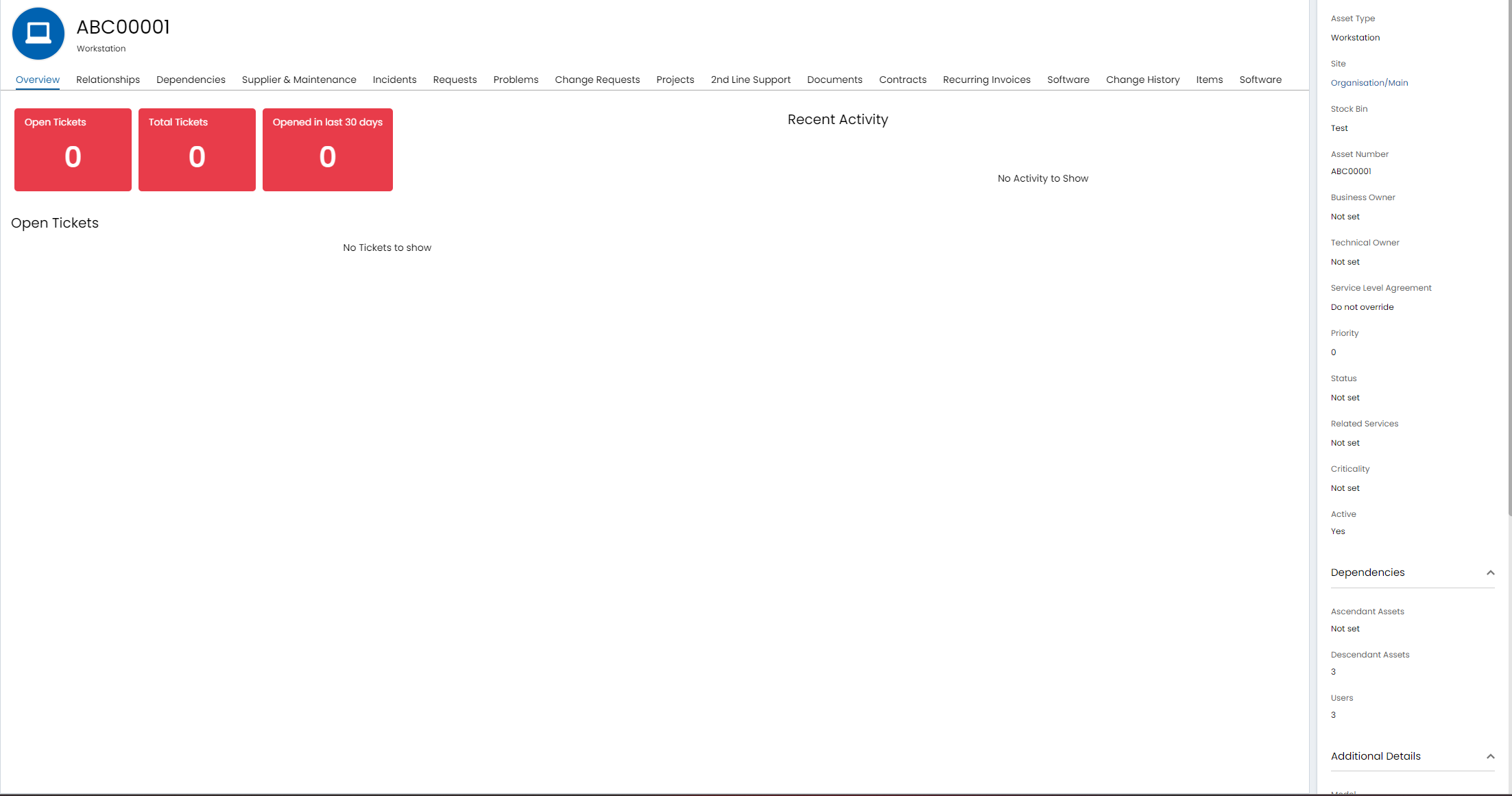
Fig 26. Details tab pinned to the side on Assets
Ticket Areas can be translated now, via the "Add translations" button:
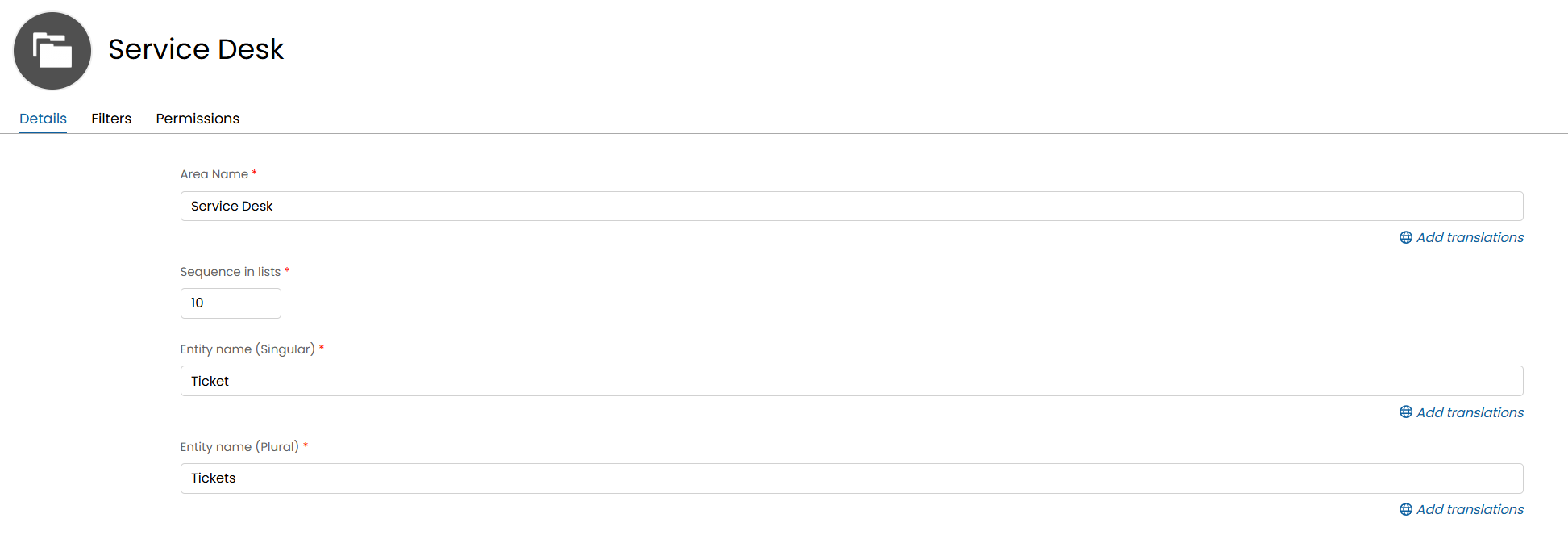 Fig 27. Ticket Area screen with the option to add translations to the entity fields
Branding ticket areas
You can add images to the page header for each ticket area, allowing you to brand each area to the team/department they pertain to.
To do this head to configuration > tickets > areas > select area > advanced tab > enable 'Show an image in the page header'. When enabled you will be able to enter the URL of the image you would like to appear in the area, you can set different images for each theme of Halo. You can also then set a webpage to be opened when the image is selected.
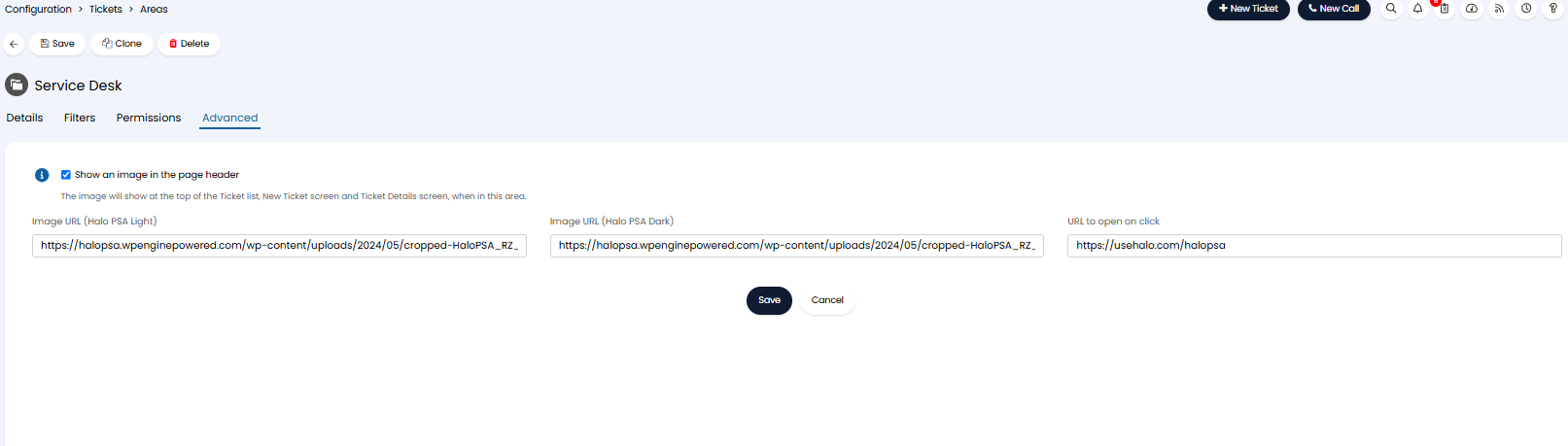
Fig 27. Set an image to appear in the header for the area
Now this image will appear in the header for the area, both when viewing tickets in lists and when viewing each ticket.
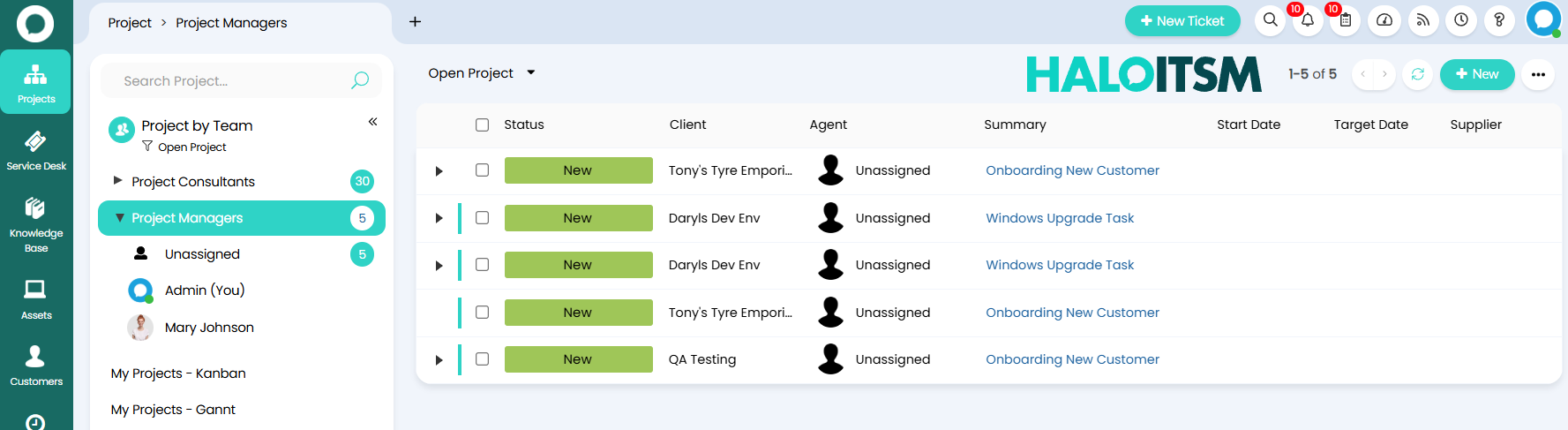
Fig 29. Image in area header
Only hosted images can be used as area headers, if you have an image that you would like to appear here but is not a hosted image (either in .png or .img format) you can reach out to our support team to enquire about us hosting this image for you.
The size of the image in Halo is determined by the size of the hosted image, if you would like to adjust the size of the image that appears in the header you will need to adjust the size image itself.