Ticket Templates
- group
- ticket screen loading
- template
- child
- parent
In this guide we will cover:
- Creating a Template
- Creating New Template Groups
- Values Tab
- To-Do Lists
- Related Assets
- Child Templates
- General Configuration Options
- Setting Custom Table Default Values
- Applying Templates
- Default Option on a Ticket Area
- Saving a Ticket Template Based on the Current Ticket
Admin Guides:
Related Guides:
Creating and using Ticket Templates can enhance your productivity and streamline your agents' working habits.
Creating A Ticket Template
Head to Configuration > Tickets > Templates, the list here is the complete list of Ticket Templates. Choose if you would like to create a new Ticket or Child Ticket Template using the entitiy dropdown.
Click "New" to make a new ticket template, or edit an existing one by clicking on it and pressing "Edit".
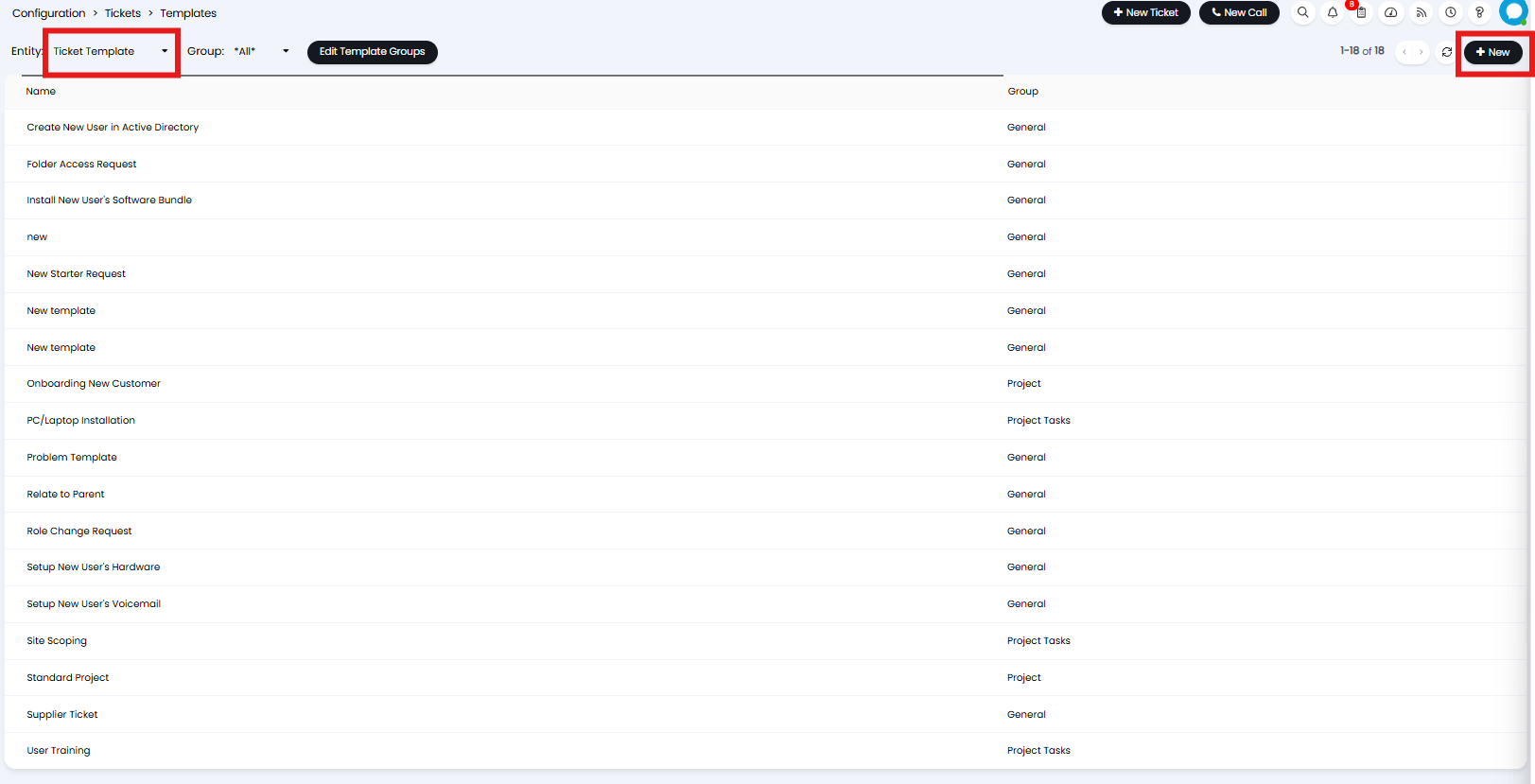
Fig 1. Creating a new Ticket Template
On the Details screen you find the name, group for which it belongs to, whether end-users can use the template and in the top bar beside the edit button (after creating and saving the template) you can add access control, to restrict by agents, teams, etc.
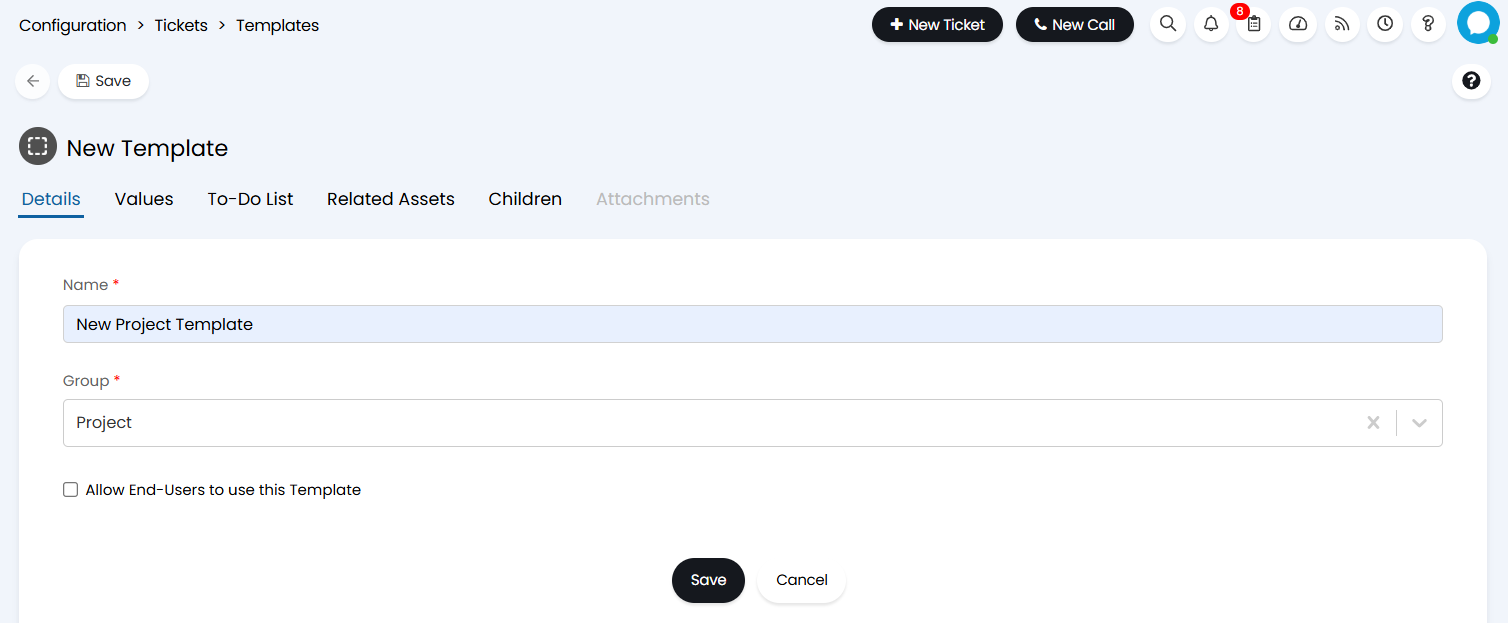
Fig 2. The Details Tab of Ticket Templates
Creating New Template Groups
The 'Group' presented in Figure 2 is used as a means of grouping different Ticket templates - over time the list of templates will grow to be rather large and will compose of various types of work (Projects, Requests etc..) so it is advised that you group these templates accordingly.
New template groups can be created by clicking the "Edit Template Groups" button in Configuration > Tickets > Templates, or by heading to Configuration > Advanced Settings> * Click the Lookup Codes Button*, and selecting the 'Auto Request Groups' list.

Fig 3. Edit Template Groups button
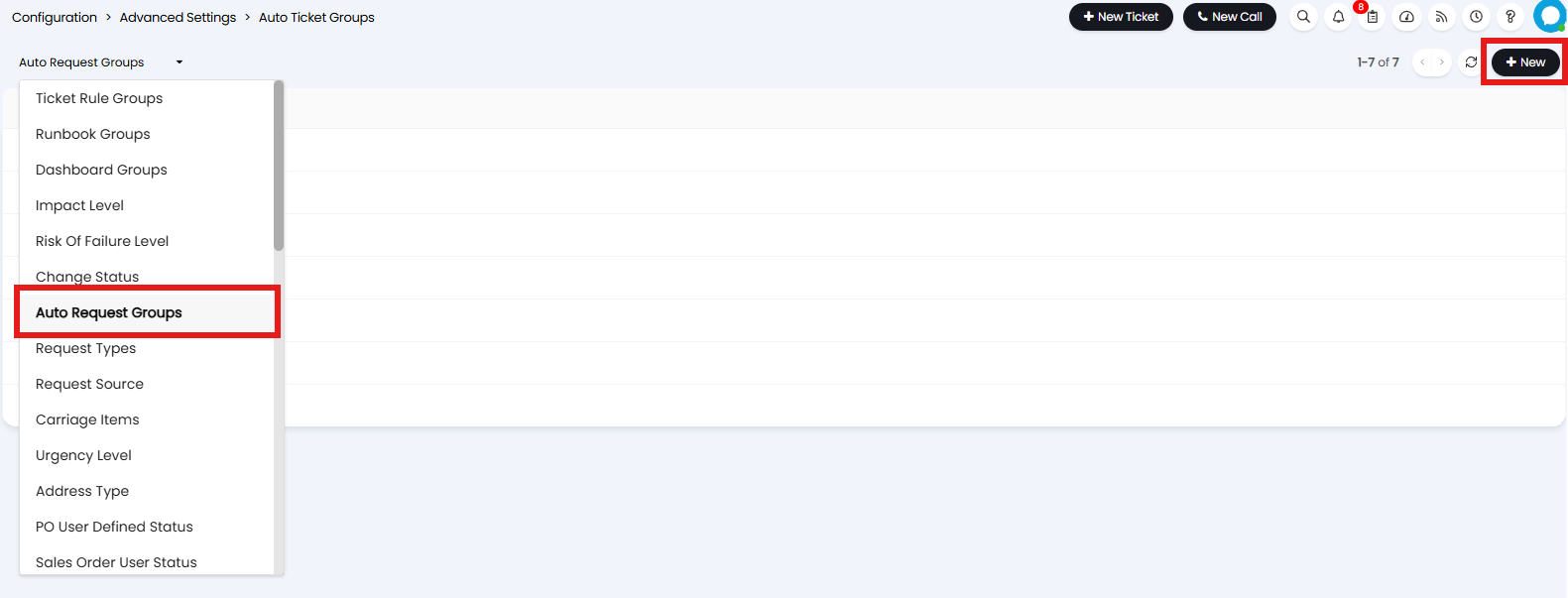
Fig 4. Auto Request Groups
Your new Template Group will need a Sequence to determine the order in determine where it shows within the list, and Name to display.
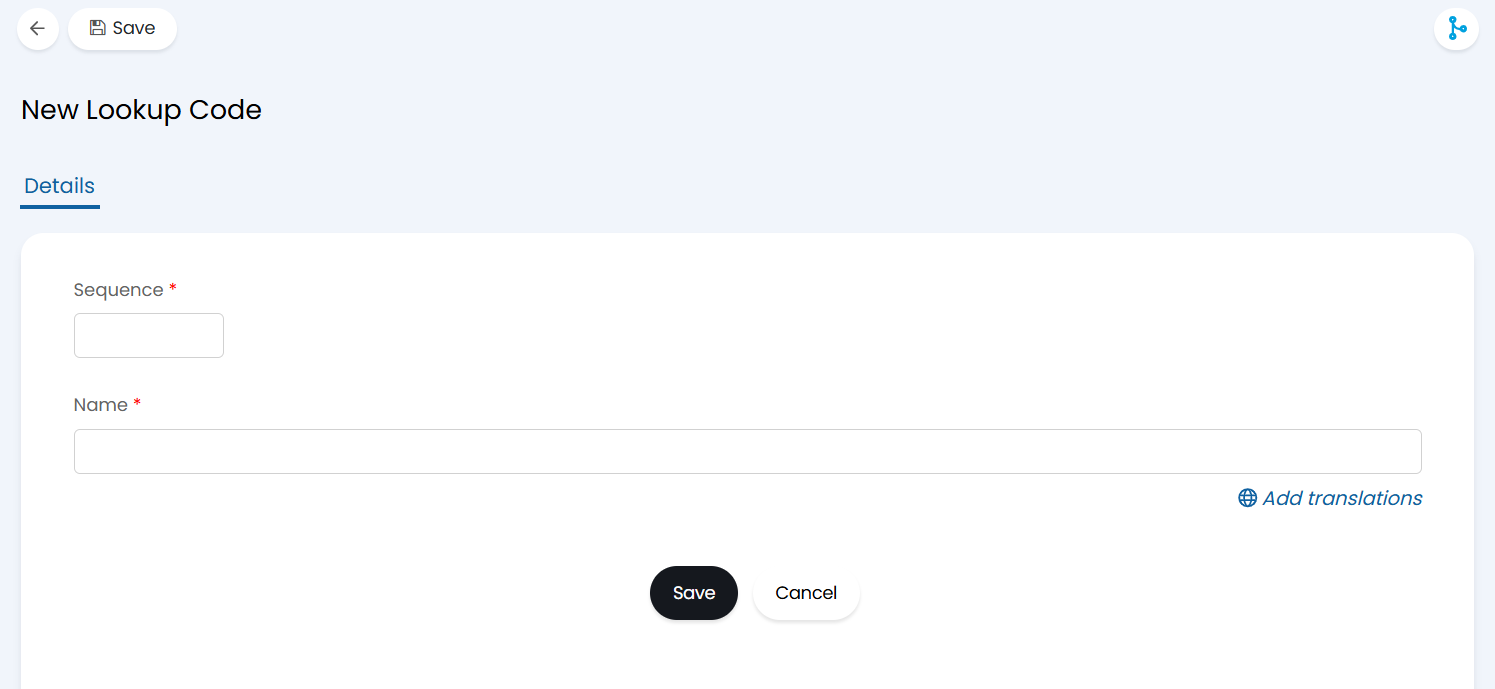
Fig 5. Creating new Ticket Template Groups
Values Tab
Under the 'Values' tab, you will find the following fields:
- Ticket Type - This is the Ticket type that will be used when this Template is applied.
- Summary - This will be the summary/title of the Ticket when this Template is applied. Note $_variables can be used here.
- Details - This will be the core details of the Ticket when this Template is applied. Note $_variables can be used here.
- Status - This will be the initial Status of the Ticket when this Template is used
- Team/Agent - Between these two fields, you can assign Tickets using this Template to a given Team/Agent.
- Show to End User - Here, you can specify whether Tickets using this Template are visible on the Self-Service Portal.
- Exclude from SLA - Here, you can specify whether Tickets using this Template are excluded from SLA considerations (for Project/Project Task templates, you will likely want to check this box)
The values tab is where the main actions of the ticket template come into use. The values you input here will appear on the ticket type chosen when the template is applied. These do not include custom fields.
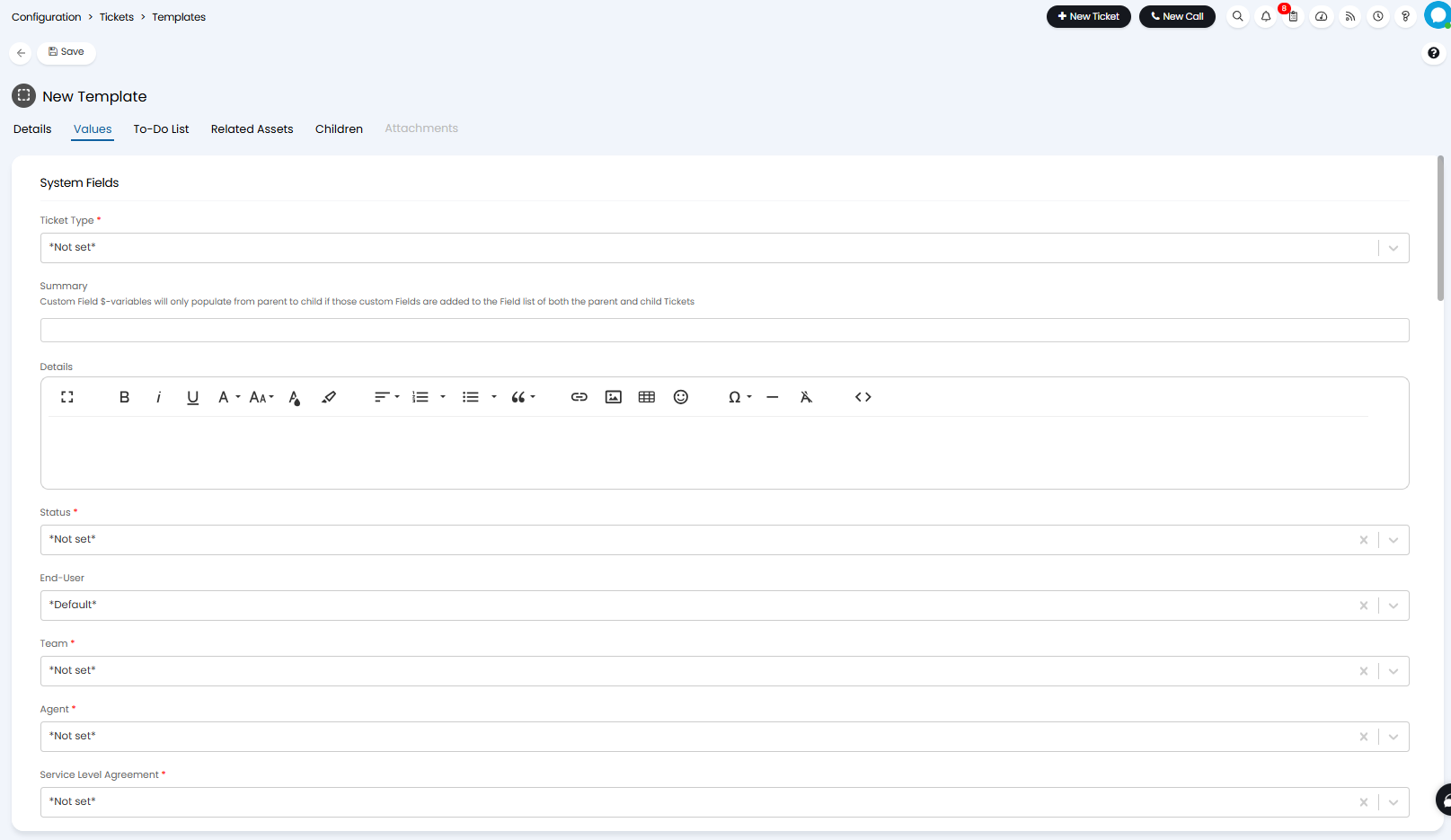
Fig 6. The Values Tab of a Ticket Template
To-Do Lists
It is also possible to add a To-Do list that will pre-populate in the ticket. This is a list of check boxes which are added to the ticket as prompts for your agents.
The "Child Template" feature allows you to create a child ticket populated with details, listed as before, but as a child ticket linked to the ticket with the original template. This can be used to create a series of tasks that need to be completed on the raising of a new ticket. This popular for those looking to use the system for project management.
Related Assets
The "Related Assets" tab can pre-configure specific assets to be linked to tickets, and any tickets with this template applied will use them.
Note: For the assets to show on the ticket, the "Assets" field must be added to the field list of the ticket type that the template uses.
Any assets linked on the ticket before the template is applied will be overwritten, and if this field is blank it will also remove any previously linked assets.
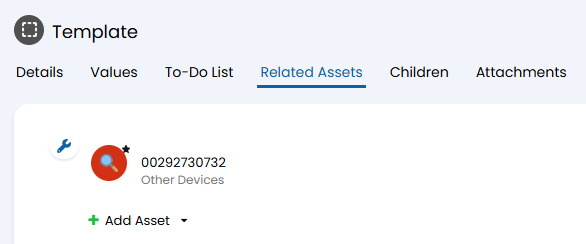
Fig 7. Related Assets tab.
From v2.250+, you can return the basic information of all related Assets regardless of the User's permissions. To do this, enable "Allow Templates to return all related Assets regardless of permissions" in Configuration > Tickets > General Settings. This means even if the system Asset field is unavailable to Users, the related Assets from the template will still be applied.
Child Templates
Adding child templates to a 'parent' template allows you to have child tickets generate automatically. Creation rules can be set for each child to determine when it should be generated, and a 'child template' chosen/created to establish the details of the created child ticket.
Adding Child Templates to a Parent Template is particularly useful when it comes to templating Projects. While the 'values' tab on the parent template establishes the details for the parent Project, the configuration of the Child Templates establishes when Project tasks are made and their details.
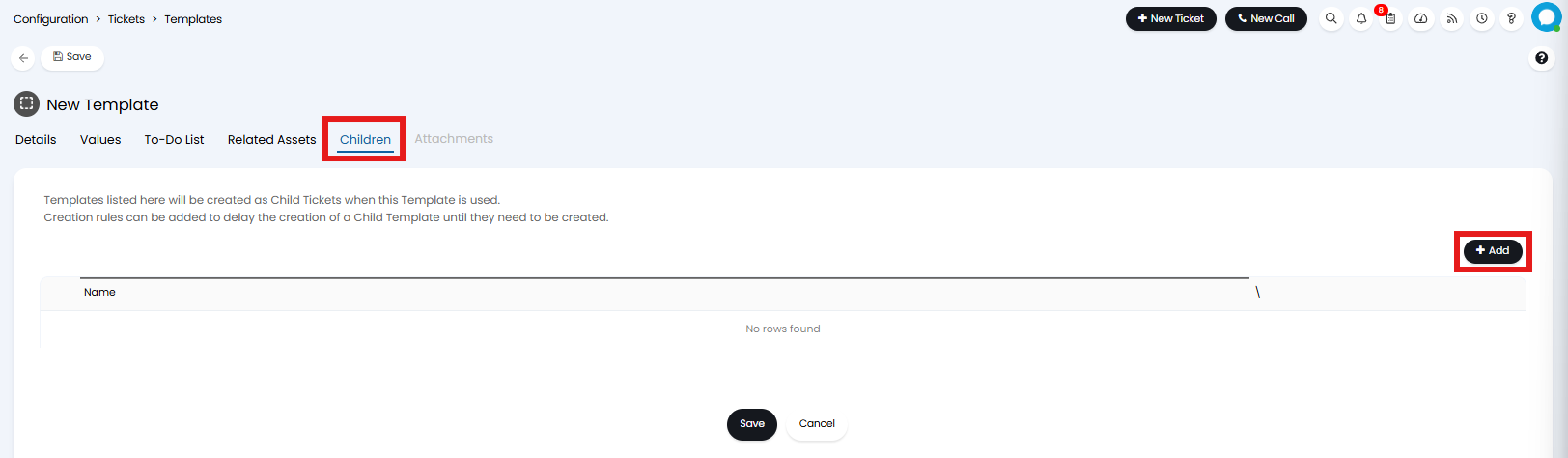
Fig 8. Creating Child Templates
After clicking 'Add', choose a Child Template or create a new Child Template by clicking "New":
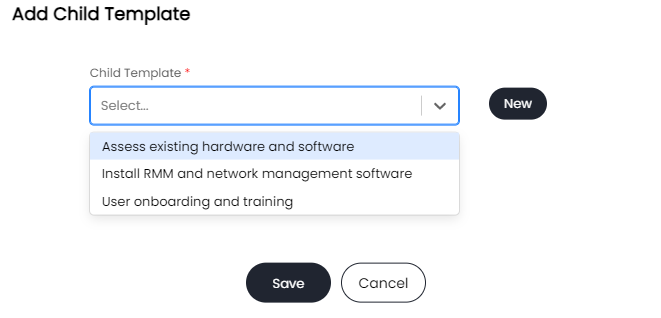
Fig 9. Adding Child Templates - either via existing template selection or by creating a New Child Template
Once you have created and added your Child Template to the table below, you will be presented with a series of options for the Child Template the same as the options found on the Parent Template.
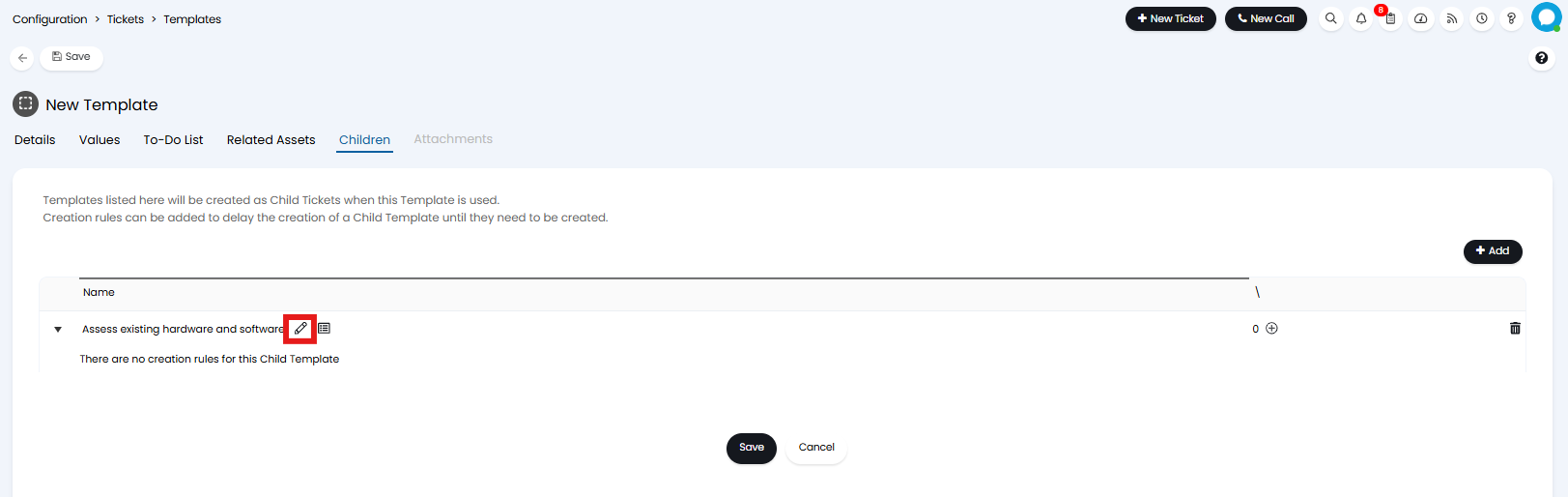
Fig 10. Clicking Edit *Pencil Icon* on The Child Template On The Table
You can also add creation rules, for more information checkout the Project Templates Guide.
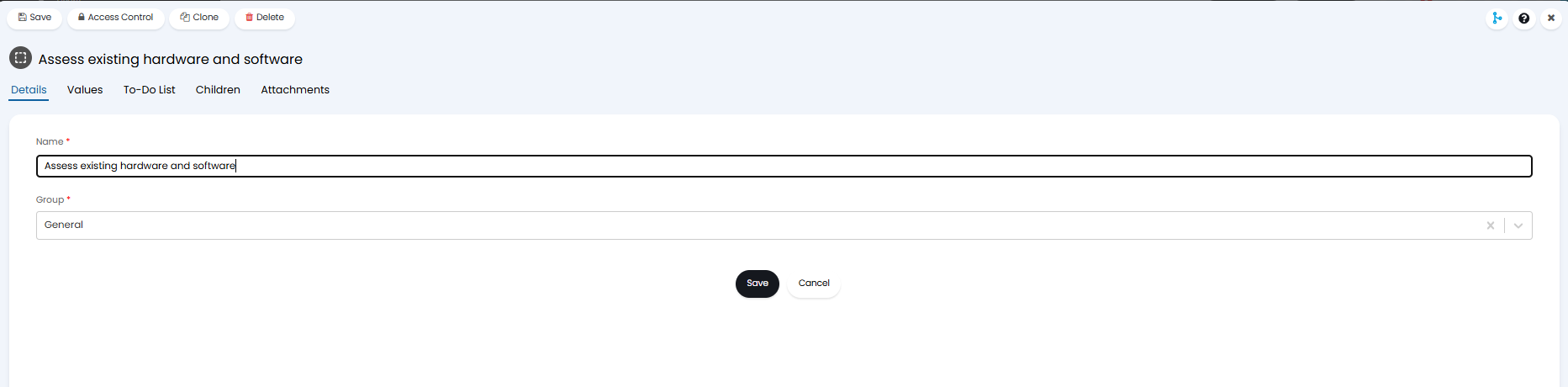
Fig 11. Child Template Options
Note the options available when configuring the child template are very similar to the options found on the Parent Template. If you configure children to be created from the child template, you will create a 'grandchild' of the original ticket.
Inherit Child Ticket Creation Configuration from another Template (v2.246+)
From v2.246+ you can have the child ticket creation configuration for a template be inherited from an existing template.
This allows you to have the templates and creation rules for child tickets that can be created from this template be inherited from a chosen template. If child creation configuration is edited on the 'parent' template, this will automatically be inherited by the 'child' template. This can make template creation and management easier when lots of your templates share the same child tickets, for example, if you have separate onboarding templates for each department, that share the same set of tasks.
To use this functionality, set the option "Child Template Configuration Type" (which is available from v2.246+) to "Use children from an existing template". When chosen you can then choose which template this one should inherit the child ticket configuration from.
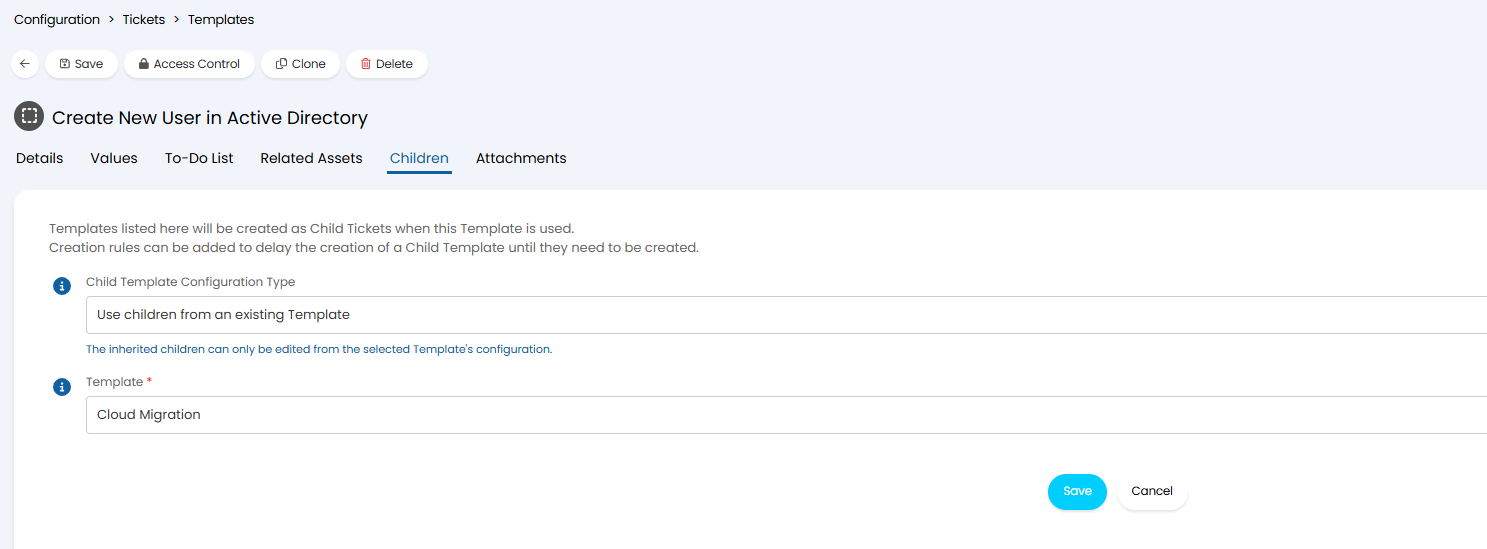
Fig 12. Set Child Template Configuration Type for a template
Once saved, you will be able to see the creation rules and templates for child ticket creation.
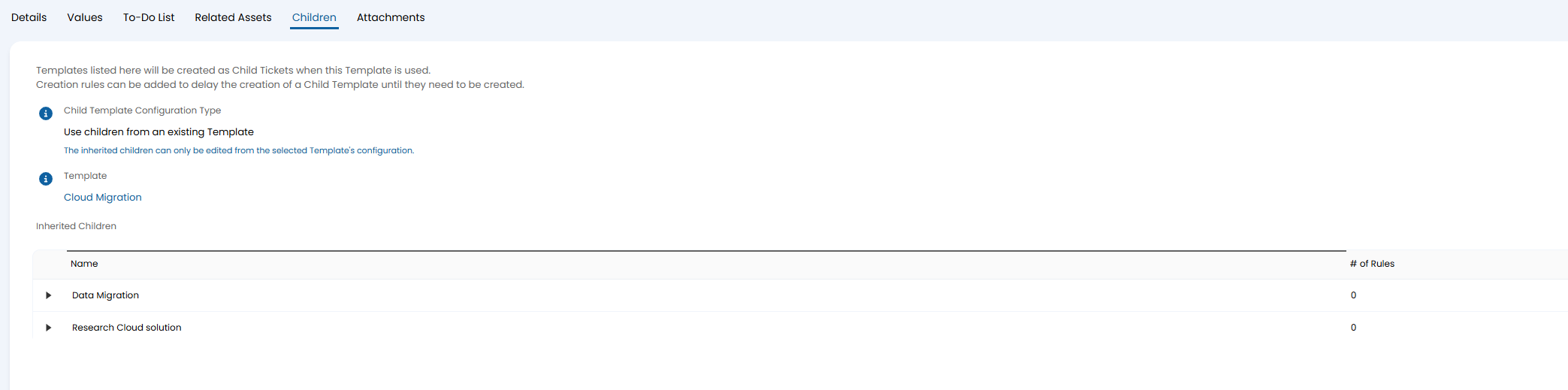
Fig 13. Child ticket creation configuration inherited from another template
Keep in mind, you will not be able to edit the child creation configuration on this template, this can only be changed by editing the 'parent' template.
Now, when child ticket configuration changes against the 'parent' template (or a new child is added), the configuration will update for the child templates too. Making it easier to manage and roll out changes to tasks used across various tickets/processes.
General Configuration Options
You can also configure the two following settings to determine how templated tickets should behave when closed:
Under Configuration > Tickets > Ticket Types, select a Ticket Type, and head to the settings tab.
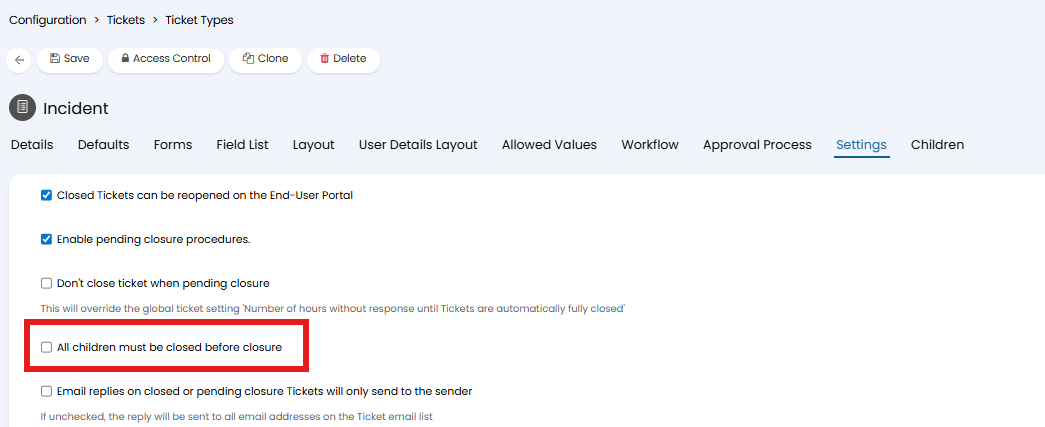 Fig 14. Ticket Type Setting
Under Configuration > Tickets > General Settings.
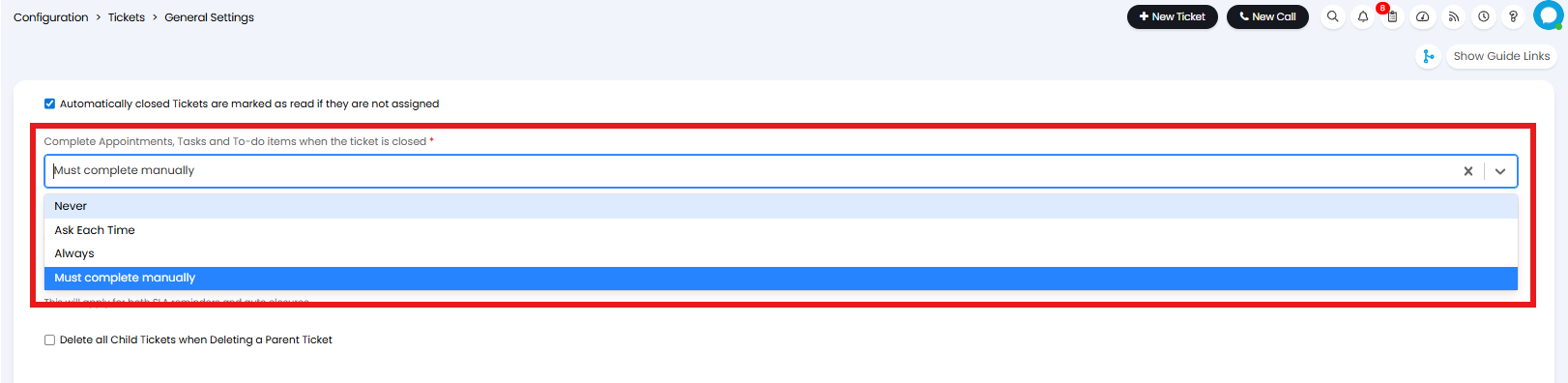 Fig 15. Tickets General Setting
The Templates and Child Templates become very powerful and enable your agents to have tailored specifications dependent on how they work.
From v2.238+, to prevent newly added child templates from being created on pre-existing tickets wit the template applied, select "Do not update existing Tickets/Projects with new children added to templates" in Configuration > Tickets > General Settings.
Setting Custom Table Default Values
If you have a Ticket Type with fields contained within a Custom Table added to it, you can set default values for these fields on a Ticket Template. Select the Ticket Type with the Custom Table on the Template, then scroll to the bottom of the "Values" tab. Expand the "Additional Fields" dropdown, and the Custom Table will show here.
Click "Add" to set a default value for each field within that table.

Fig 16. Custom Table defaults
Applying Templates
Now you have a new Template created, you should be able to apply this at the point of creating a new ticket.
On the ticket creation screen, click 'Apply a Template' This can be used for Projects or Tickets depending on the Ticket Type selected on the values tab.
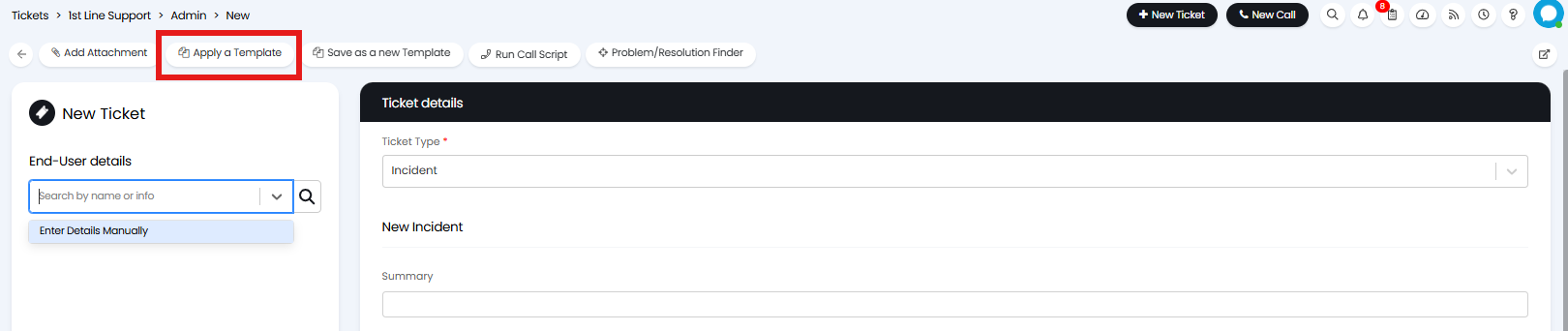
Fig 17. Applying a Ticket Template
And select your recently created Template.
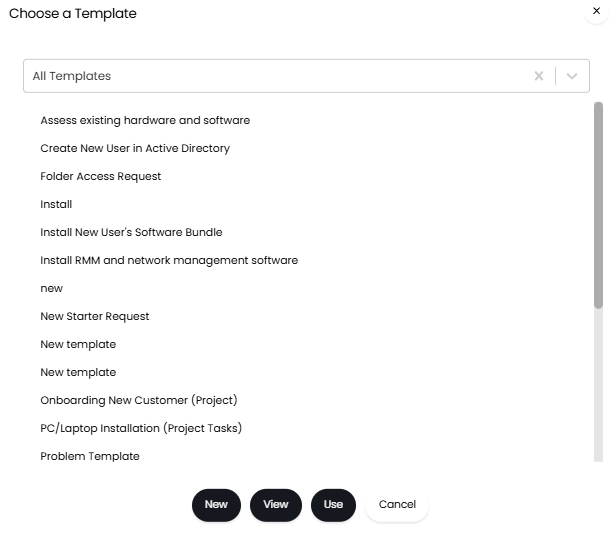
Fig 18. Selecting a Ticket Template to Apply
Filtering for Templates by Group
Using the dropdown you can filter the Templates shown by the Template Group. For example, if I want to add a Project template, I can filter down my templates to only show those that I have added to the "Project" group.
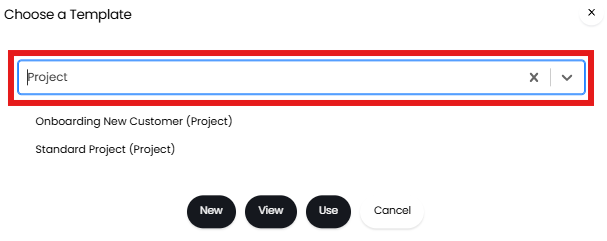
Fig 19. Filtering Templates by Group
You will also be able to search for a specific Template on this modal window.
Default Option on a Ticket Area
To decide which Ticket Types appear under what areas of Halo, you can configure them in Configuration > Tickets > Areas
Checkout this Ticket Areas Guide for more information on configuring Areas.
Within Configuration > Tickets > Areas you can set the default Template Group from the Details tab.
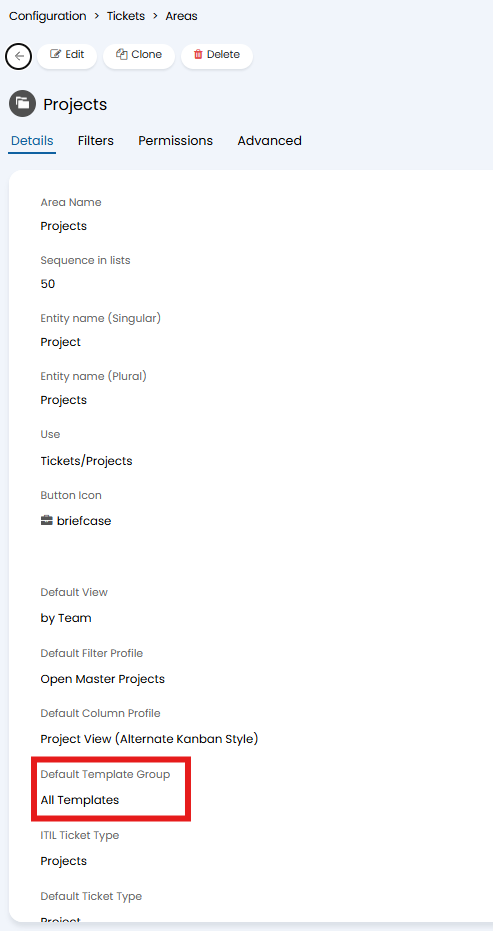 Fig 20. Default Template Group Set per Area
Should any option other than "All Templates" be chosen here, Templates available to use within this Area will be limited to the group specified here.
Saving a Ticket Template Based on the Current Ticket
This copies the functionality of the "Save as a new template" option on the new Ticket and Ticket details screen to an action. The same values will be saved to the Template when using the Action
This can be configured by selecting the System Use "Save as a new Template" when configuring an Action (Configuration > Tickets > Actions):
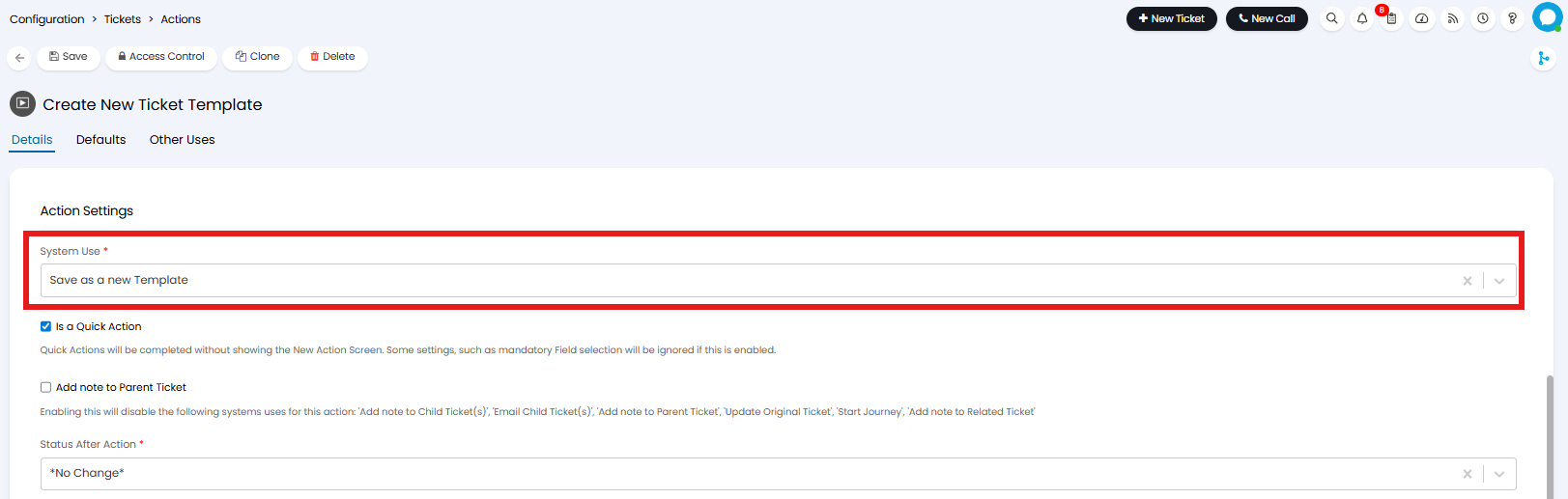
Fig 21. Save a New Template System Use
It is important to set the Action to be a Quick Action and you will likely want to tick on "Hide from end user" from within the Defaults tab. After saving the Template, you will get fields populated such as the name of the Template will correspond to the subject of the Ticket. The details of the Ticket Template will be the original Ticket details of the Ticket the Template was created from, the Agent and other fields will also be pre-populated.
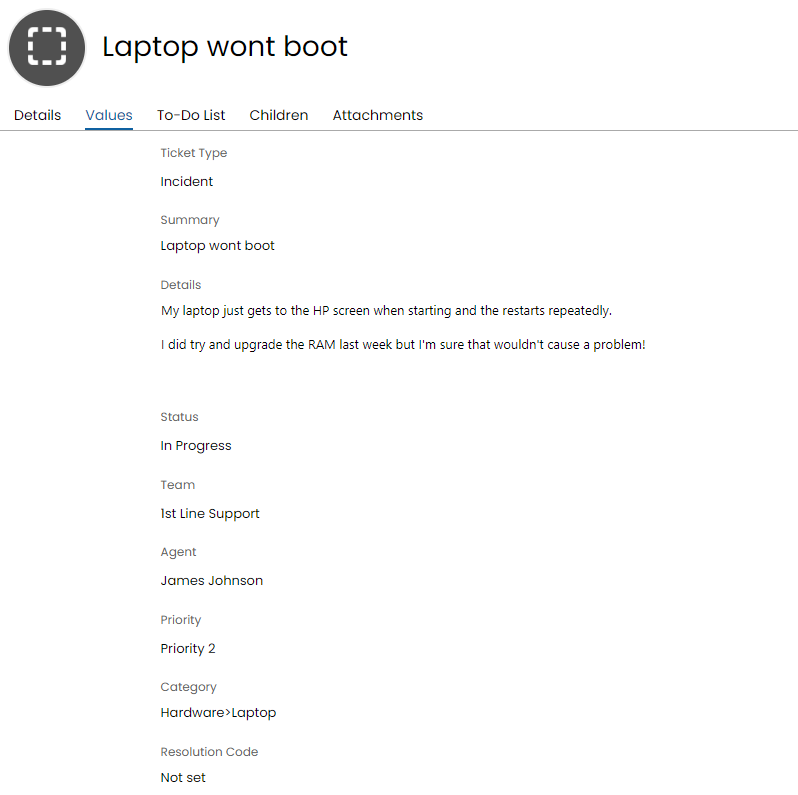
Fig 22. New Template Created
The original Ticket details, the templated fields have been highlighted:
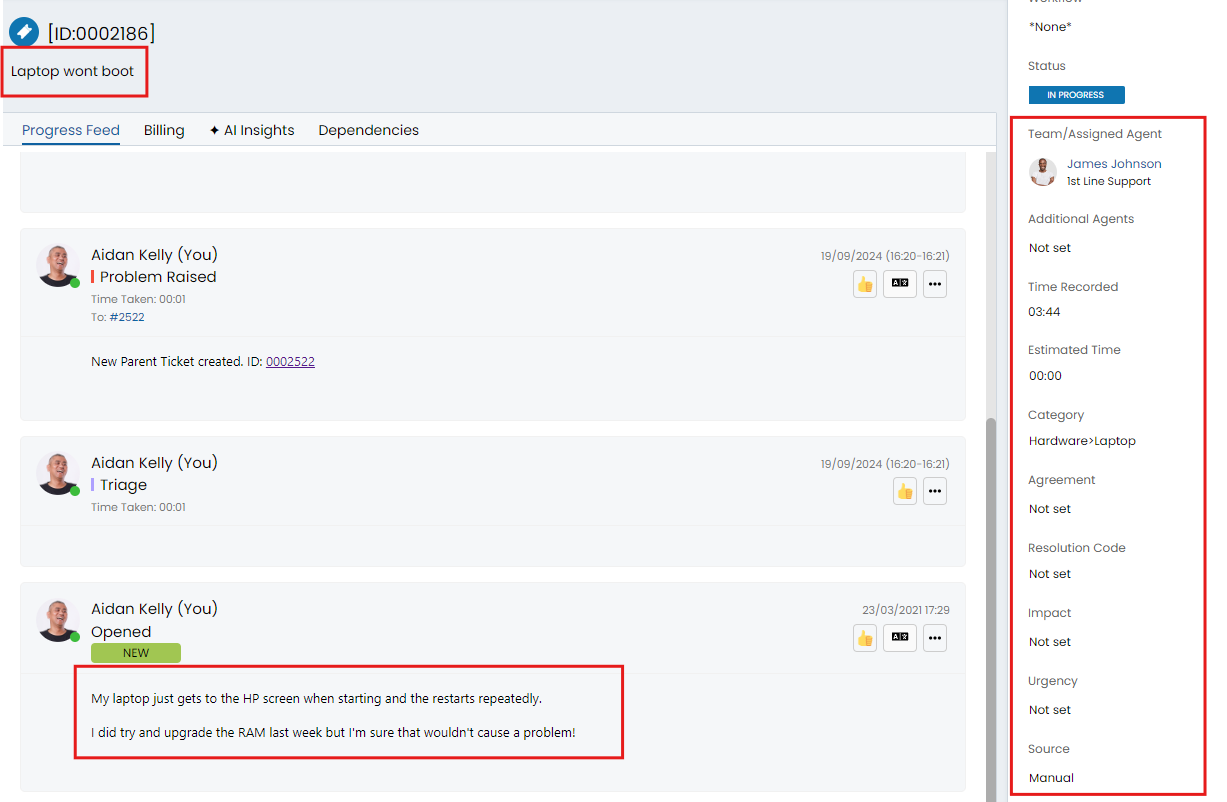
Fig 23. Original Ticket Details
When the action is used on a ticket, the new Template ID will populate on the Action, you can append this on the URL below to find the Template ID in Configuration:
/config/tickets/templates?id=X