To-Do Lists
- tickets
- workflow
- templates
- lists
- projects
- To-Do Lists
- to-do
- project management
The following video is by Renada Elegant Solutions, one of our onboarding partners. This video covers setting up to-do lists, attaching them to tickets manually and also attaching pre-configured to-do lists by matching a ticket rule and applying a ticket template with a to-do list attached. The other more complicated setup explained in this guide, involves quotations and runbooks.
In this guide we will cover:
- Overview
- Adding a To-Do List via an Action
- To-Do List Groups
- Adding to Workflows
- Customer-Specific To-Dos
- Allowing Users to action To-Do Items (v2.248+)
- Enhanced To-Do Lists (v2.250+)
Related articles:
Overview
Creating To-Do Lists can provide your agents with handrails and progress-tracking capabilities straight from the ticket interface. They provide a simple interaction whereby you can tick off tasks, or whatever else you would like listed, one by one as you complete them.
Common use cases for these include the listing of tasks that one may not necessarily need to do via Halo, for example; "In-person site visit completed", or to list smaller tasks that would not really warrant an entire ticket; "Emailed customer with follow-up details".
These can be set up on an ad-hoc basis, via the top left "three dots" menu of a ticket view, the button you're looking for is "Add a To-Do item".
This option provides two routes to adding the items, one being a simple text-box entry, which will just add that line to the list, displayed on the ticket details section, and will only apply to that one ticket, like so:
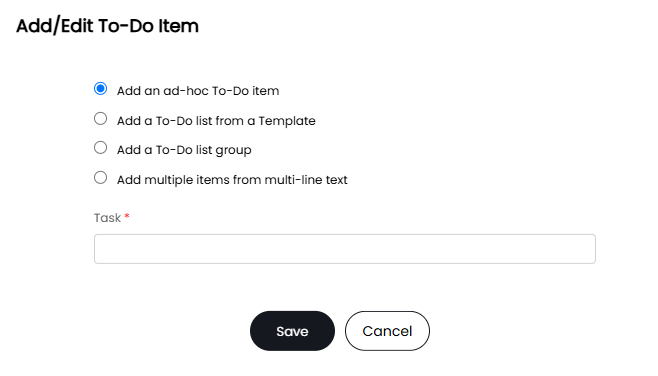
Fig 1. Adding/editing a to-do item and the options
As you can see, it is also possible to add to-do lists from a Template, which is referencing a 'Ticket Template', which takes us to our second way to add To-Do List items to a ticket.
Ticket templates can be configured to have a To-Do List by default, which will save a lot of time, and normalise these lists throughout your service desk.
The addition of these is as simple as heading to the 'To-Do List' section of a Ticket Template and adding what you'd like there. The afore-mentioned option will pull this list straight from the template, (this will not apply the rest of the template, only the to-do list).
The below example has been pulled from the 'PC/Laptop Installation' template, which is a default in the trials:
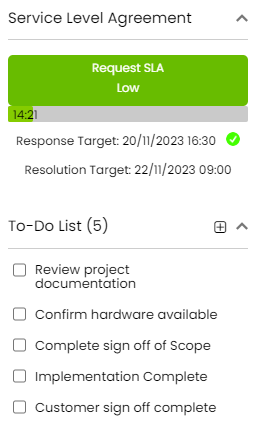
Fig 2. To-do list in the side bar
You can create To-Do List Groups, which can be seen as the third option in the menu above.
These groups are configured in the General Settings section of the Tickets configuration menu. This is a further way to speed up the addition of these lists, which is essentially a pre-configured list of items, which can be applied to both the templates themselves, or directly to the tickets in the same way as before. This time, you can select your chosen group, and it will be applied in the same way as before, and these items will be 'grouped' in the list, as below, but can be re-ordered and marked as completed individually.
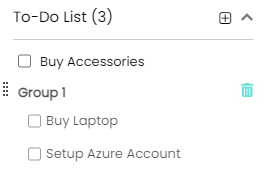
Fig 3. To-do list group in the to-do list
You can add multiple to-do list items at once by separating them by line breaks, shown in the below figure. Each of the below will show as an individual to-do.
From v2.248+, you can allow To-Do List items to open a link when clicked by the Agent or User. To do this enable "Allow To-Do list items to be links" in Configuration > Tickets > General Settings. Now when adding a new To-Do item a field will show allowing you to specify the link to open when the To-Do item is clicked.
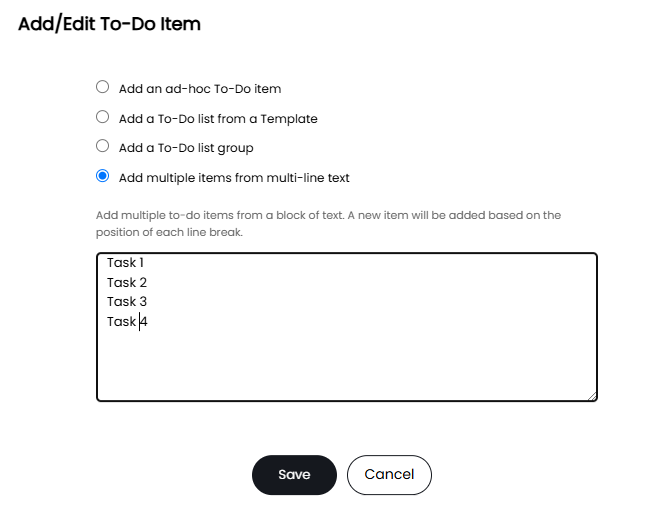
Fig 4. Adding multiple to-do list items at once
Now that we have the To-Do Lists set up, we can configure our workflows, with a couple of different step actions:
- "All To-Do List items completed", this will move the workflow to a new step when all the items have been checked off as completed.
- "To-Do List Group completed", this will behave the same, however will only require a designated subgroup of the list to be completed. A use case for this, against the prior option, would be to have some sort of fast-track for your workflow, or perhaps a child-ticket be created off the back of the tasks in that group being completed.
If any more details are required on Ticket Templates, or Child/Parent ticket relationships, please use the following links to view our relevant guides, linked in the initial description of this guide.
Adding a To-Do List via an Action
Within the details tab of an action, we can add a To-Do list from a ticket template, this dropdown will include the names of all ticket templates that contain a to-do list: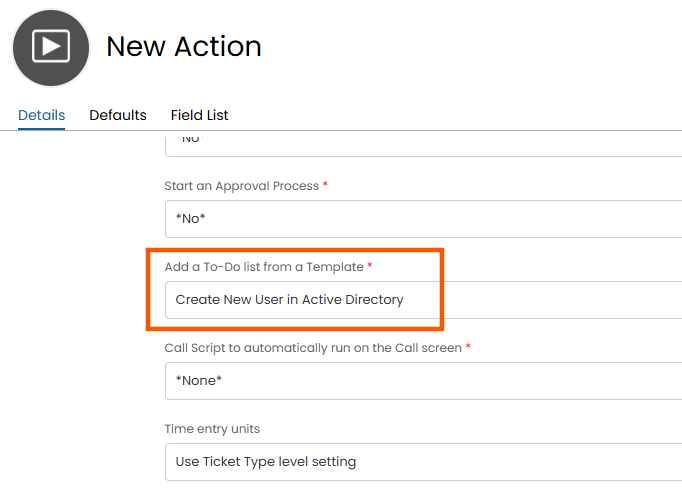
Fig 5. To-do list template from an action
This will then add the corresponding to-do list, to your ticket (inherited from the template), when this action is triggered.
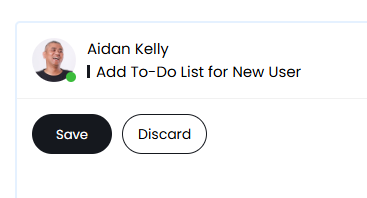
Fig. 6 Adding a to-do list via an action
This has then added the pre-configured to-do list to the ticket information sidebar: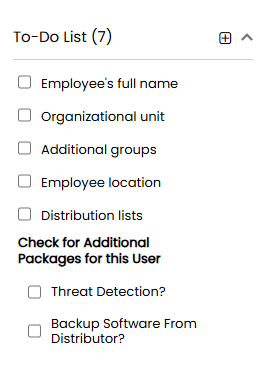
Fig 7. To-do list added via an action
To-Do List Groups
To-do list groups group to-do list items together for easier assignment to tickets. In this example, we will look at constructing a To-Do List Group for use on Project Tasks. To-Do lists can be configured in two separate locations of Halo. One of which is in Configuration > Tickets > General Settings within the button "To-Do List Groups" In order for the to-do list group to appear in the list, you must add to-do list items.
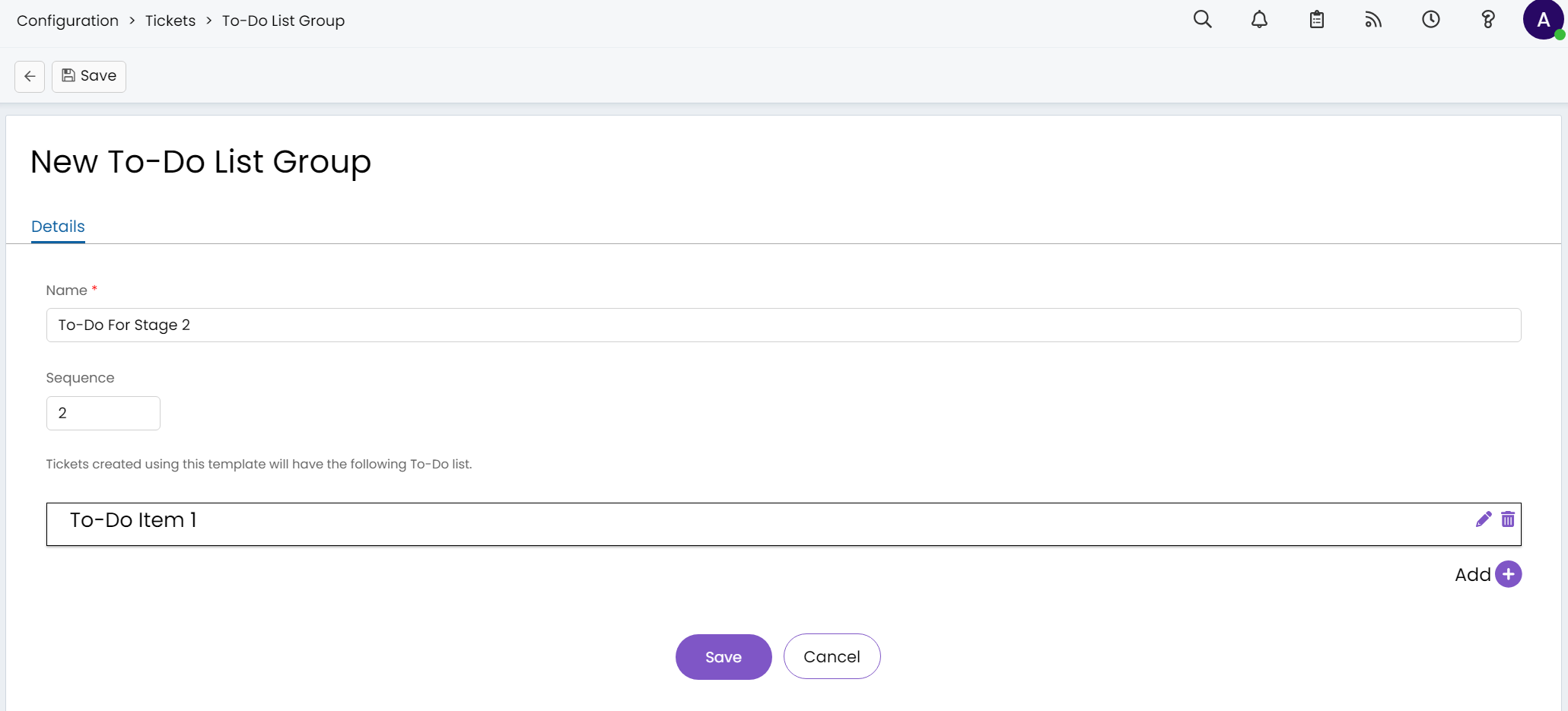
Fig 8. Creating a new to-do list group
The other area where this can be configured is from a "Ticket Template" in Configuration > Tickets > Templates. Within the "To-Do List" Tab, new groups can be configured or added.
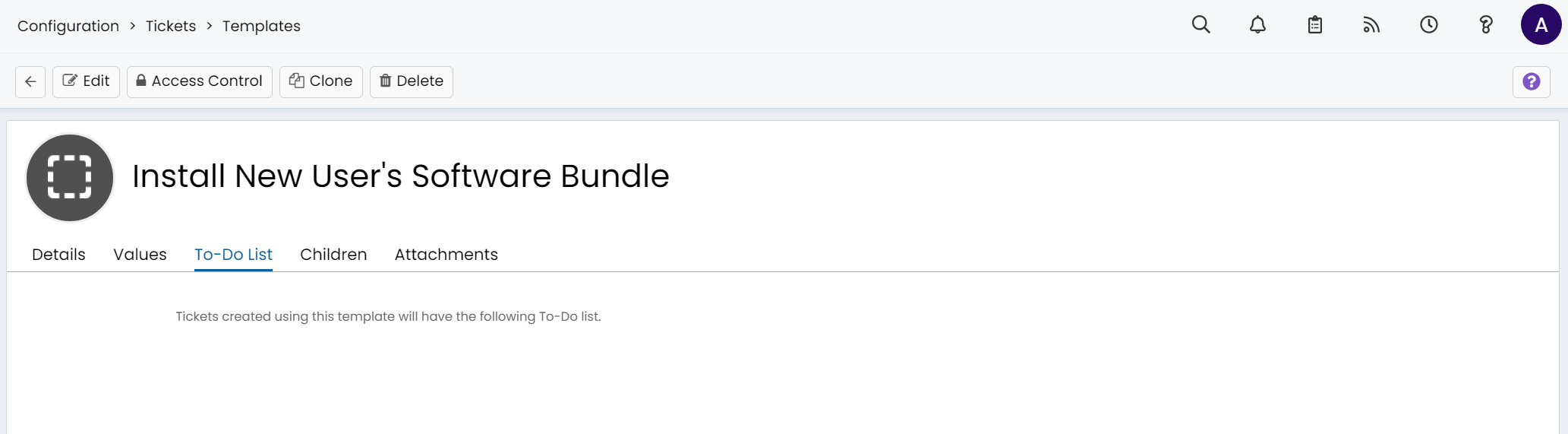
Fig 9. To-Do List tab within a ticket template
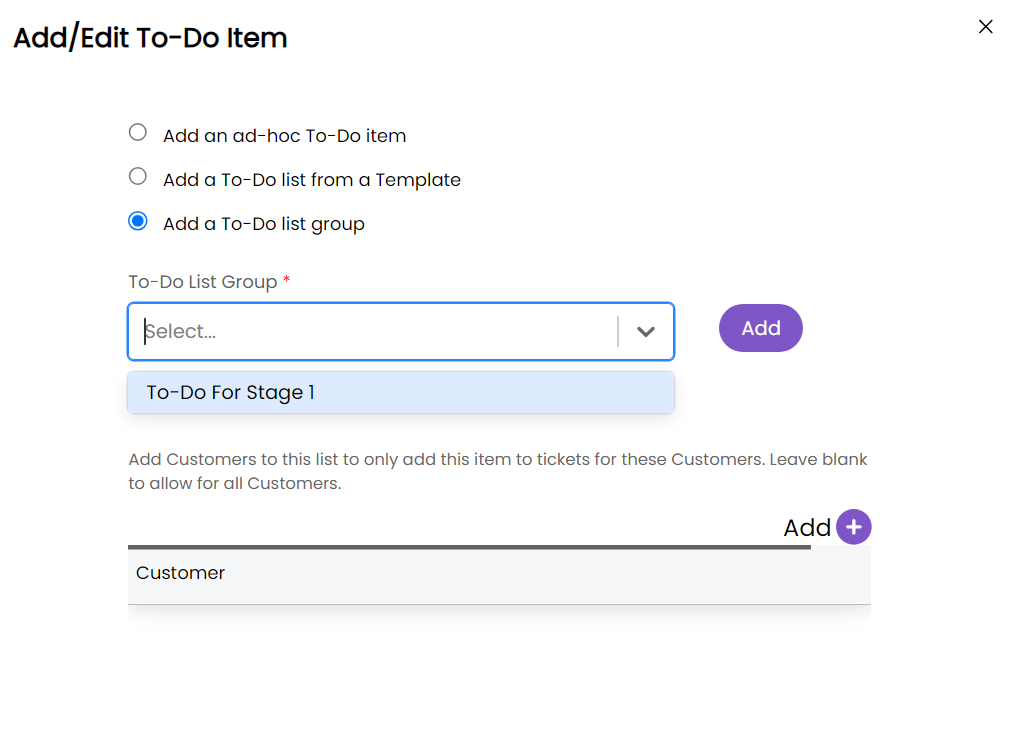
Fig 10. Adding a to-do list group to the ticket
For the organisation of to-do lists, the groups can be dragged and dropped in the to-do list, so if an ad-hoc item is added to the list, it can be moved to be before or after the group of items.
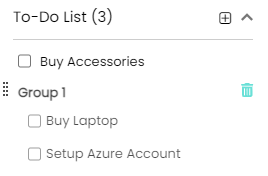
Fig 11. Drag and drop to-do list with the dots at the left side
For example, I moved stage 2 above stage 1 and placed an ad-hoc item at the bottom:
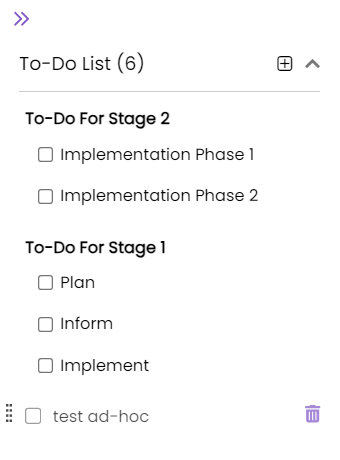
Fig 12. To-do list order changed after drag and drop
Adding to Workflows
To-do list groups can be added to steps in workflows as an action, the idea is that if a to-do list group or all the items have been completed, the logic might be to move onto the next stage in the workflow.
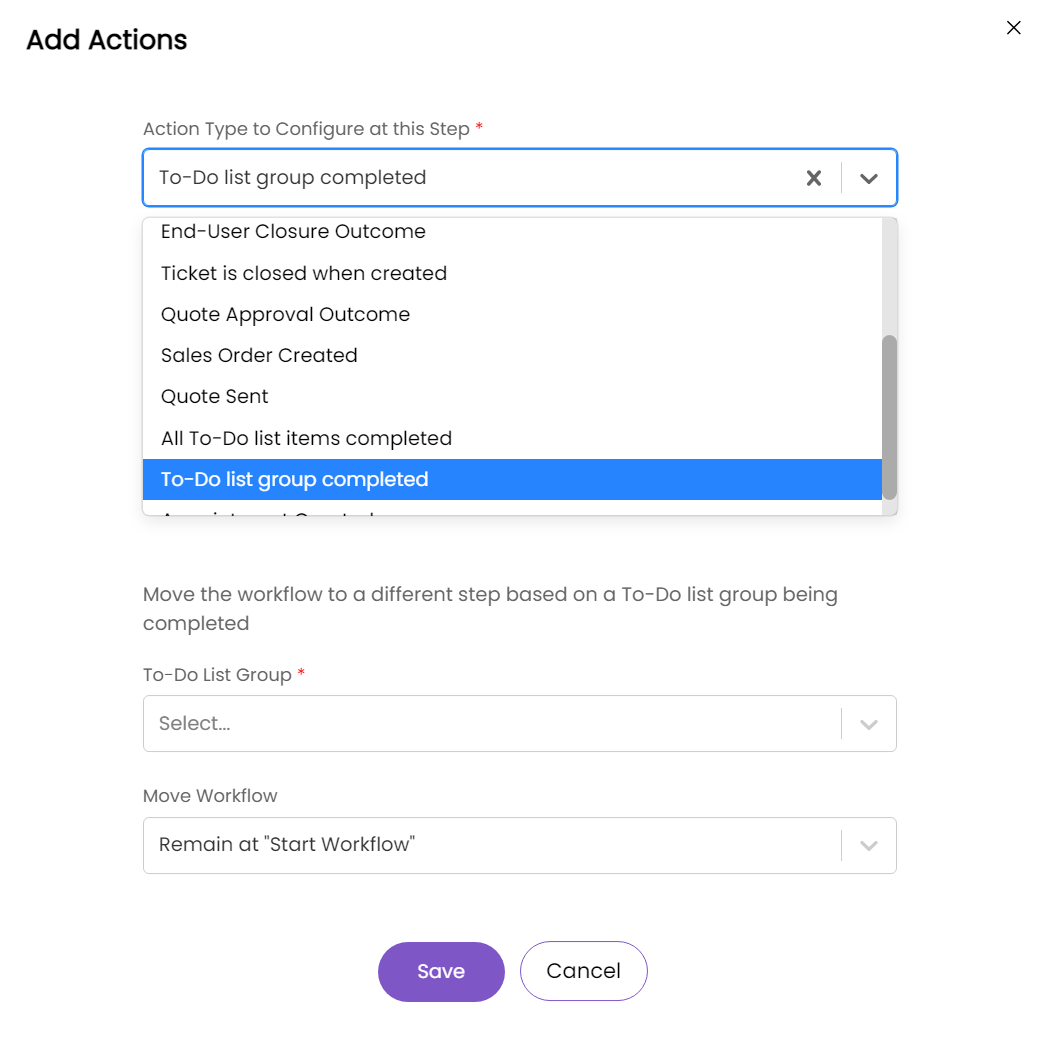
Fig 13. Moving workflow on based on whether a to-do list group is completed
To apply to-do lists to tickets if certain criteria is met, we can configure a ticket rule, that when matched, applies a ticket template with a pre-configured to-do list. This is Halo's in-built functionality for applying to-do lists.
Customer-Specific To-Dos
You can create to-do list groups that are specific to a certain customer, in addition to other to-do list groups for all. Within the customer profile > To-do Groups tab, you can see every to-do list group that is accessible to that customer. This will show both customer-specific, and general to-do groups.
You can also create new customer-specific to-do list groups by clicking "Add" here.
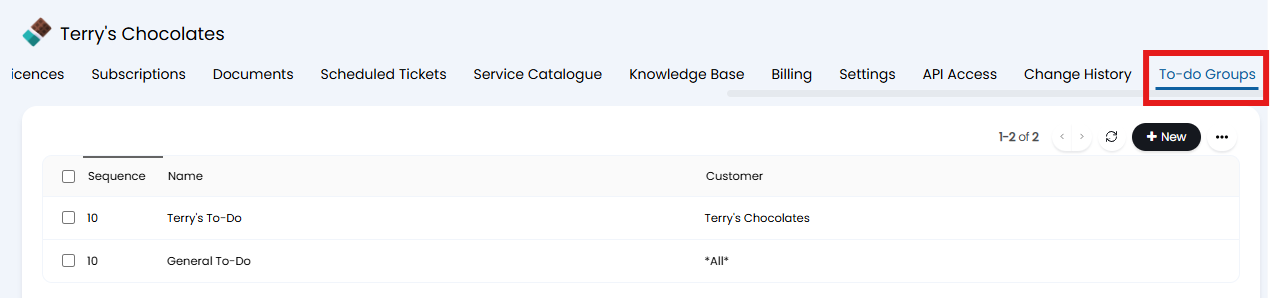 Fig 14. To-do Groups tab on a customer.
You can also restrict to-do groups by customer in Configuration > Tickets > General Settings > To-Do List Groups button. Here you can see all of your groups, and can see if they are customer restricted or not. In this example, we will be looking at the two below.
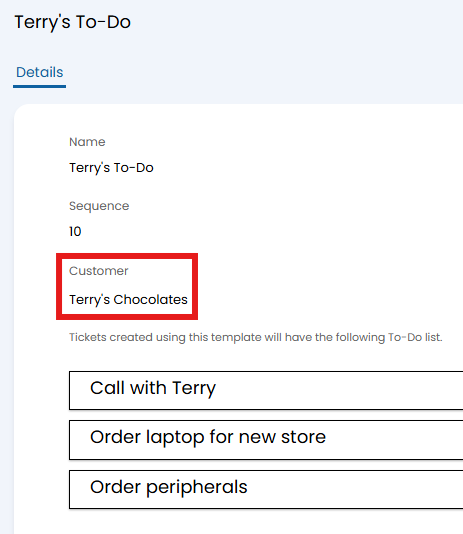 Fig 15. Customer to-do.
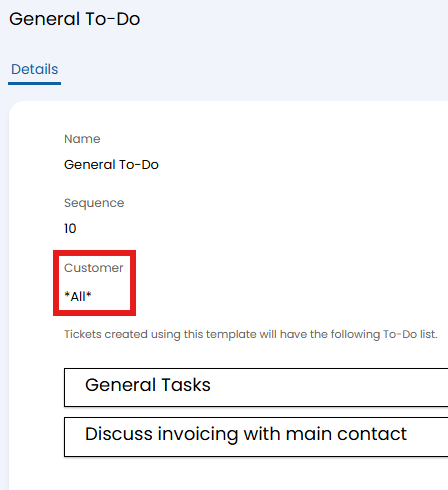
Fig 16. Unrestricted to-do.
These two groups are then added to a ticket template.
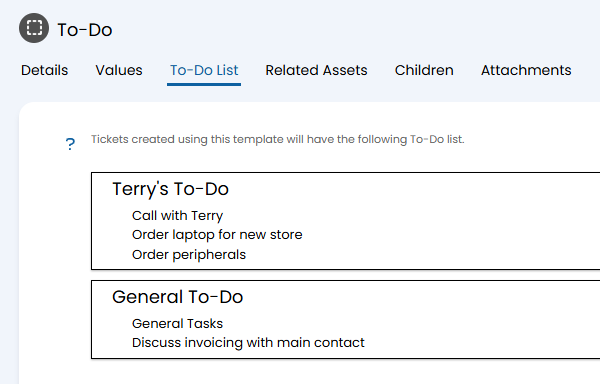 Fig 17. To-do groups on a template.
Once that template is applied to a ticket from Terry's Chocolates, both will appear on the ticket.
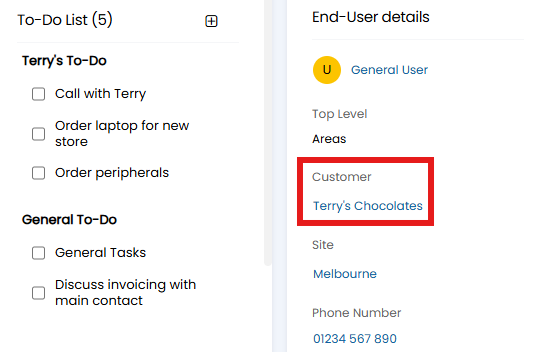 Fig 18. To-dos on the relevant customer.
If applied to a ticket from another customer, only the non-restricted group will be added.
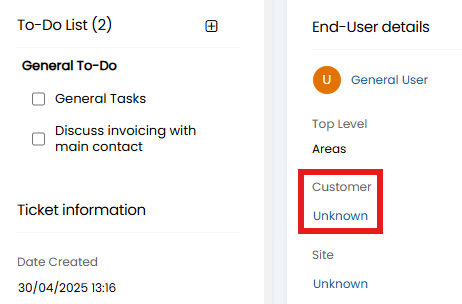
Fig 19. To-dos on another customer.
Allowing Users to action To-Do Items (v2.248+)
Users can complete To-Do List items in the Portal when they have been granted access to view the To-Do List. In order to allow Users to see the To-Do List, head into the Forms tab of your Ticket Type (Configuration > Tickets > Ticket Types), and change the "Todo List Visibility for the End-User portal" to "Visible for the End-User". Once set, an additional option will show allowing you to grant the User of a Ticket permission to complete the To-Do items. This can be set to always, never or only for specified To-Do items.
If the "User To-Do List Completion" is set to "Can specify per to-do item", when a To-Do List is created, items added will have the checkbox "Allow Users to complete". When set, Users will be able to complete this specific To-Do item in the portal.
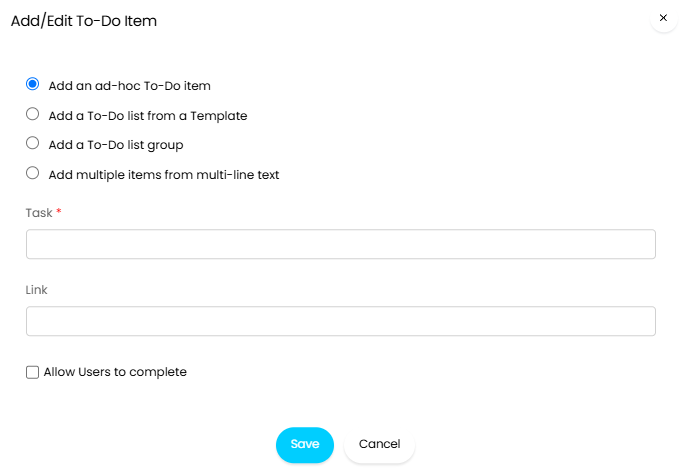
Fig 20. Allowing Users to complete a To-do item
This checkbox will also be available when adding To-Do items to Templates or To-Do List Groups. This will copy over to Tickets upon creation. However, if the Ticket Type is set to always or never allow Users to complete these, this will override what was configured on the Templates or To-Do List Groups.
The User will see any To-Do Items that they can edit with the standard checkbox, this checkbox will be greyed out for those the User cannot complete.
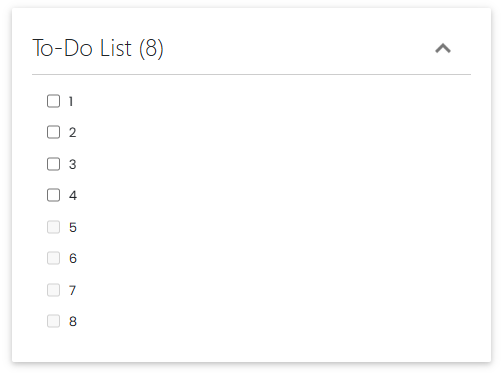
Fig 21. User view of To-dos
Enhanced To-Do Lists (v2.250+)
From v2.250+, when "Use enhanced to-do lists" is enabled in Configuration > Tickets > General Settings, To-Do Lists will show on a dedicated tab against each Ticket. From this tab To-Do Items can be added, edited, completed or removed. To delete or edit a To-Do Item, hover over the line and select the bin or pencil icon respectively.
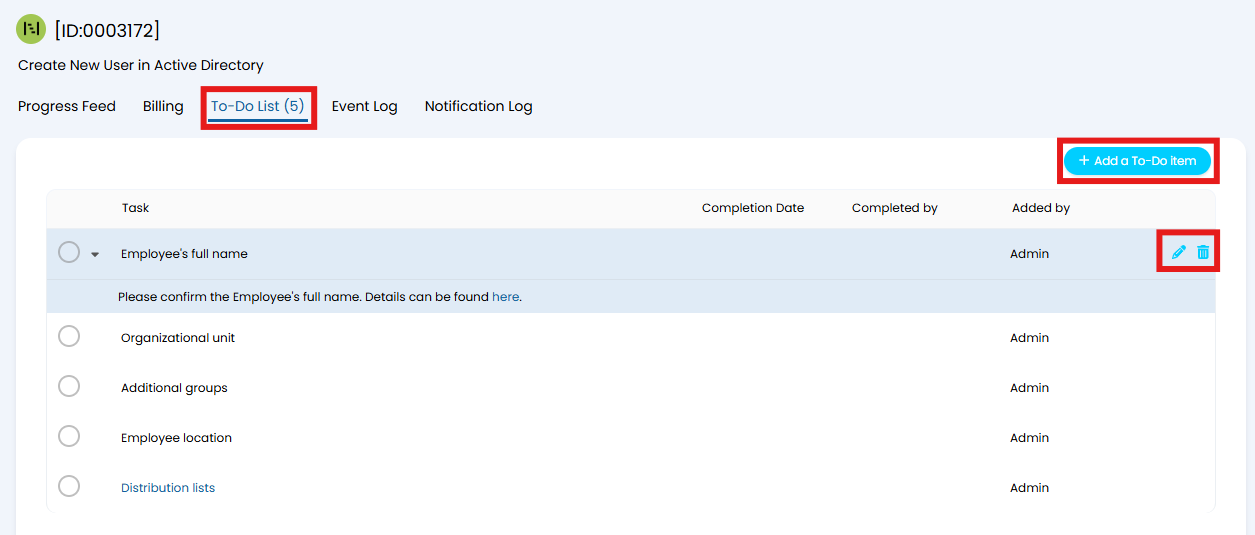
Fig 22. To-Do List tab
Any To-Do Items added here will also allow extra information to be provided using a Rich Text box. As this field is Rich Text, additional formatting such as font colour, or hyperlinks can be added here.
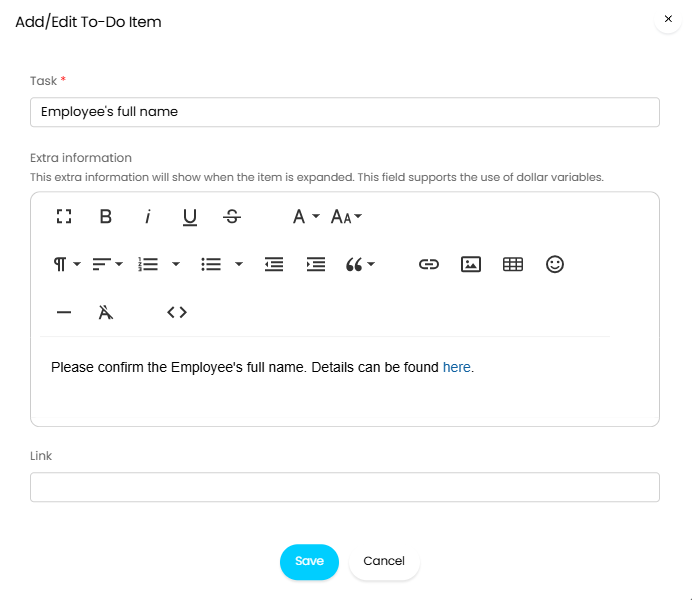
Fig 23.Adding extra information to a To-Do List Item
This information will show when the To-Do Item is expanded.
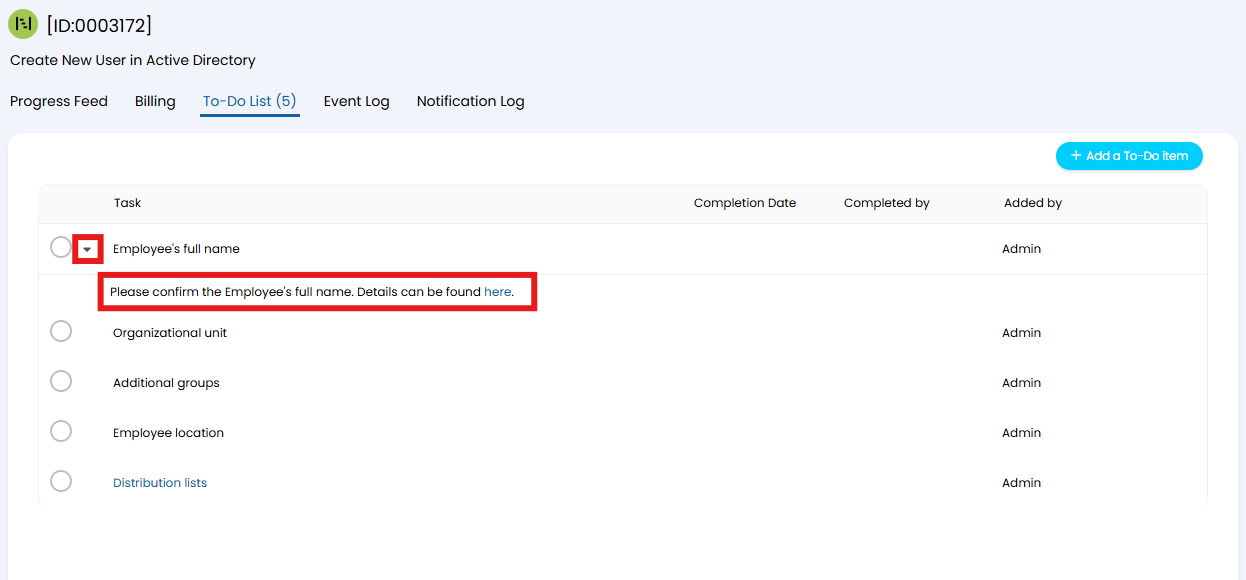
Fig 24. Viewing additional information
When a task is marked as complete, the completion date, and who the task was completed by will show against the To-Do Item.
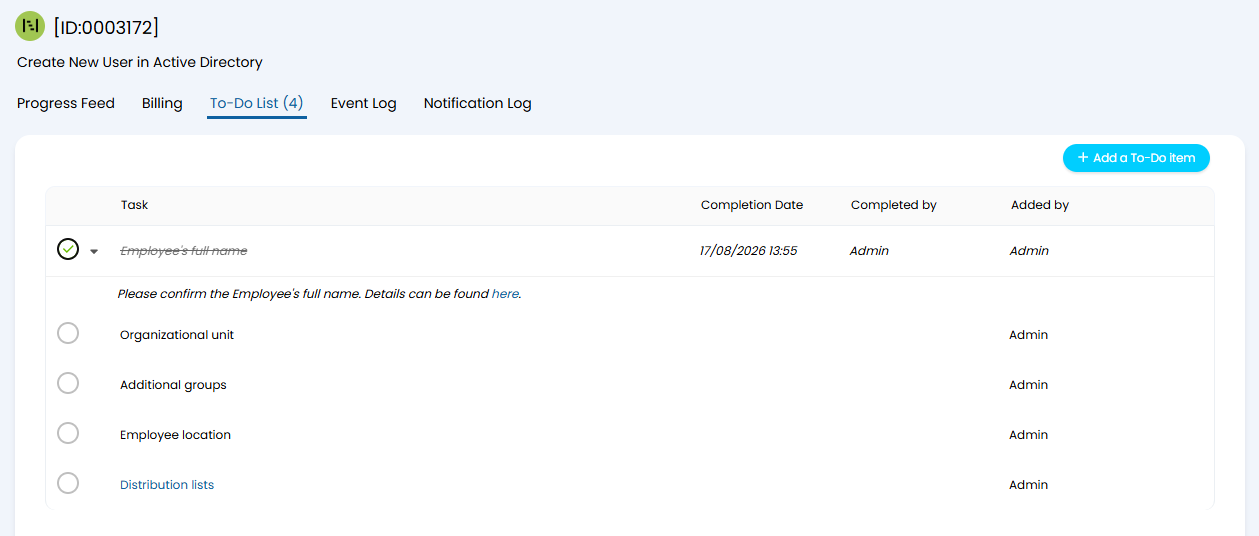
Fig 25. Completing a To-Do List Item