Knowledge Base Article Feedback
- knowledge base
- article
- kb
- articles
- article feedback
- article votes
- ratings
- comments
- article comment
In this guide we will cover:
- What is Article Feedback?
- Allowing Article Ratings
- Allowing Article Comments
- Using a Ticket Type to Receive Feedback
- Tracking Feedback
What is Article Feedback?
Article Feedback can be left by either Agents or Users on an Article through an upvote/downvote system, alongside the option to leave additional comments or log a Ticket. Agents will only be able to vote on Articles they have not previously edited themselves. If they have edited that Article previously, the voting options will be greyed out.
This guide will use User-given feedback as the main example.
Votes on Articles will also determine which Articles are shown within the preview screen or "Top 5 Articles" widget on the Self-Service Portal.
Allowing Article Ratings
In Configuration > Self-Service Portal, there are two checkboxes "Hide Article Ratings" and "Disable Article Voting". "Hide Article Ratings" setting will hide the previous votes on an Article, but will still allow Users to vote and provide feedback. "Disable Article Voting" however, will hide the Article ratings, and prevent users from voting.
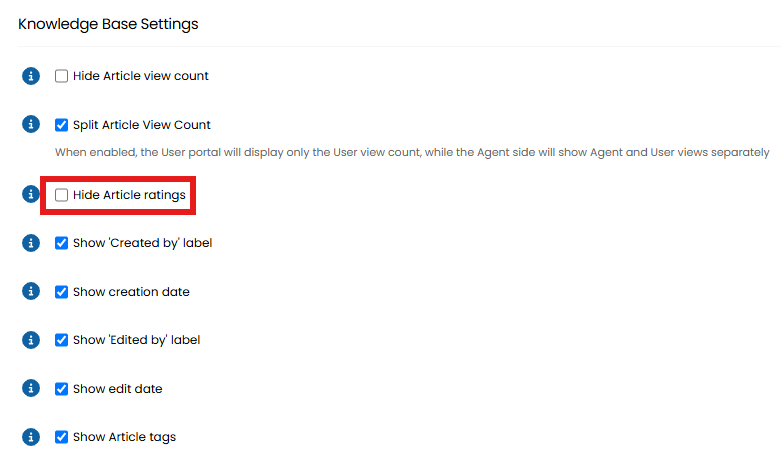
Fig 1. Allowing Article voting.
When viewing an article, users can scroll to the bottom to see the option to upvote or downvote the article.
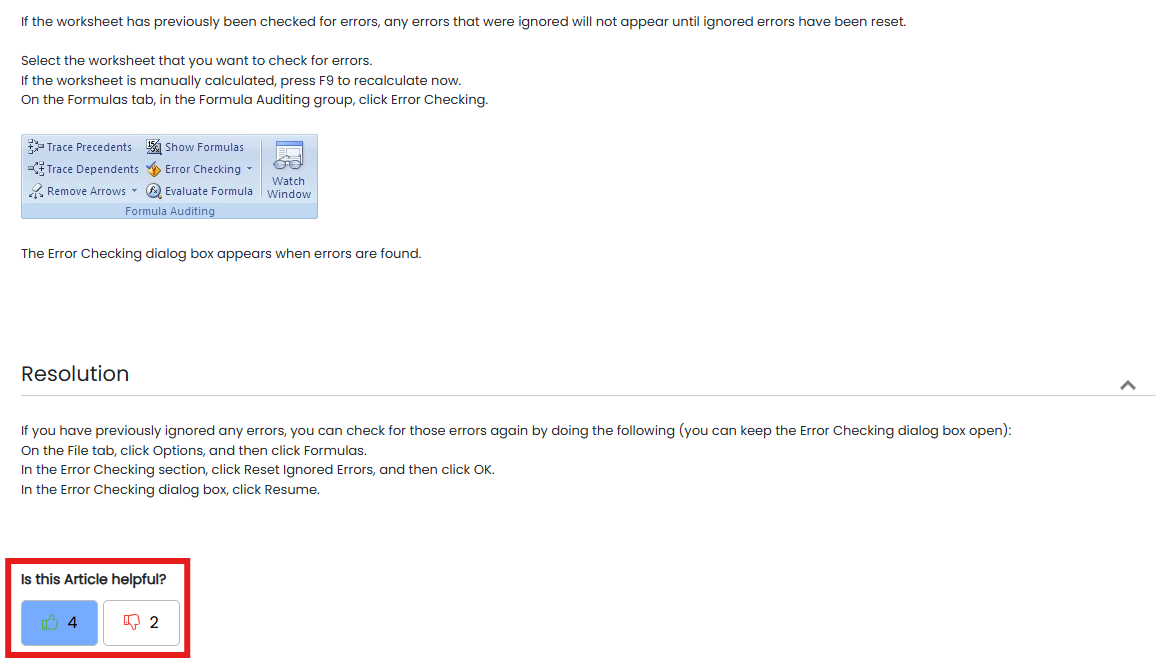 Fig 2. Upvoting an Article.
You can allow users to vote without logging in, voting anonymously.
To allow this, head to Configuration > Self Service Portal > Knowledge Base Settings, enable "Allow anonymous voting on Articles".
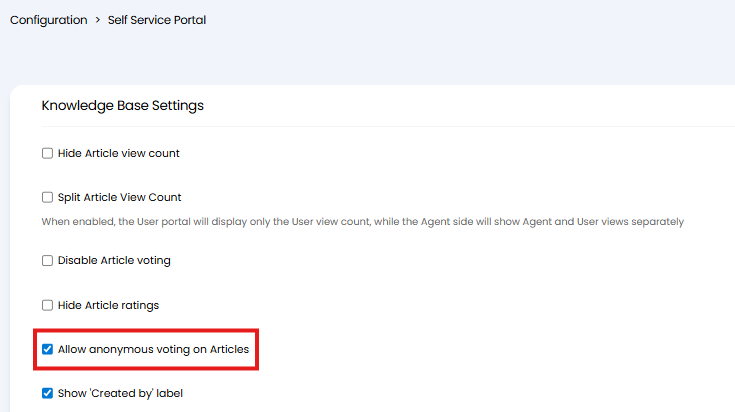
Fig 3. Allow anonymous voting on Articles.
Allowing Article Comments
A comments box can be made available against knowledge base articles in the end user portal to allow users to leave a comment about the article.
When comments are submitted these will be stored in the database in the "KBvotes" table.
Enable Comments when a User has left Negative Feedback
In Configuration > Knowledge Base, there is an option to "Include a comments field when leaving negative feedback".

Fig 4. Enabling Article Comments.
If a User leaves positive feedback, the field will remain hidden.
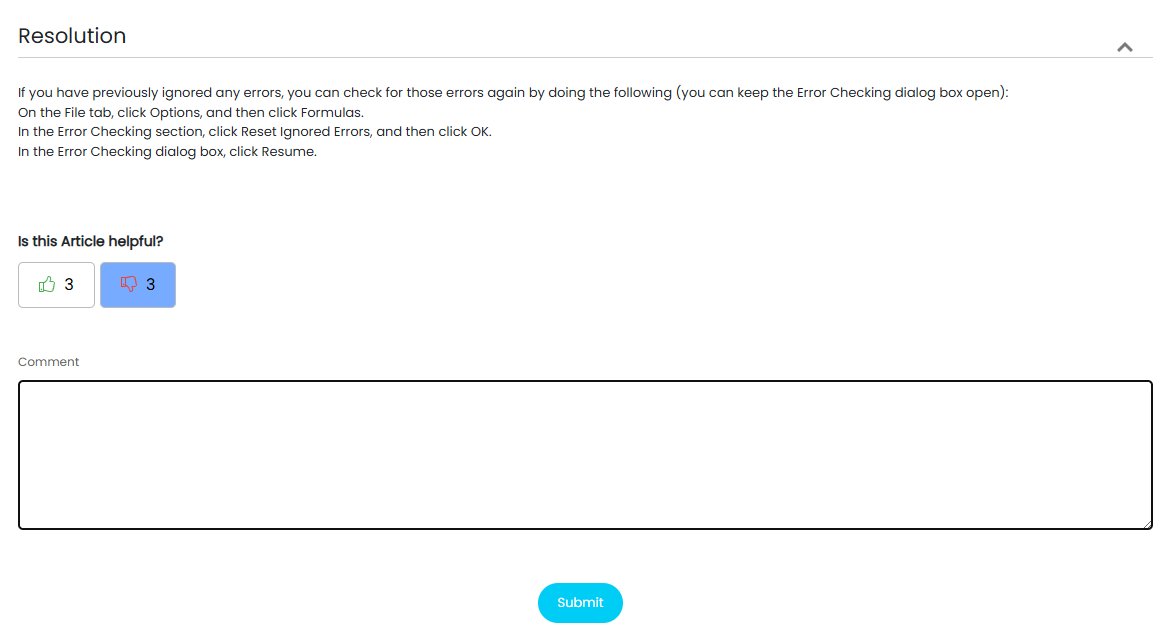
Fig 5. Comment Field on negative feedback.
The Comment box can be made a mandatory field if "Make the negative feedback comment field mandatory" is enabled in Configuration > Knowledge Base. Forcing users to leave comments when voting negatively.
Enable Comments when a User has left Positive Feedback
To do this head to Configuration > Knowledge Base > enable "Include a comments field when leaving positive feedback".
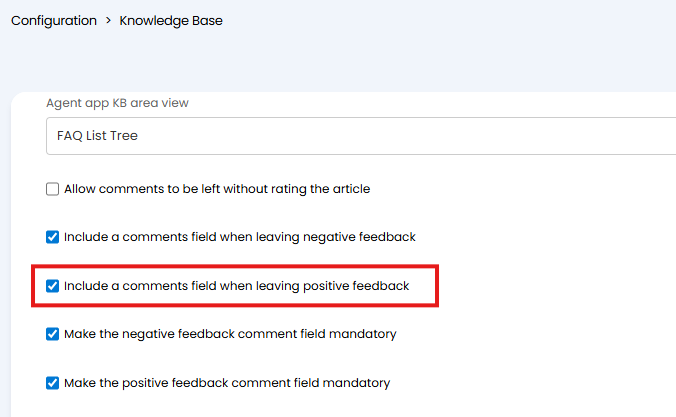
Fig 6. Setting to Include a comments field when leaving positive feedback
When enabled you can also choose if it is mandatory for users to leave a comment before they can submit the feedback. To make the comment mandatory enable "Make the positive feedback comment field mandatory".
Allow Comments to be left without a Positive or Negative Rating
To allow 'rating free' comments head to Configuration > Knowledge Base > enable "Allow comments to be left without rating the article".
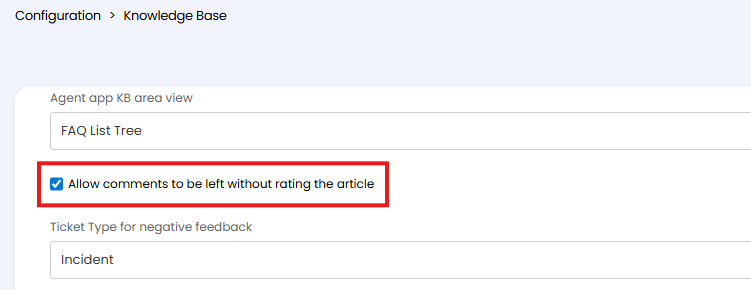
Fig 7. Allow comments to be left without rating the article
When enabled users will see a button at the end of the article called "Leave a Comment", when selected they will be able to write a comment and submit this. They can also choose to rate the article if they choose but rating is not mandatory. If they do rate the article the comment will be submitted alongside the rating and both stored together in the database.
You will notice when this is enabled other comment settings are no longer available (Figure 6). This is because this setting overrides other comment settings.
Note: Comments left where no rating was given will have a "KBVvote" as 0 in the database.
Using a Ticket Type to Receive Feedback
You also have the additional option to log a Ticket when negative feedback is left on an Article. Let's create a Ticket Type for this purpose.
Ensure the Ticket Type is set to be accessible to End-Users, or they will not be able to submit the comments. If you allow your Knowledge Base to be viewed anonymously, you may also want to allow this Ticket Type to be able to be logged that way.
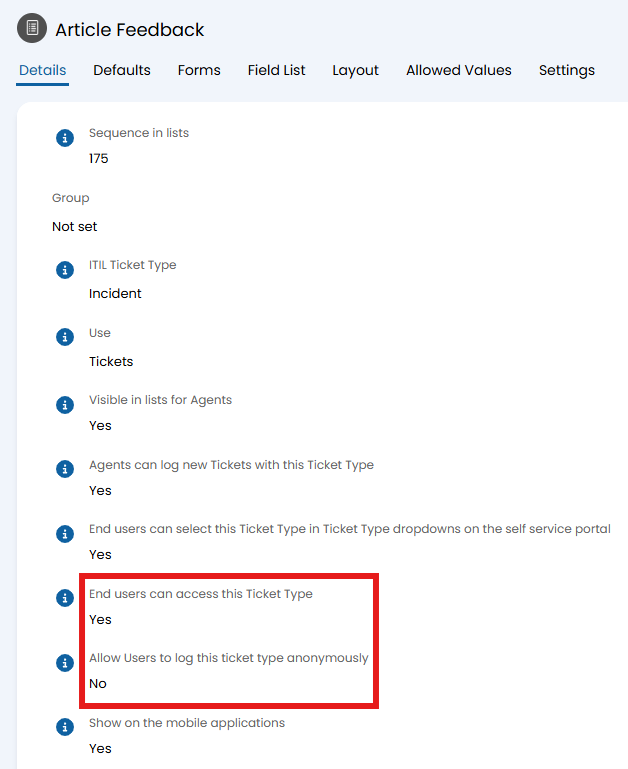
Fig 6. Allowing End-Users to log the Ticket.
Within the "Defaults" tab, you may want to set a "Default Summary" and "Default Details" as you are unlikely to add these Fields to the Field List here. The variable used here in the details will pull the feedback fields we add to this Ticket Type in a question-answer format.
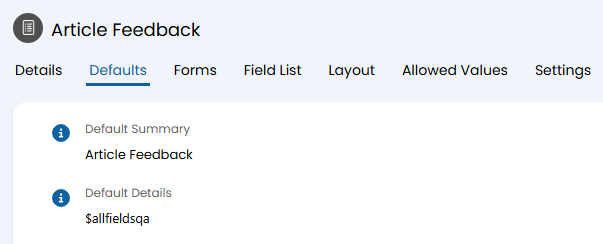 Fig 7. Setting Summary and Details.
Within the "Field List", you can add Custom Fields to collect the information you would like. Here shows one Single Selection Custom Field to gather the main issue with the Article, and one is a Text Custom Field to allow any specific comments.
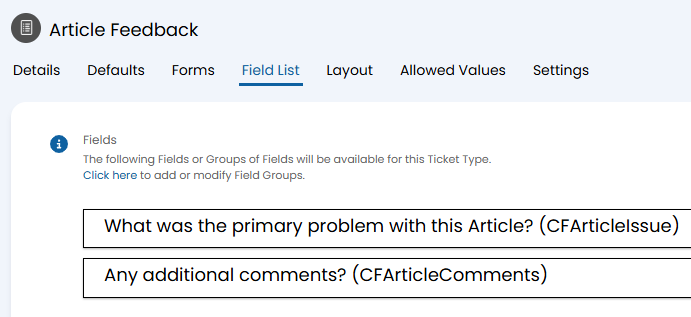 Fig 8. Field List example.
Within Configuration > Knowledge Base, you can then set this Ticket Type in the "Ticket Type for negative feedback" Field.
Article variables can be used in a ticket template to pull article details.
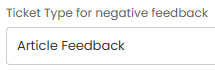 Fig 9. Setting the Ticket Type.
Now, when leaving negative feedback, the User will see the Fields made available on that Ticket Type.
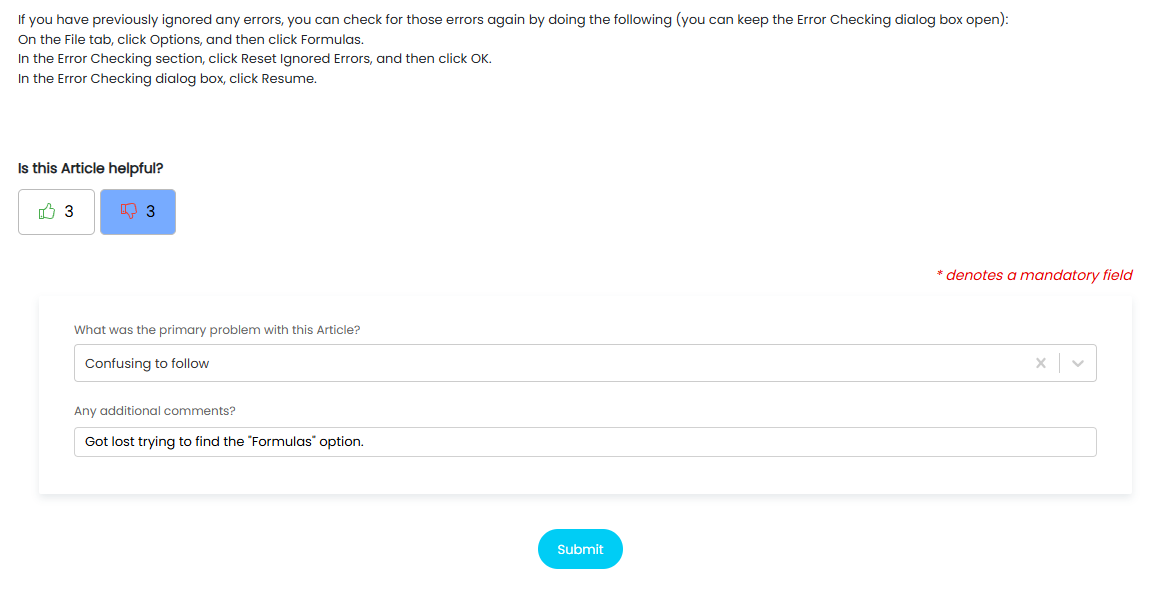
Fig 10. Logging the Ticket.
After submitting, the User will see a message thanking them for leaving feedback.
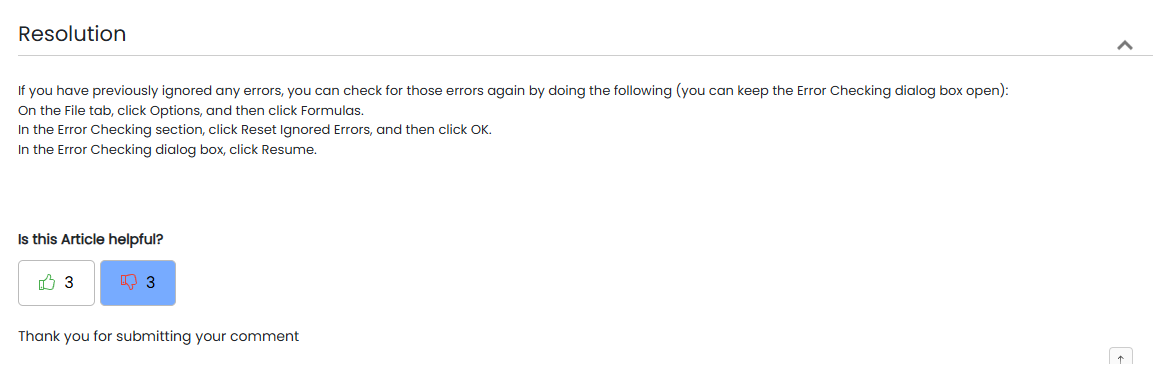
Fig 11. Thank you message.
The above example has logged this Ticket. The default Summary and Details have pulled in all the relevant information on the feedback given,
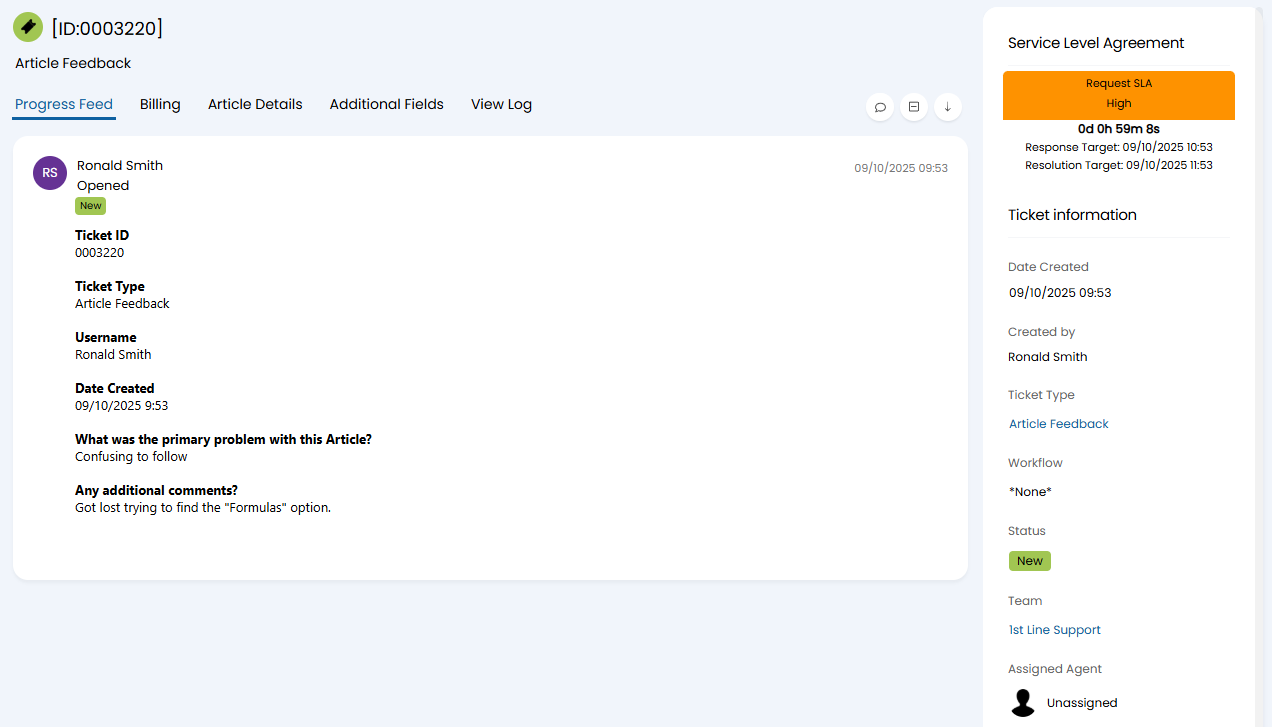
Fig 12. Ticket logged from feedback.
The Article the feedback was given on has also been automatically linked in the "Article Details" tab.
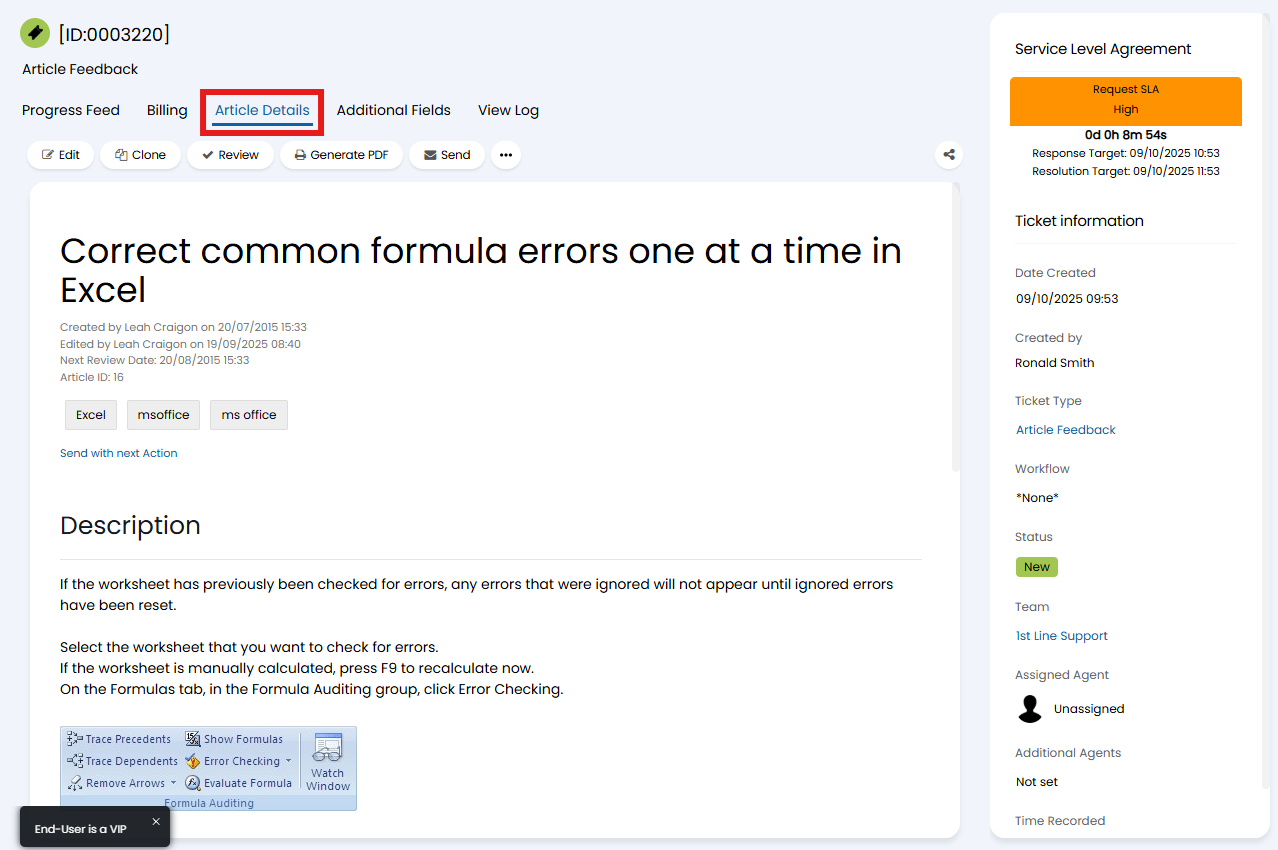
Fig 13. Linked Article.
Tracking Feedback
Feedback given can then be tracked via Reports.
If using the built-in comments method, the information can be pulled from the "KBentry" and "KBvotes" tables.
id AS 'ID',
(SELECT uusername
FROM users
WHERE uid = kbvuid) AS 'User',
CASE
WHEN kbvvote < 0 THEN 'Negative'
WHEN kbvvote > 0 THEN 'Positive'
END
AS 'Vote',
kbvdate
AS 'Date Voted',
kbvnegativecomment AS 'Comment'
FROM kbvotes
JOIN kbentry
ON kbvkbid = id
ORDER BY kbvdate DESC
If using a Ticket Type to receive feedback, you can report on the Ticket Type. This can easily be done in the Query Builder, where you can also add each Custom Field you used.
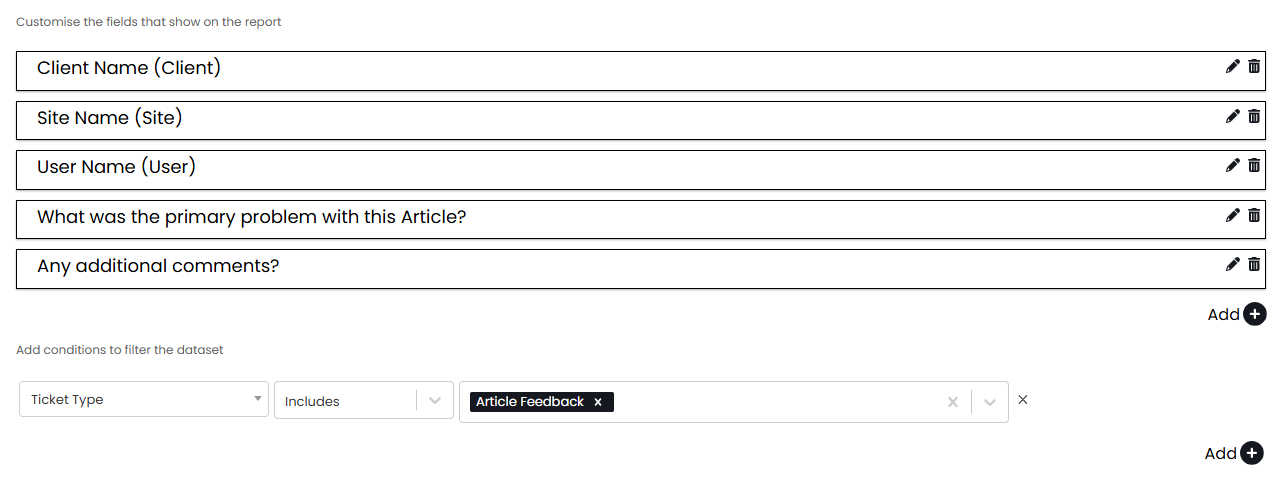
Fig 14. Example Query Builder Report.