Problem and Change Management Using Fully Configured Workflows
- Problem Management
- change management
- workflows
- ITIL
In this guide we will cover:
- Raising Problems
- Dynamic Visibility of the Service Status Note
- The Problem/Resolution Finder
- Workflow Progression when the Cause is Identified
- Workflow Progression when the Cause is Not Identified
- Suggested Articles on the Ticket Creation Screen of the Portal
Associated Guides:
The Halo Trial versions: Incident, Problem, and Change Management, is ITIL Aligned and recommended to use out of the box if you are looking for a standard solution to this management workflow. These are the workflows that is being used as the examples for this guide:
Incident Management
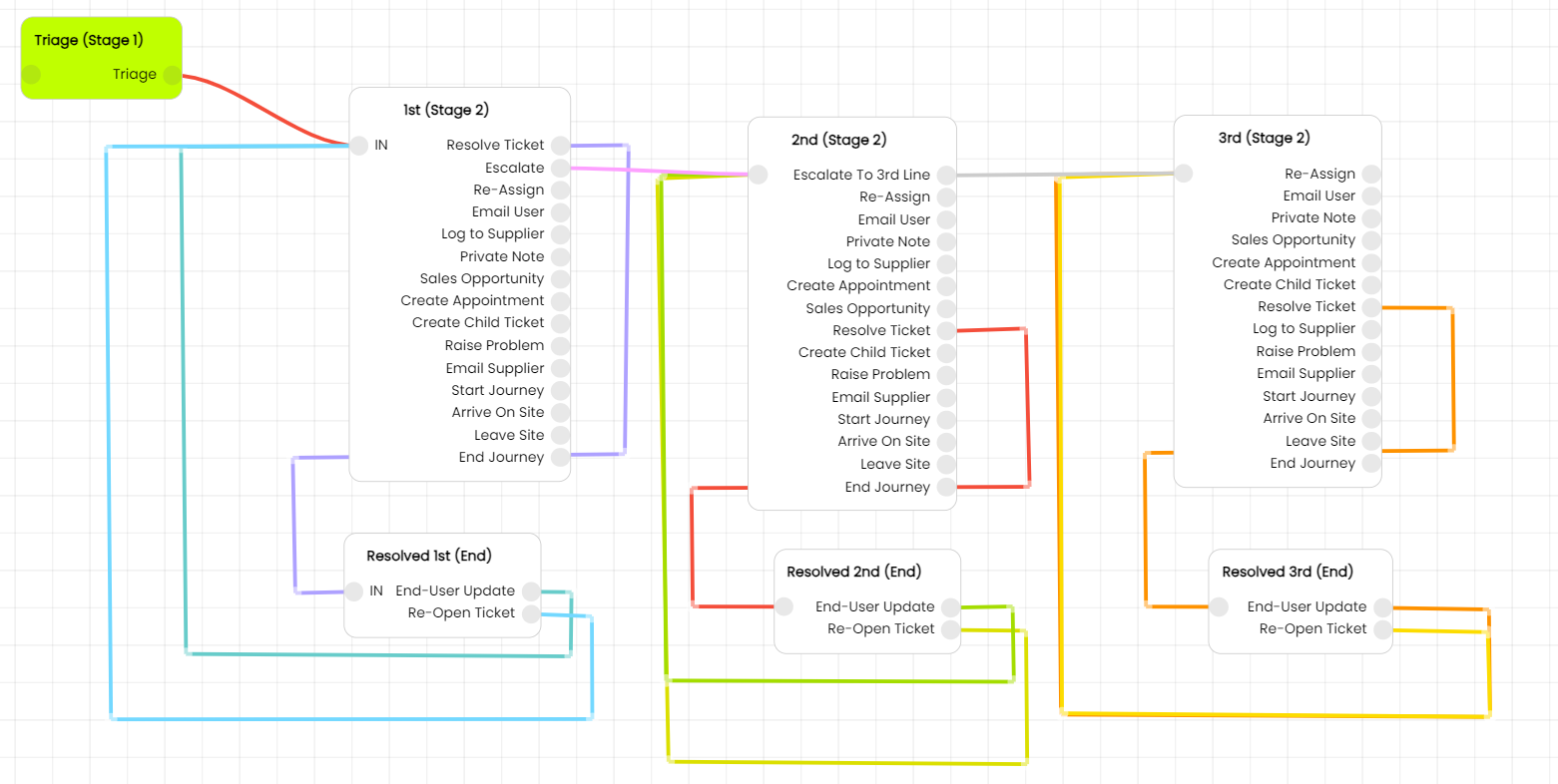
Fig 1. Incident Workflow
Problem Management
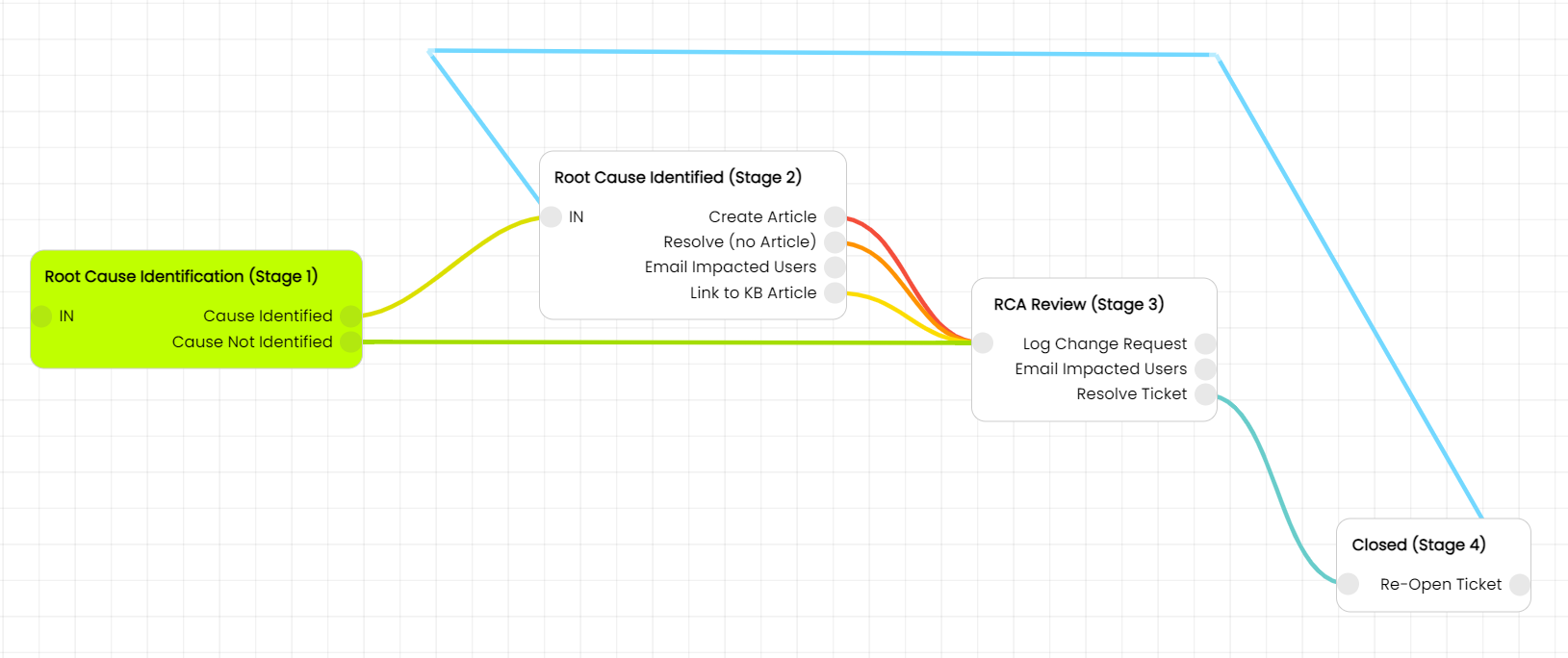
Fig 2. Problem Workflow
Change Management
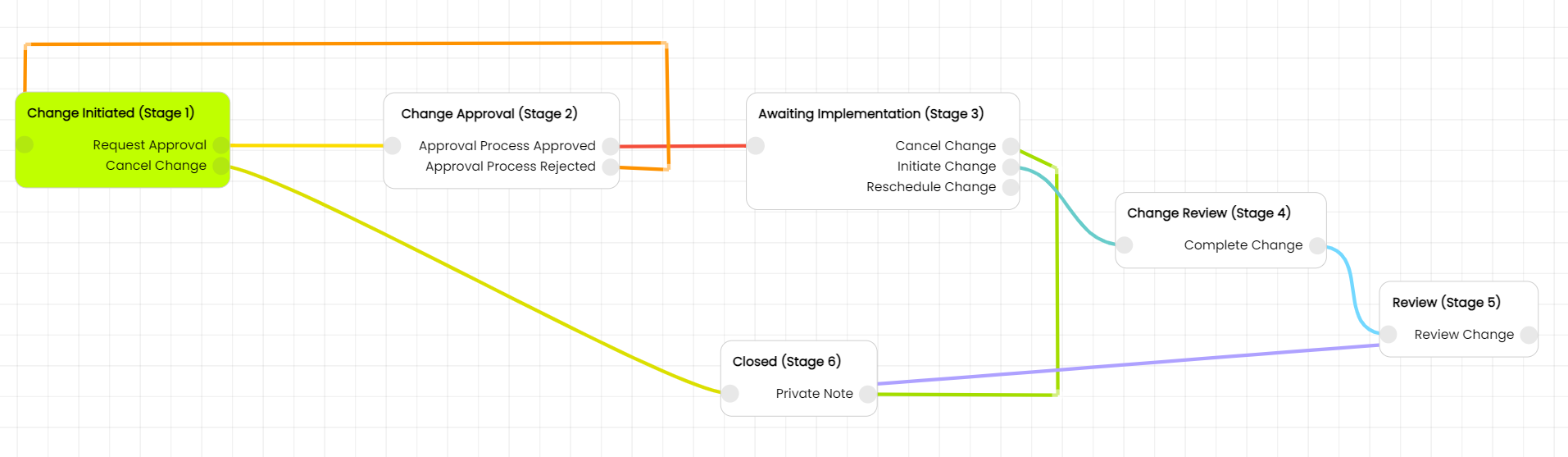
Fig 3. Change Workflow
The workflow will change based on the actions executed, for example if I execute the action "Raise a Problem" a new ticket will be raised and the workflow in use will be the Problem Workflow. If I use the action "Cause Not Identified" on the Problem workflow, it will send me to the next stage of the workflow, where I can raise a change, which will log a new ticket using the change workflow.
Raising Problems
A Problem is raised when there are multiple people affected by the same issue. One way to do this is when manually raising a ticket and the problem/ resolution finder returns many results, you can log a problem from the problem/ resolution finder. Directly from a workflow in the trials (Incident Management Workflow With 1st 2nd 3rd Line and Triage) you can raise a problem:
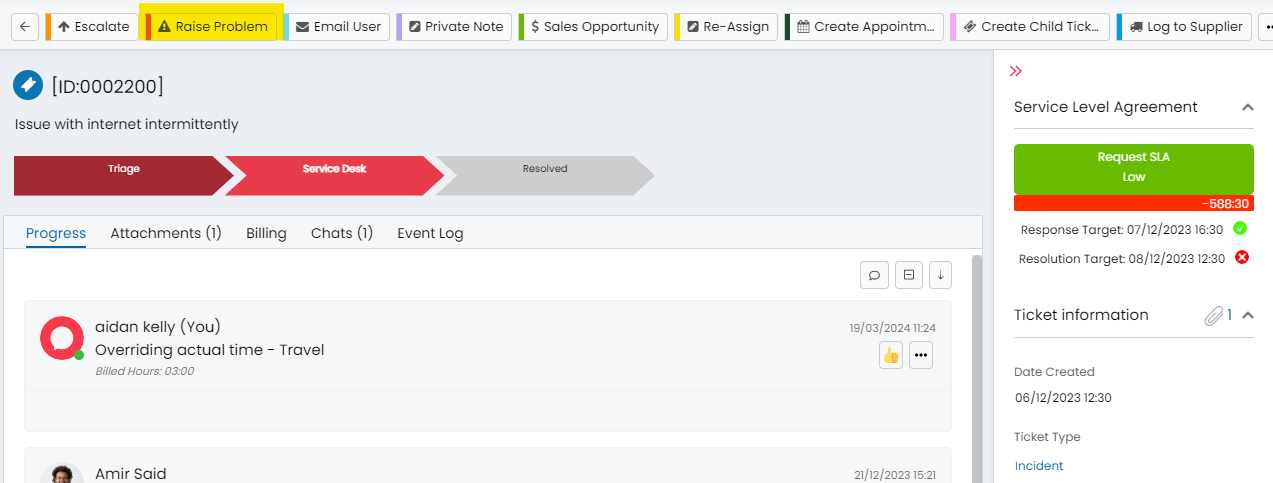
Fig 4. Raising a Problem from a Ticket
Alternatively you can checkbox on multiple tickets in the list and then right click and raise a problem from the list of options:
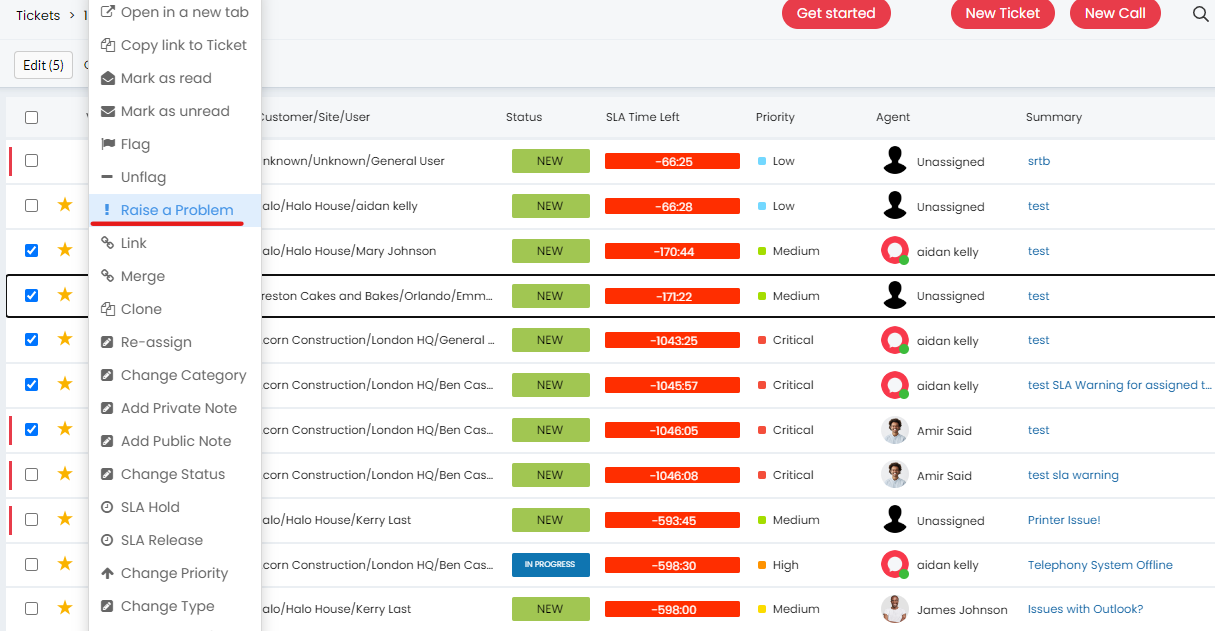
Fig 5. Raising a Problem from the Ticket List
When a problem is being raised, more often than not, the agent raising it should be the end-user of the ticket. On raising a problem ticket, there will be the option to relate it to a service and to update the status of the service if need be.
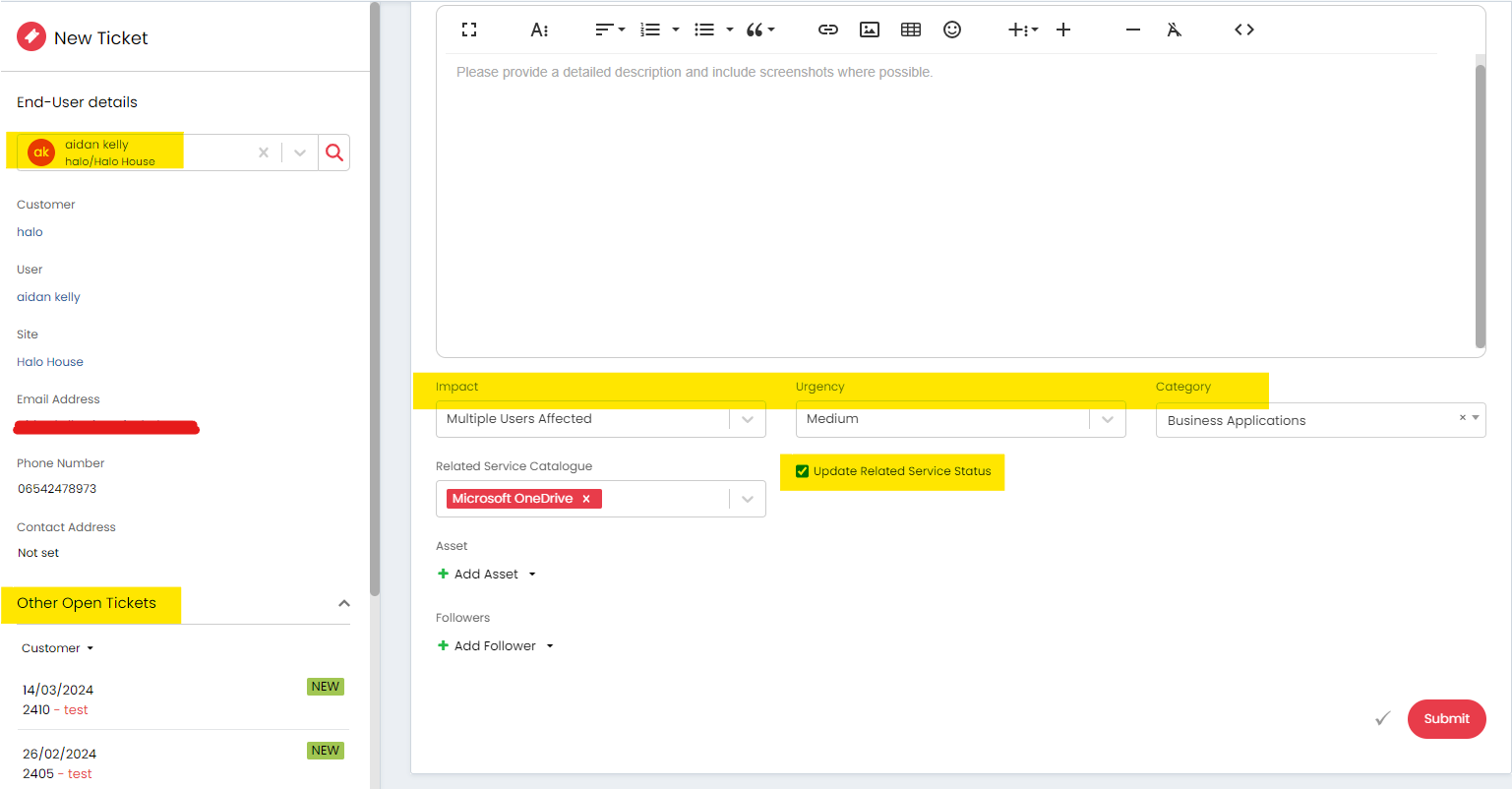
Fig 6. Options Displayed on Problem Ticket Creation
Dynamic Visibility of the Service Status Note
If you would like a note added to the Problem ticket type, you can add in the "Service Status Note" onto the ticket type and make it dynamically visible for when "Update Related Service Status" is checked on:
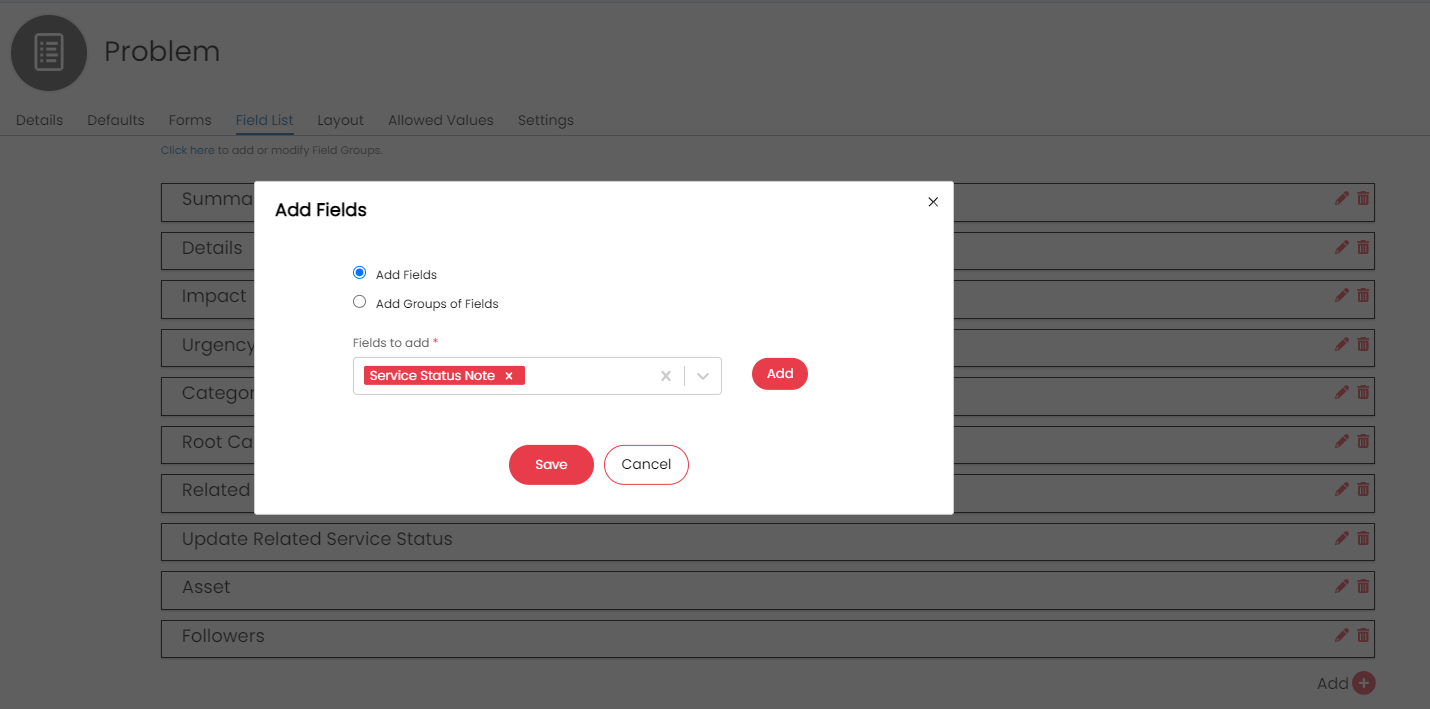
Fig 7. Adding the "Service Status Note" field to the Ticket Type
Then edit the field from the list and set the dynamic visibility for the note as described above:
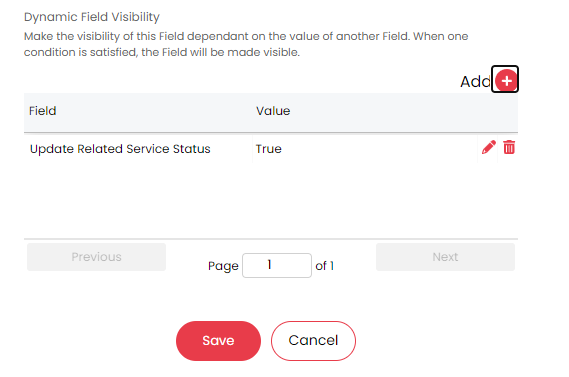
Fig 8. Adding in Dynamic Field Visibility
Now when you raise a problem ticket, you can see that the Note field appears when you check on the "Update Related Service Status" field when on the ticket creation screen:
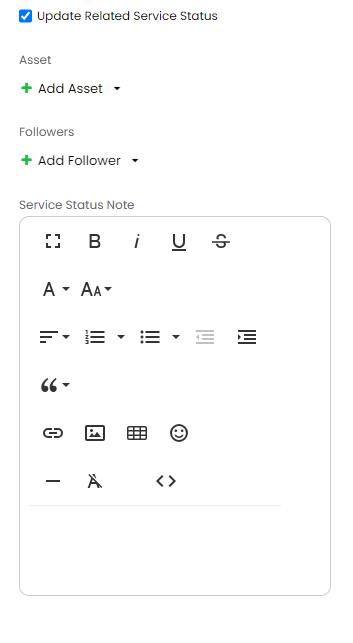
Fig 9. Making the Note Field Visible
Now the problem ticket has been raised, there will be a Monitored Service Catalogue Dropdown on the far right pinned details list, any service marked as a monitored service can be displayed in this section of the ticket. This is configured by default in the HaloPSA trials.
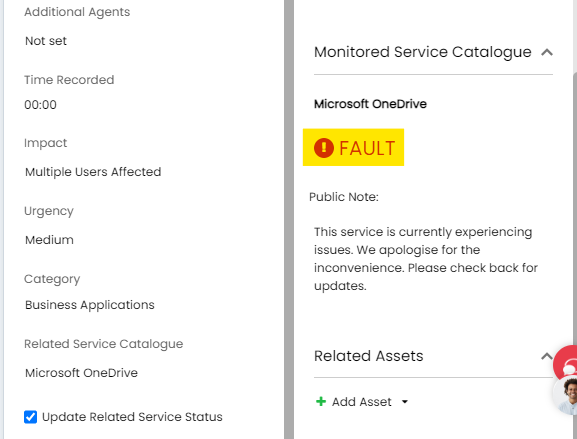
Fig 10. Monitored Service Showing as Having a Fault
The Problem/Resolution Finder
When a ticket should be linked to a problem it will display in the Problem/ resolution finder, in this below example, the summary of the ticket matched a Problem Ticket in the system:

Fig 11. The Problem/Resolution Finder on a Ticket
If the problem/ resolution finder is not appearing, you can show it by hovering over the ellipse in the top right of the ticket:
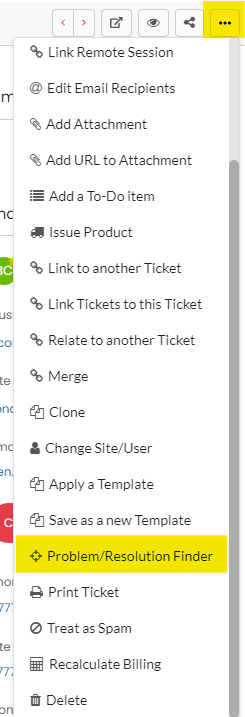
Fig 12. Activating the Problem/ Resolution Finder from a Ticket
If a ticket is matching, you can link it to the problem ticket, this is again done through the ellipse in the top right and then click onto "Link to another ticket".
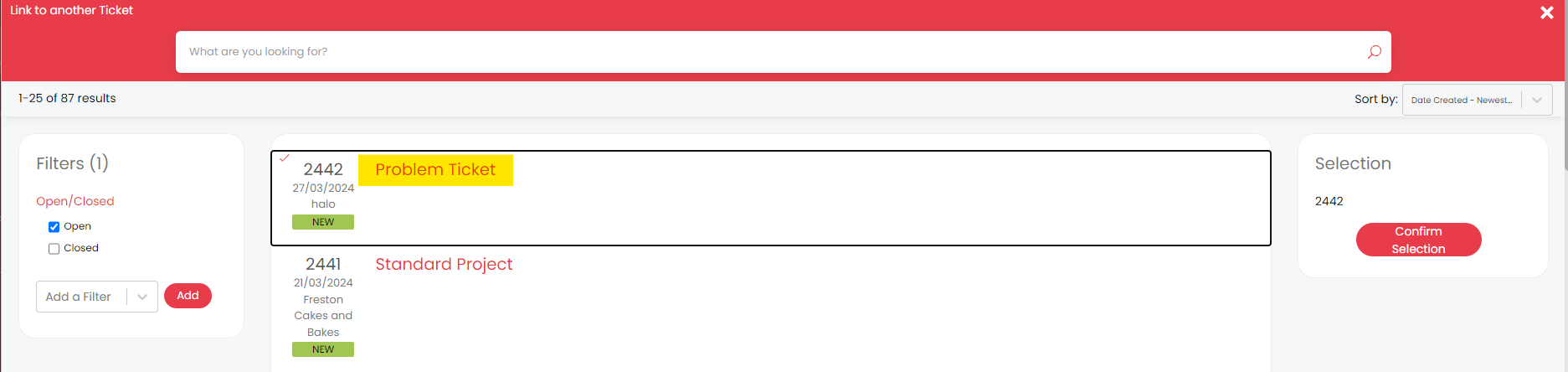
Fig 13. Linking to the Problem Ticket
Based off of the Ticket Type settings, when you email the user from the problem ticket, it will prompt you to add the actions to the child tickets.
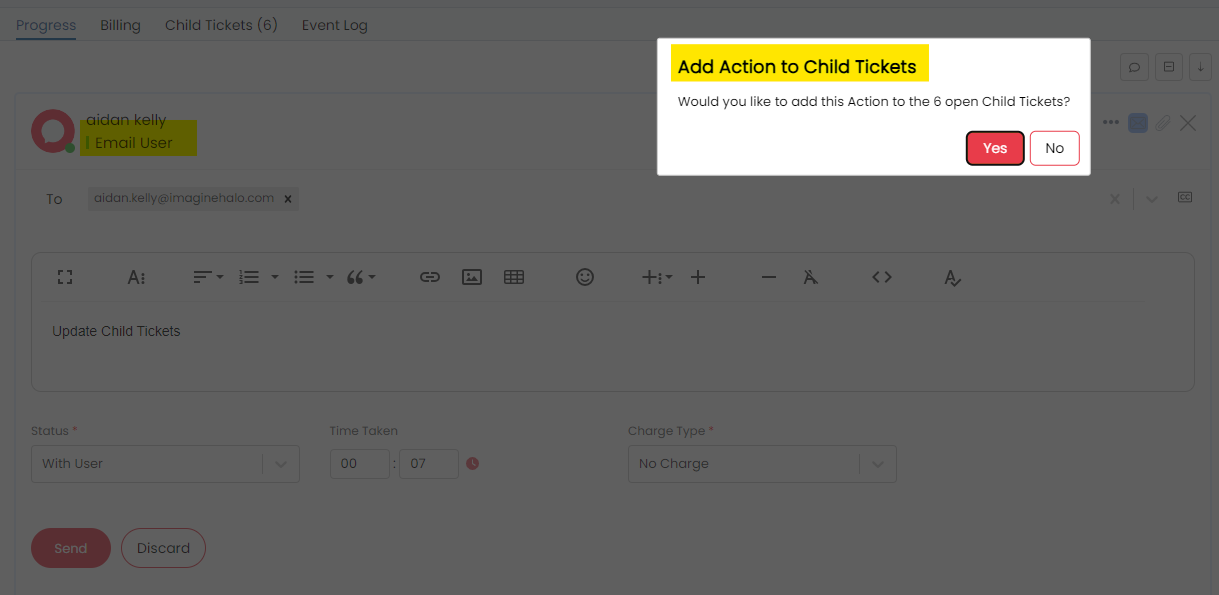
Fig 14. Updating the Child Tickets from the Problem Ticket
Workflow Progression when the Cause is Identified
The workflow of the Problem ticket is used for cause identification. If the cause is identified, then the workflow is moved to root cause identified. If the cause cannot be identified then the workflow will move to stage RCA Review (Root Cause Analysis Review).
If clicking onto the Cause Identified action, you will be moved workflow stage and then you can: create a knowledge base article, link to a knowledge base article, move to resolve the ticket without documenting (This doesn't close off the Problem or child tickets). If you select the "Link to KB Article" option then you will see an "Article Details" tab appear on the ticket, which you can then send with the next action, the next action being the resolve ticket action (This one actually closes the ticket).
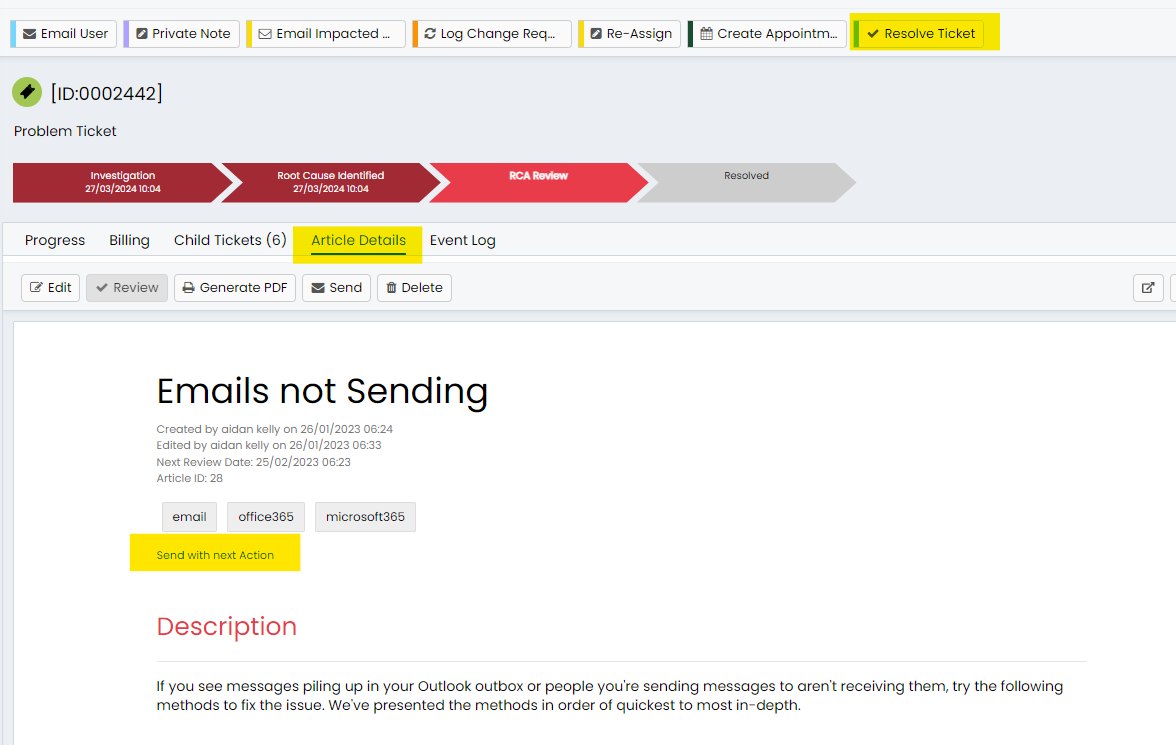
Fig 15. Article Details Tab
Now that the "Send with next Action" has been clicked, when I click on Resolve Ticket, it will populate the note field with the article link:
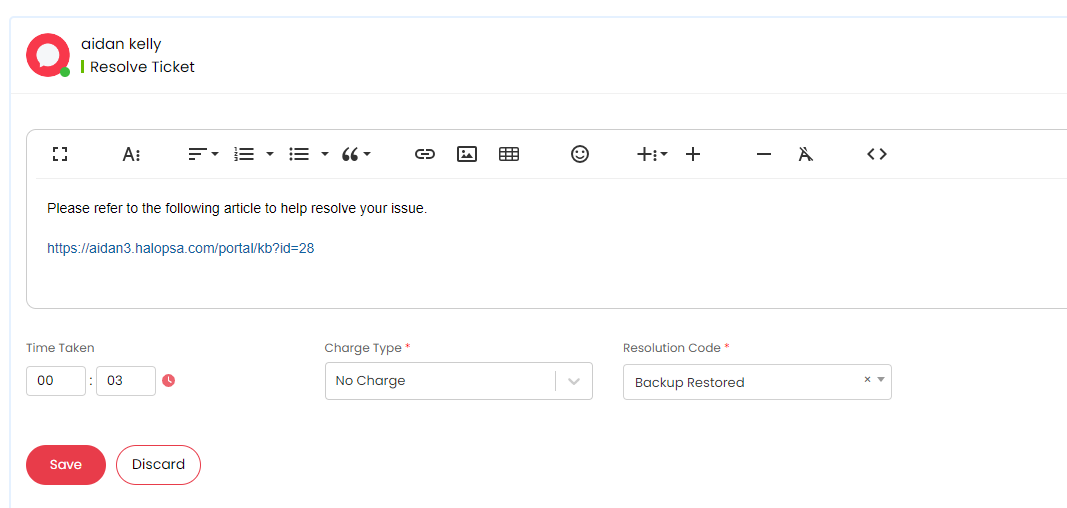
Fig 16. Article Sending With the Resolve Action
When doing the final Resolved action, you will again be prompted to update the child tickets, so that nothing is left open:
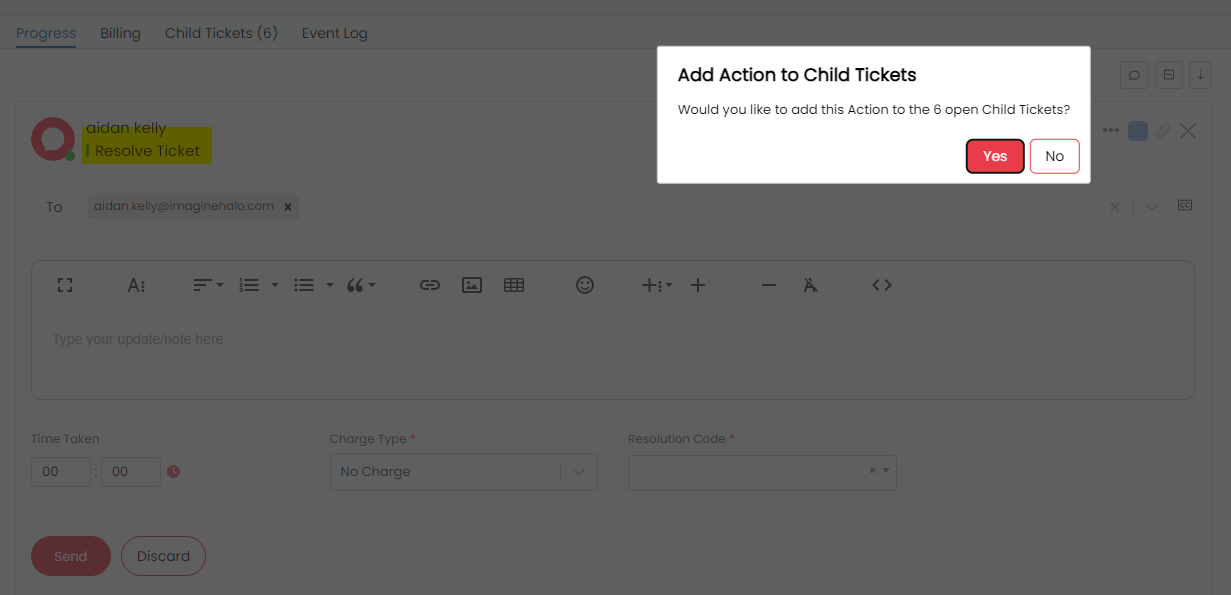
Fig 17. Linking the resolve action to all child tickets, marking all tickets as closed
Workflow Progression when the Cause is Not Identified
If the Cause Not Identified action is used, then the workflow will move to the RCA Review Stage, this is used when you may need to email all users impacted or log a change request relating to the problem. You can also raise a change request as a stand alone ticket, via the new ticket button.
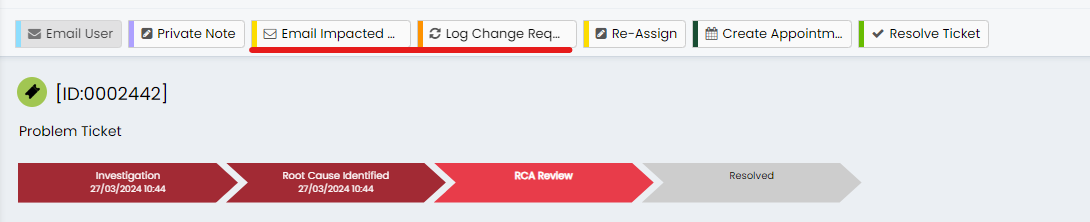
Fig 18. Action Options After Progressing to the RCA Review workflow stage
The templates are can be used to get default values onto the respective change management fields if there is a standard process for i.e. a server being decommissioned. If a server was being decommissioned, you for example might want to have default values populate in the Test Plan and Backout Plan fields of the template, as it is unlikely the information in these fields will need changed for a server decommissioning (checkout the change management guide linked at the top of this article):
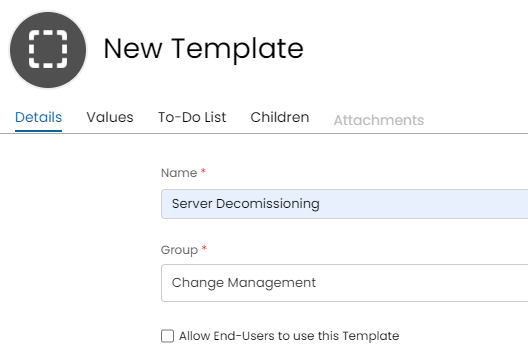
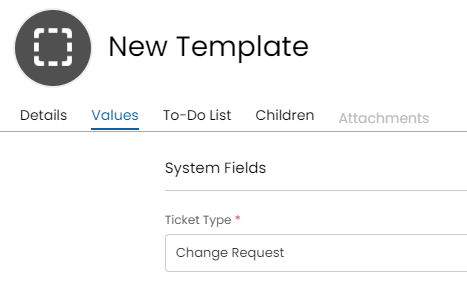
Fig 19. New change request template
After setting the ticket type of the template to "Change Request" you will notice a new dropdown on the Values tab called "Change Management" within here, you can add in default text/ values that will populate the respective fields when this template is applied. Another consideration to make when change requests are being processed, is adding approvals at different steps in the change management progression.
Suggested Articles on the Ticket Creation Screen of the Portal
If a user is reporting an issue on the portal, you can configure the ticket creation screen to give suggested articles. The article suggestions will appear on the new ticket screen. This is enabled in Configuration > Knowledge Base ("Portal Article Suggestion Type" is dynamically visible based on "Enable article suggestions on the portal..." being on):
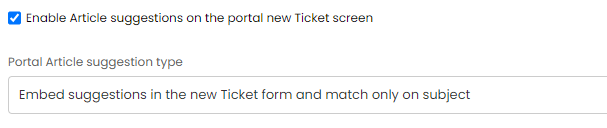
Fig 20. Enabling Article Suggestions For Portal Ticket Creation
Now when a user logs a ticket on the portal, they will be given a suggested article for their issue:
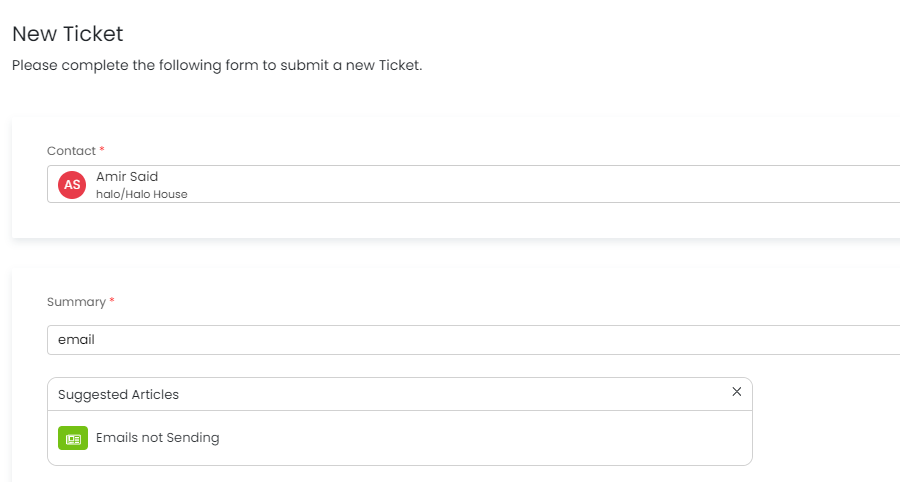
Fig 21. Suggested Articles Showing on the New ticket details screen of the Self Service Portal
This will hopefully prevent users from logging tickets frequently, they will be self served via the suggested articles instead.