Active Directory Integration (LDAP)
- filters
- LDAP
- integration
- active directory
- ad
- connection
- container
- Base DN
- organisational unit
In this guide we will cover:
- Setting Up A New Connection
- The Details Tab
- Field Mappings
- Agent/User Mappings
- CAB Mappings
- New User Onboarding
- Imports
- Running the Sync
- Helpful Information
- Fields
- Child Domains
Halo's integration with Active Directory (AD) allows you to configure an LDAP connection for syncing Agents and Users from AD into Halo on a scheduled basis, allowing you to have an aligned list of users in both systems at all times.
This guide covers the configuration of the integration within Halo and includes some useful information at the end of the article in terms of commonly used fields, for both Halo and AD, as well as information on child domains.
Configuration of this integration involves an understanding of on-premise (locally hosted) applications and involves the use of a locally hosted (by you) Halo Integrator. This guide focuses broadly on the set up of the integration inside of Halo and so does not go into the set up of an Integrator application, if you need help for this please refer to the following guides:
Note: This integration is a one-way sync from Active Directory into Halo, nothing will sync back from Halo into AD. Therefore, maintaining the list of users in AD will in turn maintain your Agents and Users in Halo.
Access control can be used to grant access to the integration to specific Agents, Teams, Roles, and Departments. For more information on access control, see our guide linked here.
Setting Up A New Connection
To set up a new LDAP connection, navigate to Configuration > Integrations > Active Directory - if the integration is not already enabled then click the + icon on the module to enable it.
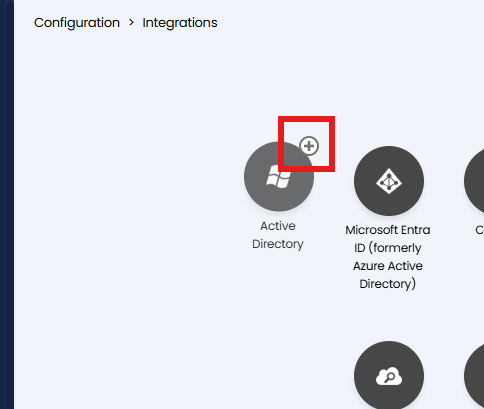
Fig 1. Enabling the Active Directory integration module
Within the integration you will see a list of your current connections, if you have any, and a 'New' button in the top right corner to add a connection. Click the 'New' button and you will see the connection configuration, which will include six tabs:
- Details - The details that allow Halo to connect to the LDAP/AD and other related settings.
- Field Mappings - The tab for associating fields in Halo with fields in the LDAP/AD, split out into User and Agent fields. These mapping tables are pre-populated with common mappings for Active Directory.
- Agent/User Mappings - The tab for associating sites or agents in HALO with organizational units and/or containers in LDAP/AD.
- CAB Mappings - The tab for associating Change Advice Boards (CABs) in HALO with organizational units and/or containers in LDAP/AD.
- New User Onboarding - The tab to set the ticket template used for new tickets created when a new user is created by Active Directory.
- Imports - The tab to set matching fields for when users and agents are imported into Halo by Active Directory.
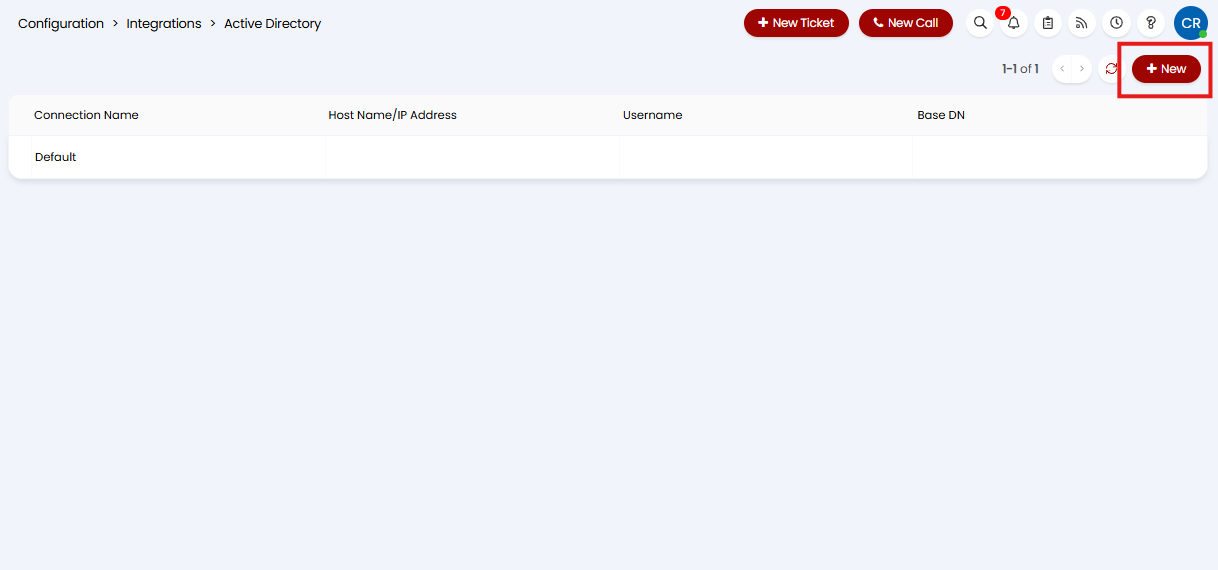
Fig 2a. Adding a new connection within the AD integration module in Halo
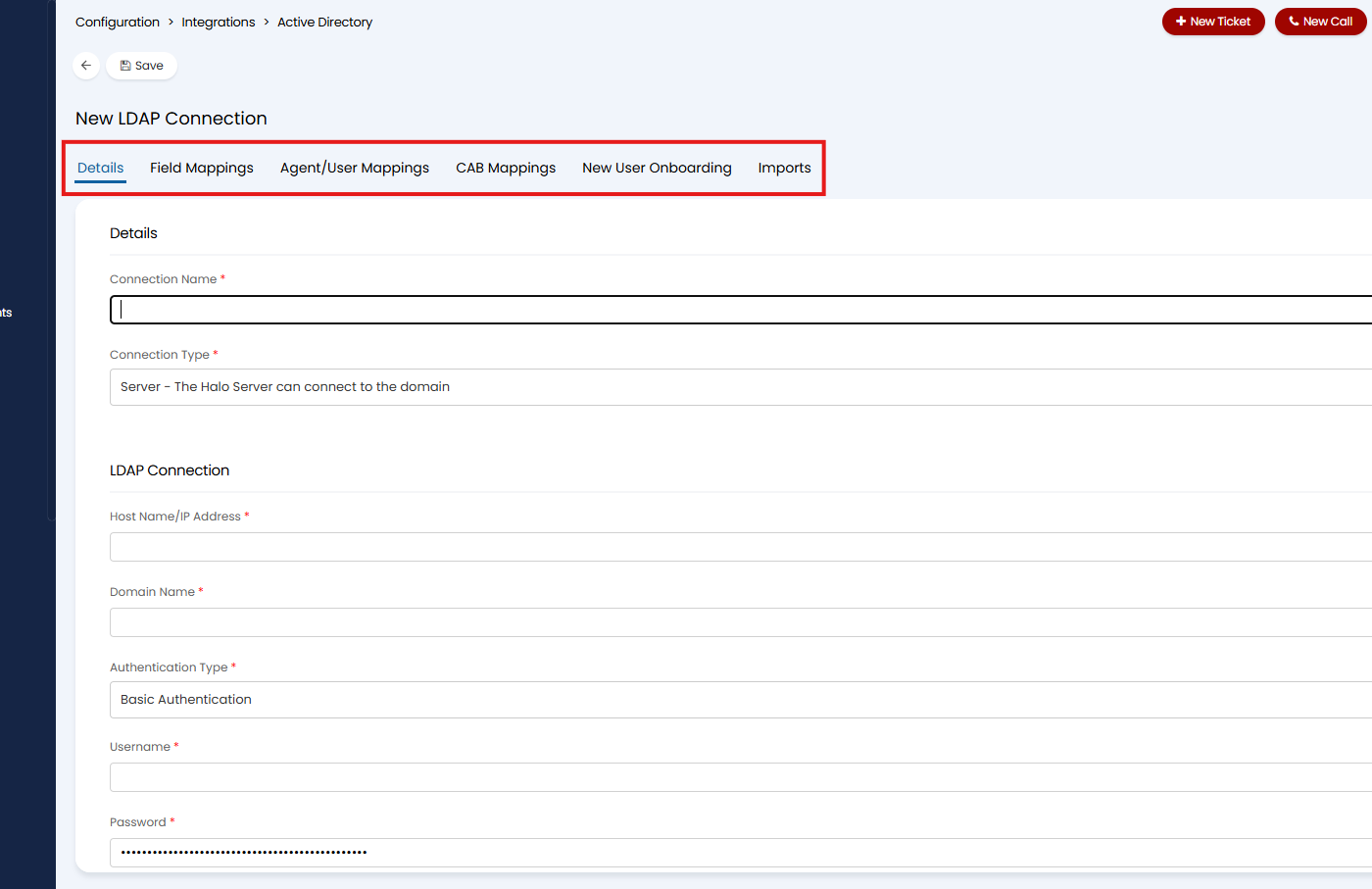
Fig 2b. The configuration tabs of a new AD connection in Halo
The Details Tab
Within this tab you can configure the connection credentials for the integration. As in other areas of Halo, the required fields on the configuration pages are designated by a red asterisk: *.
Details
Connection Name - The name of this specific connection, this field does not have any functionality besides reference for yourself.
Connection Type
- 'Server - The Halo Server can connect to the domain'
- 'Agent - The Halo Server cannot connect to the domain'
The connection type you set here determines whether or not Halo itself can reach the Active Directory server.
You will notice that a section of the Details tab dynamically appears when the connection type 'Server - The Halo Server can connect to the domain' is selected:
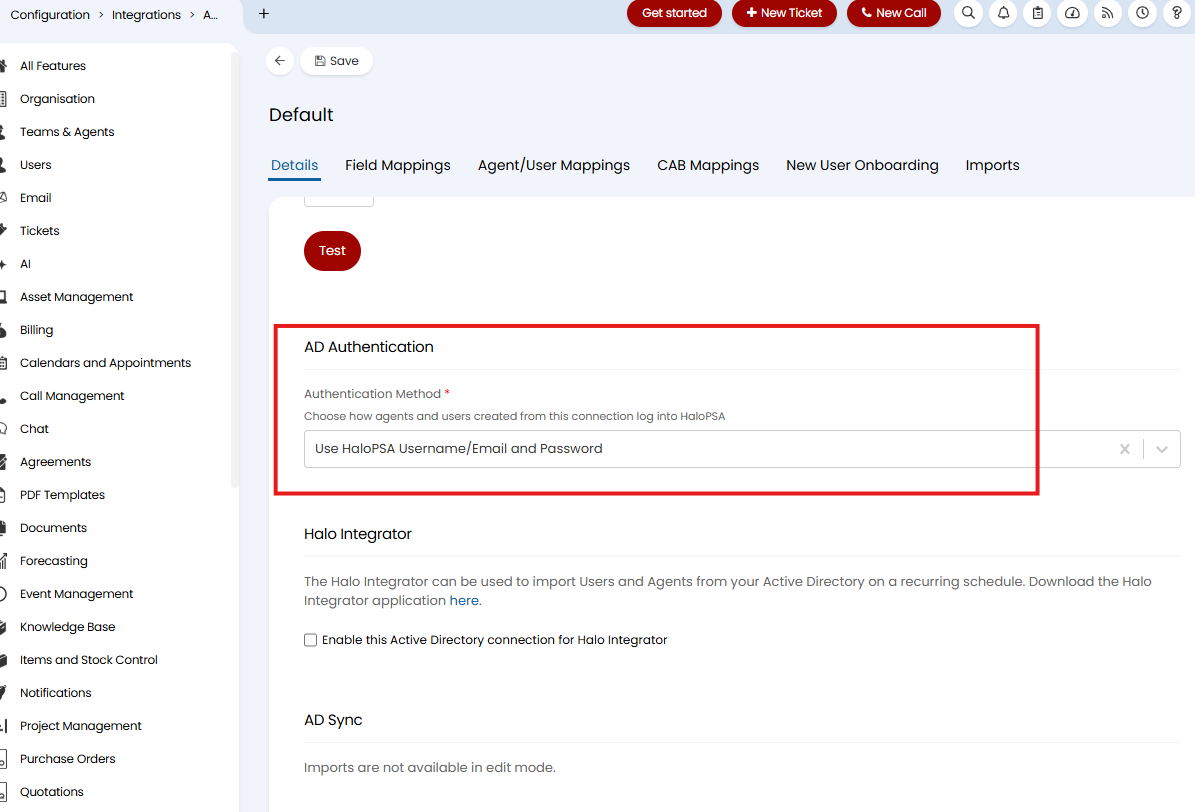
Fig 3. The AD Authentication setting that appears when the 'Server' connection type is selected
This Authentication Method setting determines which credentials - Halo or AD - agents and users can use when logging into Halo. It is only visible as a configuration option when using the 'Server' connection type because Halo itself must be able to access the AD server to authenticate users directly using the Agent/User's AD credentials. As such, if you are using the 'Agent' connection type then the authentication method 'Use Active Directory Username/Email and Password' will not be possible and the Agent/User will either have to use their Halo credentials to log in or you will have to consider another option for user authentication such as ADFS (Active Directory Federation Services).
LDAP Connection
Host Name/IP Address - The ‘Hostname’ or IP Address of your Domain Controller (DC) where the LDAP/AD resides. If your Halo instance is hosted by us (Halo), but you use an internal-only IP address in this field, then you cannot use the 'Server' connection type as Halo won't be be able to reach that IP, you will need to use the 'Agent' connection type or set up a VPN/secure tunnel to allow Halo's access to the Domain Controllers.
Domain Name - The name of the domain that LDAP/AD is associated with. For example: "MyCompany.local"
Authentication Type - The authentication method used by your LDAP.
- 'Basic Authentication'
- 'Anonymous Authentication'
'Basic' is the recommended authentication type.
Username - The username for the service account used to access the Domain Controller.
Password - The password for the service account used to access the Domain Controller.
Port - Can be left blank unless you are using a non-default LDAP port.
For reference, if the AD server is configured for secure LDAP, LDAPS, then the default port is 636. If the AD server is configured for unencrypted LDAP (not recommended), or LDAP with StartTLS, then the port is 389.
SSL - Can be left unchecked unless you are using an encrypted LDAP connection (LDAPS).
Base DN - For the MyCompany.local example Domain Name, this would be set as "DC=Local,DC=MyCompany".
Page Size - 1000 is the maximum, the page size is set to this by default. Setting this field to 0 means no pagination.
If you are unsure on what to set in any of the above fields, your LDAP/AD administrator should be able to advise.
Once you have all the relevant fields populated, if you are using the 'Server' connection type, you can use the ‘Test’ button to confirm your credentials.
Note: This test runs from the web server, not your browser, so if the web server is blocked from connecting to the LDAP/AD then the test will fail. This may often be the case for hosted customers.
If the credentials test fails then it is likely a network problem or an issue with the credentials - it would be best to reach out to your LDAP/AD administrator or network administrator for troubleshooting.
Halo Integrator
In this section you can choose if you want to enable this AD connection to be synced by a Halo integrator application.
On versions 2.196+ you have a choice of integrators that can be used to schedule this import, allowing you to choose between using the Halo integrator (hosted by you) or the Halo DB integrator (also hosted by you). The primary difference between these choices is how your password will be exposed. The Halo integrator application will access your Halo database, including obtaining your password, through the API, which means the password for the integration will need to be accessible via the API. Whereas the Halo DB integrator has the Halo API built into it and connects directly to your database. For more information on the Halo integrator application and the Halo DB integrator check out the following guide: Halo Integrator.
Note: Your choice of integrator will impact how the password used for the integration is exposed, whether it is accessible via the API or not, but this will also be determined by your chosen password storage method.
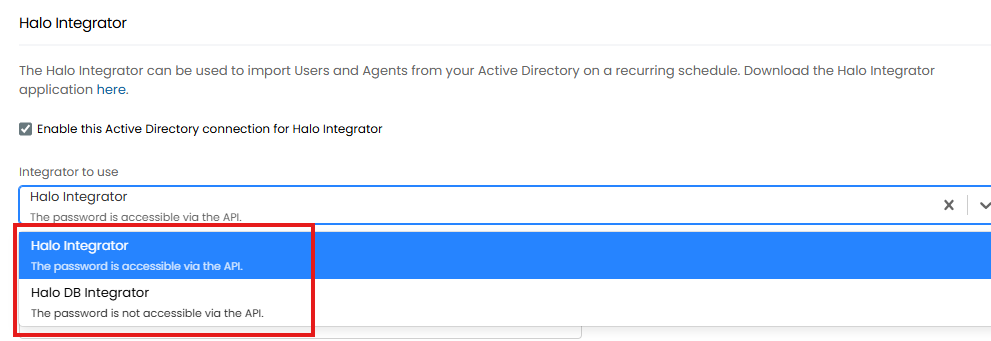
Fig 4. Halo Integrator selection for the AD integration
Note: We recommend using the Halo DB integrator to schedule imports for SCOM as currently passwords can only be stored in Halo, therefore if using the Halo integrator this will be accessible via the API.
If you have multiple Halo integrator applications, you may wish to restrict which of these have access to this integration. By default all client IDs will be able to access on-premise integrations. However, this can be disabled, allowing you to whitelist which client IDs can access the integration. To do this head to Configuration > Advanced Settings and disable 'Allow all client IDs to access all on-prem integrations which use the Halo Integrator' (Figure 5).
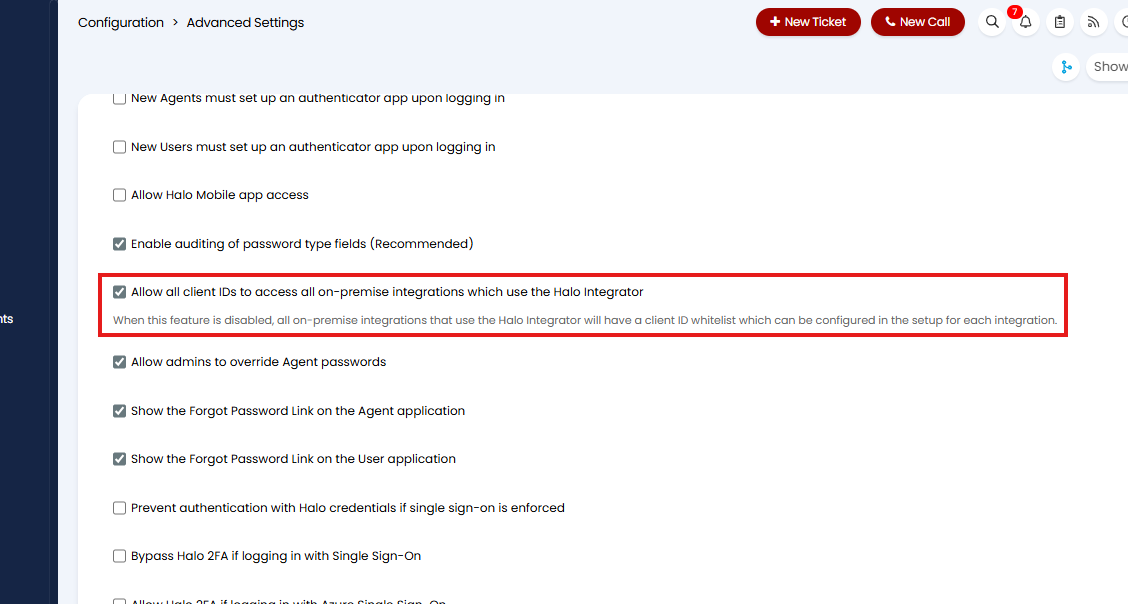
Fig 5. The checkbox setting for allowing all client IDs to access all on-prem integrations which use the Halo Integrator
Once enabling the Halo Integrator and selecting the type of integrator to use, you will be presented with three additional configuration fields:
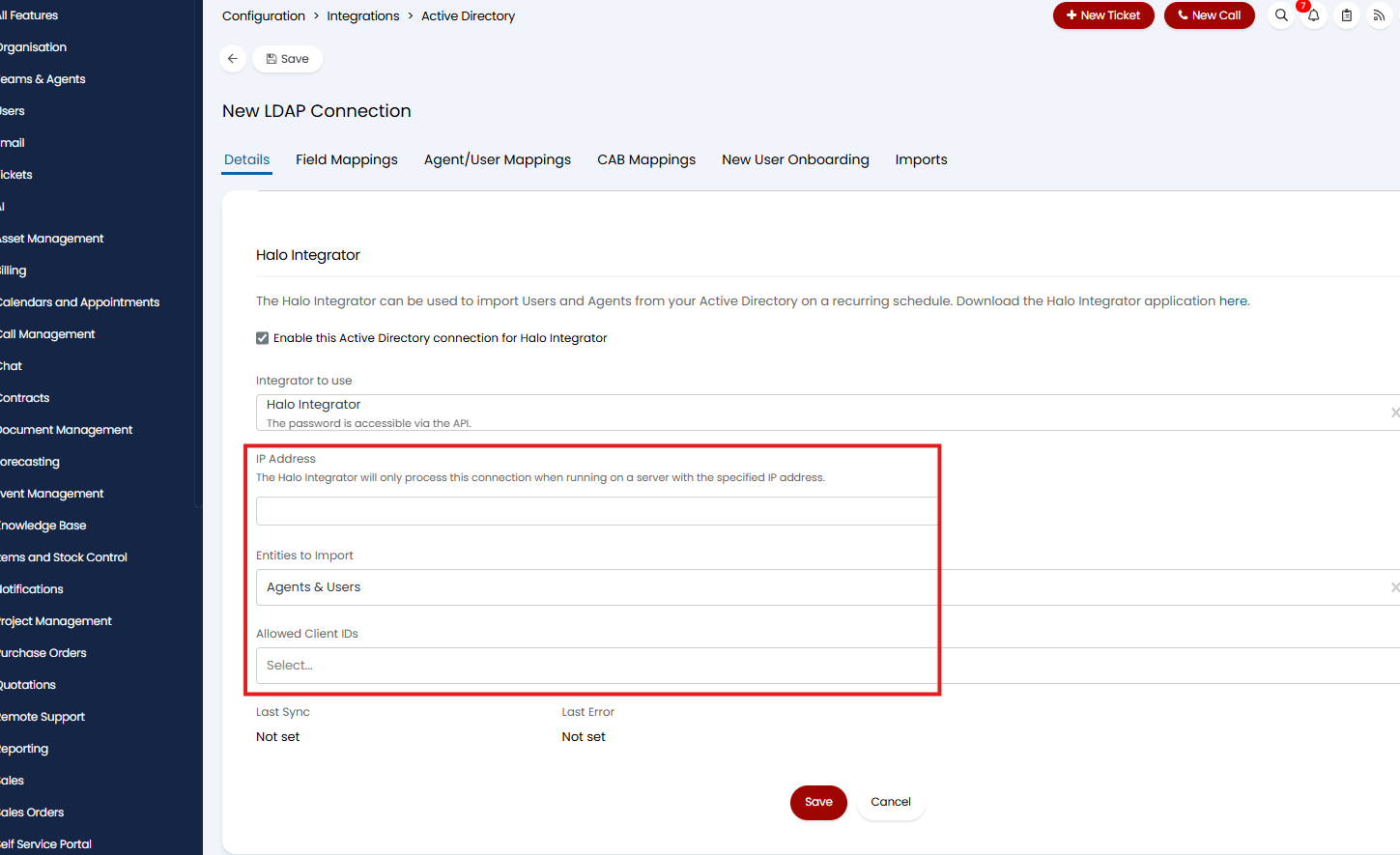
Fig 6. The addition fields that appear for configuration once the Halo Integrator is enabled for the AD integration
IP Address - Your integrator of choice will only process this integration when running on a server with the specified IP address.
Entities to Import - For determining what is imported by the scheduled sync ran on the integrator. Your options are:
- Agents & Users
- Users
- Agents
Allowed Client IDs - Enter the client IDs for the applications set up to authorise the connection between your Halo instance and your Halo Integrator. Only the integrators authorised using these client IDs will be able to access this integration.
AD Sync
Sync Now - This button can be used to initiate an immediate sync from Active Directory into Halo to pull in new agents and users, and to update existing ones. As illustrated in Figure 7, when you select the button, it will bring up an import screen for selecting which entities to sync into Halo.
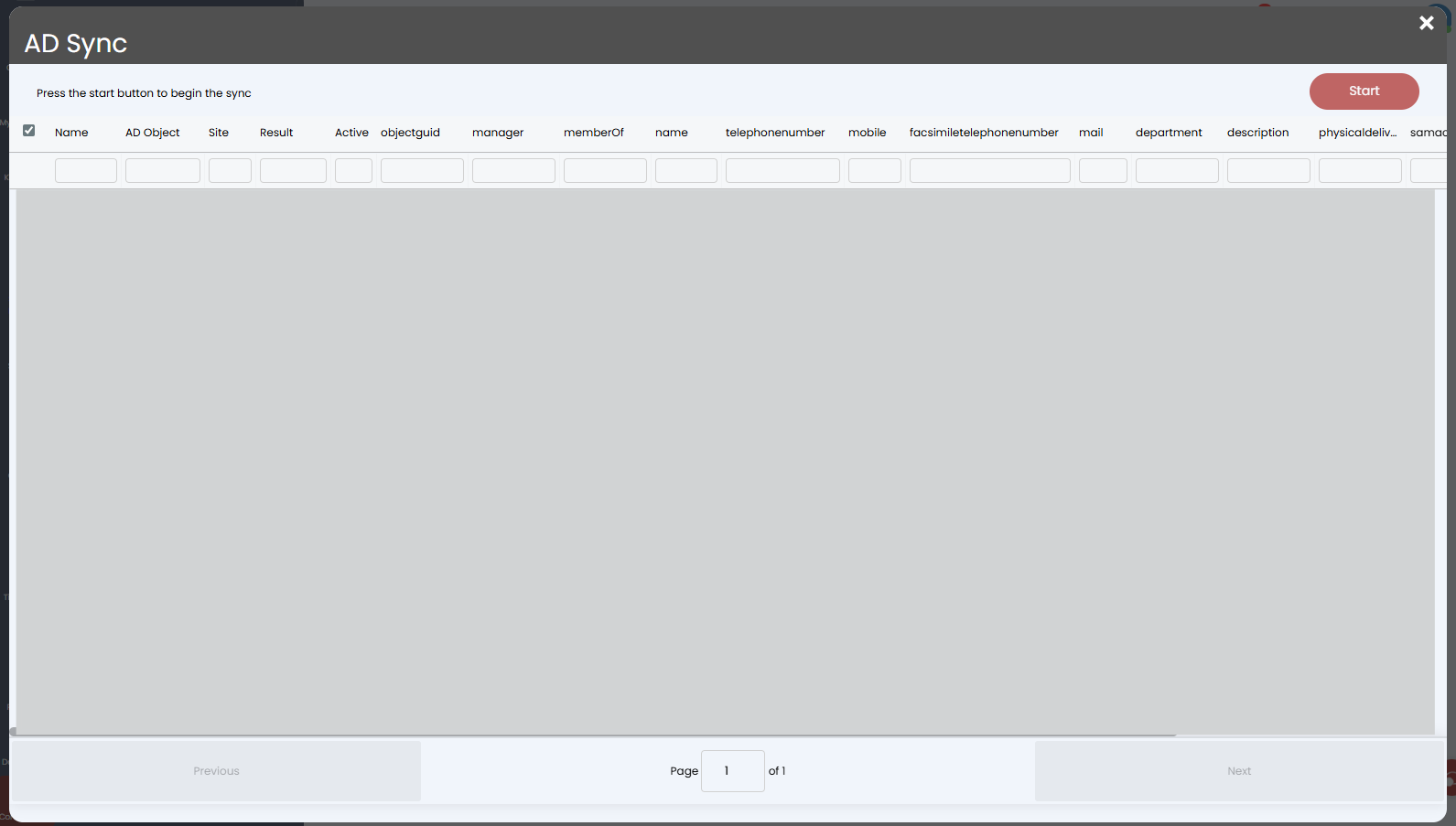
Fig 7. The import screen that shows once the 'Sync Now' button is selected in the Active Directory integration
Note: This button should only be used once all your tabs are configured correctly in order to avoid incorrect imports.
Field Mappings
The Field Mappings tab is where you configure the links between the fields in Active Directory and the fields in Halo.
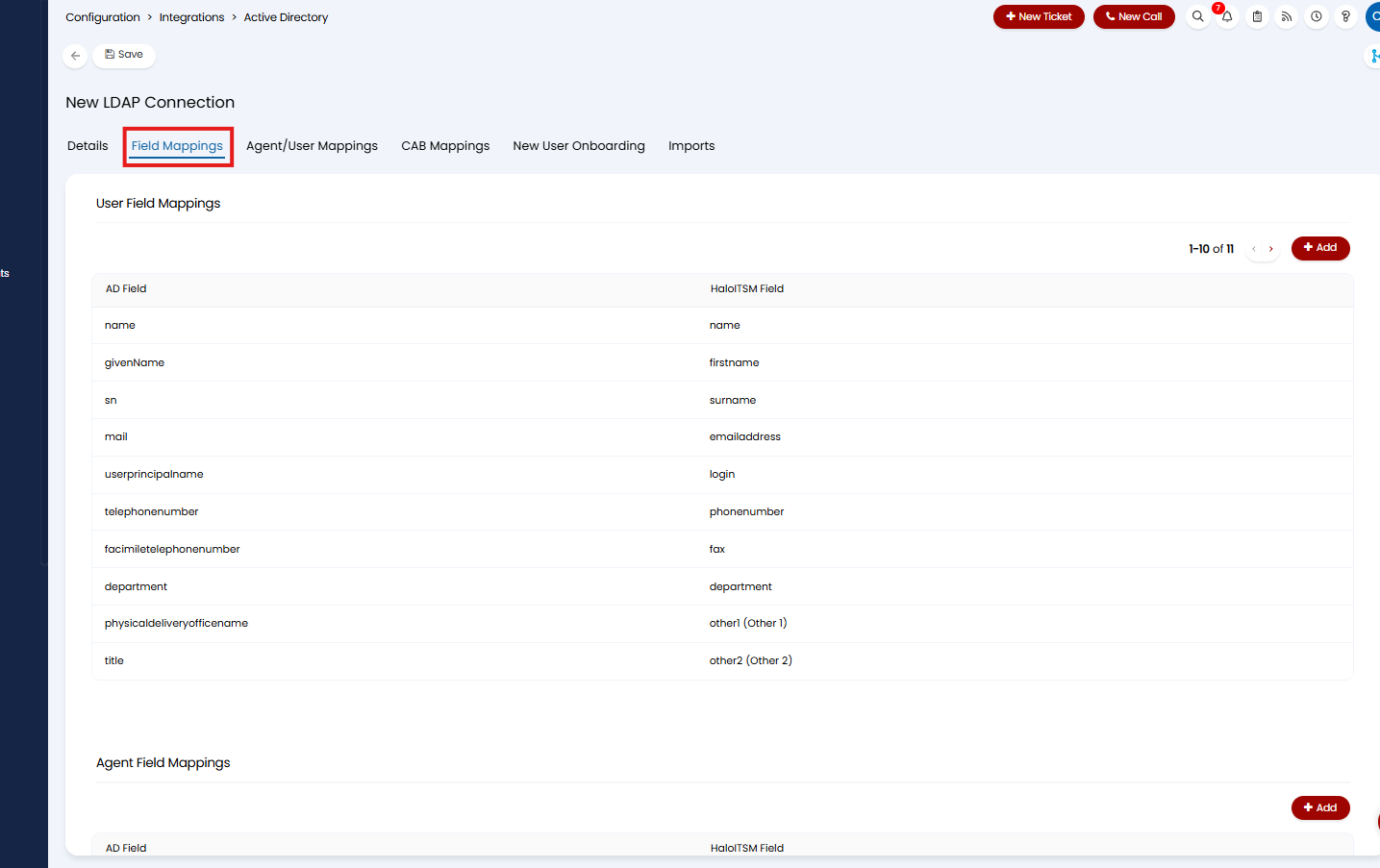
Fig 8. The field mappings tab in the AD integration, it is divided into user fields and agent fields
A list of default mappings based on common practice will pre-populate within this tab, but you may wish to make adjustments. As illustrated in Figure 9, to edit or delete the pre-populated mappings, use the edit (pencil) icon or the delete (trash can) icon. Equally, to add in new mappings use the '+ Add' button.
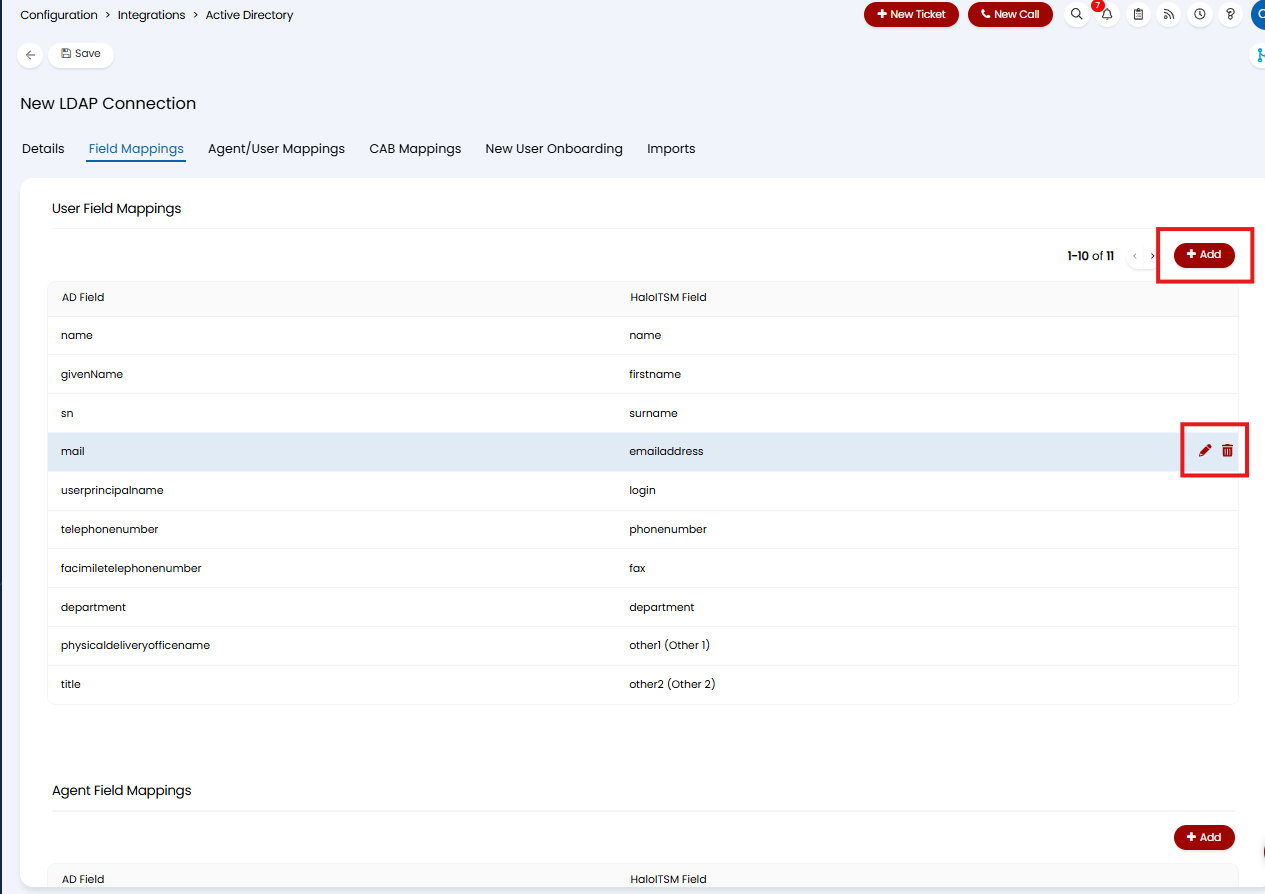
Fig 9. Configuration buttons for the user/agent field mappings
Note: In the 'Helpful Information' section at the bottom of this guide you will find a list of the relevant LDAP/AD fields and a description of their content, as well as the relevant Halo agent and user fields.
Agent/User Mappings
This tab allows you to specify which containers and organisational units in LDAP/AD map to which user sites and agent roles in Halo.
You can add your mappings manually if you wish. When you click to edit the page, you can click the '+ Add' button which presents you with the screen for creating a new LDAP Mapping (Figure 10).
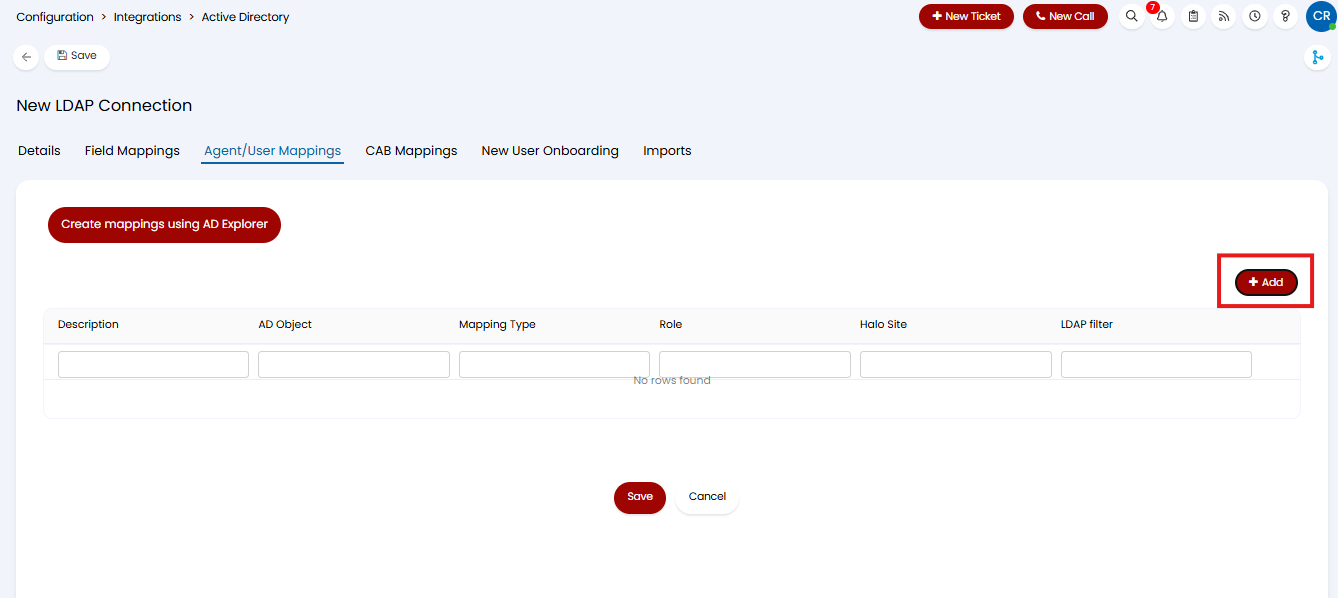
Fig 10a. The button for creating a new Agent/User mapping
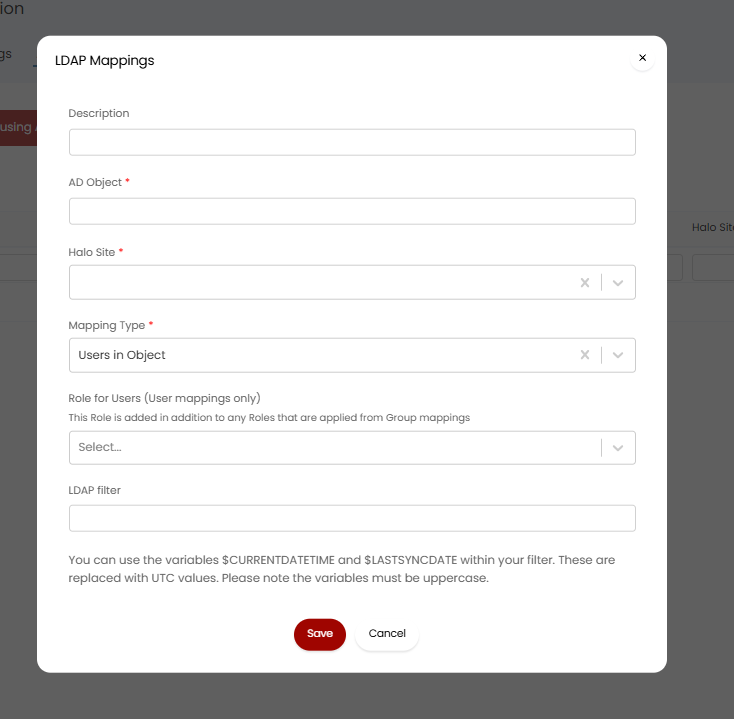
Fig 10b. The screen that appears for creating a new LDAP Agent or User mapping
If you are creating an Agent mapping you should set the Halo Site to the '*Agent*' option. If you are bringing a large number of agents into Halo, or you have a large number of roles to apply, it is recommended to create a mapping for each Agent role ('Role for Agents' field) instead of one large Agent mapping.
Note: If you are operating on a version of Halo earlier than version 2.226.1, the only fields that show in the column profile of this mappings table will be 'AD Object', 'Mapping Type' and 'Halo Site'. You will need to click into the individual mappings to view the other field values.

Fig 11a. The column profile for the AD Agent/User mappings on versions of Halo pre 2.226.1
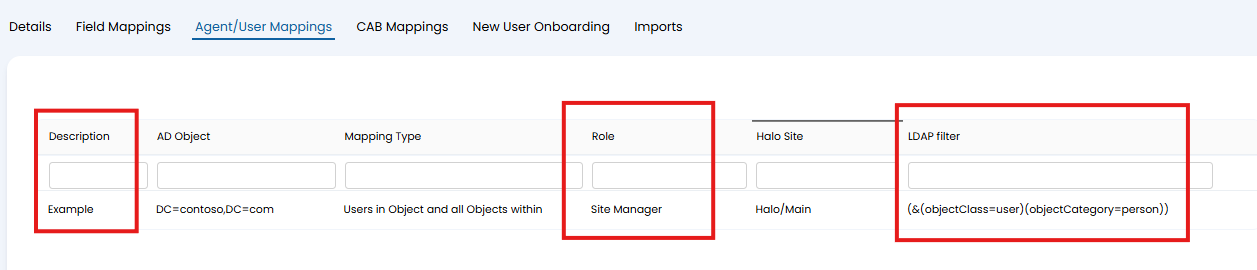
Fig 11b. The improved column profile for the AD Agent/User mappings on versions of Halo 2.226.1+
If you do not wish to create the Agent/User mappings manually, you can instead use the button 'Create mappings using AD Explorer'. This function will only work if the LDAP/AD is accessible, but it can make it easier to create your Agent/User mappings.
This button will open up the AD Explorer (Figure 12), loading a list of all currently mapped containers/objects from the LDAP/AD. Checking the 'Show All Containers' checkbox will allow you to select other containers to add new mappings.
When adding a mapping using AD Explorer, you will be asked to select the following:
- Site - This is the site/location in Halo that the LDAP/AD object will map to i.e. the users in the LDAP/AD container will be created under this site. You can also select '*Agent*', causing users in the container to be created as Agents in Halo, rather than Users.
- Mapping Type - This defines which users associated with the object in LDAP/AD are to be created in Halo. You can specify that just users directly in the object are synced ('Users in Object'), all users within objects that are within the selected object ('Users in Object and all Objects within'), or even all users that have a 'Member of' relationship with the selected object, but don't necessarily exist within the object ('All Members of the Object').
- Role for Agents - This is only used for Agent mappings and specifies the default Role permissions that Agents created from LDAP/AD sync should be given, only one role can be selected here.
- LDAP filter - You can also add an LDAP filter here, which can be used to filter out users within (or Members of) the object that you do not want to be imported into Halo. This filter uses standard LDAP filter syntax, you can see an example of this syntax in Figure 11b. You are able to use the variables $CURRENTDATETIME and $LASTSYNCDATE within these filters - these must be uppercase if used.
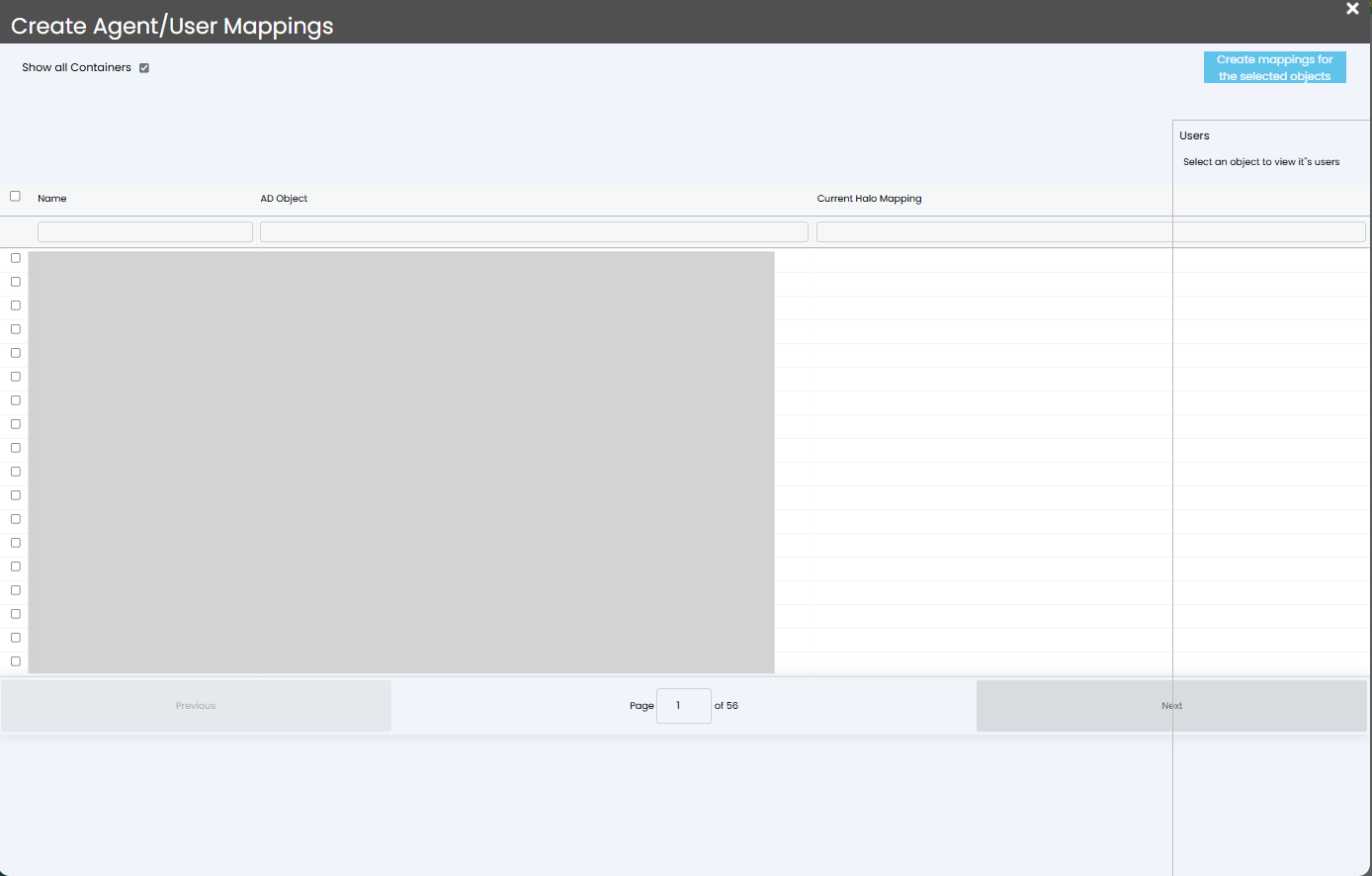
Fig 12. The AD Explorer screen brought up when selecting 'Create mappings using AD Explorer' in the Agent/User Mappings tab
CAB Mappings
The CAB (Change Advice Board) mappings tab allows you to relate CABs in Halo to objects in LDAP/AD. The configuration of this tab is essentially the same as the Agent/User Mappings tab in that you can create new mappings manually, by selecting the '+ Add' button, or by using AD Explorer.
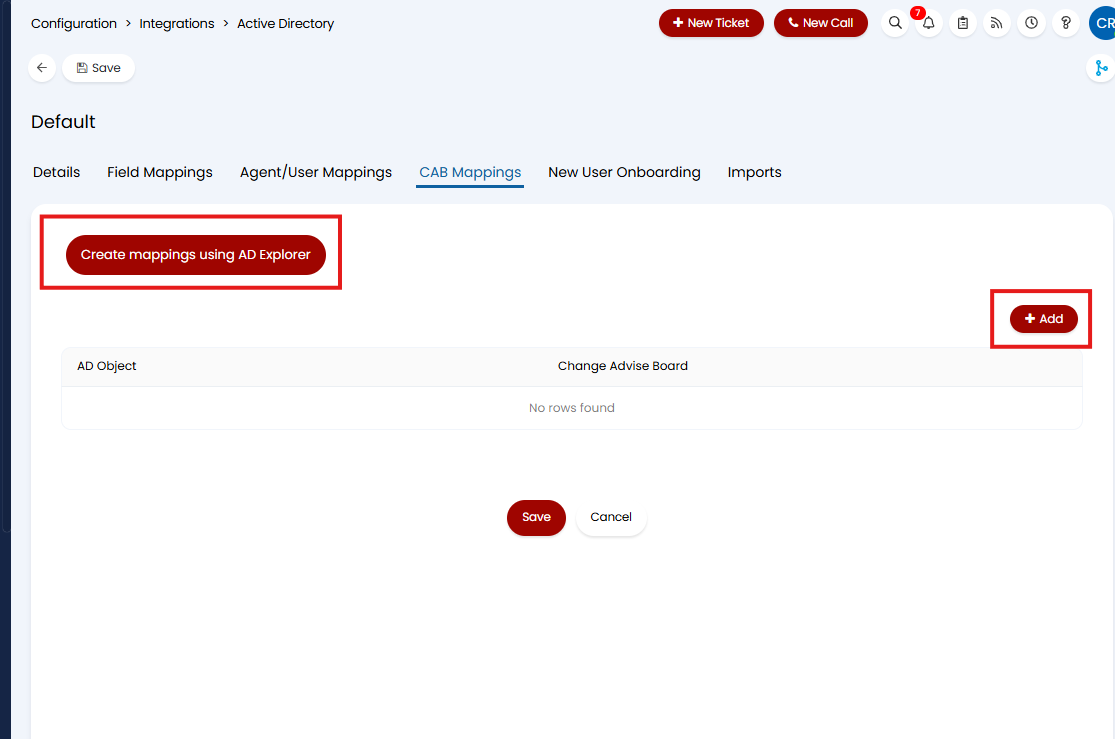
Fig 13. The mapping creation options for the CAB Mappings tab
If you choose to create the mappings manually then you will need to enter in the AD Object and the corresponding CAB.
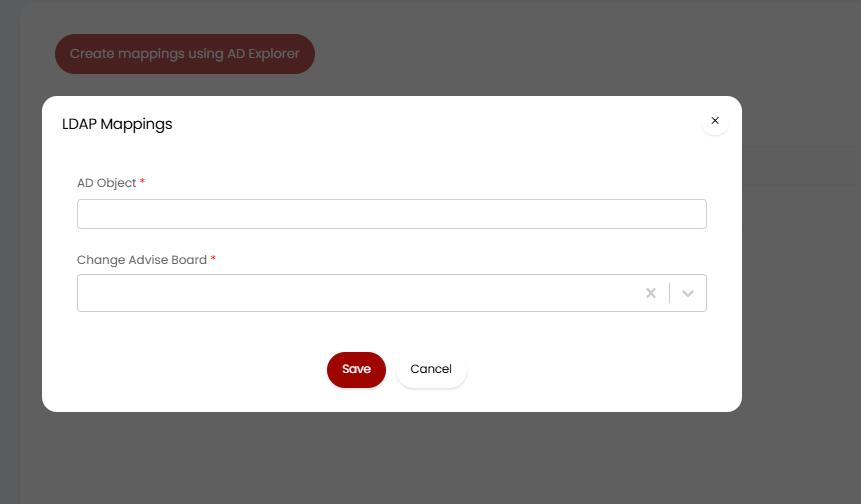
Fig 14. Manual creation of LDAP mappings for Halo CABs
If you choose to create the CAB mappings using AD Explorer then it will pull up a similar creation screen to the one brought up for the Agent/User Mappings.
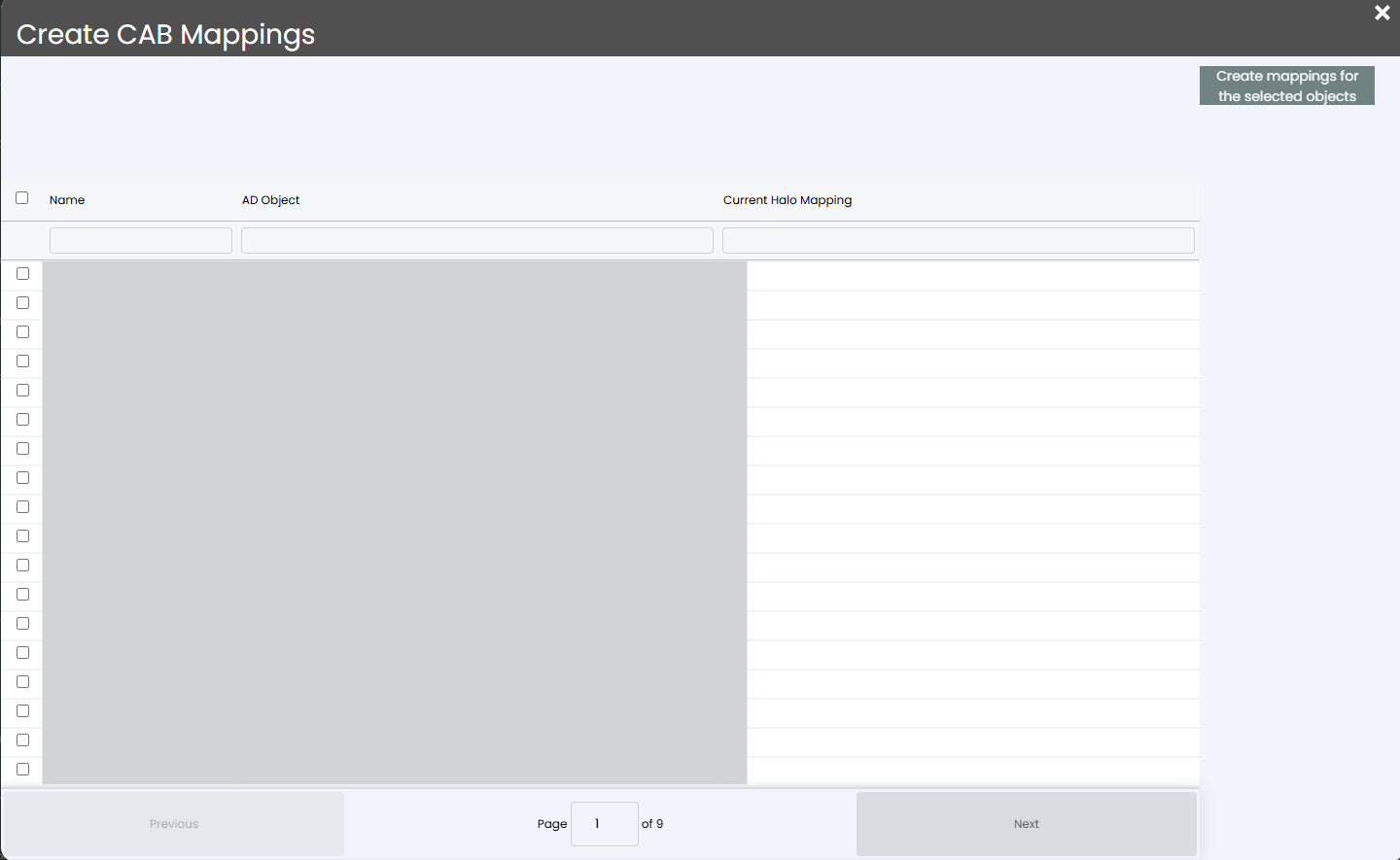
Fig 15. AD Explorer screen for creating CAB Mappings
New User Onboarding
This tab provides you with the option to choose the ticket template that is used for the ticket logged when new users are imported from Active Directory.
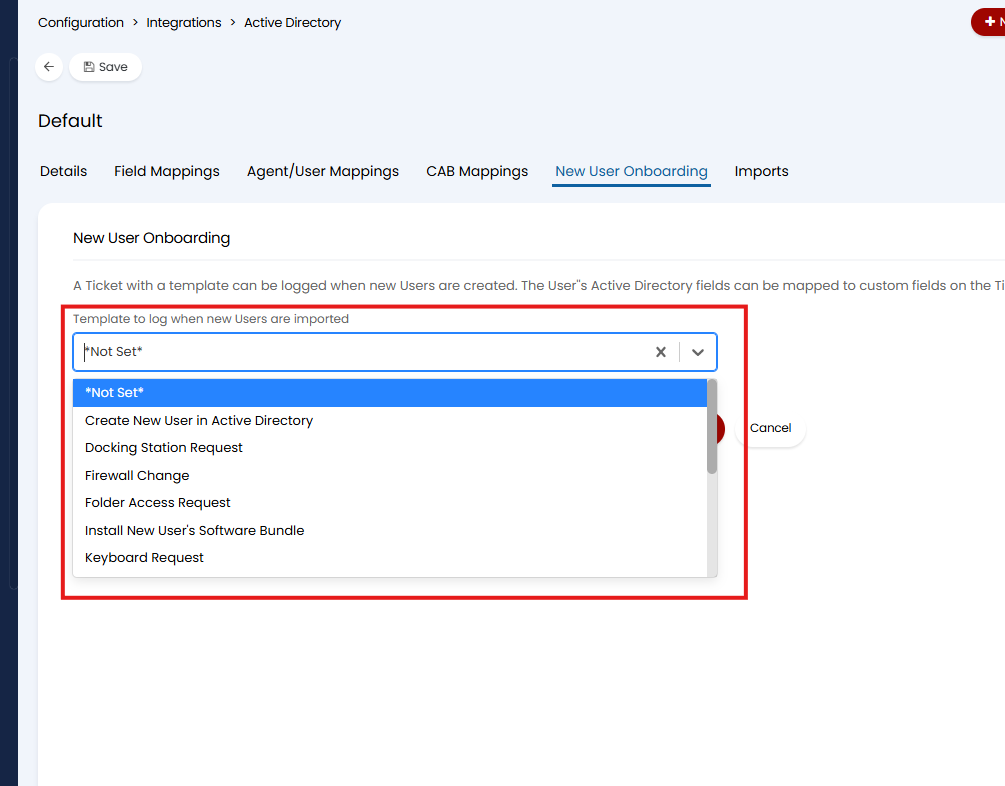
Fig 16. The template selection option in the New User Onboarding tab of AD
When you select your chosen ticket template, further configuration options dynamically appear that allow you to determine the end-user behaviour and any ticket level field mappings you wish to have.
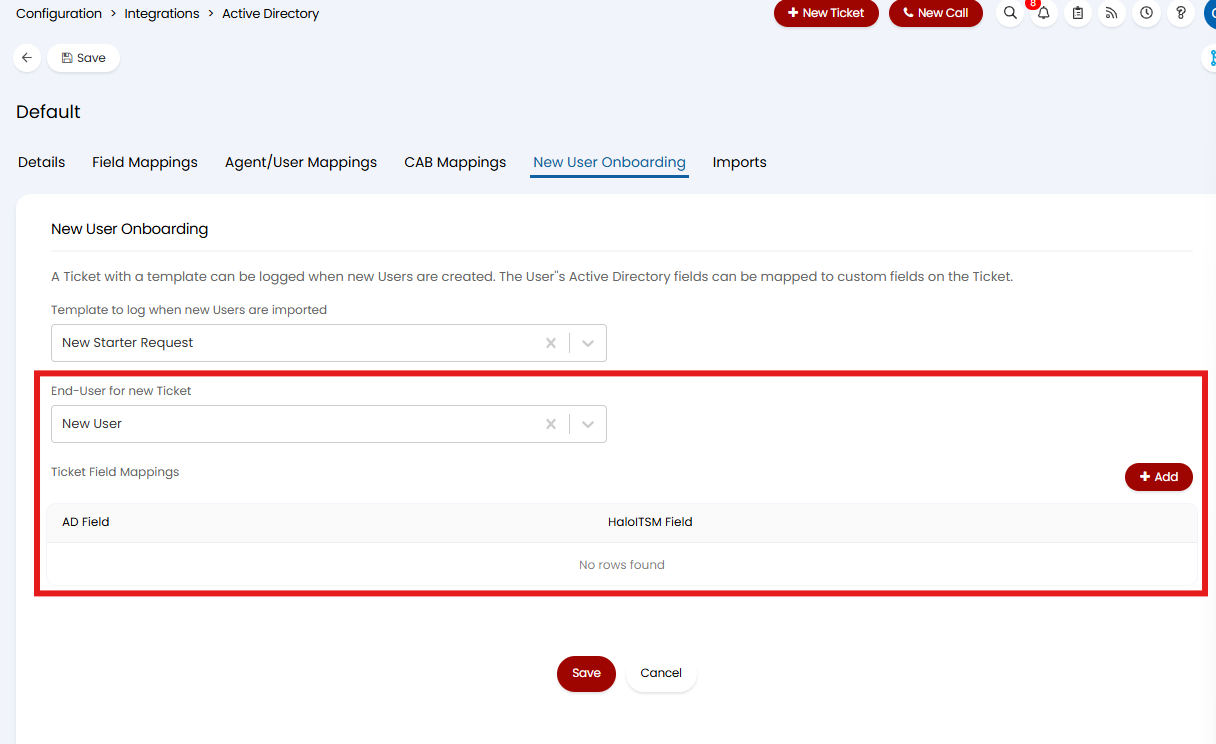
Fig 17. End-user and field mapping configuration options for the New User Onboarding ticket tab
Configuring this tab correctly means that, every time a new user is created in AD and synced through to Halo, a new ticket will be logged with the relevant details needed for the onboarding.
The templates that are available for selection are any (parent) ticket templates, child templates are not available for selection. These can be configured in Configuration > Tickets > Templates, keep the entity as 'Ticket Template':
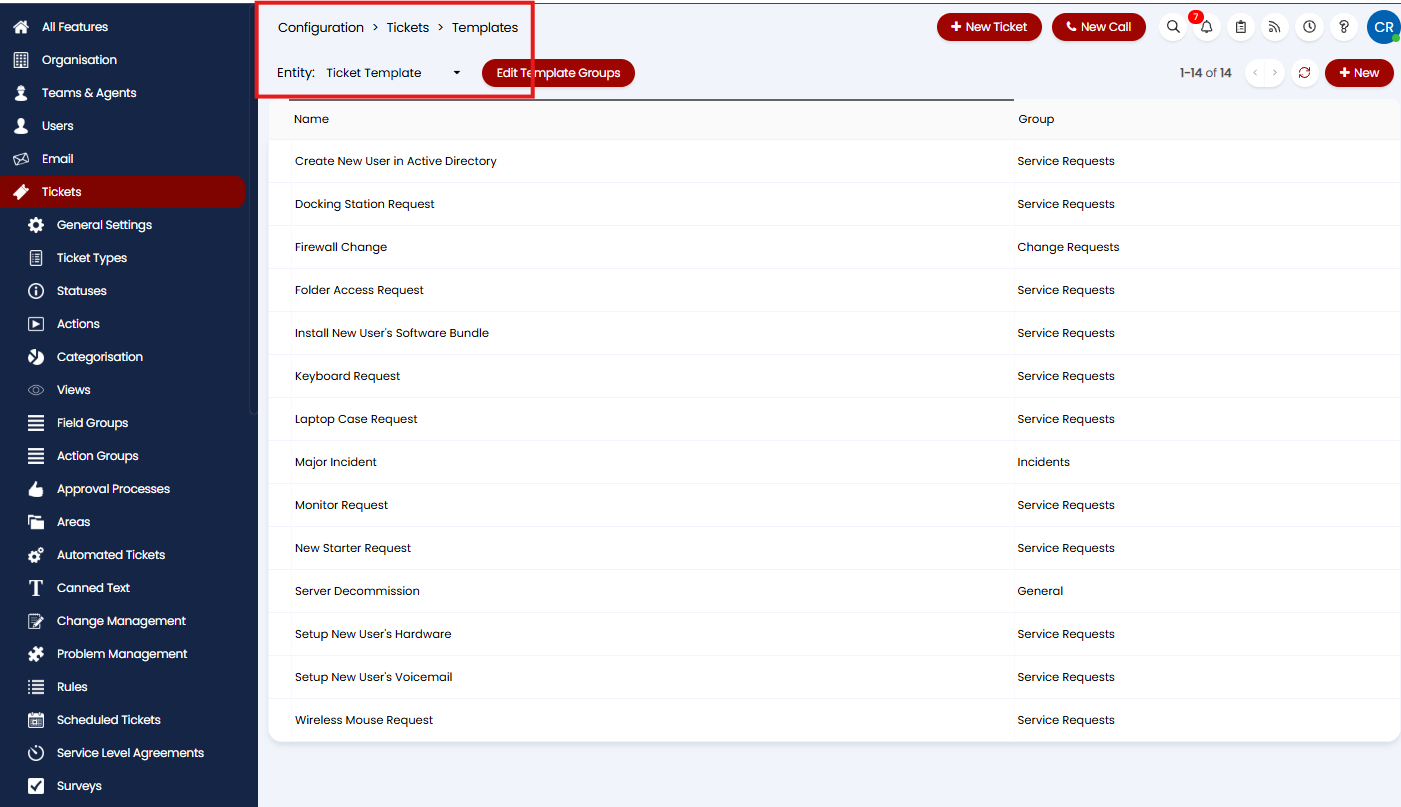
Fig 18. Configuration area in Halo for Ticket Templates
To find out more information on configuring Ticket Templates, please refer to the following guide: Ticket Templates.
Imports
The Imports tab for the AD integration allows you to choose the matching fields for importing agents and users into Halo. These matching fields are in place as a failsafe to prevent the creation of duplicate records in Halo. By default, the unique ID of the Active Directory Agent or User will always be checked first before any other matching fields.
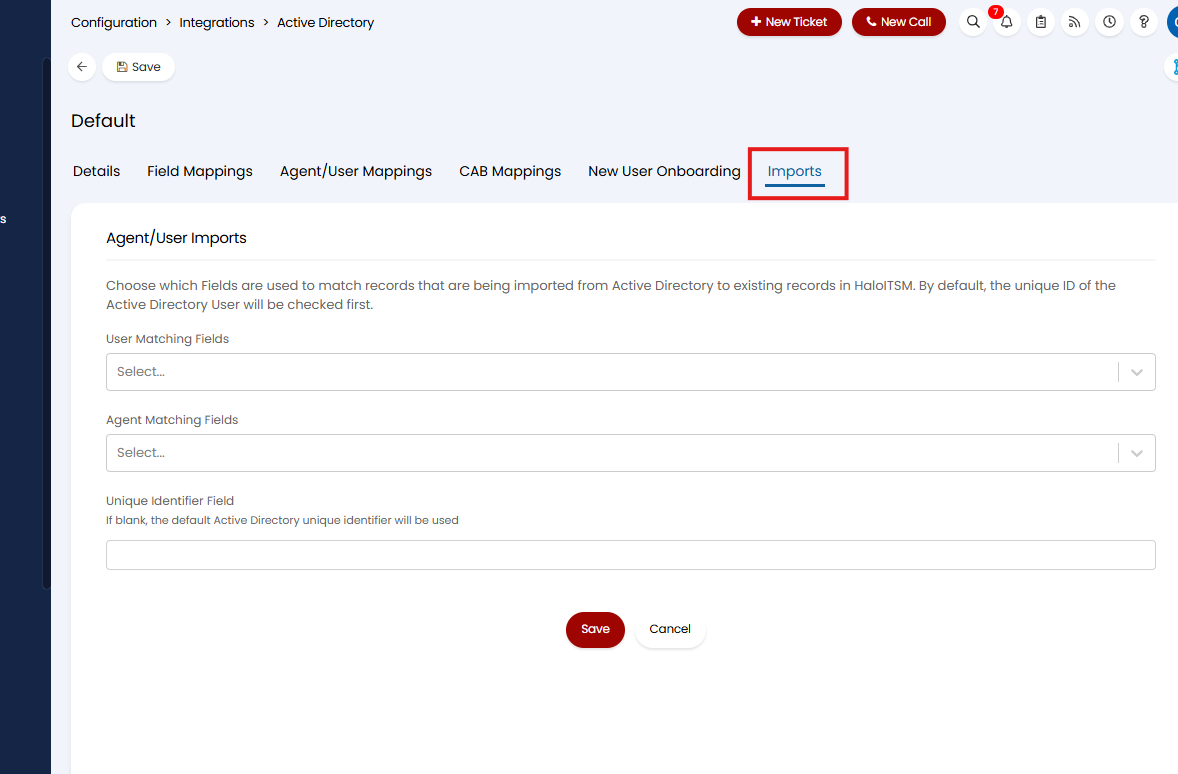
Fig 19. The Imports tab of the AD integration
The options for the matching fields are hardcoded and the current options are the following:
User Matching Fields
- Name
- Email Address
- Network Login
- 'Other' Fields 1-5
Agent Matching Fields
- Name
- Email Address
- Network Login
The Unique Identifier Field provides the option to change the default matching field from Active Directory unique ID to another field of your choice.
Note: It is recommended to use Email Address for at least one of the matching fields because, aside from the AD unique ID, it is the field most likely to be unique per Agent/User.
Running the Sync
Once you have completed the configuration of all six tabs of the Active Directory integration, it is ready to start syncing.
If you have enabled the Halo Integrator for the integration, then the sync will run on a schedule without you having to manually import the data. In the Halo Integrator section in the details tab of the integration you will be able to see when it last synced and if there were any errors in the last sync.

Fig 20. Sync fields for the Halo integrator section of the Active Directory integration
If you want to run an import of Agents and Users from Active Directory immediately without waiting for the first sync, then you can use the 'Sync Now' button (Figure 7).
Note: If you do not enable the Halo Integrator for the integration, then you will need to manually import in Agents and Users using the 'Sync Now' button any time you want to align your users in Halo with those in AD.
Helpful Information
In this section you can find information on the AD and Halo fields commonly used for the Active Directory integration, as well as information on the use of Child Domains.
Fields
LDAP field names
Note: The label seen in active directory is often different to the field name.
LDAP Attribute | Example/Description |
CN - Common Name | CN=Guy Thomas. Actually, this LDAP attribute is made up from givenName joined to SN |
description | What you see in Active Directory Users and Computers. Not to be confused with displayName on the Users property sheet. |
displayName | displayName = Guy Thomas. Avoid this attribute if possible, as it can be confused with CN or description. |
DN - also distinguishedName | DN is simply the most important LDAP attribute. CN=Jay Jamieson, OU= Newport,DC=cp,DC=com |
givenName | First name |
homeDrive | Home Folder : connect. |
name | name = Guy Thomas. Exactly the same as CN. |
| title | Job title for the Agent/User |
objectCategory | Defines the Active Directory Schema category. For example, objectClass = Person |
objectClass | objectClass = User. Also used for Computer, organizationalUnit, even container. Important top level container. |
physicalDeliveryOfficeName | Office on the user's General property sheet |
profilePath | Roaming profile path: connect |
sAMAccountName | sAMAccountName = guyt. Old NT 4.0 logon name, must be unique in the forest. Can be confused with CN. |
SN | SN = Thomas. This would be referred to as last name or surname. |
userAccountControl | Used to disable an account. A value of 514 disables the account, while 512 makes the account ready for logon. |
userPrincipalName | userPrincipalName = guyt@CP.com Often abbreviated to UPN, and looks like an e-mail address. Very useful for logging on especially in a large Forest. Note UPN must be unique in the forest. |
| memberOf | CN=IT Staff,OU=Groups,DC=company,DC=com. This attribute determines which AD groups a user belongs to. |
| userAccountControl | 512 = Normal account, 514 = Disabled account, 66048 = Enabled, password never expires. This attribute tells you if the account is disabled/enabled. |
Exchange Specific LDAP attributes
LDAP Attribute | Example/Description |
homeMDB | Here is where you set the MailStore |
An easy, but important attribute. A simple SMTP address is all that is required billyn@ourdom.com | |
mAPIRecipient - FALSE | Indicates that a contact is not a domain user. |
mailNickname | Normally this is the same value as the sAMAccountName, but could be different if you wished. Needed for mail enabled contacts |
mDBUseDefaults | Another straightforward field, just the value to:True |
msExchHomeServerName | Exchange needs to know which server to deliver the mail. e.g: /o=YourOrg/ou=First Administrative Group/cn=Configuration/cn=Servers/cn=MailSrv |
legacyExchangeDN | Legacy distinguished name for creating Contacts. In the following example, Guy Thomas is a Contact in the first administrative group of GUYDOMAIN: /o=GUYDOMAIN/ou=first administrativegroup/cn=Recipients/cn=Guy Thomas |
proxyAddresses | As the name 'proxy' suggests, it is possible for one recipient to have more than one e-mail address. Note the plural spelling of proxyAddresses. |
targetAddress | SMTP:@ e-mail address. Note that SMTP is case sensitive. All capitals means the default address. |
showInAddressBook | Displays the contact in the Global Address List. |
Other LDAP attributes
| LDAP Attribute | Example/Description |
c | Country or Region |
company | Company or organization name |
department | Useful category to fill in and use for filtering |
homephone | Home Phone number, (Lots more phone LDAPs) |
l (Lower case L) | L = Location. City (Maybe Office) |
location | Important, particularly for printers. |
manager | Boss, manager |
mobile | Mobile/Cell Phone number |
ObjectClass | Usually User, or Computer |
OU | Organizational unit. See also DN |
postalCode | Zip or post code |
st | State, Province or County |
streetAddress | First line of address |
telephoneNumber | Office Phone |
Halo Agent Fields for LDAP Sync
Agent Field | Database Field Name |
Agent / Technician Name | Uname |
Email Address | USMTP |
IP Address / PC Name | UPC |
Telephone Number | USMS |
Job Title | UJobTitle |
Secondary Telephone Number (Used on Call Screens) | UExtensionNumber |
Halo User Fields for LDAP Sync
User Field | Database Field Name |
Username | Uusername |
Title | Utitle |
Email Address | Uemail |
Additional Emails | Uemail2 |
LDAP Proxy Email | Uemail3 |
Network Login | Ulogin |
Work Direct/Extn. | Uextn |
Work General | (set at site level) |
Work Mobile/Cell | Umobile2 |
Home Mobile/Cell | Umobile |
Home Fixed | Utelhome |
Fax Number | Ufax |
User Defined 1 | Uother1 |
User Defined 2 | Uother2 |
User Defined 3 | Uother3 |
User Defined 4 | Uother4 |
User Defined 5 | Uother5 |
Notes | Unotes |
Twitter Screen Name | Utwitterscreenname |
Disclaimer Matching String | Ufacebookid |
Child Domains
When logged into one domain, if you try to do an LDAP sync to a child domain, then no users will be listed and there will not be any error messages.
This is because the default domain context is taken to be the domain you are logged into. This can often be fixed by logging into the child domain.
Alternatively, specify the FDQN of the domain in the LDAP string. For example, it is possible to explicitly specify the FDQN of the LDAP server in the string.
E.g: Instead of: LDAP://CN=Users,DC=adw2k1,DC=co,DC=uk
You can say:
LDAP://adw2k1.co.uk/CN=Users,DC=adw2k1,DC=co,DC=uk
Putting the child domains FQDN in the string instead to query the child domain.