Hosting your own Halo Integrator
In this guide we will cover:
- Installing the Halo Integrator
- Configuring the Halo Integrator
- Setting up different Scheduled Tasks for your Halo Integrator
- Upgrading your Halo Integrator
Related Guides:
This guide will cover how to install, setup and upgrade the 'Locally Hosted' version of the Halo Integrator. For information on what the Halo Integrator is and if you need to host your own please see: Halo Integrator.
Installing the Halo Integrator
The Halo Integrator can be accessed and installed via the Halo Integrator Module by navigating to Configuration > Integrations > Halo Integrator
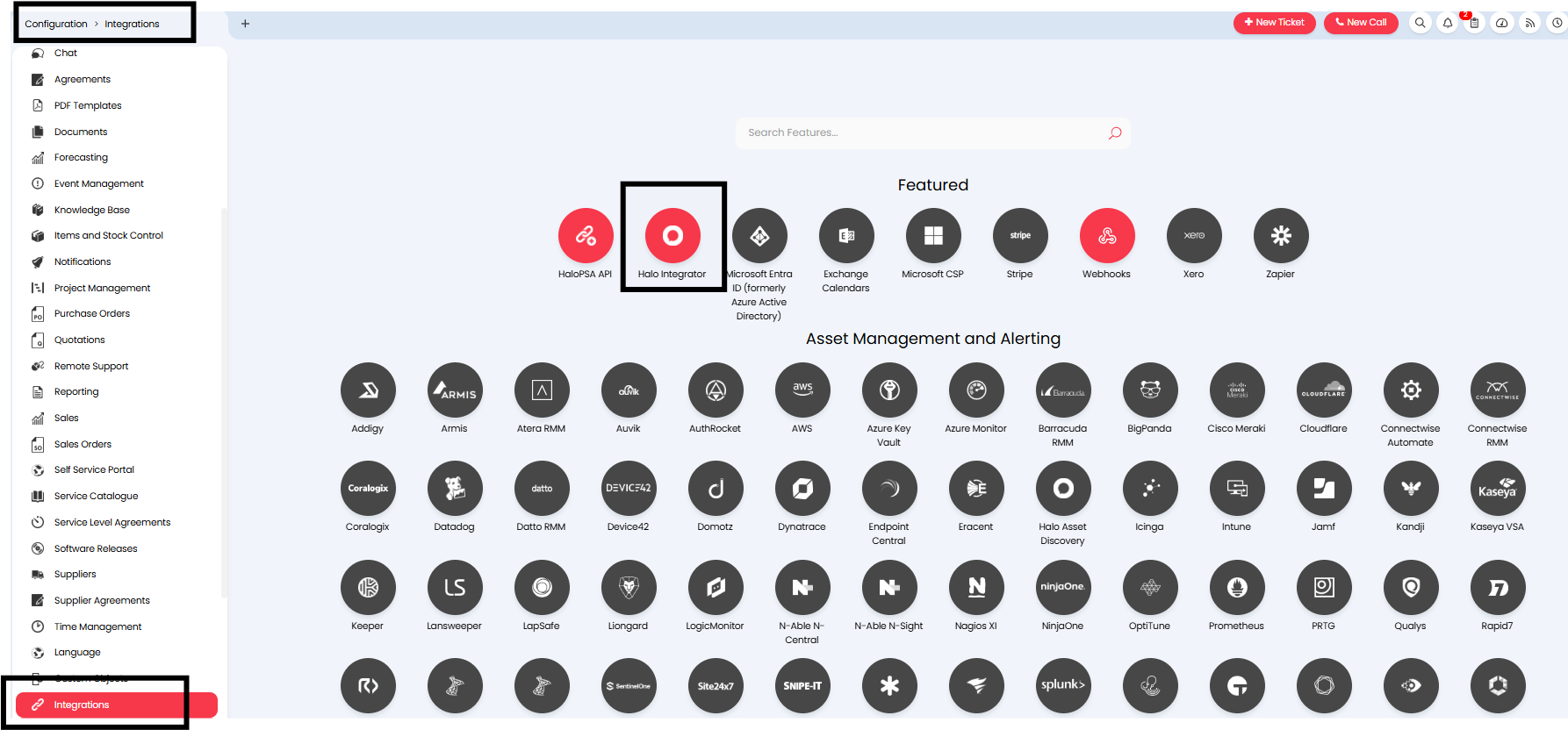
Fig 1. Locating the Halo Integrator Module
The module contains information which is useful for hosting your own Halo Integrator as well as monitoring your Halo Hosted Integrator. However, we mainly care about these two features for hosting our own Halo Integrator:
- The ability to download the latest version of the Halo Integrator as a zip file.
- Seeing which integrations are currently enabled in our Halo Instance
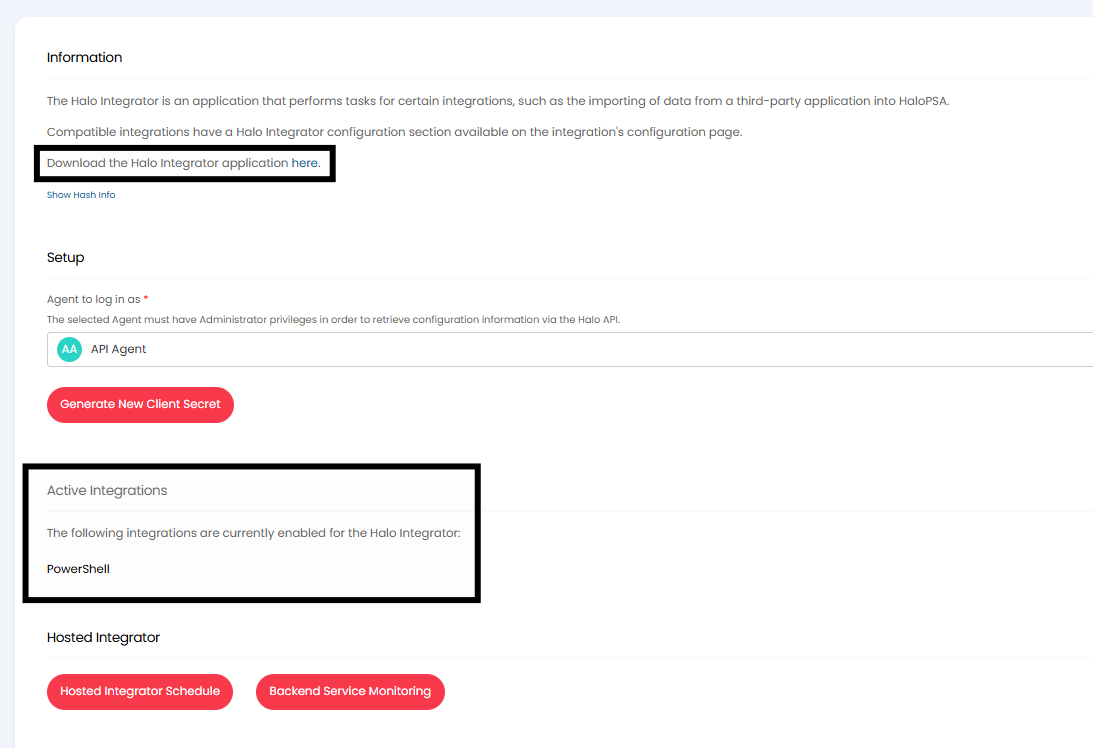
Fig 2. Install the Halo Integrator and check Enabled Integrations
By selecting the hyperlink above we can install a zip file containing the Halo Integrator.
Configuring the Halo Integrator
Now that we have installed the Halo Integrator we need to configure a file directory to store it and configure the Halo Integrator application.
First we will create a folder to store our local Halo Integrator. Make sure to name this accurately so we do not forget what this is used for.
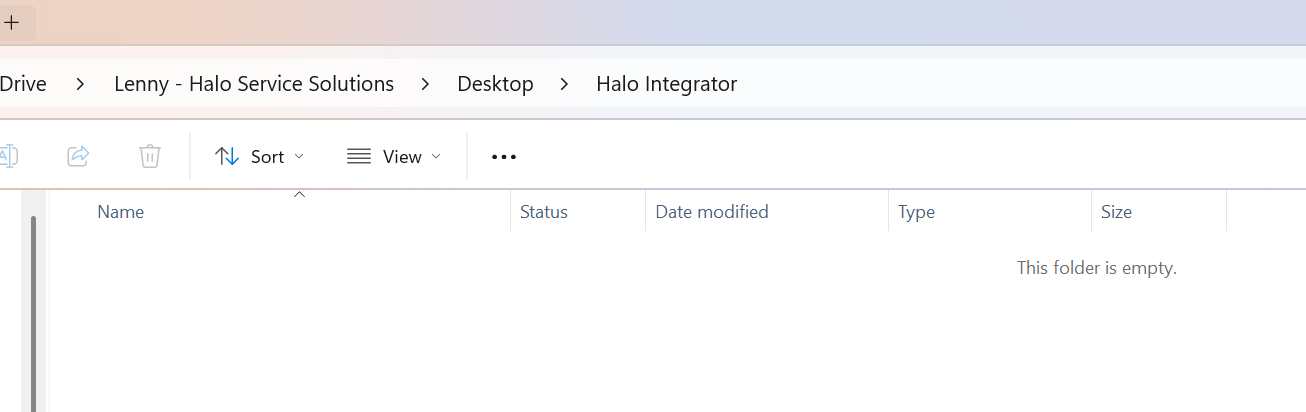
Fig 3. Halo Integrator Folder
Then you will need to extract the zip file to the folder location.
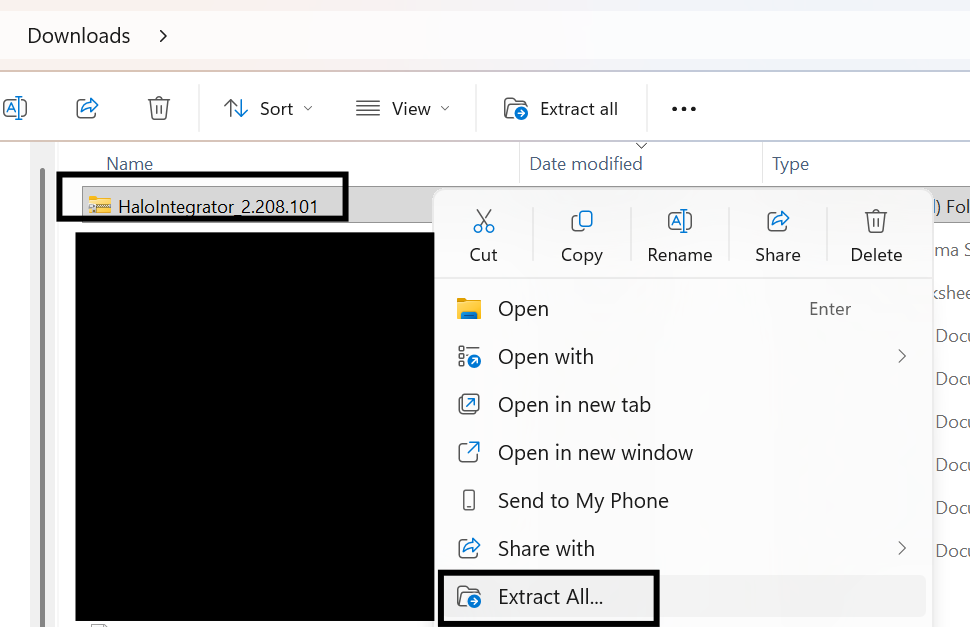
Fig 4. Extracting the Integrator zip file from downloads
Now select the folder we have created and extract the zip file to here:
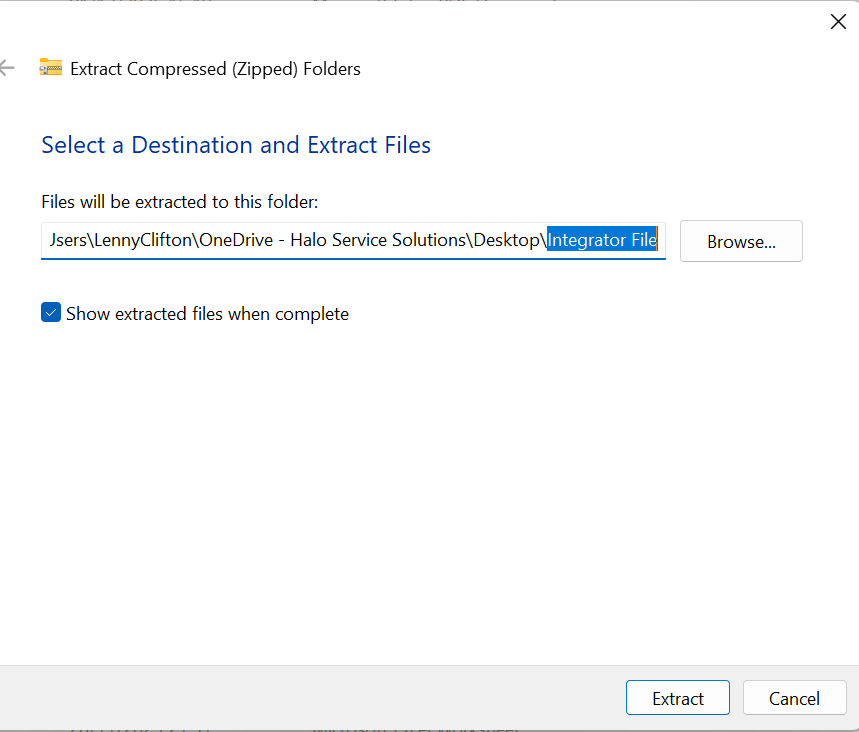
Fig 5. Selecting the Integrator Folder to extract to
With this extracted we can now view the folder which will contain the Halo Integrator and a x64 Halo Integrator.
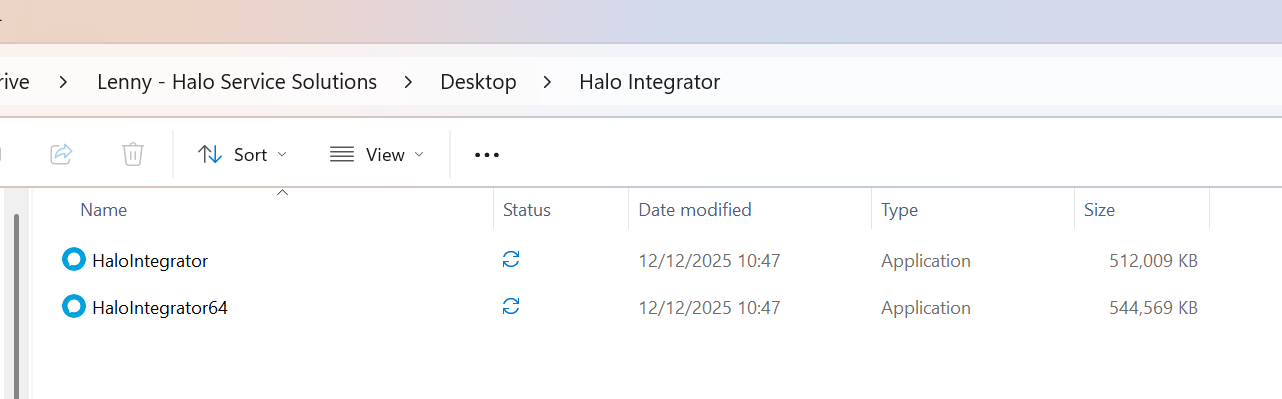
Fig 6. The two Halo Integrators in our Integrator Folder
Now we can proceed with validating and setting up the connection between our locally hosted integrator and our Halo instance using the API. The Halo Integrator has four main tabs:
- Basic Configuration
- Halo URL - This is the URL of your Halo instance
- Client ID - This is either the default client ID or from a separate Halo API application. This should already be populated based off of downloading the application.
- Client Secret - This is either the default client ID or from a separate Halo API application
- Integrations
- This tab allows you to select which integrations to sync using the Halo Integrator. Note that integrations must be enabled both here and in Halo's configuration.
- Processing
- This tab allows you to manually process integration syncs. We can either select all integrations or specific modules. This is useful for testing before setting up recurring syncs with task scheduler.
- About
- Provides information on the version of the Integrator as well as contact information for Halo Support.
Within the basic configuration tab we should already have the client ID populated:
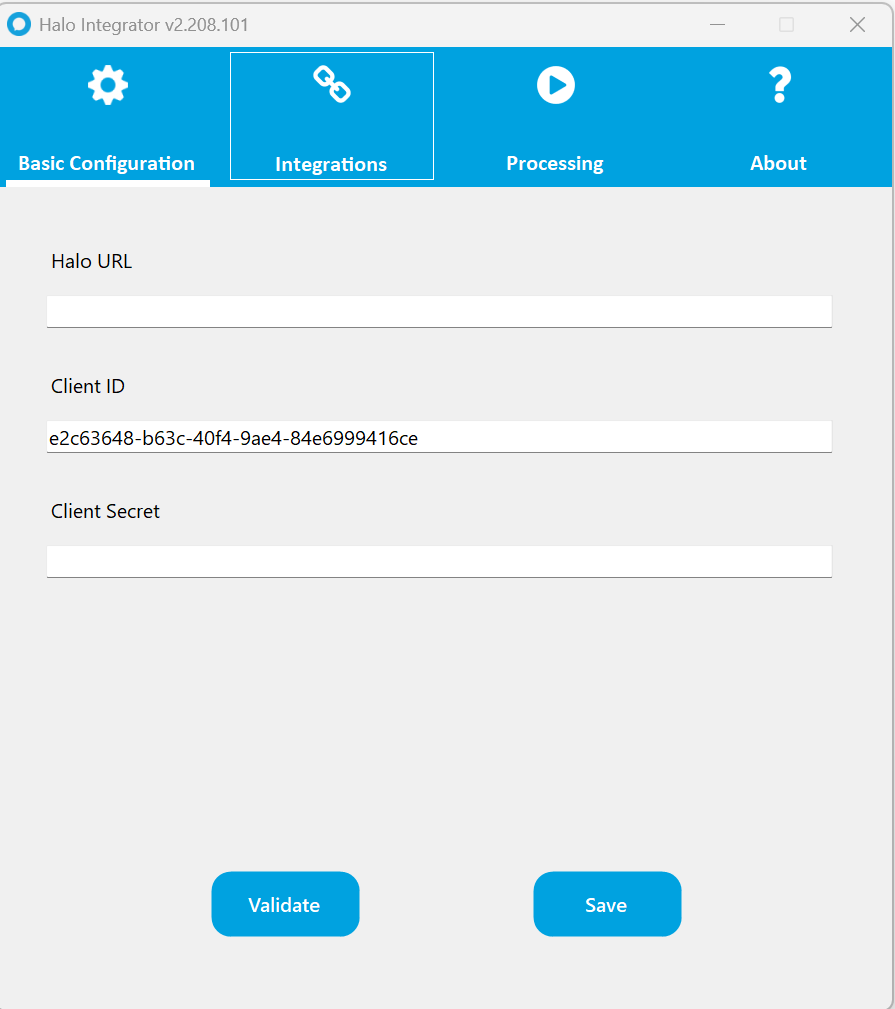
Fig 7. Halo Integrator pre-populated with the Client ID
All we need to do is input our Halo URL:
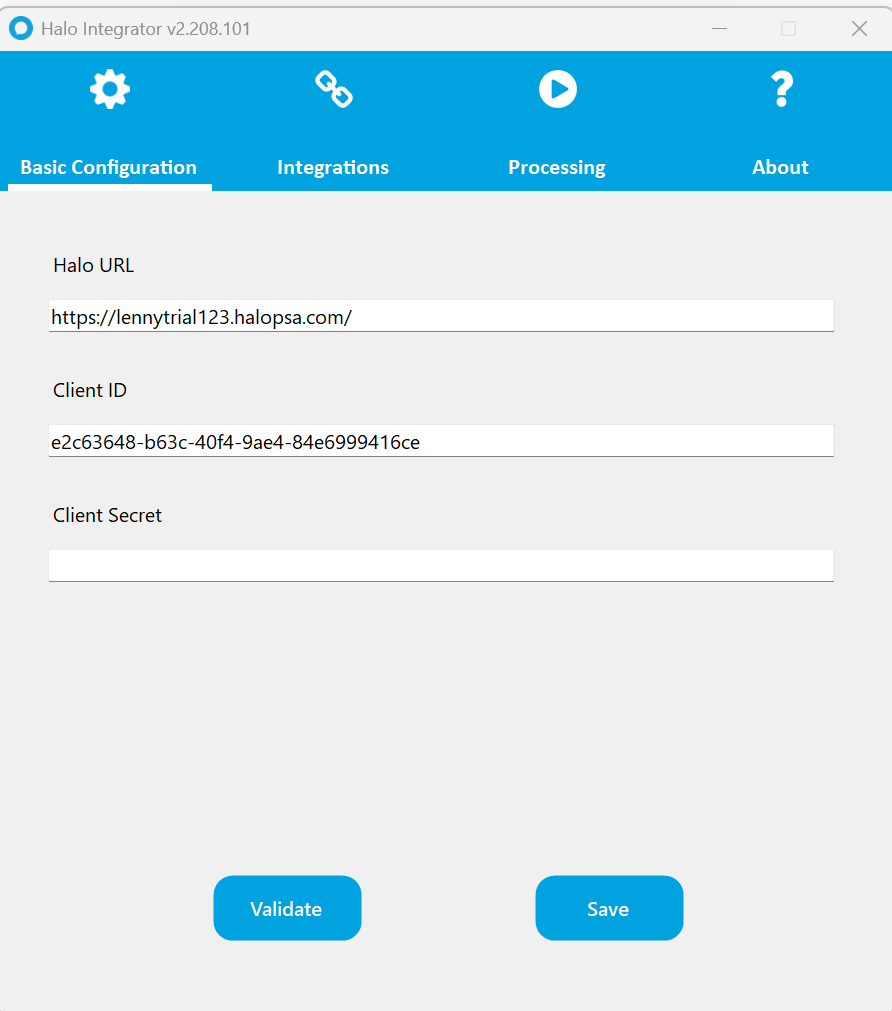
Fig 8. Halo Integrator with the Halo URL
The final part is to input a client secret. We can use either our own Halo API Application or the default set in Configuration > Integrations > Halo Integrator.
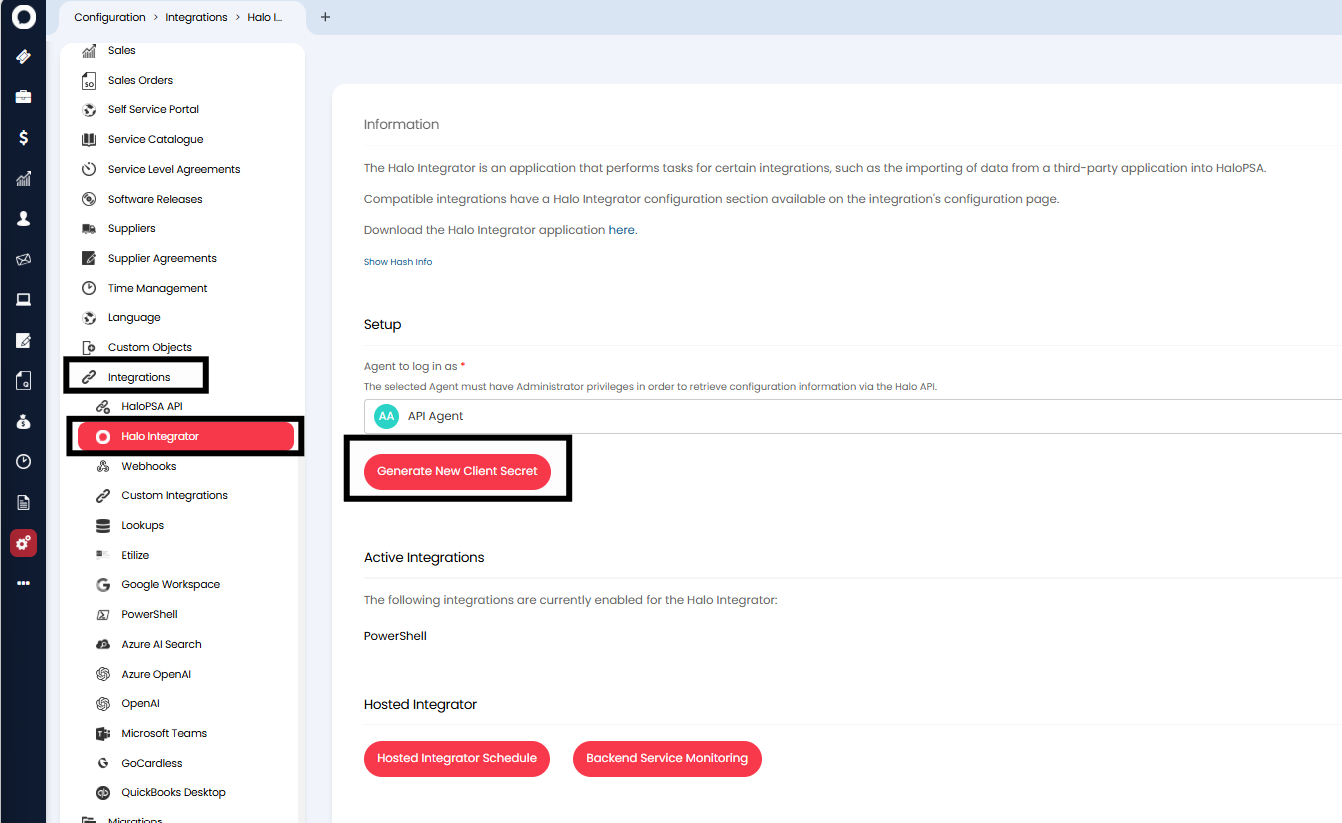
Fig 9. The Halo Integrator Module
Before generating the secret you will need to choose an agent for the Halo Integrator to log in as in the "Agent to log in as" field. We recommend creating an API only agent with administrator access, this will only be used to execute synchronization processes. API only agents will not use up a licence.
Create an API Only Agent
Go to Configuration > Teams & Agents > Agents > New. Configure the agent with the following properties:
Give them a descriptive Username
Assign an administrator-level role in Roles (e.g., "HaloITSM Administrator")
Check Is an API-only Agent
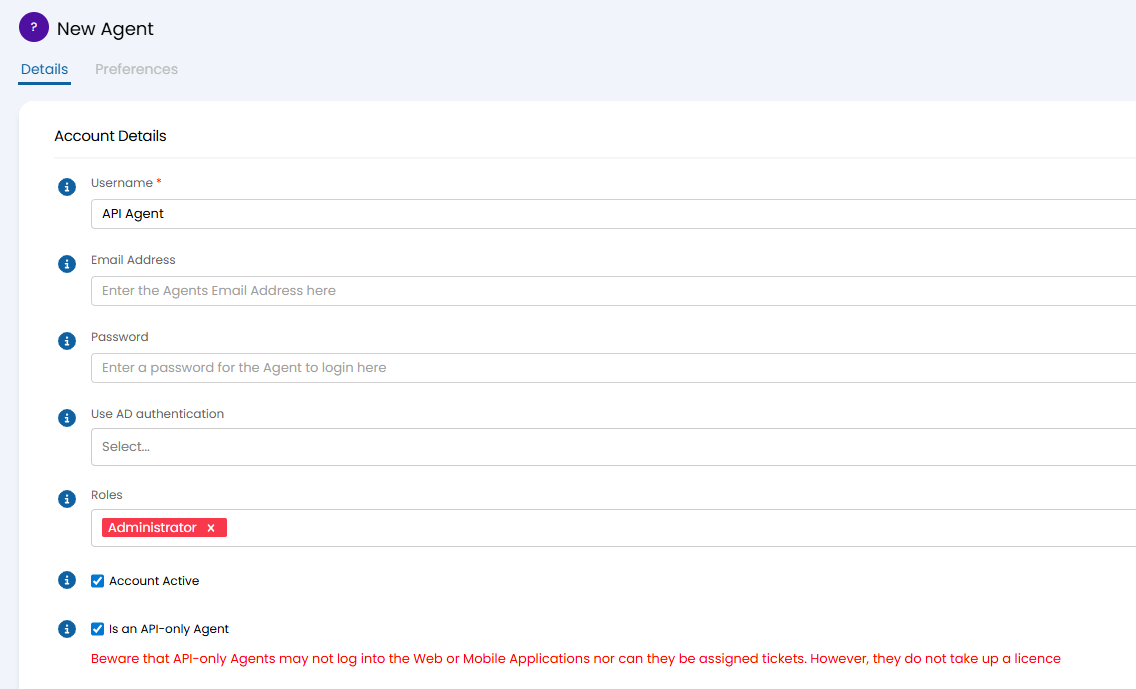
Fig 10. Create API only Agent
Now save the agent. Once created set this agent to be the agent to log in as for the Halo Integrator.
Now we can generate a new client secret for the Halo Integrator to use using the "Generate New Client Secret".
Once we select the button to "Generate New Client Secret" we will receive a popup warning.

Fig 11. Generating a new client secret warning
Then we can specifically generate a new secret, copy it and input into the basic configuration tab of the Halo Integrator.
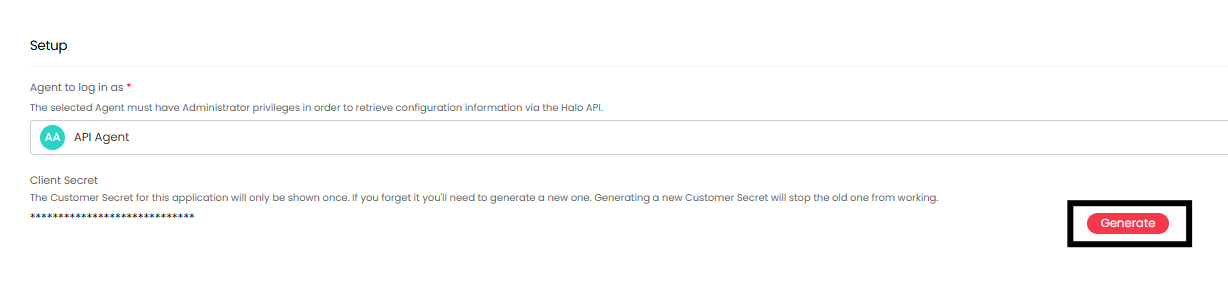
Fig 12. Generating a new Client Secret
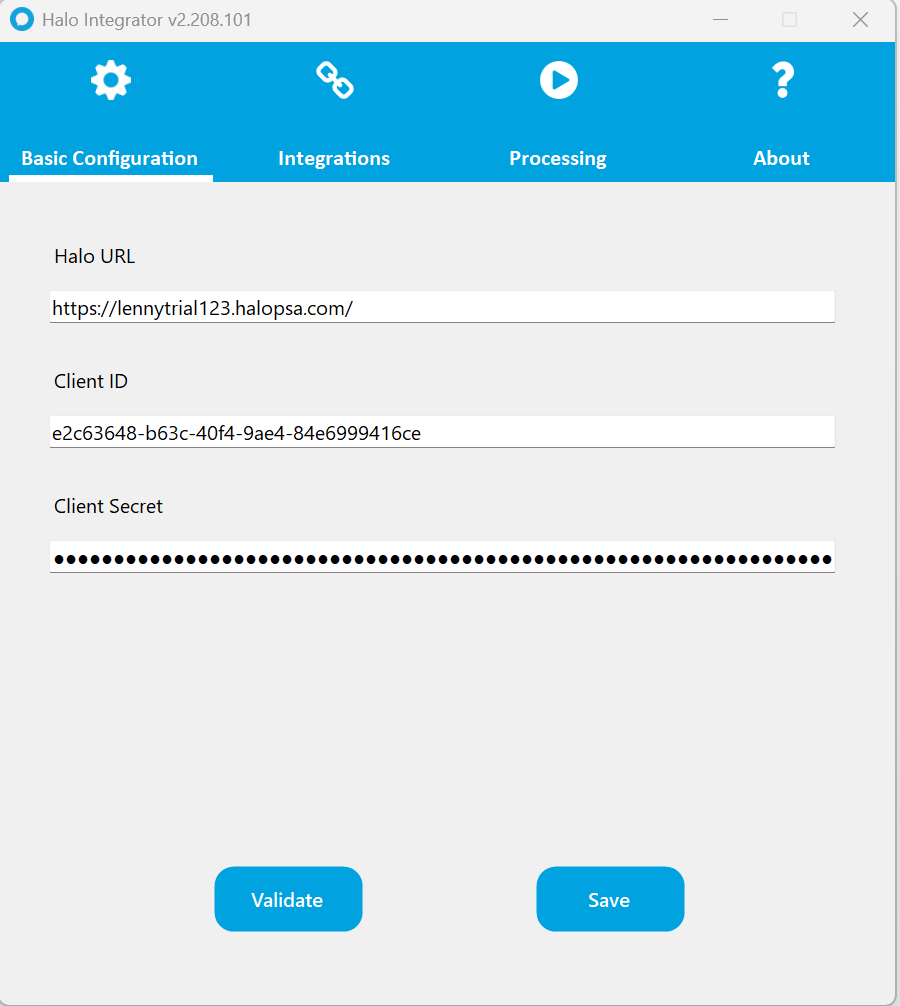
Fig 13. Inputted the Client Secret into the Basic Configuration tab
Important: If this button "Generate New Client Secret" is clicked again, this will replace the existing secret. You will need to update the secret in your Halo Integrator, otherwise this will not run.
With this done we can now select save. This will add an appsettings.json file into our integrator folder. This will contain an array of integrations we have set to be processed as well as the encrypted connection string for the Halo Integrator executable file.
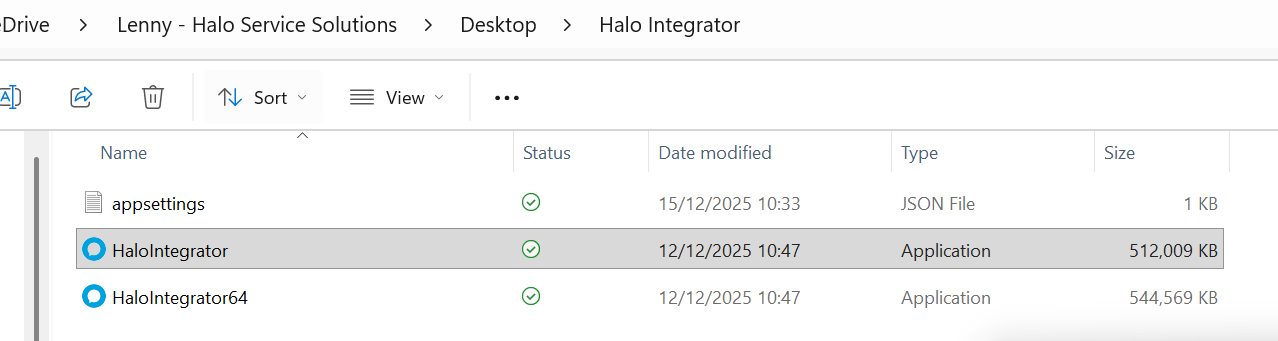
Fig 14. Newly generated appsettings.json file
Now we can validate the connection for the Halo Integrator. If this is successful this will display a green message if not it will throw an error. If you do receive an error it may be to do with the credentials you have inputted previously.
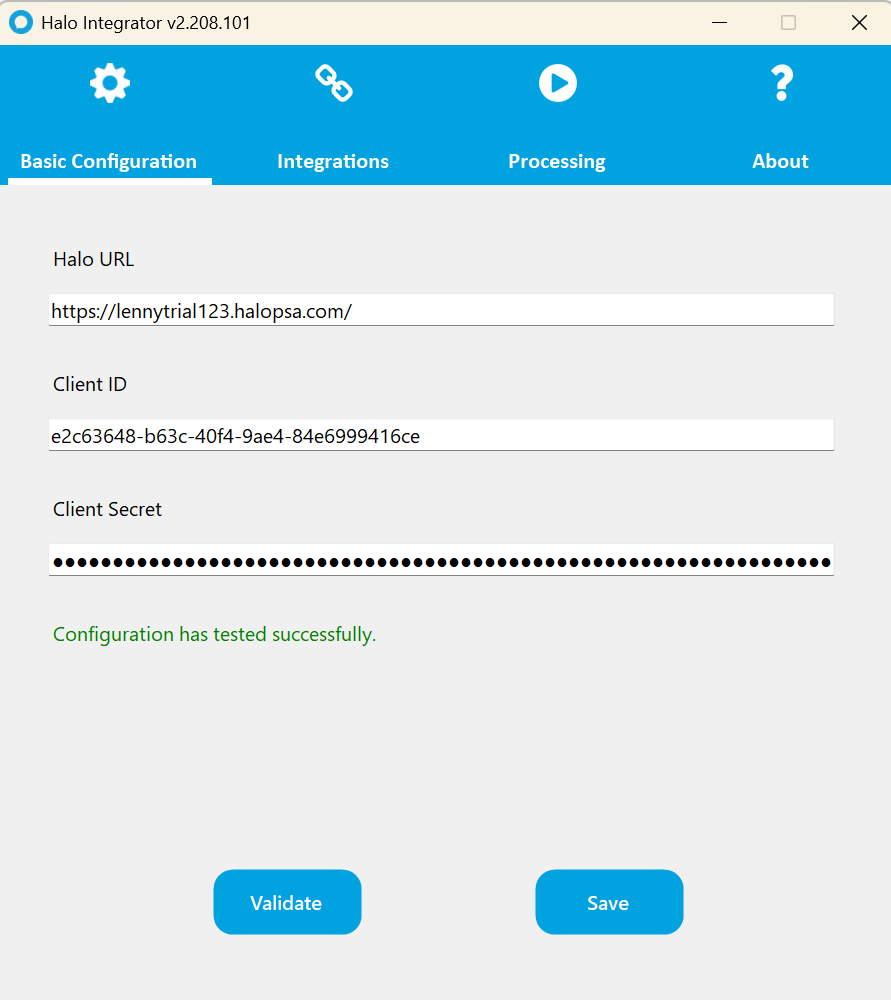
Fig 15. Validated Halo Integrator
With this complete, we can now select the integrations we would like to process within the integrations tab.
Note: Integrations must be enabled both here and in Halo's configuration (within the integration setup page).
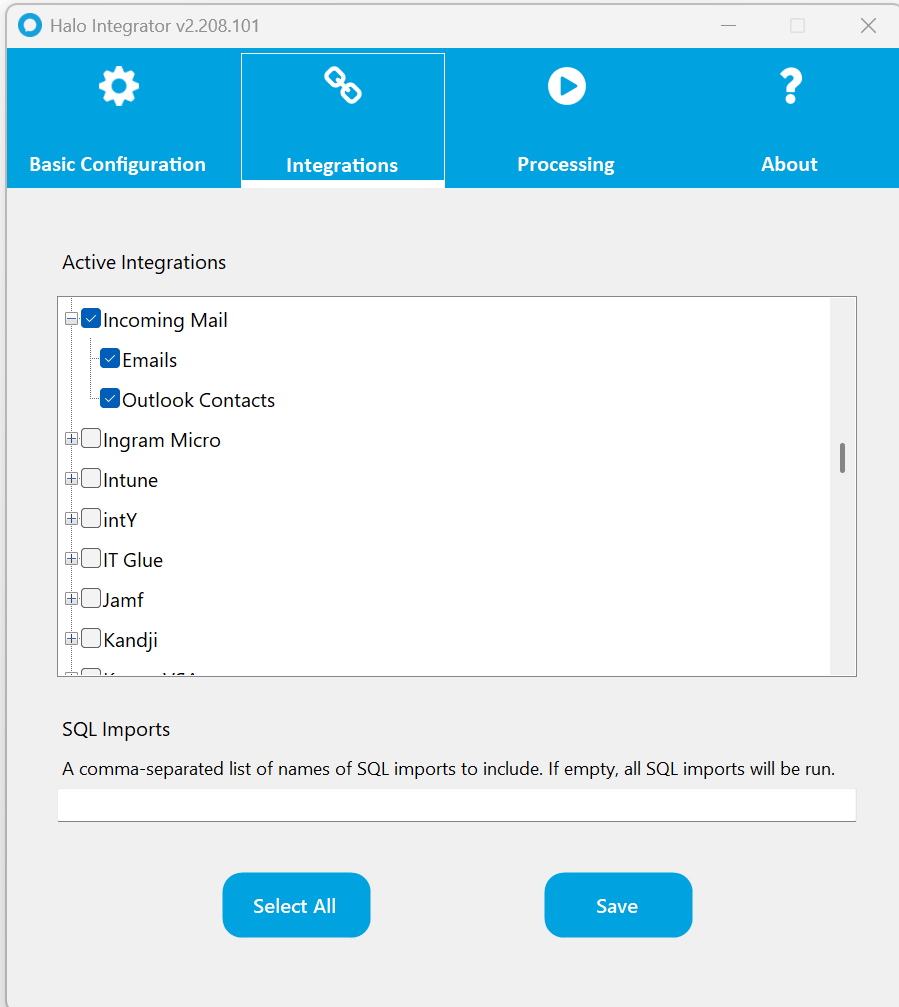
Fig 16. Incoming Mail selected as an integration to process
For every integration we select this will be added to a module array within the appsettings.json file. This becomes useful for determining the different schedules we would like to sync our integrations. Notice I have selected incoming mail and the powershell integration to be processed. However, these will be processed on different schedules using task scheduler.
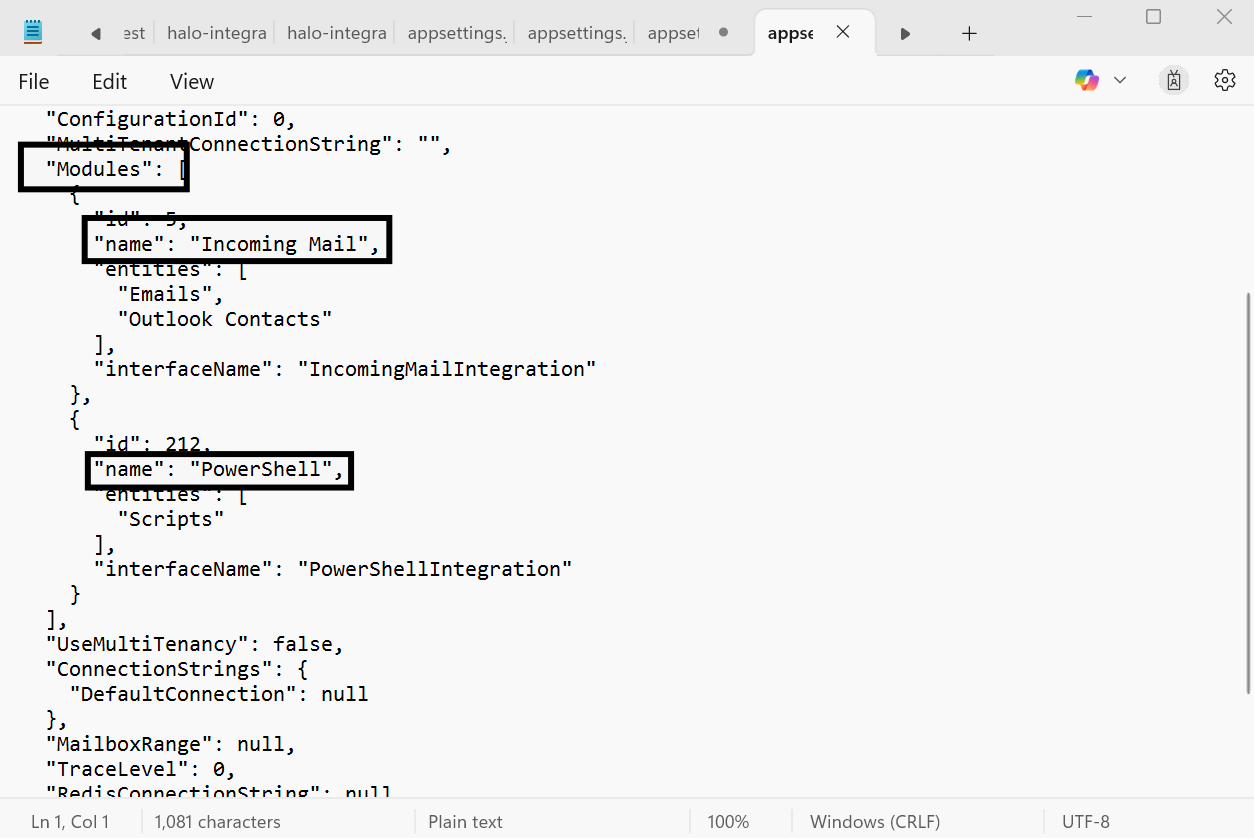
Fig 17. Module array within the appsettings.json file
Then with these integrations selected we now move to the processing tab. Here we can manually process and test individual integrations or all of them at once. Test manually here before setting up recurring imports.
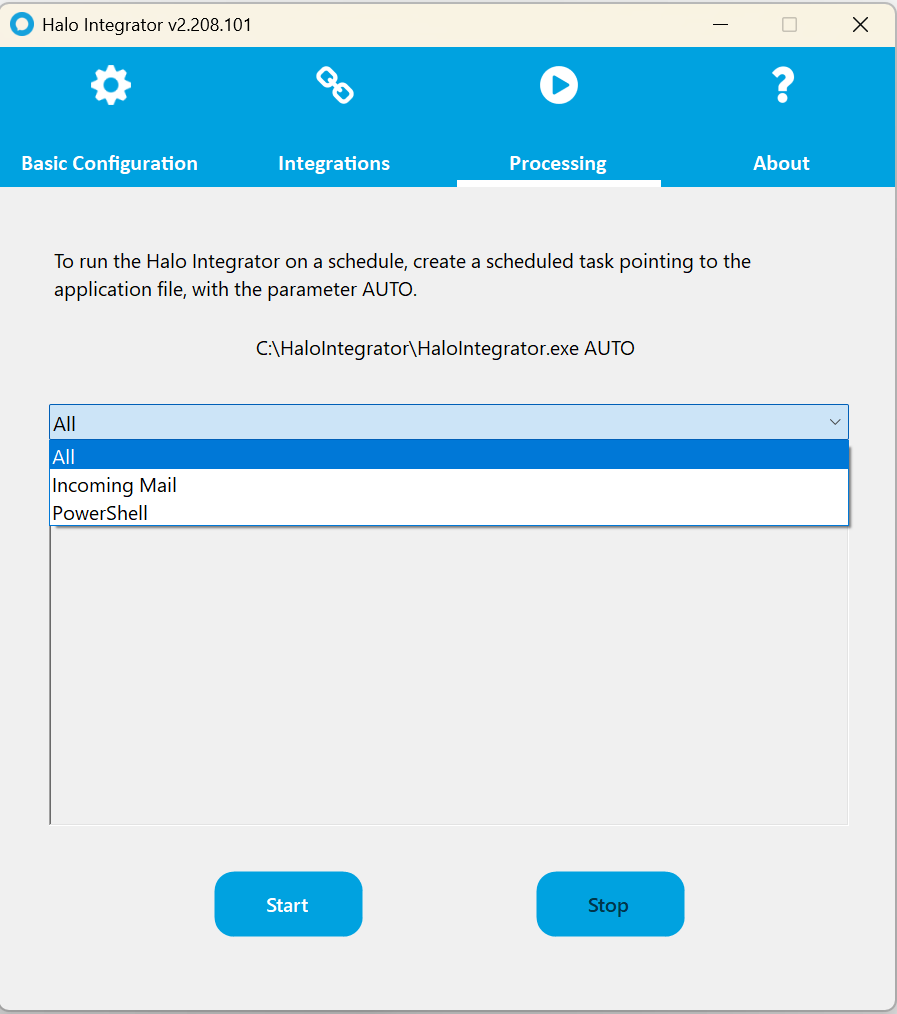
Fig 18. Processing tab
For example, I can manually process the PowerShell integration. Which will search for the integration, determine if there is anything to be synced and process this. This will also generate a log folder within your integrator folder. This is where you can view any logs for your integrations processed by this Halo Integrator.
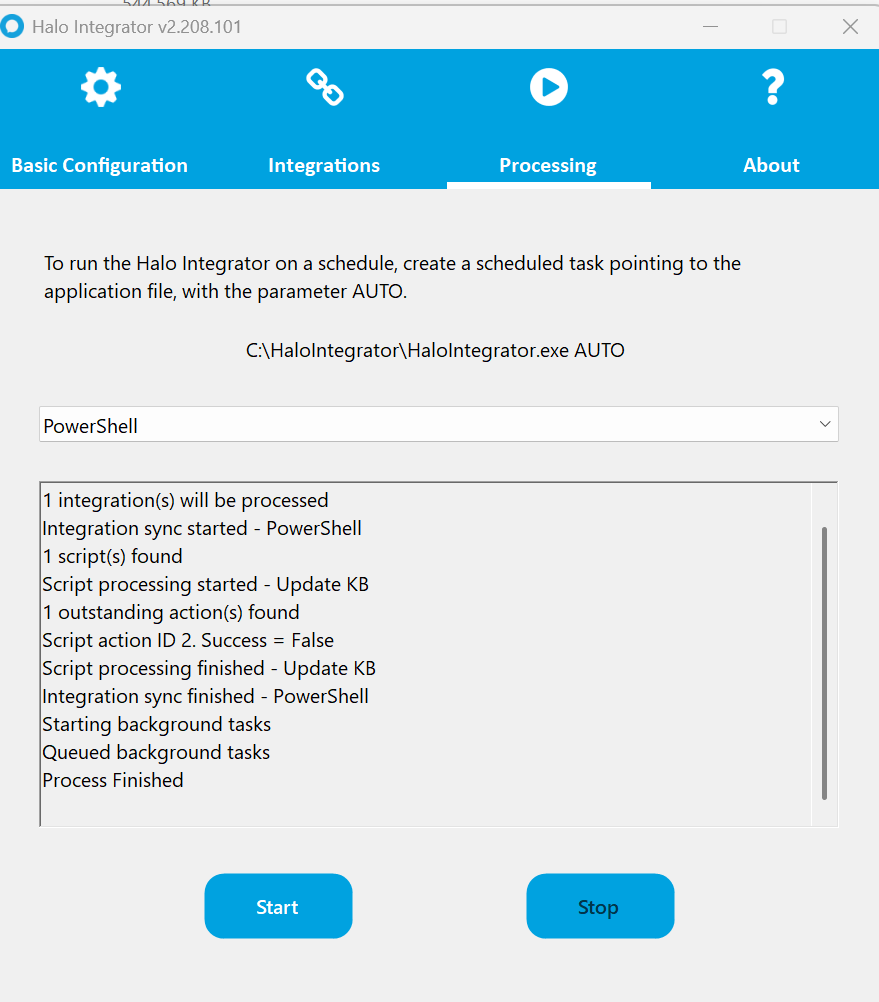 Fig 19. Manually processing an integration
With this complete we have now setup the Halo Integrator, validated it's connection and tested the syncing of an integration. The last step is to setup a recurring sync using task scheduler. This will allow syncs to take place automatically.
Setting up different Scheduled Tasks for your Halo Integrator
A Windows scheduled task must be created to run the locally hosted Halo Integrator on a recurring schedule. As per the instructions shown in figure 18 on the processing tab, the scheduled task must point to the application file with an additional argument of AUTO. The AUTO parameter starts the processing after the application is loaded by the scheduled task.
You would only need to configure the first three tabs within task scheduler as well as the last one. To begin you can search for "Task Scheduler":
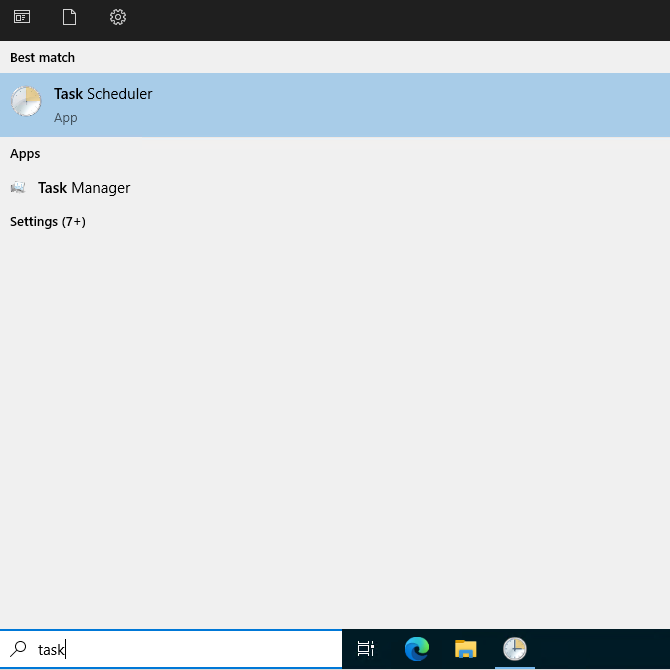
Fig 20. Search for Task Scheduler
Then create a task either by right clicking on the task scheduler library or navigating to actions then selecting "Create Task":
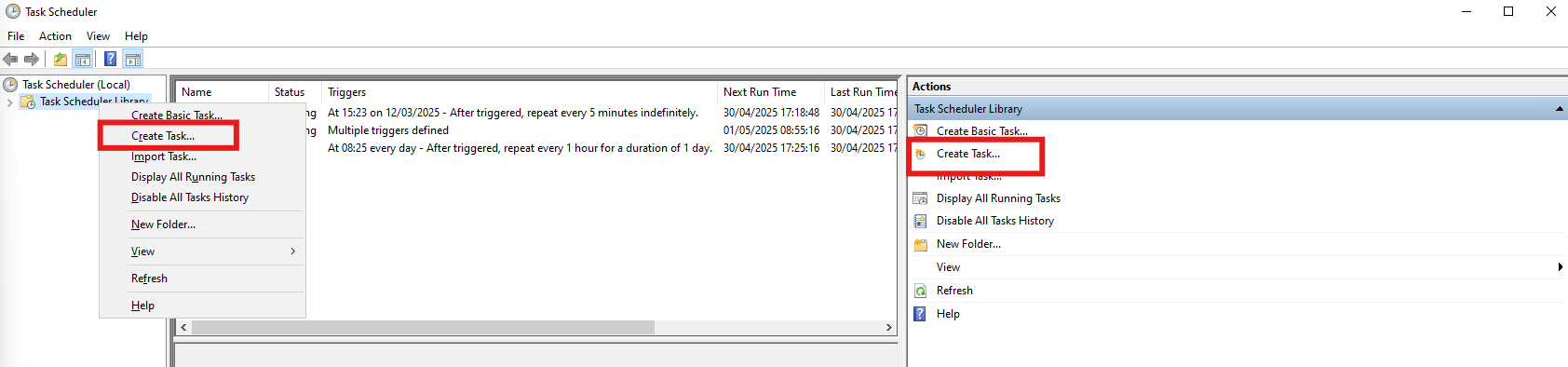
Fig 21. Creating a task within task scheduler
Now we can proceed with configuring four tabs within the task to run the Halo Integrator automatically as follows:
- General
- Triggers
- Actions
- Settings
Because each integration (or different entities for the same integration) may require processing on different frequencies, you will likely find that you need to create multiple scheduled tasks pointing at different instances of the Halo Integrator configuration. This is covered in the next section, however, for the moment we can create one task.
General Tab
First we need to configure the General tab as shown in figure 21.
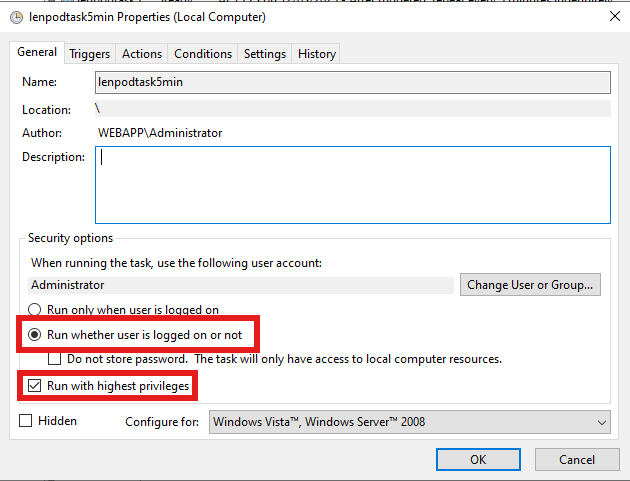
Fig 22. Enabling the Task to run despite the user account not being logged in and with highest privileges
Triggers Tab
Secondly we need to configure the Triggers tab. This is where we determine the schedule we want the Halo Integrator to process our integrations. In my example, I am setting up the triggers for the incoming email sync which should run more frequently e.g. every five minutes. This can be done as shown in figure 23.
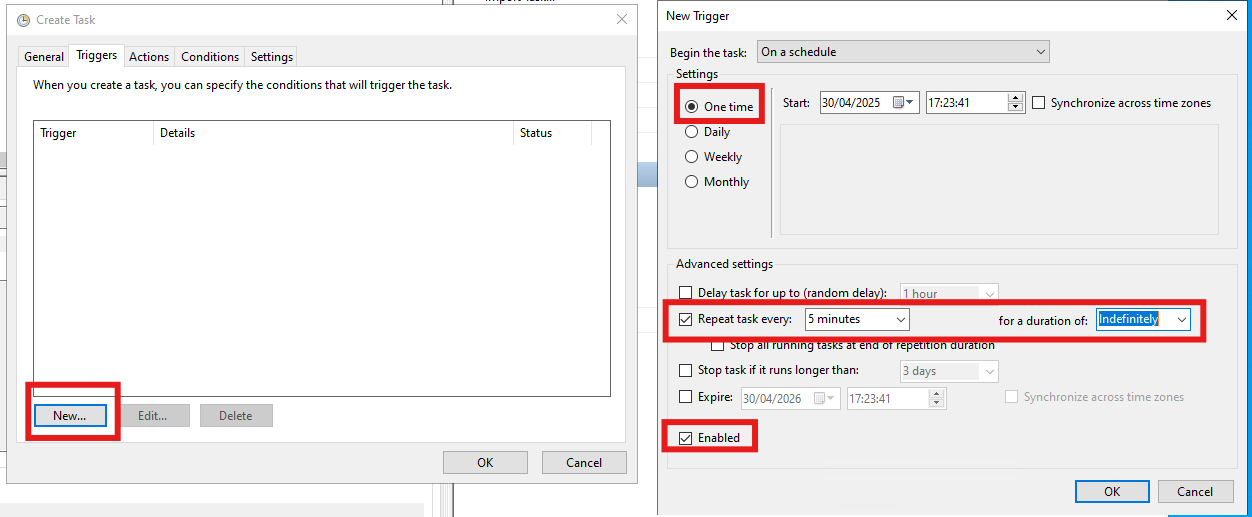
Fig 13. Creating a trigger for the Task and setting its schedule
Actions Tab
Thirdly, we now need to configure the actions tab. This will determine which integrations we are executing and which Integrator is responsible for this.
It is important to note that this involve inputting file paths which will be with back slashes as follows:
- Program/script
- The file path location of the integrator we want to run.
- C:\Users\LennyClifton\Desktop\Integrator File\HaloIntegrator.exe
- Add arguments
- The appsettings file we have generated. This is the list of integrations we want to be processed by this scheduled task.
- AUTO C:\Users\LennyClifton\Desktop\Integrator File\appsettings.json
- Start in
- The file directory that is storing our Halo Integrator and appsettings file. This is required and must be set to the folder where the Halo DB Integrator application file is located and allows any logs that are created from running the Halo Integrator to be created in that location.
- C:\Users\LennyClifton\Desktop\Integrator File\
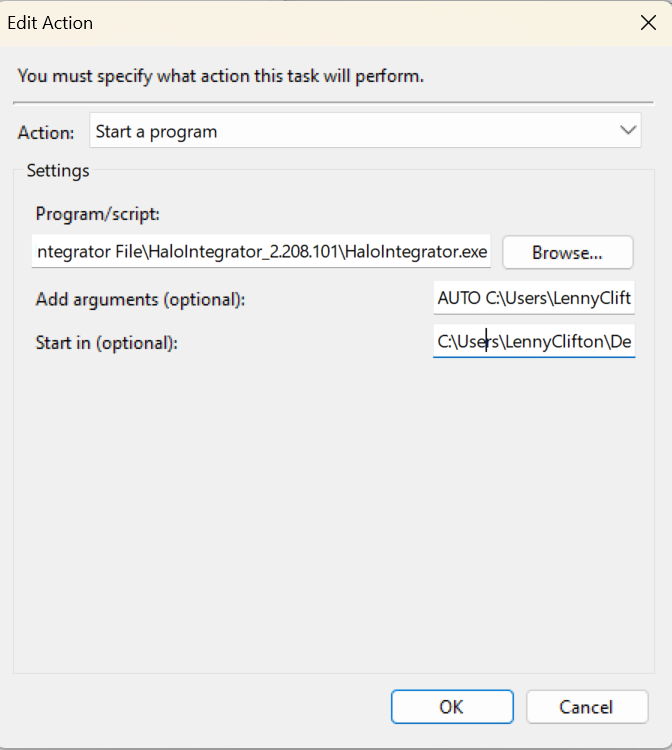
Fig 24. Configuring the Actions tab
Settings Tab
Finally, we must now configure the "Settings" tab of the scheduled task. Here we only need to make one change and that is to ensure we have the task set to "run a new instance in parallel".
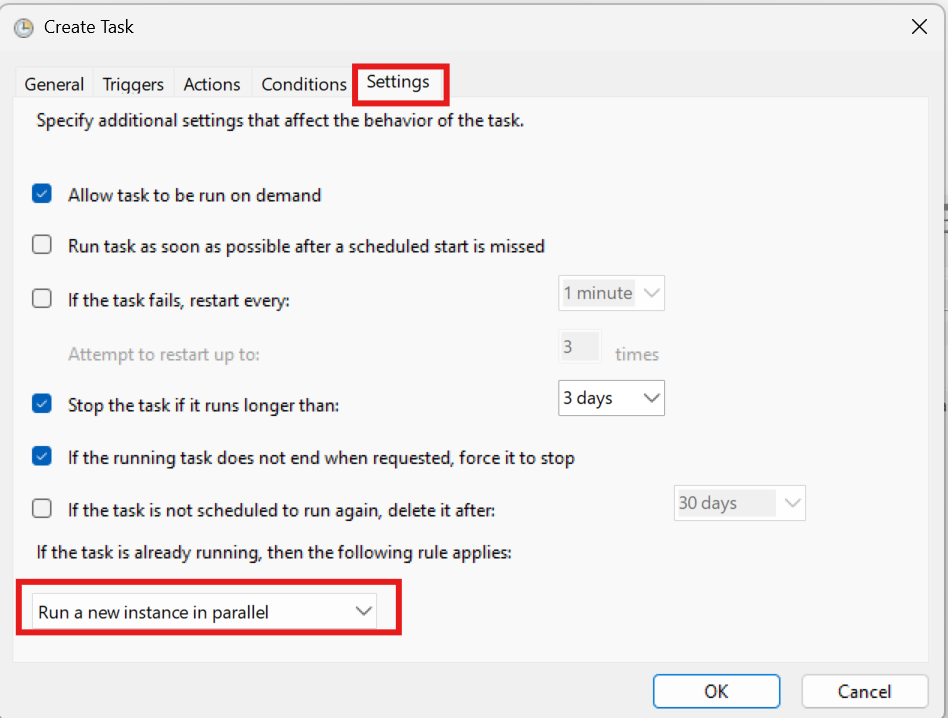
Fig 25. Enabling "run a new instance in parallel"
This means that if the integrator takes longer to process than its scheduled interval, the next scheduled run will still start and both batches will run in parallel.
Setting up different Scheduled Tasks for your Halo Integrator
The frequency in which the scheduled task should be run is determined by the integrations that are being processed by the Halo Integrator, and how much data will be processed via the third-party sync. An integration such as incoming mail is recommended to run every few minutes, whereas the Azure Active Directory integration that may import thousands of users must be run much less frequently, otherwise, the sync will never be able to complete. This is recommended to be daily.
If you are unsure of how frequently a Halo Integrator sync should be run, please contact the Halo Support Team.
Because each integration (or different entities for the same integration) may require processing on different frequencies, you will likely find that you need to create multiple scheduled tasks pointing at different instances of the Halo Integrator configuration. To do this, you can add a second argument to the scheduled task that states the location of the appsettings.json file you wish to use.
First, you should create your second appsettings.json file. To create a second file, create a copy of your current appsettings.json file and rename this. Manually open the Halo Integrator - it will be reading its configuration from the appsettings.json file in the root folder.
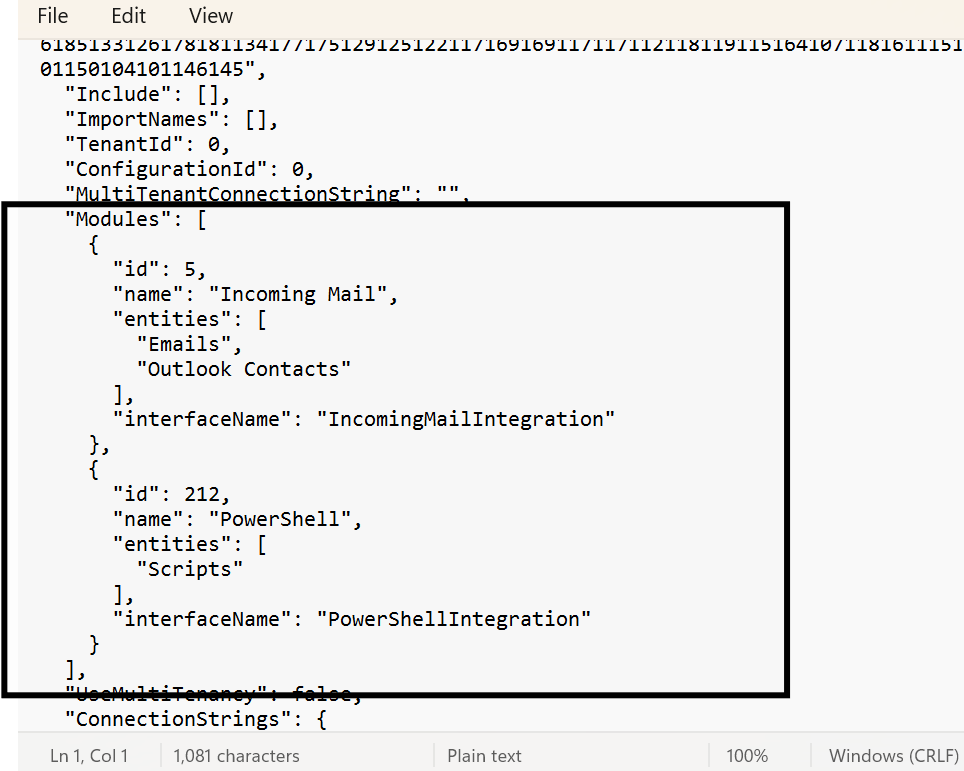
Fig 26. Module List with the original appsettings.json file
Make any necessary configuration adjustments, such as enabling/disabling integrations. Click the Save button, which will save any changes to your appsettings.json file. You now have two separate appsettings.json files. For example I may only want to process incoming mail so I have removed it from the array and copied this to my five minute folder.
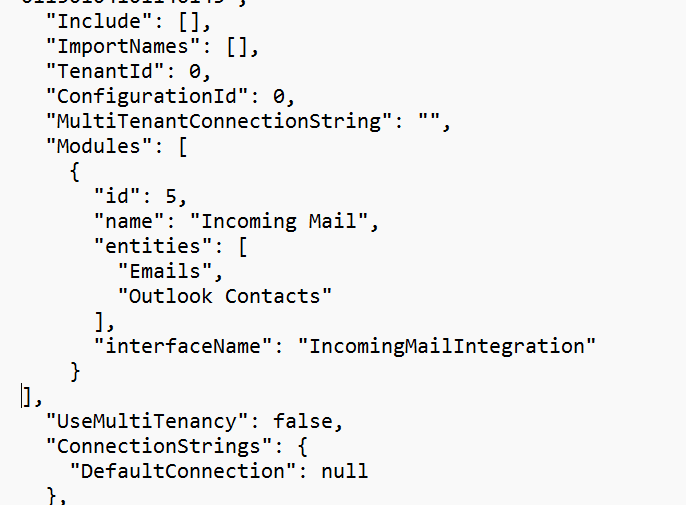
Fig 27. Copied appsettings.json file with only the incoming mail integration listed
It is a requirement that the configuration file be called appsettings.json. You must therefore move your copied version to a separate folder and rename it back to appsettings.json. An example of how you could do this is as follows, where each folder name references the frequency of the Halo Integrator sync associated with the appsettings.json file. Both folders contain a file called appsettings.json, and the HaloIntegrator.exe file is in the C:\HaloIntegrator folder.
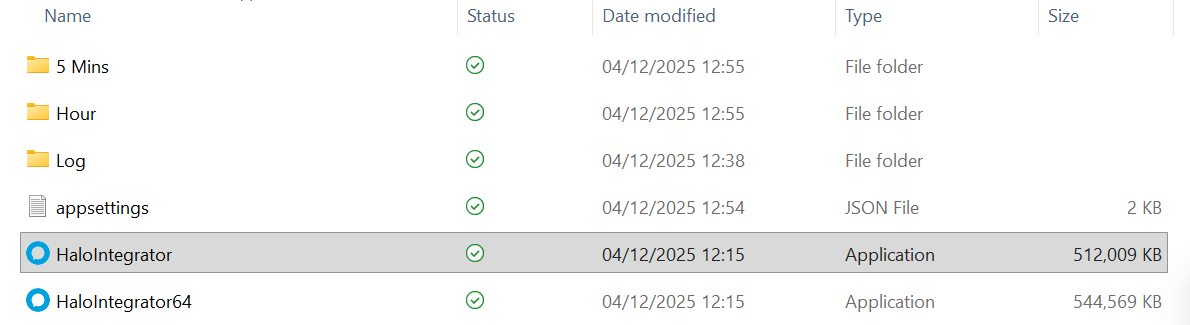
Fig 28. File structure for our different schedules
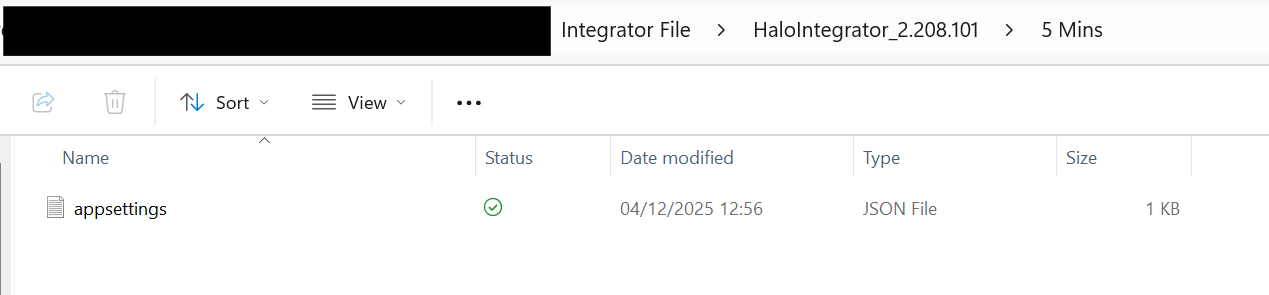
Fig 29. appsettings.json file within my 5 minute schedule
With this file structure the Actions tab would look like this:
- Program/script
- C:\Users\LennyClifton\Desktop\Integrator File\HaloIntegrator.exe
- Add arguments
- AUTO C:\Users\LennyClifton\Desktop\Integrator File\5 Mins\appsettings.json
- Start in
- C:\Users\LennyClifton\Desktop\Integrator File\
You can then test this has been setup correctly by manually running the scheduled task to see if it processes any information.
Upgrading your Halo Integrator
The Halo Integrator will not be automatically upgraded at the same time as your Halo instance. This means that you will have to reinstall the Halo Integrator, extract it and copy the integrator application over to your file directory and replace the old Integrator with the new one.
You can compare the versions of the Halo Integrator by running the application and checking the top right of the application.
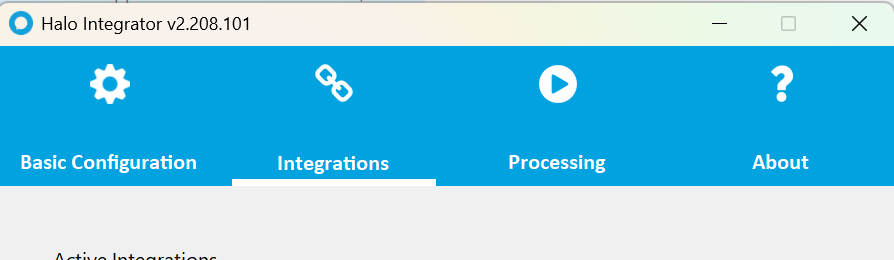
Fig 30. Checking the Halo Integrator Version. This can be checked in the about tab
Or you can see that the file size will be larger.
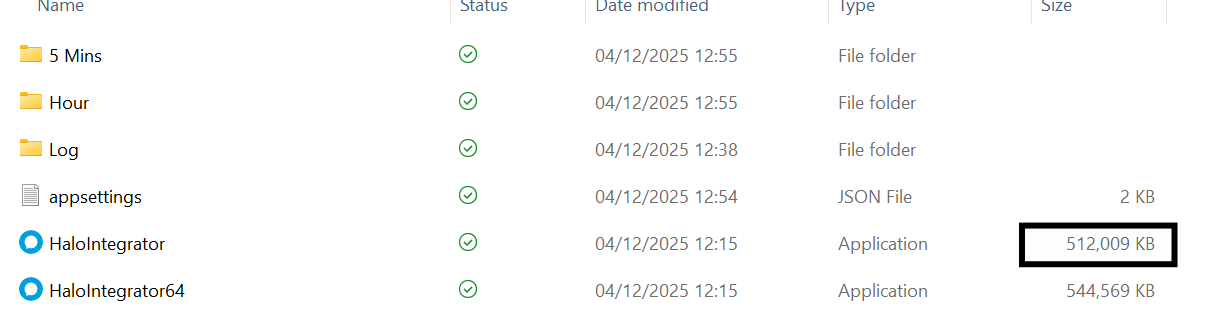
Fig 31. Checking the Halo Integrator file size