Halo DB Integrator
- integrator
- premise
- dbintegrator
A guide explaining how to configure and use the Halo DB Integrator for an On-Prem Halo instance.
In this guide we will cover:
- What is the Halo DB Integrator and do I need it?
- How is the DB Halo Integrator different to the Halo Integrator?
- Downloading the DB Halo Integrator
- Configuring the DB Halo Integrator
- Choosing which Integrations the DB Halo Integrator runs
- Manually running the Halo DB Integrator
- Running the Halo DB Integrator on a Schedule
- Version Mismatch or Upgrades
- Using the DB Integrator with Multiple (linked) Instances
Related Guides:
IMPORTANT: If you are an On-Prem client and are upgrading to the DB integrator, you must keep the NHserver running on a schedule for 30 days.
this is required as the NHserver migrates data when it detects the new services on, allowing for a seamless switch from the NHserver to the new services. After this 30 day migration period, NHServer should be disabled and at this point all scheduling will continue as normal.
What is the Halo DB Integrator and do I need it?
The Halo DB Integrator is used exclusively by clients hosting their own Halo instance (On-Prem). It is a separate Windows application that runs alongside the Halo Web Application. It is used to perform integration syncs that need to run on a recurring schedule. You will need to use the DB Halo Integrator when:
- You host your own Halo Instance AND are looking to schedule regular syncs of data between Halo and an integration.
If you are unsure which 'type' of Halo Integrator you need to use, and for more information on the Halo Integrator in general, checkout Halo Integrator.
How is the DB Halo Integrator different to the Halo Integrator?
The Halo DB Integrator is different to the standard Halo Integrator application because of the way it retrieves and processes data. Whilst the standard Halo Integrator connects to the Halo API which accesses the database, the Halo DB Integrator has the Halo API built into it and connects directly to the Halo database. This means no requests are ever sent to your live Halo API whilst running the Halo DB Integrator.
Although the Halo Integrator and the Halo DB Integrator are two separate applications, they are referred to throughout the Halo web application simply as the Halo Integrator.
Downloading the DB Halo Integrator
The Halo DB Integrator is included in the WebApp folder, it will be called 'HaloDBIntegrator' when downloading the current stable, release candidate or beta versions.
The different versions can be downloaded in the release details tab of your Halo instance as shown in figure 1.
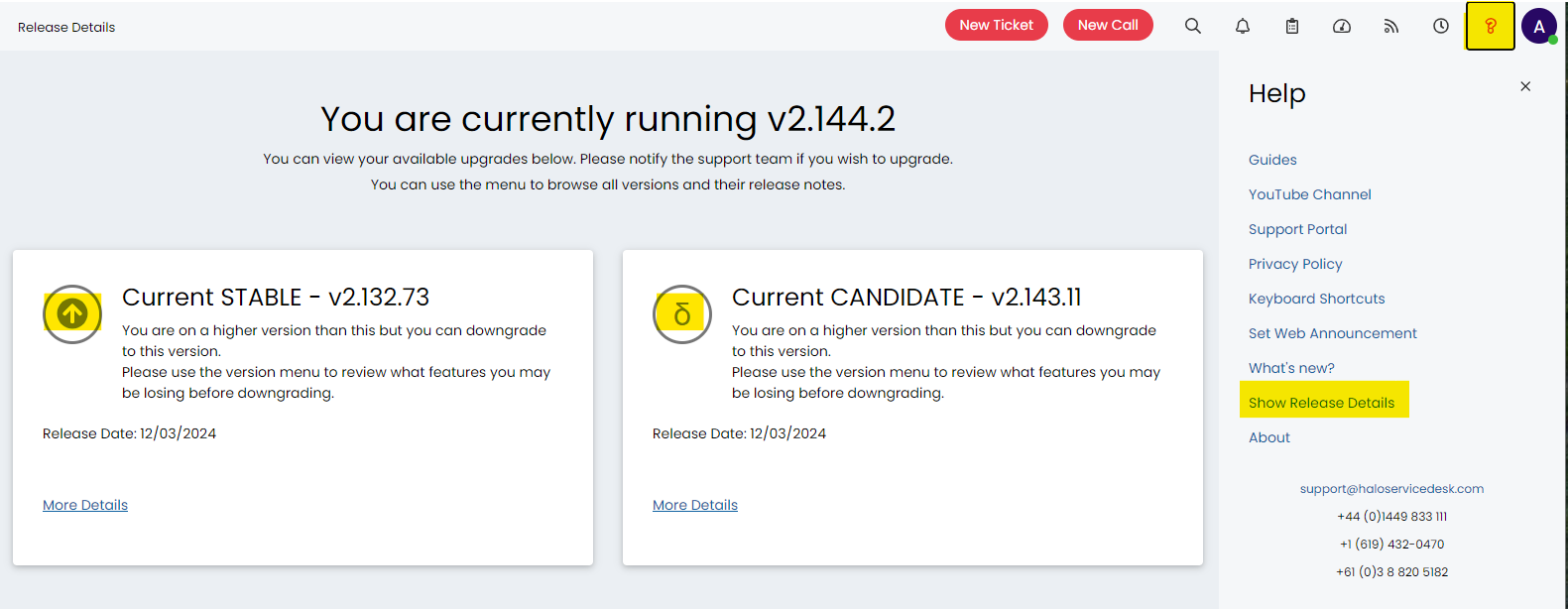
Fig 1. Download new Versions
Configuring the DB Halo Integrator
Because the Halo DB Integrator does not communicate with the public Halo API, it does not require the same configuration as the standard (locally hosted) Halo Integrator. Five required fields are located on the Basic Configuration tab of the Halo DB Integrator that must be configured to use the application. These are as follows:
- Halo URL - this is the URL used to access your Halo instance. It is required to allow the built-in version of the API to function.
- Database Server Name - the database server name where the Halo database is located.
- Database Name - the name of the Halo database.
- Username - the username of a database user that can access the database.
- Password - the password of the database user that can access the database.
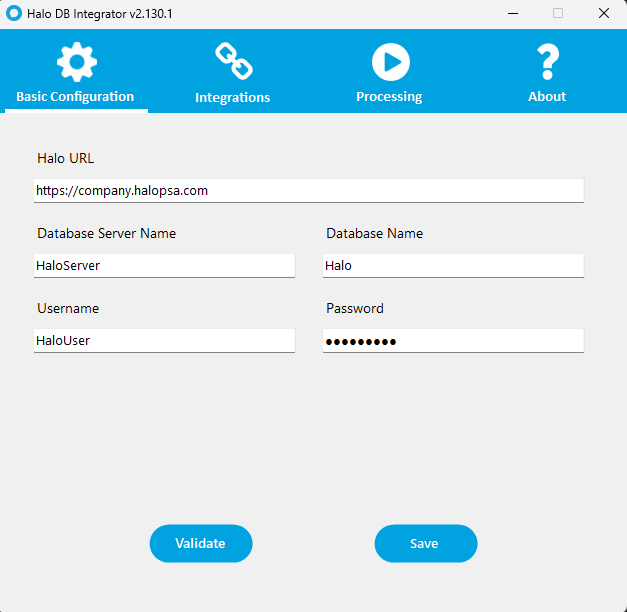
Fig 2. Connecting your instance to the DB Halo Integrator
Once you have modified any of the values in these fields, the changes must be saved and the application restarted before they will take effect. The validate button will be disabled once changes have been made and will not be reactivated until the application has been restarted.
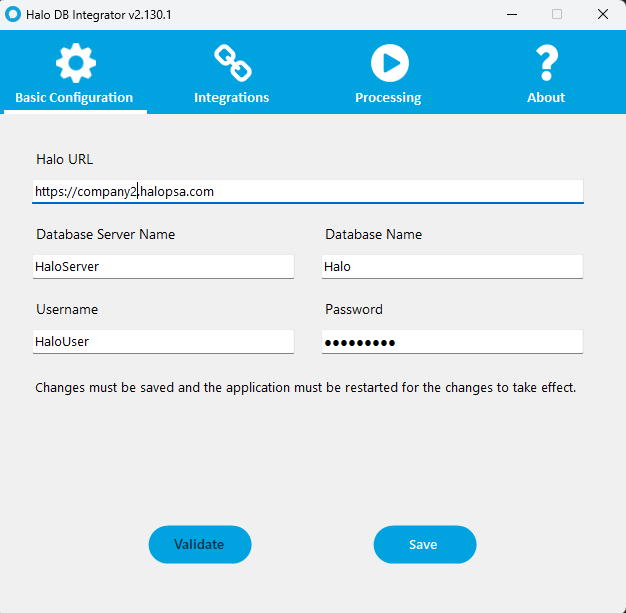
Fig 3. Updating the application with changes
Once the application has been restarted, the validation button can be used to confirm that your configuration is correct. The validation confirms that the application can connect to your database successfully, and retrieve information from it using the built-in API.
Choosing which Integrations the DB Halo Integrator runs
Almost all integrations require you to enable the Halo DB Integrator on the integration's configuration screen in the Halo web application. Alongside the option to enable the Halo DB Integrator, some integrations also offer the option to exclude certain entities from Halo DB Integrator syncs. Below is an example of this taken from the Pax8 integration.
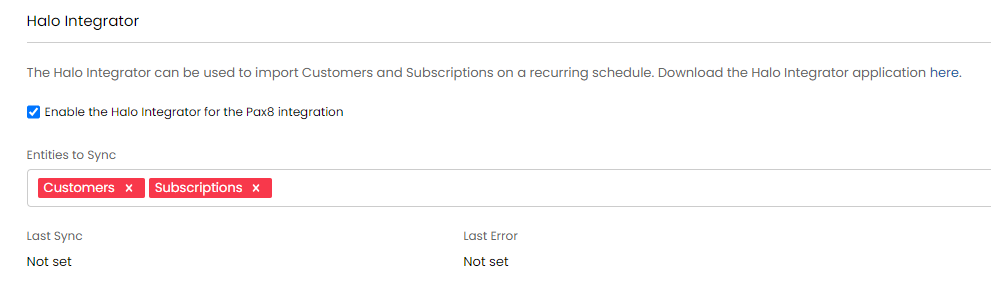
Fig 4. Enable the Halo Integrator for the Pax8 integration for selected entities
Once the Halo DB Integrator has been enabled for an integration in the Halo web application, the integration can then be turned on in the Halo DB Integrator. The integrations tab of the Halo DB Integrator contains a full list of all integrations that can be processed by the application. To enable an integration sync for the current instance of the Halo DB Integrator, enable at least one of the entities linked to the integration.
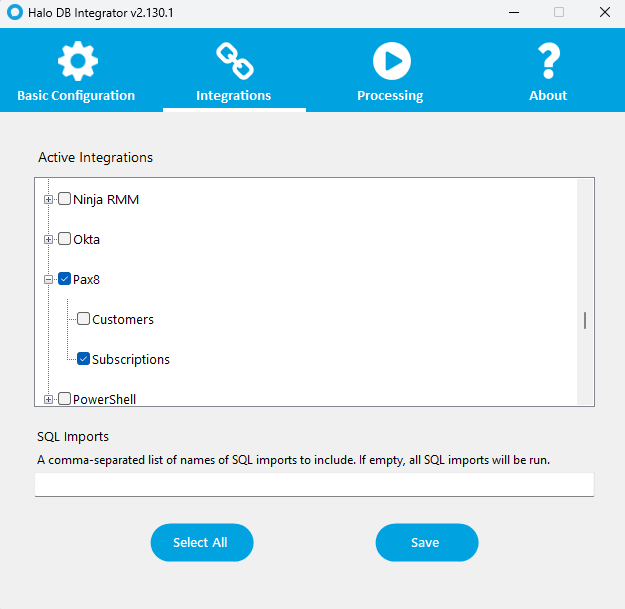
Fig 5. Enable the integration in the DB Halo Integrator
In this example, the Pax8 integration would be processed by this instance of the Halo DB Integrator, but only the subscription import; the customer import will be ignored. The benefit of running the same integration on multiple Halo DB Integrators (with each Integrator processing different entities), and how to configure this, is explained in the "Running multiple Halo different schedules" section of this guide.
Manually running the Halo DB Integrator
The Halo DB Integrator can be manually run from the Processing tab. To run a specific integration manually, select an enabled integration from the drop-down box on the integrations tab of the Halo DB Integrator.
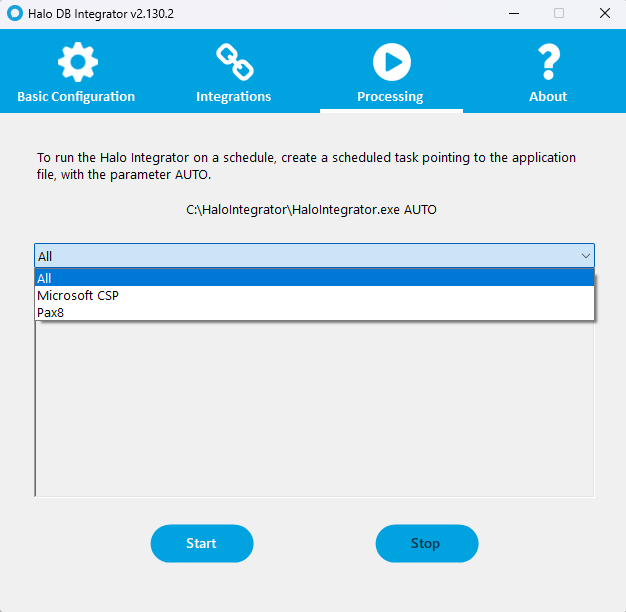
Fig 6. Manually run the DB Halo Integrator
Running the Halo DB Integrator on a Schedule
A Windows scheduled task must be created to run the Halo DB Integrator on a recurring schedule. As per the instructions shown above on the processing tab, the scheduled task must point to the application file with an additional argument of AUTO. The AUTO parameter starts the processing after the application is loaded by the scheduled task.
You would only need to configure the first three tabs within task scheduler as well as the last one.
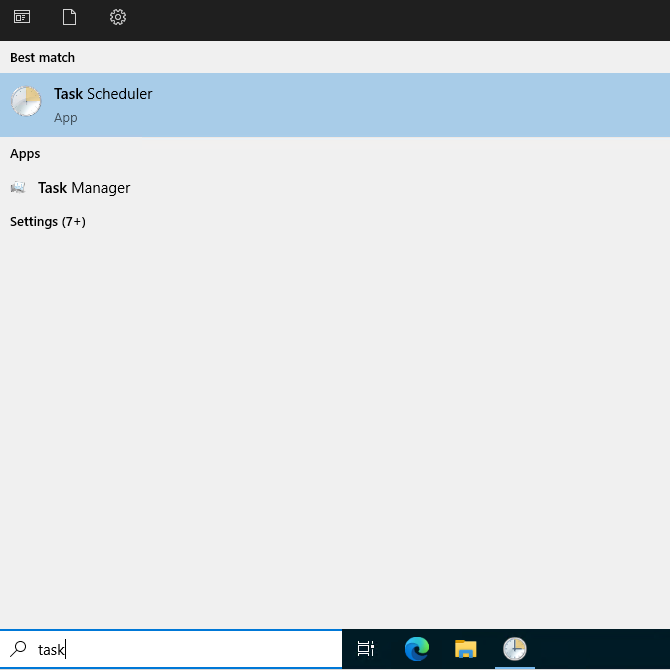
Fig 7. Task Scheduler
Create a Task either by right clicking or selecting create task.
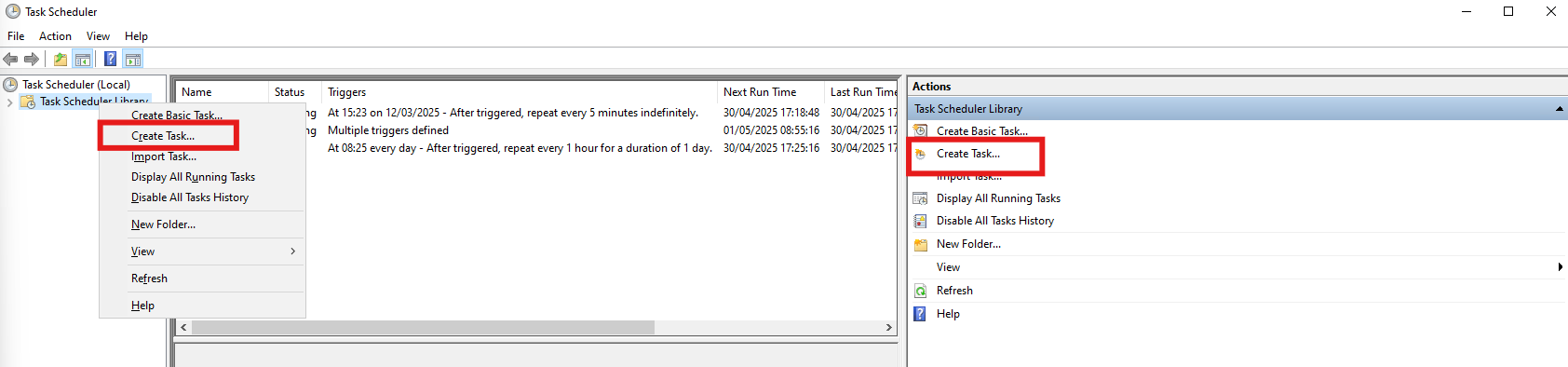
Fig 8. Create a task
First we need to configure the General Tab:
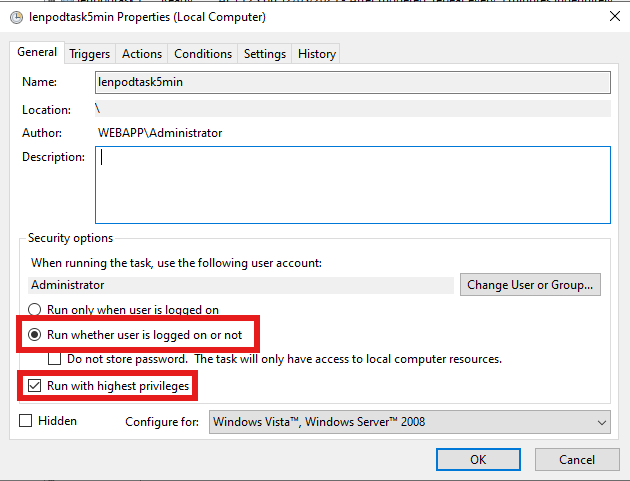
Fig 9. 'General' Tab Configuration
Then we need to configure a Trigger for the task. In my example I am setting up a task for the incoming email sync and so have set the task to run every five minutes, This can be done by adding a new trigger here:
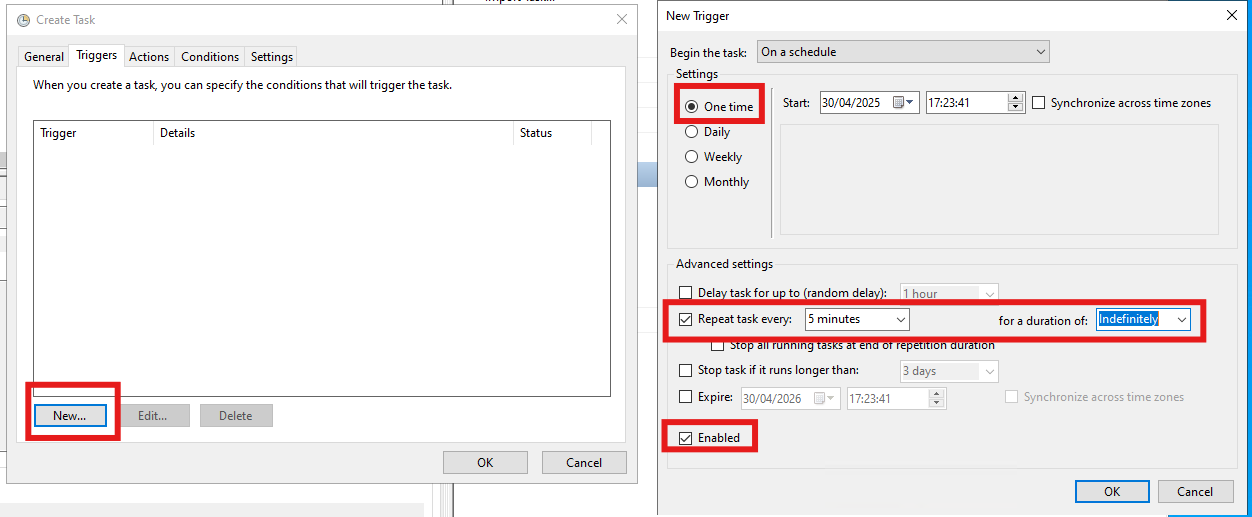
Fig 10. Configure trigger for the task
Now, we need to configure the Actions tab, which will determine what we are executing and how. It is important to note that this will be with back slashes. Also, the arguments section will look like this:
- Program/script - C:\\HaloIntegrator\\HaloDBIntegrator.exe
- Add arguments - AUTO C:\\HaloIntegrator\\appsettings.json
- Start in - C:\\HaloIntegrator\\
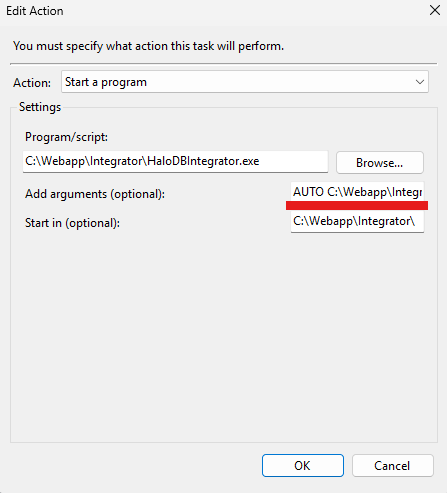
Fig 11. 'Actions' tab configuration
The Start In parameter is also required. This must be set to the folder where the Halo DB Integrator application file is located and allows any logs that are created from running the Halo DB Integrator to be created in that location.
Finally, we must now configure the "Settings" tab of the scheduled task. Here we only need to make one change and that is to ensure we have the task set to "run a new instance in parallel":
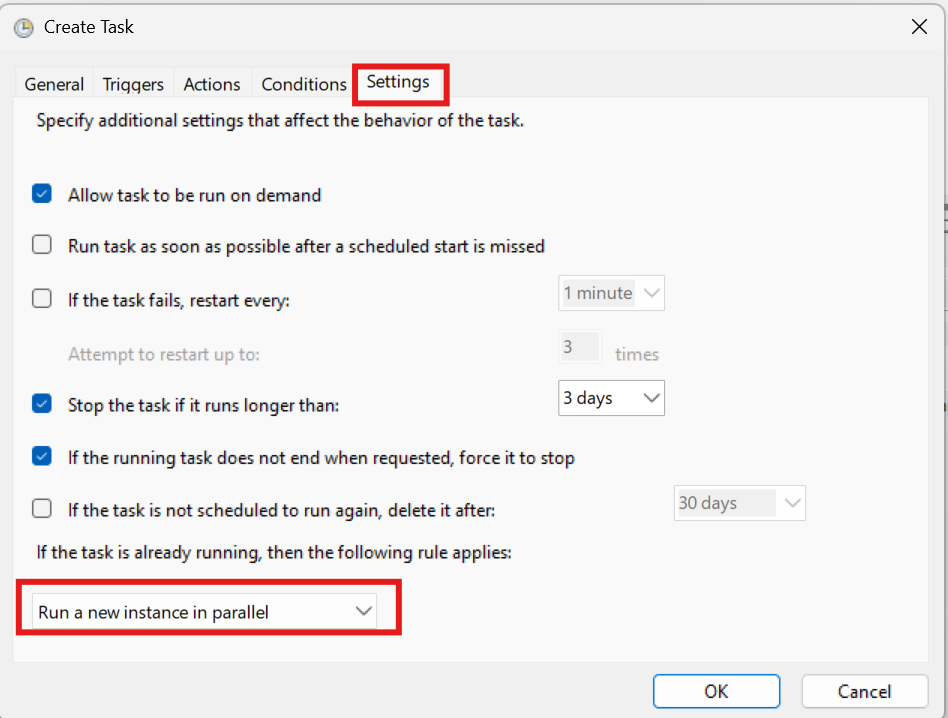
Fig 12. Set task to run a new instance in parallel
This means that if the integrator takes longer to process than its scheduled interval, the next scheduled run will still start and both batches will run in parallel.
The frequency in which the scheduled task should be run is determined by the integrations that are being processed by the Halo DB Integrator, and how much data will be processed via the third-party sync. An integration such as incoming mail is recommended to run every few minutes, whereas the Azure Active Directory integration that may import thousands of users must be run much less frequently, otherwise, the sync will never be able to complete.
If you are unsure of how frequently a Halo DB Integrator sync should be run, please contact the Halo Support Team.
Running Multiple Different Schedules (using Multiple appsetting.json files)
Because each integration (or different entities for the same integration) may require processing on different frequencies, you will likely find that you need to create multiple scheduled tasks pointing at different instances of the Halo DB Integrator configuration. To do this, you can add a second argument to the scheduled task that states the location of the appsettings.json file you wish to use.
First, you should create your second appsettings.json file. To create a second file, create a copy of your current appsettings.json file and rename this. Manually open the Halo DB Integrator - it will be reading its configuration from the appsettings.json file in the root folder. Make any necessary configuration adjustments, such as enabling/disabling integrations. Click the Save button, which will save any changes to your appsettings.json file. You now have two separate appsettings.json files.
It is a requirement that the configuration file be called appsettings.json. You must therefore move your copied version to a separate folder and rename it back to appsettings.json. An example of how you could do this is as follows, where each folder name references the frequency of the Halo DB Integrator sync associated with the appsettings.json file. Both folders contain a file called appsettings.json, and the HaloIntegrator.exe file is in the C:\Halo\Webapp\Integrator folder.
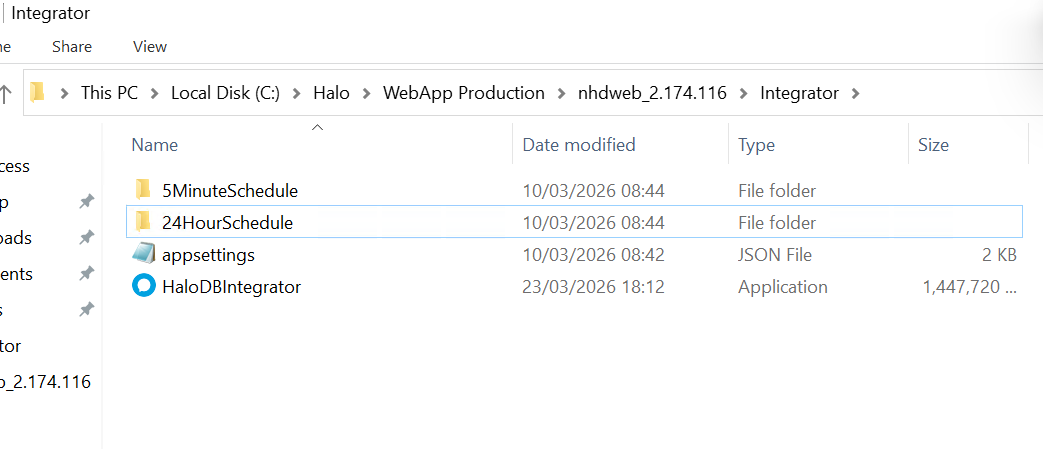
Fig 13. Create multiple appsettings.json files for each run
IMPORTANT:
The ACTIONS tab for the scheduled task would then look like this (ensure the file path matches the client's file structure):
- Program/script - C:\\Halo\Webapp\Integrator\HaloDBIntegrator.exe
- Add arguments - AUTO C:\\Halo\Webapp\Integrator\5MinuteSchedule\appsettings.json
- Start in - C:\\Halo\Webapp\Integrator\
You can then test this has been setup correctly by manually running the scheduled task to see if it processes any information.
Version Mismatch or Upgrades
The DB Integrator should always be upgraded automatically when you upgrade your application, in line with this guide. Since it is contained with the webapp file you download when upgrading your On-Prem instance.
If there is a version mismatch then it is recommended you reinstall the nhdweb zip file, extract it and copy the DB Integrator application over to your server and replace the old DB Integrator. This can be found here within any webapp install:
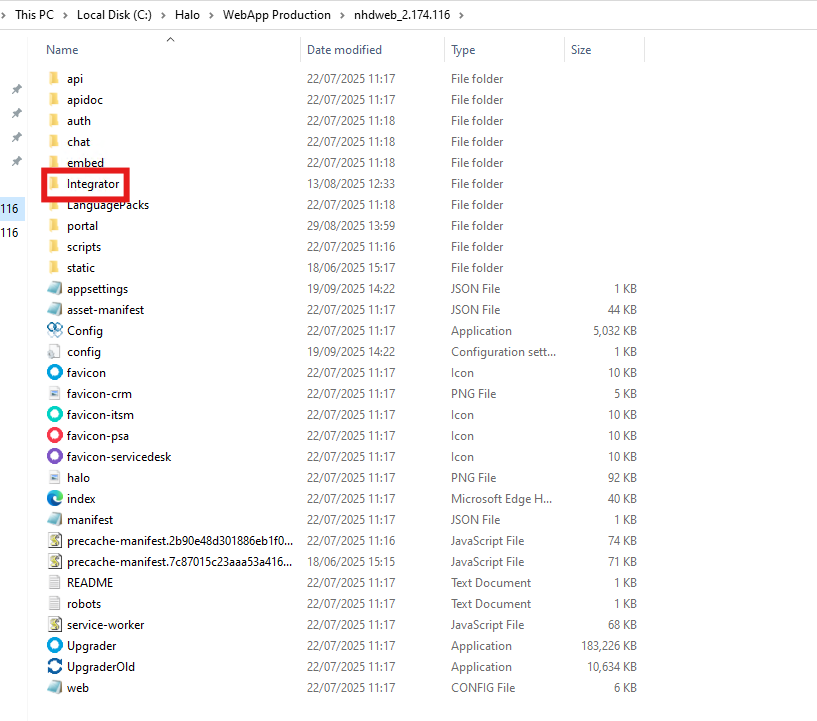
Fig 14. Integrator file within the WebApp folder
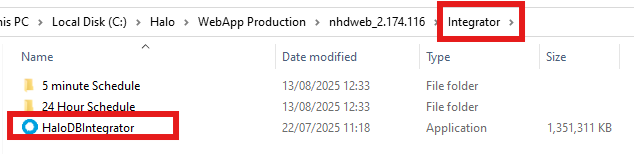
Fig 15. HaloDBIntegrator within the WebApp file
You can compare the version of the DB Integrator by running the application and checking the top banner.
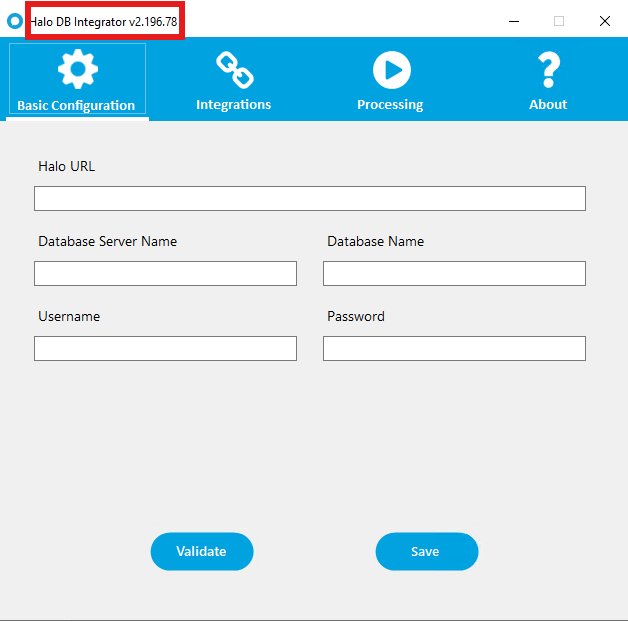
Fig 16. DB Halo Integrator version
If there are any issues with this then please reach out to Halo Support.
Using the DB Integrator with Multiple (linked) Instances
If you have multiple (linked) instances of Halo (Prod/UAT/Dev) and are using the DB Integrator (to process incoming mail for example) you will need to complete some additional setup for the DB Integrator to account for these additional instances.
Ensure you have followed the "Halo DB Integrator" section of this guide: Setting up the “Instances” area for On-Prem Halo Instances
If this is not complete you will experience issues with the DB Integrator being able to process requests for each of your instances. When setup you will also need to make sure integration credentials are associated with a specific instance (where applicable). For example, when adding credentials for a mailbox you will need to choose which instance (Prod/UAT/Dev) the credentials should be used for.