On-Prem Upgrade
- Web App
- Web App Upgrade
- Upgrade
- on-prem
Information on upgrading Halo for On-Prem Instances
Versions
If you wish to upgrade halo, then you have potentially 3 options for versions to upgrade to, being our current Stable, Beta, or possibly our Release Candidate at the time.
The downloads can be found on the Halo Self Service Portal: https://support.haloservicedesk.com/
The latest features will be in the Beta version but could be potentially less stable, where as Stable been in use for longer with more stable features, but none of the brand new features, and the Release Candidate being somewhere in the middle.
It is recommended that you take a backup before you proceed with the upgrade in case there are any potential issues. If there are any issues then please proceed to the following troubleshooting guide: On-Prem Upgrade - Troubleshooting
If you are upgrading to a version of Halo which requires the use of the new event services then this will have to be setup and enabled first. Here is the guide for setting up the new services (https://support.haloservicedesk.com/kb?id=1766) and going NHServerless (https://support.haloservicedesk.com/kb?id=1754)
Ensure the on-prem pre-requisites are completed according to this guide https://support.haloservicedesk.com/portal/kb?id=2510
Please ensure that the SQL compatibility level is correct: Default compatibility level is 130. This should be no lower than this since only SQL Server 2016 and above is supported. This is because Halo requires JSON support. This guide expands further OPENJSON (Transact-SQL) - SQL Server | Microsoft Learn
If upgrading to a version past v2.220+, please ensure the SQL compatibility level of your database is increased. You can check this by running the below query.
SELECT compatibility_level
FROM sys.databases
WHERE [name] = 'your_database_name'
If the compatibility level is below 140, it will need to be increased to at least this level. You can do this by running the following command.
ALTER DATABASE your_database_name
SET COMPATIBILITY_LEVEL = 140
Upgrading Halo
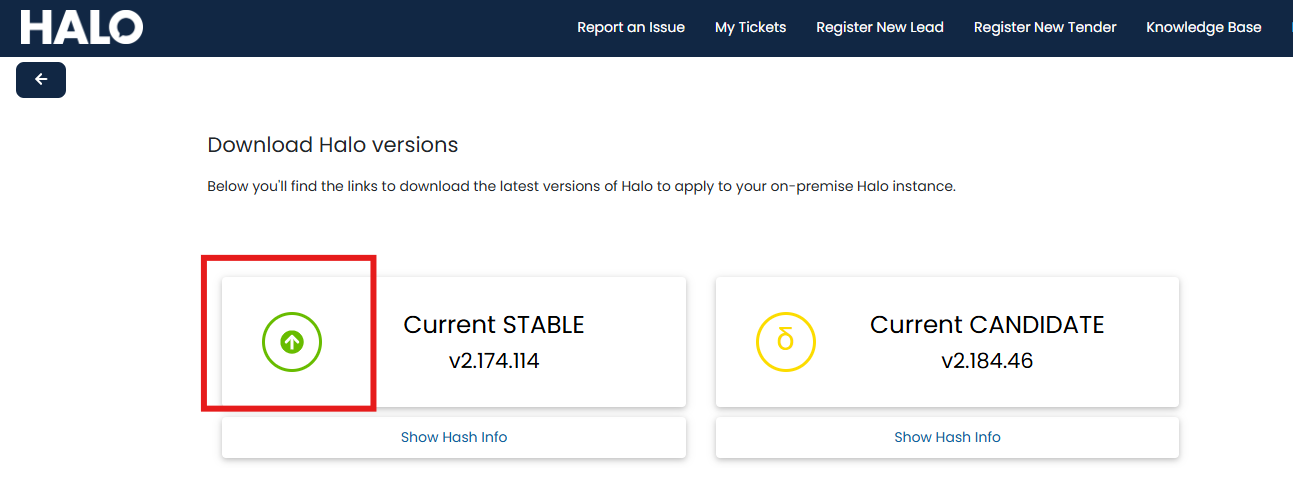
- Download the version of halo you wish to upgrade to (you will have to login to the Halo Self Service Portal to retrieve this) https://support.haloservicedesk.com/haloversions
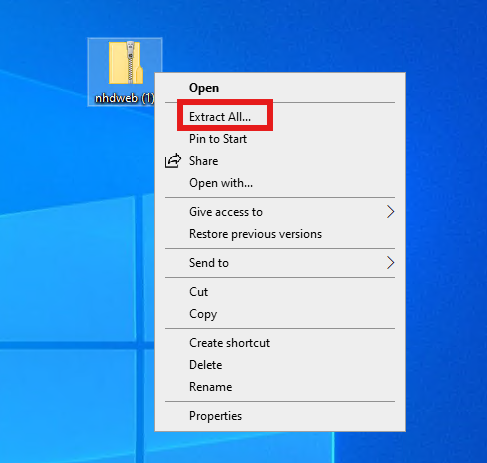
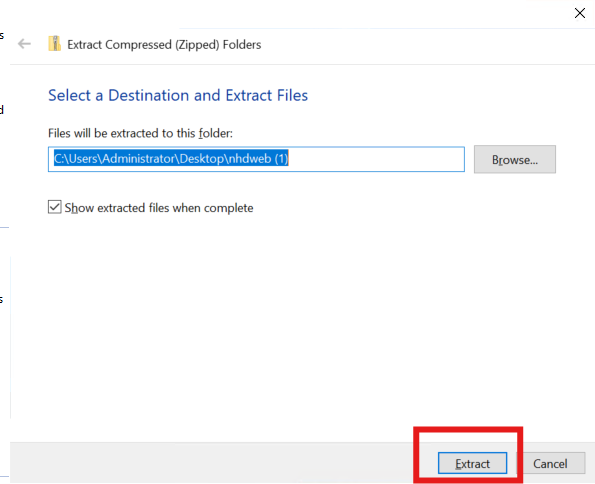
- Extract the nhdweb zip file once you have downloaded them on this server. This must be done before you can drag and drop the files over.
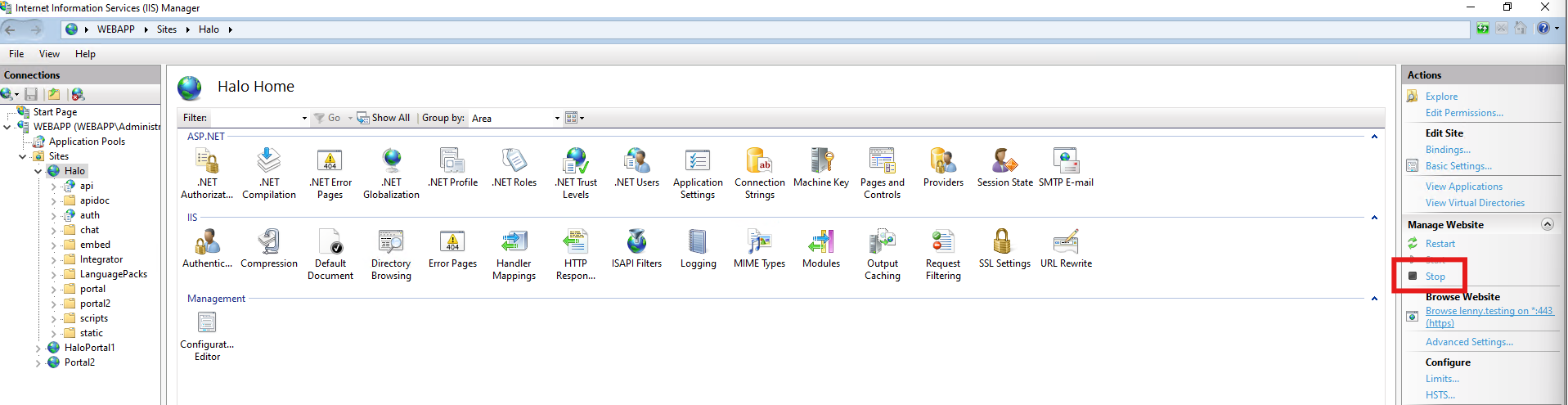
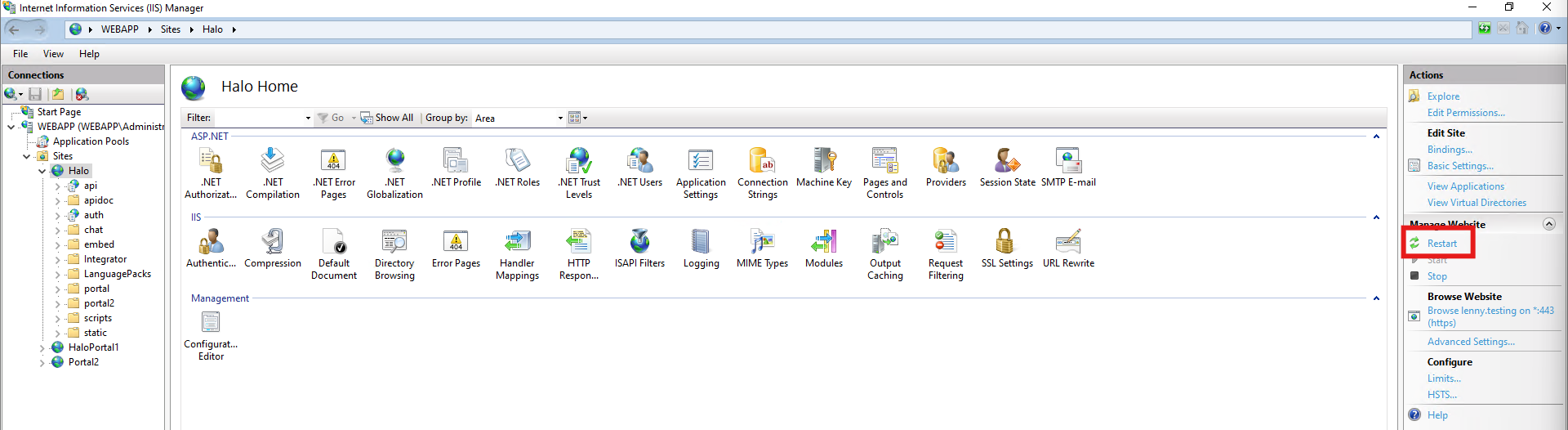
- Stop your halo site running on IIS
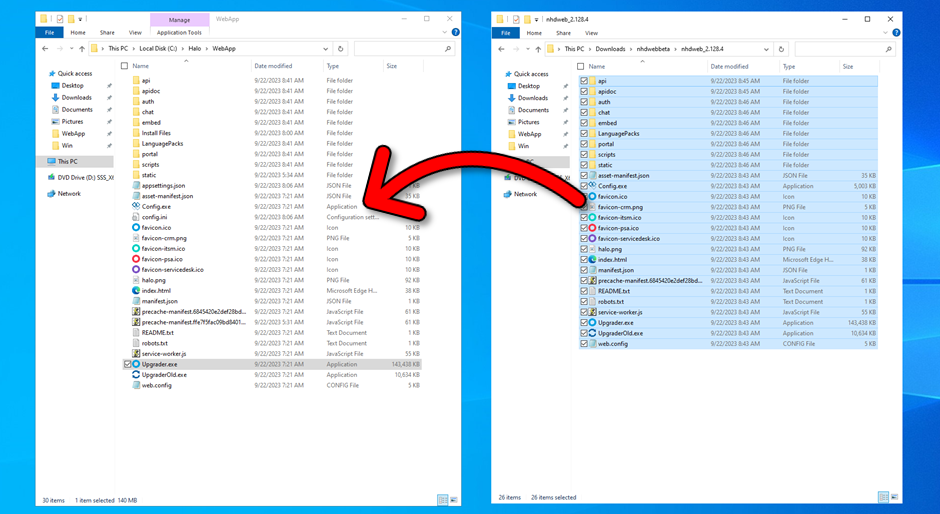
- Select all of these files within the extracted file (ctrl+a), then drag and drop them into your existing WebApp file. DO NOT DRAG AND DROP THESE FILES INTO ANOTHER FOLDER. This should be located in within a generic Halo folder within the C Drive. C:\Halo\WebApp.
- Note: Replacing the WebApp files with the upgrade version files will override any configuration changes made to the web.config files in the root, api, auth, and portal folder. Before performing this change, please copy any customised headers such as HSTS, Referrer, and permissions policies for future reference; alternatively, remove web.config from the upgraded version files.
- If you are upgrading from a pre 2.88 version of halo, you will need to download https://aka.ms/vs/17/release/vc_redist.x64.exe, Add it to your installfiles folder, and run the program.
- If you are upgrading from a version before 2.50, you will need to run the UpgraderOld.exe and follow the above step as well
- UPDATE - If the upgrade is from a version before 2.130 to after 2.130 you will want to install this or halo will not work: https://download.visualstudio.microsoft.com/download/pr/b50f2f63-23ed-4c96-9b38-71d319107d1b/26f8c79415eccaef1f2e0614e10cd701/dotnet-hosting-6.0.21-win.exe
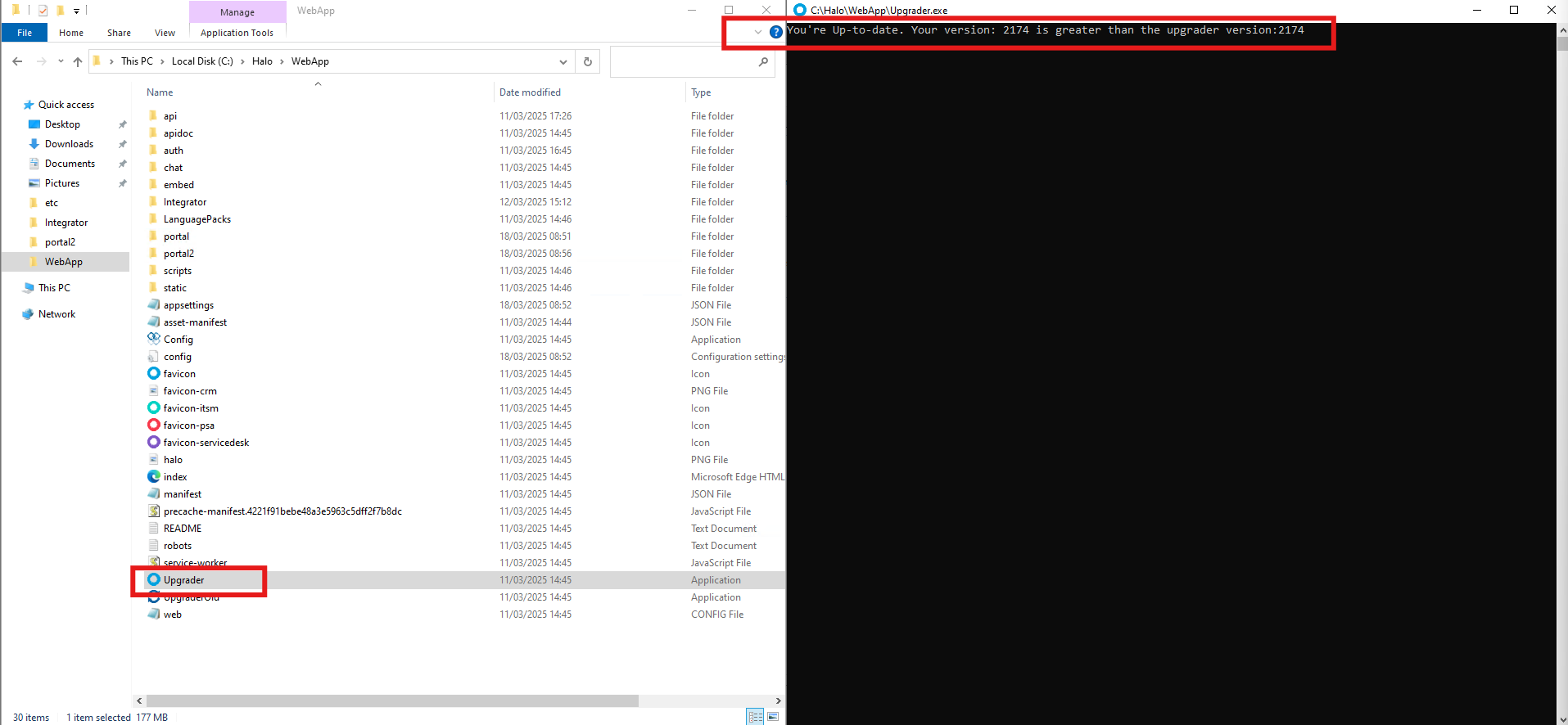
- Run the upgrader.exe within halo and go through the steps given by the console. Once it is complete the application should close, but if you are unsure you can double check and re-run the upgrader.exe file and it should say you are up to date.
- Restart the site on IIS
- Navigate to your halo instance, and check in the ‘about’ window (bottom option of the ? menu at the top right) that it is showing the correct version
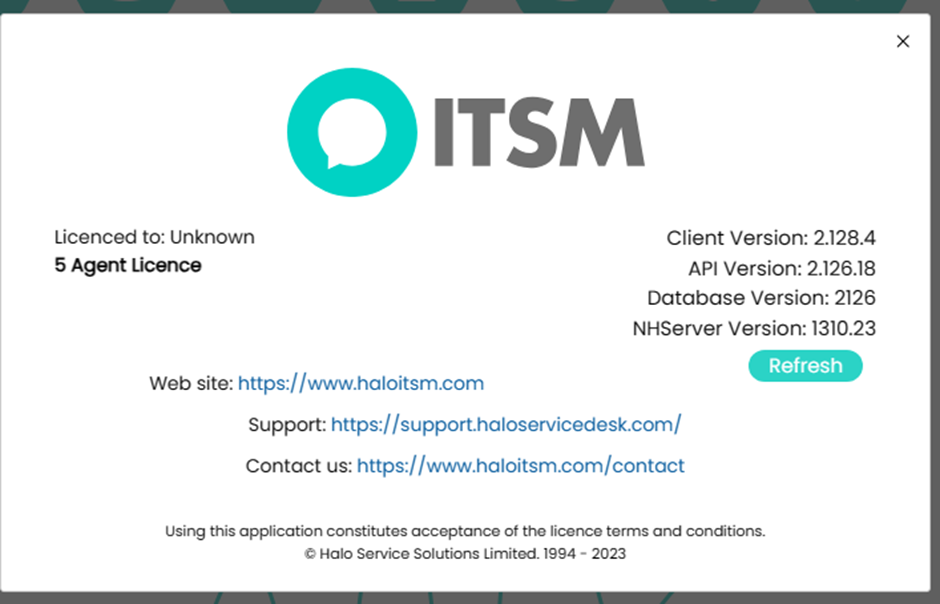
This might require a cache reset with SHIFT + F5, or a log in and out