On-Prem Upgrade - Troubleshooting
This section covers useful troubleshooting options for an On-Prem upgrade.
If you notice any irregularities in the new version, or the version numbers don't match or haven't changed:
- Then the first thing to do is reload and clear the cache by pressing Ctrl-F5. Unlike other browser options that clear the cache, pressing Ctrl-F5 also clears the server-side cache, so it's best to use this over your usual browser-cache clearing routine.
- You can also use this parameter in your url: <<URL>>/api/instanceinfo?clear_cache=true
- If this does not resolve the issue then please proceed with further troubleshooting.
Additional Troubleshooting:
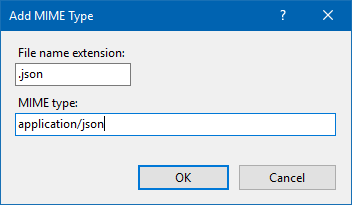
If after carrying out your last steps your Web App does not work, then you may be missing a .json MIME type at the server level.
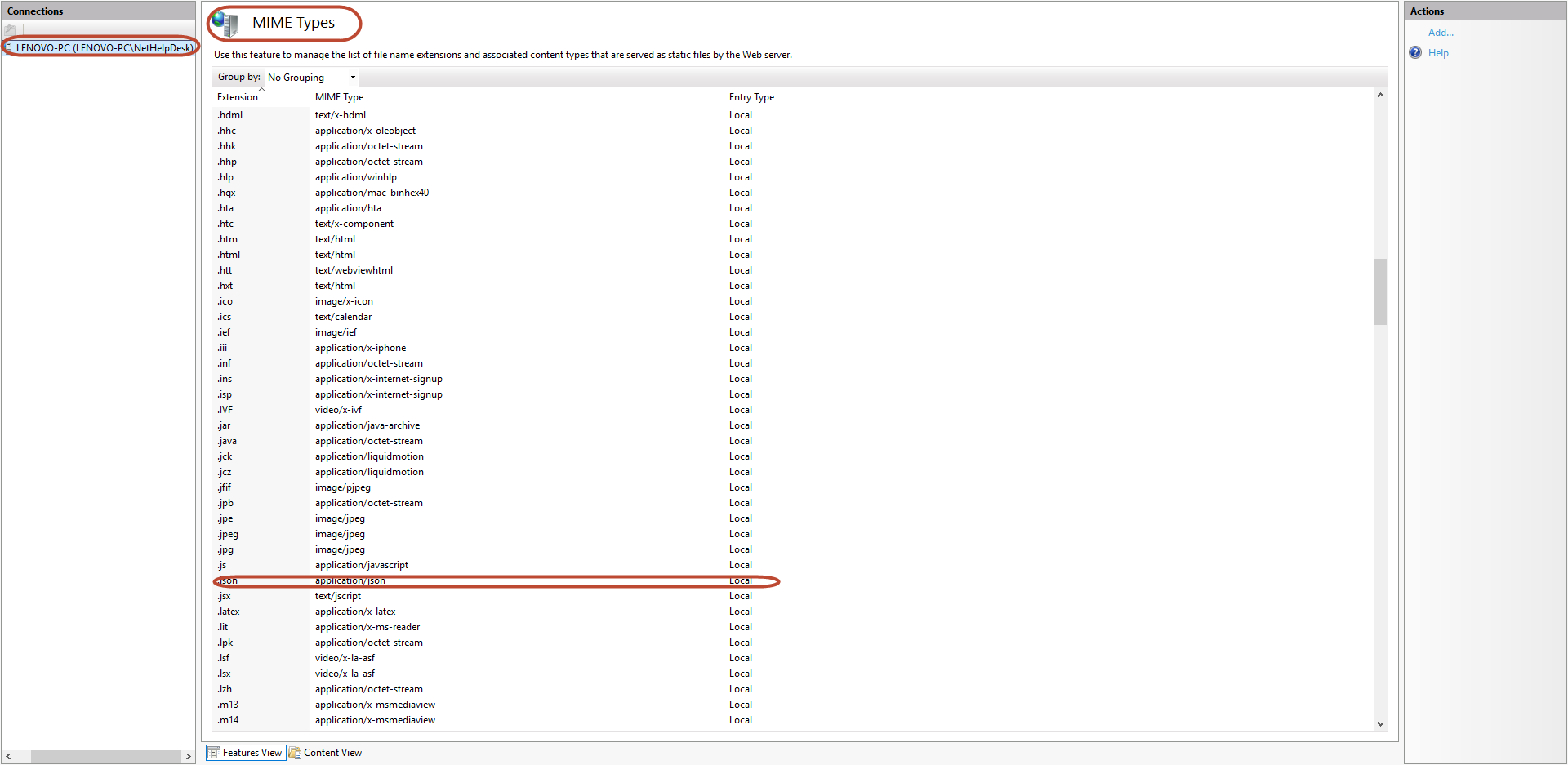
Navigate to Server Level in IIS, in MIME types, and if the .json MIME type is missing then click 'Add...' and enter the values as per the screenshot below.
If you have the default deployment configuration (api and auth apps within a single site/folder) you can use the automatic upgrade, if not you must use the manual method.
Another Common Error
If the agent portal does not load up when you are trying to log back in after the upgrade, you must check you API information on your halo instance. To do so you can append api/instanceinfo to the URL i.e. https://myexamplehalo.halopsa.com/api/instanceinfo
If there are errors for an On-Prem upgrade and a login loop is encountered after the upgrade from 2.126 to 2.132 then please manually create the folder as below and ensure that the user running the web application in IIS has permission to modify that folder.
C:\Windows\System32\config\systemprofile\AppData\Local\IronSoftware
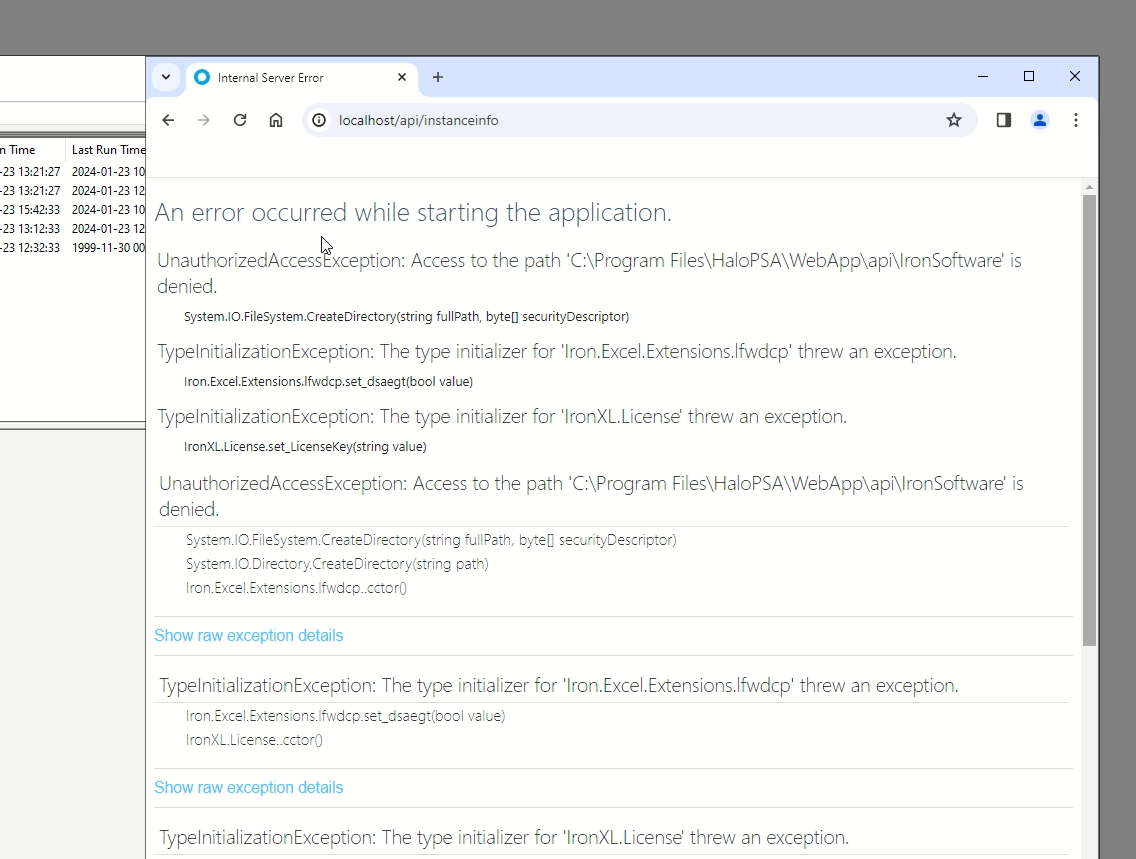
This error is stating that there is a lack of permissions granted, so to bypass this we can increase the level of permissions given to the IIS_IUSRS.
NB: There may already be an IIS_IUSRS user name on list, you will just have to give the following permission to the user by clicking on the IIS_IUSRS in the user name list and then giving the "Full control" Permission:
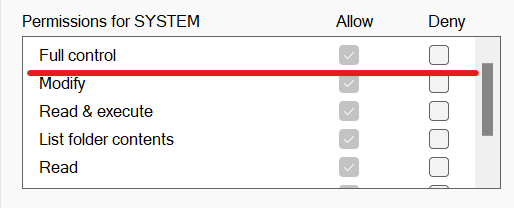
If you head to the API folder within you halo folder, then right click on the folder and click on properties you can go to the security tab and add permissions.
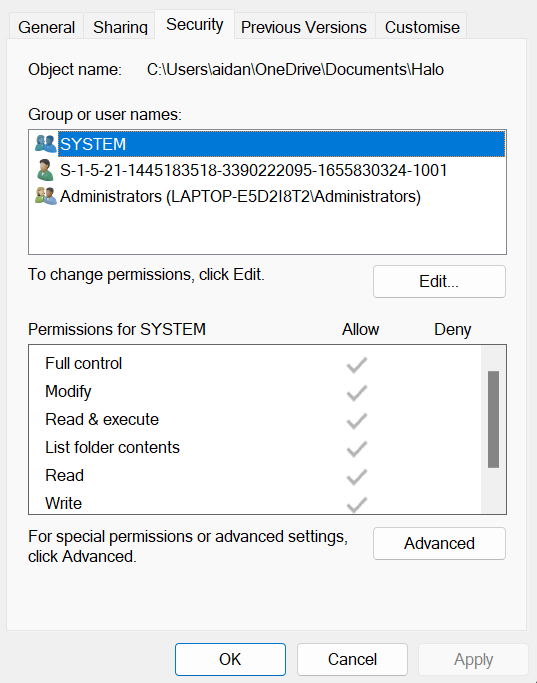
Click on System and then "Edit" from here the user can be added
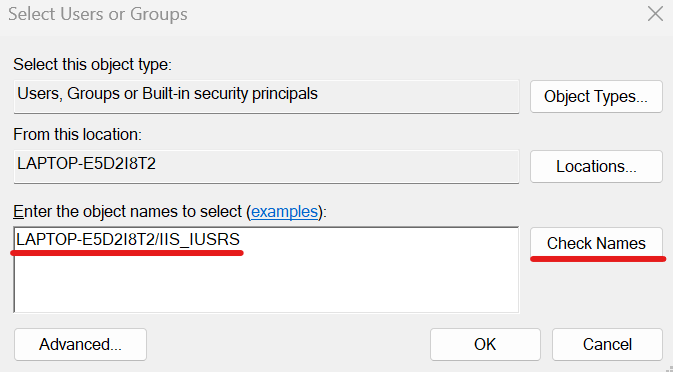
when you check names it should find that user, then go back to the user name list and grant the following permission for the IIS_IUSRS:
Now when you load the website, it should work as intended.
Permission error regarding the Integrator file when dragging and dropping Halo Files
When initially dragging and dropping the upgraded Halo files:
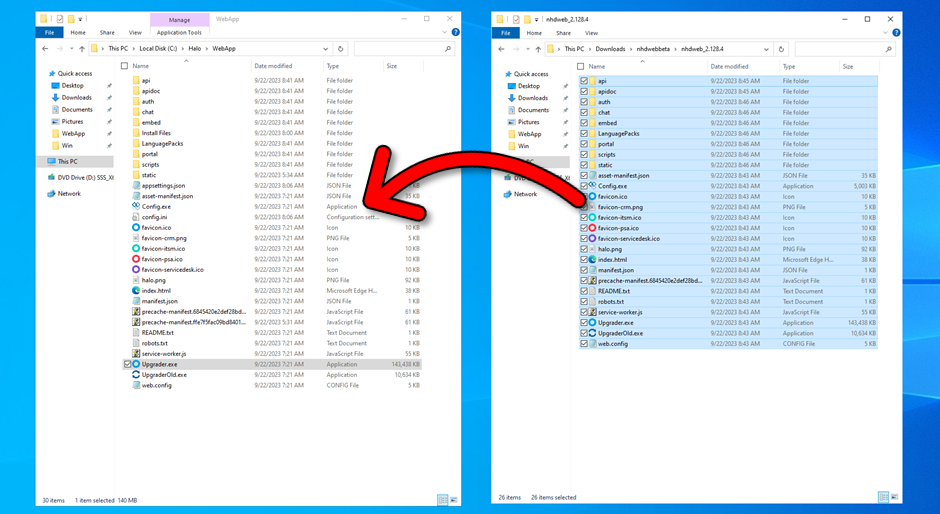
You may experience a permissions error specifically regarding the Integrator file located here:
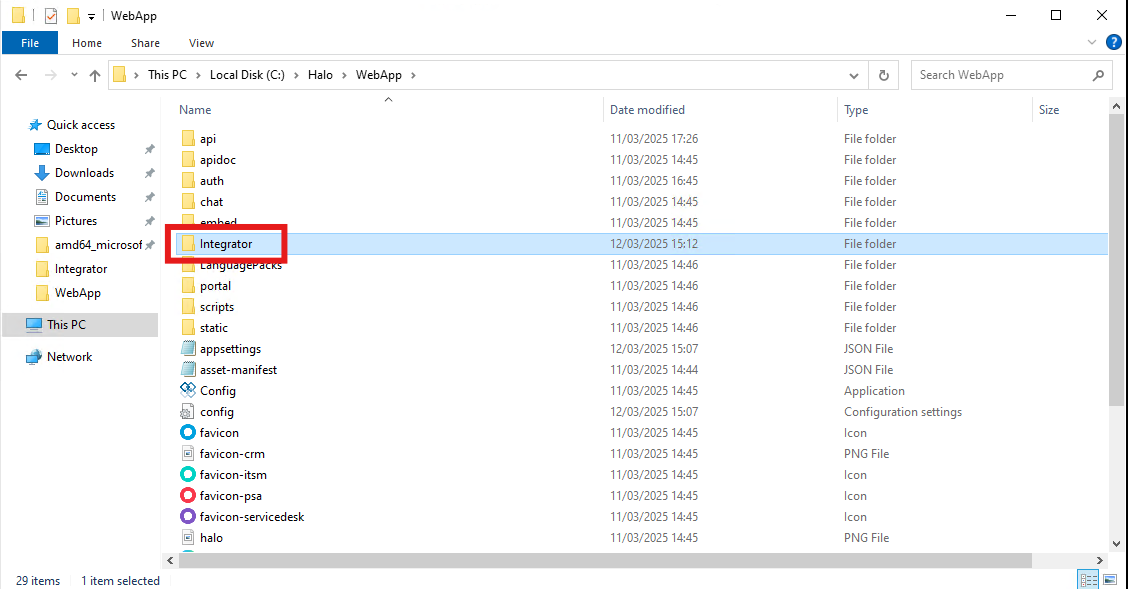
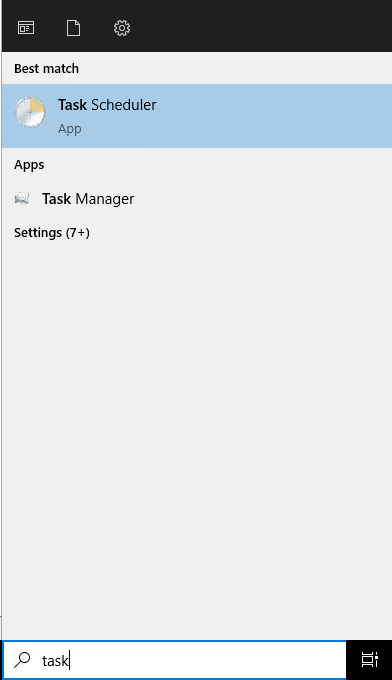
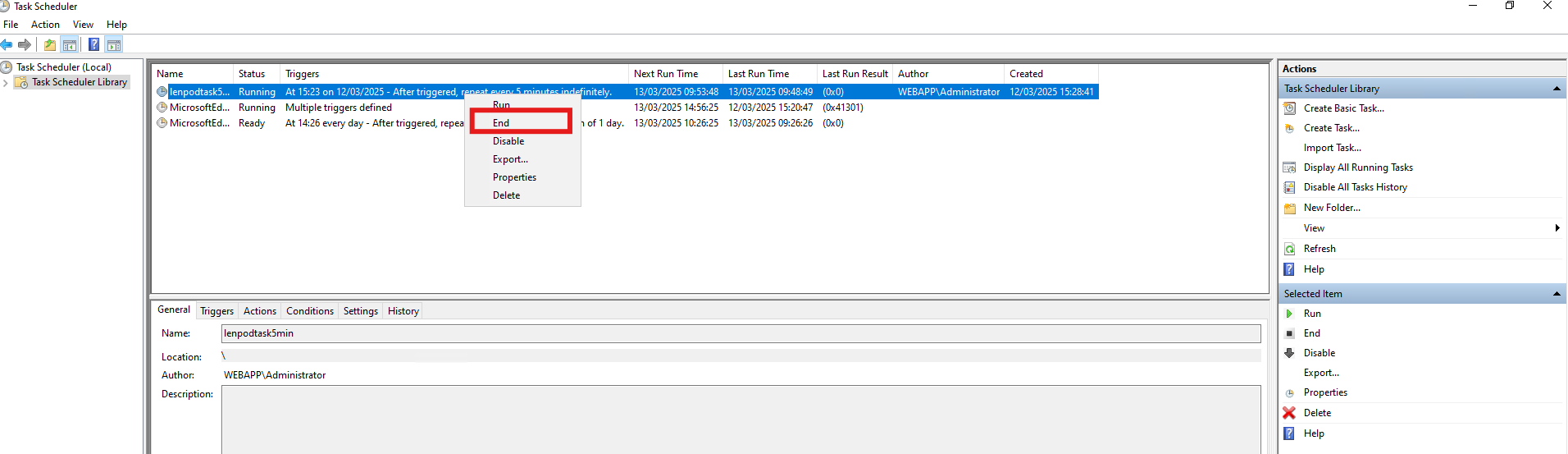
This is due to task scheduler currently running a scheduled task, and locking itself down to prevent any tasks from being ended whilst running. You can either wait for the task to finish running or you can end the task here:
Upgrader Error - Error Incorrect Syntax near 'INDEX'...
If you the upgrader throws this error then this is an issue regarding the version of SQL Server that is being used, which is no longer supported by Halo. All On-Prem customers need to be SQL Server 2016 or above otherwise more recent versions of Halo will not be supported:

If this is thrown you will have to revert back to the version of Halo the client was previously on, then you can upgrade your SQL Server version to 2016 or above.
Upgrader Error - Upgrading to the net version requires the ... service to be active
For exampple:
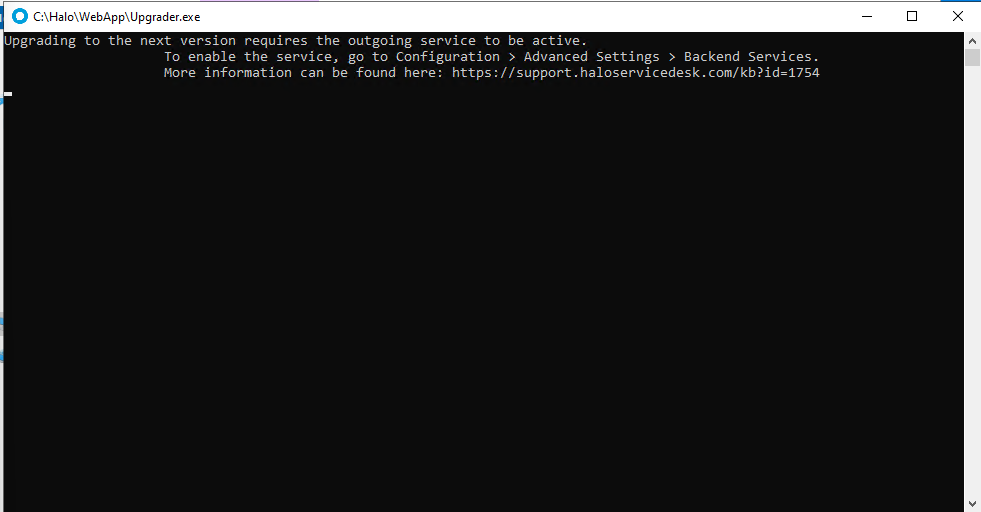
If you have received a form of this error then there are a few things which may be causing this:
- Upgrading to the net version requires the Event service to be active - The Event Service must be enabled.
- Upgrading to the net version requires the Incoming service to be active - The Incoming Service must be enabled.
- Upgrading to the net version requires the Outgoing service to be active - The Incoming Service must be enabled.
- Upgrading to the net version requires the Scheduling service to be active - The Incoming Service must be enabled.
This refers to the following checkboxes under the Backend Services tab. This can be found within configuration > advanced settings > (Backend Services Tab)
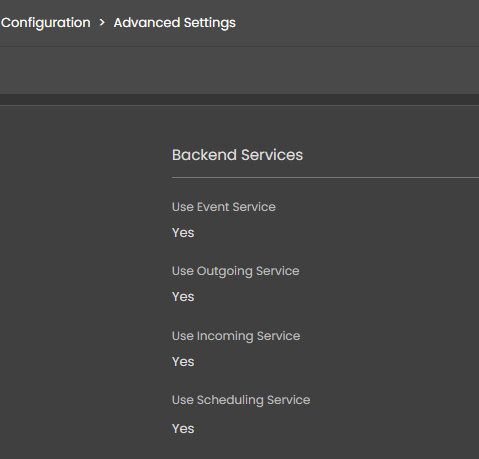
If this is the case then you have likely tried to upgrade to a version of Halo which no longer supports NHServer and now requires the new services to be configured. If this is the case then it is easiest to upgrade to the Security patch 2.174.111 and then moving to the new services and set this up. How to access this version of Halo is detailed at the start of this guide. Also, setting up the new services is detailed further in NHServer deprecation and DB integrator guide linked at the bottom of this article.