On-Premise - Pre-requisites
Prerequisites
To use Halo in the most performant manner, we recommend deploying two separate servers. These should be scaled up accordingly based on agent needs. These servers will be utilised for IIS Halo Application Hosting and SQL Server Database Hosting.
Each server should have at least the below minimum specifications:
- Platform: 32-bit (x86) or 64-bit (x64)
- Processor: 2 gigahertz (GHz) or faster, dual or quad core
- Memory: 8 gigabyte (GB) RAM
The operating systems must comply to the below versions:
- Operating System (OS): Microsoft Windows Server 2016 / 2019 / 2022 / 2025
In addition the database server requires the following components to be deployed (at a minimum):
- SQL Server Management Studio (SSMS): SSMS 21 is recommended and 2025 is supported (Or you can install the SQL server, and upon finishing the installation there is a prompt to get SSMS)
- Database (DB): Microsoft SQL Server 2022 (2017 is the minimum and 2025 is supported) ** SQL Server Version 2017 will reach it's end of extended support on October 12, 2027
- SQL Compatibility Level: Default compatibility level is 140.
- This should be no lower than this since only SQL Server 2017 and above is supported.
- This is because Halo requires JSON support for the way Halo queries a database. This guide expands further OPENJSON (Transact-SQL) - SQL Server | Microsoft Learn
- You can check this by running the following query:
- SELECT name, compatibility_level
FROM sys.databases
WHERE name = 'YourDatabaseName';
- SELECT name, compatibility_level
- If it is below 140 then you can run the following query to update your database's compatibility level:
- ALTER DATABASE YourDatabaseName
SET COMPATIBILITY_LEVEL = 140;
- ALTER DATABASE YourDatabaseName
For production, full SQL Server 2022 is recommended. SQL Server Developer doesn't have this limit but it is strictly for non-production environments. To go beyond that there is either the option of getting a third party SQL server such as Azure SQL, or going hosted where the SQL server is managed by Halo.
Also, both servers must be accessible to our licencing server:
- The instance must have internet access and be able to reach 'support.nethelpdesk.com', as this ensures the validity of the Halo licence. If using concurrent licences, the instance must also allow traffic from the designated Halo URL to verify the number of active licences when an agent logs in.
In addition to the above server requirements there are specific features and files which must be installed.
Downloads
Please ensure the below are also downloaded, installed or extracted ahead of the call, as these can take awhile depending on internet connection.
Note that everything apart from the initialiser DB needs to be installed on the Application Server.
Application Server
Folder Format:
- Halo Folder - C:\Halo\
- InstalFiles Folder - C:\Halo\InstallFiles
- WebApp Folder - C:\Halo\Production
- Once created, right click the top level Halo Folder, and click properties. Click security, then edit. Click Add, and then add the user IUSR. Give the user full control
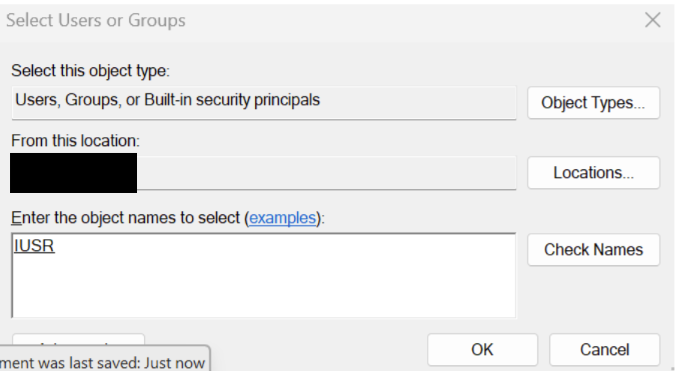
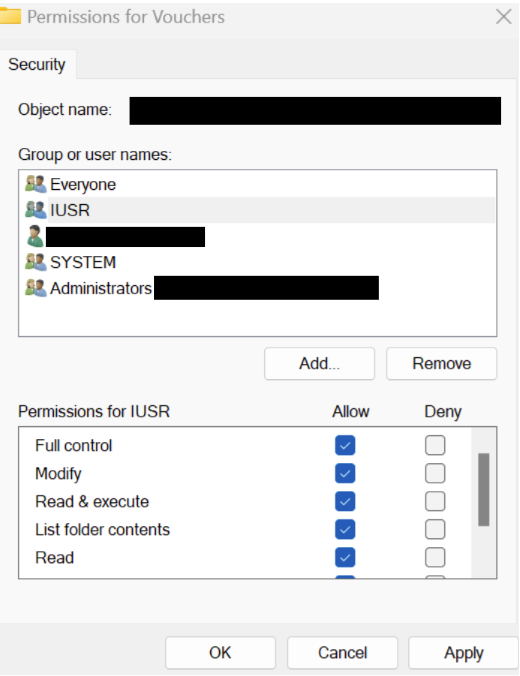
Now install the following files to the InstallFiles Folder:
- Dotnet (.Net) Hosting: microsoft.com
- Redist: aka.ms
- IIS Rewriter: microsoft.com
- Dotnet (.Net) SDK: microsoft.com
Additionally enable the following Windows features:
- You will want to navigate to the 'Turn Windows features on or off' program in the control panel, which is easy found from the window search:

- Once in there you will want to go into server selection, and make sure your current server is on there, and go to next:
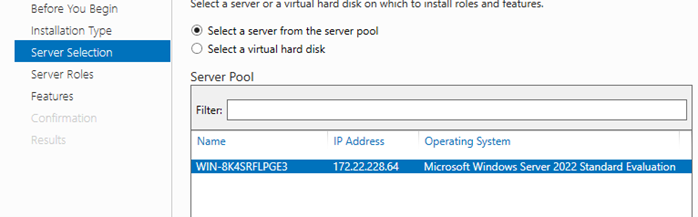
- You can install IIS on this section, by going onto server roles and adding web server (ISS), The server I used already had these ones added by me before:
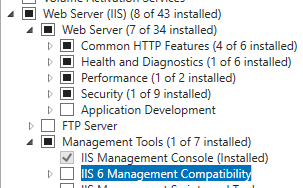
- Next, go into the features tab, and select .Net Framework, the newer the version the better, and make sure to have both .Net Framework and ASP.NET selected:
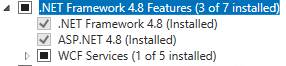
- Also you will need IIS Hostable Web Core:

Extract Files once they are downloaded from the Halo Support Portal:
- Halo: Halo Support Portal
Database Server
Extract the Halo Initialiser DB (please only download the one for the product you are setting up):
- HaloITSM: amazonaws.com
- HaloPSA: amazonaws.com
- HaloCRM: amazonaws.com
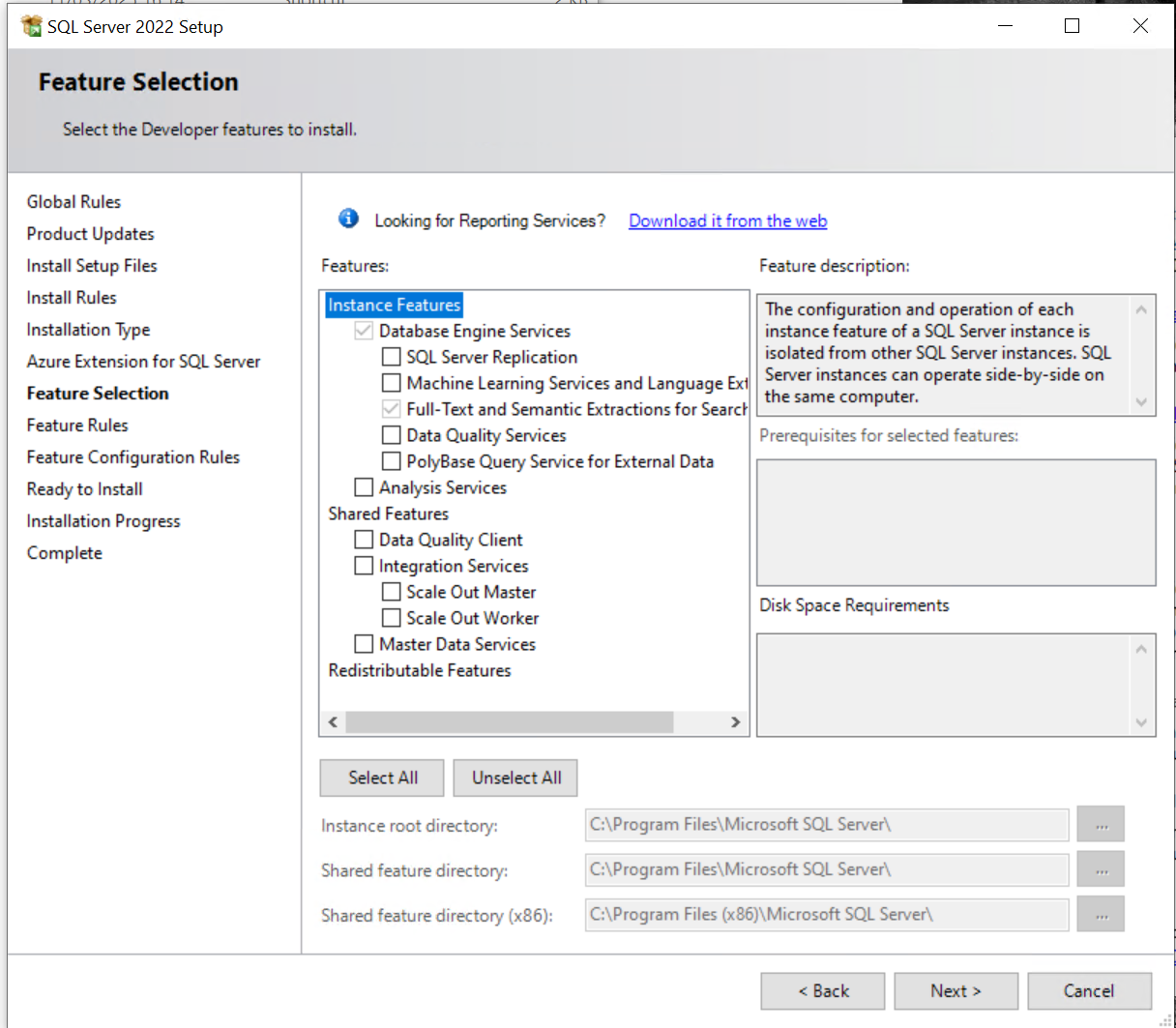
Enable Full-Text Semantic Searching against the SQL Server Instance (With SQL Server 2025 this will already be enabled):
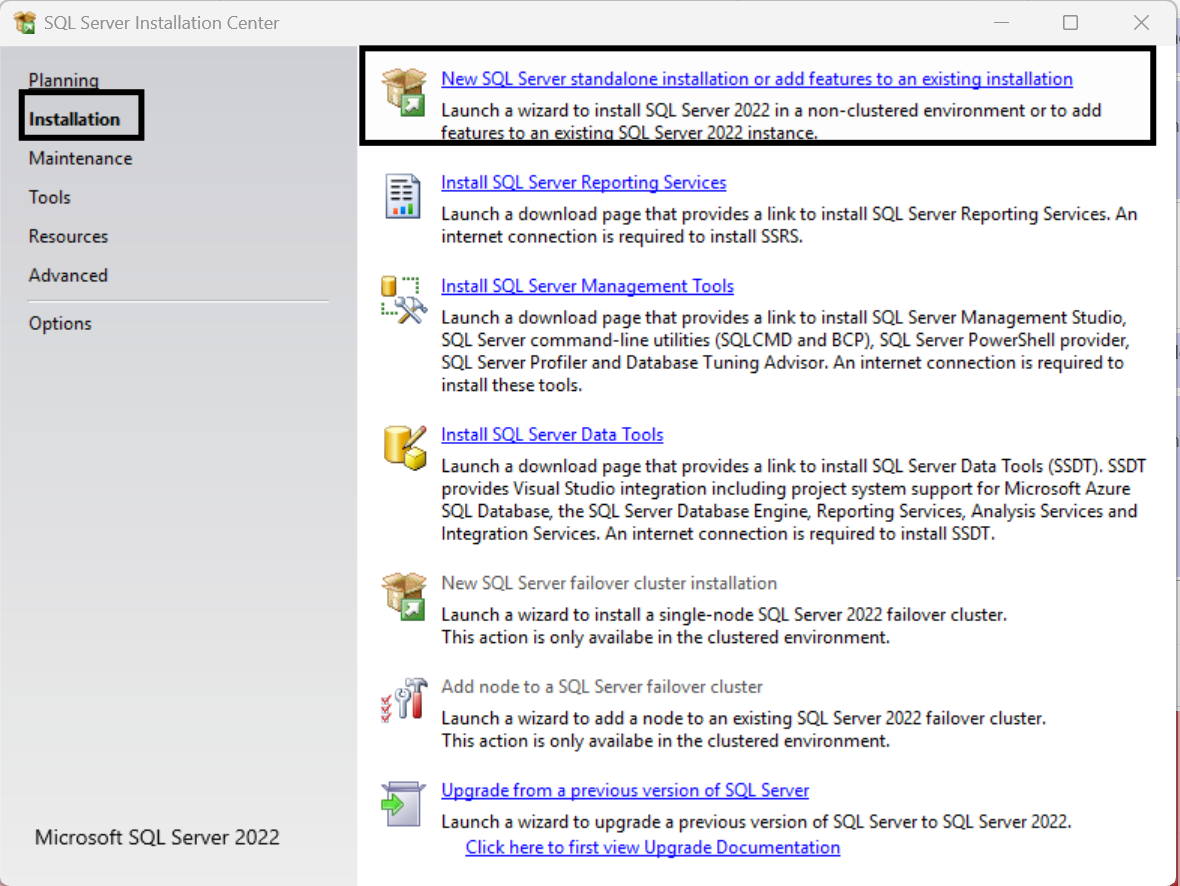
- Run the SQL Server Installation Center
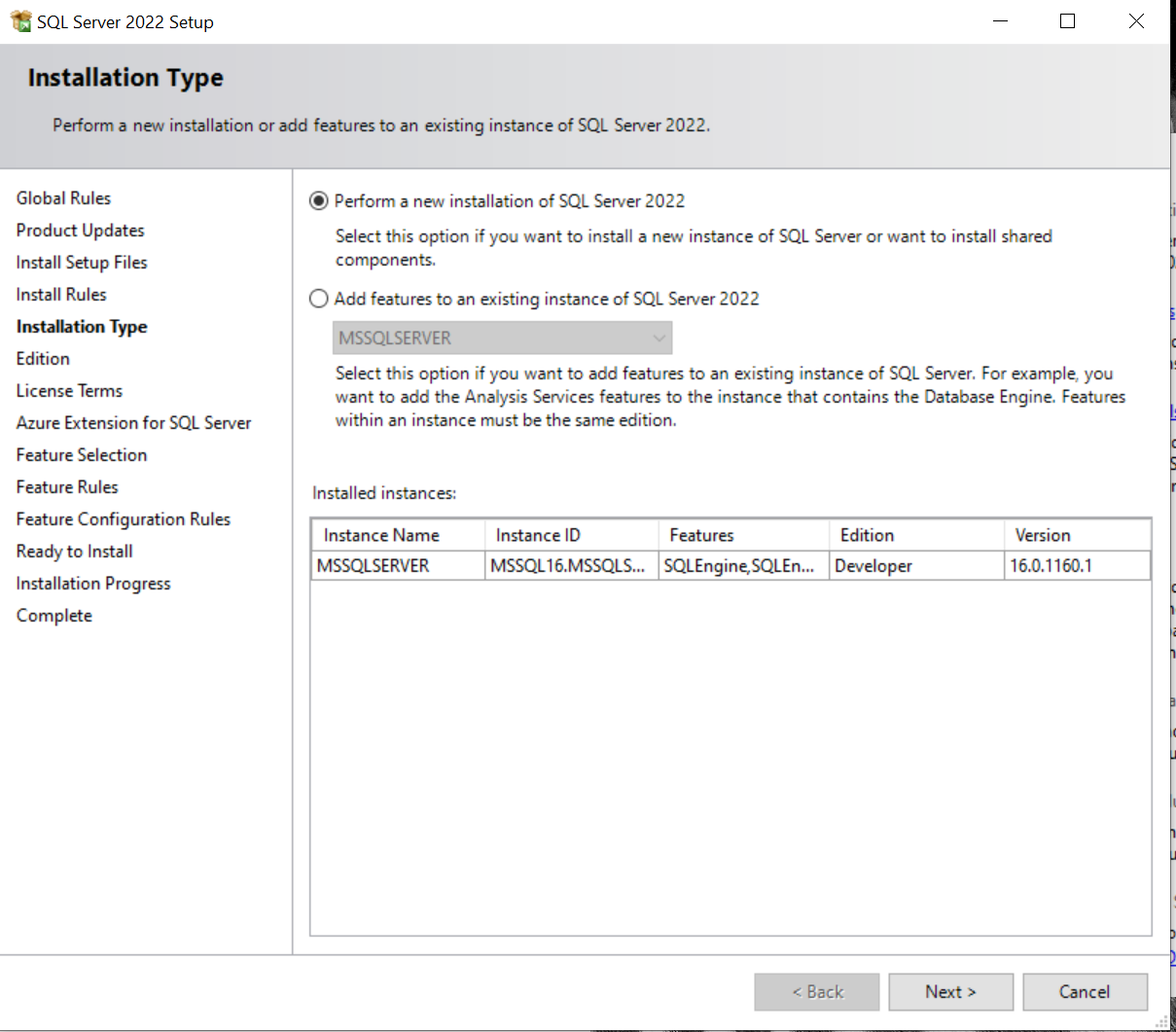
- This will display a window, press installation and then "New SQL Server Standalone Installation or add features to an existing installation
- Select the installation folder and add the feature to allow for Full Text Semantic Searching under feature selection
Special Configuration & Potential Issues
If you believe there are any special configurations or potential issues regarding your deployment, please do let us know ahead of time, so we can appropriately prepare for this ahead of the deployment.
Once this has all been completed, please let your consultant or our support team know and we will reach out to arrange a session to get this deployed.