Project Templates
In this guide we will cover:
- How to create a new Project Template
- How to add To-Do Lists and Tasks to a Project Template
- How to add Child Tickets (Project Tasks) to a Project Template
- Adding Creation Rules to Child Templates
- Setting The Child Template to a Read Only State Before Creation
- How to apply a Project Template to an existing Project
- How to apply a Project Template to a new Project
- How to create a Project Template from the new Project creation screen
- Linking Articles to a Project Template
Admin Guides:
Project Templates allow you to easily apply default values to a project in Halo. This includes field values, To-Do Lists and Child Tickets (Project Tasks)In this guide we will cover how to create and apply project templates, for information on creating the project itself checkout Creating Projects.
Creating a new Project Template
You can create these templates by going to Configuration > Tickets > Templates > New
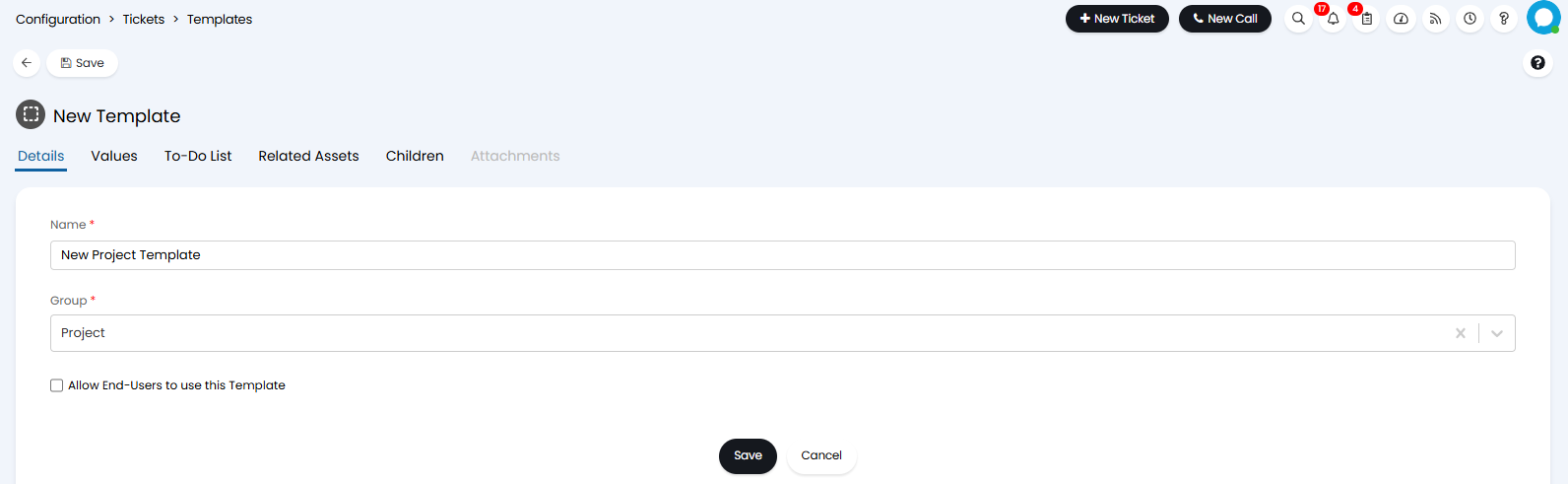 Fig 1. Creating a new Ticket Template
The 'Group' presented in Fig 1 is used as a means of grouping different Ticket templates - over time the list of templates will grow to be rather large & will compose of various types of work (Projects, Requests etc.) so it is advised that you group these templates accordingly.
Note: New template groups can be created via Configuration > Advanced Settings > Lookup Codes, then adding to the entity 'Auto Request Groups', all that is required is the name of the new group when adding to the list.
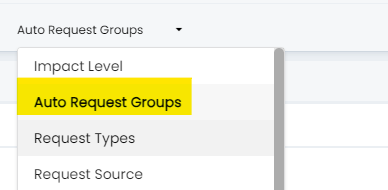
Fig 2. Creating new Ticket Template Groups
You will need to set the Ticket Type under Values to be the same as your Project Ticket Type. It is important to make sure it is a Ticket Type that is ITIL Type: Project and Project Hierarchy: Project, or else this will not be a project template. You can further configure all the defaults for this Project Template under the values tab.
Adding To-do Lists and tasks
Under the To-Do List tabs, you can create a new To-Do list by selecting the “Add an Ad-Hoc To-Do Item” and typing in the name of the new Task & clicking save. You can also create To-Do List Groups which are better explained in Creating Projects. To-Do Items can also be restricted to certain customers if you add them to the customers table on the below modal window.
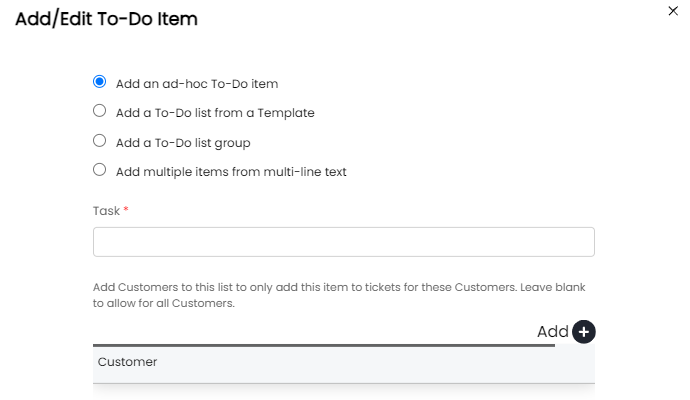
Fig 3. Add/Edit To-Do Item
Alternatively, you can copy another Templates' To-Do List by selecting the “Add a To-Do List from a template” and selecting the template you would like to copy.
Add Child Tickets (Project Tasks) to a Project Template
The last tab is to create Child Tickets (Project Tasks) that will automatically be created upon raising a Project with this template applied. You can do this by clicking on the add button and adding an existing Child Template or creating a new Child Template.
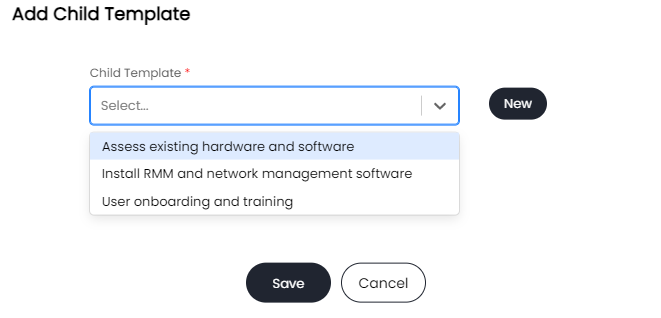
Fig 4. Add Child Template Screen
After creating the child template it will populate in the table, from here we can click in to edit the child template, or we can add creation rules (rules to decide what will make the child template create):

Fig 5. Child Template Added to The Table
Adding Creation Rules to Child Templates
Clicking into the "Rules" add button, we can configure the rule which will allow this child template to create. When "Create after closing another child" is selected, there will be an option to select the task that needs to be completed for the next one to open. You can also have a read only option, which is explained further down this guide.
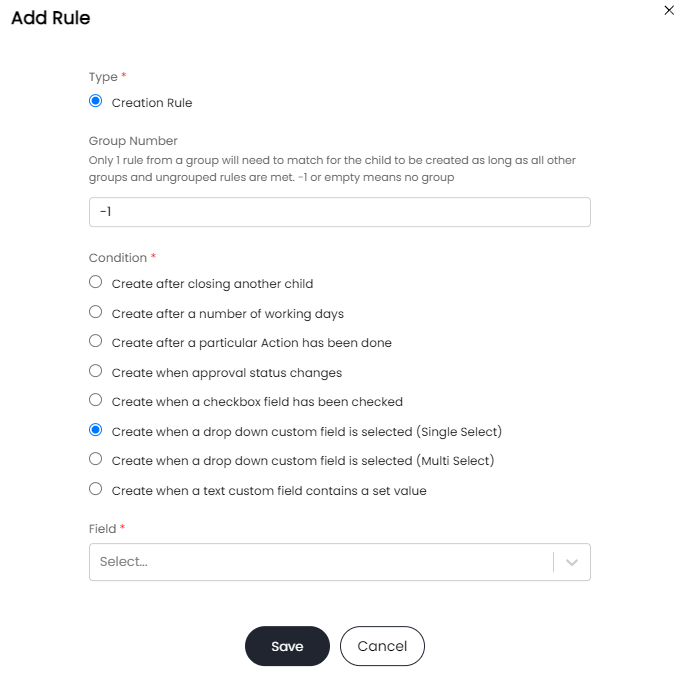
Fig 6. Creation Rules
These creation rules are self explanatory in terms when the child ticket will be created. However, we have a dedicated guide on using the 'Create when a drop down custom field is selected (Multi Select)' rule here.
The other option is clicking edit on the child template, this will give the options for configuring the child template (the same options as the parent template).
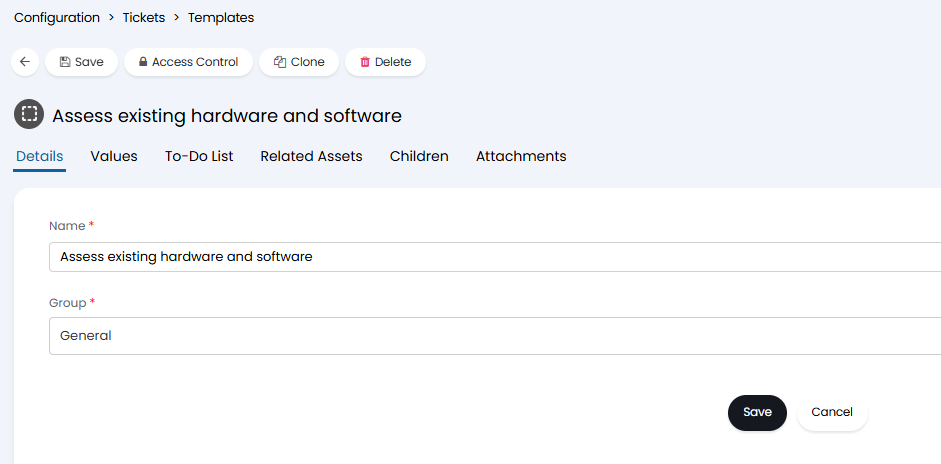
Fig 7. Child Template Configuration
Inherit Child Ticket Creation Configuration from another Template (v2.246+)
From v2.246+ you can have the child ticket creation configuration for a template be inherited from an existing template.
This allows you to have the templates and creation rules for child tickets that can be created from this template be inherited from a chosen template. If child creation configuration is edited on the 'parent' template, this will automatically be inherited by the 'child' template. This can make template creation and management easier when lots of your templates share the same child tickets, for example, if you have separate migration project templates for each entity being migrated, that share the same set of tasks.
To use this functionality, set the option "Child Template Configuration Type" (which is available from v2.246+) to "Use children from an existing template". When chosen you can then choose which template this one should inherit the child ticket configuration from.
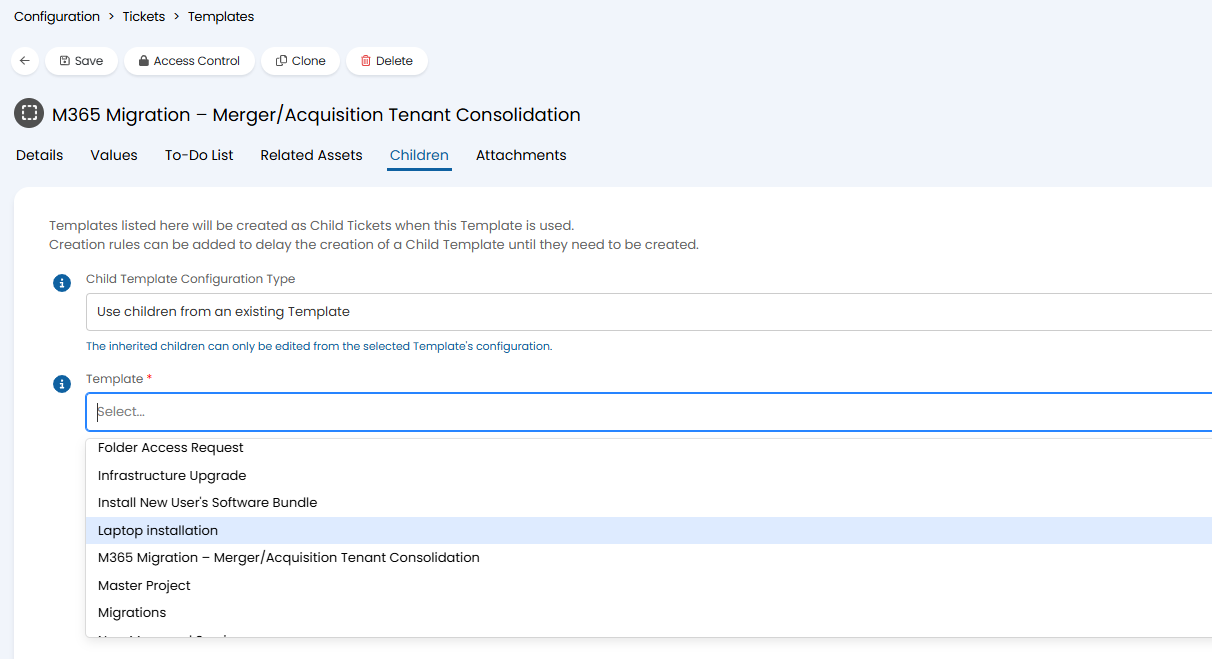
Fig 8. Set Child Template Configuration Type for a template
Once saved, you will be able to see the creation rules and templates for child ticket creation.
Keep in mind, you will not be able to edit the child creation configuration on this template, this can only be changed by editing the 'parent' template.
Now, when child ticket configuration changes against the 'parent' template (or a new child is added), the configuration will update for the child templates too. Making it easier to manage and roll out changes to tasks used across various tickets/processes.
Setting The Child Template to a Read Only State Before Creation
After clicking edit on a child template, there will be a option for "Create in a read-only state" under the values tab, when this is enabled, no actions will be available until all Unlock rules have been met. Unlock rules are configured in the rules section of the table. The idea is that you can make future tasks read only until they have been unlocked, the unlock having to a meet the condition of the current task being completed.
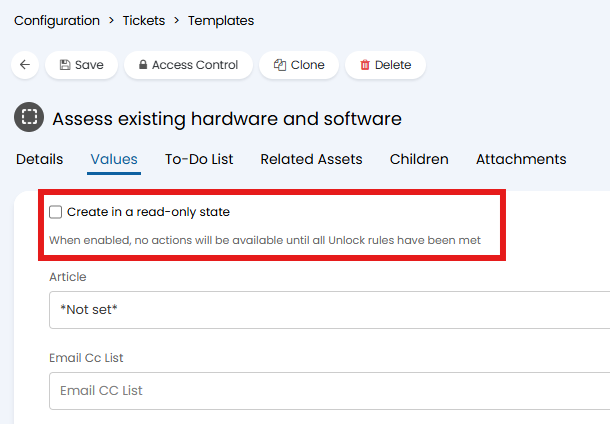
Fig 9. Adding a Child Template and Setting it to a Read Only State
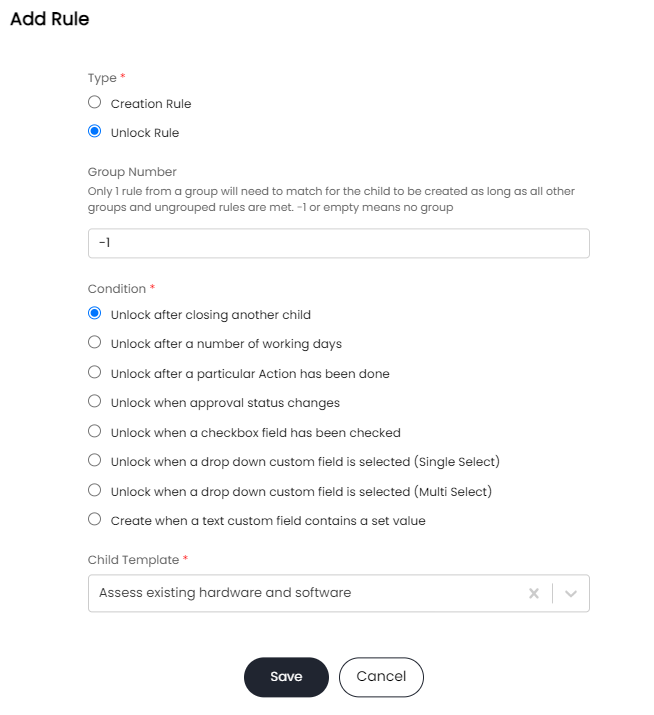
Fig 10. Setting the Unlock Rule
I have now added the unlock rule. So to recap I created two child templates "Assess Existing Hardware and Software" and "Deploy New Hardware". The Deploy template was set to read only and then I made sure to SAVE the table so that it updates. After saving it, I can then add the unlock rule to the deployment template which states that the hardware must be assessed before the deployment task is unlocked. You could set multiple rules such as having a specific custom field populated, i.e. if the custom field on the project has a single select field that can be populated with "New Hardware Required" then we could set this dropdown being selected as a creation rule of type unlock rule.
Alternatively, you can change the Ticket Template entity to 'Child Template' from the template list screen:
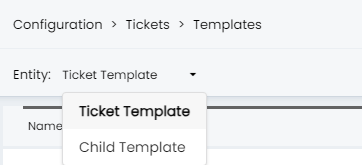
Fig 11. Ticket Template Entity Selection
How to apply a Project Template to an existing Project
To apply the new template to an existing Project, you can go to the three dots in the top RHS and click on Apply a Template.
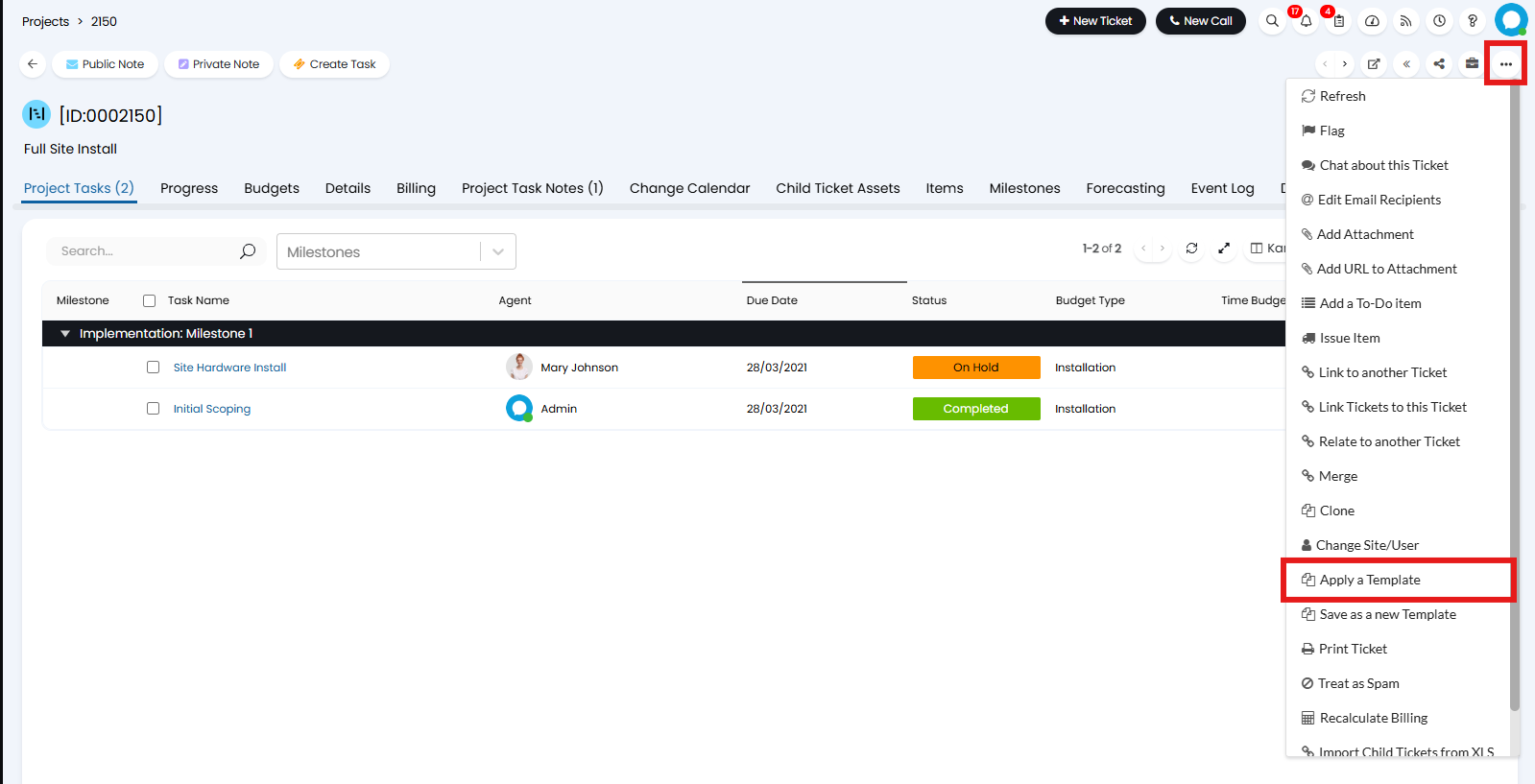
Fig 12. Apply a Template
How to apply a Project Template to a new Project/How to create a Project Template from the new Project creation screen
To apply a Project Template to a new Project, you can click 'Apply Template' on the new Project screen.
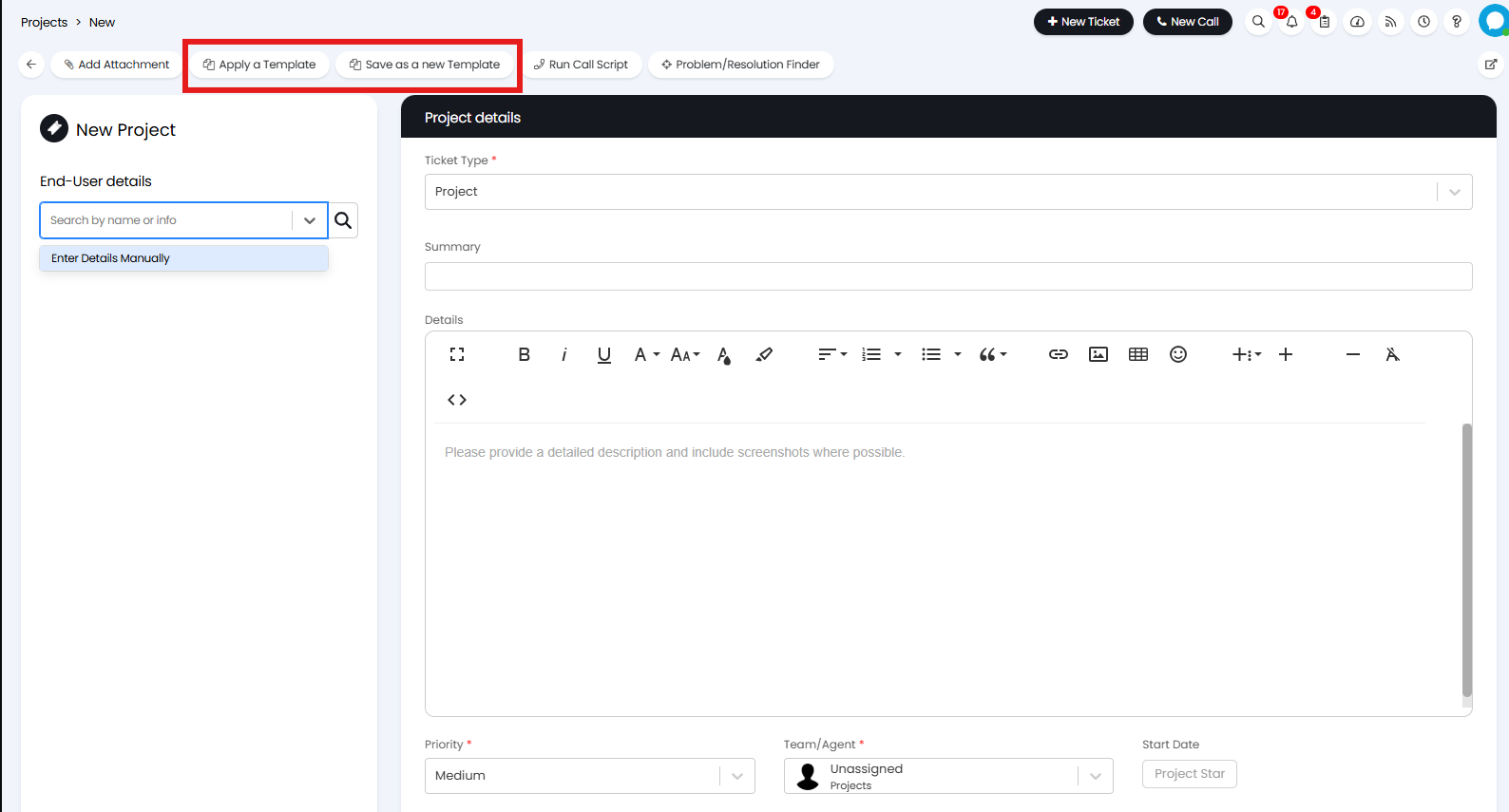
Fig 13. Applying a Ticket Template via the new Ticket Screen
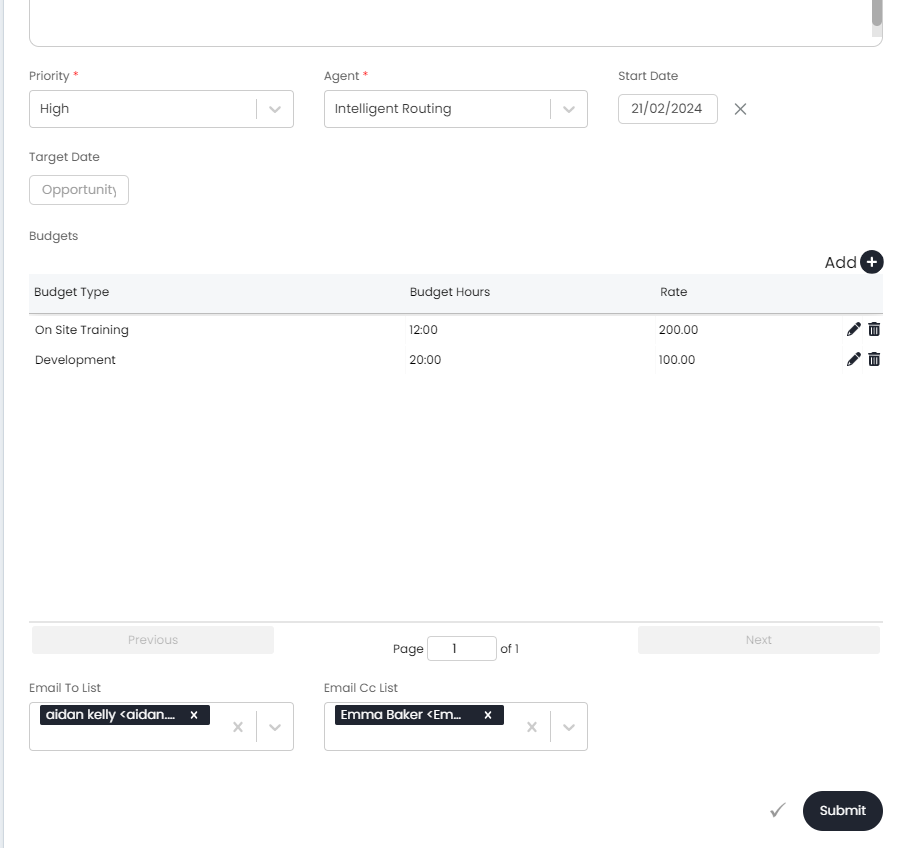
Fig 14. Creating a Template From The New Creation Screen
Then applying the template I created by saving the template from this above new ticket screen it will inherit things like the target date, the priority, the agent (Distributing Tickets: Intelligent Routing).
Note: The Budget Table and the emails were not carried through, these would likely be different for other projects anyways.
Fig 15. Option Appears To Clear The Template If One Is Applied
From v2.246+, Fields populated by the template will be cleared if the template is removed.
Linking Articles to a Project Template
Another valid point to make about creating child tasks is that we may want to add an article.
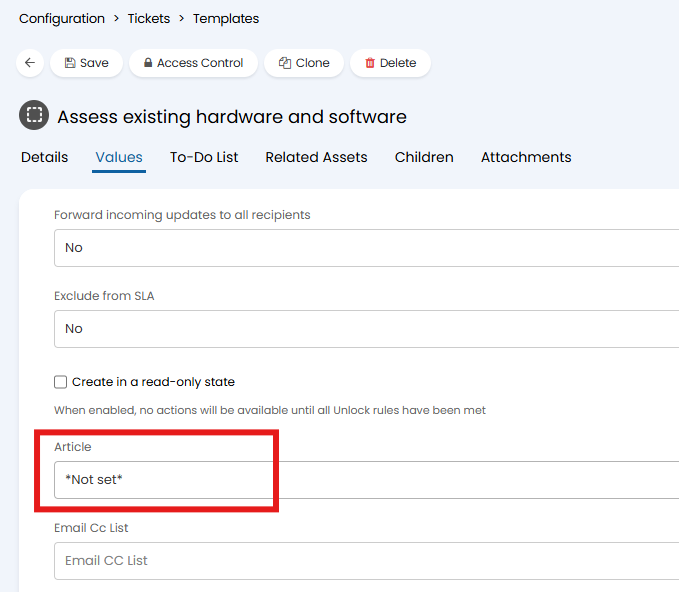
Fig 16. Linking a Knowledge Base Article To The Template
A Knowledge Base Article can be added to the template, for example an article called "Generic Hardware Assessment Procedures" could be linked to this project task for engineers to use.