Adding in a Project Plan
In this guide we will cover:
- How to show the Project Plan tab
- Editing the Templates and Rules
Project Plan tab
In order to show the Project Plan tab you will need to head to Configuration > Tickets > Ticket Types, Click into the Project Ticket Type, Click into the Forms Tab and enable "Show Unborn Child Tickets on the Ticket Details Screen", and "Allow customisation of Unborn Child Tickets".
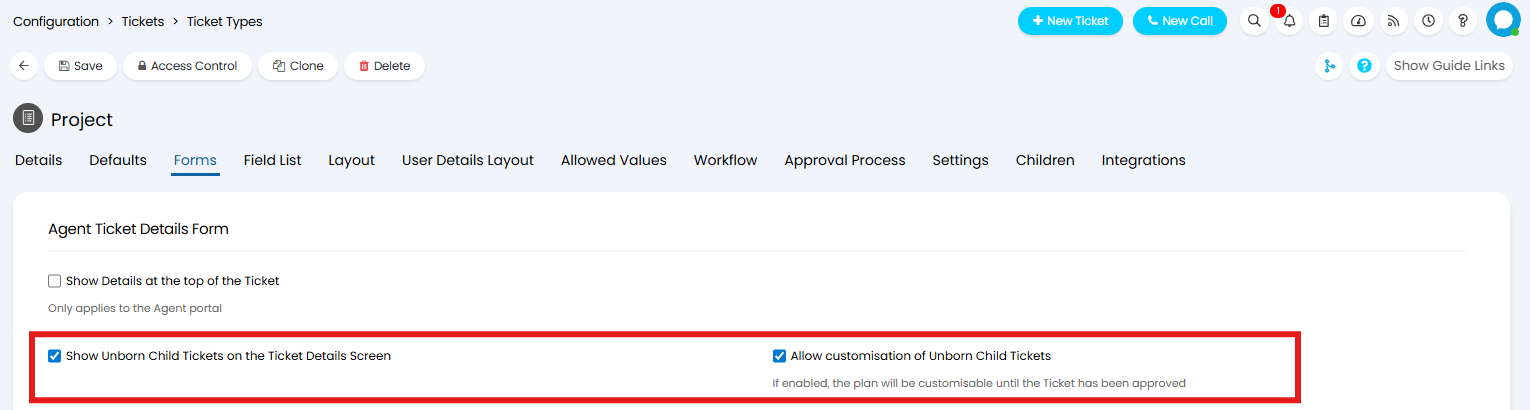
Fig 1. Ticket Type Options to Enable the Project Plan
With the above options enabled, there will be a Project Plan tab that displays on this Ticket Types.
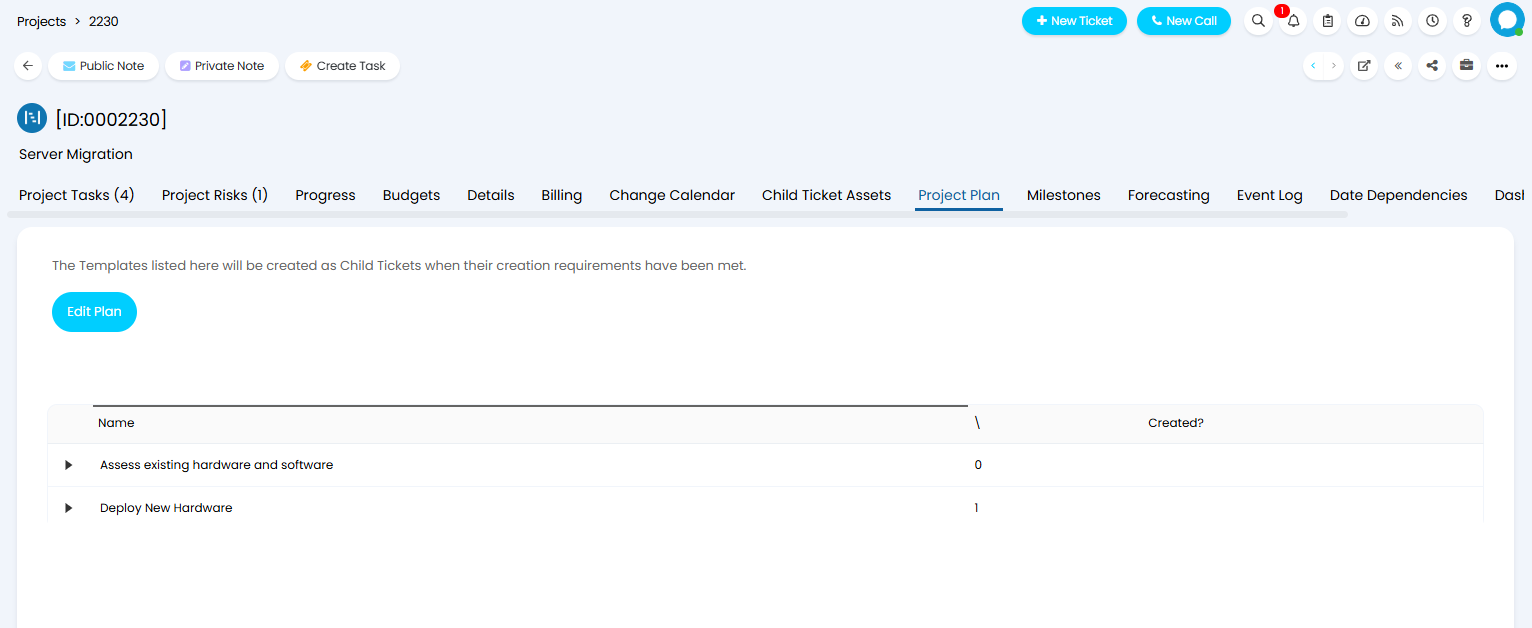
Fig 2. Project Plan
Editing the templates and rules
After clicking into the Project Plan tab on a project, you will be given the button to edit the plan, when clicked on, you will have the option to edit templates for the unborn child tickets and the creation rules associated with them.
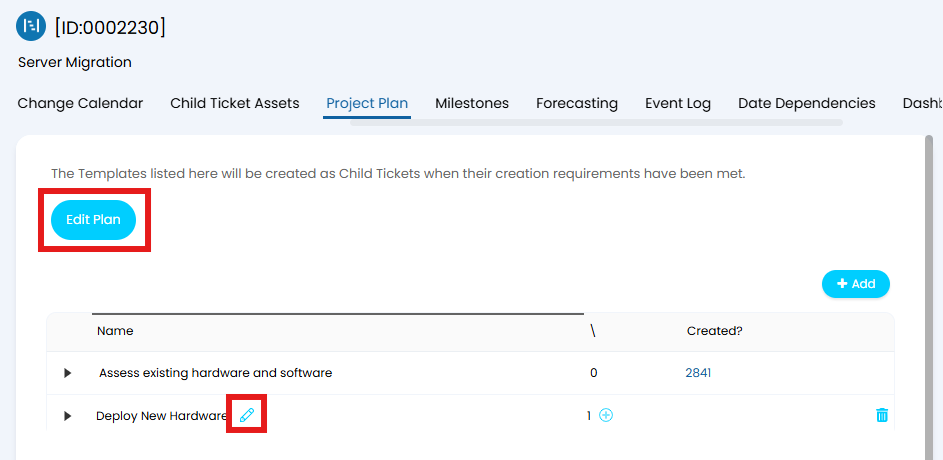
Fig 3. Edit Template Button on the Project Plan
When adding a new Child Template which was inherited from a Ticket Template the Template will be saved as a new copy, only applying the changes to the current Ticket.
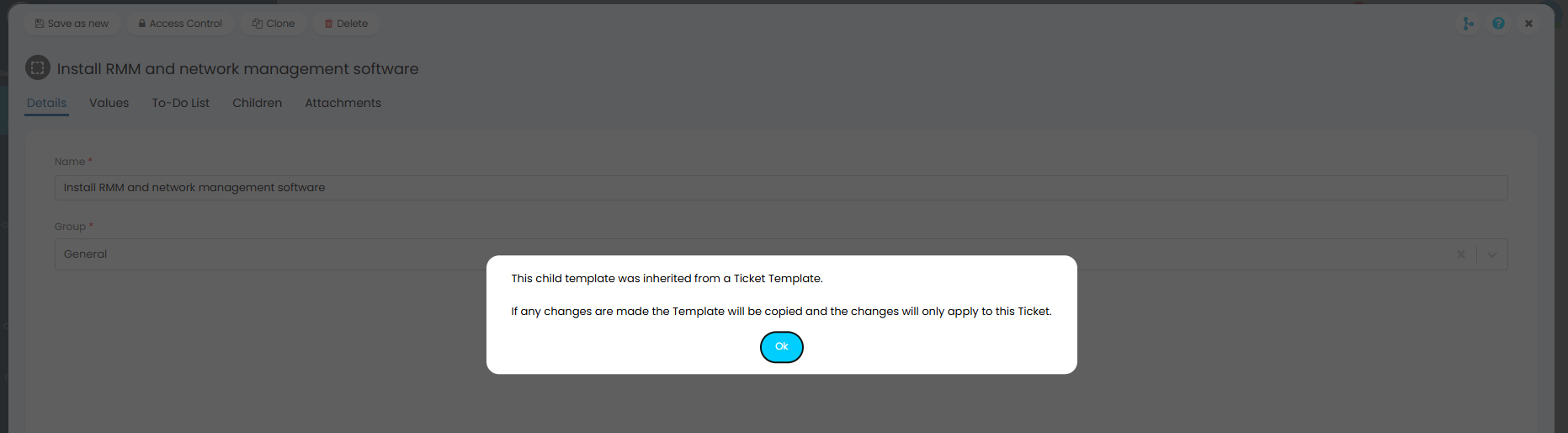
Fig 4. Unlink Warning
More information on creating Project Templates can be found here.