Milestones
In this guide we will cover:
- Milestones Tab
- Options When Adding Milestones
- Dependencies
- Locked Tasks and Filtering by Milestone
- Configuring a Column Profile for Milestones
- Updating Milestones via Project Management General Settings
- Link the Child to a Milestone When Creating a Child Ticket from a Project
- Adding Milestones from Templates
Admin Guides:
Related Guides:
Halo allows for Milestones to be tracked against Projects and provides the ability to associate Project Tasks with a given Milestone.
Milestones Tab
Milestone functionality is enabled against Ticket types for which you want this feature to be used. This option will be present within the Settings tab for Ticket Types or the Details tab (if you're on the stable version 2.132.73) Configuration > Tickets > Tickets Types.
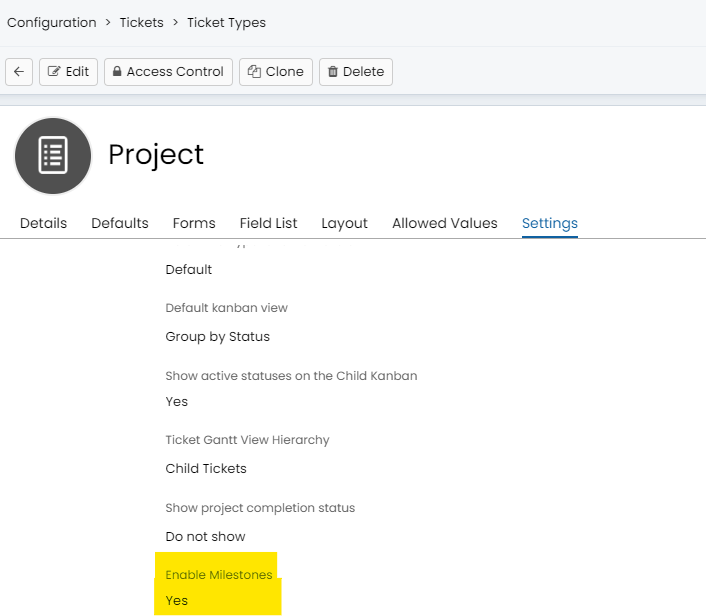
Fig 1. Enable Milestones Button on the Ticket Type
Once you have enabled this option, you will find a Milestones tab against Tickets of that type.
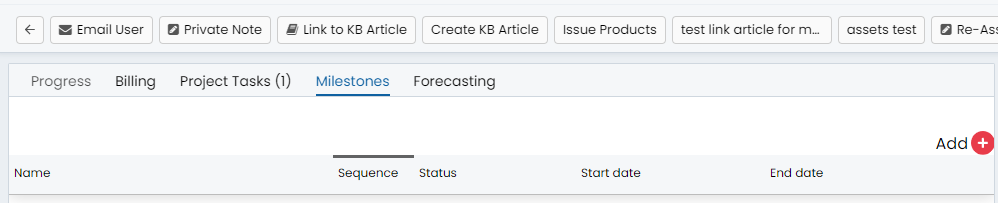
Fig 2. Milestones tab against Ticket
Options When Adding Milestones
In here, you can add new Milestones, including:
- Providing a sensible name
- Adding a sequence for sorting the list of Milestones
- Adding start/end dates for a given Milestone
- Allocating Tasks/child Tickets to said Milestone (Multiple tasks can be added to the same milestone)
- Adding dependencies between Milestones
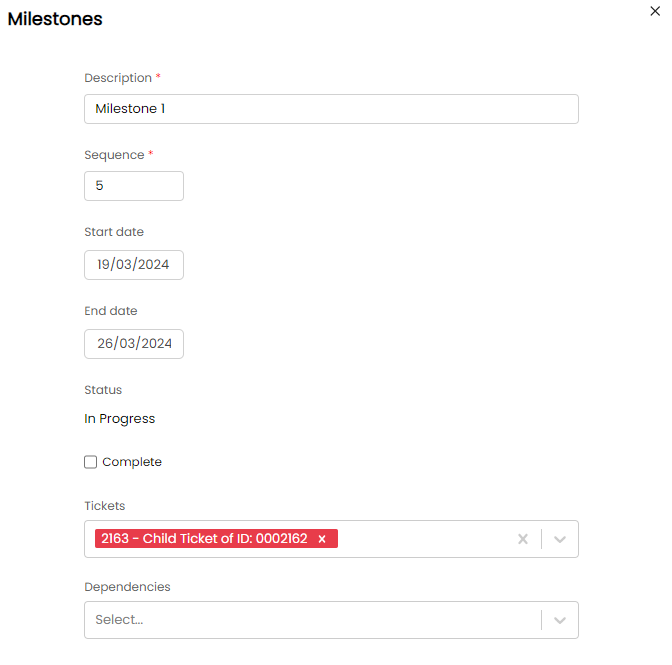
Fig 2. Options when adding Milestones
Dependencies
Dependencies can be set on the Milestones, granted that they are not the first milestone on the project. The tasks in milestone 2 will be locked until milestone 1 is marked as completed, adding this dependency is shown below:
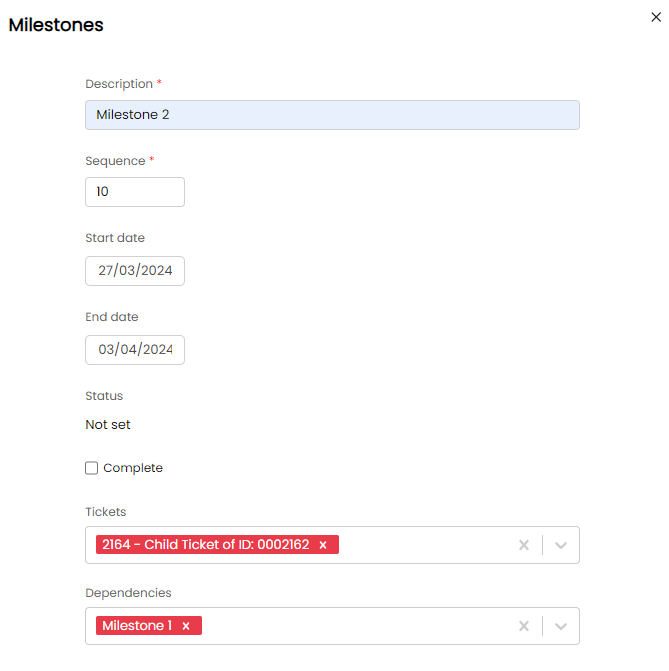 Fig 3. Milestone 2 is dependant on Milestone 1 Being Completed
Locked Tasks and Filtering by Milestone
Now when viewing tasks with the Milestone 2 filter set, there won't be any tasks shown by default, because they are locked. To show the tasks that are locked, we can toggle the view as show in (Fig 4).
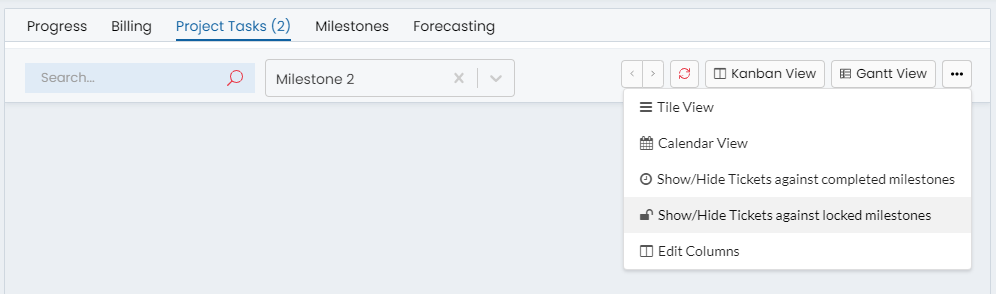
Fig 4. Locked Milestones can have their tasks shown by clicking on "Show/ Hide Tickets Against Locked Milestones"
You will also find that, upon enabling Milestone functionality against a Ticket type, you have the option to filter the list of Tasks based on their current Milestone, for the example shown below, filtering for "Milestone 1" will mean only the child ticket 2163 would show, as 2164 doesn't exist in Milestone 1.

Fig 5. Filtering the list of Project Tasks based on their current Milestone
The 'Dependencies' dropdown (Fig 3) allows you to specify that one Milestone is dependent on another. When a milestone is dependent on another, the Tasks associated with that Milestone will be locked (Fig 4).
For example, if I associate the 'Child Ticket 2164' task to 'Milestone 2' & make Milestone 2 dependent on Milestone 1. Then the Child Ticket 2164 would be locked until Milestone 1 has been marked as Complete.
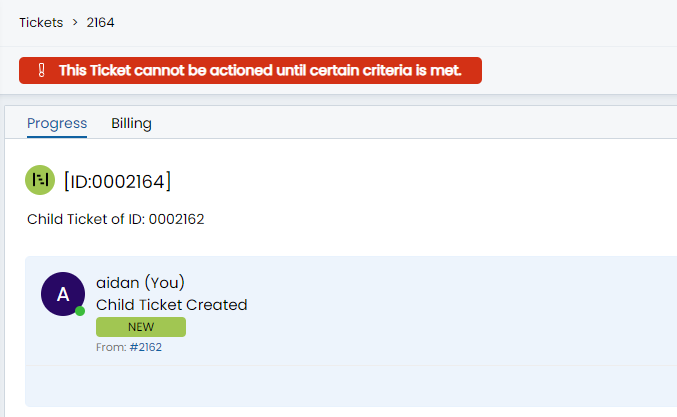
Fig 6. Locked Task
Milestones are marked as being complete via selecting the 'Complete' option against the Milestone itself (Fig 2), or when all Tasks assigned to a Milestone are closed.
Configuring a Column Profile for Milestones
To best utilize Milestones you would want to use the table view for Column Profiles as this can group tickets by Milestones.
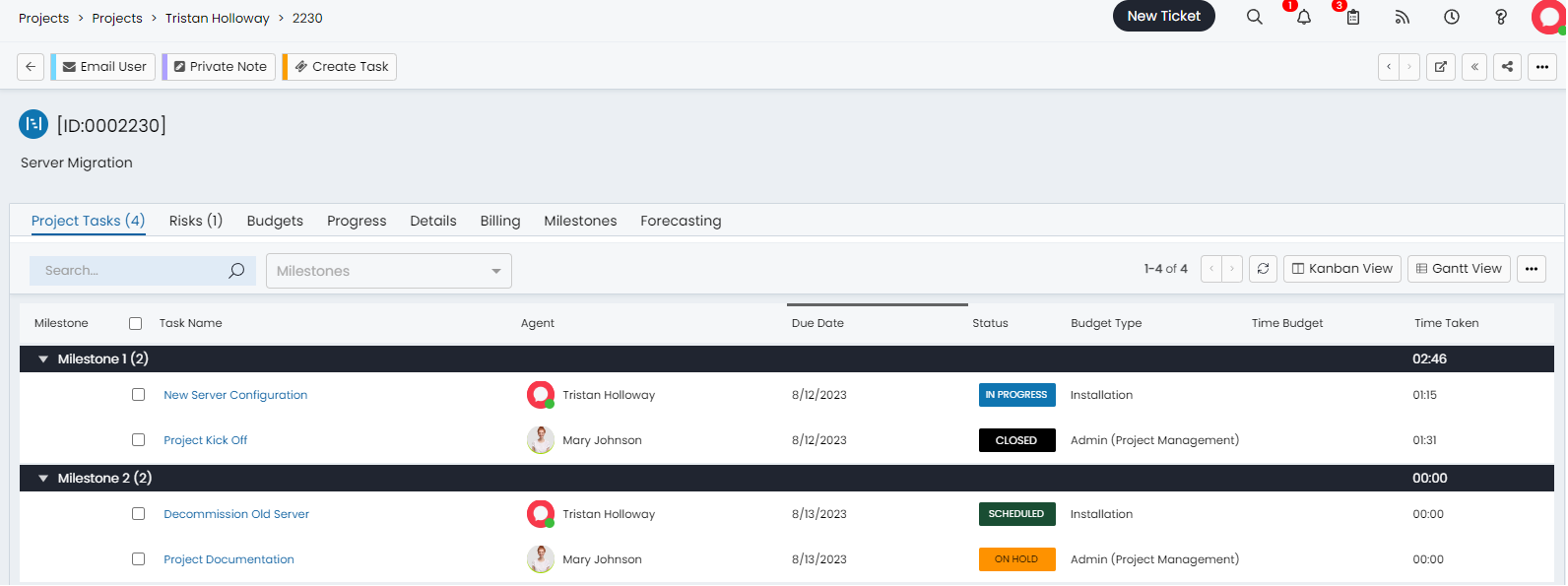
Fig 7. Table view for Milestones on Ticket List
To configure this column profile navigate to Tickets > Views > Configure Column Profiles > New > Add a Column Profile Name, Use, and Board Visibility.
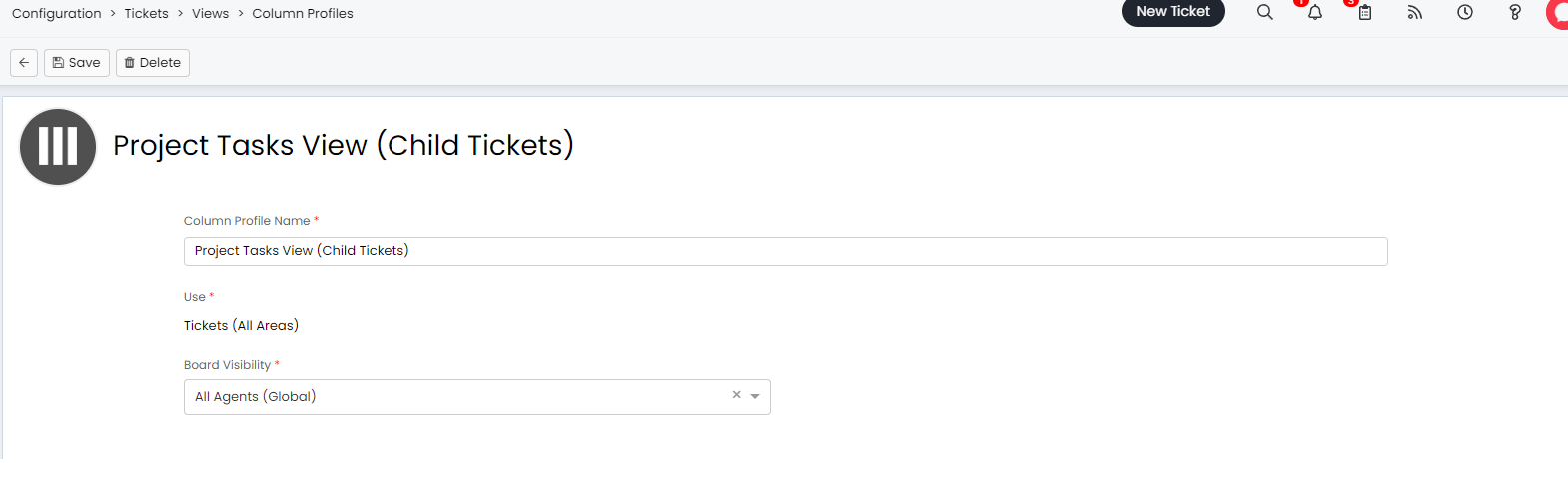
Fig 8. The Column Profile Page for Project Views
To Set this just for the Projects Area (Areas are configured in Configuration > Tickets > Ticket Areas), we can set to the use "Projects" on the Column Profile. Checkout the guide on Ticket/ Client Areas, listed at the top of this article for more info.
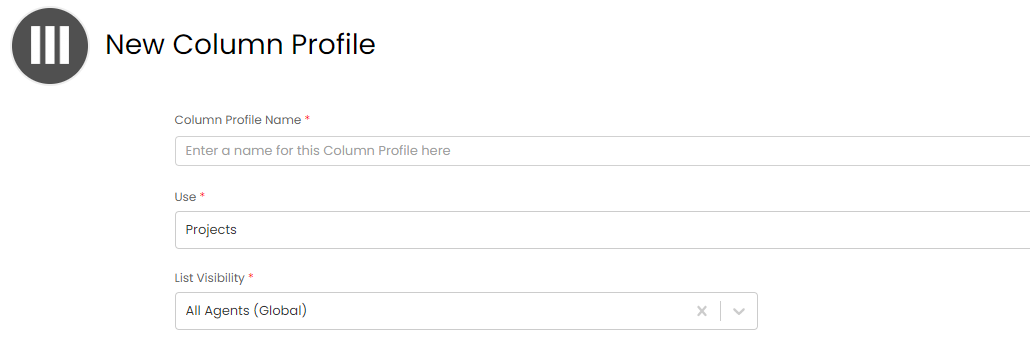 Fig 9. Setting the use to Projects
The next step would be to add the column you would like to see when using this Column Profile. These are the recommended columns to add:
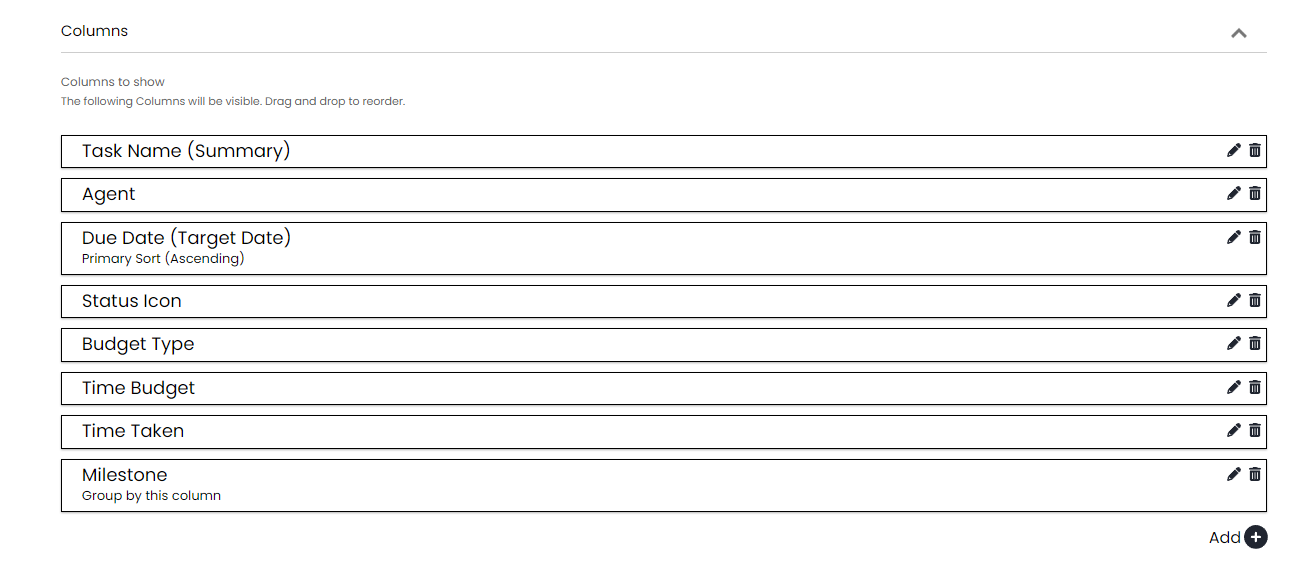
Fig 10. Grouping by the Milestones Column on the Ticket List and Setting The Due Date as the Primary Sort
Note: You would likely want to make the Due Date (Target Date) the Primary Sort (Ascending) and Group by the Milestone Field to get the best-looking results.
To configure this filter profile you would need to navigate to Configuration > Tickets > Ticket Types > Select 'Project Task' > Set the Column Profile for Child Tickets to the Column Profile you created in the last step.
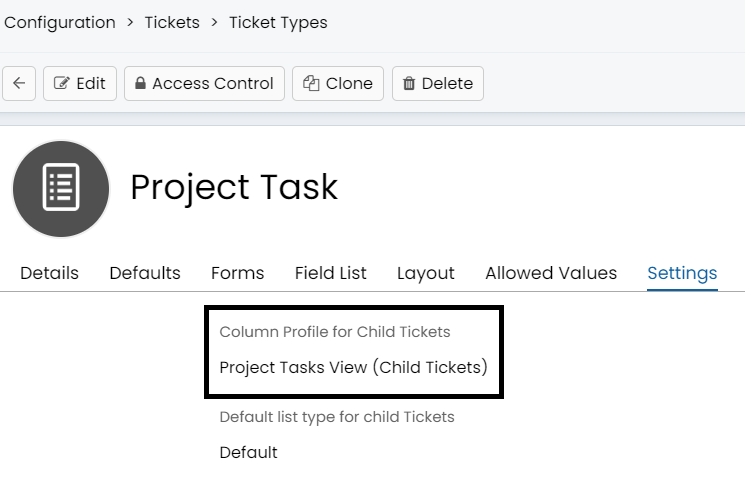
Fig 11. Setting the Column Profile on Child Tickets (Project Tasks)
Updating Milestones via Project Management General Settings
If this below setting is unchecked and you update the date of a milestone, only other milestones that are dependant on the milestone that you are updating will be updated. When checked, updating the date of a milestone, will update the date of all milestones, regardless of whether they are dependant on each other. This will stop milestones clashing dates with one another. It is recommended that this setting is on.

Fig 12. Updating Dates for a Milestone Updates All Milestones

Fig 13. When Updating Dates for Tasks Update the Milestone Dates
When selected, the start/ end date of a milestone will be updated, such that the start date of the milestone will be the earliest start date of any task in that milestone, and the end date will be the date of the last task in that milestone. This automates the setting of milestone dates on a project.
Link the Child to a Milestone When Creating a Child Ticket from a Project
First you need to enable milestones on the project task ticket type, this can be done from the settings tab of the ticket type.
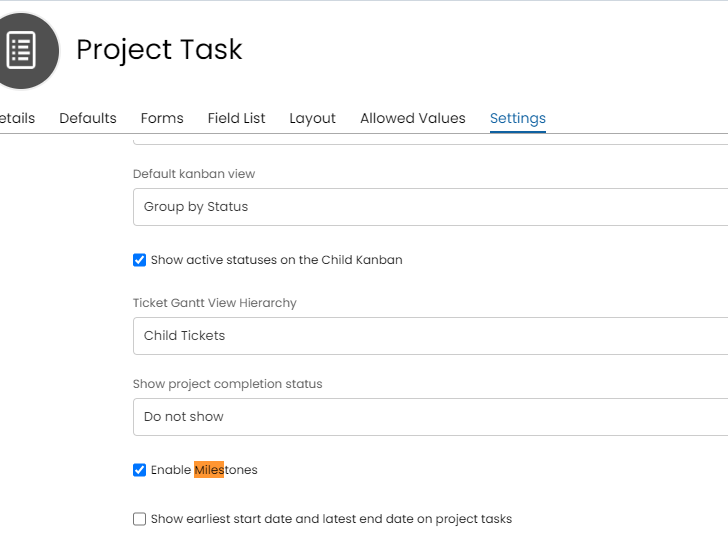
Fig 14. Enabling Milestones on the Project Task Ticket Type
Then you can add this field to the ticket type.
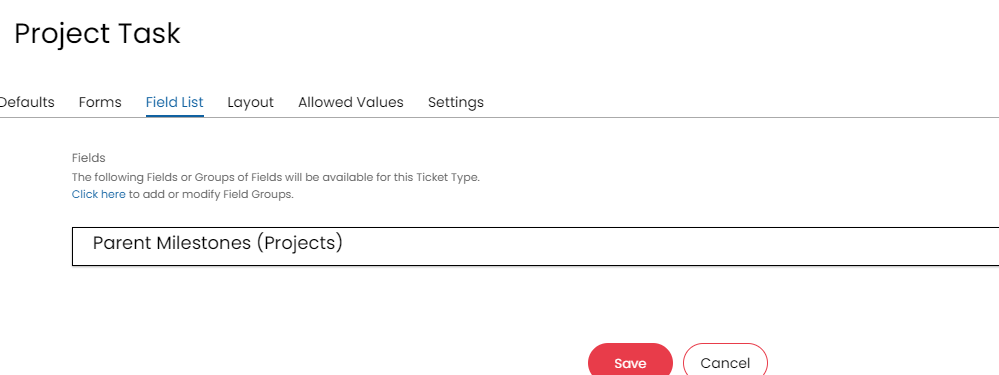
Fig 15. Parent Milestones Field on the Project Task
You can then add the milestone from the creation screen of the child ticket (project task).
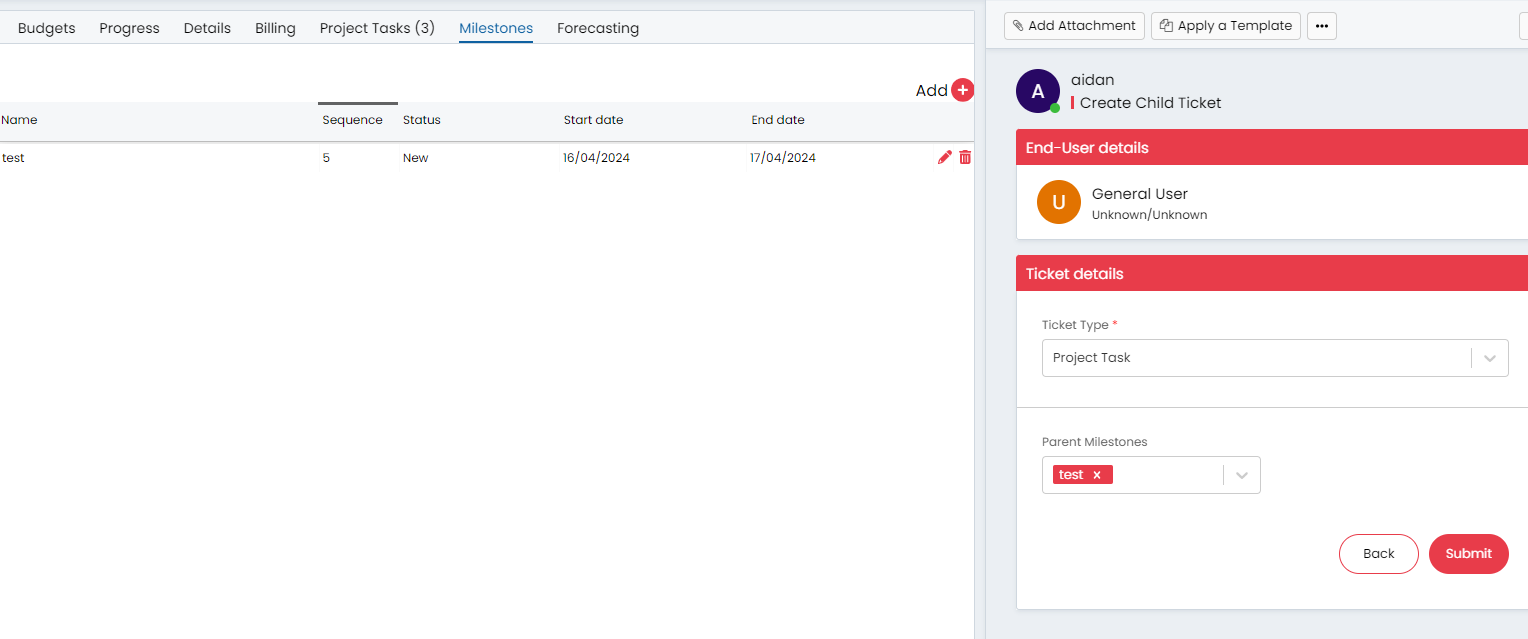
Fig 16. Linking the Project Milestone on the Child Creation Screen
Now when you edit that milestone on the project, you will see the ticket list has been appended:
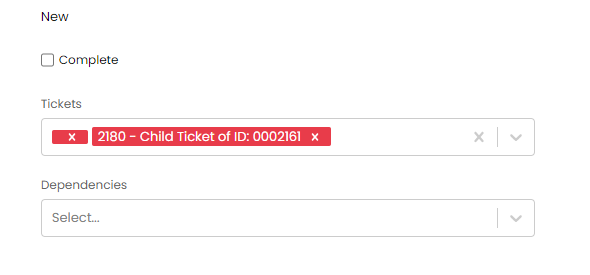
Fig 17. Child Ticket Appended to the Milestone
Adding Milestones from Templates
A ticket template can be used to add milestones via the corresponding tab. This tab will only appear once the "Ticket Type" field in the "Values" tab is set to a ticket type that has milestones enabled as of Fig 1.
A table will show to set the milestones, as well as their sequence, dependencies, and dates.
You can also "Disable modification of milestones on Tickets" per template. This means the milestones on a ticket will be set by the template, and cannot be edited once logged.
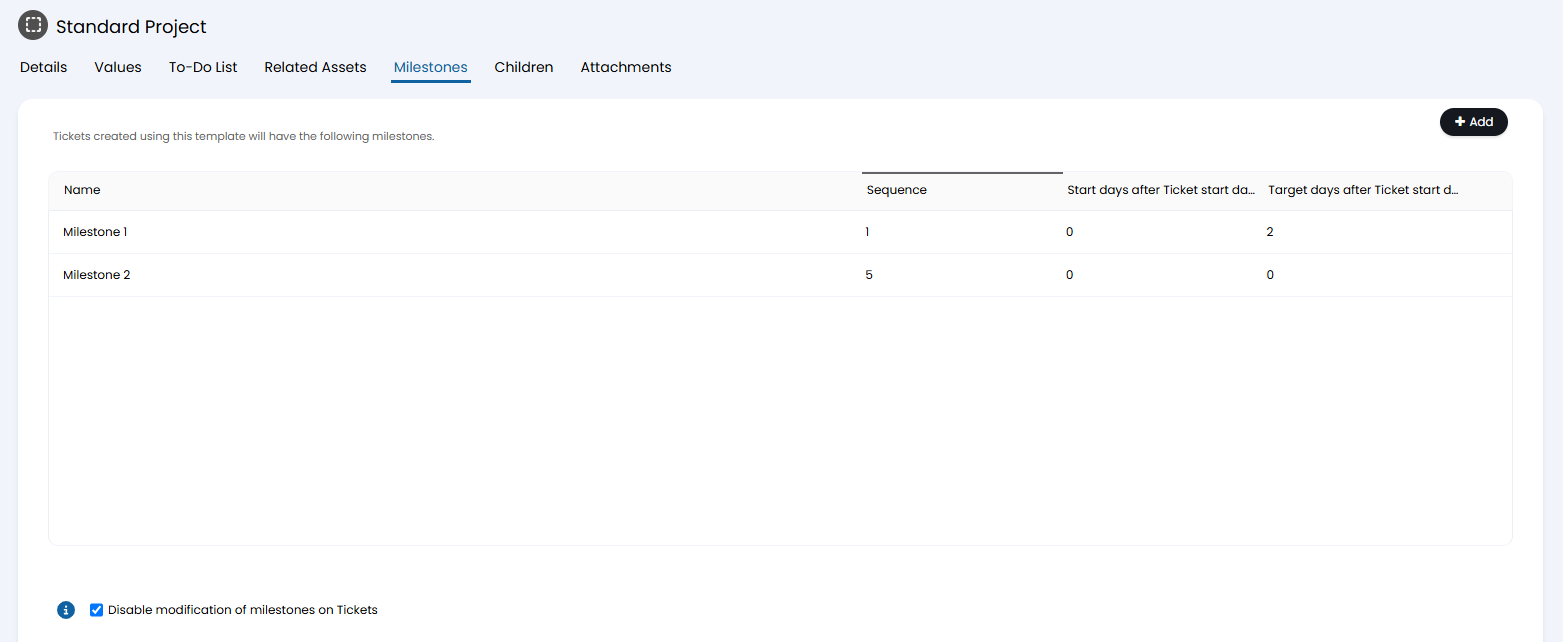
Fig 18. Setting milestones on a ticket template.
Click "Add", and the following popup will show to add a milestone and its corresponding information.
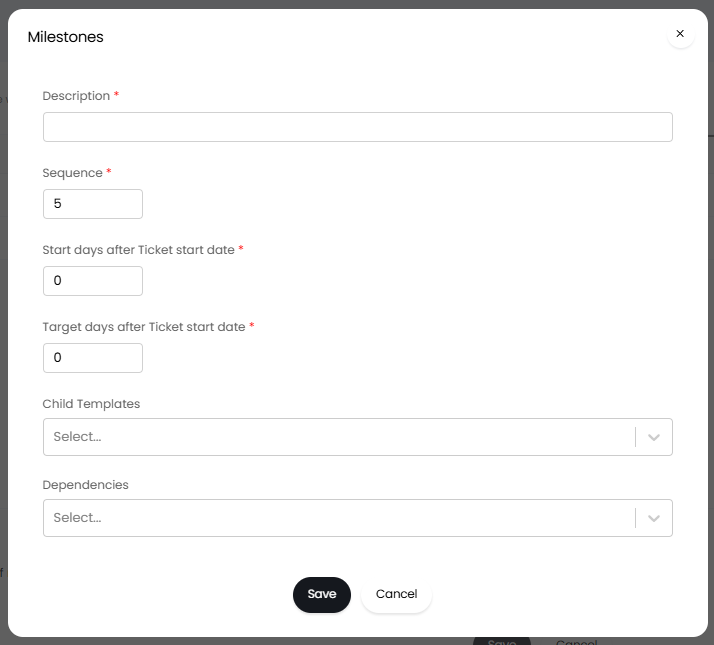
Fig 19. Adding a milestone.