Customer Areas
- Customers
- clients
- sites
- areas
- top levels
In this guide we will cover:
- What are Customer Areas?
- Creating a Customer Area
- Restricting Customer Areas
- Hiding the Default Customer Area
Configuration Settings:
Related Guides:
What are Customer Areas?
Customer areas behave in a similar way to ticket areas as a customised and filtered list of your customers.
Filters can be set to select which customers appear in the area, this trickles down to the site and user lists within the area. You can choose which entities (Customers, Sites, Users and Top levels) show within the area, and the default customers area can also be hidden. The new areas can then be restricted so only agents within certain teams or roles can access them, which allows you to restrict access to certain customers for certain agents for instance.
These areas can also be used to show the Accounts and Prospect lists if you are using Accounts and Prospect management for Opportunities.
Creating a Customer Area
In Configuration > Tickets > Areas, change the "Use" dropdown to "Customers". Then click the "New" button in the top right to create a customer area.

Fig 1. Selecting the entity to create a customer area.
Note: When creating, the name will show as a "New Ticket Area" as it uses the same functionality. As long as the "Use" dropdown is set to "Customers", a customer area will be configured.
The creation screen will then show where you can enter the details in the same way ticket areas are created. The "Area Name" will show when you hover over the area in the module bar, and the entity names will show inside the module.
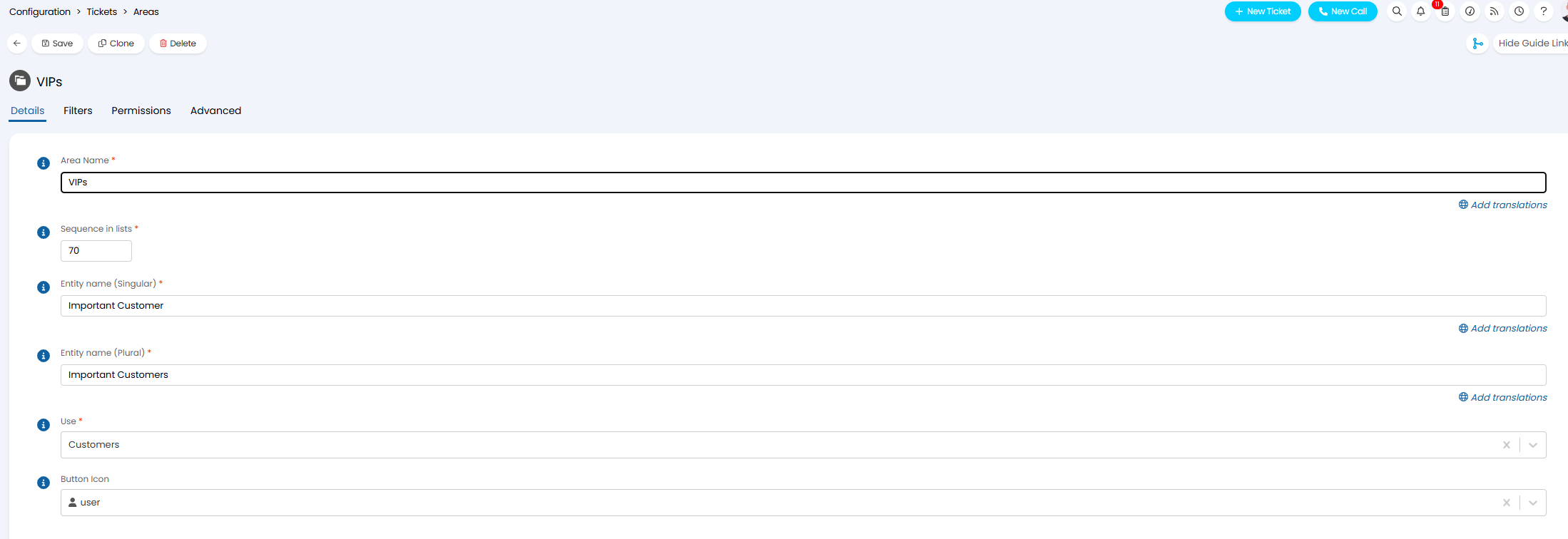
Fig 2. Area details.
Scrolling further down, you can choose which entities show in the area. In this example, I have hidden the top level and accounts/prospects sections.
Note: Top levels will show every customer within the top level when clicked on, and is not filtered by the area.
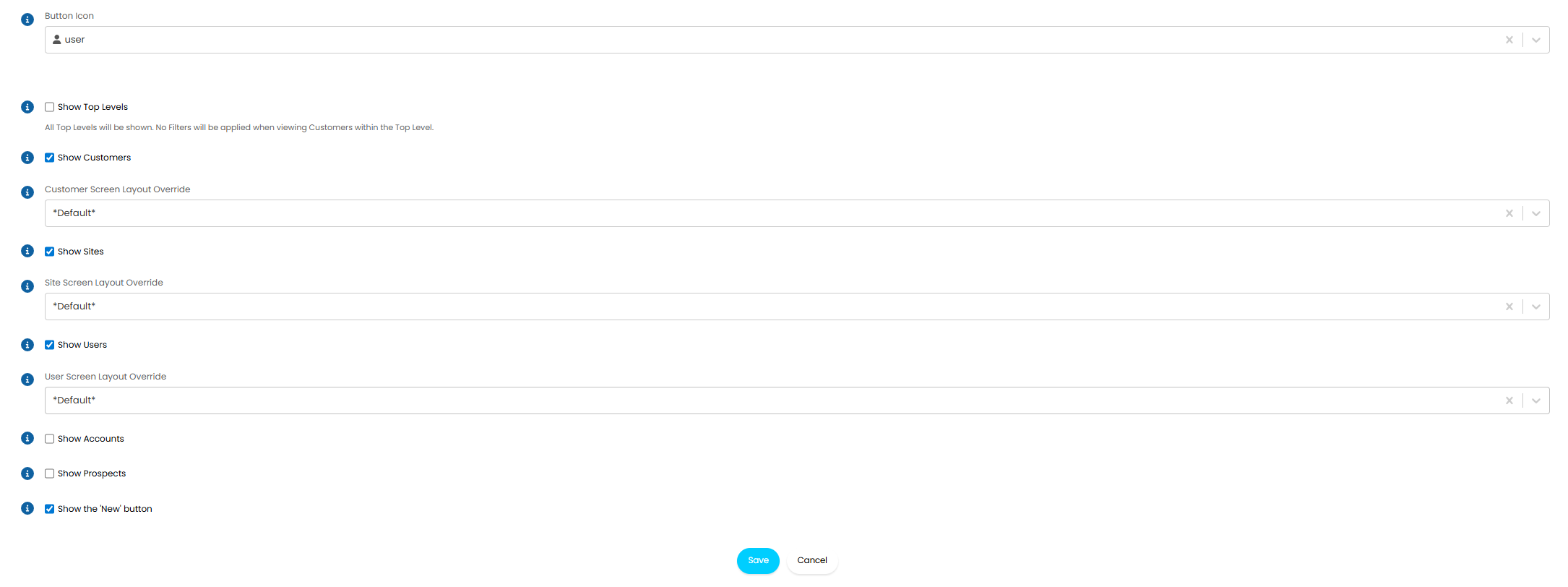
Fig 3. Selecting which entities to show in the area.
From v2.244+ you will also be able to set screen layout profile overrides for customers, sites and users within this area. These will apply when agents view these entities in this area.
Screen Layout profiles control the tabs and fields that show against an entity, they can be used to restrict the information that shows within this entity to simplify the view or enforce the relevant access. Screen layout profiles themselves are configured under Configuration > Advanced Settings > Screen Layout Profiles > choose the entity.
Screen layout profiles can be set at various different levels, the profiles here will override the profiles set globally and against the agent. The hierarchy of screen layout profile overrides can be found here.
The next tab is the "Filters". Here is where you can filter which customers show in this area. This can be based on important customers, account managers, top levels, customer relationships, etc. Here, the area will only show customers that are marked as important.
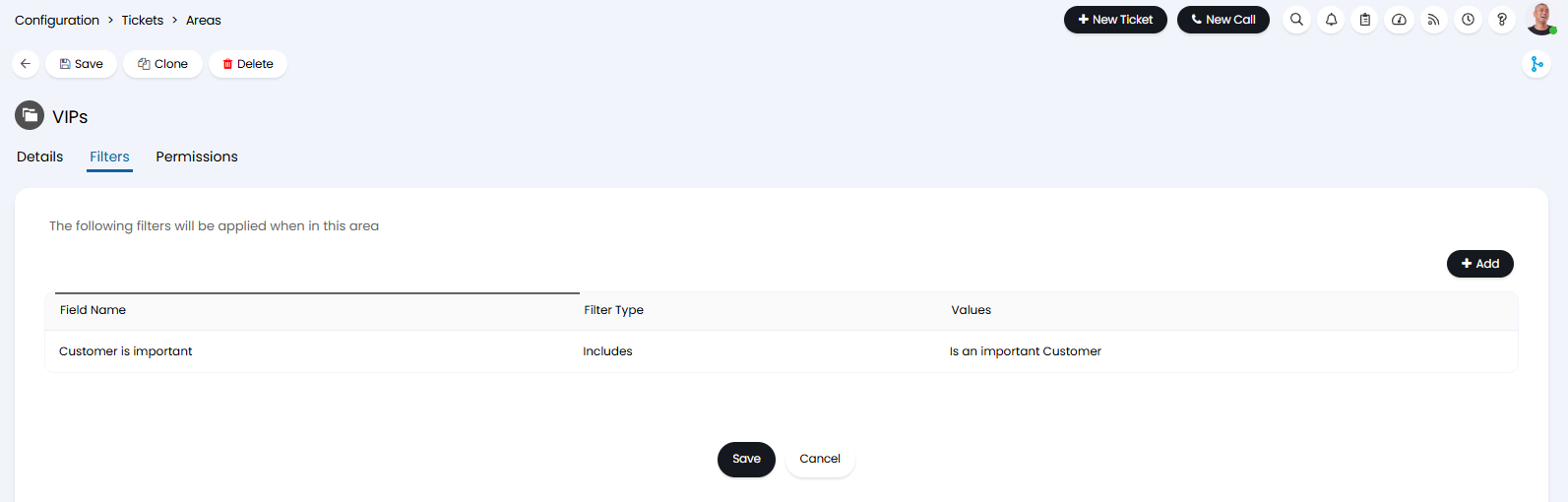
Fig 4. Filtering the customers in the customer area.
The area now appears like below. The "Button Icon" set in Fig 2 appears in the module bar, and the entity name along the top. Below the "Sites" and "Users" lists can be accessed based on the checkboxes in Fig 3, filtered to the ones contained within the customers that meet the filter criteria.

Fig 5. Customers area.
If you find the new area does not appear in your module bar upon creation, you may be using a custom screen layout profile. Go to Configuration > Advanced Settings, and see if the "Default Navigation menu layout" is set to "*Default*".
If it set to a custom one, you will need to click the "Screen Layout Profiles" button to edit it and add the new area. Change the entity dropdown to "Navigation Menu", and select your profile. In the tab layout, edit and set your button to show on your module bar.
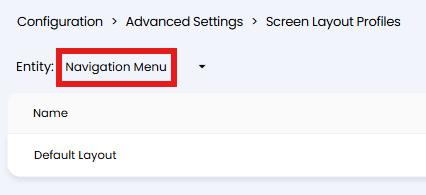
Fig 6. Custom screen layout profile for the navigation menu.
Restricting Customer Areas
The area can then be restricted to only show for certain agents in the "Permissions" tab of the area. The area can be restricted by team or role, and in this example, only "2nd Line Support" team would be able to see the area.
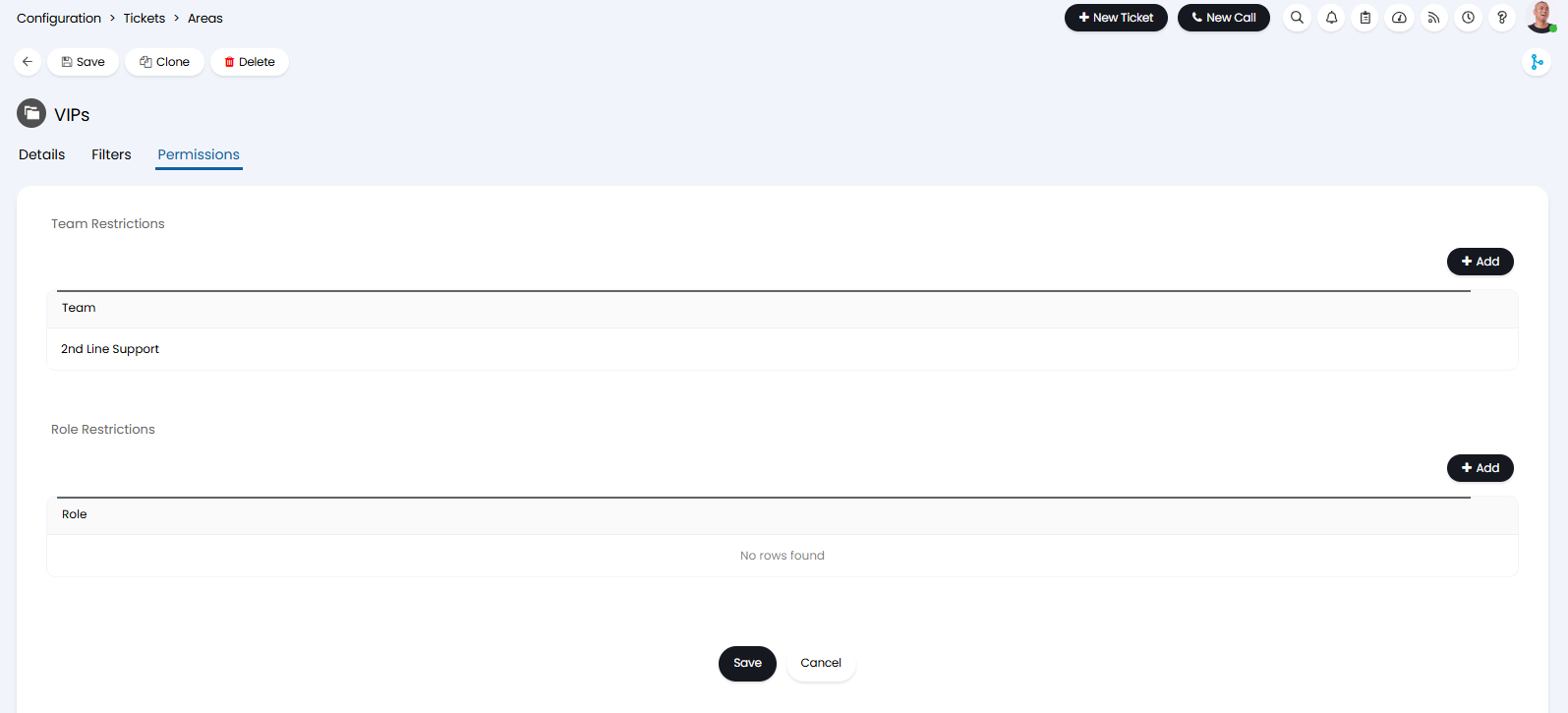
Fig 7. Restricting access for certain agents.
If an agent from another team (1st Line Support") logs in, the area will not show for them.
Note: If adding restrictions, make sure the agent logs out and in to reflect the changes.
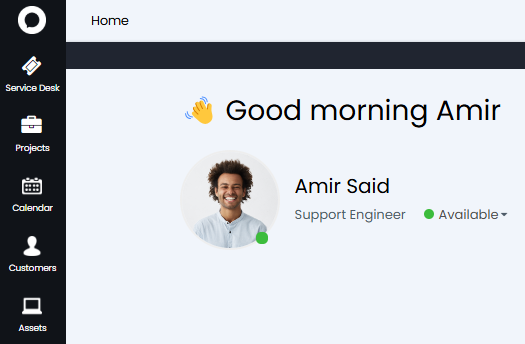
Fig 8. Agent with no access to that customer area.
Hiding the Default Customer Area
With the addition of these new customer areas, you can also hide the default area to allow agents to only see the customers within areas that they have been granted access to. Go to Configuration > Advanced Settings > Screen Layout Profiles and change the entity to "Navigation Menu". Here, either edit an existing custom layout, or create a new one. Note: If creating a new one, the new layout will need to be set in the "Default Navigation menu layout" dropdown in Configuration > Advanced Settings > Screen Layouts.
In the "Button Layout" tab of the layout, set "Button Layout" to "Custom" if not already. A list of fields will then show, and you can edit the "Customers" field. Set the "Display" dropdown to "Hide" to only show your new custom customer areas.
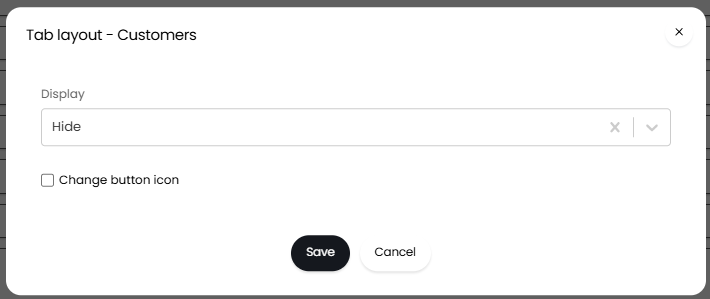
Fig 9. Hiding the default customer area.
The default customers area will then no longer show in the module bar.
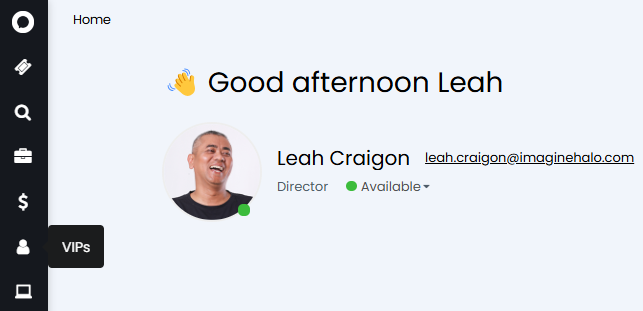
Fig 10. Only the new customer area showing.