Screen Layout Overrides
- screen layout
- screen layout profiles
- overrides
- screen layout hierarchy
- screen layout overrides
In this guide we will cover:
- Hierarchy Used for Screen Layout Overrides
- What are Screen Layouts?
- Override Locations
Hierarchy Used for Screen Layout Overrides
The screen layout(s) that will be used within varying areas of the system will be determined by the following hierarchy:
- Agent
- Global
For customer areas only the following hierarchy will be used:
- Customer
- Customer Area (v2.244+)
- Agent
- Global
Screen layouts can be set for the following entities:
- Bulk Action Menu (v2.246+)
- Navigation Menu
- Customers
- Customer areas
- Site
- User
- Supplier
- Agreement
- Supplier Contract
- Purchase Order
- Prospect
- Accounts (v2.252+)
What are Screen Layouts?
Screen layouts allow you to customise the tabs and system fields that show against selected entities, useful for streamlining views and enforcing access restrictions.
Screen layouts are configured under Configuration > Advanced settings > Screen Layout profiles. From here you will need to use the dropdown in the top right to control which entity you would like to configure a screen layout profile for.
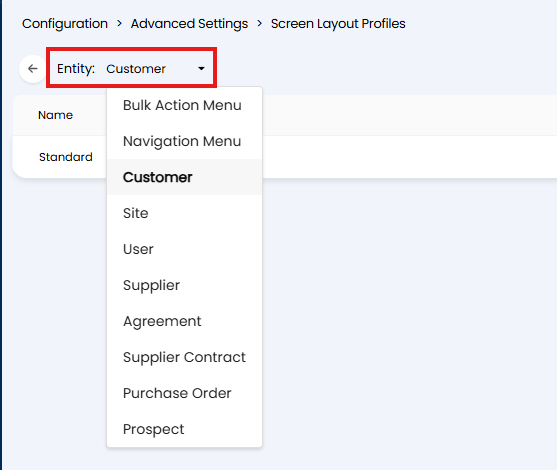
Fig 1. Screen Layout Profile Entity
Each entity will have slightly different options in terms of what is available to configure for it's screen layout profile, but they mostly follow the same structure. When setting up a screen layout profile you will need to configure:
Tab Layout - Here you can control which tabs within the entity show and the order they appear.
Details Screen Layout (only applicable to some entities) - Here you can control which fields within the entity's details appear and the order they show.
System field visibility (only applicable to some entities) - Here you can control which system fields for the entity show.
Multiple screen layouts can be created for the same entity, allowing you to have different layouts for different agent and/or areas.
Override Locations
Customer
A screen layout profile can be set against each customer, to determine the layout profile to use for that customer only. This takes precedence over all other screen layout profiles.
This is set under the "Settings" tab of a customer, within the "Miscellaneous Settings" section.
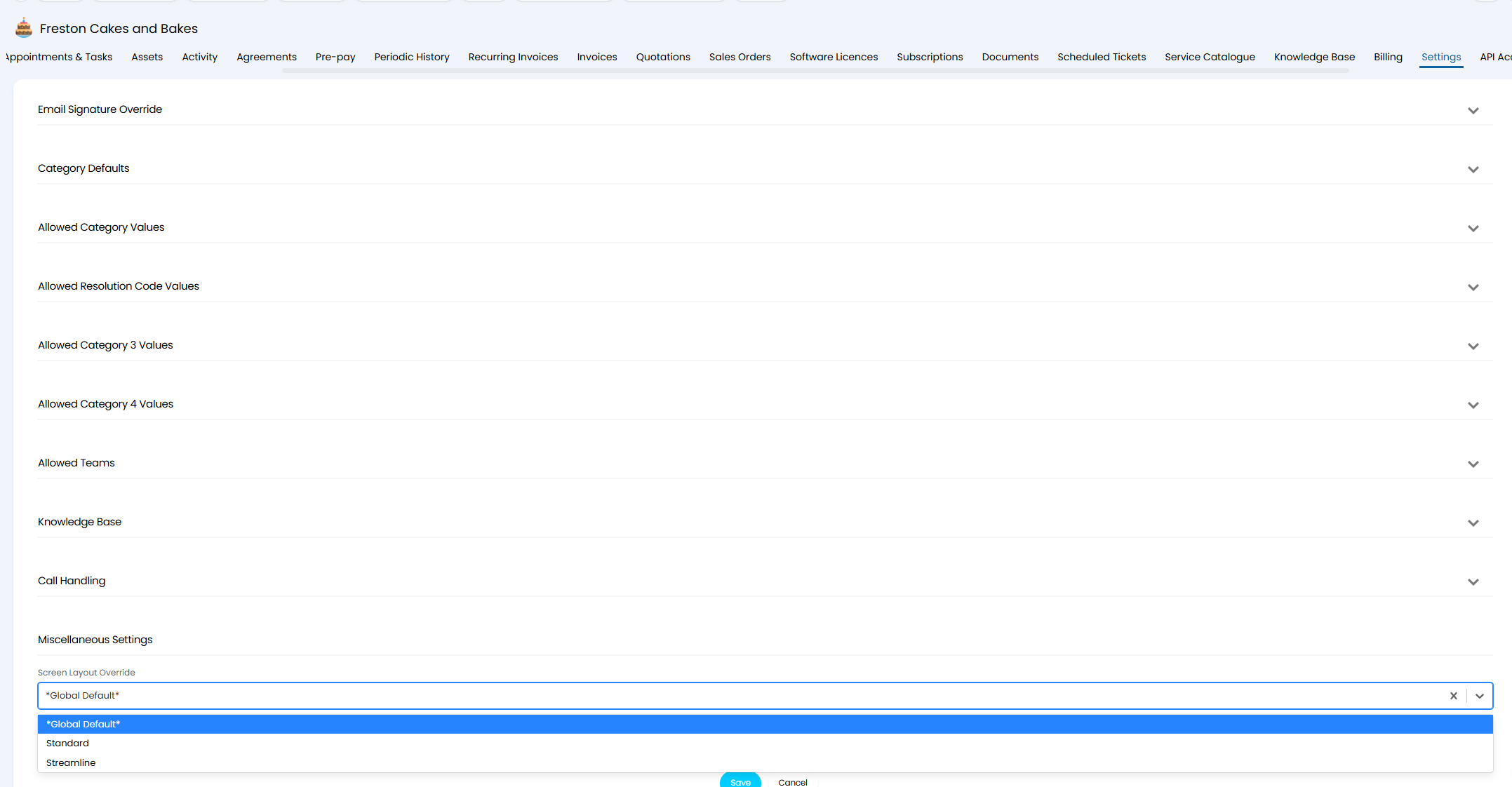
Fig 2. Screen Layout Override for customer
Customer Areas (v2.244+)
From v2.244+ screen layout profiles can be set for customer areas for the following entities:
- Customer
- Site
- User
Set these under Configuration > Tickets > Areas > change Use to Customers > New.
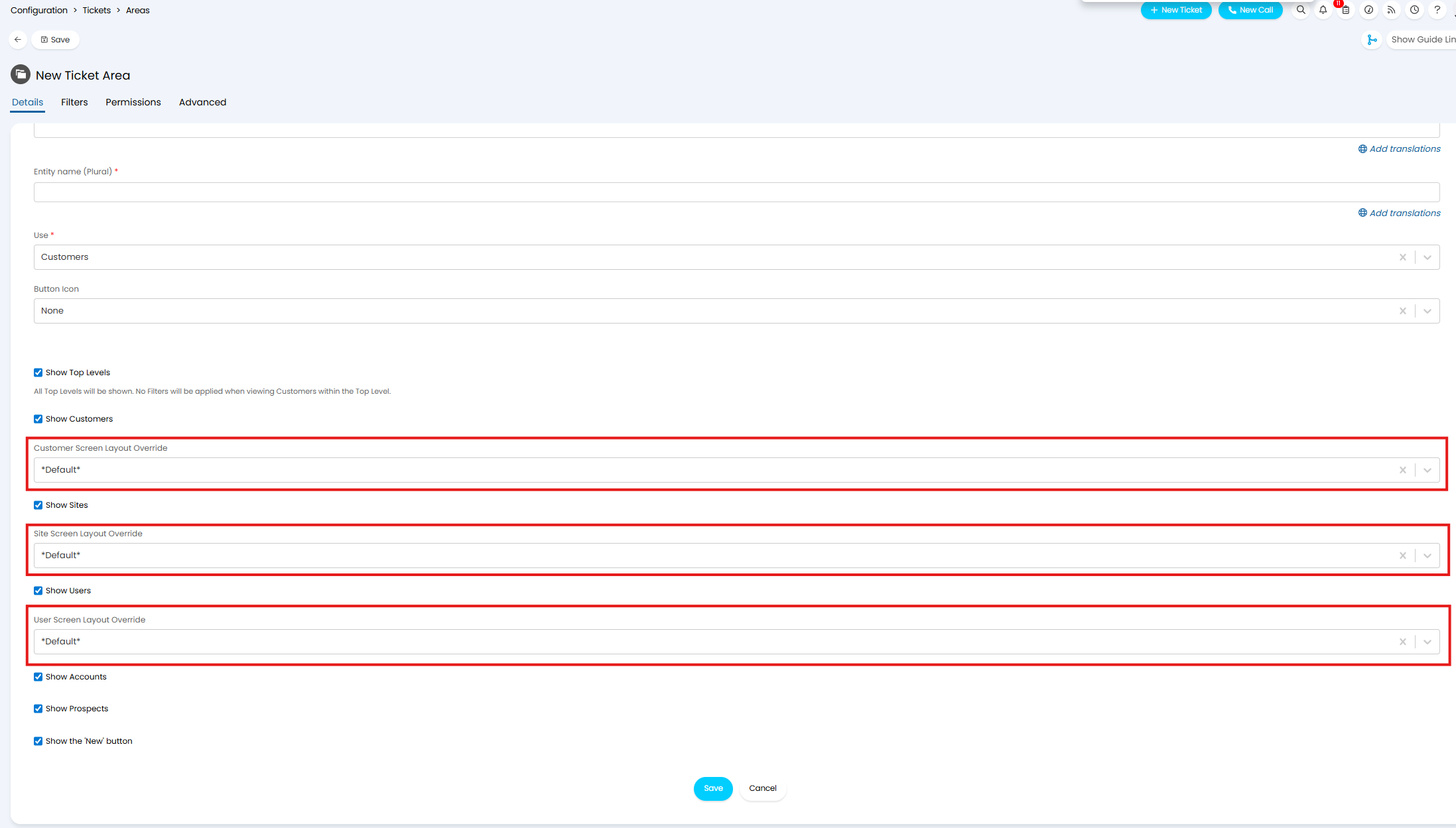
Fig 3. Customer Area Screen Layout Override
The layouts chosen here will only apply when viewing customers, sites or users within this area. When agents are, this screen layout will override all other screen layouts set.
Agent
Within the Agent's profile (Configuration > Teams & Agents > Agents or "My account") > Preferences tab, scroll to the "Screen Layouts" dropdown.
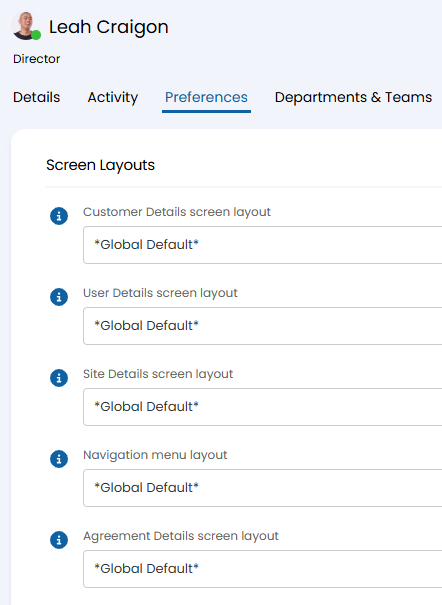
Fig 4. Agent screen layout override
Global
In Configuration > Advanced Settings, scroll to the "Screen Layouts" section. Here you can make new Screen Layout Profiles through the button shown, then set the global defaults below that.
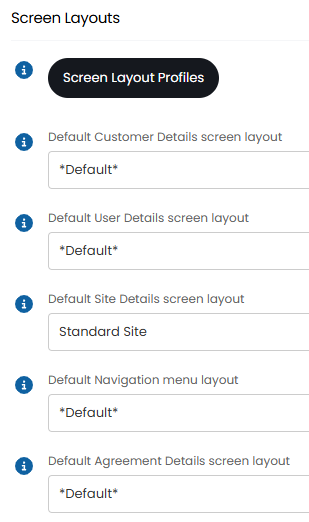
Fig 5. Global screen layout setting