SLA Overrides
In this guide we will cover:
- SLA Hierarchy
- Setting Locations
- SLAs on Automated and Scheduled Tickets
SLA's can be used in Halo to track the response and resolution times of tickets. SLAs can be defaulted in various places to have the SLA of a ticket change dynamically based on properties of the ticket.
As SLA defaults can be set in various places, in this guide we will outline each level (location) a default can be set and the hierarchy these settings use.
SLA Hierarchy
The diagram in Figure 1 outlines the hierarchy of SLA defaults and how the default is determined.
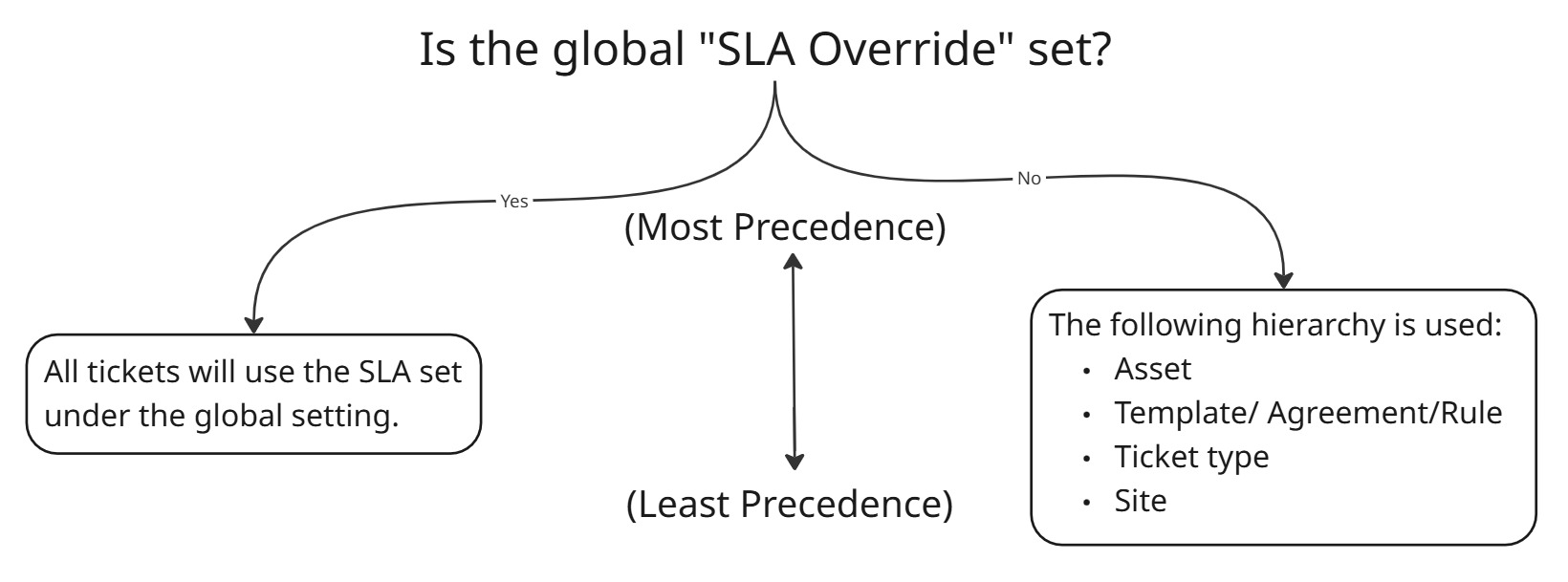
Fig 1. SLA Hierarchy Diagram
The hierarchy will depend on the global setting "SLA Override". This can be found under Configuration > Service Level Agreements > General Settings.
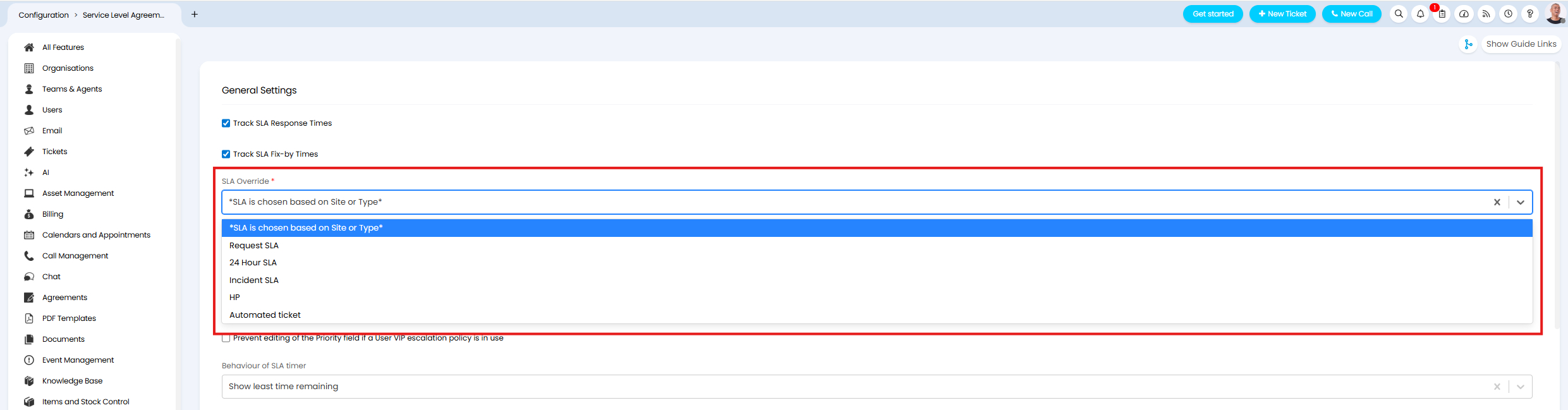
Fig 2. SLA Override
Here, you can either choose one of your SLAs to use as the 'SLA Override' or leave this as "*SLA is chosen based on Site or Type*". Not selecting an SLA here would be deemed as 'not setting' the field.
If an SLA is chosen all tickets will use this SLA, agents will also not be able to change the SLA of a ticket manually. Therefore, this is used when you only use one SLA and would like to apply this globally with no exceptions. When set this will remove options to be able to choose an SLA on a Site and Ticket Type, making setup easier if you are only using one SLA.
If this field is not set, SLAs will be able to be set elsewhere in Halo, allowing you to use different SLAs based on the properties of the ticket.
Ticket Template/Agreement/Ticket Rule
You will notice SLAs set against ticket templates, agreements and ticket rules all sit on the same level of the hierarchy. This is because the SLA that takes precedence will depend on which one was applied to the ticket last. E.g. if the rule was applied after the agreement was set- the rule will take precedence but, if the rule was applied and then the agreement was set, the agreement SLA will take precedence.
Due to this you will need to consider the setting "Check rules after the Ticket has been submitted instead of on the New Ticket screen" (Configuration > Tickets > General Settings) and the method by which the ticket is logged (e.g. portal vs email) as these will impact when ticket rules are checked and outcomes applied. SLAs applied using ticket rules will populate the "SLA" ticket field so keep in mind this can be overridden by changing the field if you use the field on the ticket type.
Setting Locations
In this section we will run through each location/level SLA defaults can be set.
Asset
When creating/editing an asset in Halo the "Service Level Agreement" can be set against the asset. 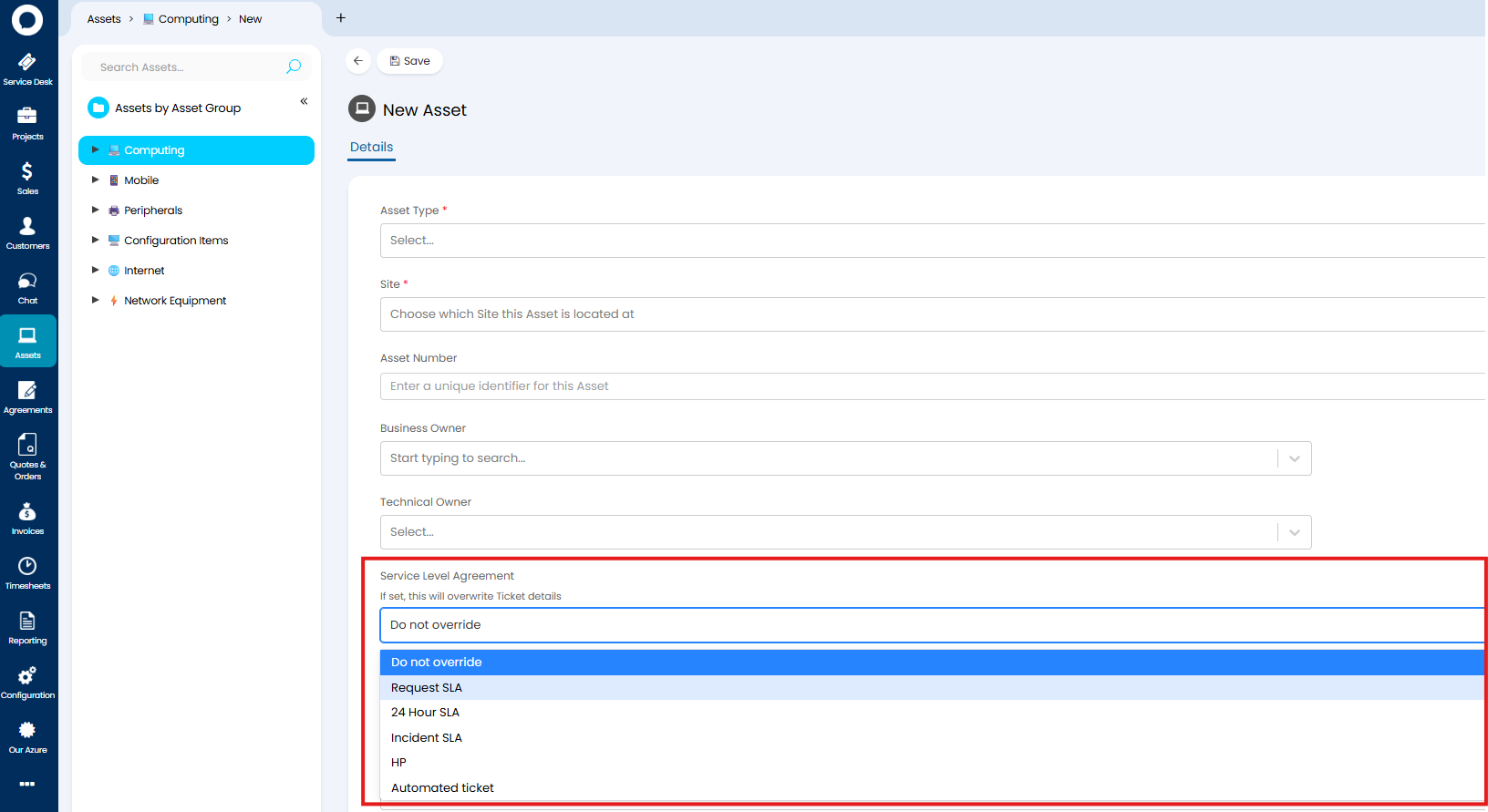
Fig 3. Service Level agreement set against asset
When this is set, whenever this asset is related to a ticket, the ticket will use the SLA chosen here.
Ticket Template
Ticket templates are created/edited under Configuration > Tickets > Templates, under the Values tab of the template you can set the "Service Level Agreement" for the template.
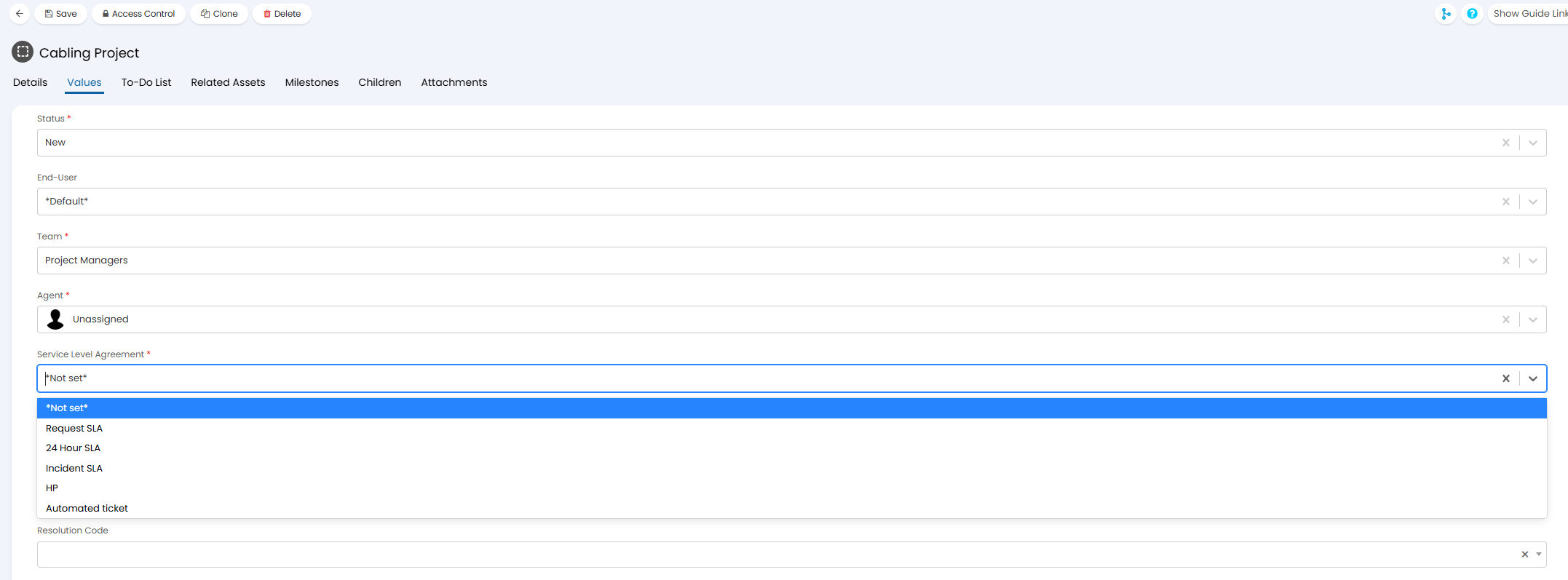
Fig 4. Service Level Agreement against ticket template
When this template is applied to a ticket, this SLA will be used.
Agreement
When an agreement is created/edited the "Service Level Agreement" can be set under the agreement details.
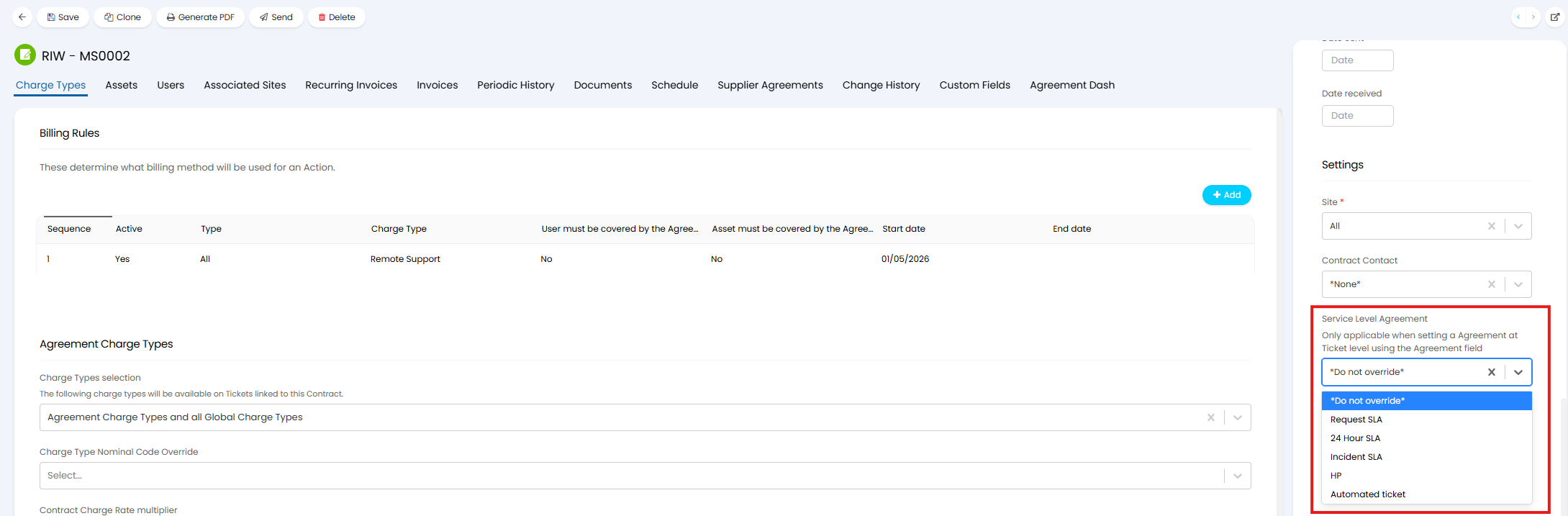
Fig 5. Service Level Agreement against Agreement
When this agreement is associated to a ticket (using the "Agreement! field on the ticket) this SLA will be used. Keep in mind this only applies when the agreement is associated to the ticket using the ticket field, not when associating actions with an agreement using billing rules. For information on these difference agreement association methods see the section "Set when Labour (actions) is covered by or associated with an Agreement" of our guide here.
Ticket Rule
A ticket rule can be created to have an SLA be applied to the ticket when the ticket meets the criteria of the rule. Ticket rules are created under Configuration > Tickets > Rules. The "Service Level Agreement" can be set as an outcome of the rule,
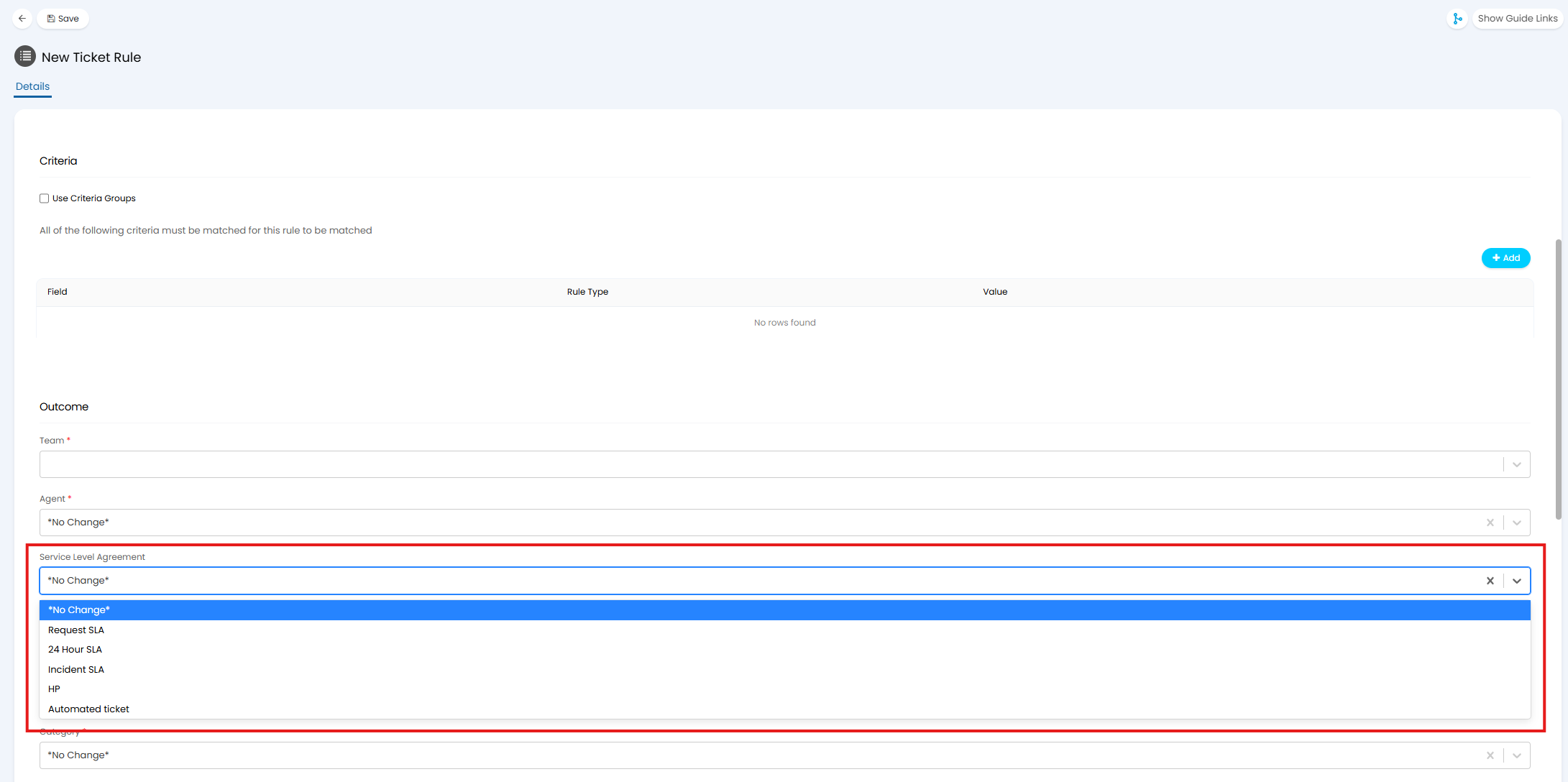
Fig 6. Service Level Agreement as Outcome of Ticket Rule
Ticket Field
The field "SLA" can be added to ticket types to allow agents to choose the SLA the ticket should use. This field can be added to ticket types under Configuration > Tickets > Ticket Types > select a ticket type > Field List tab > Add "SLA" field.
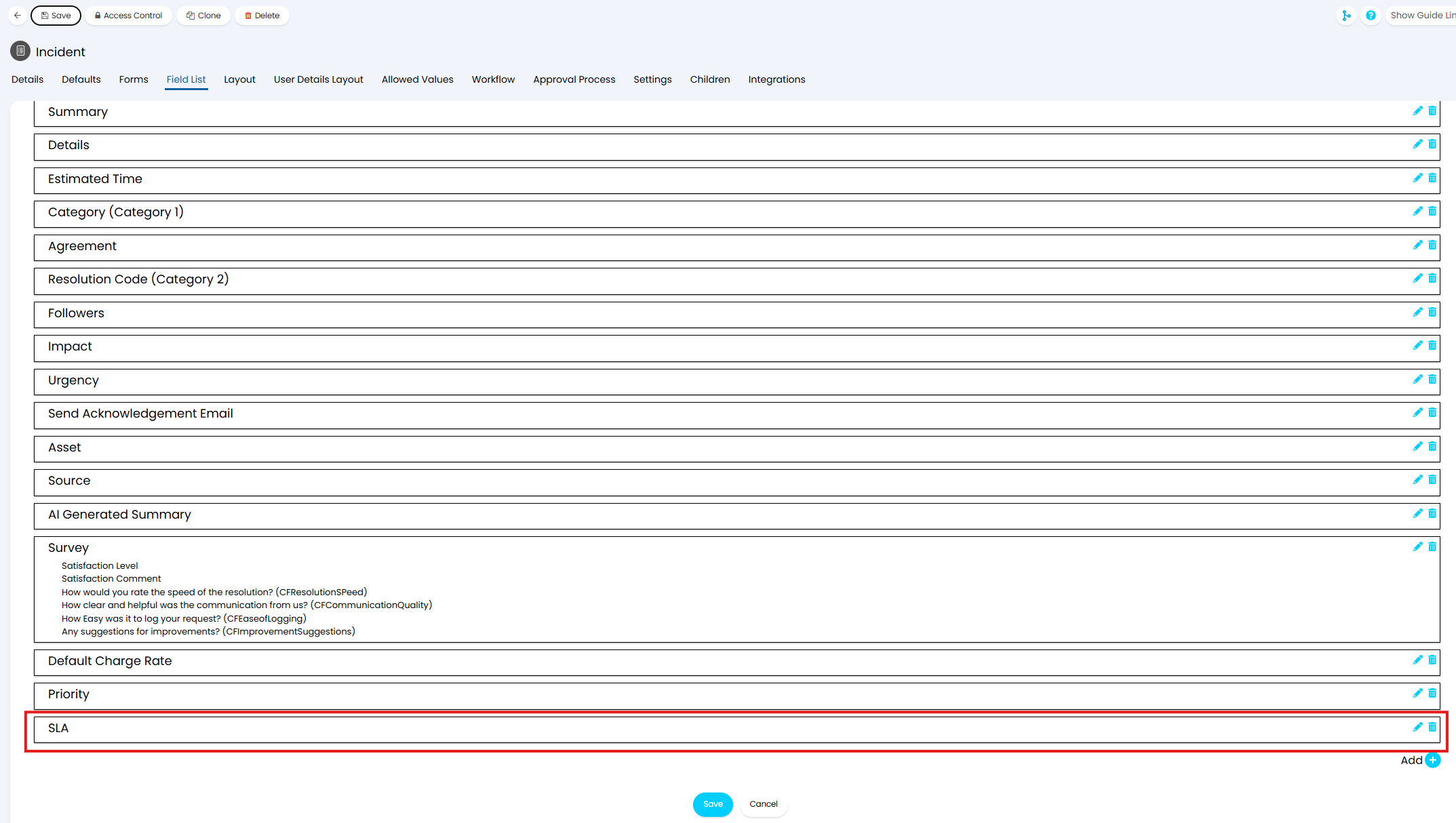
Fig 7. SLA Field on ticket type
Now, when tickets of this type are logged agents will be able to choose the SLA to use here.
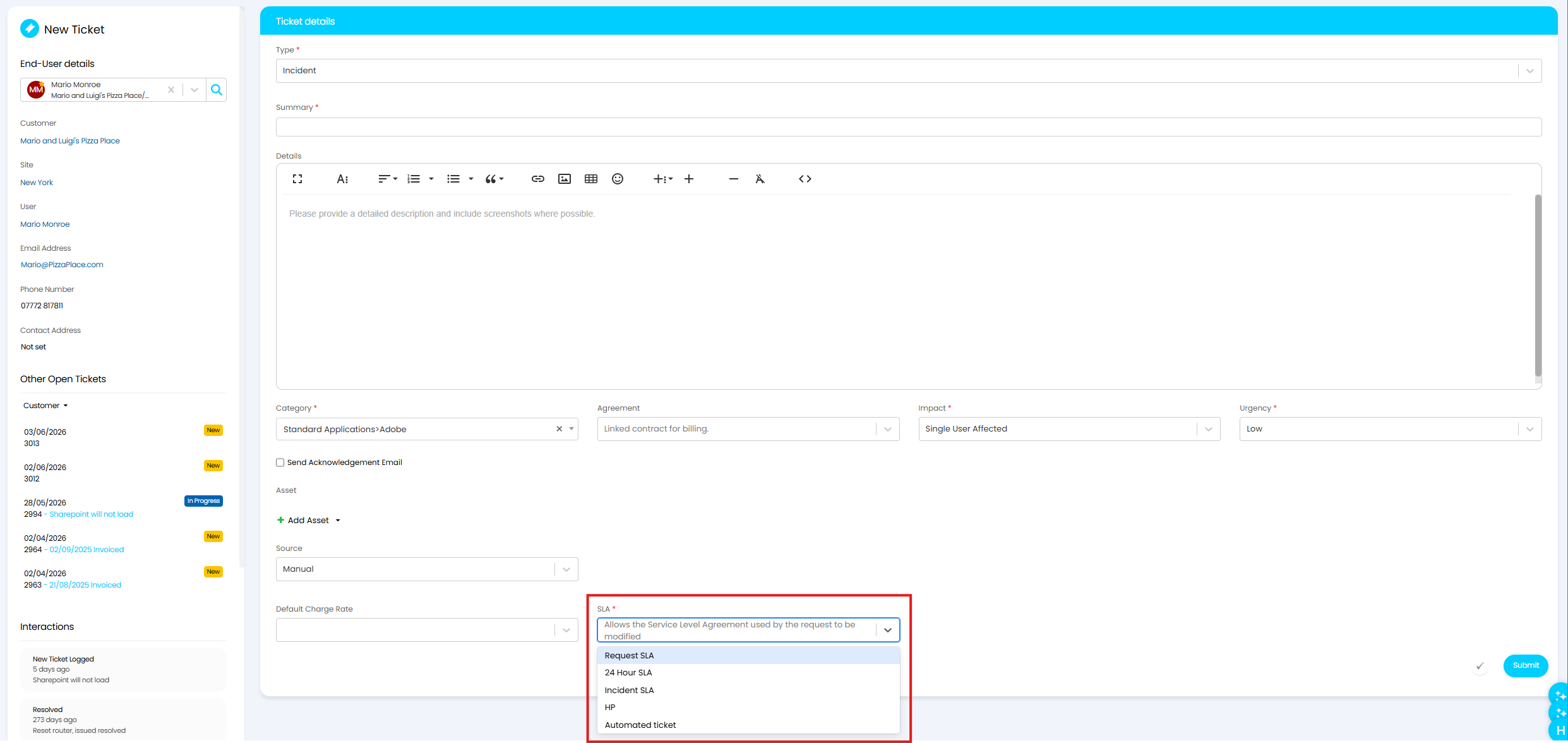
Fig 8. SLA field on ticket
Ticket Type
Ticket types are created/edited under Configuration > Tickets > Ticket Types, under the Defaults tab of the ticket type you can set the "Service Level Agreement".
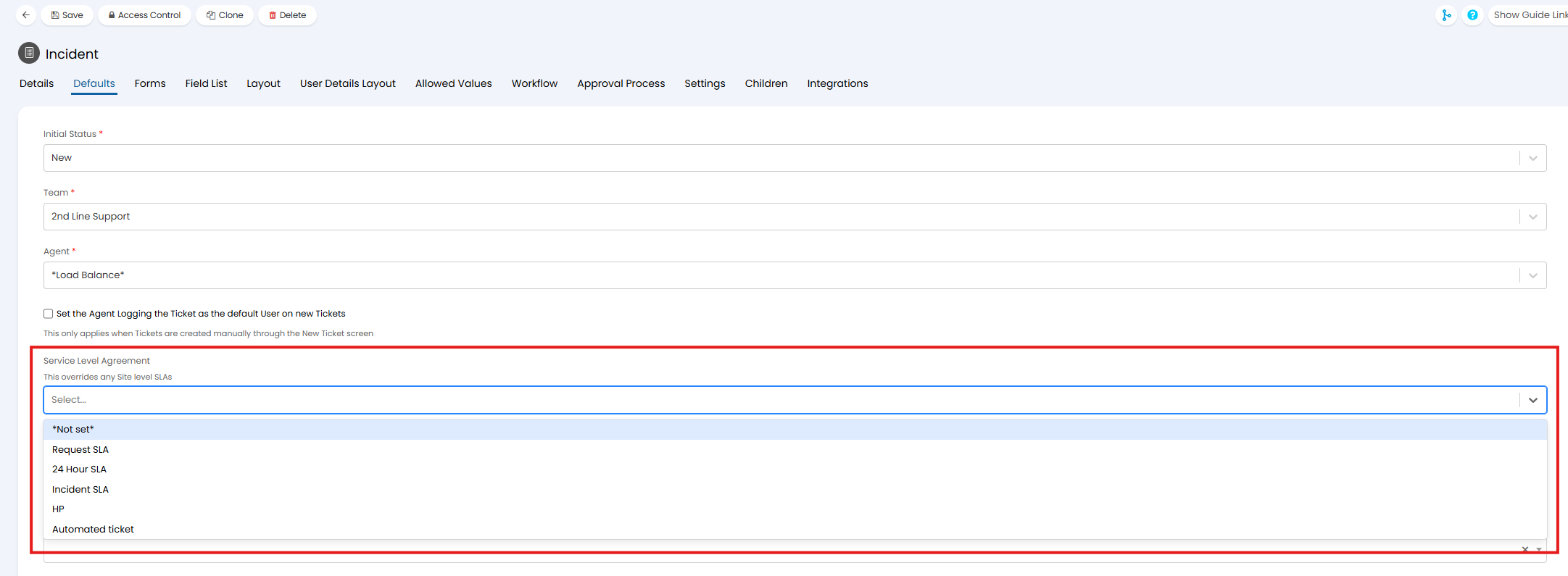
Fig 9. Service Level Agreement for ticket Type
When a ticket of this type is logged it will use this SLA.
Note: If the global setting "SLA Override" is set then this setting on the ticket type will not show.
Site
When creating/editing a site the "Service Level Agreement" for the site can be set under the site details.
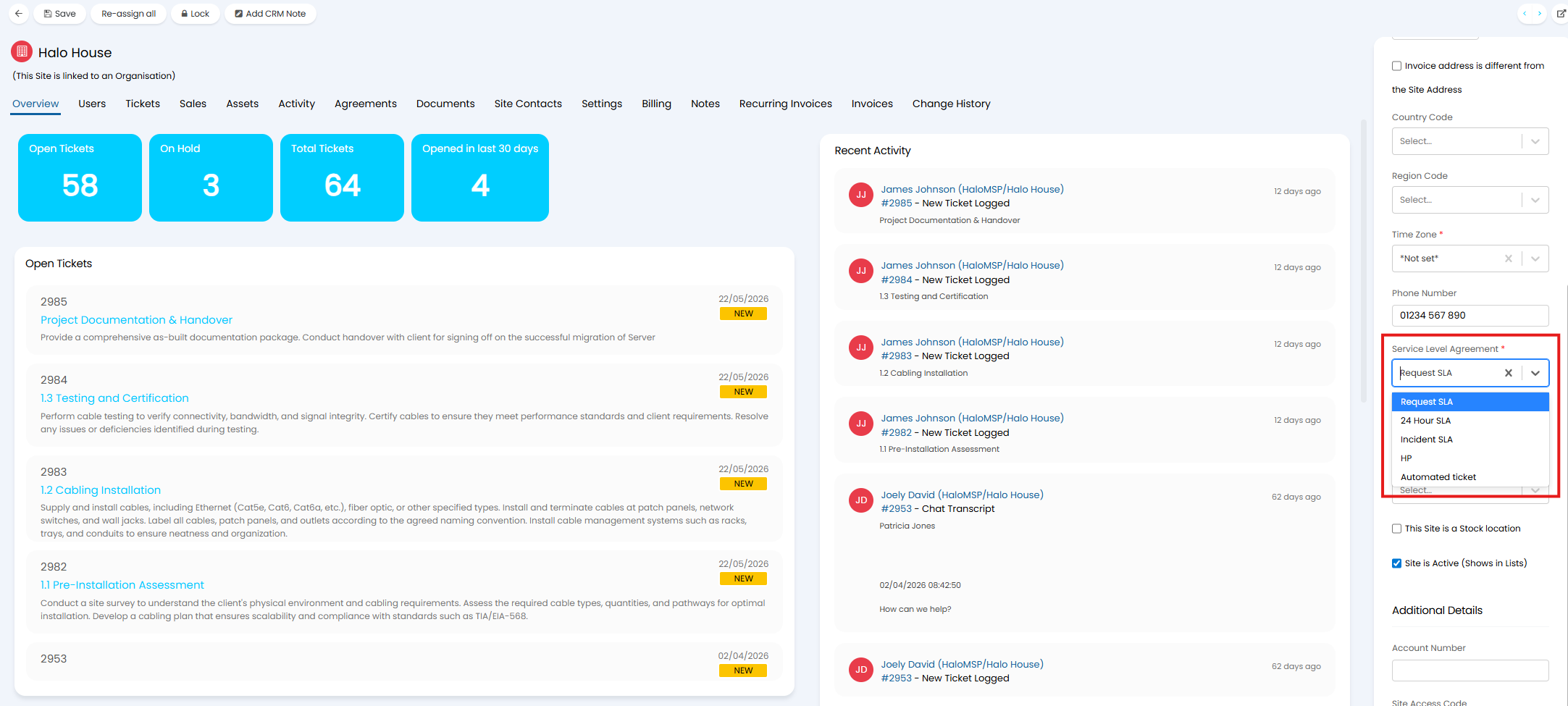
Fig 10. Service Level Agreement for Site
When a ticket is logged against a user who is under this site, this SLA will be used.
Note: If the global setting "SLA Override" is set then this field on the site will not show.
As this is last SLA setting in the hierarchy this field on the site is mandatory to ensure that all tickets have a default SLA.
SLAs on Automated and Scheduled Tickets
When creating automated and scheduled tickets you will be given an option to choose the SLA of the ticket created.
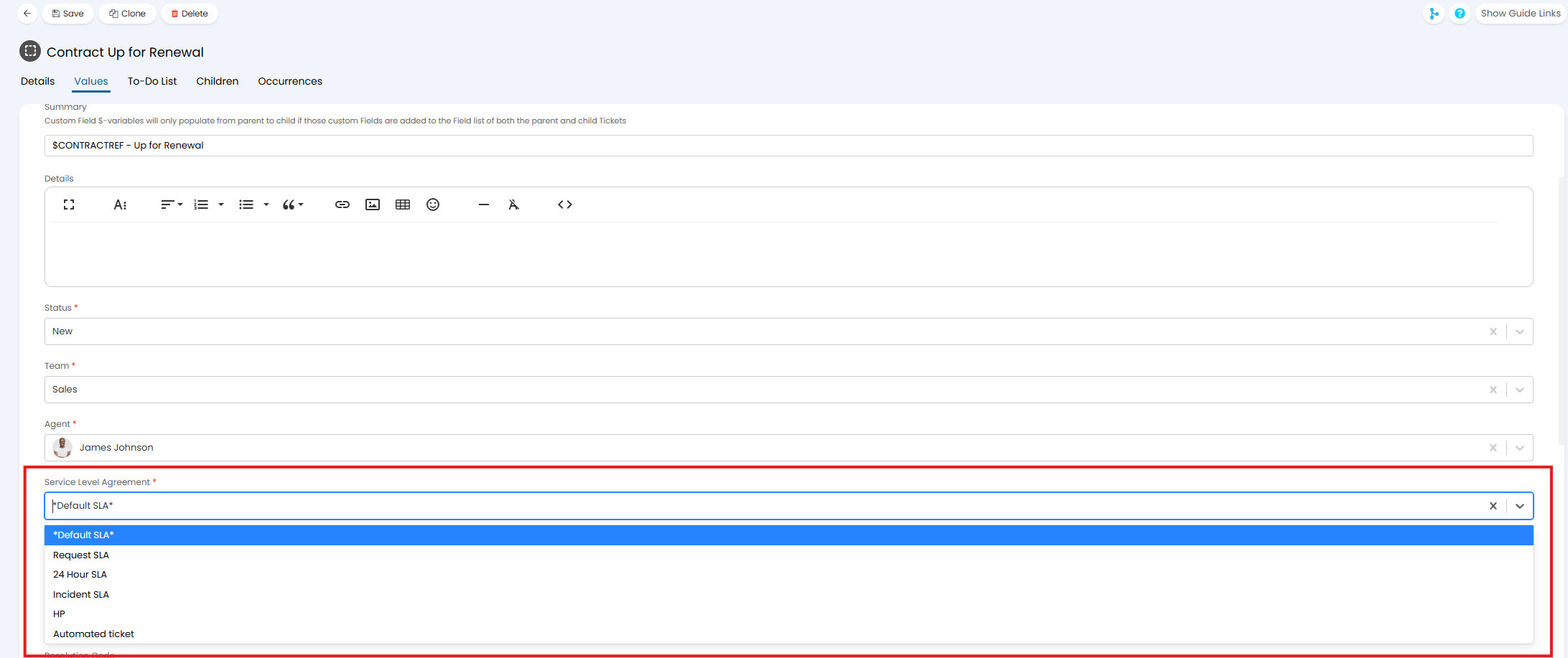
Fig 11. SLA on Automated Ticket
If "Default SLA" is chosen here the SLA will be applied in line with the hierarchy outlined in Figure 1.
If an SLA is chosen here this will override and SLAs set on the ticket type and site, but this can still be overridden by the ticket field, agreement, ticket template, asset and ticket rules. The heriarchy will be as follows:
- Asset
- Agreement/Ticket Template/ Ticket Rules
- Ticket Field
- Automated/Scheduled Ticket
- Ticket Type
- Site