SLA Workdays
- sla
- workdays
- work hours
In this guide we will cover:
- What are workdays/work hours used for?
- Creating Workdays
- Assigning Workdays to SLAs
- Time Zones for SLA Workdays
Admin Guides:
What are workdays/work hours used for?
Workdays/work hours are used for service level agreement tracking and agent time tracking. Workdays and working hours are assigned to SLAs to determine if the SLA timer should be counting down, this stops the timer counting down outside of working hours.
Work hours can also be assigned to agents. Agent work hours do not affect SLA timers but do impact time tracking. That is, the work hours assigned to an agent will impact how the agent's target hours are calculated. Our time tracking functionality is used to track the time agents are spending on each ticket, allowing you to see the work agents complete each day. For more information on our time tracking functionality see our dedicated guide here. We will not cover time tracking for agents in this guide, for information on this see our guide here.
Creating Workdays
Workdays are initially created via Configuration > Service Level Agreements > Workdays. Days are given a Start Time and End Time - this equates to your standard business hours and Tickets not on SLA Hold will be ticking down between these times.
You can set working hours to be uniform across days selected via checking 'Working Hours are the Same Every Day' or specify day-by-day working hours:
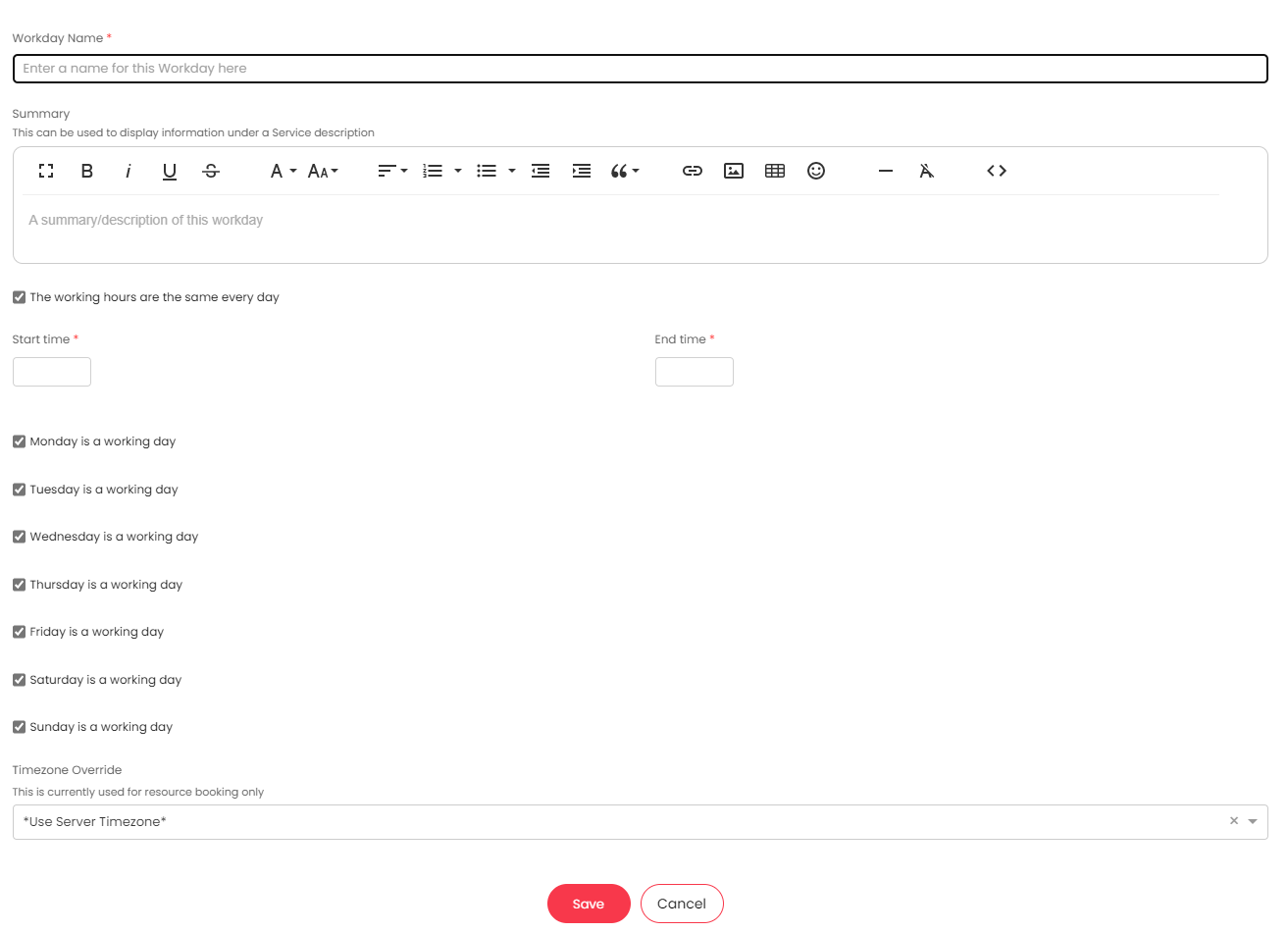
Fig 1. Creating Work Days.
You can also set a time zone override for these working hours. This can be used to override your default instance time zone when a ticket is using these working hours. Useful when certain tickets are being worked on by teams/agents in a different time zone to the rest of your agents. This is only used for agent resource booking and will not affect the SLA timer for the ticket (the time zone for the SLA timer will be taken from the SLA settings).
Holidays
The Holidays tab allows you to specify days during the calendar where you would not expect your SLA to be ticking down, i.e. Christmas Day, public Holidays etc. The SLA timer for the ticket will not countdown if it is a Holiday.
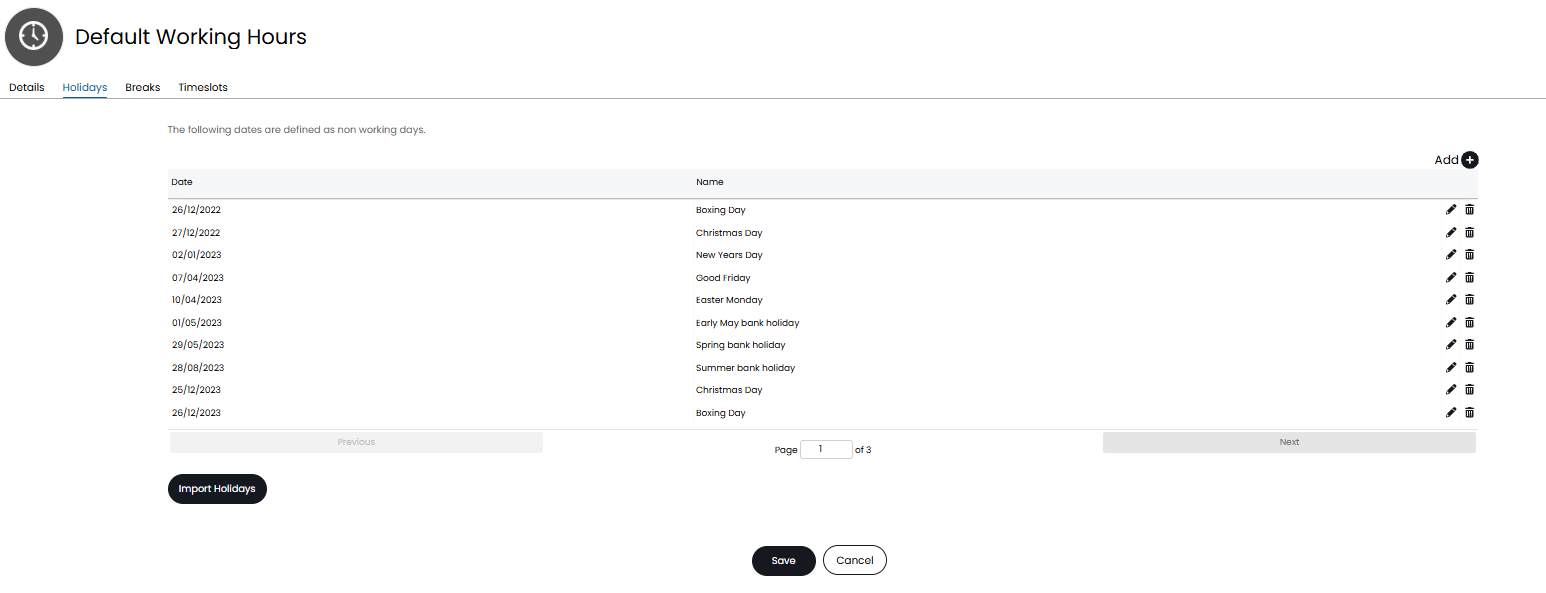
Fig 2. Working hours holidays.
Holidays can also be imported using the 'Import Holidays' button. This allows you to select a country, year and region to import the holidays of.
Breaks
Under the 'Breaks' tab you can configure break times for these working hours. The SLA timer will not count down during breaktimes. When creating a break time you can set the start/end time as well as the days the breaktime applies to.
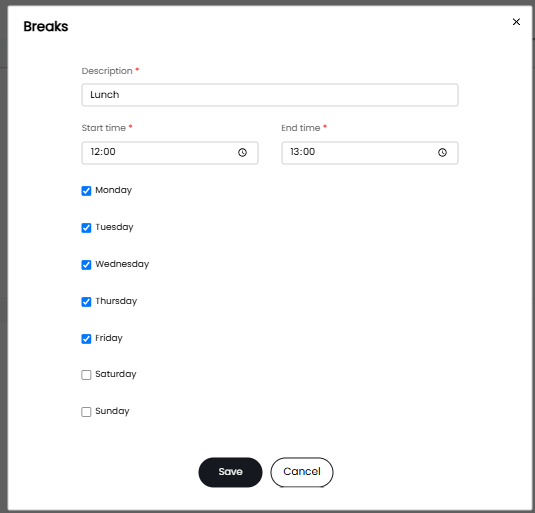
Fig 3. Break time
When a break time occurs OOH responses and notifications will be triggered.
Break times are also not included towards SLA target times, that is during a break time the SLA counter will pause. Allowing SLA targets to not breach due to a break time.
Break times also won't count as working hours for automatic status change, automatic SLA release, or anything else that triggers after a number of working hours have passed.
Timeslots
Under this tab you can configure timeslots for the working hours. These timeslots are used for Project ticket types where "Use timeslots for start and target times" is enabled. This allows you to choose timeslots for the start and target date of a project or project task rather than having to choose a specific time.
The timeslots configured here will be available to enter in the start and target date fields against the ticket.
Once you have configured your workdays you can assign these to your SLAs, this determines the working hours of the SLA therefore the hours in which the timer counts down. The SLA timer will not count down outside of working hours. In the figure 4 example I have created an afternoon timeslot.
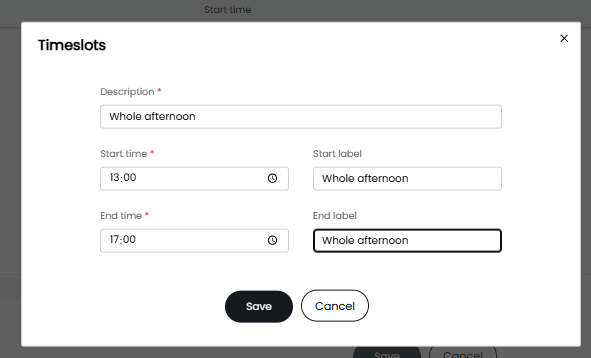
Fig 4. Afternoon timeslot
Now when I create a project ticket the start/target date will be a dropdown containing my configured timeslots. When a timeslot is chosen the time corresponding to this timeslot will be used.
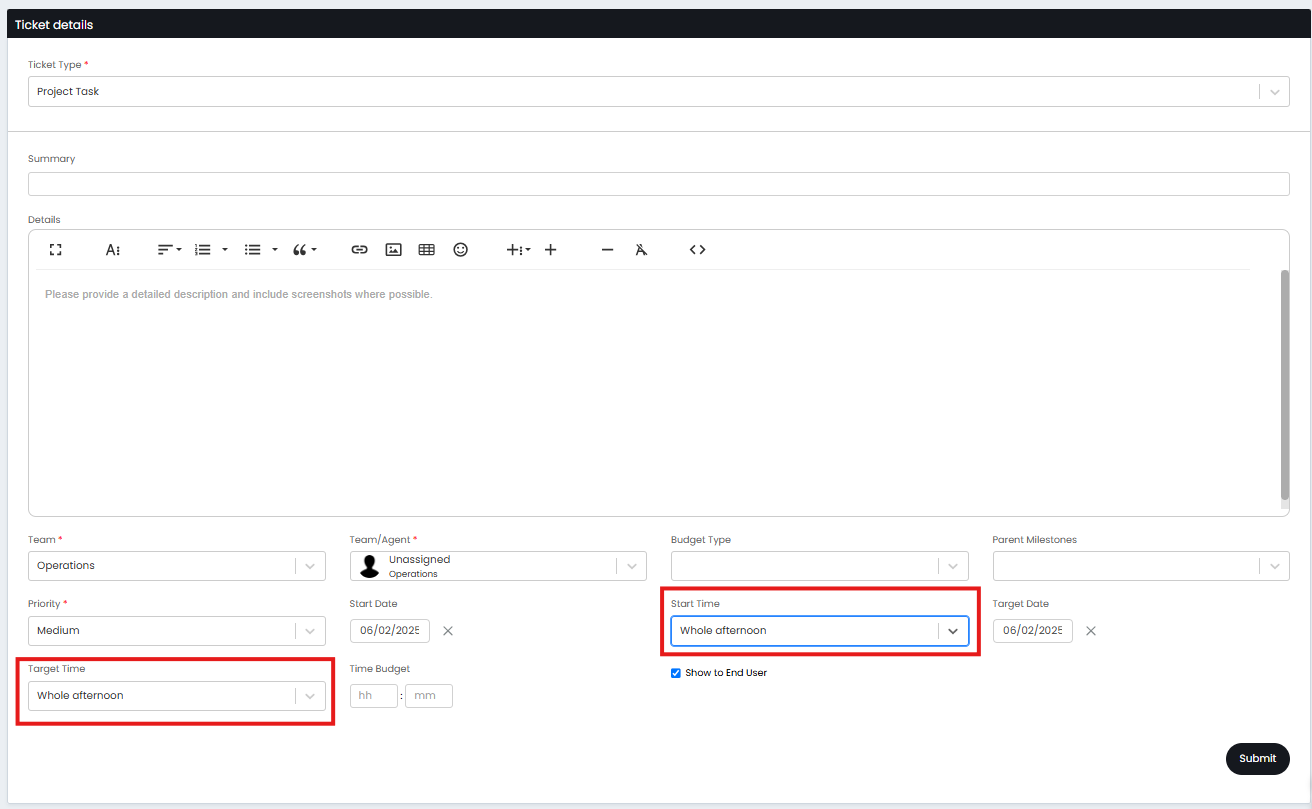
Fig 5. Setting start/target date using timeslots
Note: The timeslots available will be taken from the workday assigned to the SLA on the project ticket.
Assigning SLA Workdays
Head to Configuration > Service Level Agreements > Service Level Agreements > select an SLA. Here, you can set the SLA using the "Work Hours" field.
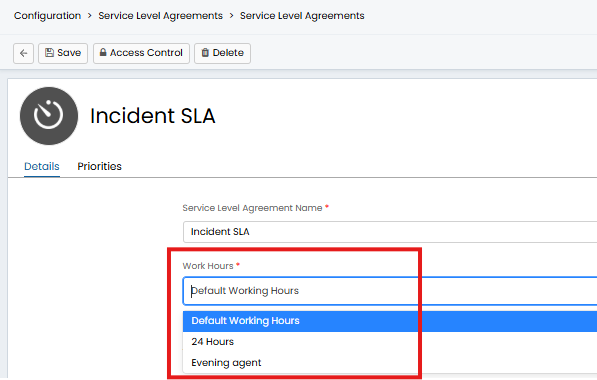
Fig 6. Set work hours on an SLA
The work hours can also be set against each priority on the SLA, allowing you to override the working hours that are used based on the priority of the SLA.
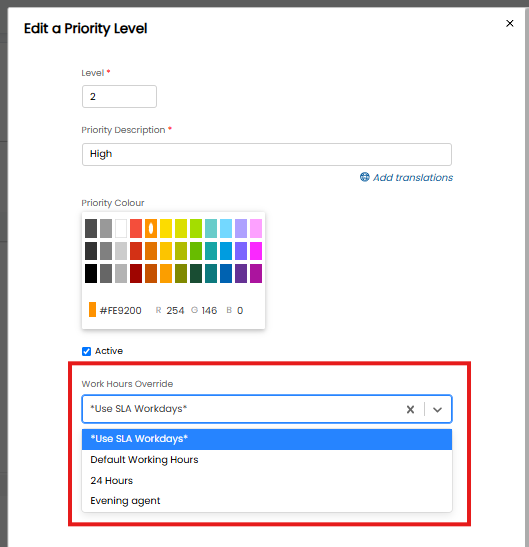
Fig 7. Work hour override
For example, I have an SLA that is used for incident tickets, so I assign my normal office hours workday to this SLA so the SLA time only counts down during working hours. However, if a critical incident is logged I need this resolved regardless of working hours so I will set a work hours override for the critical priority to use 24hour working hours so the SLA continues to count down even outside my normal working hours. This will allow the SLA to continue counting down and trigger SLA based notifications.
Time Zones for SLA Workdays
By default the time zone used will be taken from the server you are on (if your Halo instance is hosted). However, you can change the default time zone your instance uses in Configuration > Advanced Settings > "Time Zone".
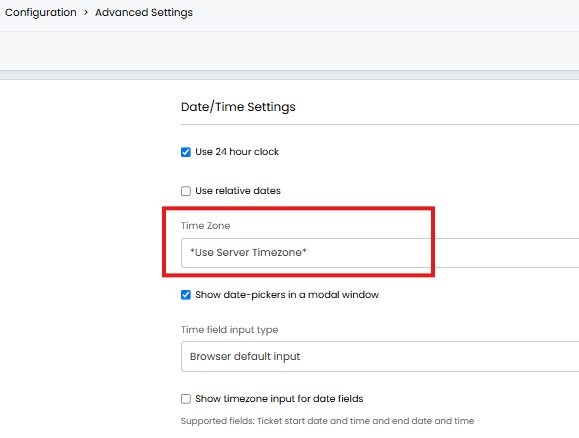
Fig 8. Setting to override server time zone
You will also be able to override this time zone per basis or per site. Whether it will be overridden with the time zone assigned to the team who are assigned the ticket or the site the ticket is under will depend on whether the SLA is set to use the agent's working hours or the user's working hours. This is determined using the setting 'Work hours are the Agents working hours instead of the End-Users' against the SLA.
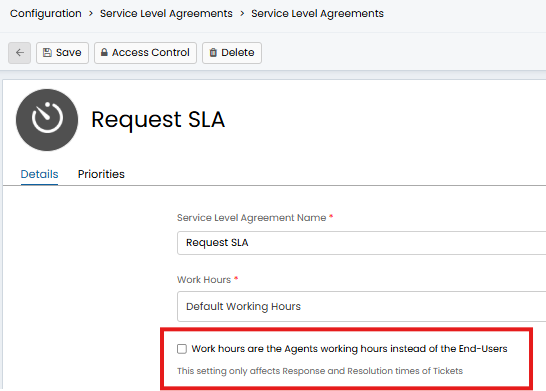
Fig 9. Work hours are the Agents working hours instead of the End-Users
When enabled - The time zone used for the ticket will be determined by the time zone assigned to the team the ticket is assigned to.
When disabled - The time zone used for the ticket will be taken from the site the user of the ticket is under.
Note: This setting does not change the working hours for the ticket, only the time zone.
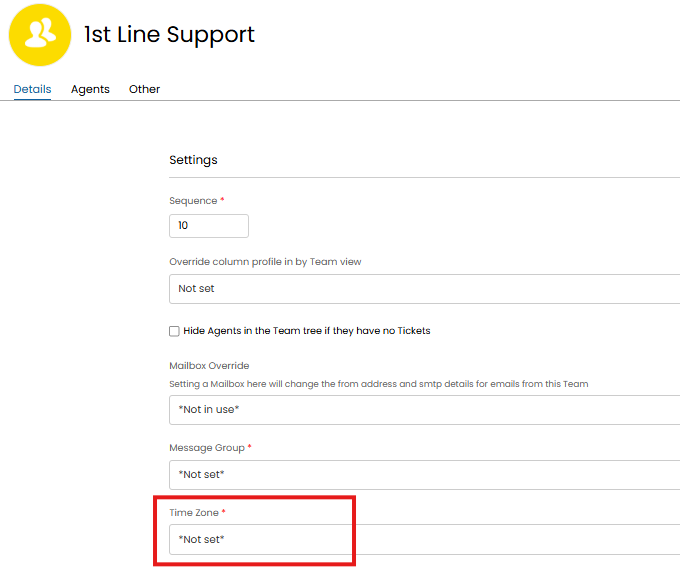
The time zone can be set against the team, as shown in figure 10.
The time zone can be set against the site, as shown in figure 11.
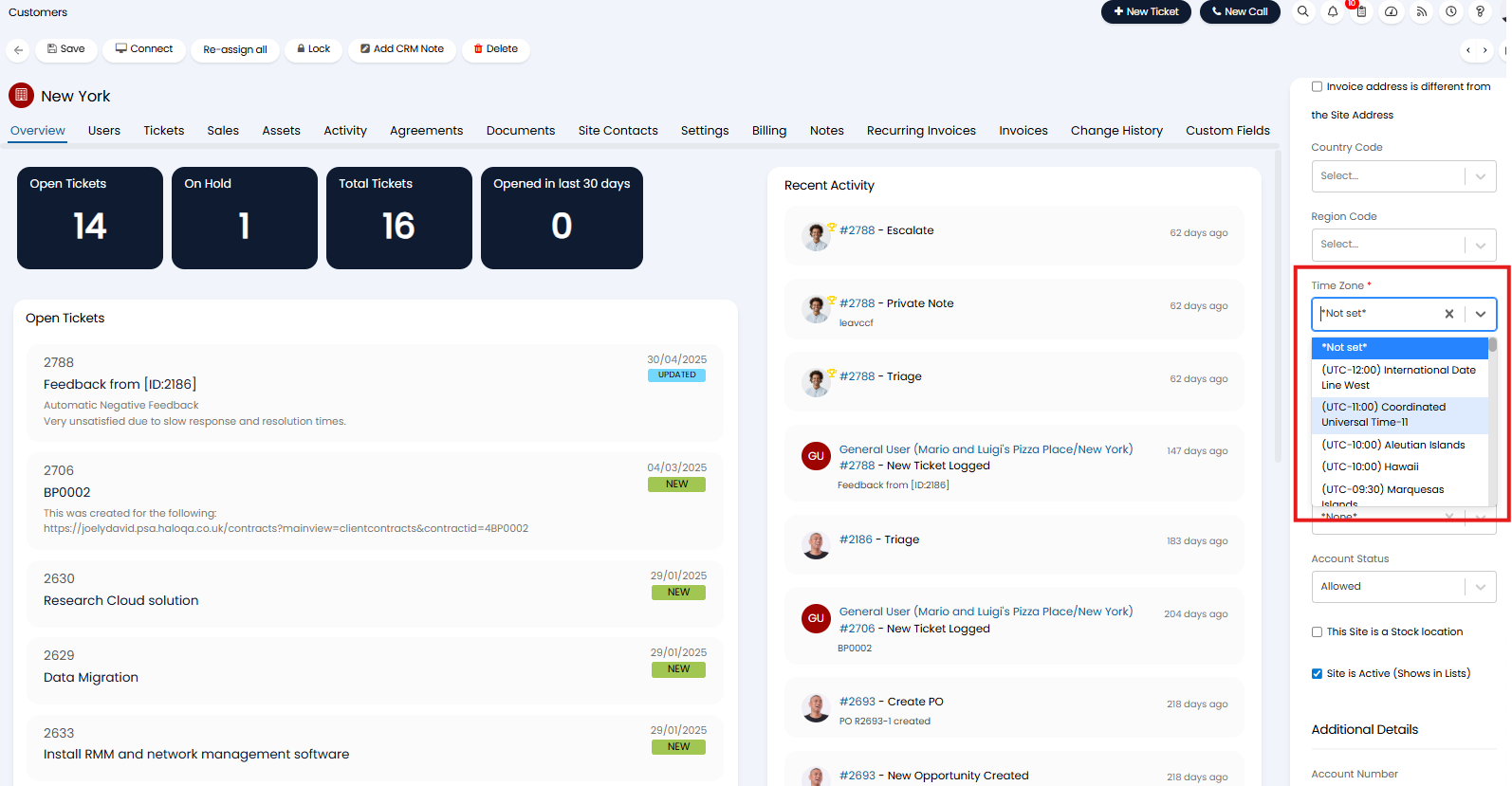
Fig 11. Site time zone.
For more information on time zone overrides, both for SLAs and time zone overrides for other time-dependent functionality checkout Time zone Overrides.