Time Tracking
- Time
- timer
- timesheet
- time tracking
- reporting
- agents
- actions
- labour
- billable time
In this guide we will cover:
- Logging Time on an Action
- Adding Quick Time
- Deleting Time Entries
- Viewing Your Timesheets
- Triggering Rules from Time Taken
- Charge Type field on Quick Time
Configuration Setting Guides:

Fig 1. Time Management Configuration Module
Time tracking is a function to monitor how much time agents spend on each action and the relationship this may have to any calendars or appointments. Agents can log time two ways, by logging time against an action on an existing ticket, or by logging time on a 'quick time' timesheet entry.
Logging Time on an Action
If working on a specific ticket, agents can log how long they spent on an action for this ticket, using the 'time taken' field on the action. When opening an action the action timer will start, beginning a count for how long the action is open for. This is intended to count how long the agent is spending on the action. Agents can either log their time by opening the action when starting the task, then closing the action when the task is finished, allowing the action timer to count how long they have spent on this and populate the 'time taken' field automatically. The action timer can be customised to control if/when it starts to count. Alternatively, agents can enter the time they have spent on this action in the 'time taken' field manually.
From v2.238+, Ticket Timers can be paused when the tab is not being used. This applies to changing tabs within Halo and changing or minimising the browser tab. To enable this, select "Pause Ticket timers on inactive tabs" in Configuration > Time Management.
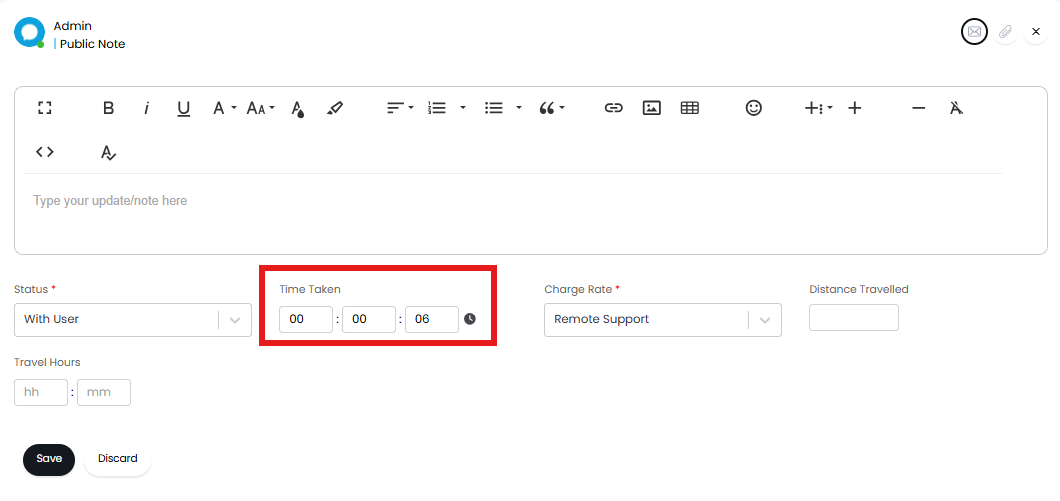
Fig 2. Time taken Field on ticket
If the action the agent is using does not have the 'time taken' field this can be added by heading to Configuration > Tickets > Actions > select the action > Field List > Add > search and add 'Time Taken'.
 Fig 3. Time Taken Field in action configuration
To make the time taken field mandatory click the pencil icon shown on the field in Figure 3 to modify the settings.
A default time can also be added to the action, under the action defaults (Configuration > Tickets > Actions > select the action > Defaults tab). To set this change the 'default hours' field to the hours you would like the 'Time Taken' field to show by default. If this is set the action timer will still start counting when the action is opened but the time taken field will show the default time not the timer. The default time can still be overridden manually, or if you would like to use the action timer, you can select the clock icon next to the field, this will show how long the action has been open and will continue to count.
The action timer can be set so that it does not start automatically when the action is opened, instead it only starts when the clock icon is selected. To do this head to Configuration > Tickets > Actions > select the action > Defaults tab, set field 'Start/Use Timer' to 'No'.
How Time is Rounded
By default, the time taken on an action will be rounded to the nearest minute when the action is saved. From v2.246+ you can change this so time is rounded to the nearest second instead. This is enabled under Configuration > Time Management > "Round time taken to the nearest second". 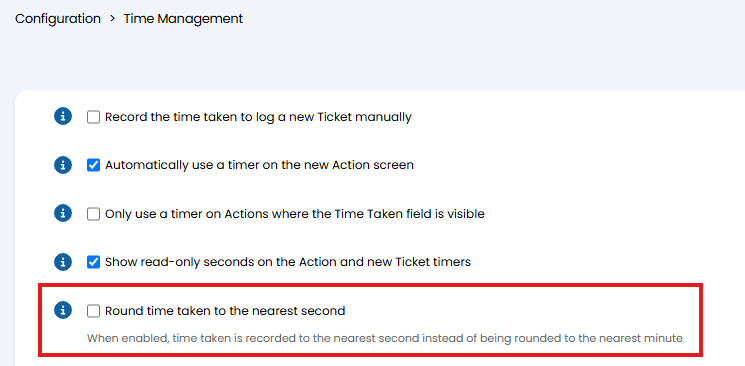
Fig 4. Setting to change how time taken is rounded
Customising the Timer
Make the Timer Visible
If you would like agents to be able to see this timer counting against the ticket enable 'Show the timer on the Ticket Details screen' under Configuration > Time Management. This will display a timer under the ticket details. Agents can pause/resume the time using the 'Stop' button against the timer.
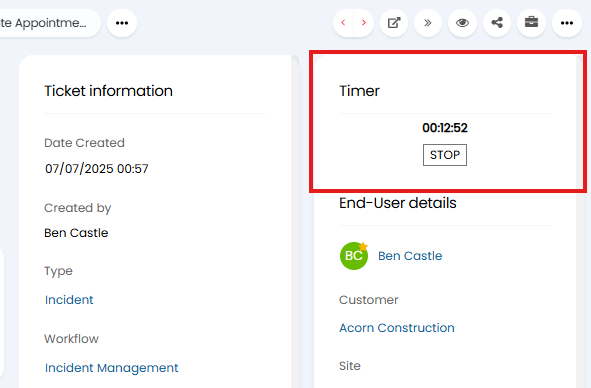
Fig 5. Ticket Timer
Make the Timer a Ticket Widget
You can move the location of the timer so it appears as a widget in the ticket header. This can be configured per ticket type.
To do this head to Configuration > Tickets > Ticket Types > select a ticket type > Forms tab, here you will see the settings "Ticket Details Header Widget 1/2". Set one of the widgets to be "Timer".
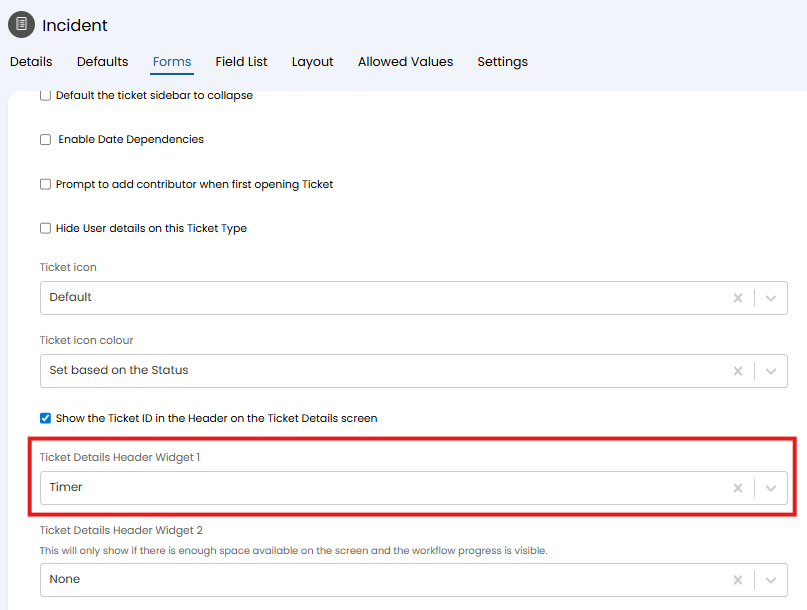
Fig 6. Ticket Details header widget
Once set, the timer will appear as shown in figure 7.
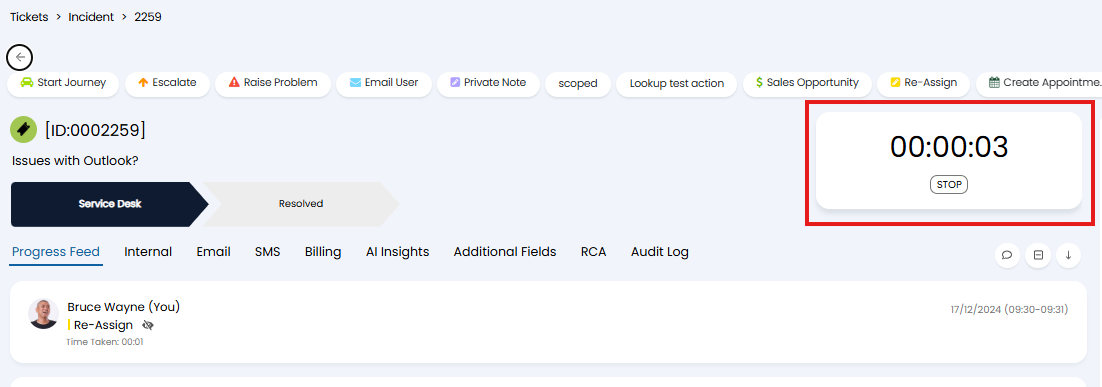
Fig 7. Timer as ticket widget
Control when the Timer starts
Additionally you can configure at what point the timer starts, and when it pauses.
Head to Configuration > Time Management.
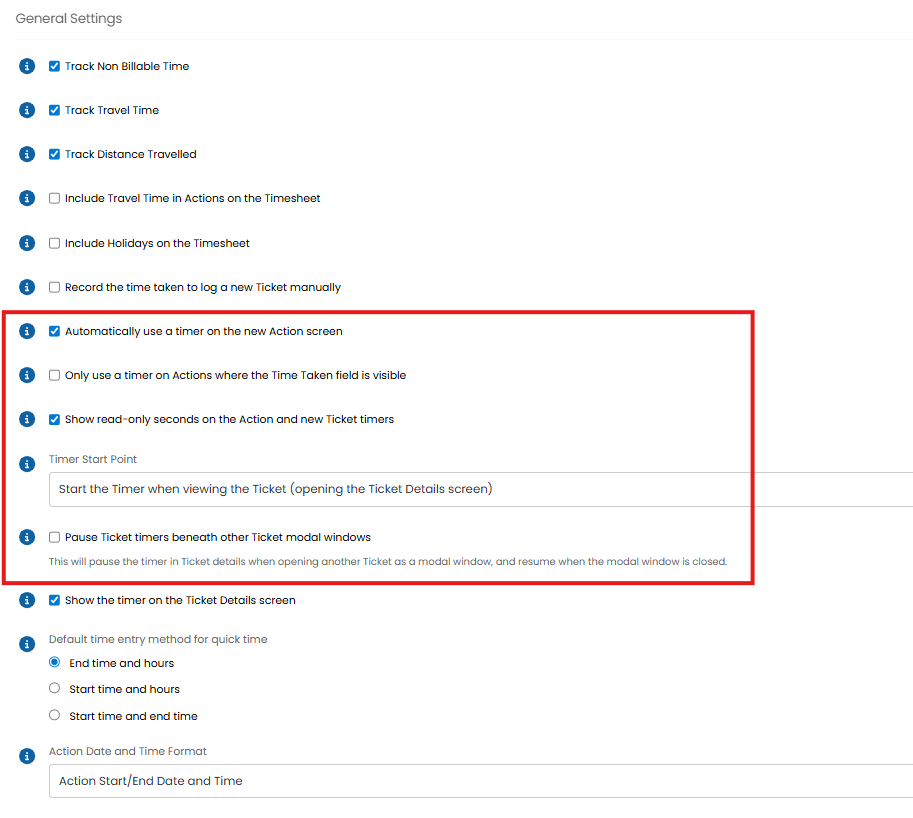
Fig 8. Timer customisation options
Automatically use a timer on the new Action screen - When checked, the Timer function will automatically be enabled when logging an Action. This will set the time taken to log the Action as the Time Taken field on the Action. This can be overridden should the field be visible on the Action.
Only use a timer on Actions where the Time Taken field is visible - When checked, the Timer function will only be available on Actions where the Time Taken field is visible. Else, the Action will be logged with no time by default (this can be overridden by editing the action).
Show read-only seconds on the Action and new Ticket timers - When the Timer is visible, there will be a seconds counter alongside the hours and minutes, akin to a stopwatch. The seconds are read-only and cannot be modified.
Timer Start Point - This will determine the point at which the Timer begins counting when viewing tickets and logging actions.
Pause Ticket timers beneath other Ticket modal windows - When another ticket is opened in a modal window this will pause the timer for the original ticket. The time will resume once the window is closed.
Adding Quick Time
Quick Time is used when you want to log time, but do not have the ticket you want to log this against open, or you want to log time against a certain user rather than a specific ticket. Quick time can be added by heading into your timesheet and either selecting the ⊕ icon next to "Hours Logged", or by selecting a time on that timesheet.
A timesheet can be submitted in the side pane by selecting the submit button.
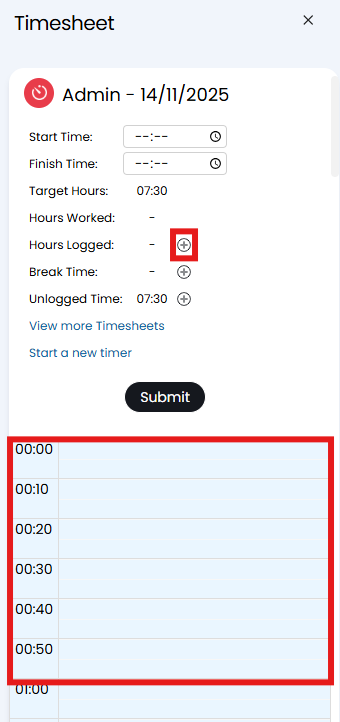
Fig 9. Logging time from a today's timesheet
This can also be logged by heading into the 'Timesheets' module, selecting a day and again either selecting the ⊕ icon next to "Hours Logged", or by selecting a time on that timesheet. This will open the quick time dialog box.
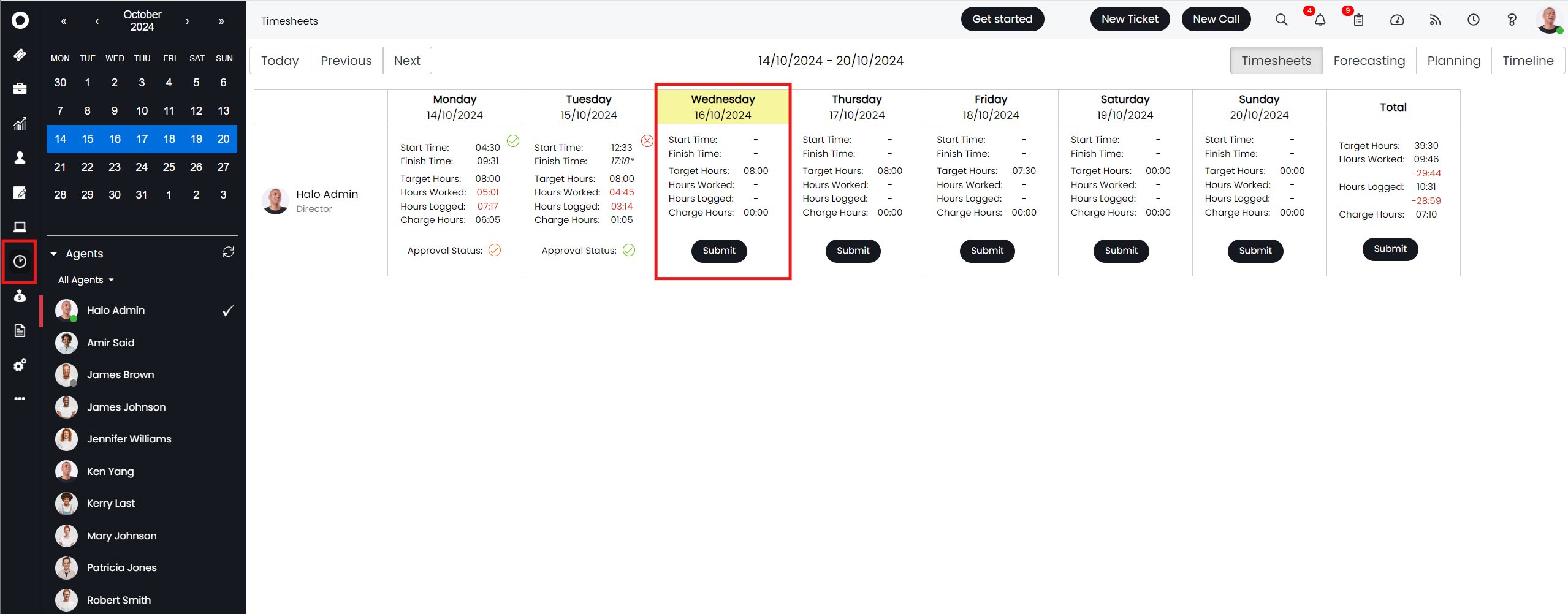
Fig 10. Logging time from the Timesheets Module.
When logging quick time you will need to complete some details about the time that is being logged, seen in Figure 11.
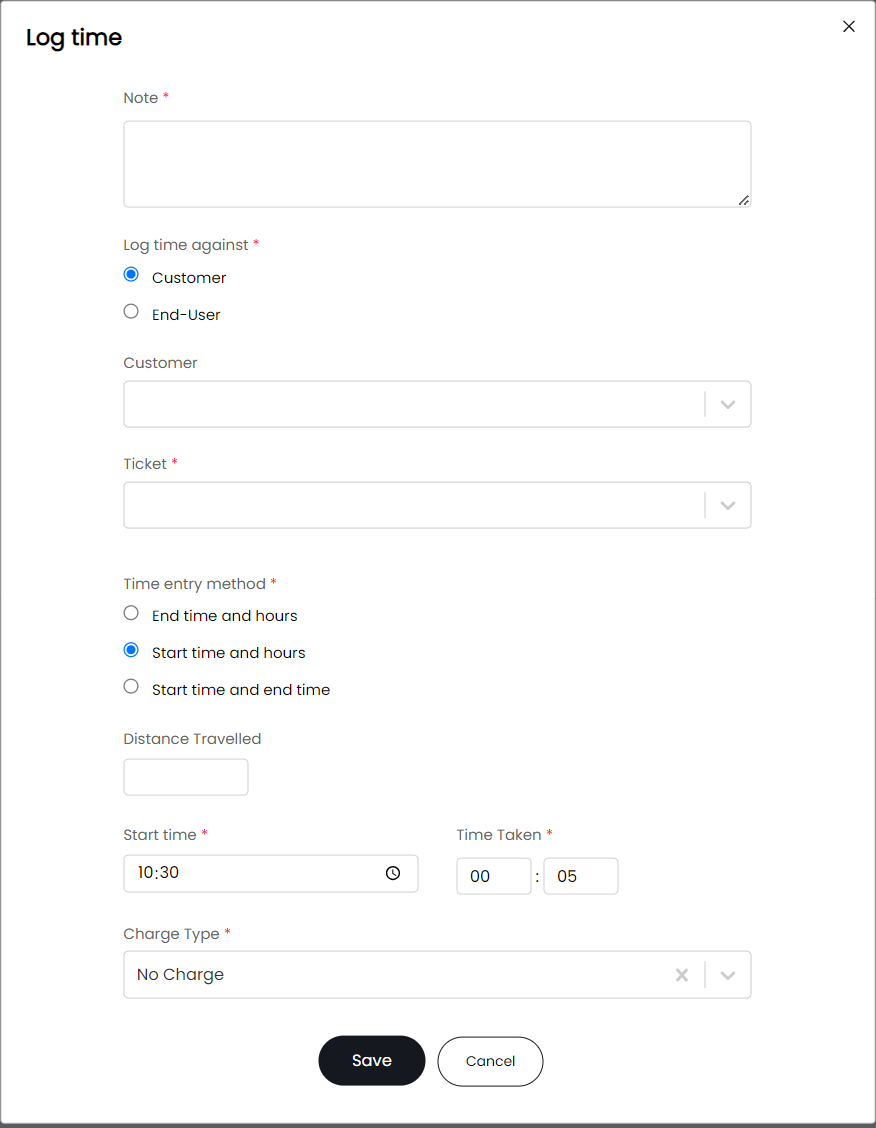
Fig 11. Quick time screen
When logging time you can either choose to log time against an existing ticket, to do this you will need to select the entity to 'log time against' as 'customer', then enter the full ticket ID in the 'ticket field'. This will create a 'log time' action on the ticket with the details entered on the log time screen here.
Alternatively, if you select to 'Log time against' as 'end user' you can select an end user to log time against, you still have the option to enter a ticket ID, but if you leave the ticket field blank time will be logged under this end user as a new ticket, rather than against an existing one. If logging time on a new ticket, a ticket will be opened with the details entered in the log time screen here, and the ticket will automatically close when logging. This is to ensure that there is a record of time worked against the end user, for billing purposes. By default the ticket type used to log quick time is 'Quick Time', however, this can be changed in configuration > time management, 'Ticket type used for logging time'.
How to complete the Quick Time Pane:
1. Enter any relevant information into the note box.
2.Choose who you would like to log time against, a customer (existing ticket) or end user.
3. Select any end-user or customer if necessary.
4. Select the ticket you want to log time against, or leave blank
5. Enter the time taken and the method of adding i.e. Start/end or start and end. The default time entry method can be set via heading to Configuration > Time Management and selecting the relevant option under the General Settings:
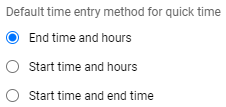
Fig 12. Editing Time Input Option For Logging Quick Time
6 . Add any relevant charge type. The quick time can be a chargeable action by adding a charge type to it. There is a setting in Configuration > Time Management which allows you to use the agent default charge type when logging time. When selected, the charge type field will be populated with the agents default charge type when logging a quick time, It can be manually overridden on the quick time logging screen. The agents default is configured in the details tab of an agent the setting is called "Default Charge type".

Fig 13. Agent Default Charge Type Setting For Quick Times
You can override the action used for quick time. The drop-down for this is found under Configuration > Time Management
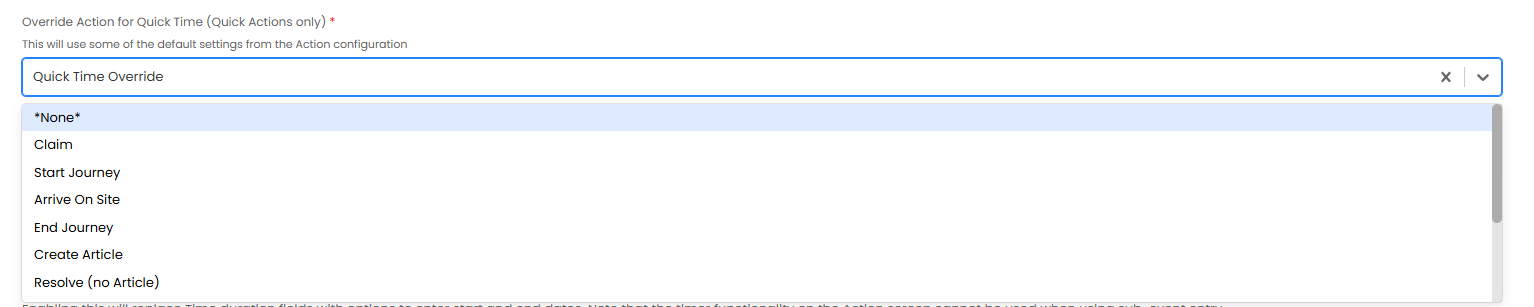
Fig 14. Quick Time Override action
The action you set here will be used for all quick time entries in pace of the system action, this allows you to configure the action to your needs. In the example below I have configured a new quick action called 'Quick Time Override', this action is hidden from the Conversation and Internal view (only showing under 'All Actions') and changes the status to 'updated'. For more information on configuring actions see our Actions guide.
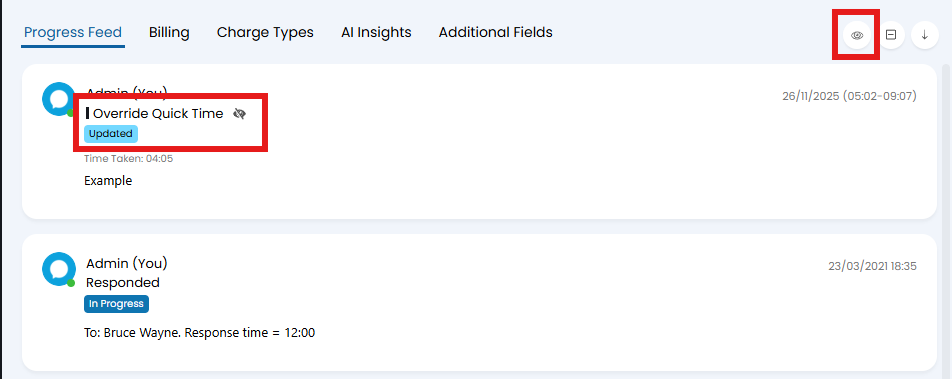
Fig 15. Adding Quick Time with the action overridden
Additional Fields for Quick Time
To toggle the option to have quick time logged against an existing ticket in the system. This can be enabled under Configuration>Time Management and selecting the below option found under the Time Logging section:

Fig 16. Choosing an Existing Ticket When Logging
Once this setting is enabled, you will have the option to search for existing tickets directly from the quick time window, note you can also allow a selection of Ticket type, this will override the default ticket type used for logging time.

Fig 17. Ticket Type Selection
Once the time entry is saved, you can also change the time taken by clicking and dragging the input boxes via the little tabs at the top and bottom.
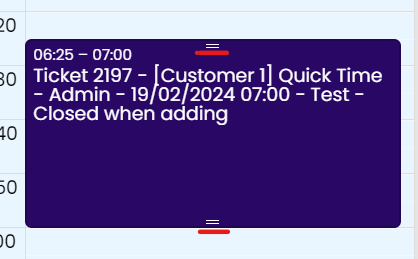 Fig 18. Quickly Increasing The Time Taken
Using the timer when logging Quick time
If you want to log quick time against a timed task you can start a timer manually. This can be done in two ways, you can press CTRL + SHIFT + L to enable a timer, you can see the timer on your timesheet for today.
Or:
1. Click the clock in the top right to open your time sheet pane.
2. Click Start a new timer.
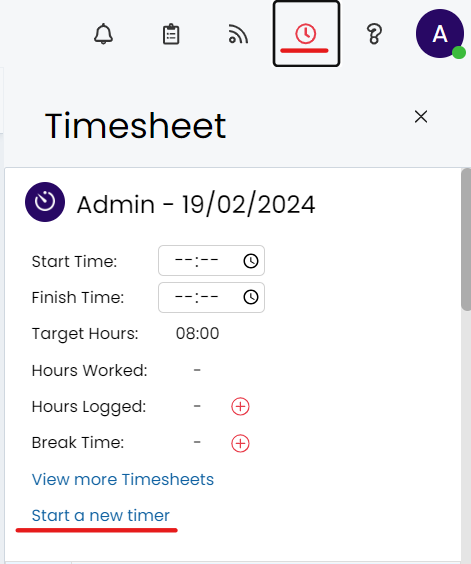 Fig 19. Timesheet View
3. This will automatically begin a timer.
4. When you stop a timer you're presented with 3 options:
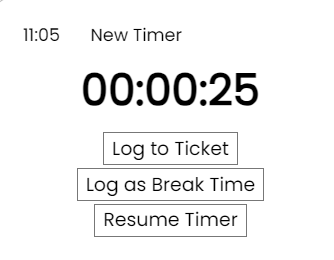
Fig 20. Timer Options
5. "Log a Ticket" Option will open a quick time dialog box to log the time against an existing ticket or end user.
"Log as Break Time" will give you the option to choose the kind of break it was and the time taken.
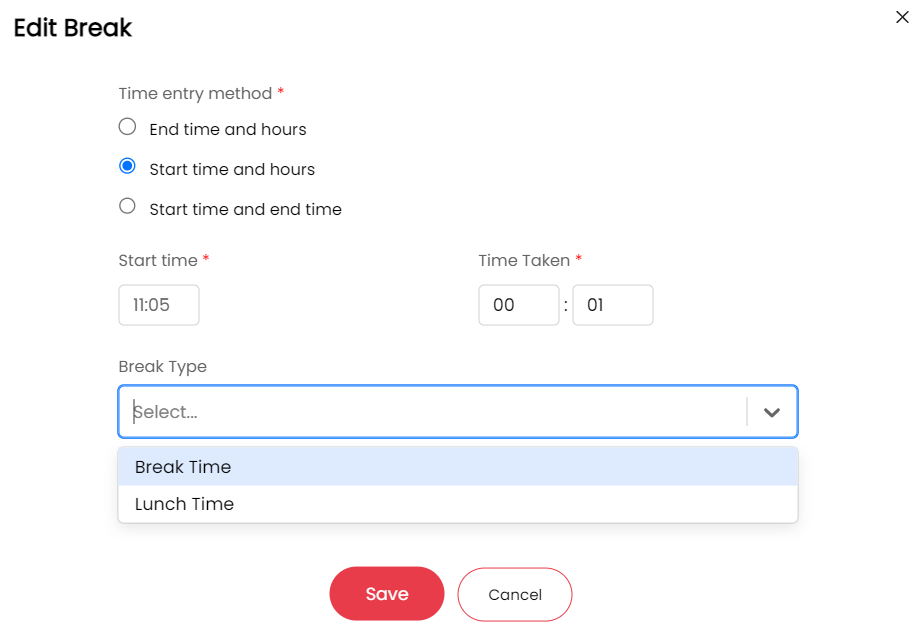
Fig 21. Log as Break Time
Deleting Time Entries
If you have logged time against an existing ticket, to delete the time entry you will need to delete the action on the ticket it is logged against. To do this, select the entry you would like to delete on your timesheet, selecting the entry will open up the action on the corresponding ticket in a new window. Now you are viewing the action you have the option to delete this, deleting the action will remove the time entry from your timesheet.
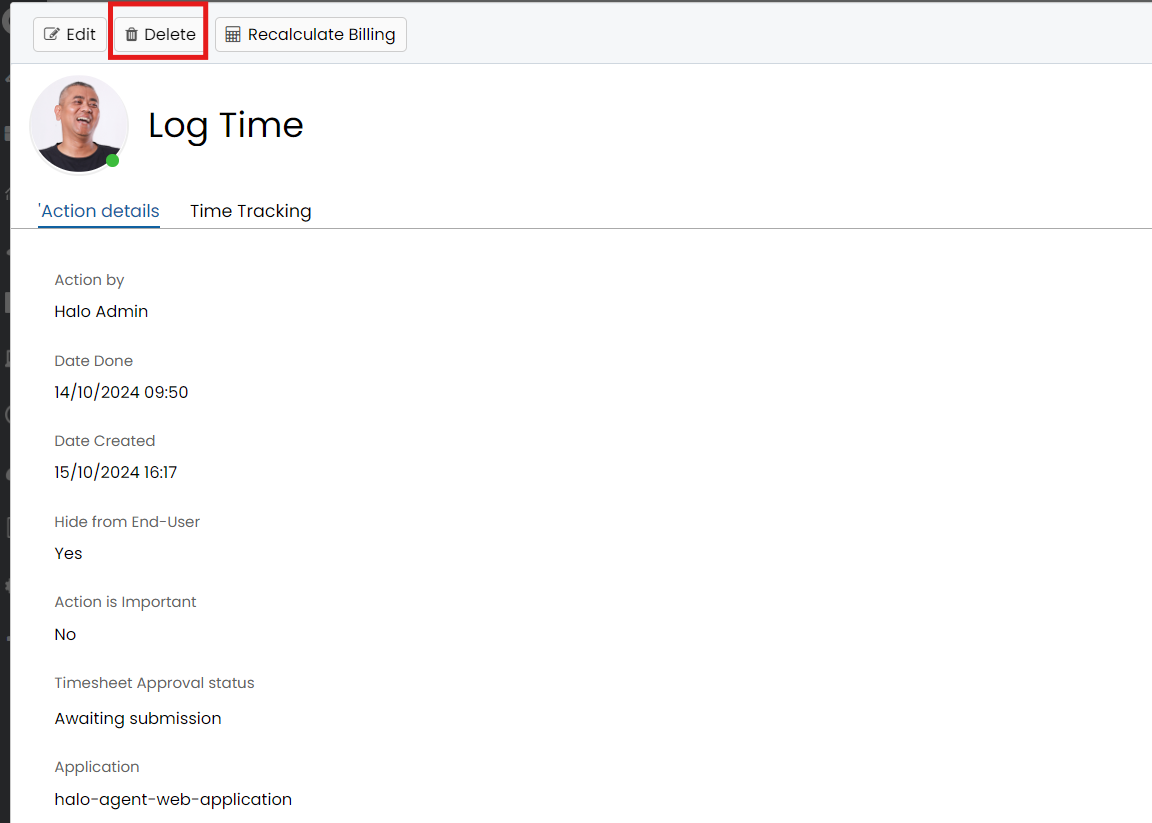
Fig 22. Deleting Action on ticket
If you do not have this option to delete an action your agent account likely does not have permission to delete actions. Contact your Halo administrator to have the permission added, or they can delete the action for you.
If you have logged time on a quick time ticket, rather than against an existing ticket, you will need to delete the ticket itself. To do this select the time entry on your timesheet, this will open up the ticket in a new window. Once open you can delete the ticket. This will remove the time entry from your timesheet.
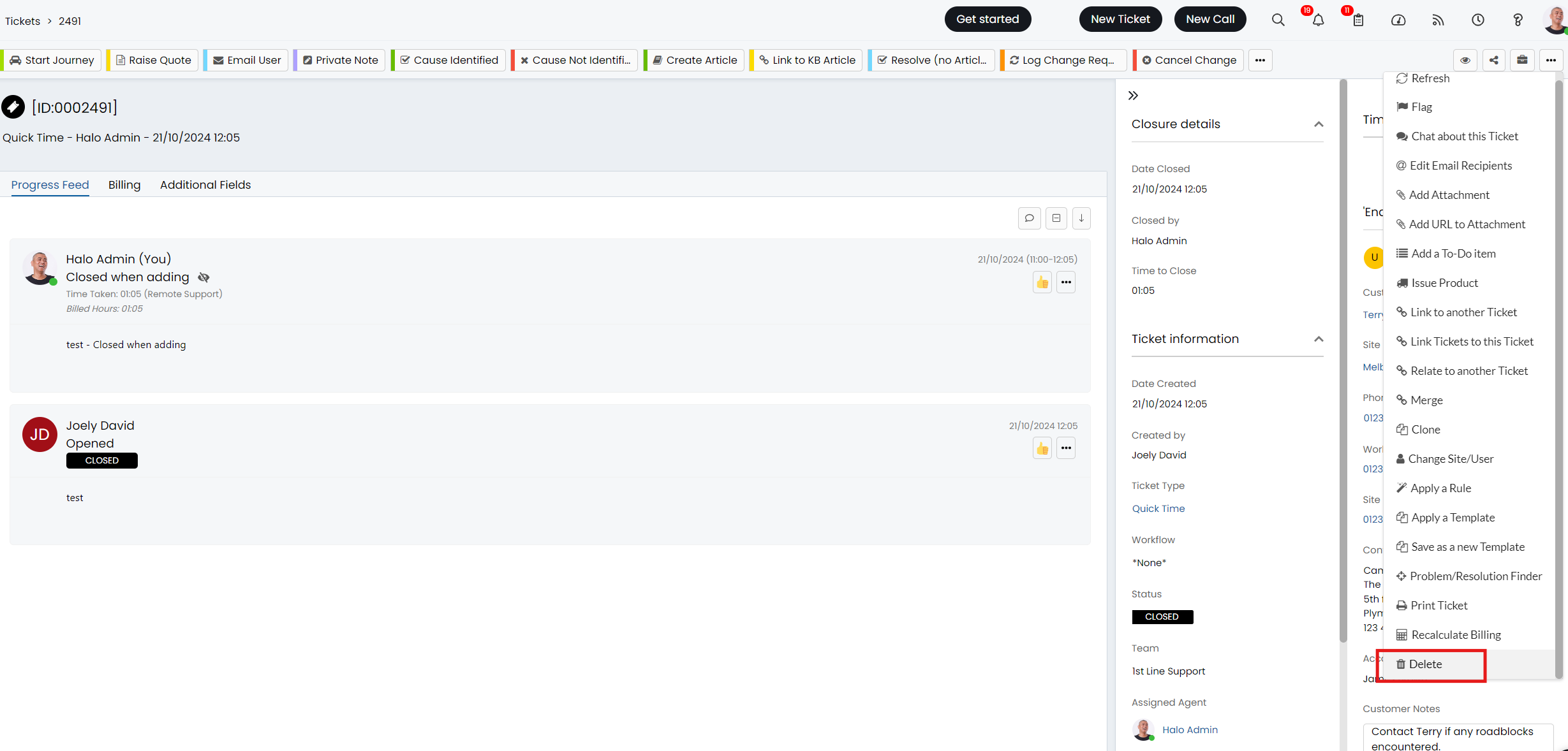
Fig 23. Delete Quick time ticket
Deleting Break Times
If you need to remove a break time entry, you will need to select the break entry on your timesheet and adjust the 'Time Taken' field to be zero. The original entry will still appear on the timesheet at the 'Start Time', but this will not deduct any minutes from the agent's break time. If an incorrect break time has be logged, it is best to adjust this to the correct time, rather than zero the original entry out and create a new entry.
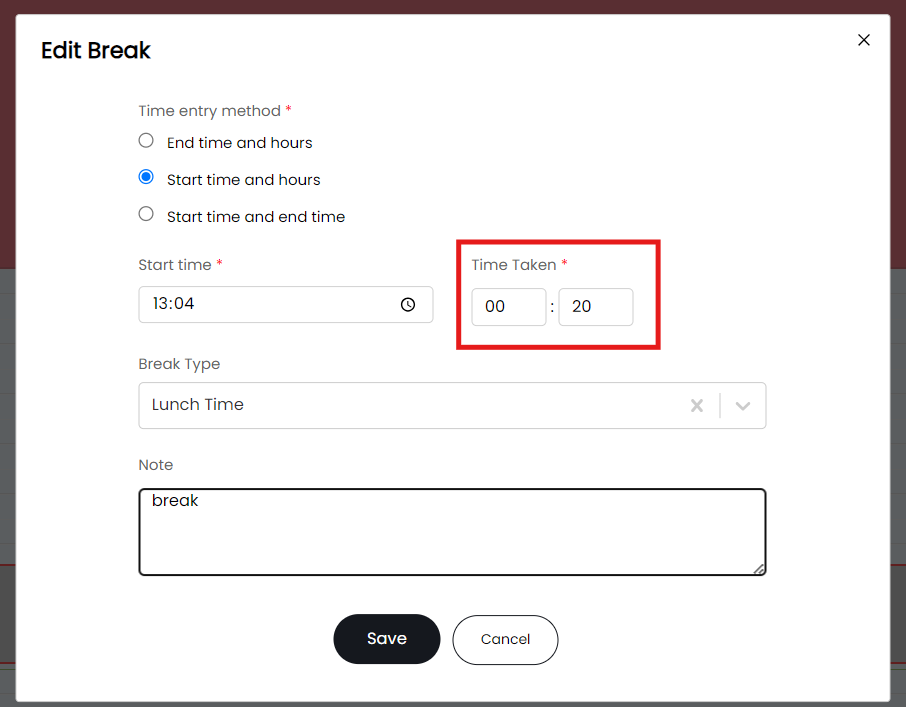 Fig 24. Time Taken field on Break Time
Viewing your Timesheets
All actions with time logged against them will be viewable on your timesheet area by you, any team leaders or administrators. To see your time entries for a given day, select the timesheet for that day in the 'Timesheets' module. The entries are presented in chronological order with the ticket's title as the title and the timings for start and end on the view.
The timesheet shortcut pane on the right hand side (accessible in the top right hand corner of the Halo web app) only displays today's timesheet but you can view other days by clicking "View More Timesheets". In the pane you can click into any entry to view the specifics of it, this will open a new tab with the ticket's action for the entry.
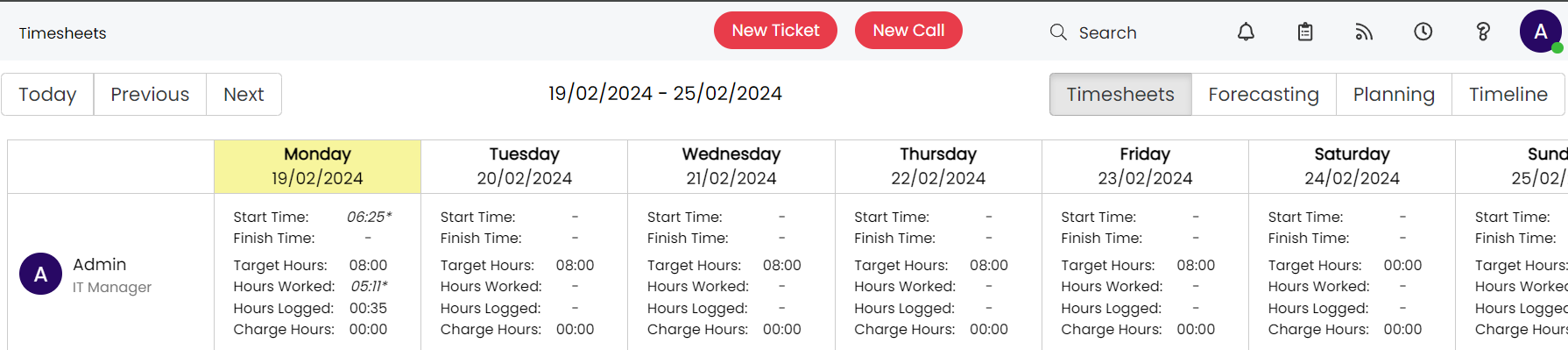
Fig 25. Timesheet Area
The 'Forecasting' view will show how many hours of scheduled work you have for each day. This is used in conjunction with Project tickets, so when you forecast the amount of hours you need to spend on the project for a given day/week, this will appear in the 'forecasting' area of timesheets. Allowing you to see how much work you have scheduled across all your projects.
The 'Planning' View will show a summary for the amount of hours you have available and the amount of hours you have 'booked', booked hours are the same as the hours you have logged on a timesheet/action. The planning view just provides a percentage breakdown of the amount of time you have available.
The 'Timeline' view displays the time you have logged in your current workday, broken down by hours, this provides a more focused way of viewing your logged time for a chosen day.
Timesheet Hours Breakdown
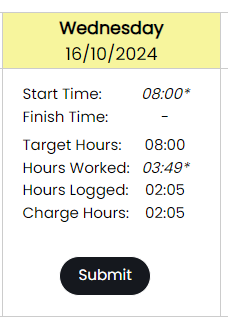
Fig 26. Timesheet hours breakdown
On your timesheet (Figure 26) you will see the hours for that day are broken down into different categories.
Start Time - The start time of the first action logged for that day.
Finish Time - The end time of the last action logged for that day.
Target Hours - The number of hours you are expected to log (working hours minus break time) .
Hours Worked - The time you have been working, finish time minus start time.
Hours Logged - The total time taken on the actions you have logged today.
Charge Hours - The number of hours you have logged that are chargeable.
Completing timesheets
When a timesheet is complete it will be indicated with a green tick against the timesheet for that day.
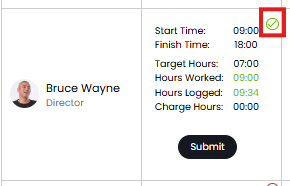
Fig 27. Timesheet marked as complete
Timesheets are classed as 'complete' when your hours worked for the day meet your target hours for the day, that is you have logged enough time against actions to total to your target hours.
If you have not met your target hours for the day but would still like to mark your timesheet as complete use the tick icons against the start and finish time for the timesheet.
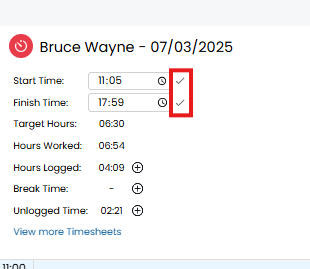
Fig 28. Complete timesheet manually
Administrators
Head to Configuration > Time Management settings to adjust what entries appear on the timesheet. The options in general settings cover the basic features of the timesheets functionality. For a detailed timesheet approvals guide check here.
For a more detailed guide on timesheet configuration check here.
Triggering Rules from Time Taken
"Time Taken" can be used as a ticket rule criteria, which can be useful to escalate a ticket if a certain amount of hours have been logged on it already. In Configuration > Tickets > Rules, create a rule with the criteria. Set the "Value" to a number of hours.
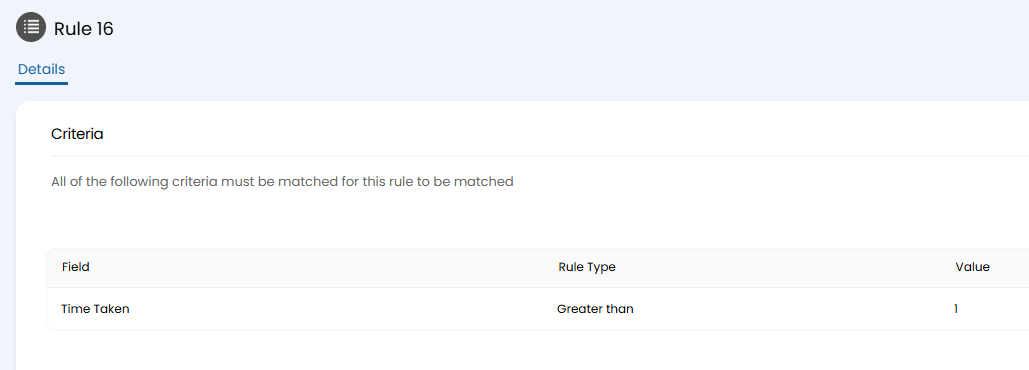
Fig 29. Time taken rule criteria.
The ticket rule above is configured to reassign the ticket to "2nd Line Support" if the time taken is over an hour. This has then applied to the ticket below when completing the next action after that threshold has been met.
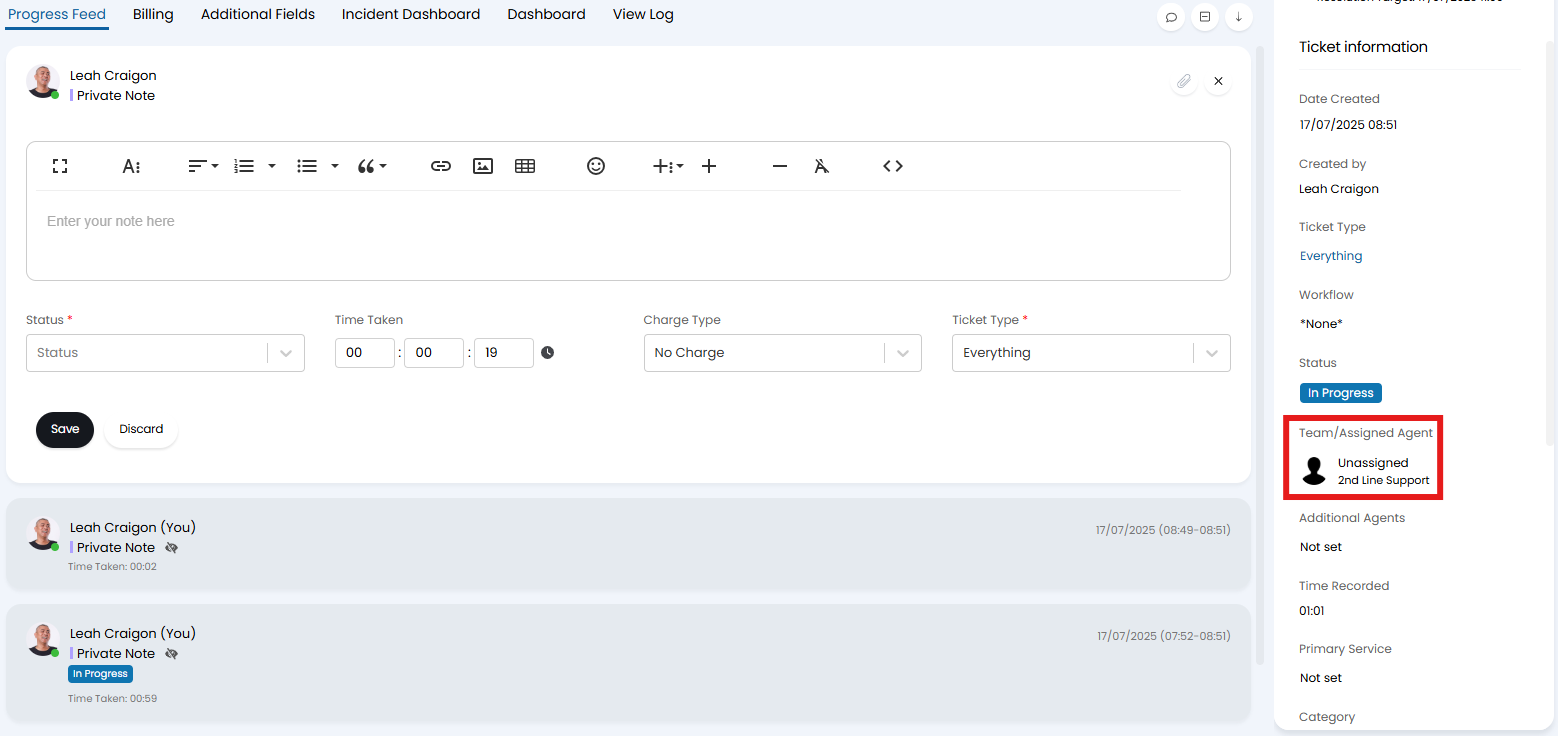
Fig 30. Rule applied after the next action
Charge Type field on Quick Time
Add/remove the charge type field when logging quick time
You can control whether the charge type field appears when logging quick time.
To have the charge type field appear, you will need to add the field 'Charge Type (Actions)' to the ticket type that is used to log quick time. Only when this field is on the ticket type will the charge type field appear. If you would not like the charge type field to appear, remove this field from the ticket.
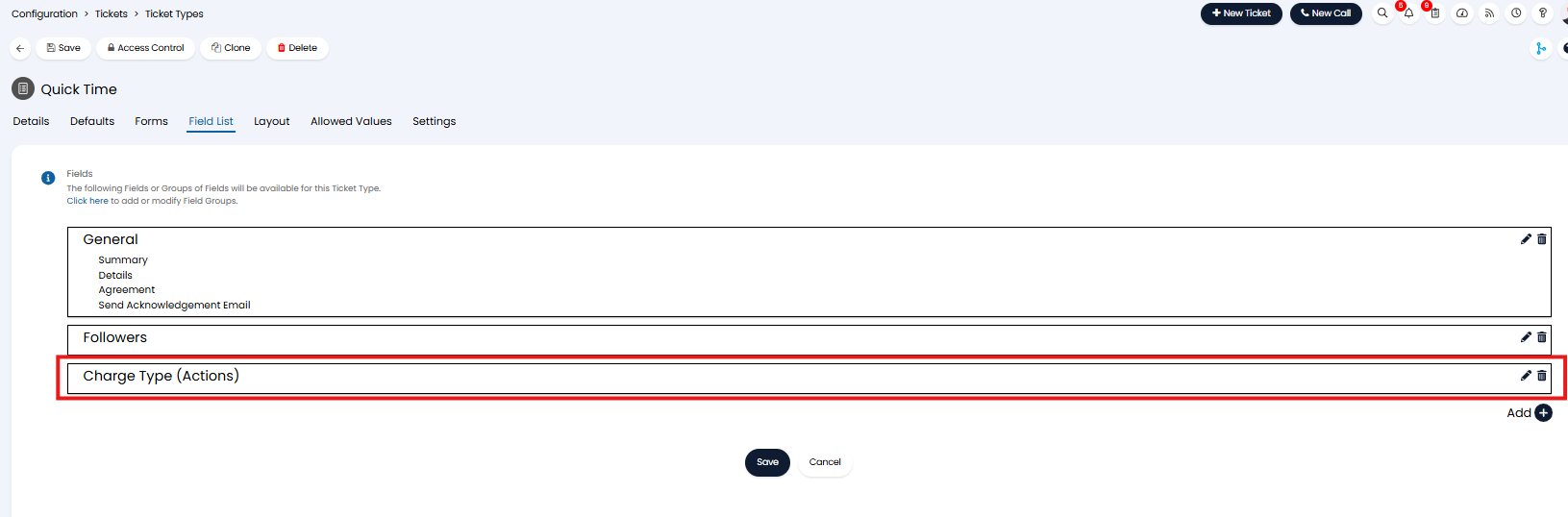
Fig 31. Charge type field added to ticket type used for quick time
Restrict the available charge types
When logging quick time, you can control what charge types are available for the agent to choose from when logging quick time. This is determined using field value restrictions against the 'Charge Type (Actions)' field against the ticket type used to log quick time.
To do this first navigate to the configuration for the ticket you are using to log quick time, configuration > tickets > ticket types > select the ticket type > field list > edit the Charge type (Actions) field. Here, in the 'Field Value Restrictions' enter the charge types you would like to be available to choose from when logging quick time.
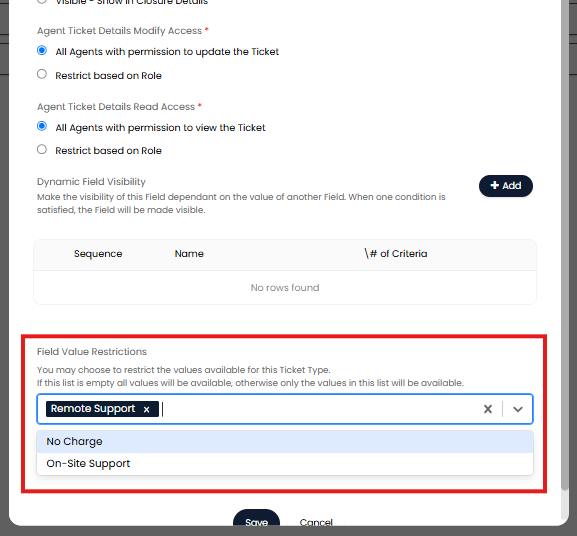
Fig 32. Field Value Restrictions for the charge type field.
Using the Figure 32 example, as 'Remote support' is the only charge type selected, this will be the only charge type available to choose from when logging quick time.