How to Configure Timesheets
- Key Settings
- Add Fields to Time Logging screen
- Set Warning if Time Taken on Action Exceeds a Set Amount of Time
- Setting Target Hours and Holidays
- Timesheet Approvals
- Incomplete Timesheets Notifications
Admin Guides:
Related Guides:
What are Timesheets?
The timesheets module in Halo allows agents to log time the time they are working, and see this broken down into each action they have completed. Useful for tracking your agent's time. Additional functionalities are available around this, such as submitting these timesheets for approval and timesheet notifications.
Allow Agents to Log Time
To enable the Timesheets module and allow agents to log time first ensure you have enabled the "Time Management" module found under Configuration.
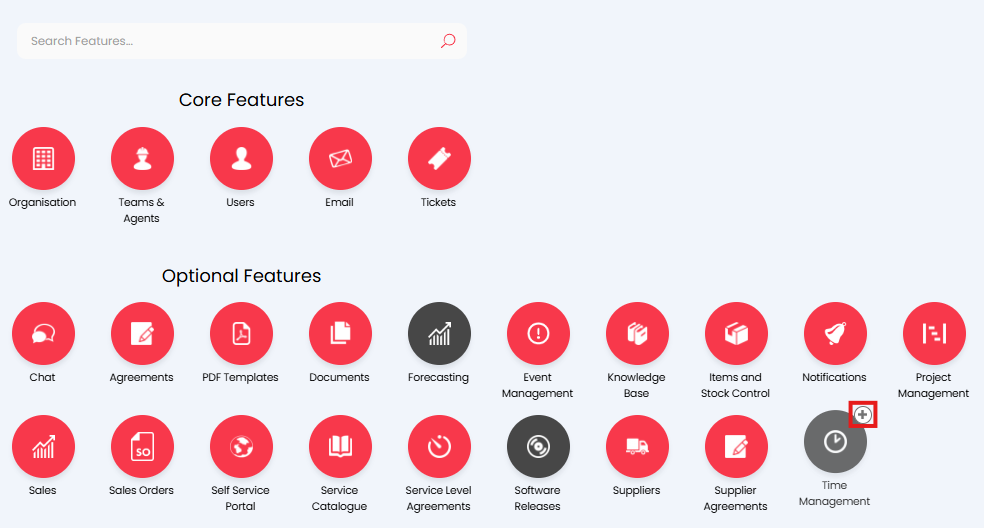
Fig 1. Enable the Time Management module
Enabling this will make the Timesheets module available in the navigation bar (shown in Figure 2).
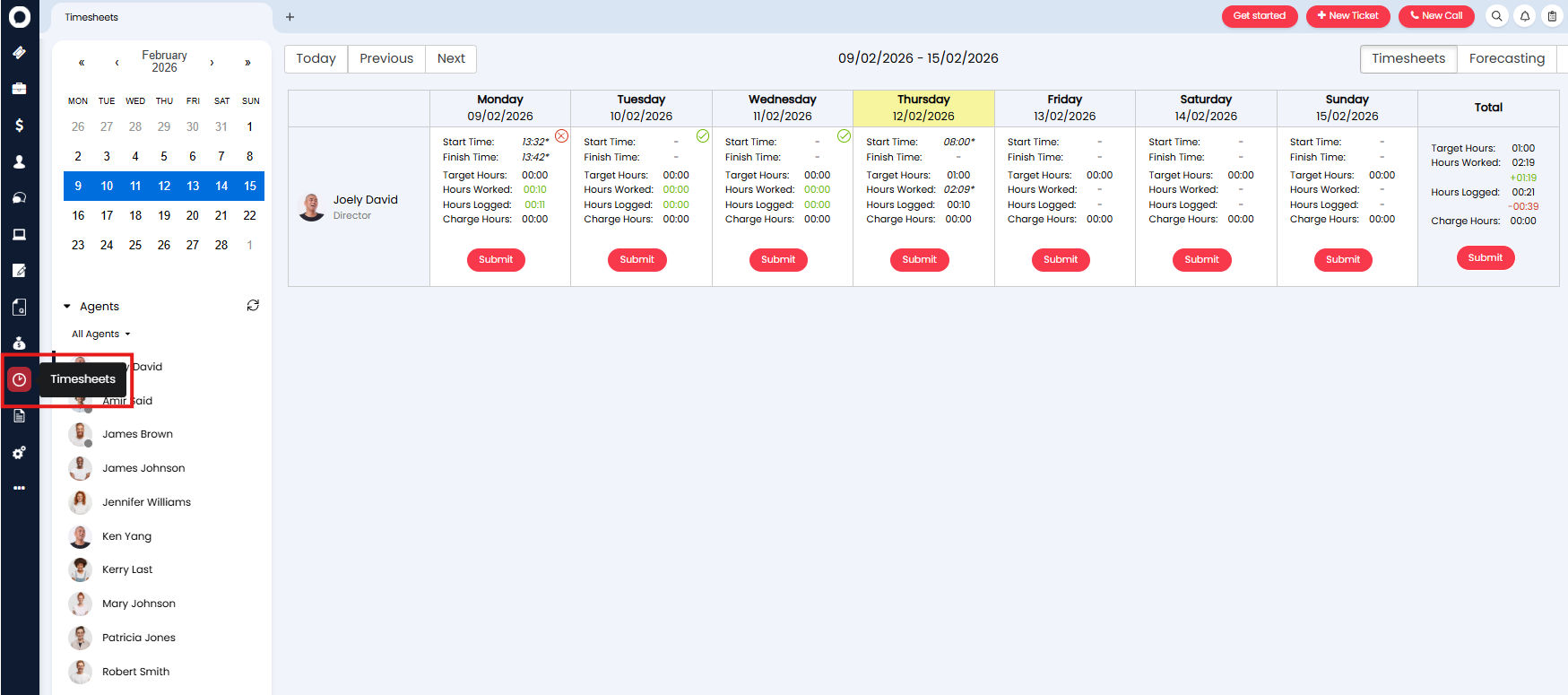
Fig 2. Timesheets module
This module is used to give an overview of the time agents have logged that week. Agents can also log time from here.
Note: If you still cannot see this module in the navigation bar, you may need to adjust your navigation menu.
There are some additional settings to consider to improve the time logging experience.
Enable Quick Time
Under Configuration > Time Management > "Allow Agents to log quick time"
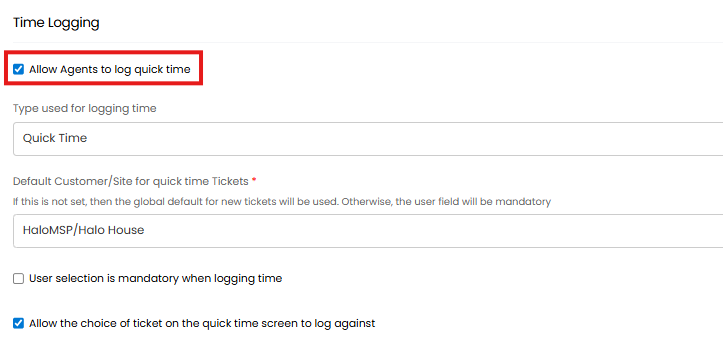
Fig 3. Allow agents to log time setting
This setting, when enabled allows agents to log time both on an action on a ticket, and make a timesheet entry from their timesheet directly. If you would like agents to only be able to log time by completing an action on an existing ticket, not using thequick time functionality on the timesheets module, disable this setting.
For more information on using quick time checkout: Time Tracking.
Enable the Agent Timesheet
Under Configuration > Time Management > "Enable Agent Timesheet feature".
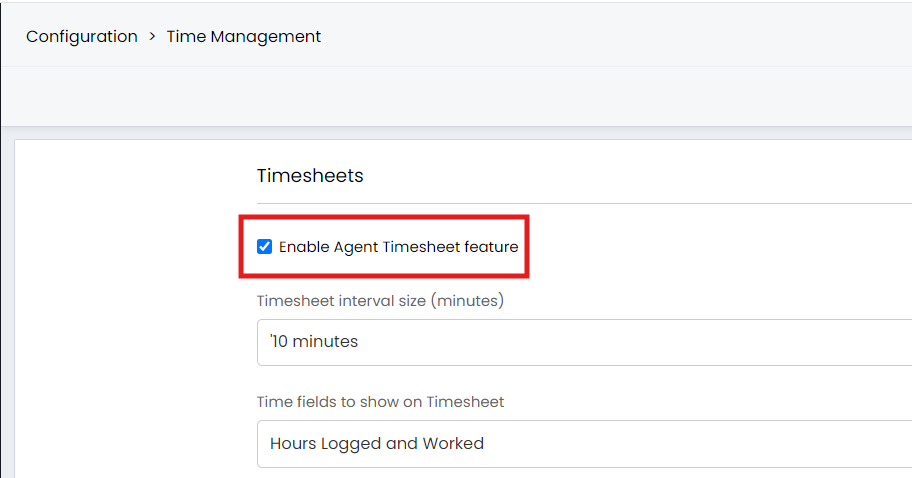
Fig 4. Enable agent timesheet feature setting
This setting, when enabled will make the 'timesheet feature' option available, shown as a clock in the top right corner of the page, this shows the agents timesheet for the current day. Even if this is not enabled agents can still log time from the timesheet module but this gives them quick access to the day's time entries.
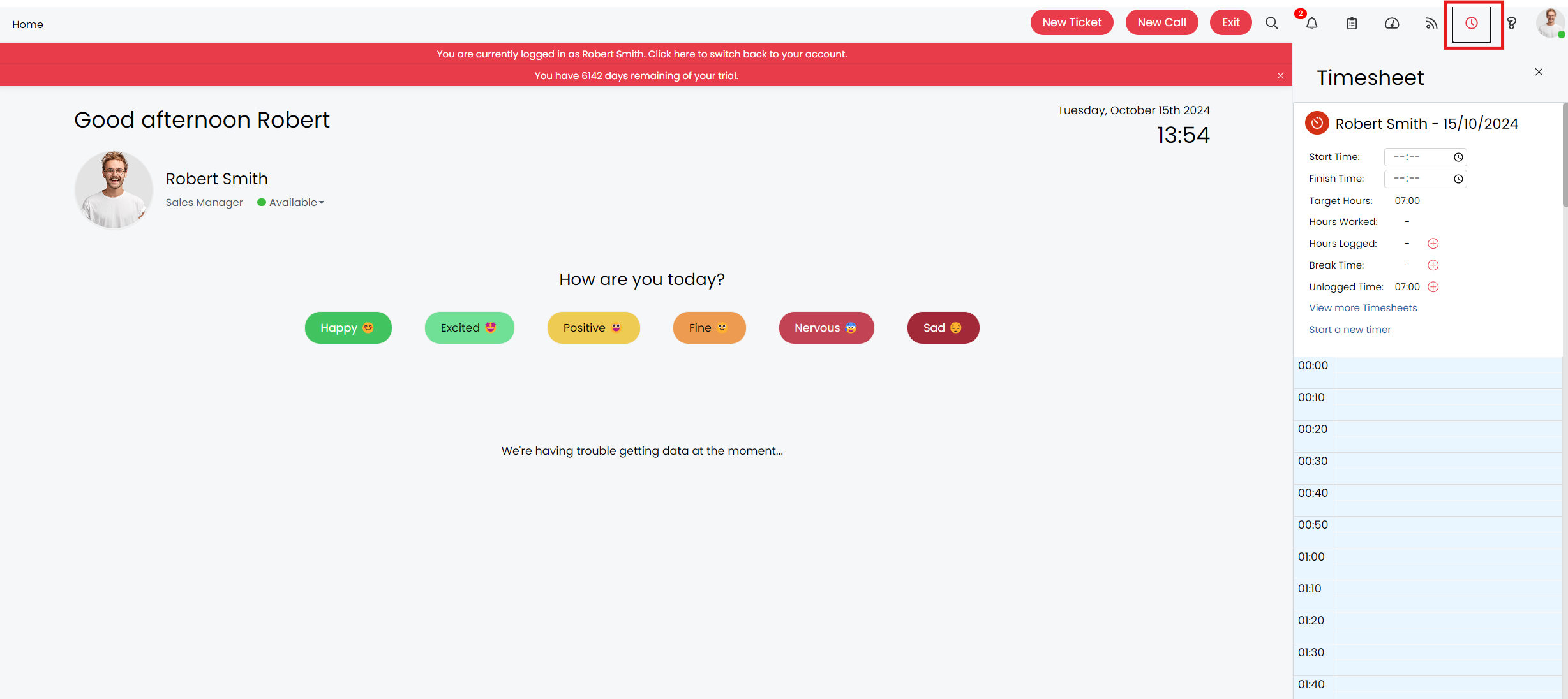
Fig 5. Timesheets feature button when expanded
Add Fields to Time Logging screen
When logging time from a timesheet the agent is prompted to complete some details for the time entry, out of the box, this will look as shown in Figure 6.
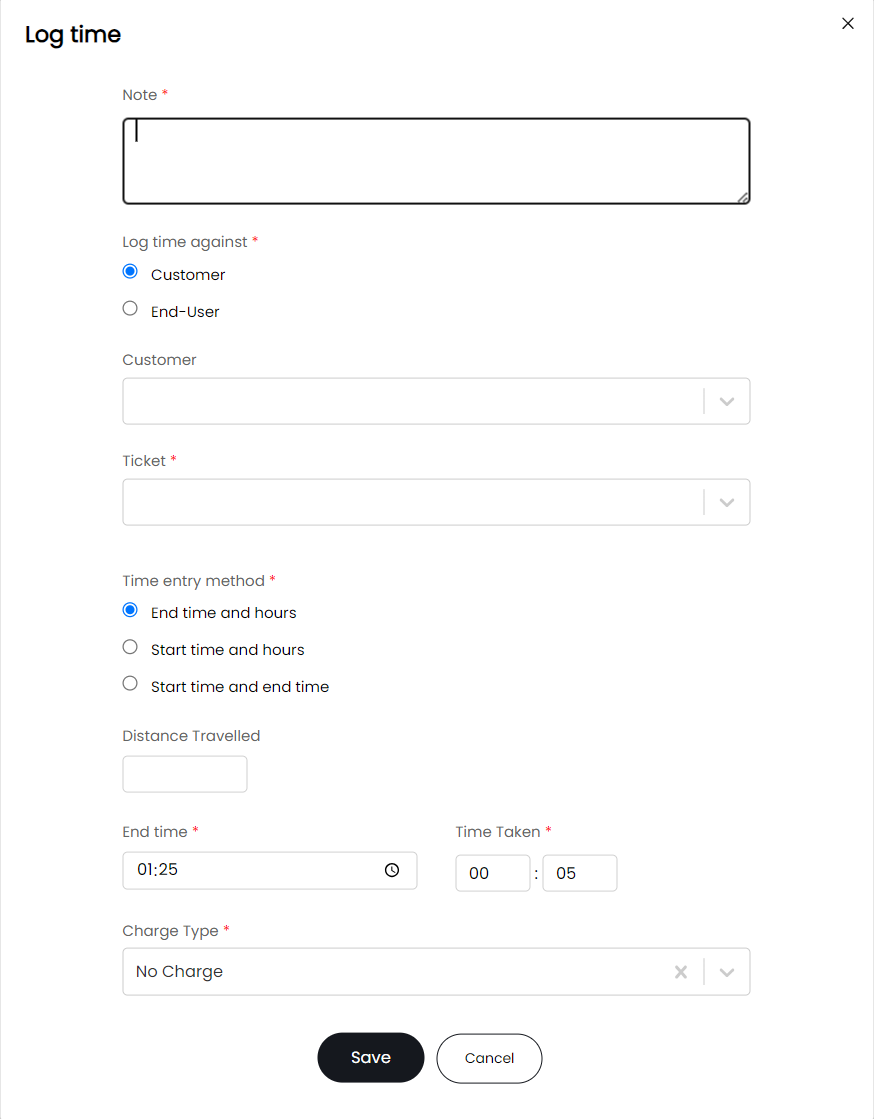
Fig 6. Log time screen
The details on this screen are required to record basic details on what the time is being logged for. The 'distance travelled' option will only appear if you have the 'track distance travelled' setting enabled (Configuration > Time Management).
You can also add category and contract fields to the log time screen, to do this, enable the setting in Figure 5, found in Configuration > Time Management.
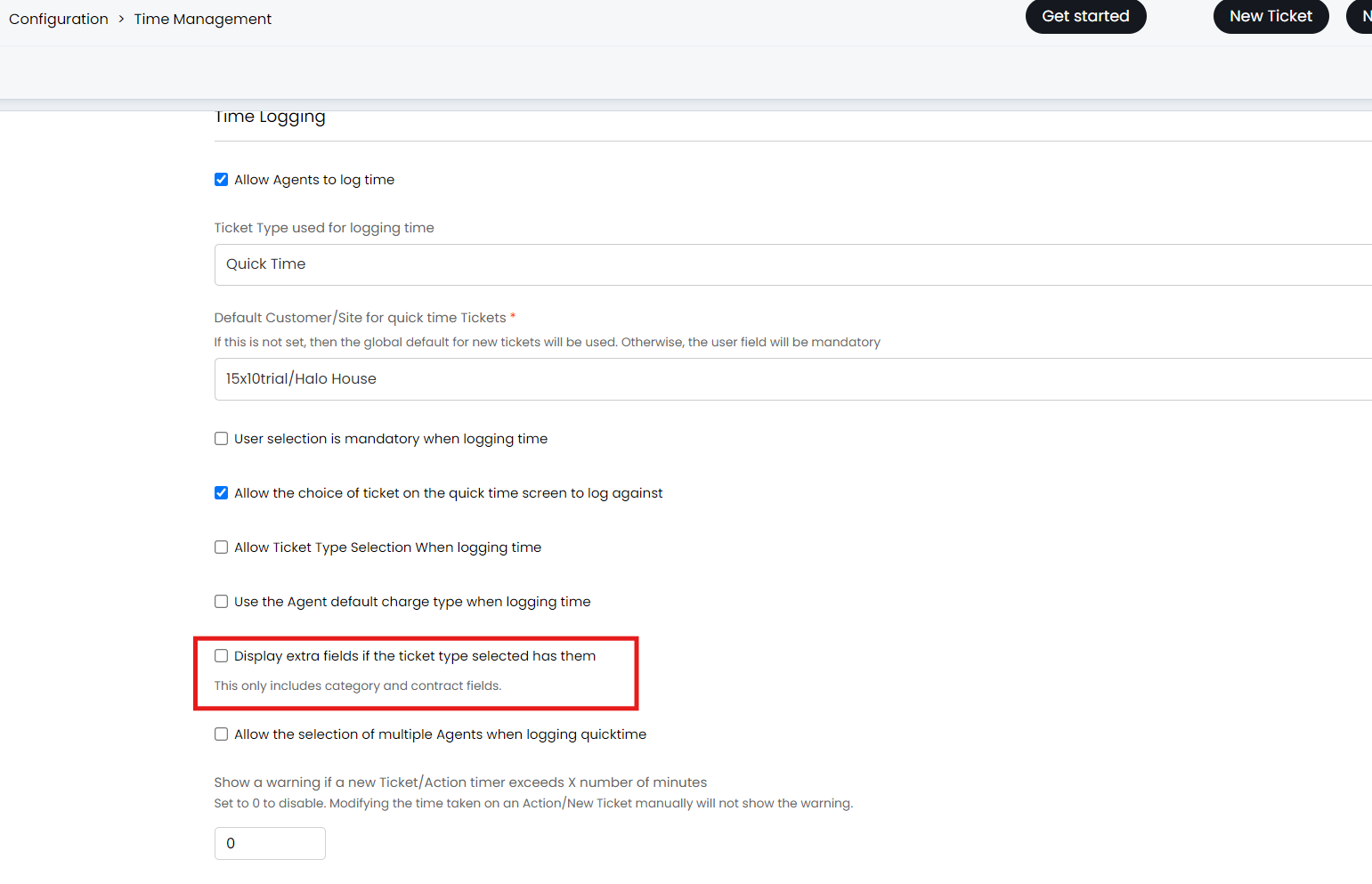
Fig 7. Display extra fields setting
If the ticket type selected for logging time has a category and/or contract field in it's field list, and this setting is enabled, the category and contract field will appear when logging a time entry.
To enable a choice of ticket type to be selected when logging time, enable the setting shown in Figure 6. This allows you to choose which ticket type time is logged under when you are not logging time against a specific ticket.
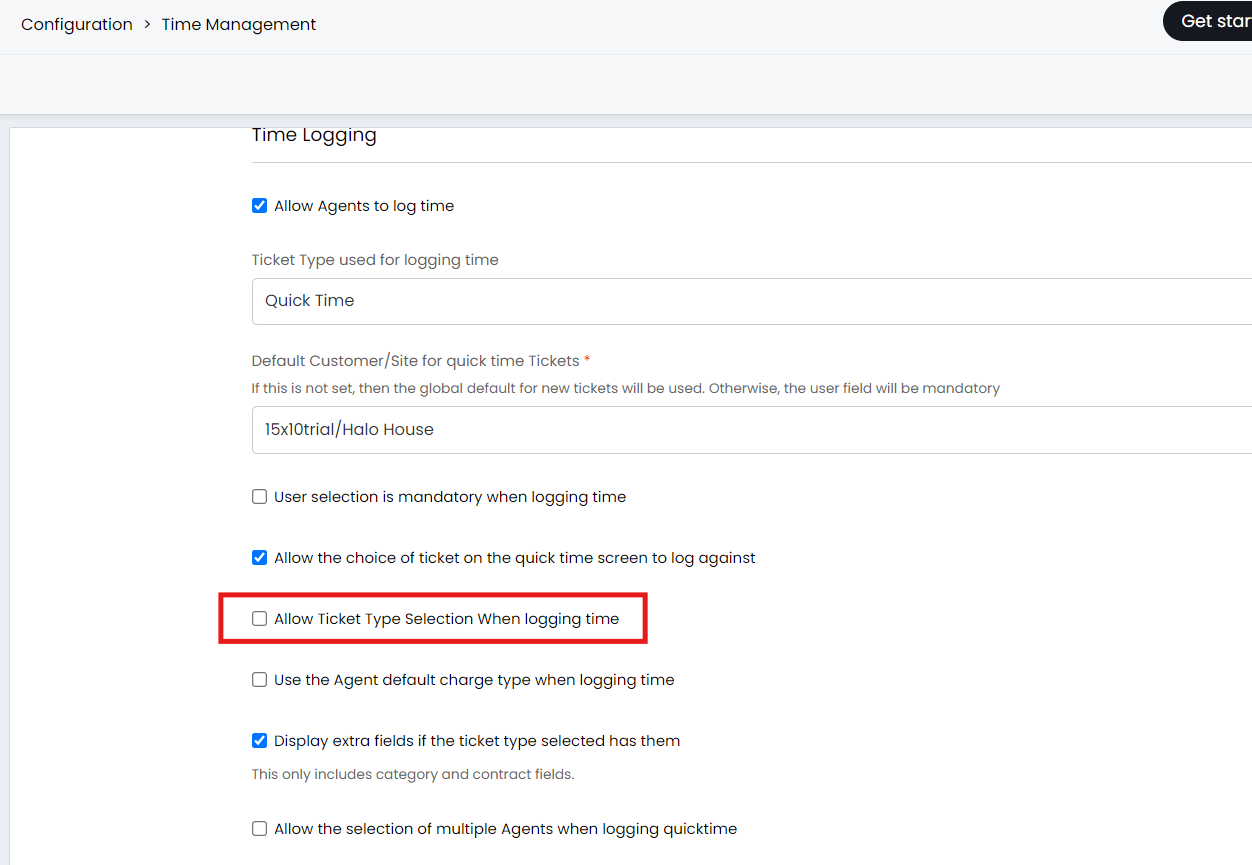
Fig 8. Setting to allow ticket type selection when creating a new ticket to log time against
To enable a field that allows time to be logged time against multiple agents, enable the setting shown in Figure 9.
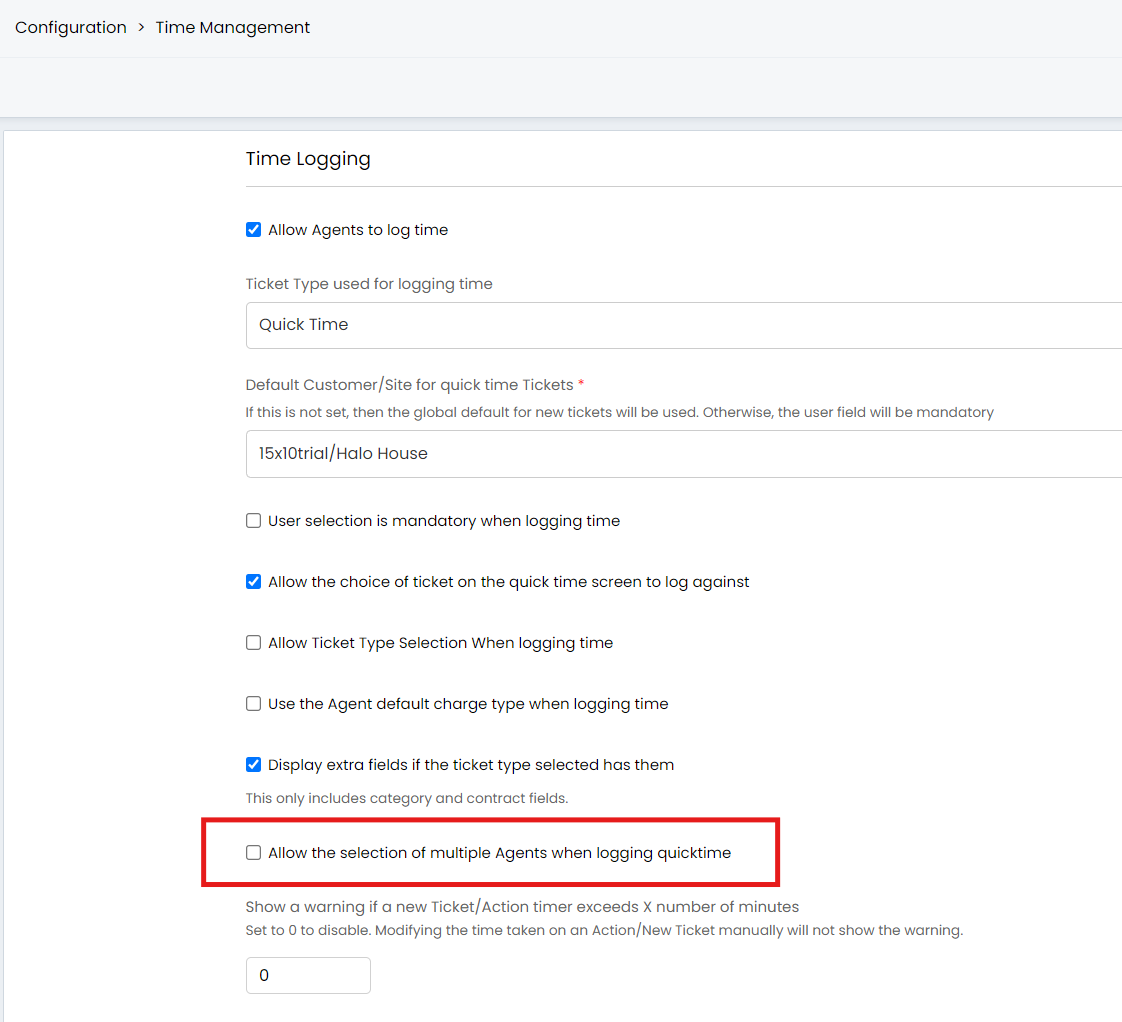
Fig 9. Setting to allow time to be logged against multiple agents
Set Warning if Time Taken on Action Exceeds a Set Amount of Time
Fig 10. Show warning is action time exceeds X minutes
The setting shown in Figure 10 can be configured with a chosen number of minutes. When set, this setting will cause a pop-up warning to appear if the 'time taken' action timer exceeds this amount of minutes. The warning will not appear if the 'time taken' field is set manually. The warning will also not appear when logging time from a timesheet. This is to prevent cases in which agents accidently leave actions open too long, causing the action timer to keep counting and the time taken on the action to be incorrect.
Setting Target Hours and Holidays
The target hours that appear on the timesheet is the total amount of hours that agent needs to log for that day. This is made up of the agent's working hours minus their break time.
To see an agents working hours and their break time head to Configuration > Teams & Agents > Agents > select an agent > Details tab. Here under 'Work Hours' you can see which working hours they have assigned, under 'Lunch Break Duration' you can see and set the number of hours they have for breaks.
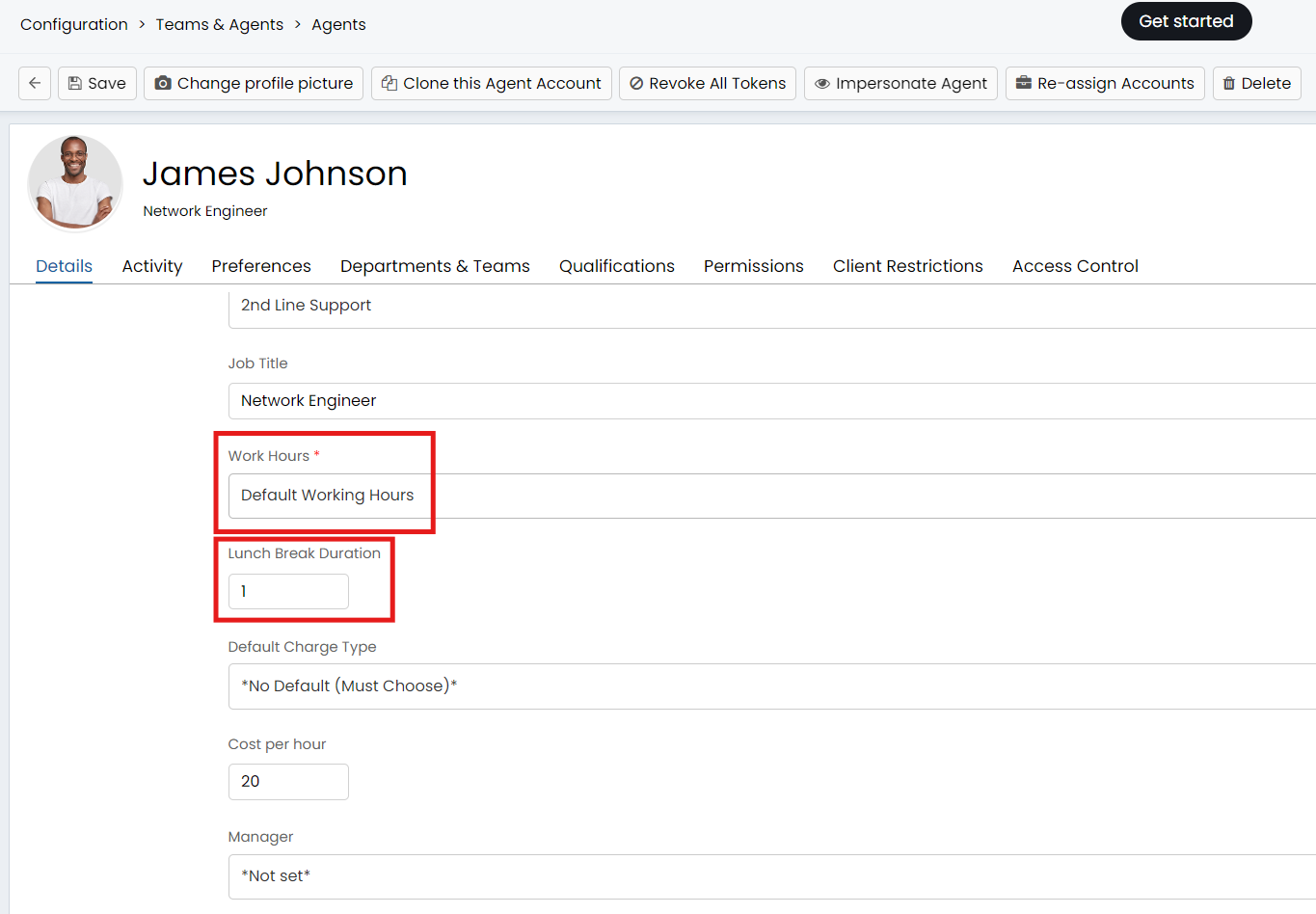
Fig 11. Agent working hours and Break
Head to Configuration > Teams and Agents > Workdays, to see the configured working hours you have. For this agent, the 'default working hours' are set to be Mon-Fri 9-5, so their target timesheet hours will be 7 hours a day (8-1).
Holidays are automatically taken into account on agents' timesheets. If an agent has holiday booked on a given day, their target hours will adjust in line with the holiday taken automatically.
In the Figure 12 example, an agent has booked an all day holiday for 02/03/26 therefore their target hours have been set to 0.
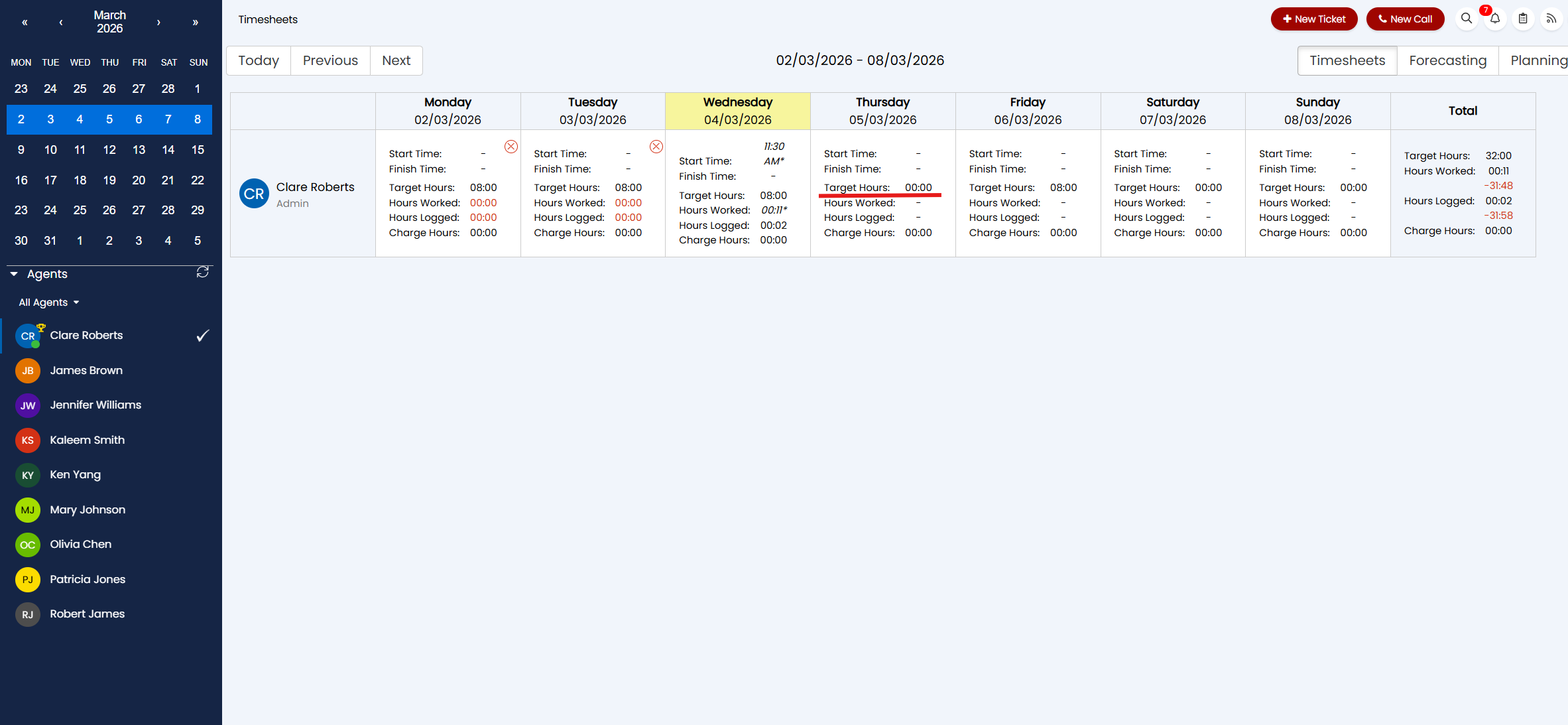
Fig 12. Target hours reflecting Holiday
If you would like to be able to view booked holidays from the timesheet module, navigate to Configuration > Time Management and ensure the checkbox setting "Include Holidays on the Timesheet" is enabled.
Once this setting is enabled, you will be able to click into a day on the agent's timesheet and see any holiday that is booked.
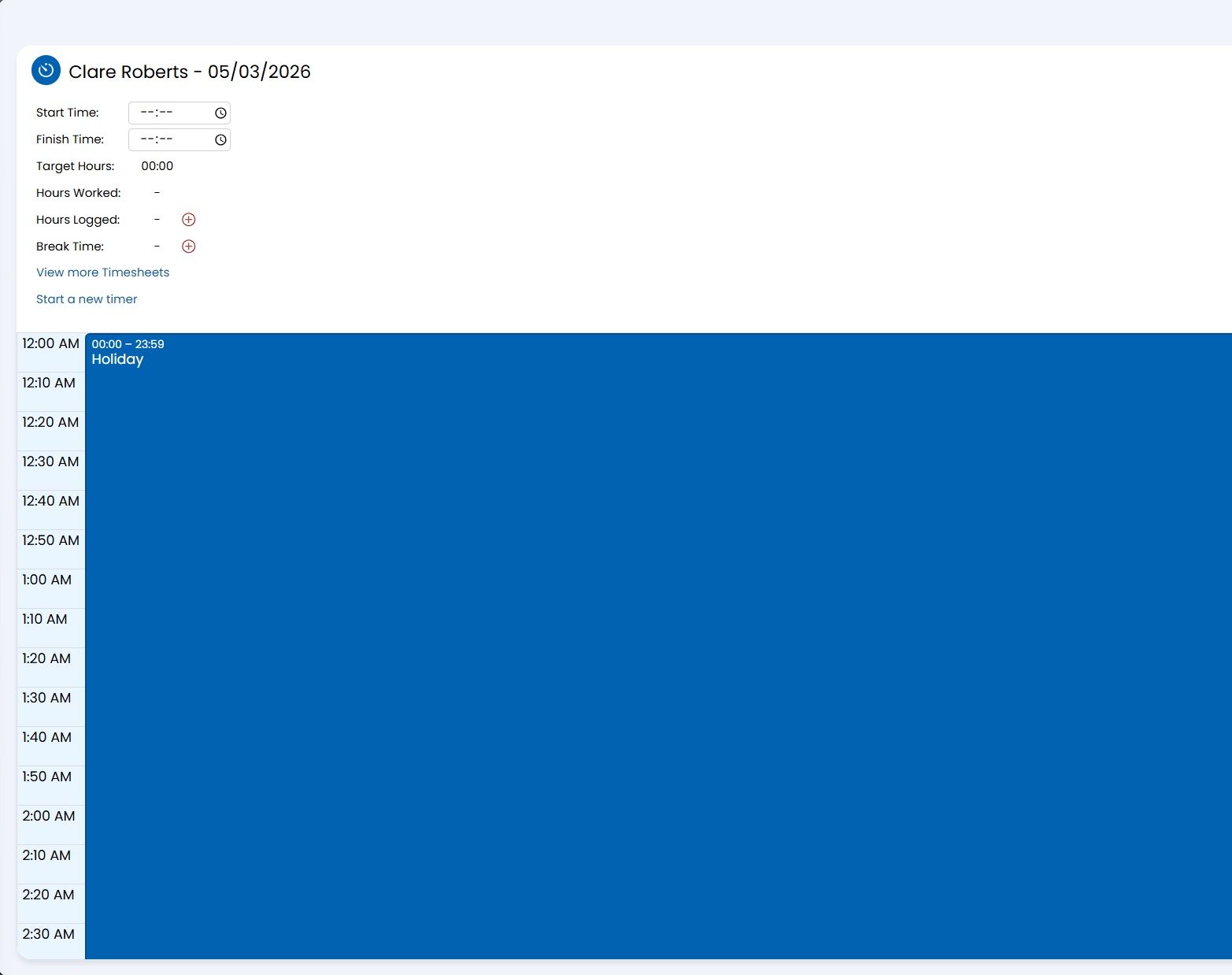
Fig 13. Holiday booked showing in Timesheet
Keep in mind on versions prior to v2.230 'All Day' holidays booked for a single day will not show on the timesheet, only partial days or 1+ day long holidays will show on the timesheet. From versions 2.230.1+ single day holidays will show on the timesheet.
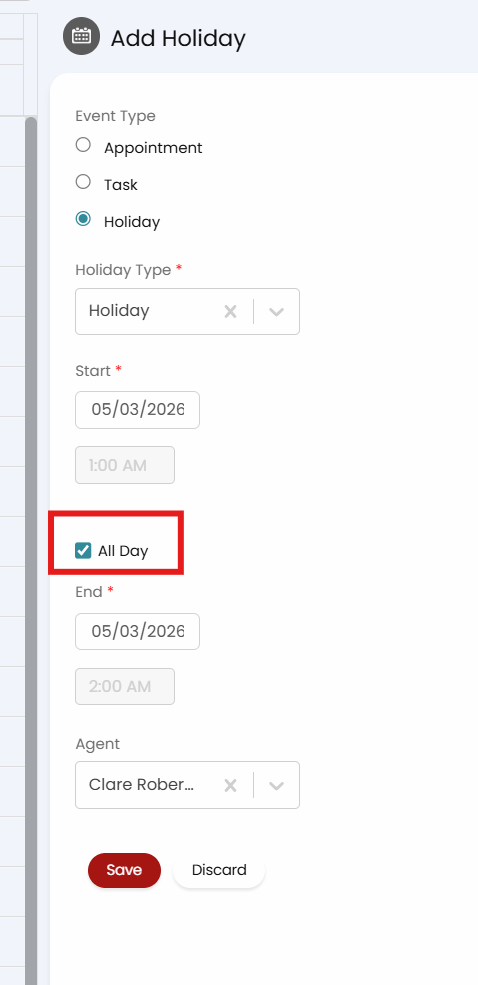
Fig 14. Setting when booking a holiday to set it to "All Day"
Note: If the Holiday Type of the Holiday an Agent is booking requires approval, then it will not show on an Agent's timesheet until it has been approved.
Timesheet Approvals
To be able to have agent submit their timesheets to a manager for approval, enable timesheet approvals in Configuration > Time Management.
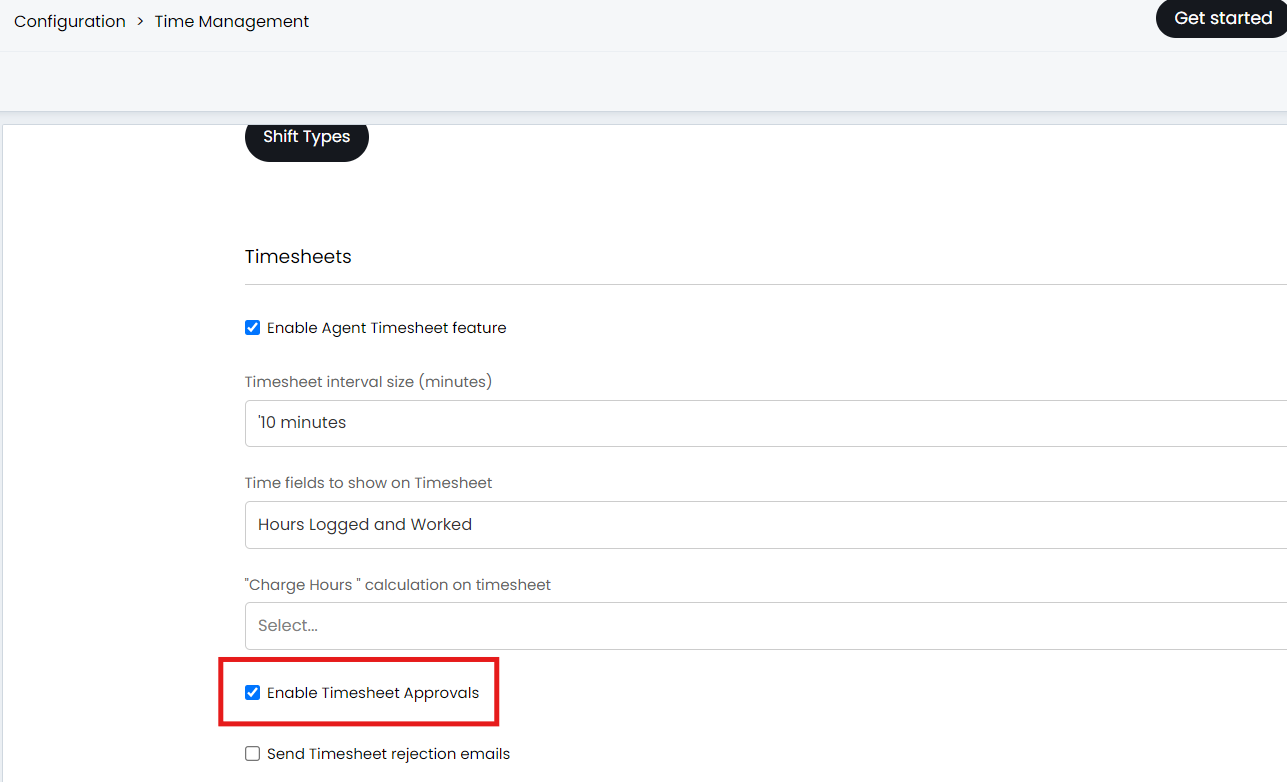
Fig 15. Timesheet approvals setting
Once enabled agents will have the option to 'submit' their timesheets, these are submitted from within the timesheets module. These can then be approved by the agent's manager. The agent's manager is set on the agent's profile in the 'manager' field under Configuration > Teams & Agents > Agents.
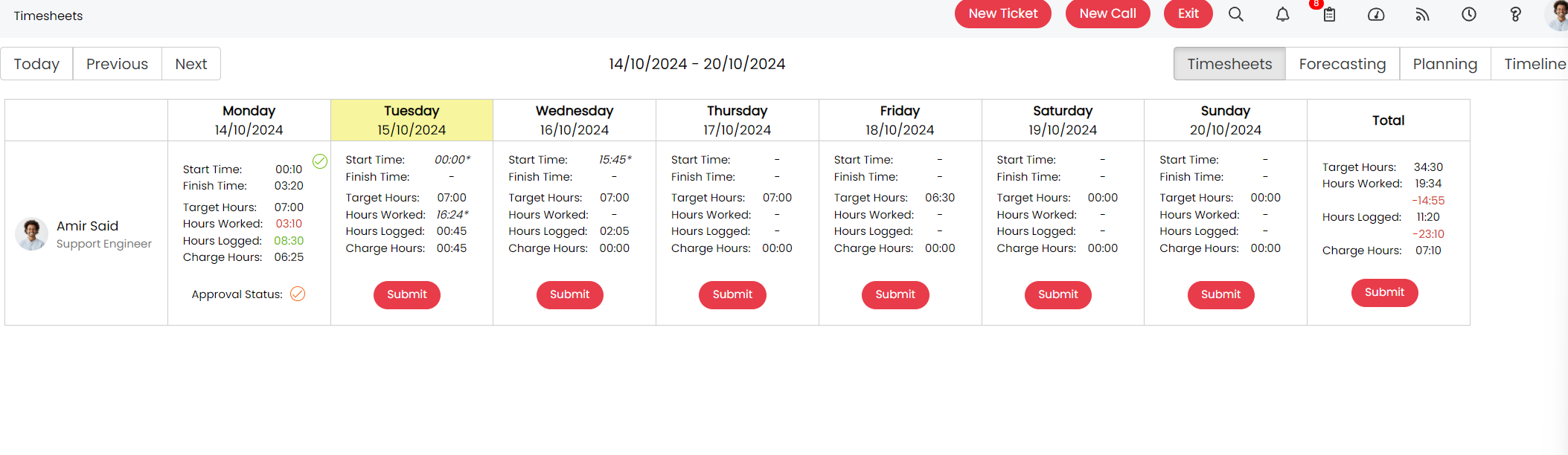
Fig 16. Agent view when submitting timesheets for approval
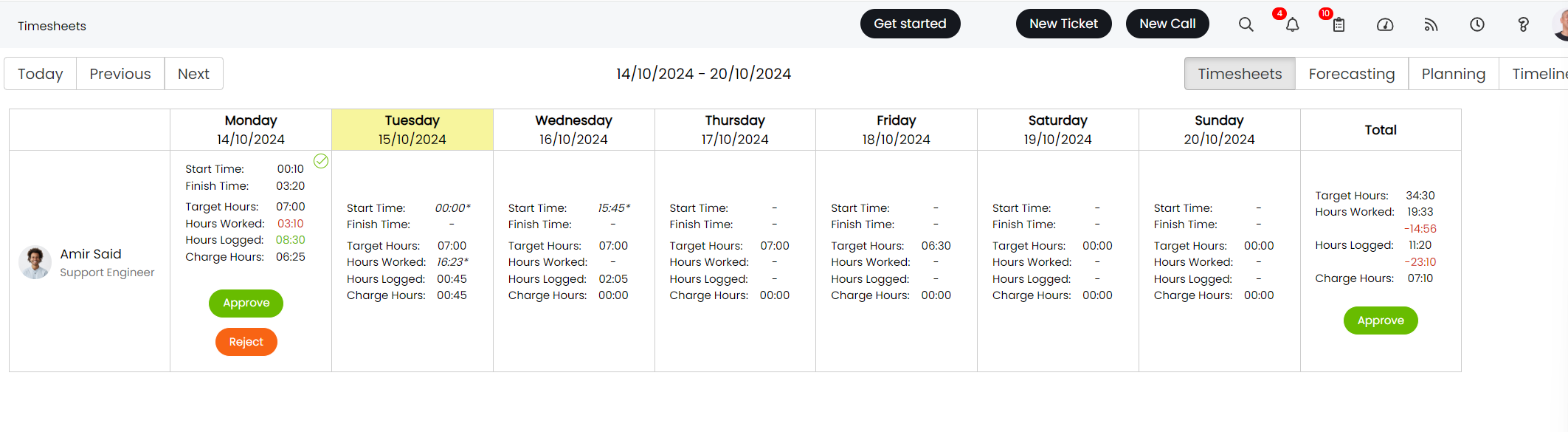
Fig 17. Approver view of timesheets
Timesheet approvals can also be used in conjunction with the settings in Figure 18, Configuration > Time Management.
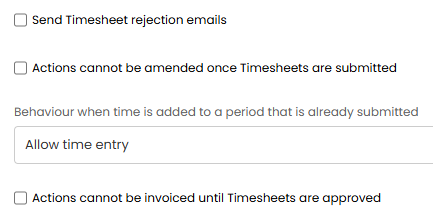
Fig 18. Additional settings to use with timesheet approvals
Send Timesheet rejection emails - Sends the agent an email when the approver has rejected their timesheets. The agent will then be able to amend their timesheet and re-submit for approval.
Actions cannot be amended once Timesheets are submitted - Prevents agents being able to edit any actions on tickets that have been submitted for timesheet approval.
Behaviour when time is added to a period that is already submitted: Choose what happens when an Agent tries to add a time entry to a timesheet that has already been submitted for approval. If set to 'Do not allow time entry and show a warning' Agents will not be able to edit existing time entries or add new time entries.
Actions cannot be invoiced until Timesheets are approved - Prevents a ticket from appearing in 'Ready For Invoicing' if there are actions against the ticket that have not been approved.
Incomplete Timesheets Notifications
Notifications can be configured to send to agents and/or their managers if their timesheets are not complete by a certain time. These notifications can only send out once a day.
First, in Configuration > Time Management, "Enable Incomplete Timesheet notifications".
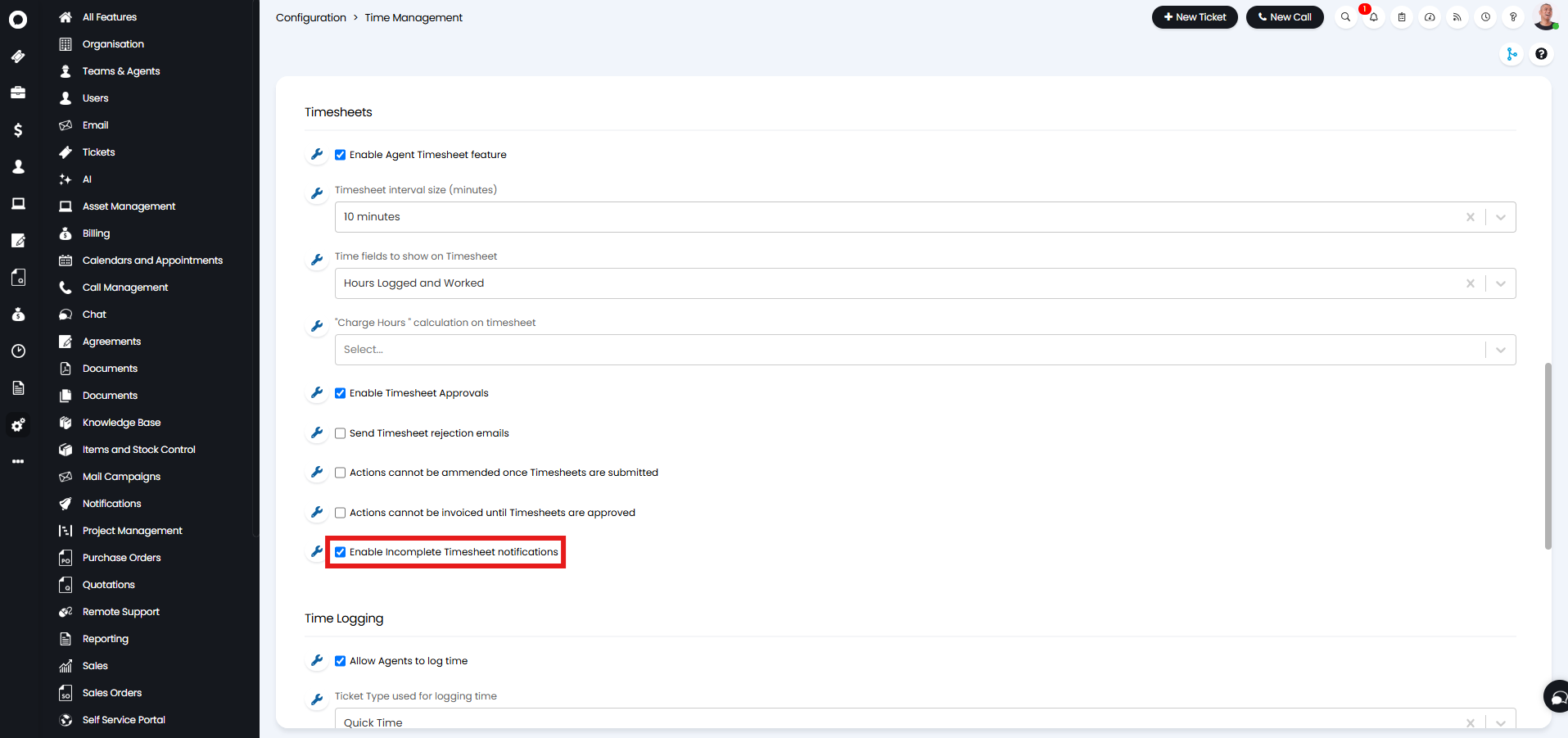
Fig 19. Enabling incomplete timesheet notifications
Then in Configuration > Teams & Agents > Agents, select the agent you wish to enable this for.
There are two options:
- "Send notification email when my Timesheet is incomplete", which will enable it for that agent to get notifications sent to themselves for their own incomplete timesheets.
- "Send notification email when Agents I manage have incomplete Timesheets", which will send that agent notifications when the agents they manage have incomplete timesheets.
Enabling either of these options will cause the two settings underneath to show - "Incomplete Timesheet Threshold (%)" and "Time to send incomplete Timesheet notification(s)".
The percentage field is where you set how much of the timesheet is considered "complete". The maximum is 100%, which would mean the full target hours would need to be reached for the notification to not be triggered.
The time field is where you set when the notifications will go to that agent. Since this is set per agent, they can be different between agents.
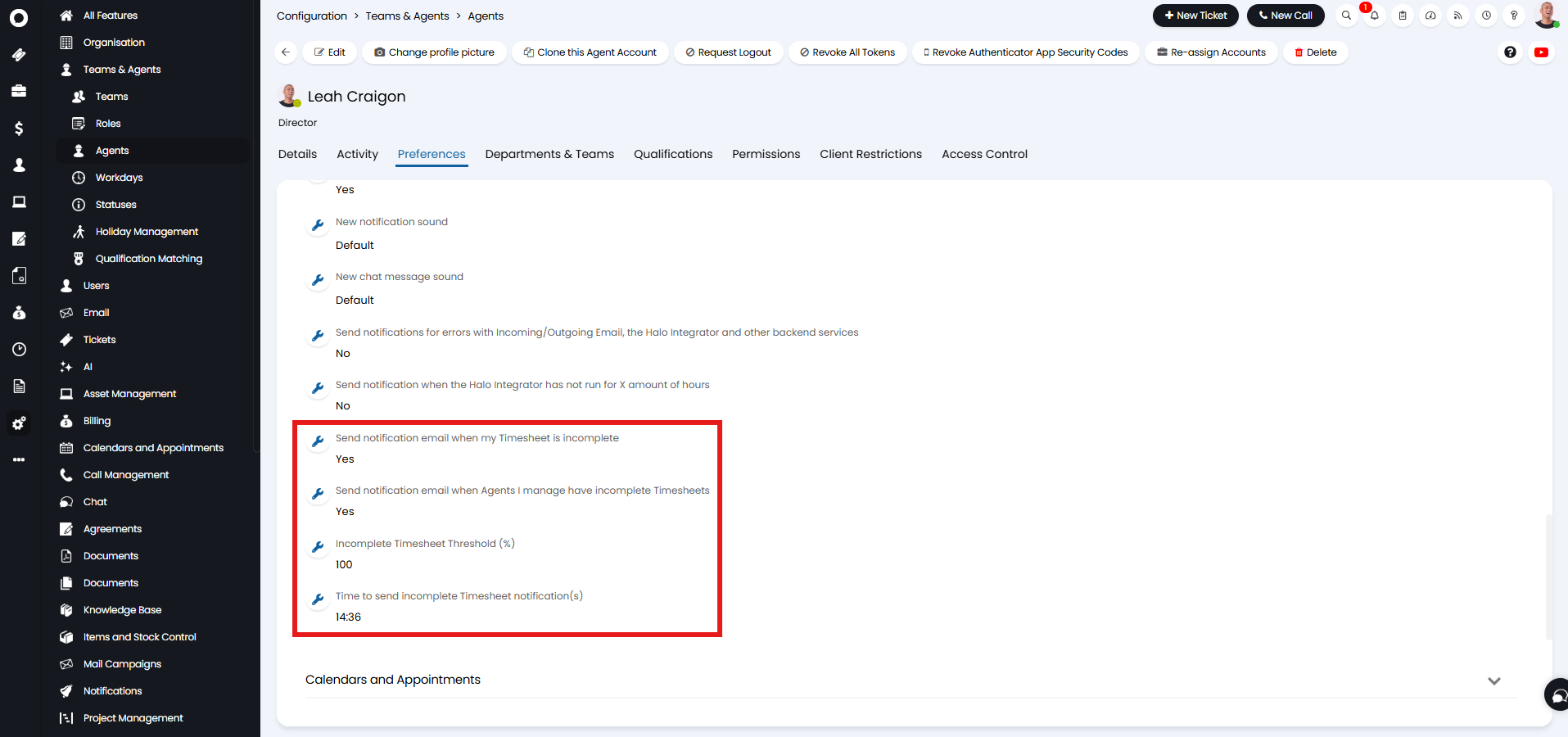
Fig 20. Enabling incomplete timesheet notifications per agent
This email will then be sent to your agents at that time, with what percentage their timesheet is complete based on their target hours.
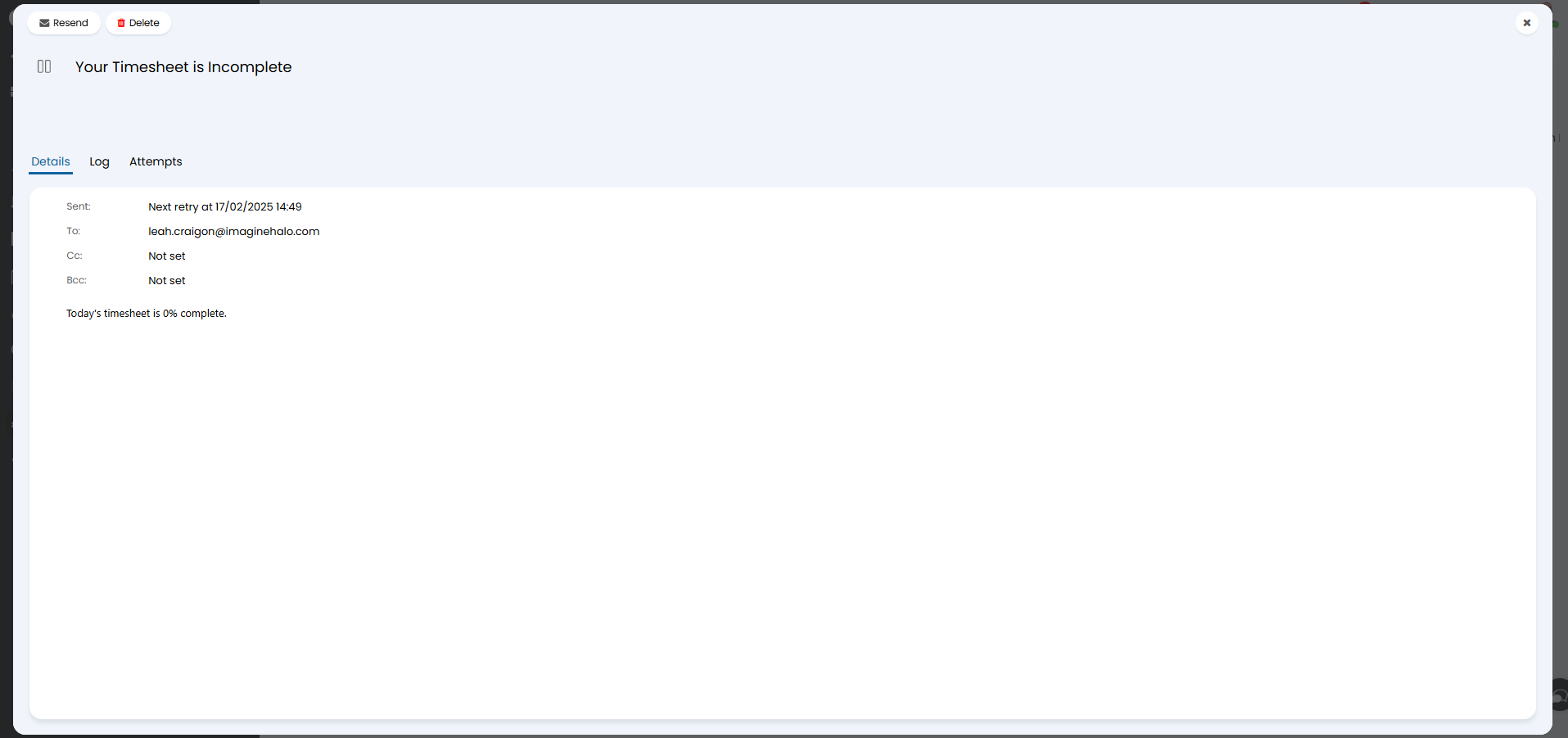
Fig 21. Incomplete timesheet email
It will also send them an in-app notification in the notifications pane.
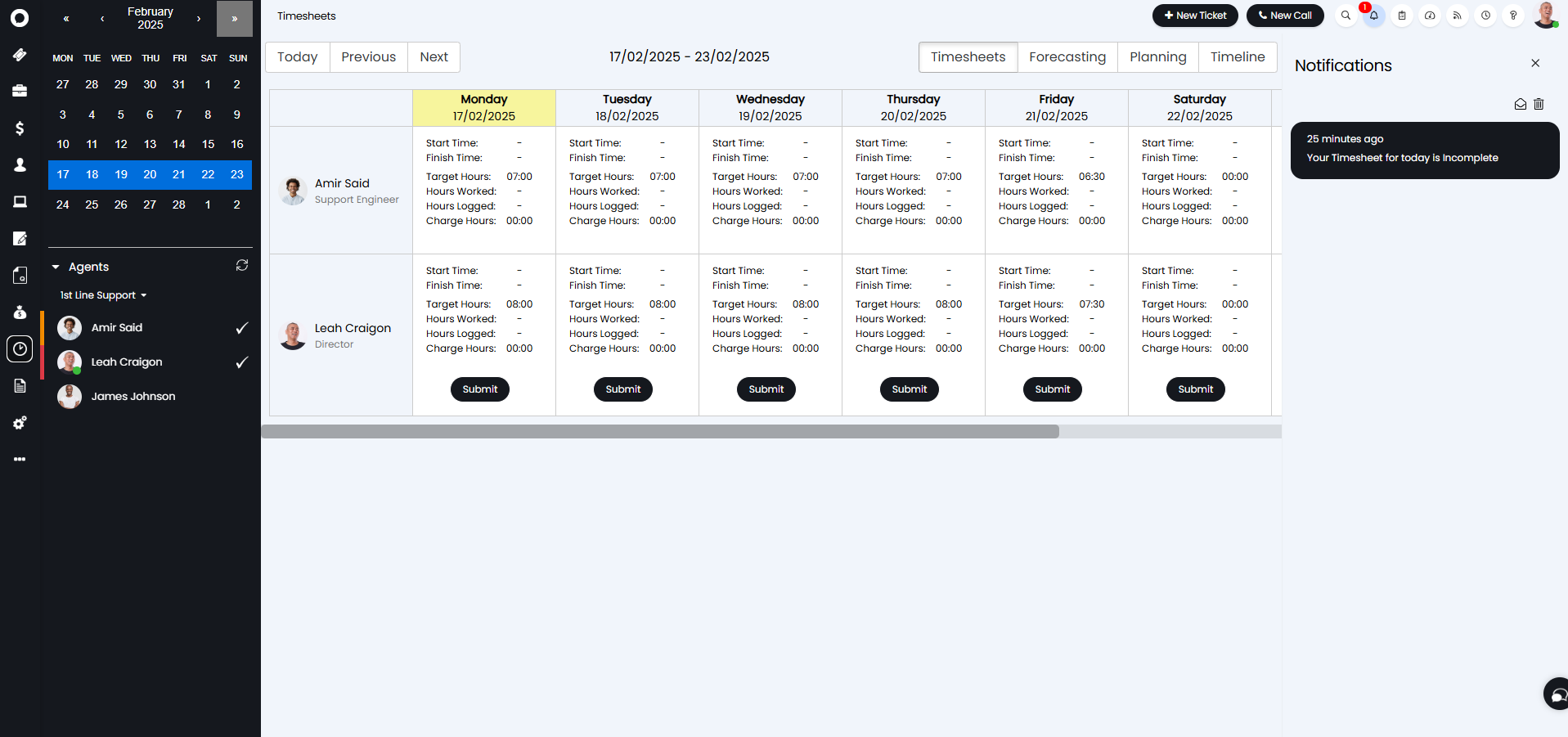
Fig 22. Incomplete timesheet in-app notification