Customising the Navigation Menu in Halo
- navigation menu
- module bar
- areas
- screen layout
In this guide we will cover:
- Ticket/ Navigation Areas
- Configuring Ticket Areas
- Navigation Menu Layout
- Creating Navigation Profiles for Other Entities
- Override the Screen Layouts Per Agent
- Creating a Custom URL Navigation Module
- Setting the Module in the List
- Opening in a New Tab
Configuration Settings:
What is a Ticket/ Navigation Area
Ticket areas are a way of categorising tickets into different modules on the left hand sidebar of the agent application. For example you may want to capture an HR ticket area separate from the service desk of course, which is only visible to the HR team.
There may also be a need to rearrange the order in which the navigation menu buttons display, for example many customers prefer to have the configuration button exist at the top of the navigation menu, this can be achieved by using the custom screen layout profiles for the navigation menu.
 Fig 1. Halo Areas
The large icons with the names of the module for each module of the Navigation menu, can be configured by going into an agents preferences and changing the appearance.
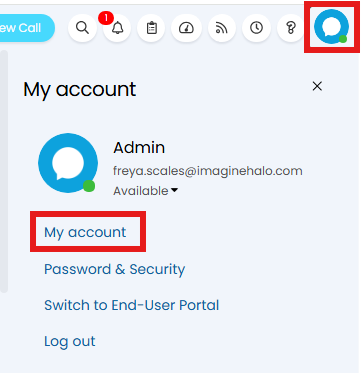 Fig 2. Agent Account Settings
The option to choose for the Navigation menu display should be "Large icons with labels".
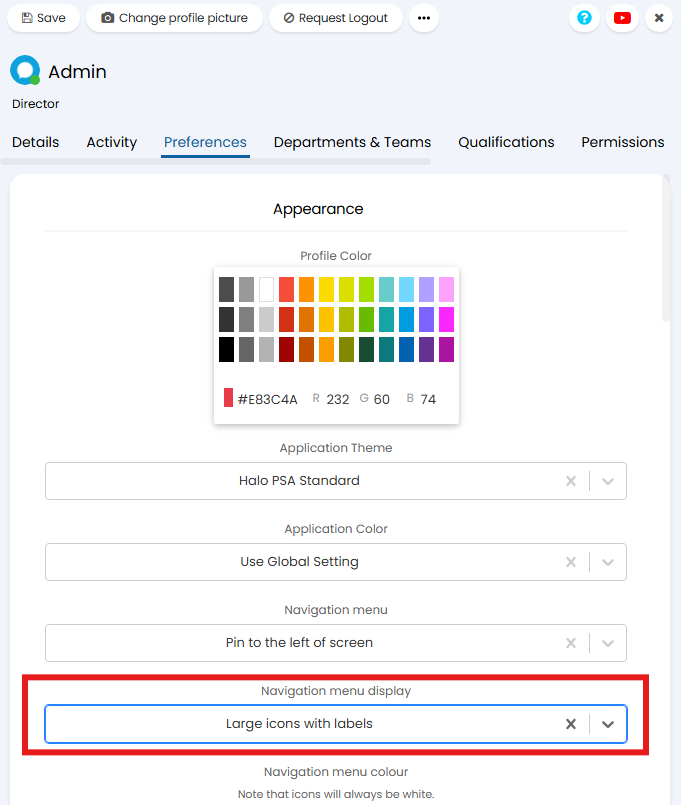 Fig 3. Configuring The Navigation Menu (Left Sidebar)
This can be set globally in Configuration > Advanced Settings but the agent preference will override this setting:
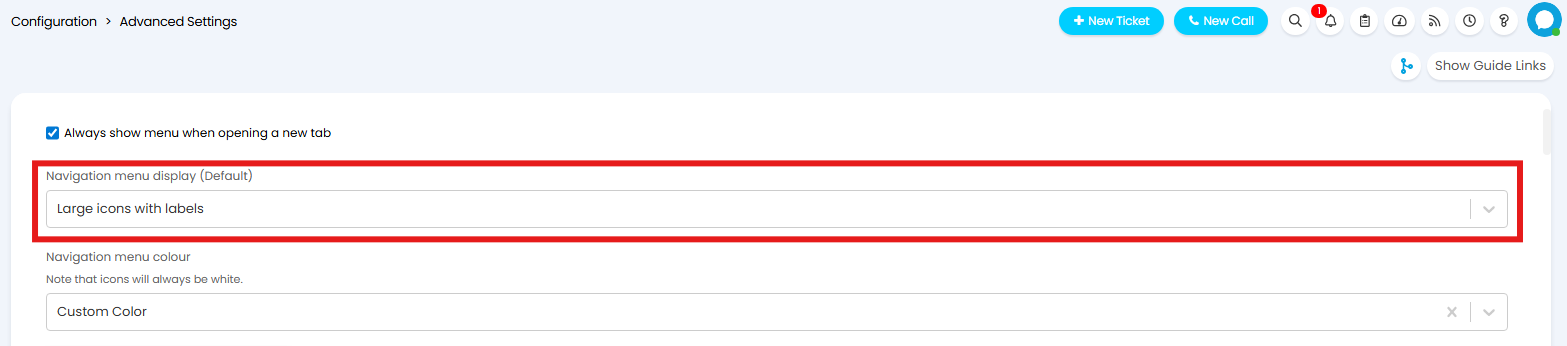
Fig 4. Configuring The Navigation Menu Globally
Configuring Ticket Areas
If there is no use for i.e. the Project area on your instance, this area can be deleted by going into the ticket area (Configuration > Tickets > Ticket Areas) going into the specified area and clicking delete, which can be found on the action bar on the top left. Checkout this guide on Ticket Areas.
Ticket areas include different filters so that you can decide which ticket types will be visible in the area and which teams have the area on their left hand sidebar. To configure the ticket types and teams, click into a ticket area and click on the filters tab in order to define which types of tickets will appear in this list. The permissions tab determines the teams that will have access to the area. The permissions tab can also be based on role restrictions. This is useful if you want to give access to a larger group of agents.
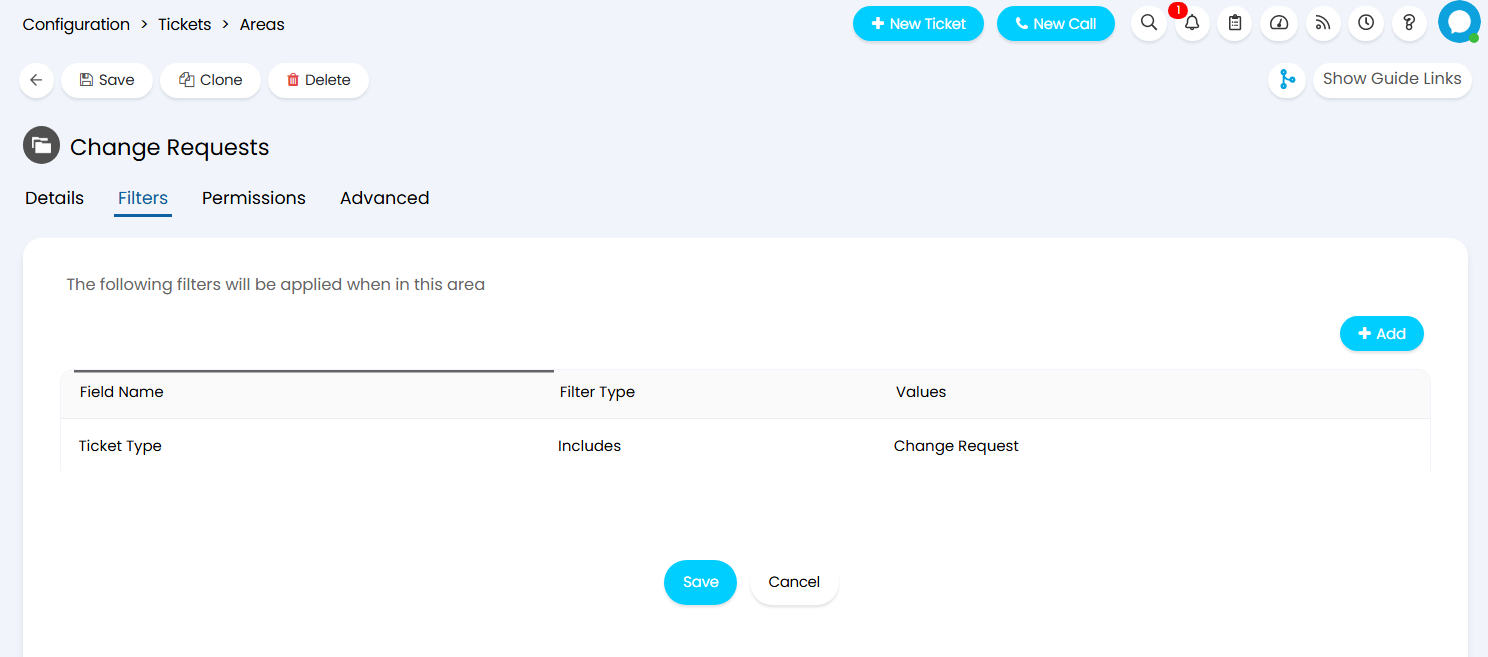
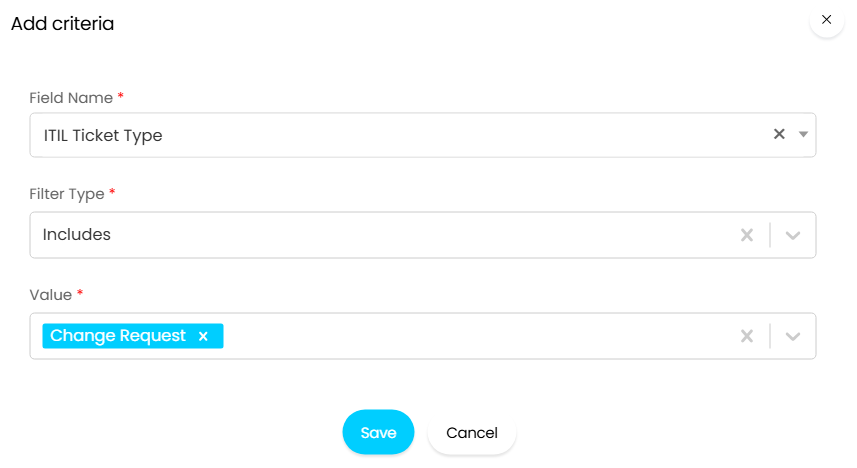 Fig 5 and 6. Configuring Filters For The Area
If you want to encapsulate all ITIL ticket types that are change requests, this can be done by adding the ITIL filter on the specific ticket area. This ITIL filter will capture all change request tickets if they have the change request ITIL type.
If a new ticket area is added it will show in the overflow view by default, you must change this by going to the Screen Layout Profile, finding the area in the profile and edit the line. To do this head to Configuration > Advanced Settings, and click the"Screen Layout Profiles" Button. Here change the entity to"Navigation Menu".
Note: If this is the first time using the navigation menu, you will need to create a new custom navigation menu, which is explained in the "Navigation Menu Layout" section below.

Fig 7. Navigation Menu List
Open your Navigation Menu, and select the Button Layout tab. The Button Layout will need to be set to "Custom". Here edit the lines using the pencil icon to determine where they will show. more explanation of the navigation menu is detailed in the next section. To change the order in which the Areas show use the 8 dots to drag and drop them in order.
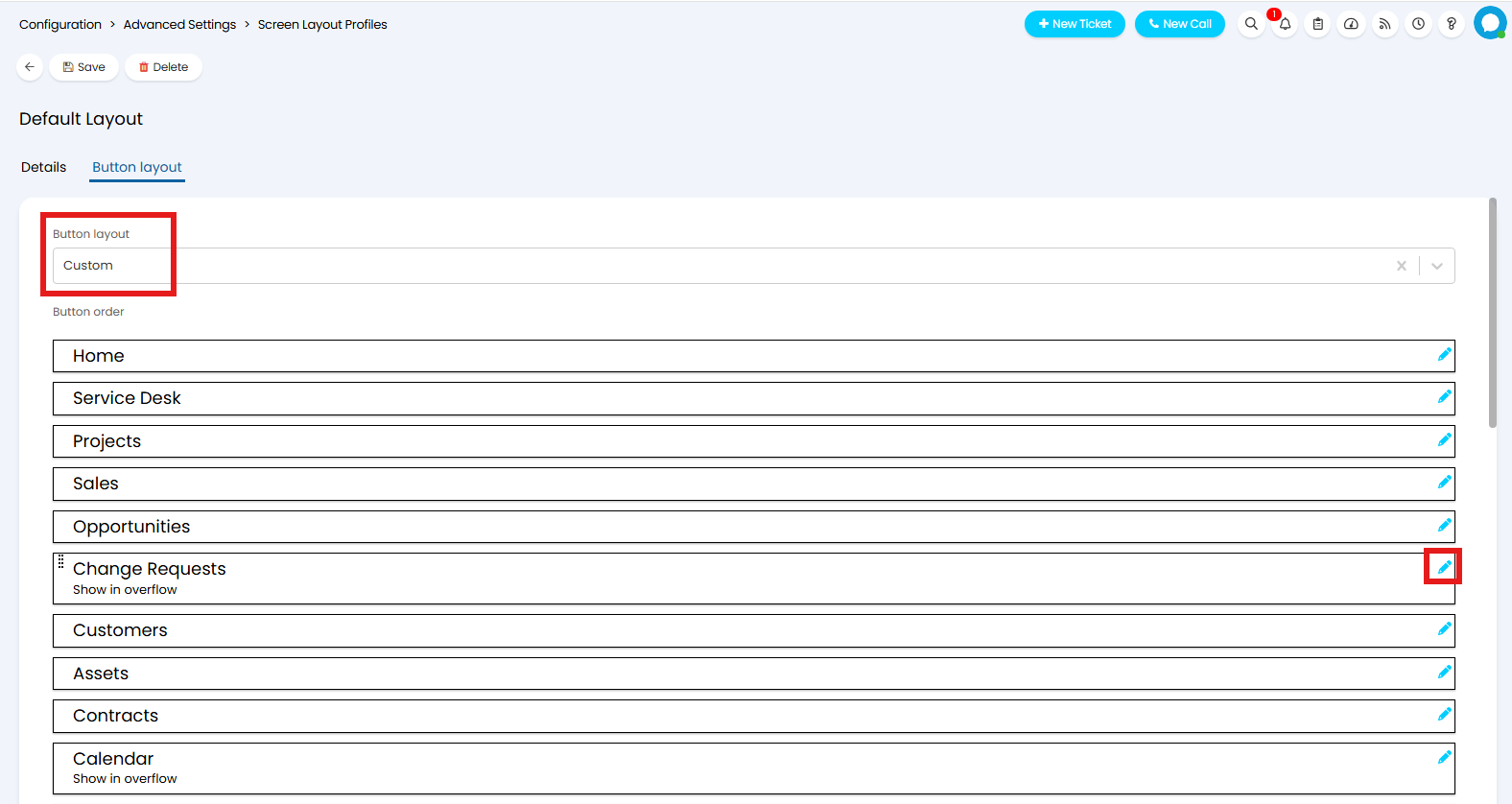
Fig 8. The New Area Showing in Overflow
Changing the view to "Show on Menu", will mean once applied the Navigation Menu will include this area.
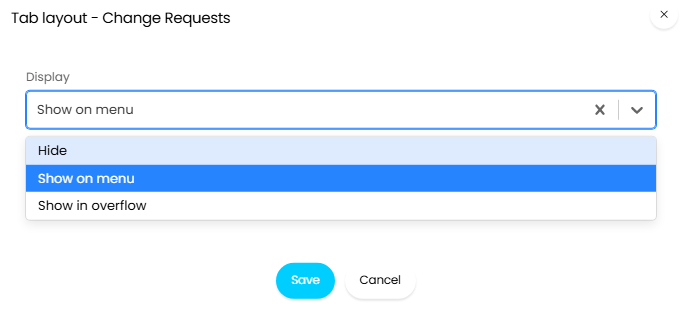
Fig 9. Changing The Tab to Show in The Menu

Fig 10. New Ticket Area Showing in List
You can also choose to hide the modules or add them to the overflow section. The overflow section appears at the bottom of the navigation menu in the form of an ellipse.
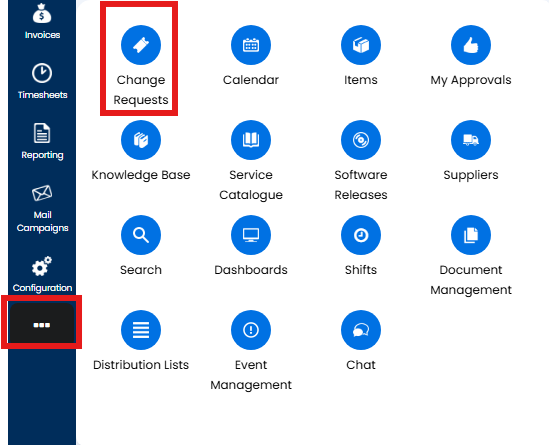 Fig 16. Navigation Menu Overflow Area
To add the newly configured navigation menu, head back to advanced settings and change the navigation menu, after refreshing the page, the Navigation Menu will be updated to reflect the custom menu you have selected.
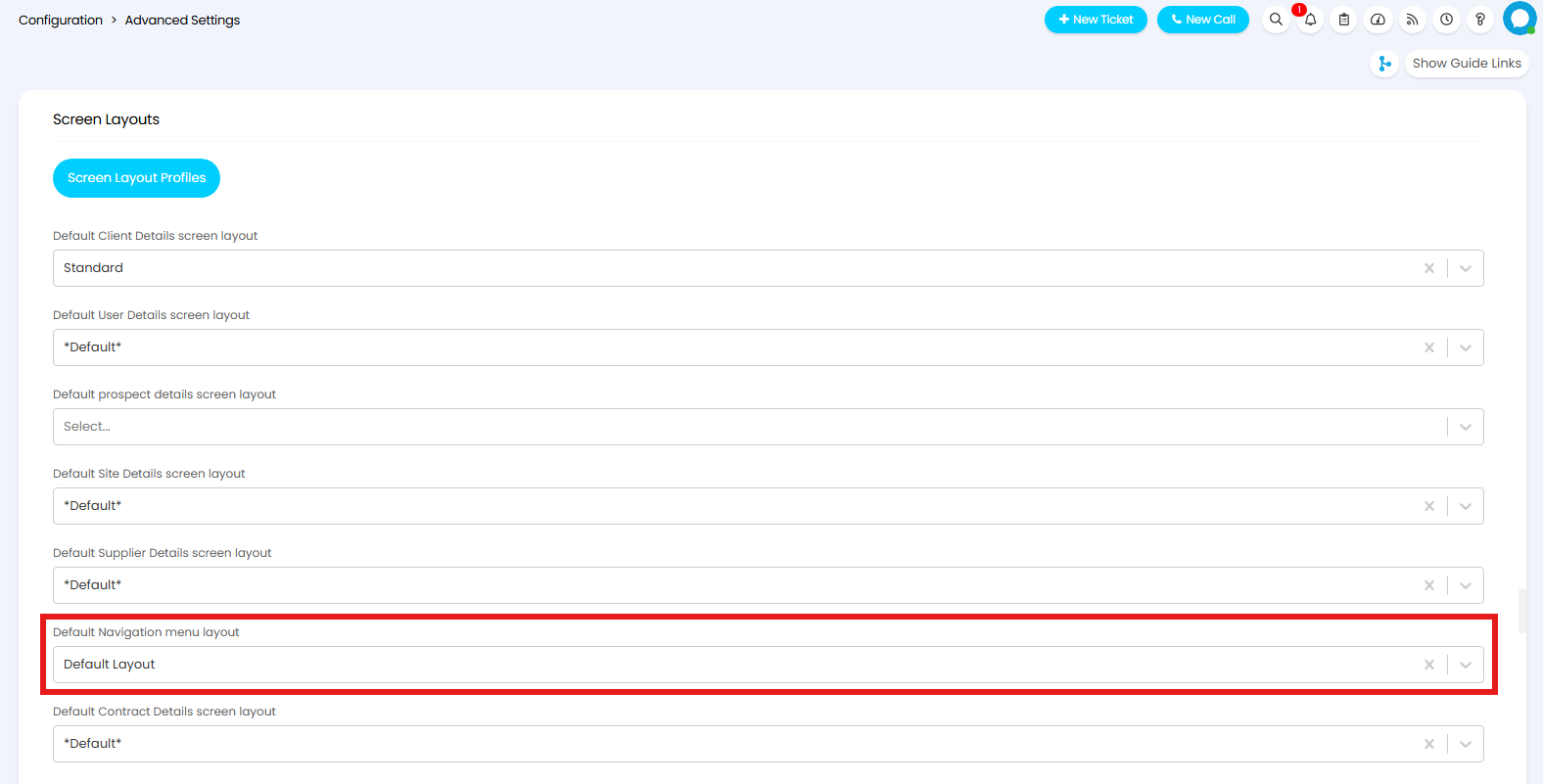
Fig 17. Adding The New Menu Layout
For all entities, excluding navigation menu, a screen layout profile can be created/edited to change which tabs appear and the order of the tabs under the entity. This is useful in streamlining the data available against an entity.
Setting a screen layout profile will make the custom layout an available option, each profile will then need to be set against a customer or an agent to take effect.
Override the Screen Layouts Per Agent
This will determine the screen layout profile that is used for a particular agent, different profiles can be set for each agent.
You can do this from the configuration menu, or you can click the agent profile icon in the top right of the screen and then click into "My Account".
Fig 18. My Account
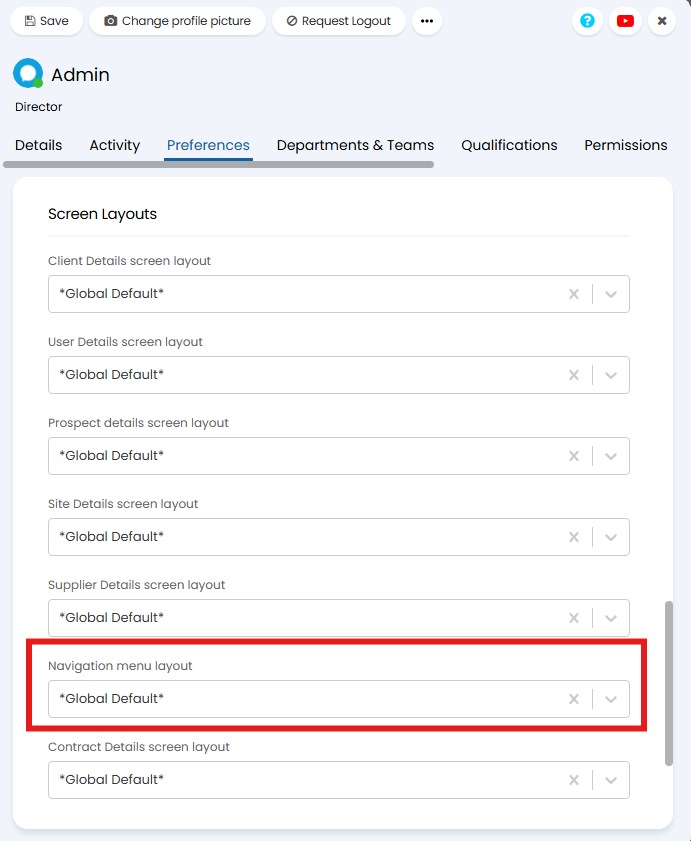
Fig 19. Alternatively go to: Configuration > Teams & Agents > Agents > *Click into the Preferences Tab*
Within Halo, you can use custom tabs with external websites attached, that can be stored in the main navigation menu on the left hand side of your Halo screen.
Creating a Custom URL Navigation Button
Custom Buttons can be added from the Custom Tab configuration area, when the "Navigation Bar" entity is selected.
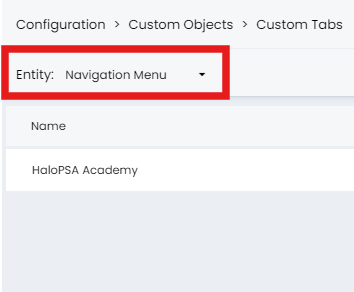
Fig 20. Custom tab configuration area > change entity to Navigation Menu.
We can then create a new tab and attach a URL to it in order to use this custom navigation button functionality.
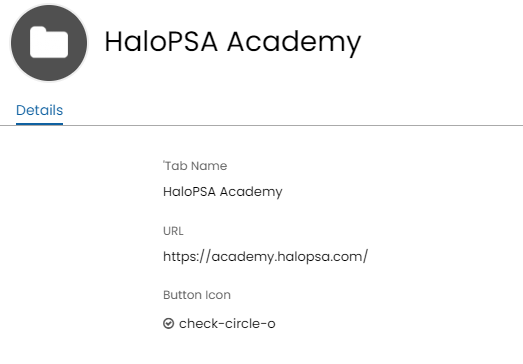
Fig 21. New tab setup.
Setting the Button
After adding a new Custom Tab, you can decide where to show the Button on custom navigation menus in the Screen Layout profile configuration. First navigate to the Configuration > Advanced Settings, and then down to the button called "Screen Layout Profiles".
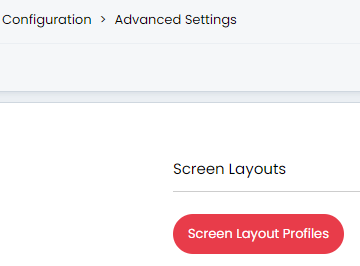
Fig 22. Screen Layout Profiles button.
Then from here choose the entity type "Navigation Menu", create a new layout, or edit your current one. Make sure to change the button layout to "Custom" in order to make the navigation menu customisable.
Scrolling down the list you will find your Custom Tab, from here you can set it to show in the list and decide the order it will appear in the list. You can move it around by hovering until you see the dots on the left of the bar, then drag and drop it.
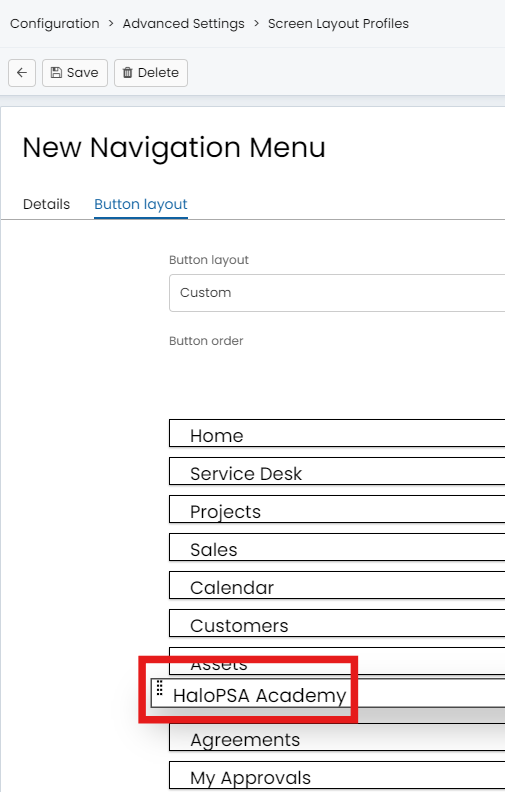
Fig 23. Configure navigation menu.
We can then choose which Layout to use from within Advanced Settings.
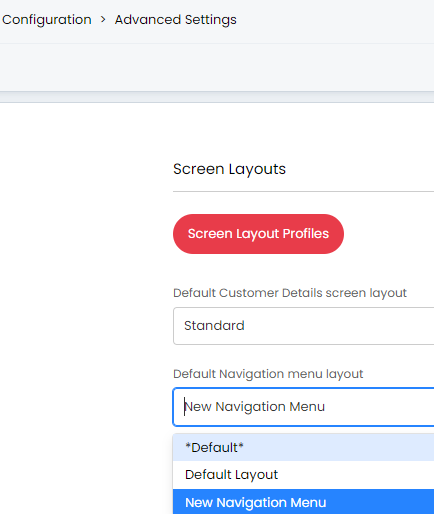
Fig 24. Set global default navigation menu.
Note: This can also be set per agent .
In this example, this will show a button.
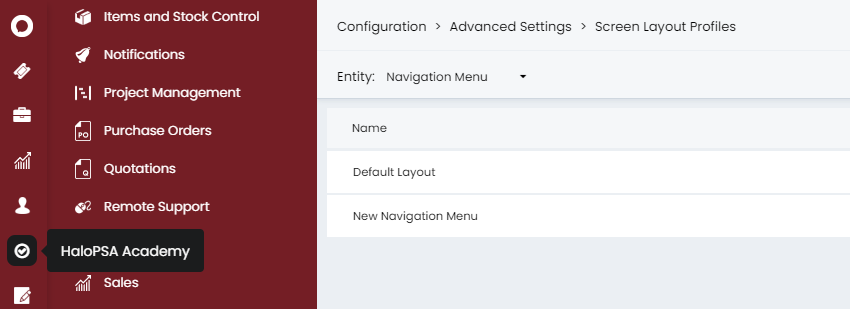
Fig 25. Button example
The Icon is configurable when creating the Custom Button, in this example the "check-circle-o" was chosen.
Opening in a New Tab
Right click on the button to display the option to open on a new tab, this will stop you from losing your Halo tab:
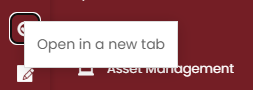
Fig 26. Right click on area to open link in a new tab
You can also open the links in a new tab automatically by enabling the "Open in a new tab" checkbox when creating the navigation menu link.
Note: If enabled, you will not be able to open the link in the same tab you are in, unlike when it is disabled and you can do both with the right click.
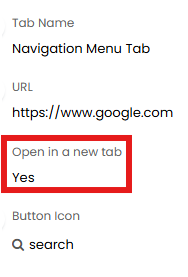
Fig 27. Configuring link to open in a new tab.